> For the complete documentation index, see [llms.txt](https://knowledgebase.autorabit.com/llms.txt). Markdown versions of documentation pages are available by appending `.md` to page URLs; this page is available as [Markdown](https://knowledgebase.autorabit.com/product-guides/arm-1/arm-features/deployment/connecting-and-syncing-salesforce-orgs.md).
# Connect & Sync Your Salesforce Orgs
The **Deployment** screen is best viewed when the zoom setting is set to **80%** on your Chrome/Firefox browser.
> **Note:** To improve application performance and stability, ARM allows a maximum of **two Org Sync jobs to run concurrently**. Any additional Org Sync requests, whether initiated manually or through a schedule, are automatically queued and will start when one of the active jobs is completed. The queued status is displayed in the ARM UI.
### About Salesforce Org Synchronization
Salesforce Org synchronization allows teams to compare and align metadata between a source and a target Salesforce org to maintain consistency across environments. It identifies metadata differences and enables users to reconcile them efficiently.
**Example:** If a hotfix is implemented directly in Production after a deployment, discrepancies may arise between Production and Sandbox. Org Synchronization helps detect these differences and allows teams to update the source org accordingly, ensuring both environments remain aligned.
**This option is useful when:**
* Changes are made directly in Production.
* Multiple teams work across parallel environments.
* There is a need to prevent configuration drift.
* Deployments fail due to unexpected metadata differences.
* Preparing environments before a major release.
### How can I connect and sync metadata between two Salesforce orgs?
To perform org synchronization, follow these steps:
1. Log in to your ARM account.
2. Click on the **`Deployment`** tile on the left side of the screen.
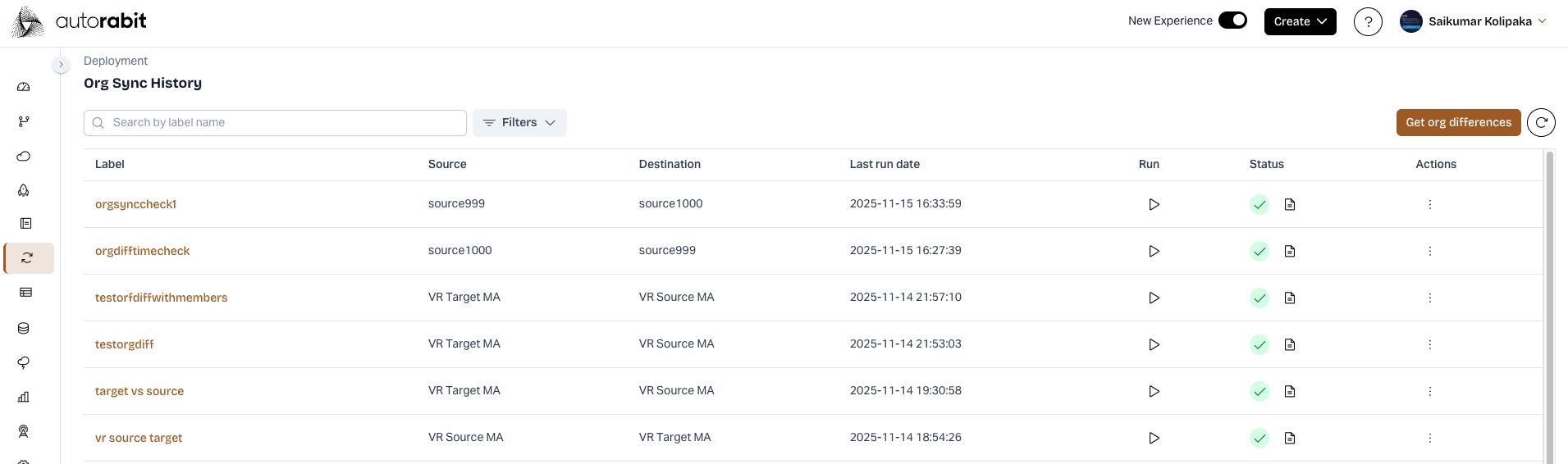
3. Go to the **`Org Synchronization History`** tab.
4. Click on the **`Get Org Differences`** call-to-action button.
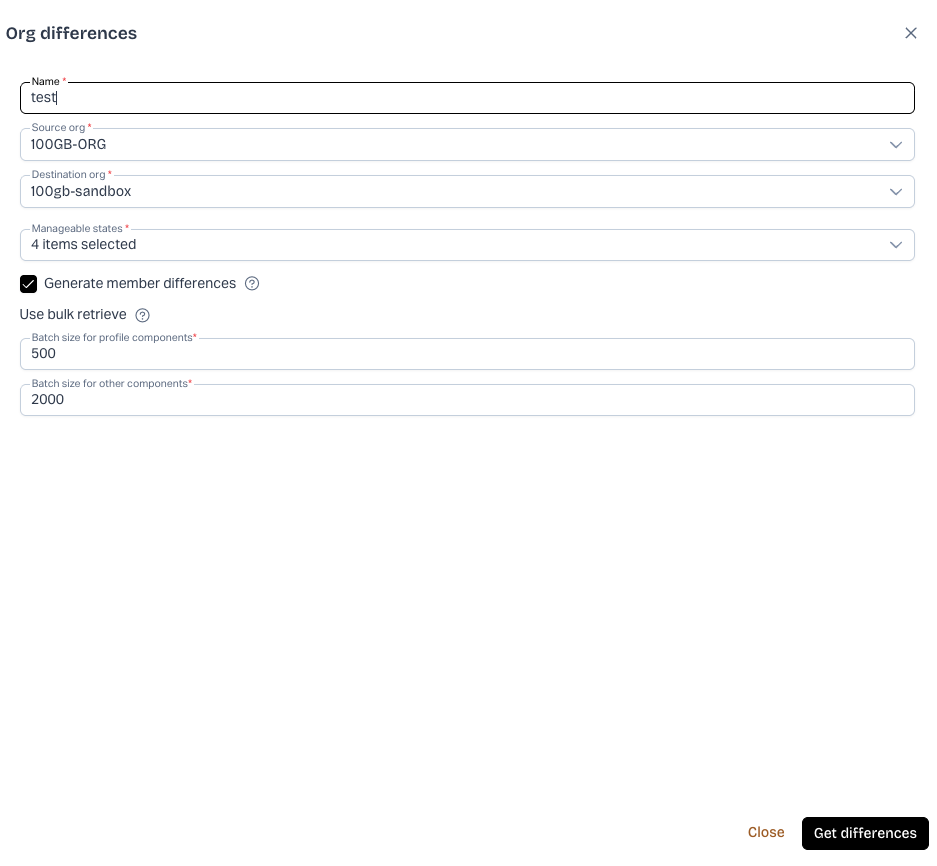
5. In the **`Org Differences`** dialog box, you will need to:
* Give the process a **`Name`**.
* Select your **`Source Org`** and **`Destination Org`**.
* Select the **`Exclude Baseline Managed Package Changes`** checkbox if you do not wish to include baseline Managed Package changes during org sync.
* Select the **`Generate Member Differences`** checkbox to view the metadata member's differences between two Salesforce orgs based on file/data-level comparison.
* Specify the **`Batch size for Profile Components`** and the **`Batch size for other Components`** to retrieve records. So, the default size for the profile is **500**, and for other components is **2,000**. You can modify it as per your requirement. The bulk retrieve option helps run large jobs that exceed normal processing limits – you can deploy up to **10,000 files** at once or a maximum size of **14MB**. Using batch size, you can process records in batches to stay within platform limits. If you have a lot of records, processing records through batches is the best option.
To go to the next screen, click the **`Get Differences`** button. The next screen may take some time, depending on the number of components in your org.\
6. On the next screen, you can:
* View the metadata list included in both source and target orgs.
* Add or delete metadata components to/from the target org.
* View the metadata member's difference report (if any).
7. Once done with your selection, click on **`Synchronize Orgs`**.
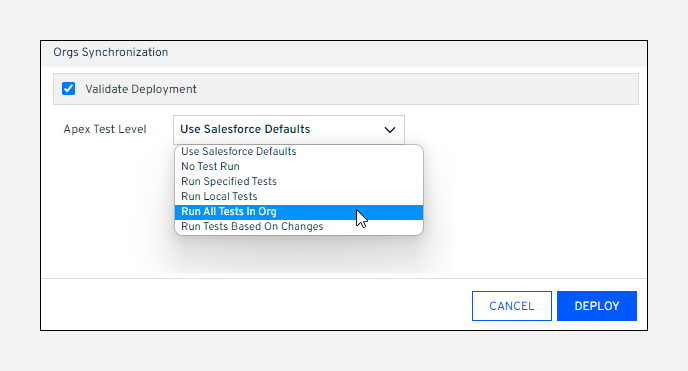
8. On the next screen, check the **`Validate Deployment`** checkbox to verify whether the synchronization process will be successful or fail. This is optional.
9. Select the **`Apex Test Level`** to validate your deployment. For detailed information on each Apex test level, refer to the article: [Run Apex Tests Before Deployment](https://knowledgebase.autorabit.com/product-guides/arm-1/arm-features/deployment/apex-unit-tests).
10. Click on **`Deploy`**.
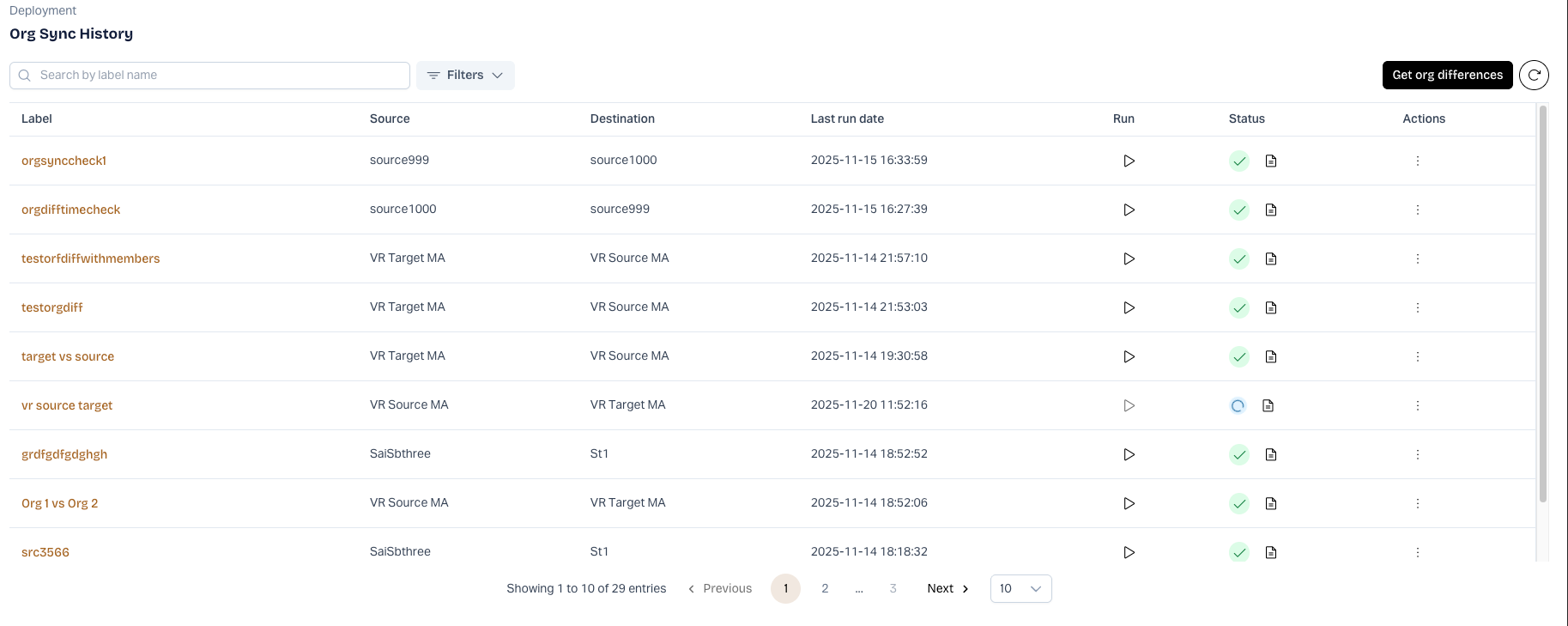
11. You'll be taken to the [Track Deployment History](/product-guides/arm-1/arm-features/deployment/monitor-deployments.md) page, where the current synchronization progress can be seen.
### More information on the Org Synchronization Summary page
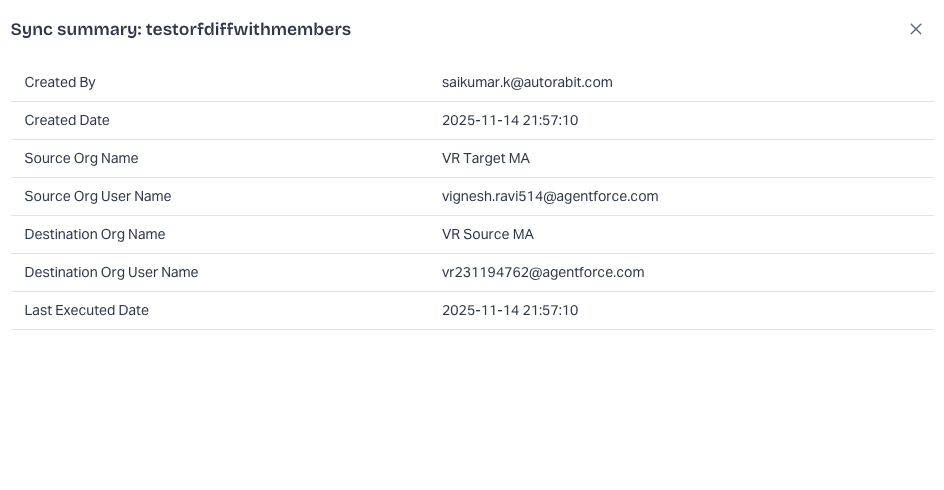
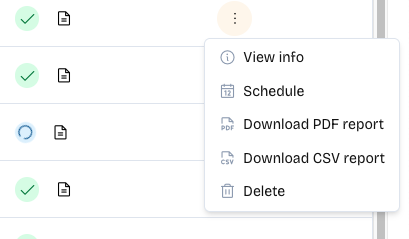
Synchronization summary information, such as label name, source org, destination org, etc., can be seen on the **`Org Synchronization History`** page. Additional options are available, such as View Info, Schedule, Delete, Download PDF Report, and Download CSV Report, by clicking the three dot (...) menu corresponding to a particular job on the Org Synchronization Summary Page.
1. **`Info:`** Click the  icon to view the detailed synchronization report.\
2. **`Delete:`** Click on the  icon to delete a sync process. A confirmation message is displayed asking whether you want to delete the label. This process cannot be undone.
3. **`Schedule:`** Click the  icon to set up when you want to carry out the org synchronization process. On the scheduled date and time, the org synchronization process runs automatically, and voila, you have a repeating schedule.
4. **`Run:`** Click the  icon to rerun the org synchronization process.
5. **`Status:`**Status of the synchronization process, i.e., successful or failed.
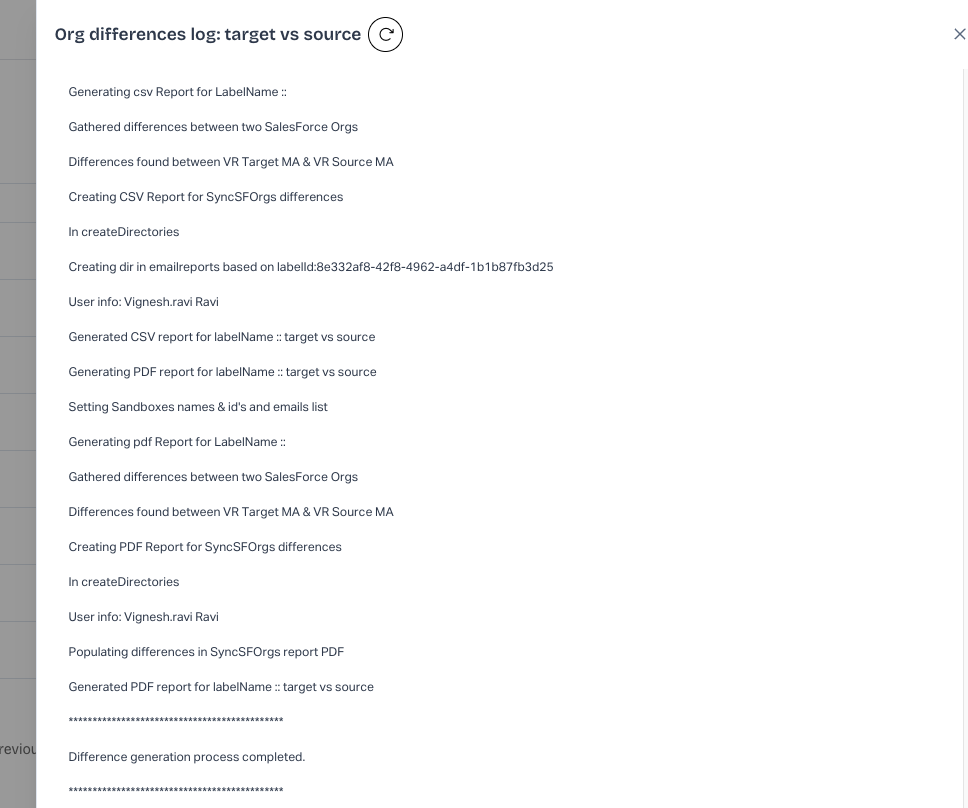
* **Log Report:** Click on the  icon under the **`Status`** column to view the log report for the sync process.
6. **`Report:`**There are two options in this column.
* Click on the icon to view the metadata components difference report between the source and the target org.
* Click on the icon to download the Diff report in your local system (in PDF or CSV format).
---
# Agent Instructions
This documentation is published with GitBook. GitBook is the documentation platform designed so that both humans and AI agents can read, navigate, and reason over technical content effectively. Learn more at gitbook.com.
## Querying This Documentation
If you need additional information that is not directly available in this page, you can query the documentation by asking a question.
Perform an HTTP GET request on the following URL with the `ask` and `goal` query parameters:
```
GET https://knowledgebase.autorabit.com/product-guides/arm-1/arm-features/deployment/connecting-and-syncing-salesforce-orgs.md?ask=&goal=
```
`ask` is the immediate question: it should be specific, self-contained, and written in natural language.
`goal` is what the user is ultimately trying to achieve, the reason they need the answer. Sharing it helps GitBook give you a better, more relevant answer. A goal is most helpful when it describes the outcome the user wants rather than restating the question. For example, with `ask=how do I create an API token`, a goal like `automate deployments from our CI pipeline` lets GitBook tailor the answer to that use case.
The response will contain a direct answer to the question and relevant excerpts and sources from the documentation.
Use this mechanism when the answer is not explicitly present in the current page, you need clarification or additional context, or you want to retrieve related documentation sections.