> For the complete documentation index, see [llms.txt](https://knowledgebase.autorabit.com/llms.txt). Markdown versions of documentation pages are available by appending `.md` to page URLs; this page is available as [Markdown](https://knowledgebase.autorabit.com/product-guides/arm-1/arm-features/deployment/deploying-the-profile-and-permissionsets.md).
# Profile Compare
{% hint style="info" %}
The **Deployment** screen is best viewed when the zoom setting is set to **80%** on your Chrome/Firefox browser.
{% endhint %}
“Profile Compare” allows users to compare profile and permission set components between a source and a target Salesforce org before deployment. It helps identify differences in object permissions, field-level security, system permissions, and other access settings, enabling users to selectively deploy only the required changes.
Example: If a new field is added in a Sandbox and access is granted to specific profiles, Profile Compare allows the user to review permission differences between Sandbox and Production and deploy only the necessary profile updates.
This option is useful in the following scenarios:
* Profile permissions differ between environments.
* You want to selectively deploy permission changes instead of full profile metadata.
* A new feature requires controlled access updates in Production.
* You want to avoid overwriting existing permissions unintentionally.
* Security and access changes need validation before deployment.
1. Log in to your ARM account.
2. From the top navigation pane, navigate to **`Create > Profile Compare`**.
3. Click on the **`Profile Compare`** button.\
\

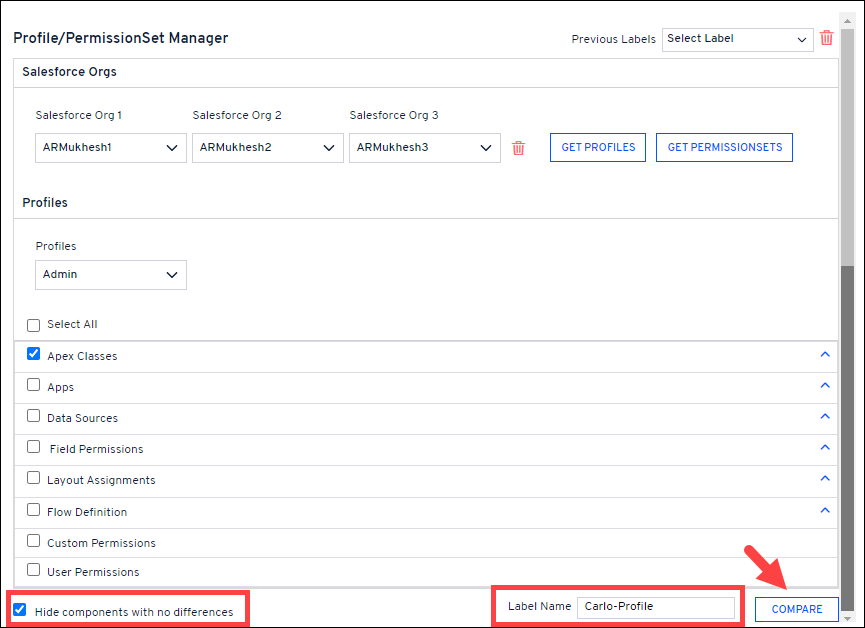
4. In the **`Profile/PermissionSet Manager`** screen, select the **`Salesforce orgs`** that need to be compared (max 3 Orgs).
5. Click on either the **`Get Profiles`** or the **`Get PermissionSets`**button.
* **`Get Profiles`** will fetch all the profiles available in selected Salesforce Orgs.
* **`Get PermissionSets`** will list all available permission sets in Salesforce Orgs.\
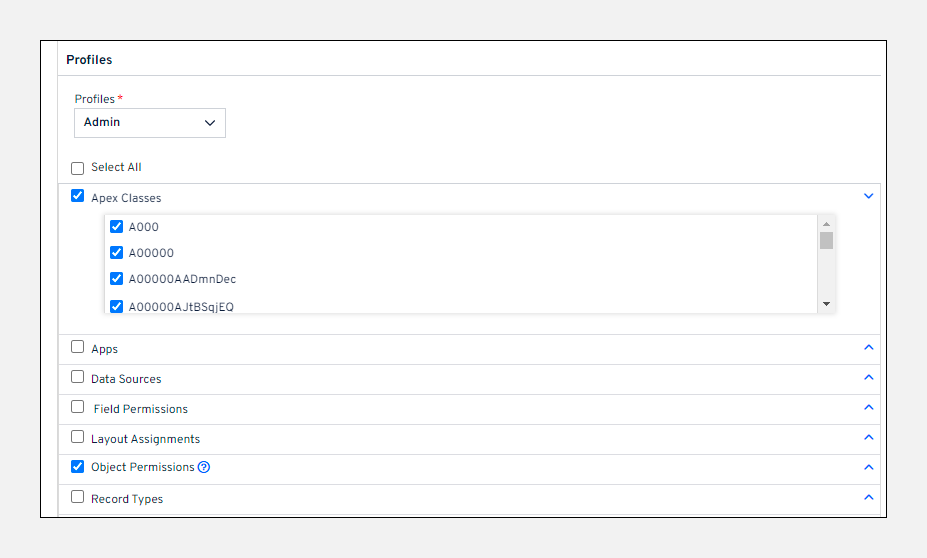
6. Select the **`Profile/PermissionSets`** type based on the above selection.
7. Select the metadata components (including its metadata members) for which you want to view the selected profile/permissionset comparison report. A minimum of one metadata component selection is required to proceed further.
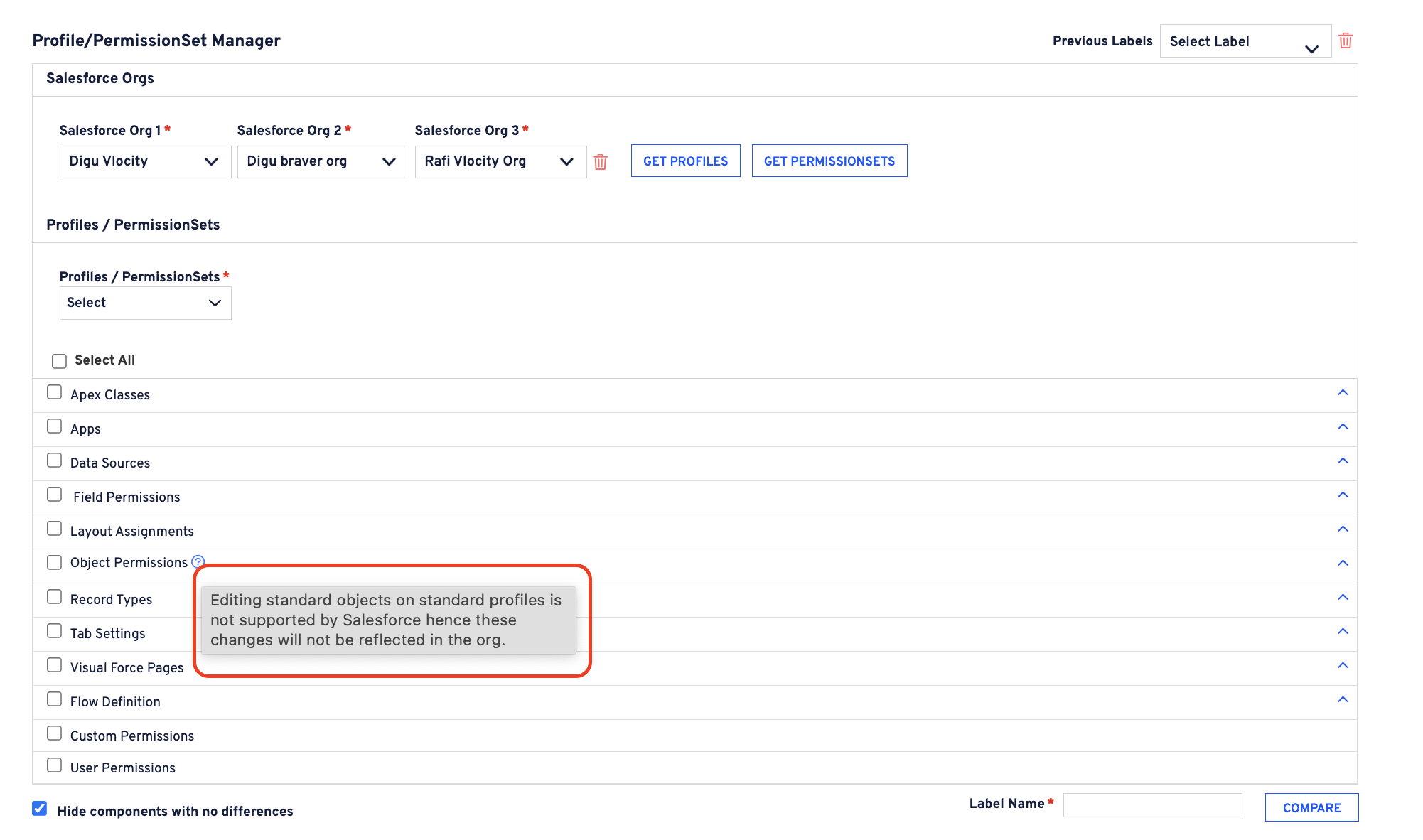
8. About Object Permissions in Profiles, editing standard objects on standard profiles is not supported by Salesforce. Hence, these changes won't show up in your destination environment.
9. Select the **`'Hide components with no differences'`** checkbox to hide the components with no differences.
10. Give the process a **`Label Name`**. Click **`Compare`**.
{% hint style="info" %}
**Important Notes:**
1. Based on the size of your Profiles, the time taken for comparison can vary. You can navigate to a different screen and return to the **`Profile Manager`** page once the results are ready and available.
2. To optimize browser performance, it is recommended to compare one access setting at a time (in case of large profiles).
{% endhint %}
3. On the next page, you can see a list of permissions available for each metadata component. Here, you can update the permissions for each component for all the orgs at once.
* Permissions/Components that are not available will be denoted by **`X`** in the org.
* For the fields that are left blank. For example, in **`Apps`** and **`Datasources`**, no related record type is assigned; hence, nothing shows up or will display '**`No Data Found.`**'
4. You can also download the report on your local machine using the **`Download Report`** icon at the bottom of this page.\
5. Select the permissions/components that you want to update.
6. Next, select one of the actions listed below:
* **`Update Change:`** The changes to the metadata components get updated in the same Org.
* **`Update & Deploy:`** The changes will be updated in the selected source Org and deployed to the Destination Org(s).
* **`Ok/Deploy:`** The changes get deployed only in the selected Destination Org(s). No changes occur in the Source Org.
7. Click **`OK`**.
8. You will be redirected to the **`Deployment History`** screen, where you can find the deployment process.
{% hint style="info" %}
**Important Note:** You can list the previous profile manager labels from the [**`Profile Manager`**](/product-guides/arm/arm-features/deployment/deploying-the-profile-and-permissionsets.md) screen.
{% endhint %}
---
# Agent Instructions
This documentation is published with GitBook. GitBook is the documentation platform designed so that both humans and AI agents can read, navigate, and reason over technical content effectively. Learn more at gitbook.com.
## Querying This Documentation
If you need additional information that is not directly available in this page, you can query the documentation by asking a question.
Perform an HTTP GET request on the following URL with the `ask` and `goal` query parameters:
```
GET https://knowledgebase.autorabit.com/product-guides/arm-1/arm-features/deployment/deploying-the-profile-and-permissionsets.md?ask=&goal=
```
`ask` is the immediate question: it should be specific, self-contained, and written in natural language.
`goal` is what the user is ultimately trying to achieve, the reason they need the answer. Sharing it helps GitBook give you a better, more relevant answer. A goal is most helpful when it describes the outcome the user wants rather than restating the question. For example, with `ask=how do I create an API token`, a goal like `automate deployments from our CI pipeline` lets GitBook tailor the answer to that use case.
The response will contain a direct answer to the question and relevant excerpts and sources from the documentation.
Use this mechanism when the answer is not explicitly present in the current page, you need clarification or additional context, or you want to retrieve related documentation sections.