> For the complete documentation index, see [llms.txt](https://knowledgebase.autorabit.com/llms.txt). Markdown versions of documentation pages are available by appending `.md` to page URLs; this page is available as [Markdown](https://knowledgebase.autorabit.com/product-guides/arm-1/arm-features/reports/audit-report.md).
# Audit Reports
### Introduction
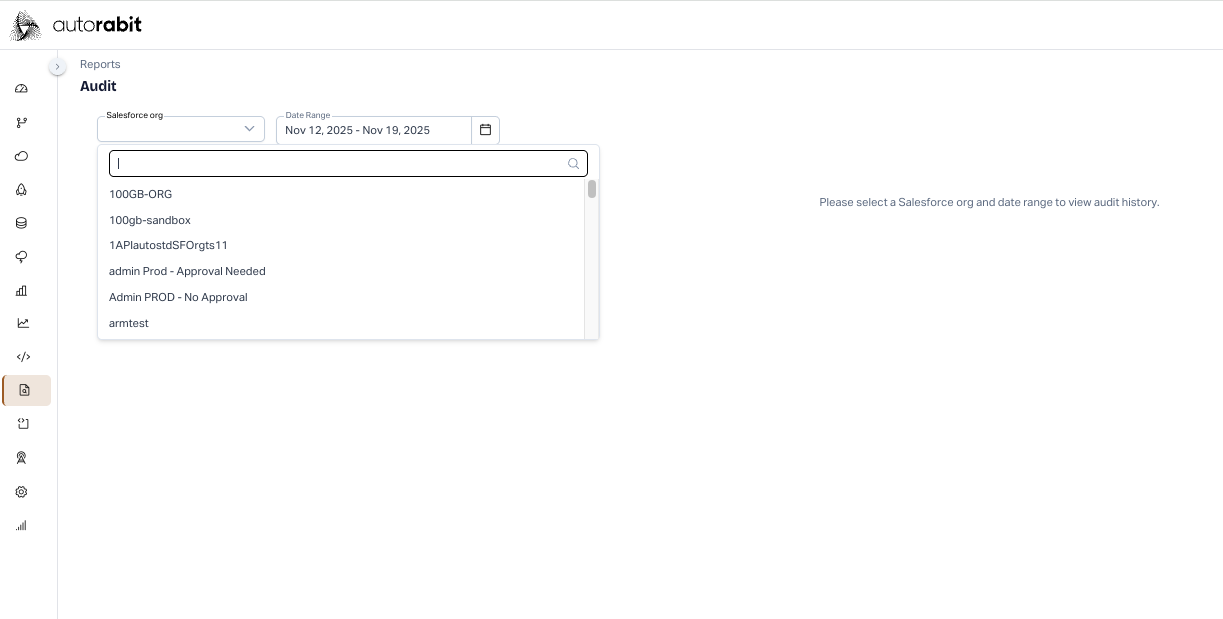
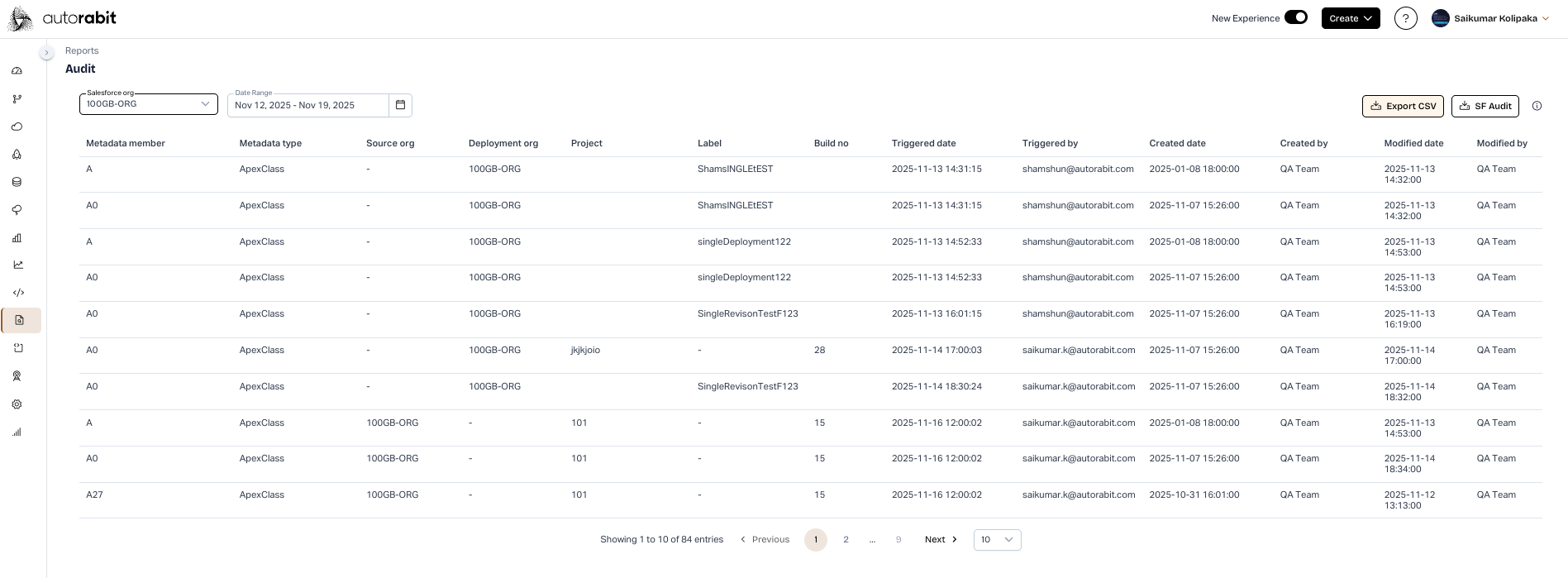
The ARM **Audit Report** provides a searchable, exportable record of activity across your Salesforce orgs. Download the report as a CSV to review every change, verify compliance, and surface potential risks.
To generate a report:
1. **Select a Salesforce Org.**\
In the dropdown, choose the target **Salesforce Org**.\
2. **Set a date range.**\
Specify the **From** and **To** dates for the period you want to analyze.
3. **Run the search.**\
Click **Search** to generate the report. When the results appear, click **Download** to save the CSV locally.\
{% hint style="info" %}
**Time-zone note:** ARM stores audit timestamps in GMT. Salesforce displays times in the user’s own time zone, so the two can differ. This is expected and does not indicate an error.
{% endhint %}
### Job Audit Report
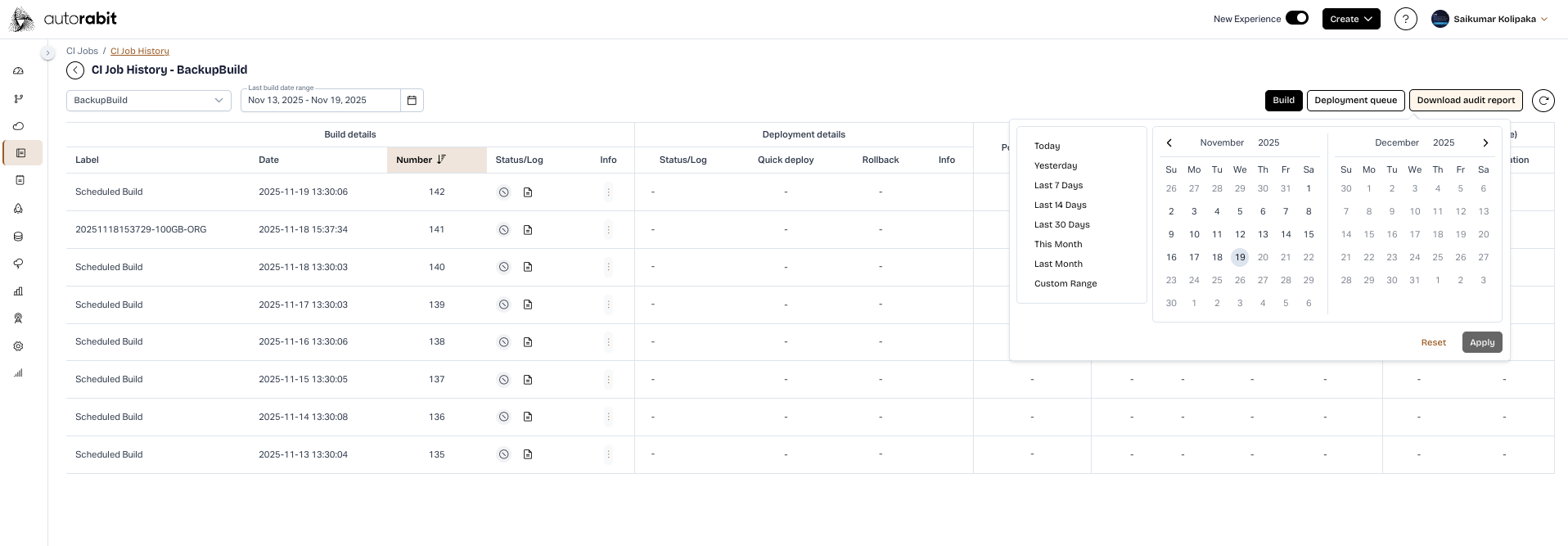
On the **CI Job Results** page, you’ll see a **Job Audit Report** button. Click it to download a PDF that captures the full deployment history for that job—ideal for internal or external audits.\
\
You can narrow the report to a specific time window—up to **120 days**—using either preset ranges or custom **From / To** dates.
The PDF contains:
#### Build list
* Every deployment build for the job, in reverse-chronological order, showing:
* Build number
* Timestamp
* Commit comments
* Author and approver
#### Individual build summary
For each build the report includes:
* Commit IDs (with Git-hash links)
* Commit summaries and reviewer details
* Review dates
* ALM IDs (if provided)
* Differential revision details
---
# Agent Instructions
This documentation is published with GitBook. GitBook is the documentation platform designed so that both humans and AI agents can read, navigate, and reason over technical content effectively. Learn more at gitbook.com.
## Querying This Documentation
If you need additional information that is not directly available in this page, you can query the documentation by asking a question.
Perform an HTTP GET request on the following URL with the `ask` and `goal` query parameters:
```
GET https://knowledgebase.autorabit.com/product-guides/arm-1/arm-features/reports/audit-report.md?ask=&goal=
```
`ask` is the immediate question: it should be specific, self-contained, and written in natural language.
`goal` is what the user is ultimately trying to achieve, the reason they need the answer. Sharing it helps GitBook give you a better, more relevant answer. A goal is most helpful when it describes the outcome the user wants rather than restating the question. For example, with `ask=how do I create an API token`, a goal like `automate deployments from our CI pipeline` lets GitBook tailor the answer to that use case.
The response will contain a direct answer to the question and relevant excerpts and sources from the documentation.
Use this mechanism when the answer is not explicitly present in the current page, you need clarification or additional context, or you want to retrieve related documentation sections.