> For the complete documentation index, see [llms.txt](https://knowledgebase.autorabit.com/llms.txt). Markdown versions of documentation pages are available by appending `.md` to page URLs; this page is available as [Markdown](https://knowledgebase.autorabit.com/product-guides/arm-1/arm-features/salesforce-dx/create-a-module.md).
# Create a Module
### Introduction
Modularization lets you break your org’s customizations into **unlocked packages**. Each package becomes the single source of truth for the metadata it contains, and you can update any environment—scratch org, sandbox, or production—by installing the latest version.
Whenever you change the package’s [metadata](https://www.autorabit.com/blog/the-role-of-metadata-in-devops-for-salesforce/), you simply create a **new package version** and install it wherever it’s needed.
### Creating a Module
Follow these steps to create a module in AutoRABIT:
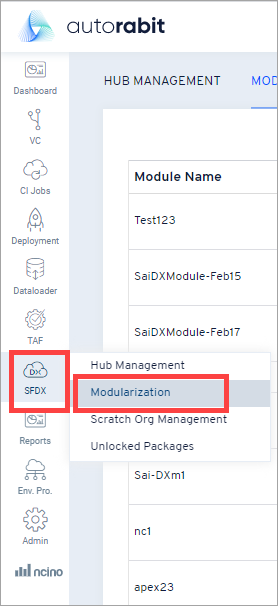
1. **Open Modularization**\
Hover over the [**SFDX**](/product-guides/arm/arm-features/salesforce-dx/salesforce-dx-metadata-format.md) tile and click **Modularization**.
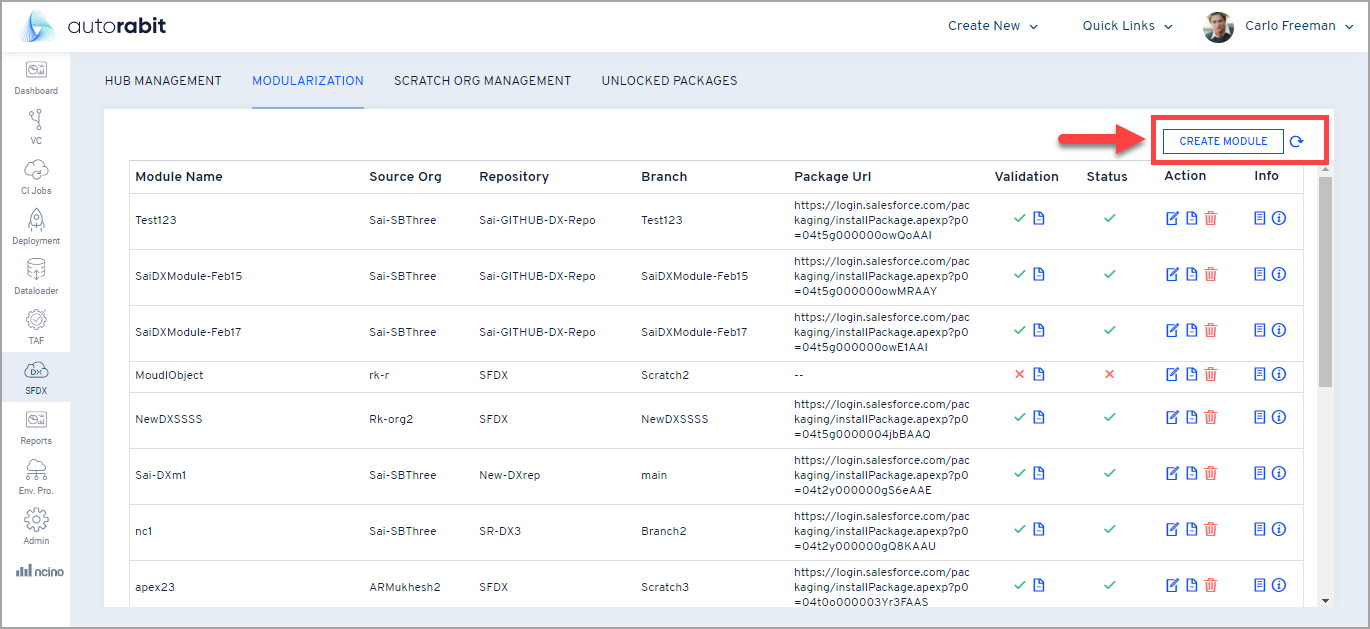
2. **Start a new module**\
Click **Create Module**.
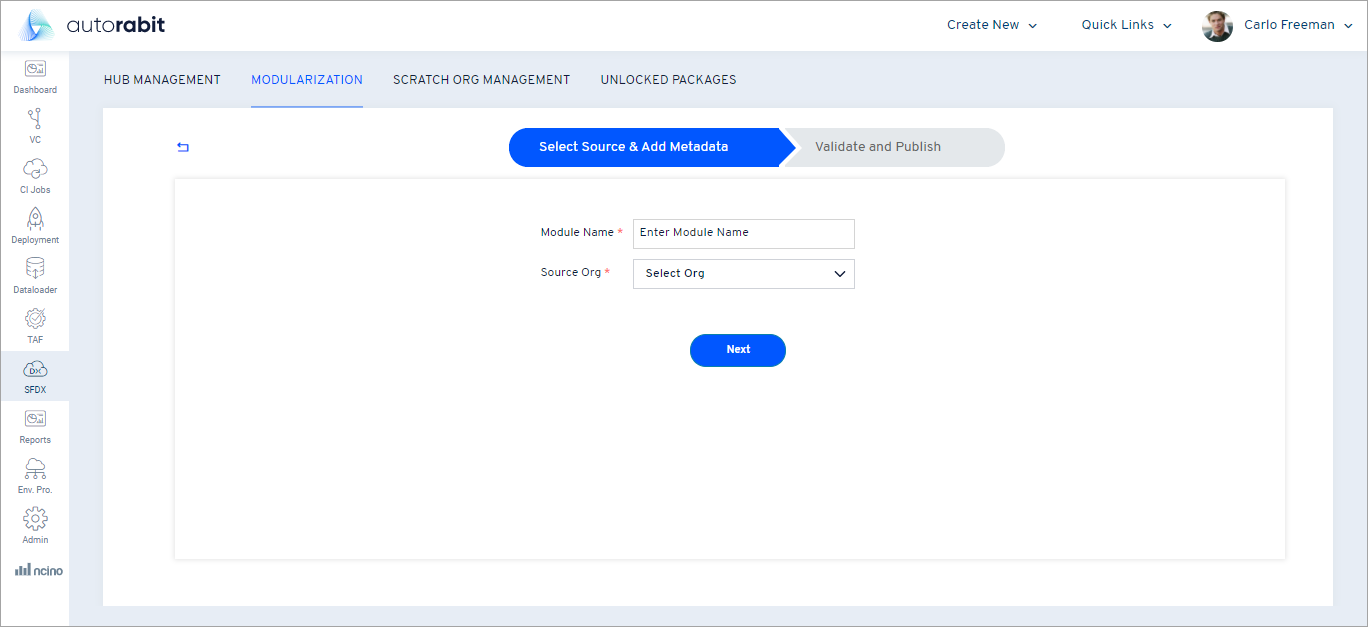
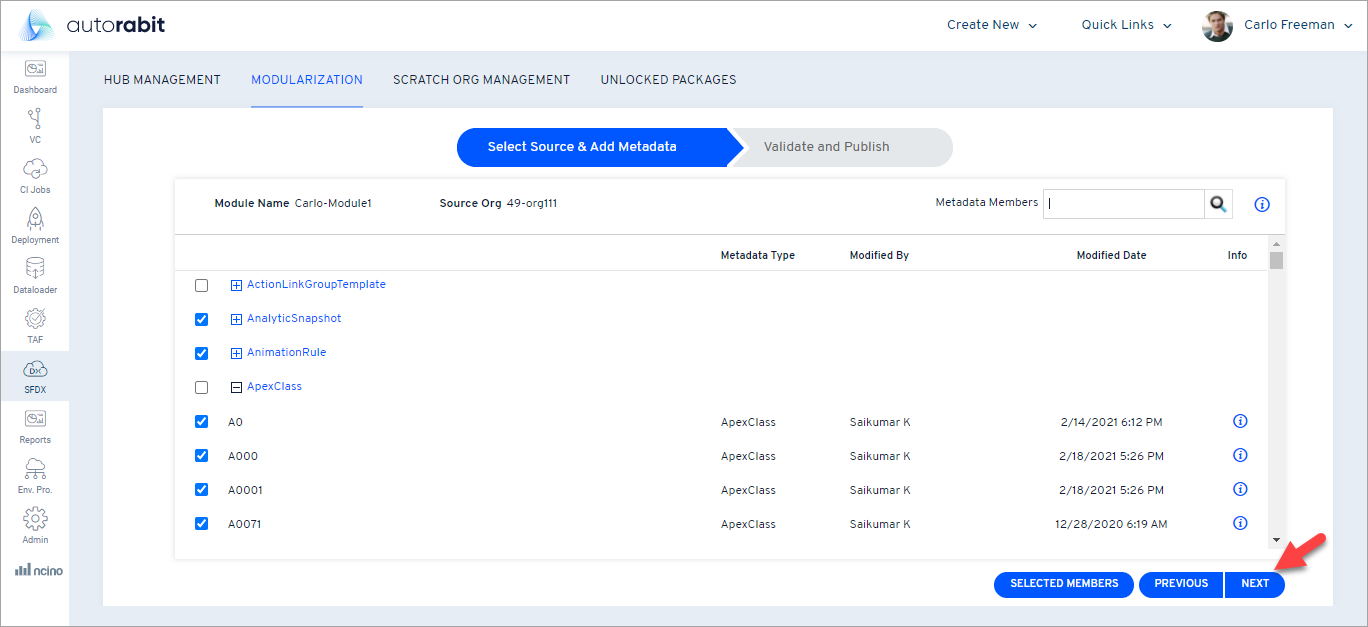
3. **Name and source**
* Enter a **Module Name**.
* Choose the **Source Org** that contains the metadata.\
Click **Next**.
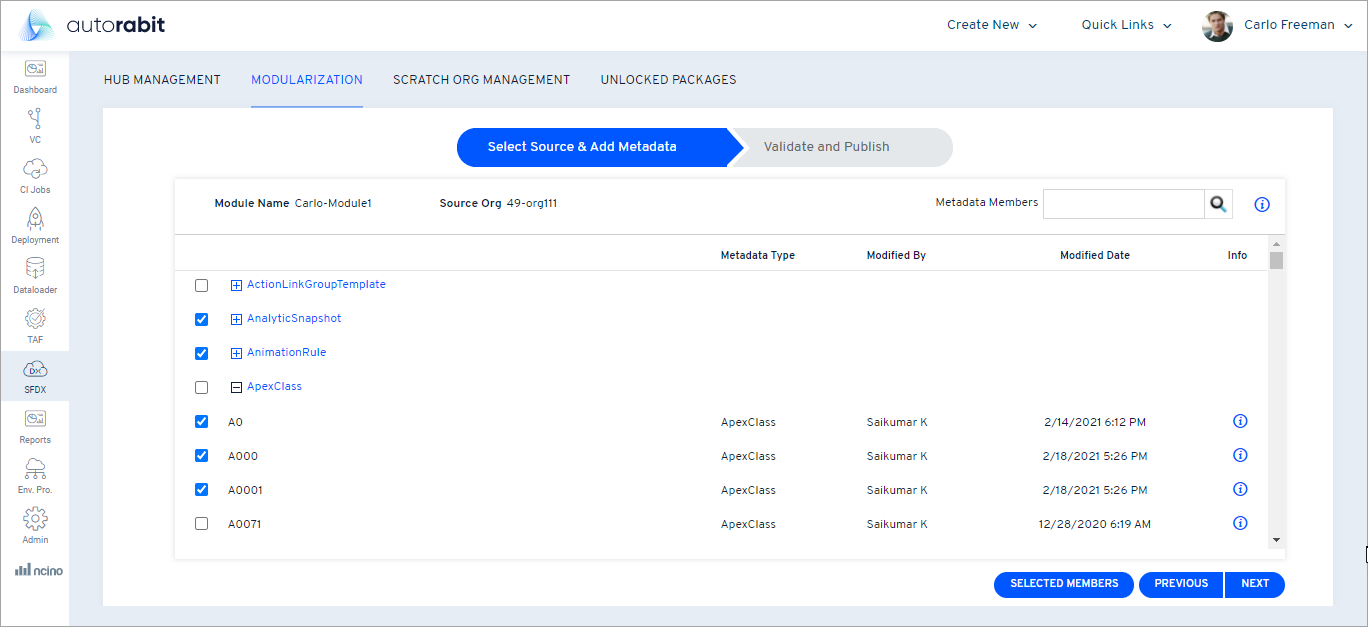
4. **Select metadata**\
Choose the **Metadata Types** (and their members) to include. Use the **Search Filter** to locate items quickly.
Important: Avoid adding metadata types that already belong to another module in the same branch.
5. **Review selection**\
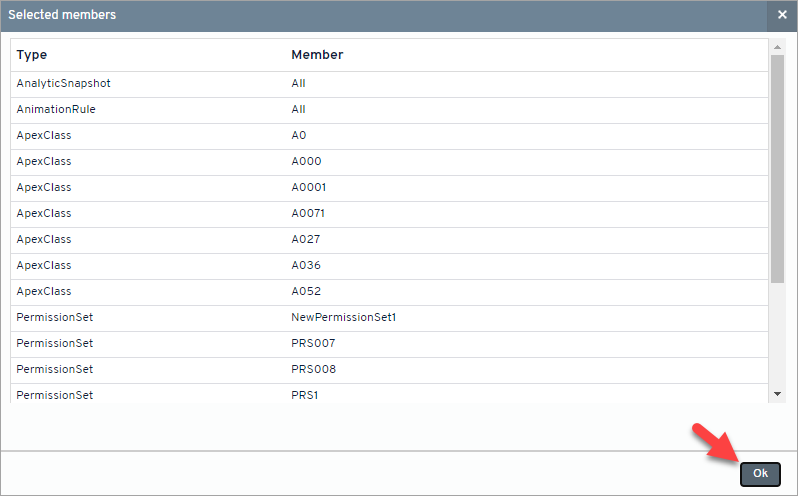
Click **Selected Members** to view a summary of chosen metadata, then click **OK**.
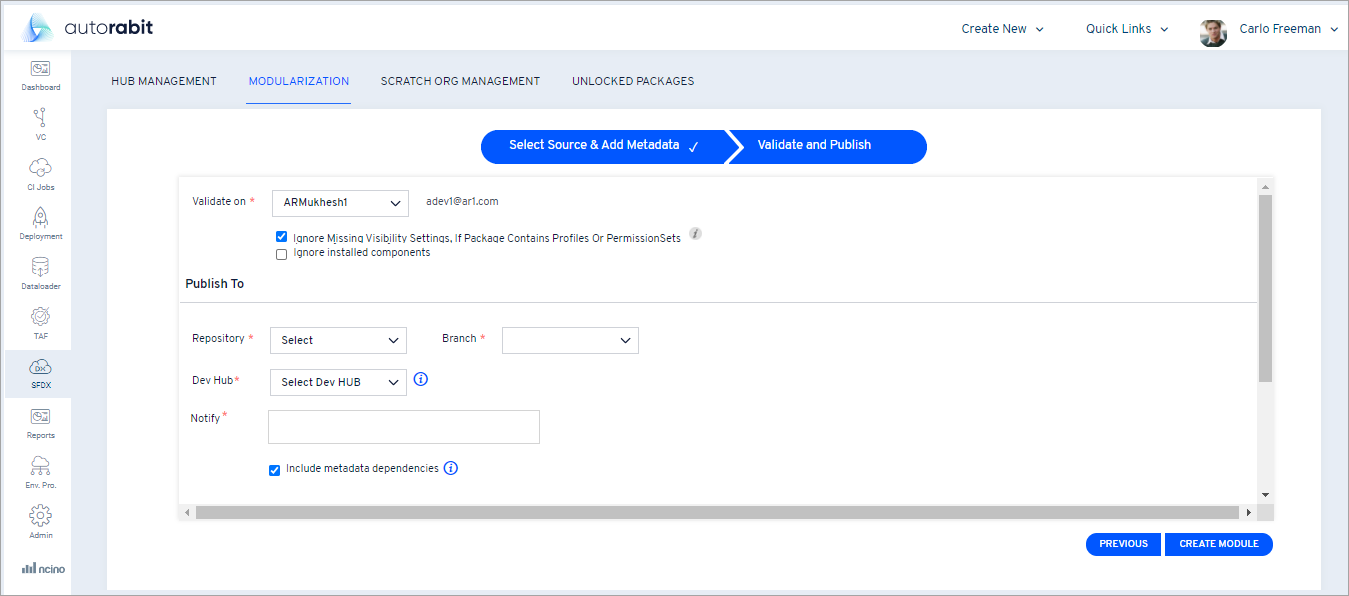
6. Click **Next** to open the **Validate and Push** screen.
7. **Validate dependencies**\
Compare the Source Org with another Salesforce Org to ensure no dependent components are omitted.
8. **Additional options**
* **Ignore Missing Visibility Settings, If Package Contains Profiles Or PermissionSets** – visible only when Profiles/PermissionSets are included; deploys delta changes.
* **Ignore Installed Components** – skips managed-package components already present in the target org.
{% hint style="info" %}
**Note:** *Standard fields* are **not** supported for **Ignore Missing Visibility Settings**.
{% endhint %}
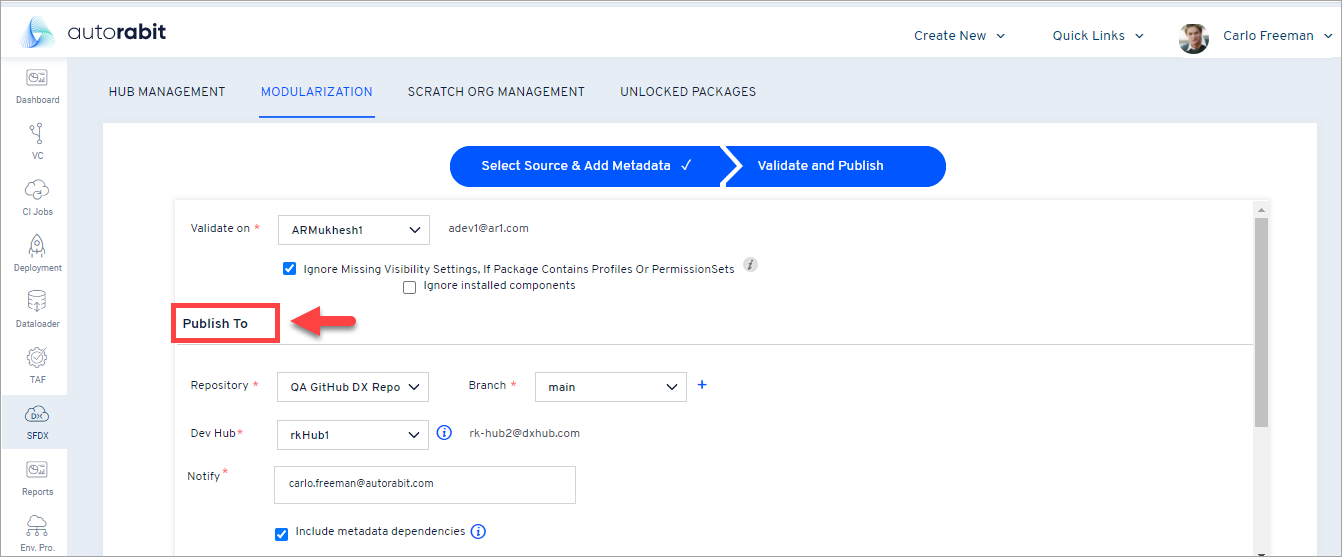
9. **Publish To:** Configure commit and package settings.
* **Repository / Branch** – pick where to commit the metadata (use **+** to create a branch).
* **Development Hub (Dev Hub)** – select the Dev Hub that will own the unlocked package.
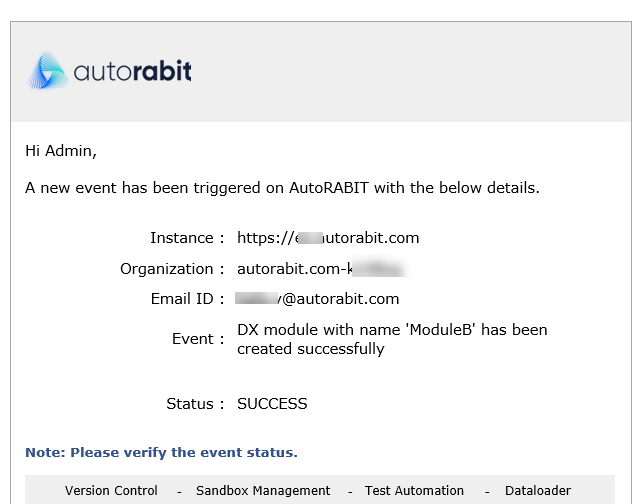
* **Email Address** – recipient of the module-creation email.
* **Include metadata dependencies** – automatically pull in required dependent members.
{% hint style="info" %}
**Tip:** To fetch dependency data, the Dependency API must be enabled. See Salesforce docs [here](https://developer.salesforce.com/docs/atlas.en-us.api_tooling.meta/api_tooling/tooling_api_objects_metadatacomponentdependency.htm).
{% endhint %}
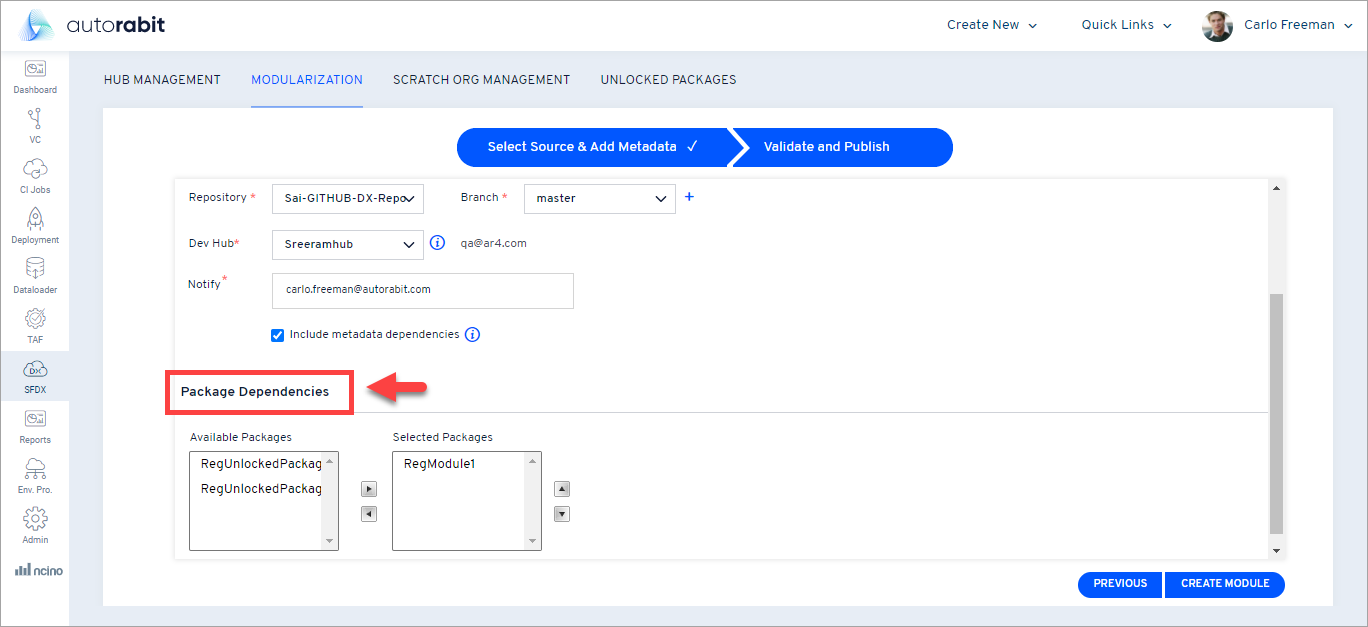
10. **Package Dependencies**\
If the Dev Hub already owns related packages with at least one successful version, they appear here.
{% hint style="info" %}
```
Conditions:
* The dependent package was created in AutoRABIT **and**
* It has at least one successful version.
```
{% endhint %}
11. **Add / arrange dependencies**
* Select packages in **Available Packages** and use the  /  icons to add or remove them.
* Use  /  to reorder; the top package deploys first.
12. **Create the module**\
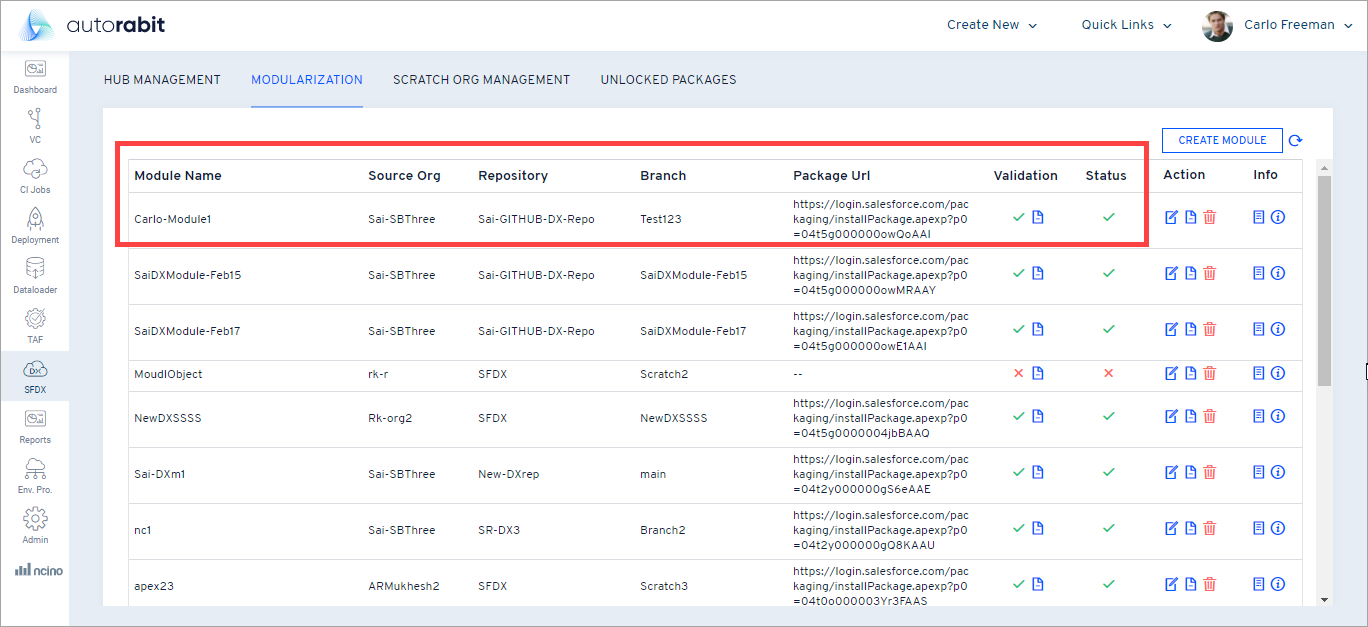
Click **Create Module**. You’ll return to the **Modularization** home page, where you can monitor progress.
13. **Module list columns**
* **Module Name** – name you assigned
* **Source Org** – org where the module originated
* **Repository / Branch** – VCS location for commits
* **Package URL** – link for package installation (see *Deployment via Unlocked Packages*)
* **Validation Status** – pre-validation result plus log
* **Status** – creation progress (Success, Failed, or In Progress)
**Sample email notification**
***
### Additional Features
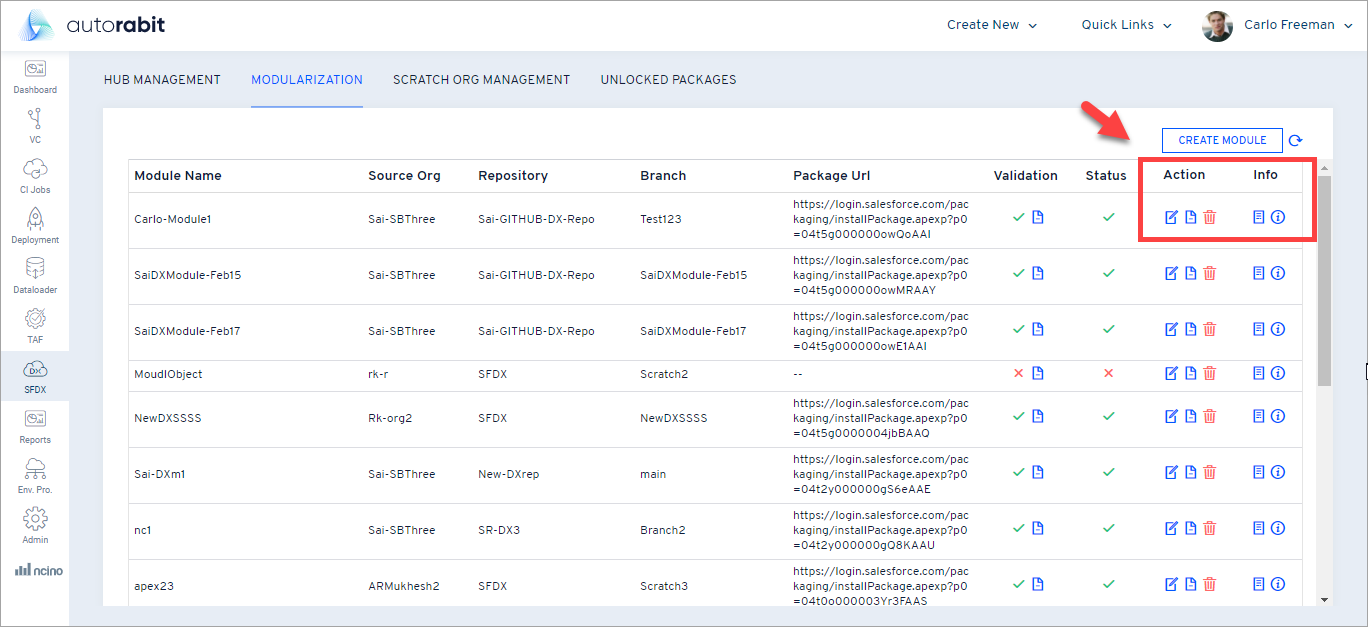
1. **Actions**
* **Edit Module** – update module details
* **Log Details** – view execution logs
* **Delete Module** – permanently remove a module *(irreversible)*
2. **Info**
* **Module Summary Info** – see dependency details for selected metadata
* **Module Info** – view timestamps and other metadata about the module
---
# Agent Instructions
This documentation is published with GitBook. GitBook is the documentation platform designed so that both humans and AI agents can read, navigate, and reason over technical content effectively. Learn more at gitbook.com.
## Querying This Documentation
If you need additional information that is not directly available in this page, you can query the documentation by asking a question.
Perform an HTTP GET request on the following URL with the `ask` and `goal` query parameters:
```
GET https://knowledgebase.autorabit.com/product-guides/arm-1/arm-features/salesforce-dx/create-a-module.md?ask=&goal=
```
`ask` is the immediate question: it should be specific, self-contained, and written in natural language.
`goal` is what the user is ultimately trying to achieve, the reason they need the answer. Sharing it helps GitBook give you a better, more relevant answer. A goal is most helpful when it describes the outcome the user wants rather than restating the question. For example, with `ask=how do I create an API token`, a goal like `automate deployments from our CI pipeline` lets GitBook tailor the answer to that use case.
The response will contain a direct answer to the question and relevant excerpts and sources from the documentation.
Use this mechanism when the answer is not explicitly present in the current page, you need clarification or additional context, or you want to retrieve related documentation sections.