> For the complete documentation index, see [llms.txt](https://knowledgebase.autorabit.com/llms.txt). Markdown versions of documentation pages are available by appending `.md` to page URLs; this page is available as [Markdown](https://knowledgebase.autorabit.com/product-guides/arm-1/arm-features/version-control/change-labels/alm-labels.md).
# ALM Labels
### ALM Labels: Overview
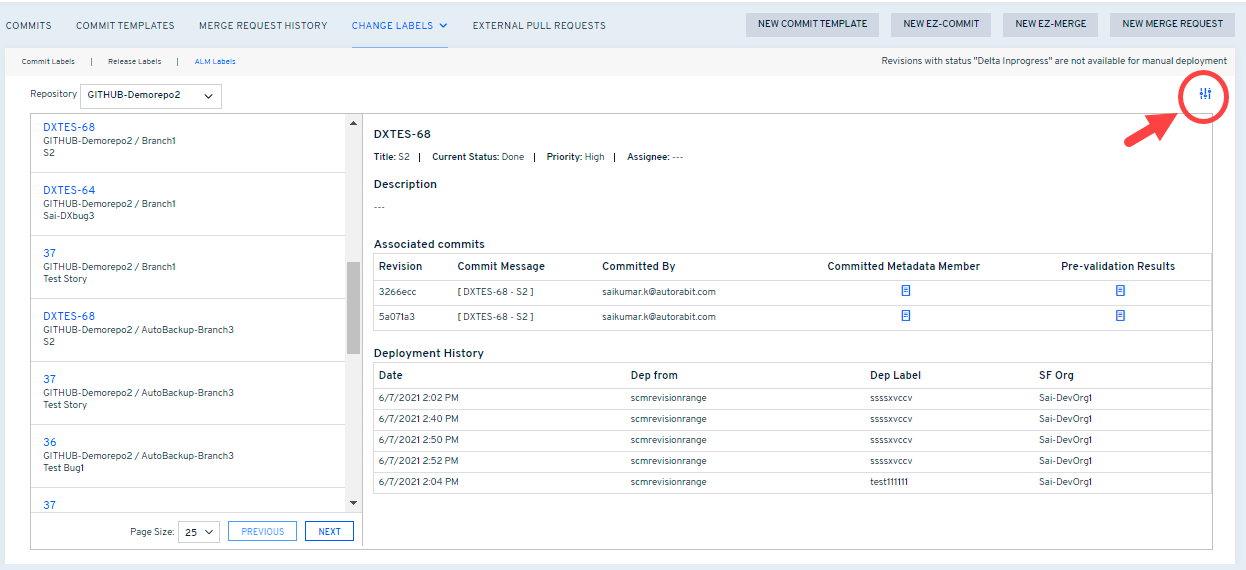
AutoRABIT has introduced a section called ALM labels under the **Change Labels** tab. This page will display all the ALM labels which you have created either from merge or commits, and show details of the ALM commits and the link between work items and commits. In this way, the user will be able to view the user stories info linked to its commits.
### To view ALM Labels
1. Navigate to the left navigation pane, select Version Control, and click **Manage Labels** from the dropdown.
2. Then, select **ALM Labels** from the top navigation bar.
2. The ALM labels created either from the merge or commit process will get displayed.
3. Click on one of the ALM labels to view the latest details of the ALM system such as description, assignee, status, or priority.
4. It's always a good idea to break data into multiple pages when dealing with multiple templates records. You can browse 25, 50, 75, or 100 records on a single page, or you can navigate to the previous or next page using the **Previous** and **Next** buttons.
5. Under **Associated Commits**, view revisions configured with the selected ALM. The same revision number can be found in the [Commits](/product-guides/arm-1/arm-features/version-control/ez-commits.md) screen for configured ALM label. You will also be able to view the list of *committed members* along with the *prevalidation result*. The same goes for the [**Deployment History**](/product-guides/arm-1/arm-features/deployment/monitor-deployments.md) section as well.
### Filtering ALM Labels
Use the **Advanced Search** filter to find any specific ALM label faster.
Filter the ALM labels via:
1. **Filter by Branch:** Filter the ALM labels based on the [Version Control Repository](/product-guides/arm/arm-features/version-control/introduction-to-version-control/version-control-repositories-summary.md)/ Branch for which the ALM label is registered.
2. **Filter by ALM Type, label, project, and work items:** Filter the ALM based on its type. Next, select the ALM Label, Project, and work item type.
3. **Filter by your Issues:** To fetch all the ALM labels that were assigned to your name, select the checkbox: *Filter by your issues*
---
# Agent Instructions
This documentation is published with GitBook. GitBook is the documentation platform designed so that both humans and AI agents can read, navigate, and reason over technical content effectively. Learn more at gitbook.com.
## Querying This Documentation
If you need additional information that is not directly available in this page, you can query the documentation dynamically by asking a question.
Perform an HTTP GET request on the current page URL with the `ask` query parameter, and the optional `goal` query parameter:
```
GET https://knowledgebase.autorabit.com/product-guides/arm-1/arm-features/version-control/change-labels/alm-labels.md?ask=&goal=
```
`ask` is the immediate question: it should be specific, self-contained, and written in natural language.
`goal` is optional and describes the broader end goal you are ultimately trying to accomplish on behalf of the user. GitBook uses it to tailor the answer towards what is most useful for that goal.
The response will contain a direct answer to the question and relevant excerpts and sources from the documentation.
Use this mechanism when the answer is not explicitly present in the current page, you need clarification or additional context, or you want to retrieve related documentation sections.