> For the complete documentation index, see [llms.txt](https://knowledgebase.autorabit.com/llms.txt). Markdown versions of documentation pages are available by appending `.md` to page URLs; this page is available as [Markdown](https://knowledgebase.autorabit.com/product-guides/arm-1/getting-started-1/arm-administration/user-management/export-users-details.md).
# Exporting User Details
With **Admin** permissions you can download a CSV containing every user in your ARM tenant—handy for audits, license reviews, or compliance reports.
The export includes the following columns:
| Field | Description |
| ----------------------- | --------------------------------------------- |
| **First Name** | User’s first name |
| **Last Name** | User’s last name |
| **Status** | *Active* or *Deactivated* |
| **Email** | Email address |
| **Login Name** | Username used to sign in |
| **Role** | Highest-privilege role assigned |
| **Job Title** | Title from the user profile |
| **Last Login Date** | Timestamp of the most recent login |
| **Created Date** | Date the account was created |
| **Created By** | User who created the account |
| **Last Modified Date** | Date the account was last changed |
| **Last Modified By** | User who made the last change |
| **Login Type** | *Standard* (username/password) or *SSO* |
| **Last Login IP** | IP address recorded at last login |
| **Last Login Lat/Long** | Latitude/longitude obtained at last login |
| **Last Login Location** | City, state, and country resolved from the IP |
| **Last Login Browser** | Browser string at last login |
| **Deactivated Date** | Date the account was deactivated (if any) |
| **Deactivated By** | User who deactivated the account |
{% hint style="info" %}
When a user signs in, ARM requests browser permission to access location services.
* **Allow** – latitude/longitude recorded via the browser.
* **Deny** – location inferred from the IP address.
{% endhint %}
***
## Export All Users to CSV
1. In **Settings** **› Manage Users**, click **Export All Users** in the upper-right corner.
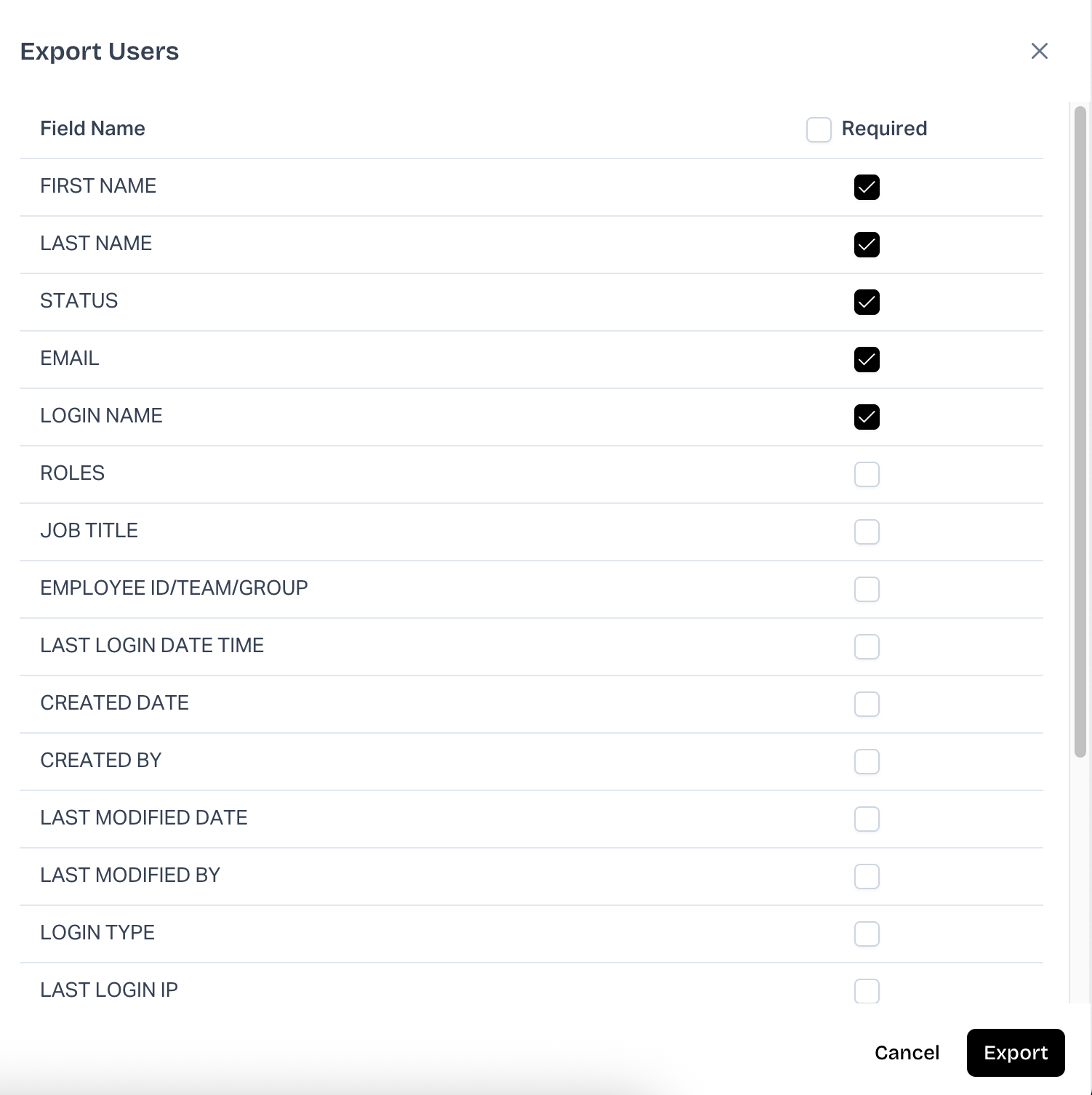
2. In the pop-up, choose which fields to include, then click **Export**.\
{% hint style="info" %}
Core identity fields—**First Name, Last Name, Status, Email, Login Name**—are preselected.\
Clear the checkboxes if you wish to omit them.
{% endhint %}
3. ARM generates the CSV and downloads it to your computer.
{% hint style="info" %}
#### Export Data Limitations
For users created **more than 60 days ago**, some values default:
* **Created Date** = Org creation date
* **Created By** = First registered user
* **Last Modified Date / By**, **Deactivated Date / By** = *null*
Recent users (≤ 60 days) include full, up-to-date metadata.
{% endhint %}
---
# Agent Instructions
This documentation is published with GitBook. GitBook is the documentation platform designed so that both humans and AI agents can read, navigate, and reason over technical content effectively. Learn more at gitbook.com.
## Querying This Documentation
If you need additional information that is not directly available in this page, you can query the documentation by asking a question.
Perform an HTTP GET request on the following URL with the `ask` and `goal` query parameters:
```
GET https://knowledgebase.autorabit.com/product-guides/arm-1/getting-started-1/arm-administration/user-management/export-users-details.md?ask=&goal=
```
`ask` is the immediate question: it should be specific, self-contained, and written in natural language.
`goal` is what the user is ultimately trying to achieve, the reason they need the answer. Sharing it helps GitBook give you a better, more relevant answer. A goal is most helpful when it describes the outcome the user wants rather than restating the question. For example, with `ask=how do I create an API token`, a goal like `automate deployments from our CI pipeline` lets GitBook tailor the answer to that use case.
The response will contain a direct answer to the question and relevant excerpts and sources from the documentation.
Use this mechanism when the answer is not explicitly present in the current page, you need clarification or additional context, or you want to retrieve related documentation sections.