> For the complete documentation index, see [llms.txt](https://knowledgebase.autorabit.com/llms.txt). Markdown versions of documentation pages are available by appending `.md` to page URLs; this page is available as [Markdown](https://knowledgebase.autorabit.com/product-guides/arm-1/getting-started-1/arm-administration/user-management/users-roles-and-permissions.md).
# Users, Roles & Permissions
AutoRABIT (ARM) organizes access with **users**, **roles**, and **permissions**. Understanding these layers helps you grant just-right privileges while keeping administrative tasks manageable.
***
## Users in ARM
### Super Administrator
The **Super Administrator** (Super Admin) has the highest privileges in ARM.
* Create other admins
* Install and configure agents
* Add users to admin groups
> **Super Admin safeguards**\
> *Super Admin* and **the currently logged-in user** are locked for **all** user-management actions: they cannot be added, deleted, suspended, edited, or delegated.
### Org Administrators
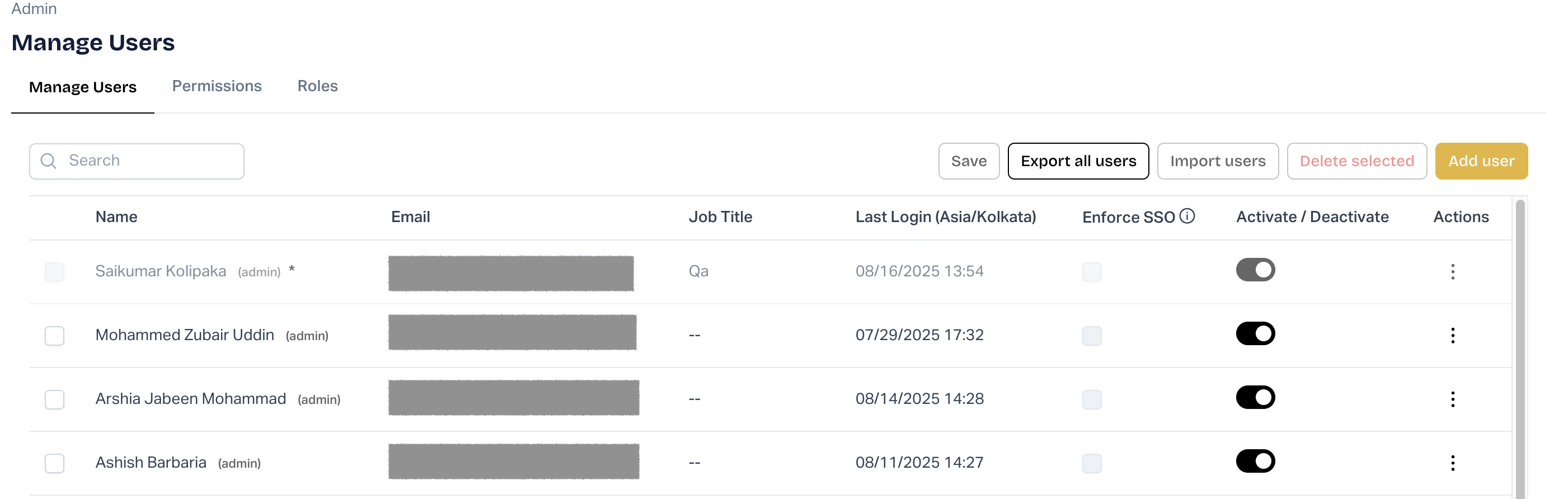
**Org Administrators** (Admins) access the **Settings Dashboard** to manage users, roles, and modules. An admin can hold multiple roles; ARM always applies the most permissive combination.
Admin-level capabilities include:
* Add, edit, or delete users
* Export user lists to CSV
* Enforce SSO
* Manage roles and permissions
### General Users
General users work in ARM modules according to permissions their Admin assigns. They **do not** see the Admin Dashboard.
***
## Create a New User Account
1. Log in to ARM.
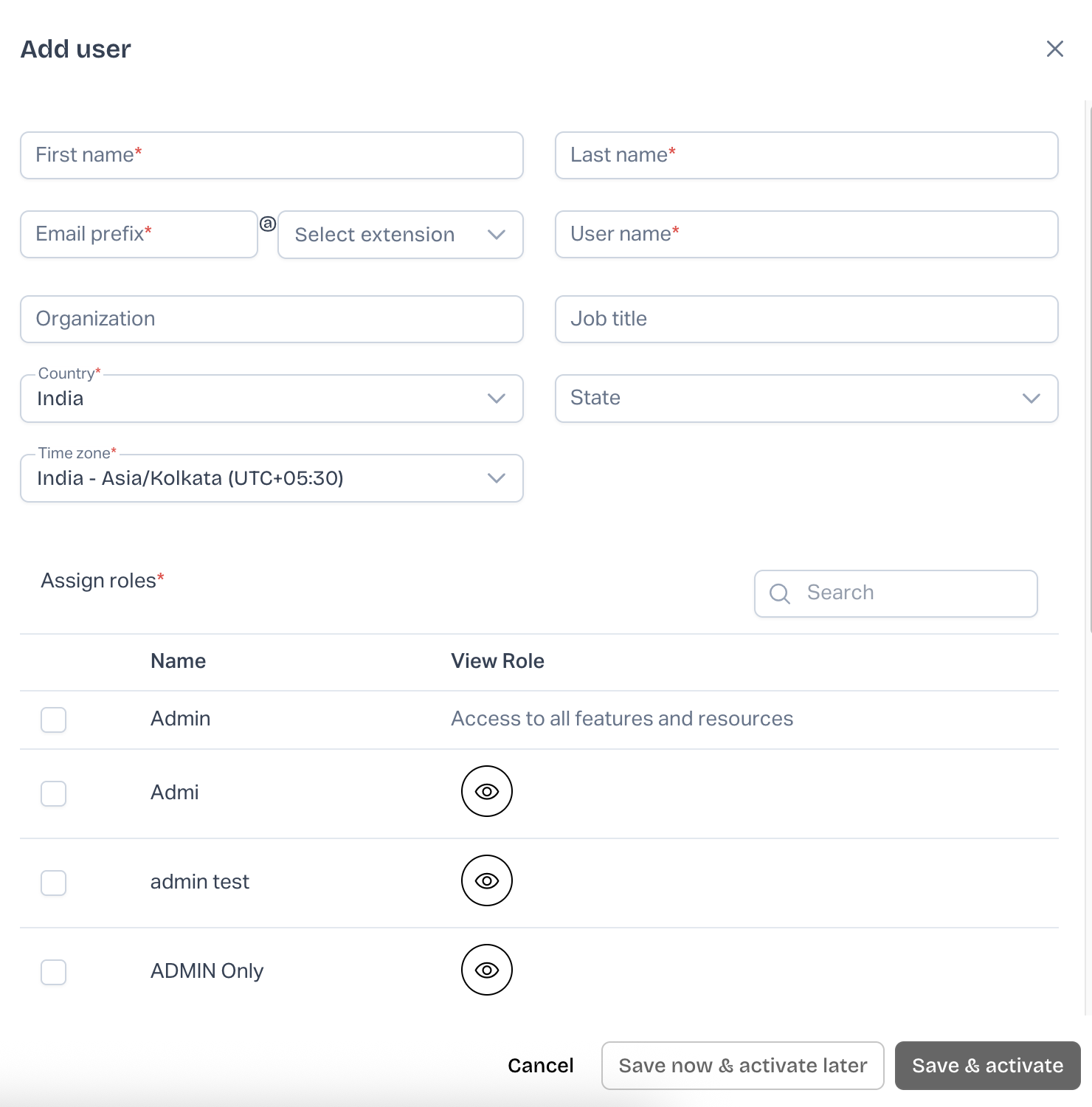
2. Go to **Settings › Users** and click **Add User**.
3. Fill **User Details** and assign **Role Permissions**.
4. Choose **Save & Activate** (immediate) or **Save Now & Activate Later**.
5. The new user receives an email to set a password.
6. The user appears in **Admin › Users**.
***
## Edit a User Account
1. In **Settings › Users**, Locate the user and Click on **Actions** and click **Edit**.
2. Update fields (Username and Email are immutable).
3. Click **Save**.
***
## Delete or Suspend a User
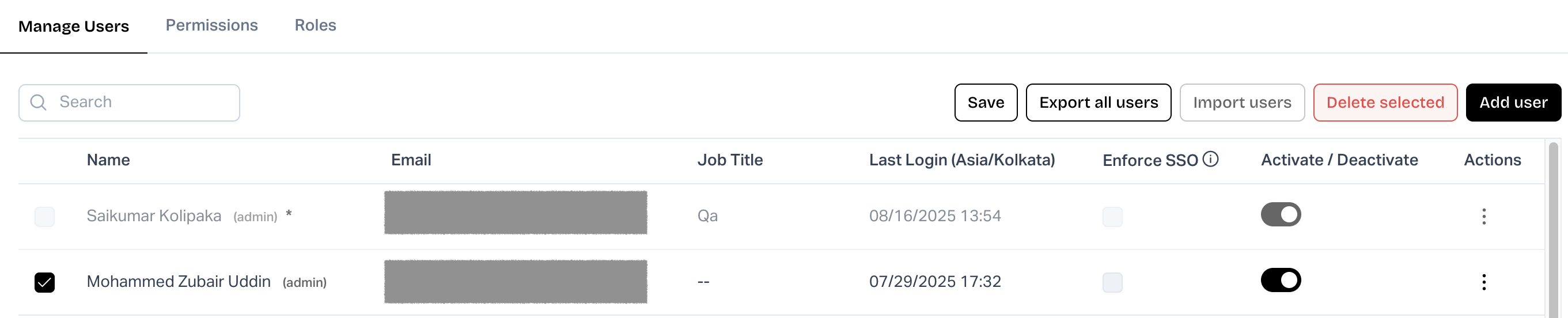
* **Delete User** – permanently remove the account.
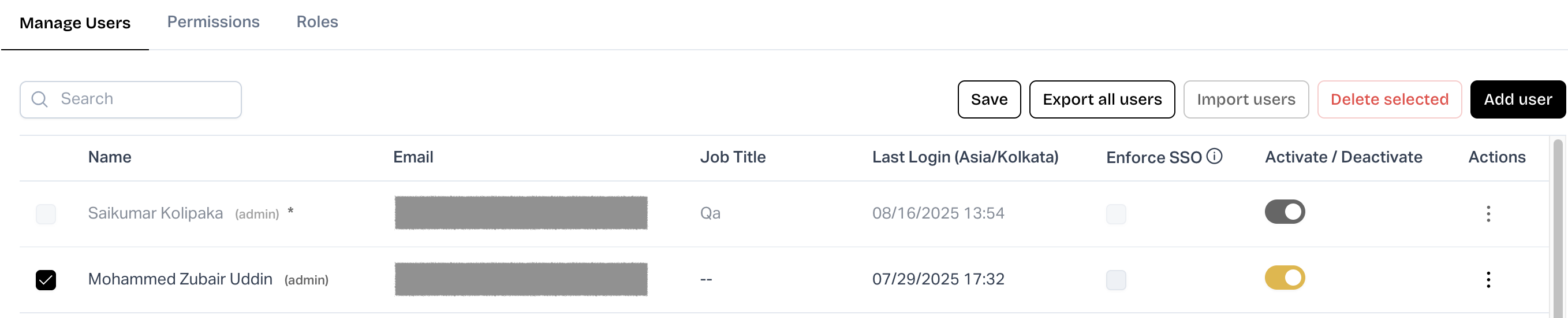
* **Activate / De-activate** – toggle suspension.\
Confirm the action to proceed.
***
## Enforce Single Sign-On (SSO)
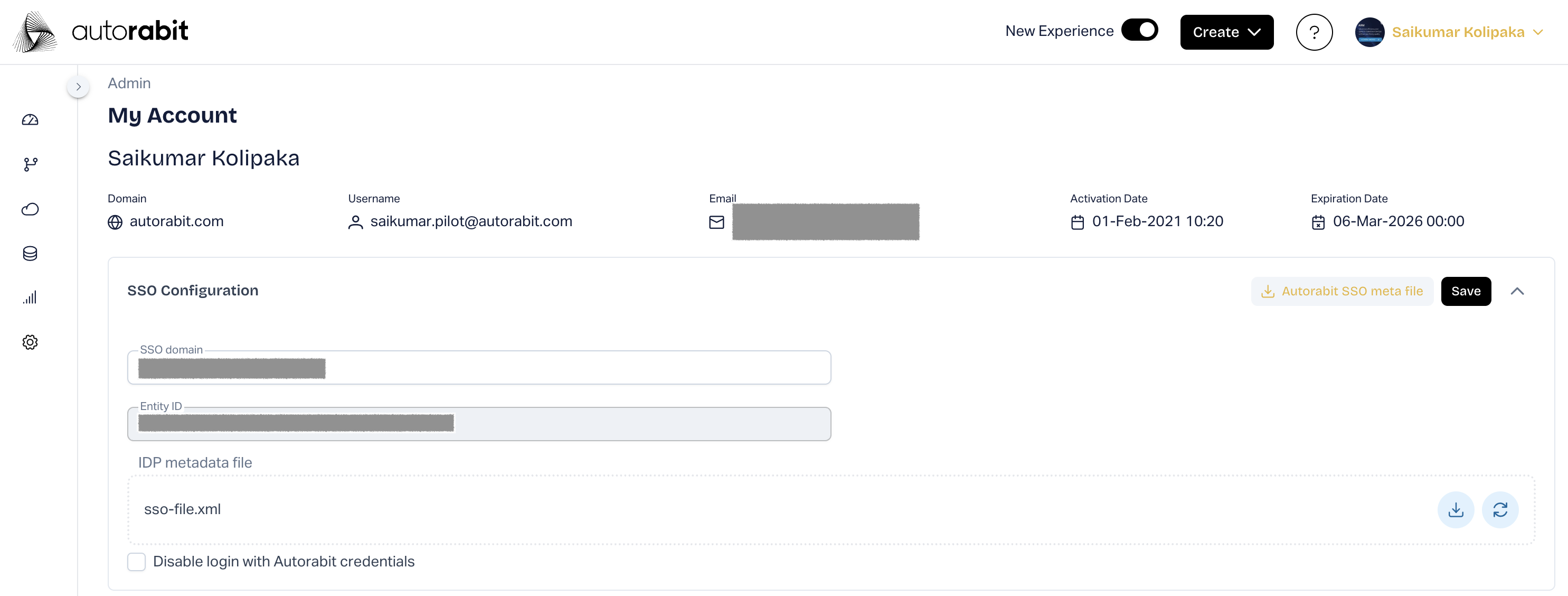
1. Open **My Account** › **SSO Configuration**.
2. Check **Disable login with AutoRABIT credentials** and click **Save**.
Admins can still log in with username/password.\
To override SSO for select users, uncheck **Enforce SSO** next to their names.\
> When you disable standard login, **Enforce SSO** auto-checks for all users.
***
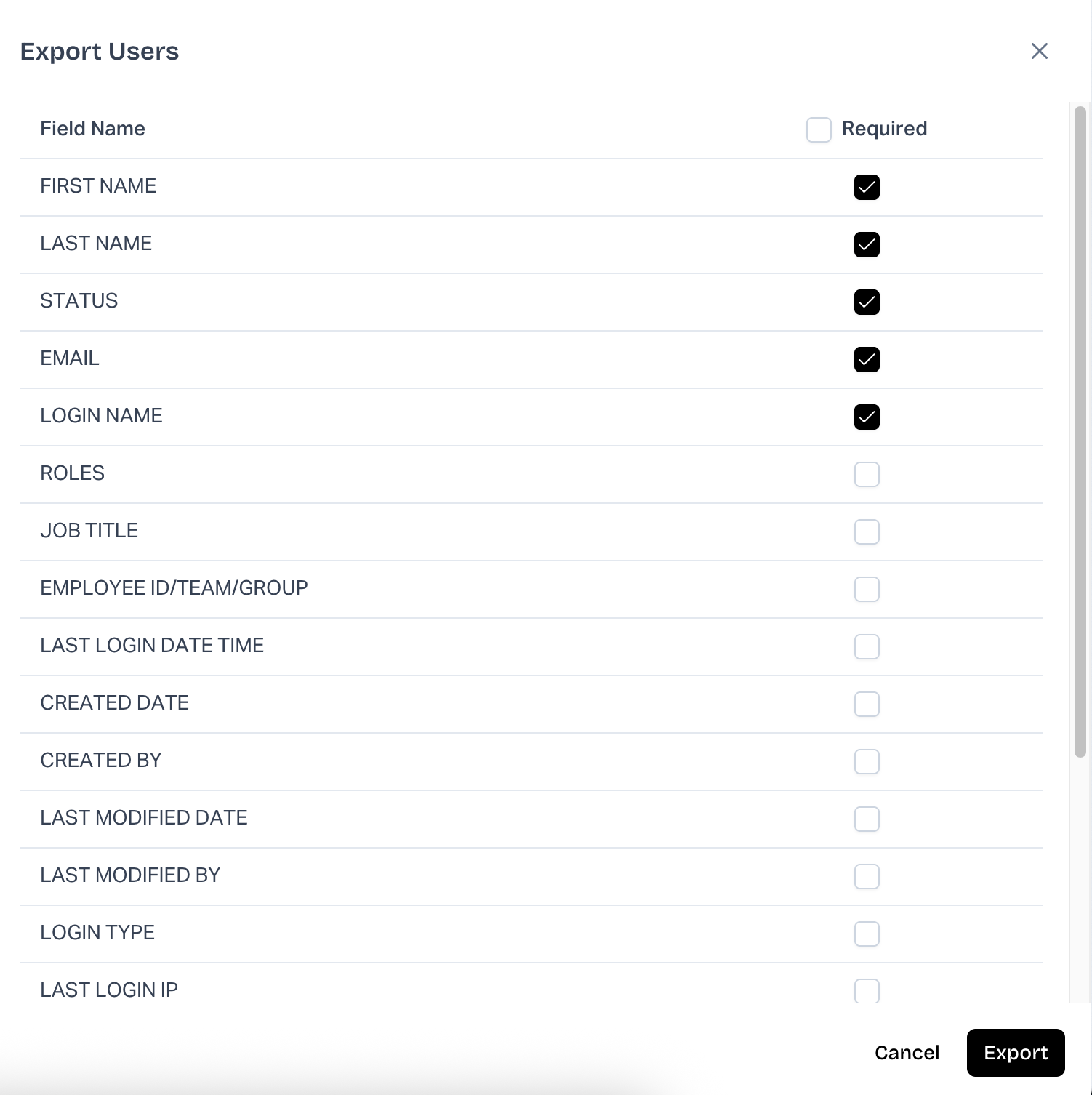
## Export Users
Admins can download all user data as CSV.
1. In **Settings › Users**, click **Export All Users**.
2. Select fields and click **Export**.
3. A CSV downloads to your computer.
> **Location privacy** – If a user blocks location sharing, ARM uses IP-based location.
***
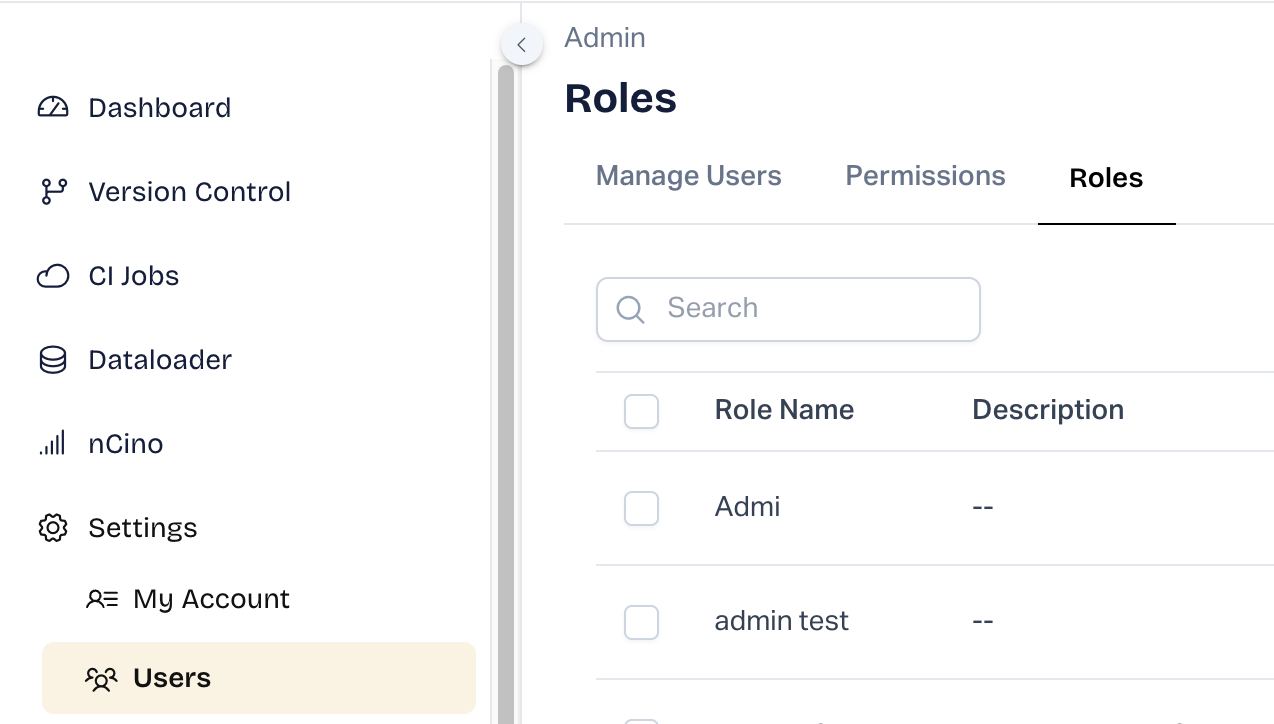
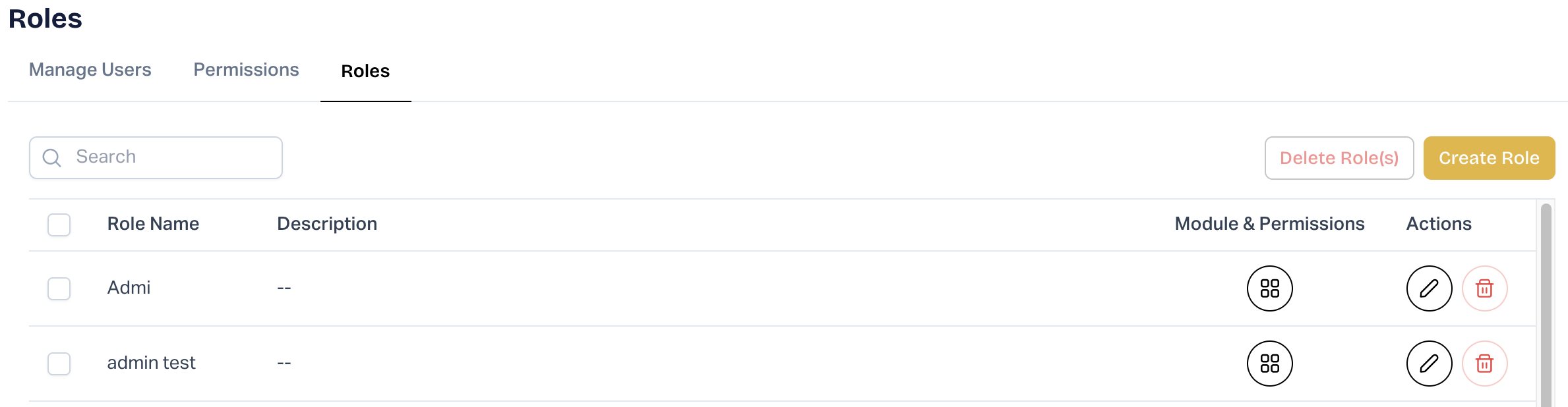
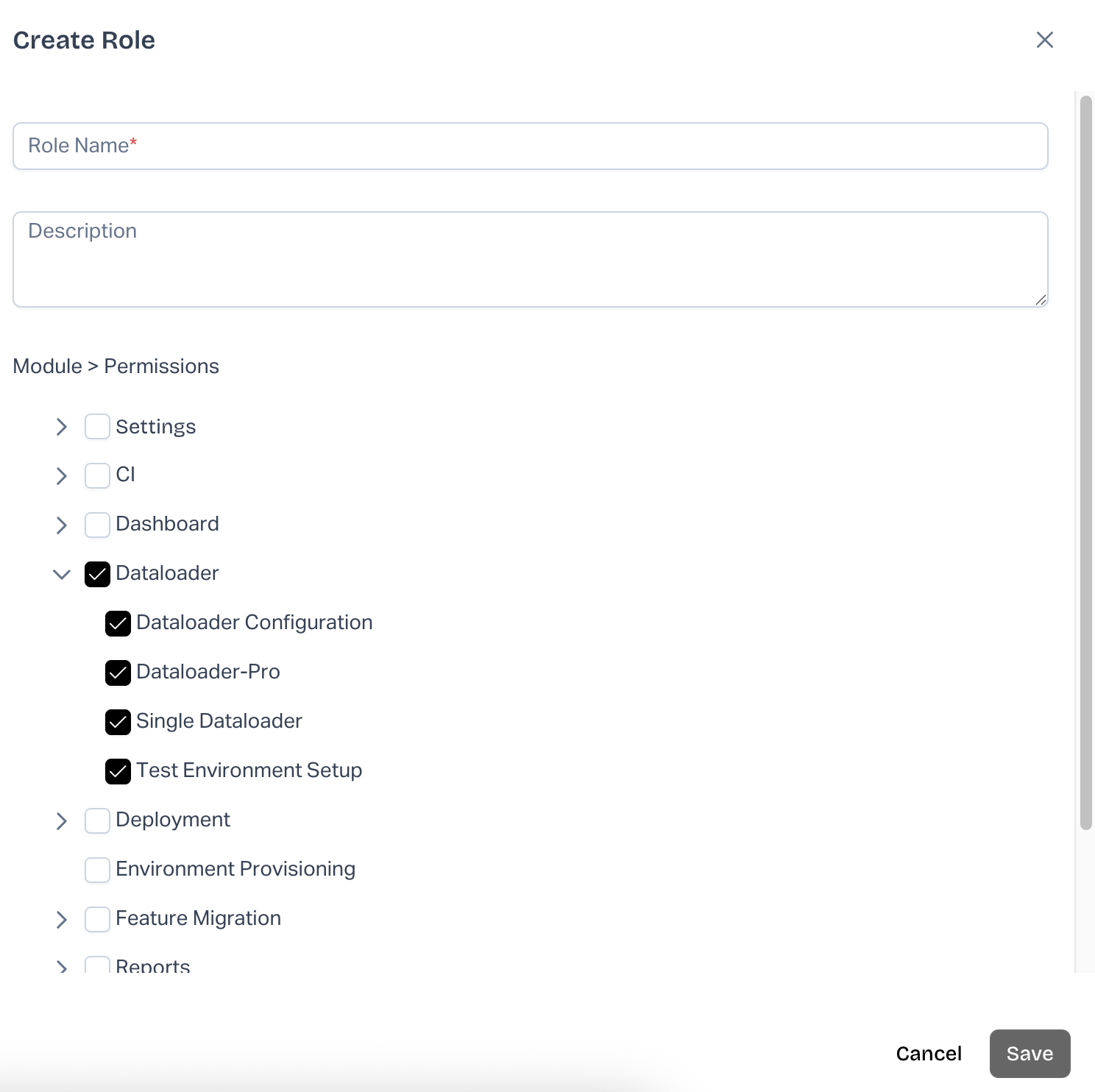
## Creating and Editing Roles
1. Go to **Settings › Users › Roles**.
2. Click **Create Role**.
3. Provide a **Role Name**, **Description**, and tick permissions.\
4. Click **Save**.
> *The default **Admin** role has full permissions and cannot be edited or renamed.*
***
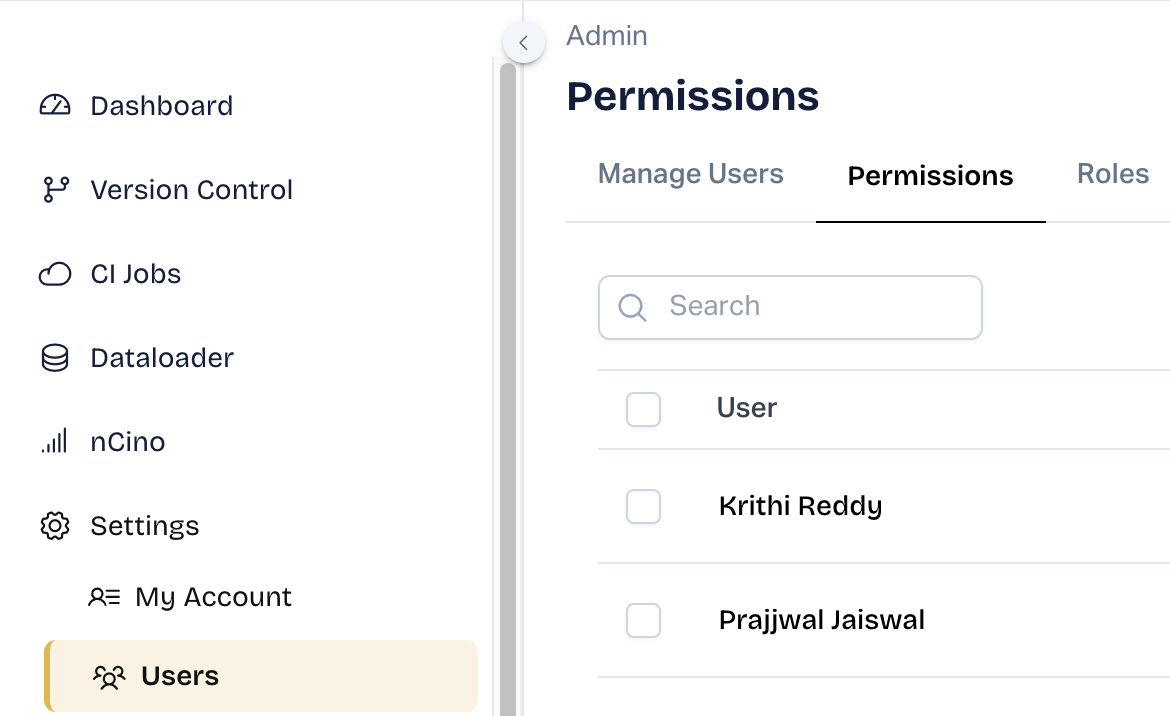
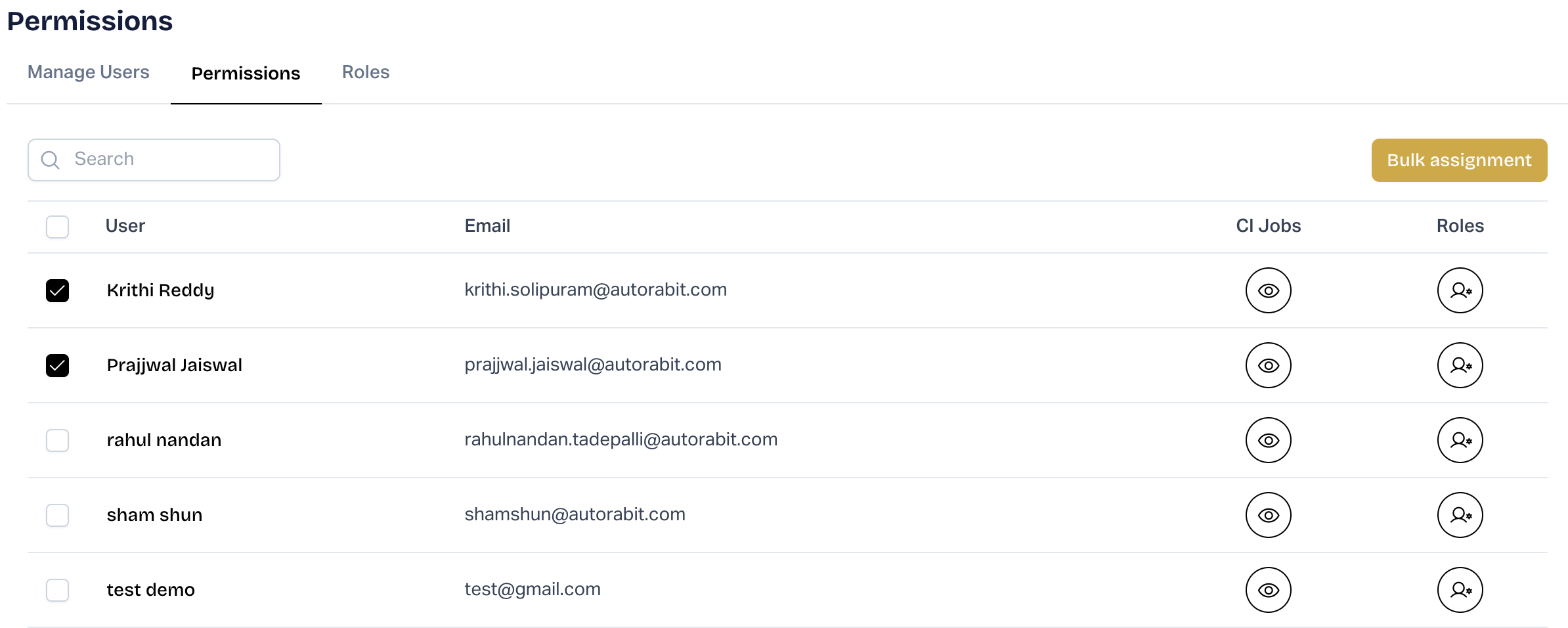
## User Permissions
1. Open **Settings › Permissions**.
2. Select two or more users and click **Bulk Assignment**.\
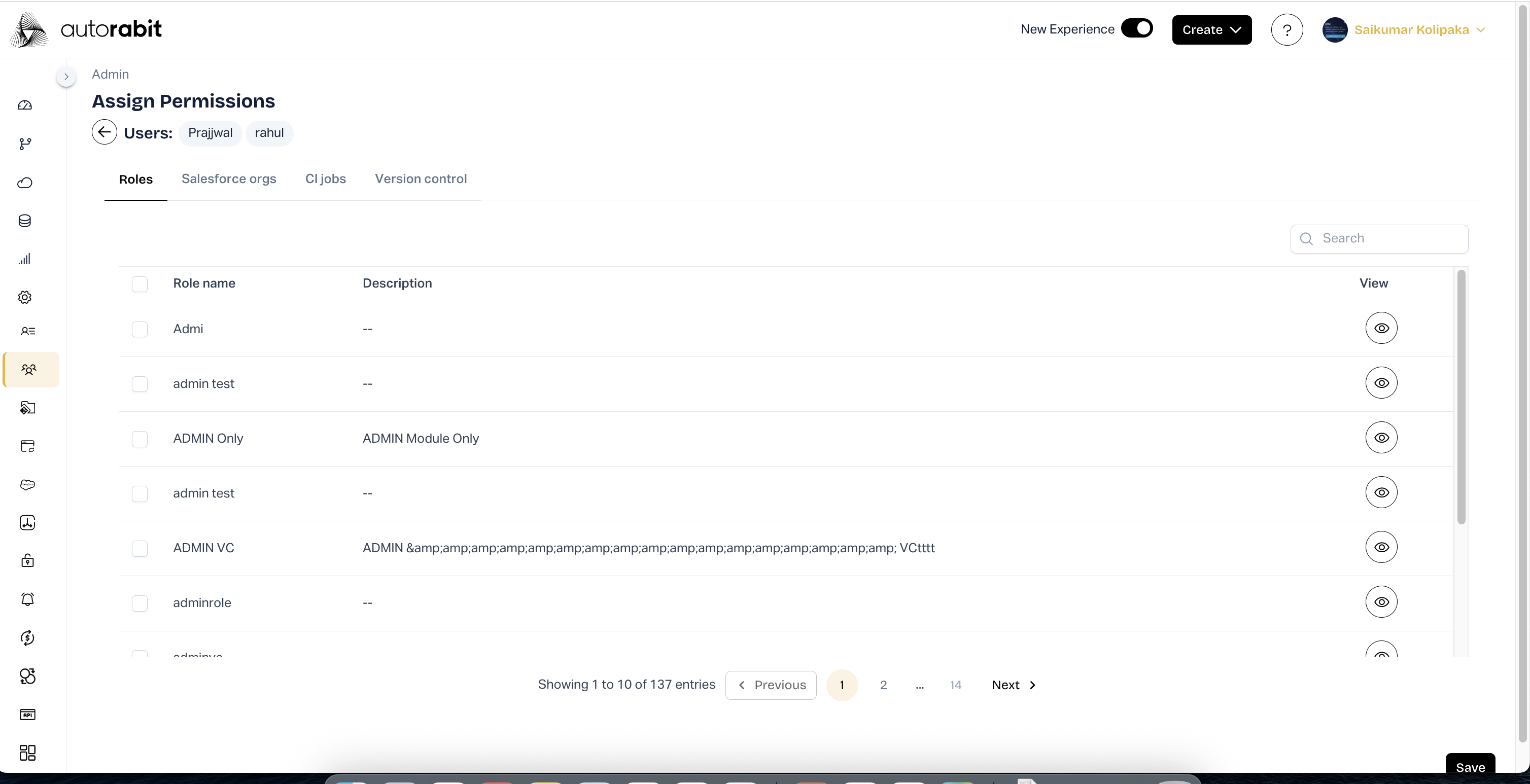
3. Go to **Roles** and select the required role\
\- Repeat the same process for **Salesforce Orgs**, **CI Jobs**, and **Version Control**.\
\- Once all selections are made, click **Save**.
Admins are hidden on this screen because they already hold full access.
***
## FAQ
### I’m an admin but can’t see certain branches or commits.
Your ARM account may belong to a different organization than those resources.
### Why can’t I see the User Management section anymore?
Your roles/permissions were changed. Contact another Org Administrator.
### Deleted users still appear in lists.
* Their **credentials** may still exist in **Settings › Credential Manager**.
* Repositories may reference those credentials—update or re-register.
### Why do some users lack access to certain ARM features?
Check their roles in **Settings › Roles**; only Admins have unrestricted access.
---
# Agent Instructions
This documentation is published with GitBook. GitBook is the documentation platform designed so that both humans and AI agents can read, navigate, and reason over technical content effectively. Learn more at gitbook.com.
## Querying This Documentation
If you need additional information that is not directly available in this page, you can query the documentation by asking a question.
Perform an HTTP GET request on the following URL with the `ask` and `goal` query parameters:
```
GET https://knowledgebase.autorabit.com/product-guides/arm-1/getting-started-1/arm-administration/user-management/users-roles-and-permissions.md?ask=&goal=
```
`ask` is the immediate question: it should be specific, self-contained, and written in natural language.
`goal` is what the user is ultimately trying to achieve, the reason they need the answer. Sharing it helps GitBook give you a better, more relevant answer. A goal is most helpful when it describes the outcome the user wants rather than restating the question. For example, with `ask=how do I create an API token`, a goal like `automate deployments from our CI pipeline` lets GitBook tailor the answer to that use case.
The response will contain a direct answer to the question and relevant excerpts and sources from the documentation.
Use this mechanism when the answer is not explicitly present in the current page, you need clarification or additional context, or you want to retrieve related documentation sections.