> For the complete documentation index, see [llms.txt](https://knowledgebase.autorabit.com/llms.txt). Markdown versions of documentation pages are available by appending `.md` to page URLs; this page is available as [Markdown](https://knowledgebase.autorabit.com/product-guides/arm-1/getting-started-1/arm-administration/user-management/view-my-profile.md).
# Profiles
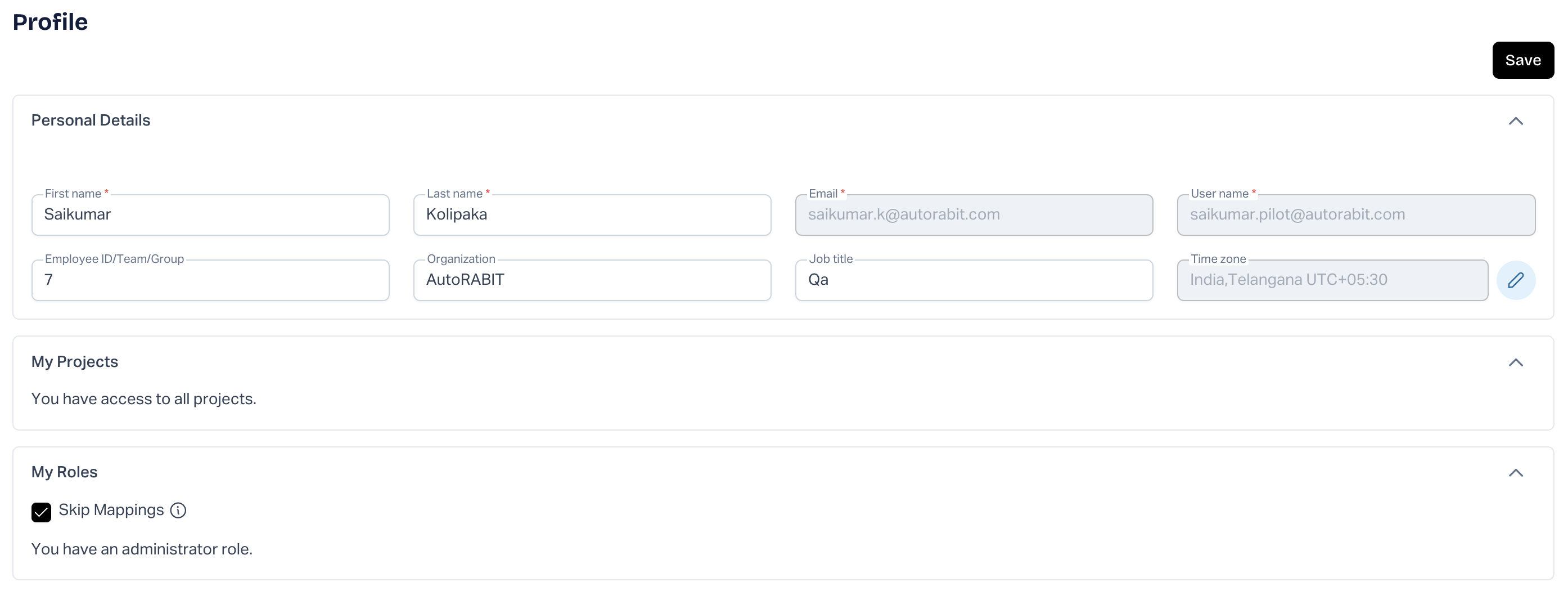
Numerous configuration options are available to users when setting up their profile in ARM. The **`Profile`** section allows users to view and update their basic information, personal email settings, etc.
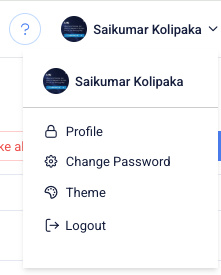
To access user preferences, click your user name in the upper right corner and select **`Profile`**.
### Personal Details
The **`Personal Details`** section displays your full name, ARM user name, email address, phone number, etc. Your personal details will be populated, as the system administrator must enter this information when creating a new user account. In this section, you can update your name, phone number, address, etc., accordingly.\
{% hint style="info" %}
**Important Note:**
1. **System Administrators** can change your **Email** and **Username**.
2. To avoid conflicts and get correct data while conducting any activity in ARM, ensure the **Time Zone** you set here matches the time zone you defined in Salesforce.
{% endhint %}
### My Projects
The **`My Projects`** section will list all the projects that you have created or have permission to view. Users with admin-level permissions will have access to all projects.
### My Roles
The **`My Roles`** displays the list of roles assigned to the user. If you have admin roles and permission, you can perform all the tasks an administrator can perform and access all modules within ARM.
### About Skip Mappings
If users maintain an individual version control branch for every release, they must map every branch to Salesforce Org and Version Control branches to keep synchronizing with Salesforce Org. To overcome this daily routine, ARM provides the option to skip the Org Mappings part and directly perform commits.
### My Salesforce Orgs
{% hint style="info" %}
NOTE:
1. If a sub-user does not have access to the **"**SF ORG MGMT**"** page and the Skip Mapping option is not enabled for their profile, they will be unable to view the mapped Salesforce Orgs in EZ Commit, even if they have permission to access those Orgs.
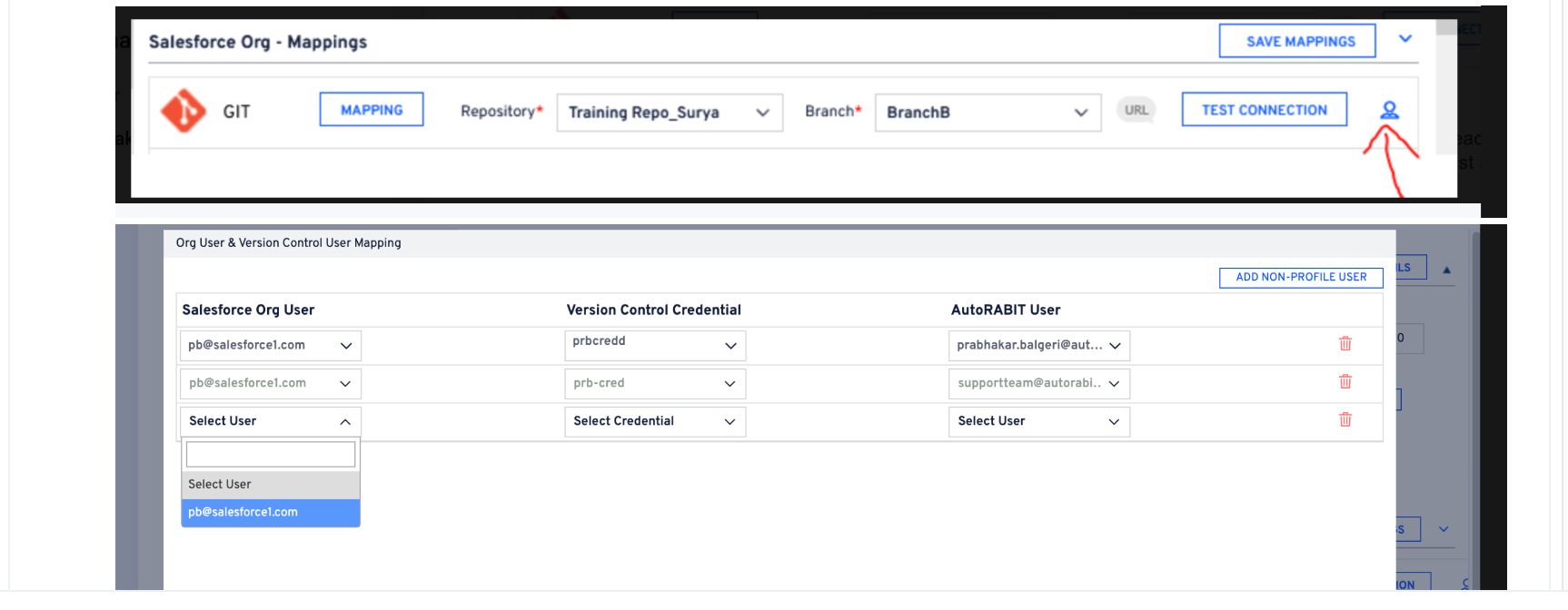
To resolve this issue, the admin must grant the sub-user access to the **"**SF ORG MGMT**"** page. This can be done by selecting the human icon in the screenshot below.
2. Then, the sub-users can view the mapped Salesforce Orgs in the EZ Commit screen once the user is added.
{% endhint %}
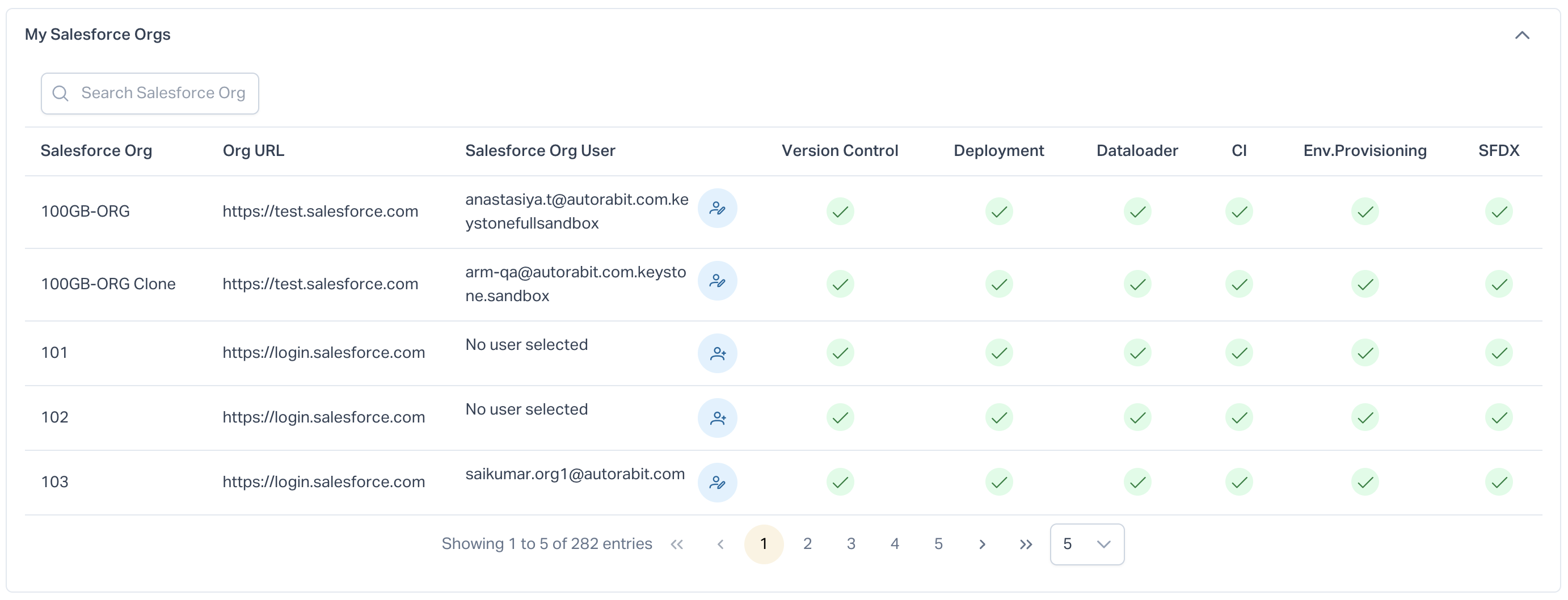
View the **`Salesforce Orgs`** assigned to you, or you have permission to view.\
### My Version Control Mappings
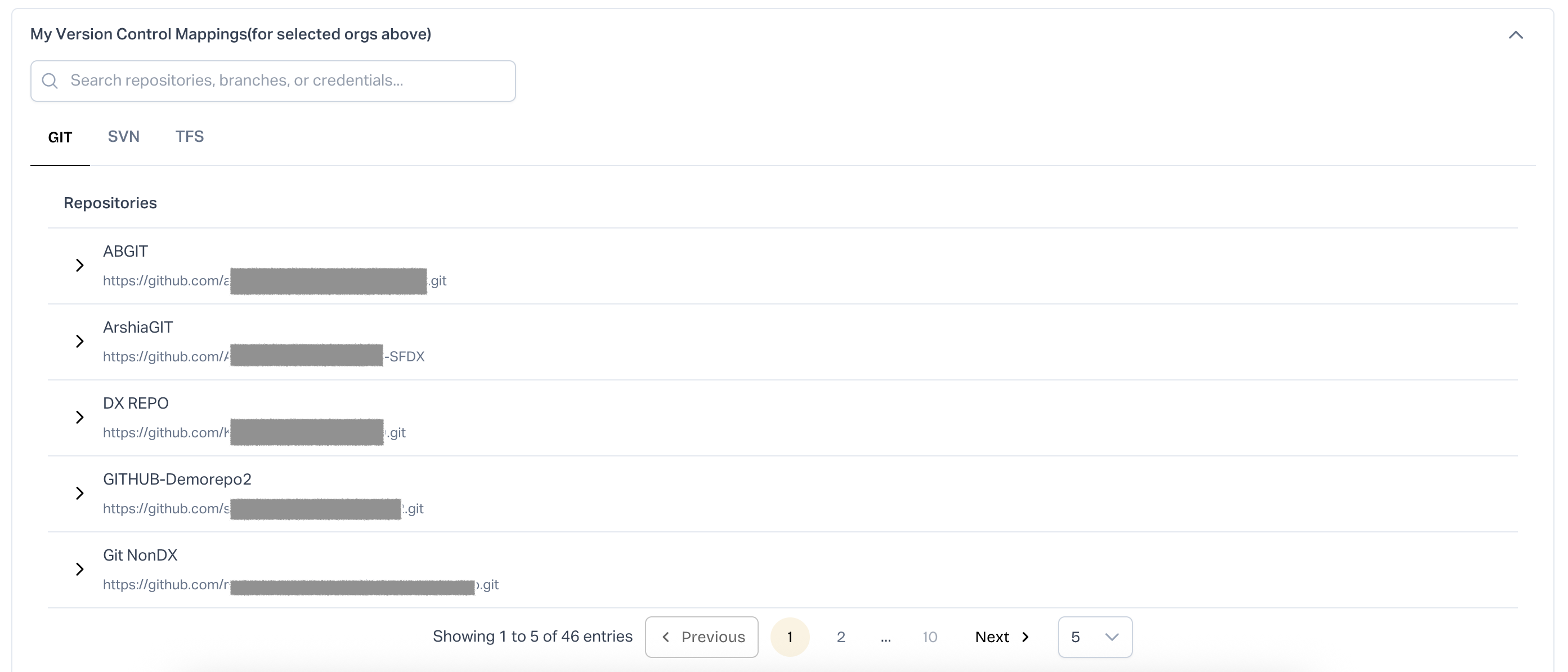
View the Version Control Repositories here based on the Salesforce Orgs selected in the **My Salesforce Orgs** section. \
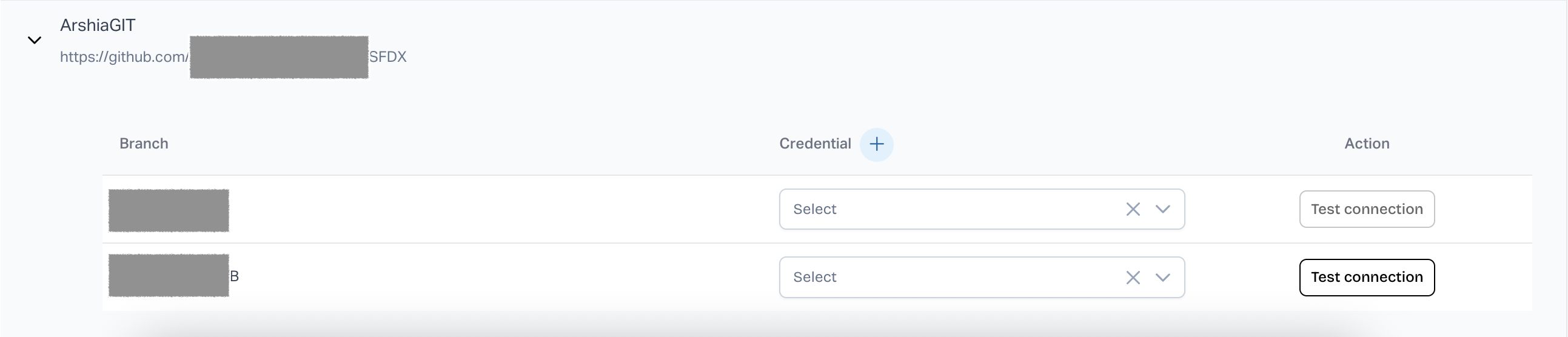
You can view the list of all repositories configured under each version control system (VC). Select a repository to display its branches. From there, map the required branches by choosing the appropriate **`Credential`** from the drop-down field. Click **`Test Connection`** to determine whether the connection has been authenticated or not.
### My ALM Mappings
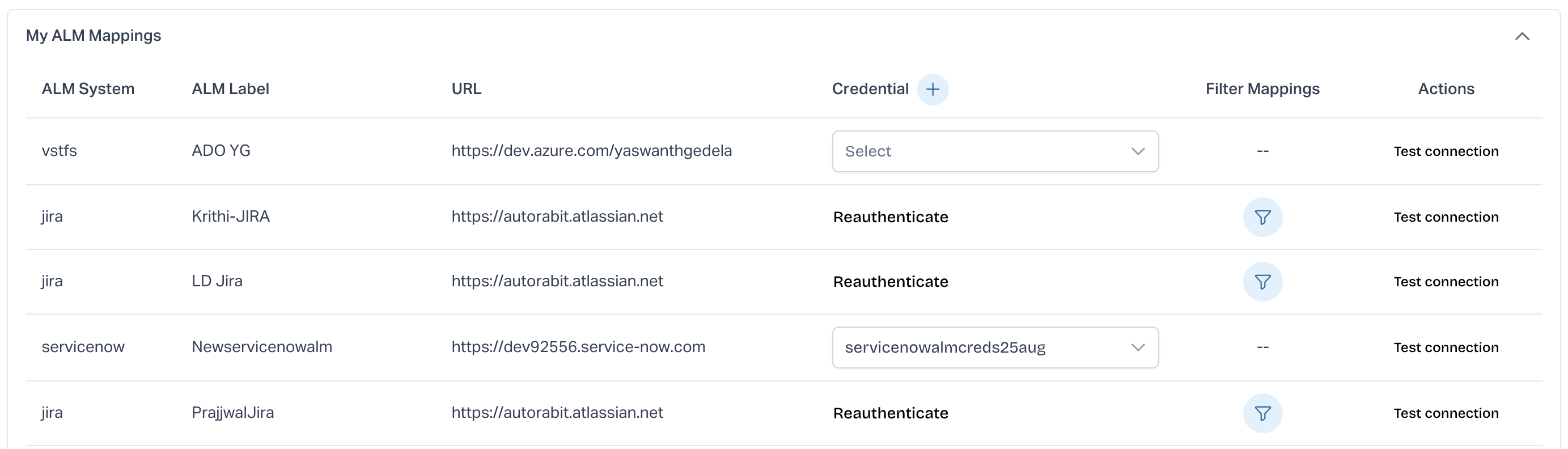
Under **`My ALM Mappings`** section, you can map your ALM using your credentials or **`Re-Authenticate`** Jira ALMs configured with OAuth access.\
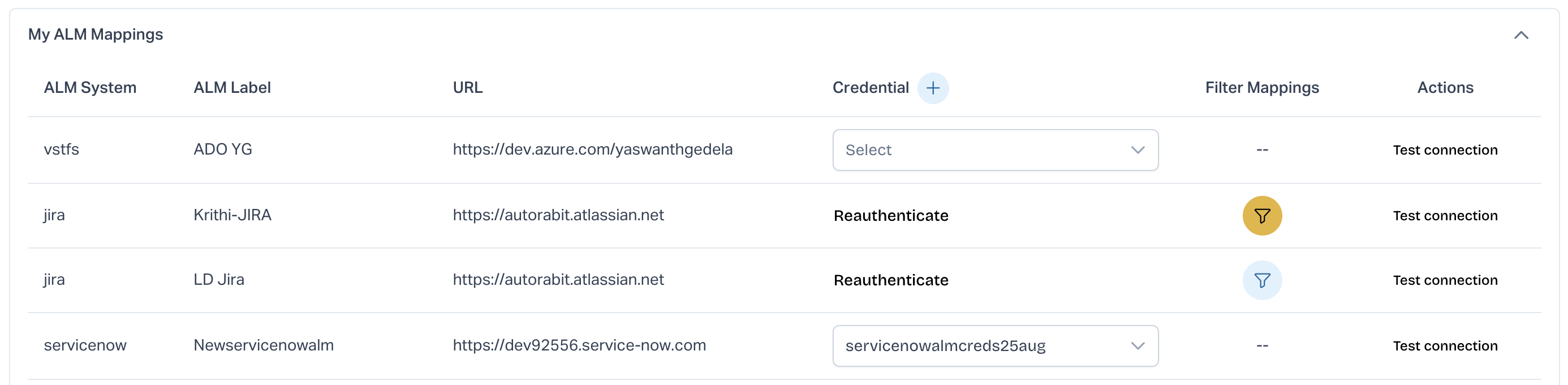
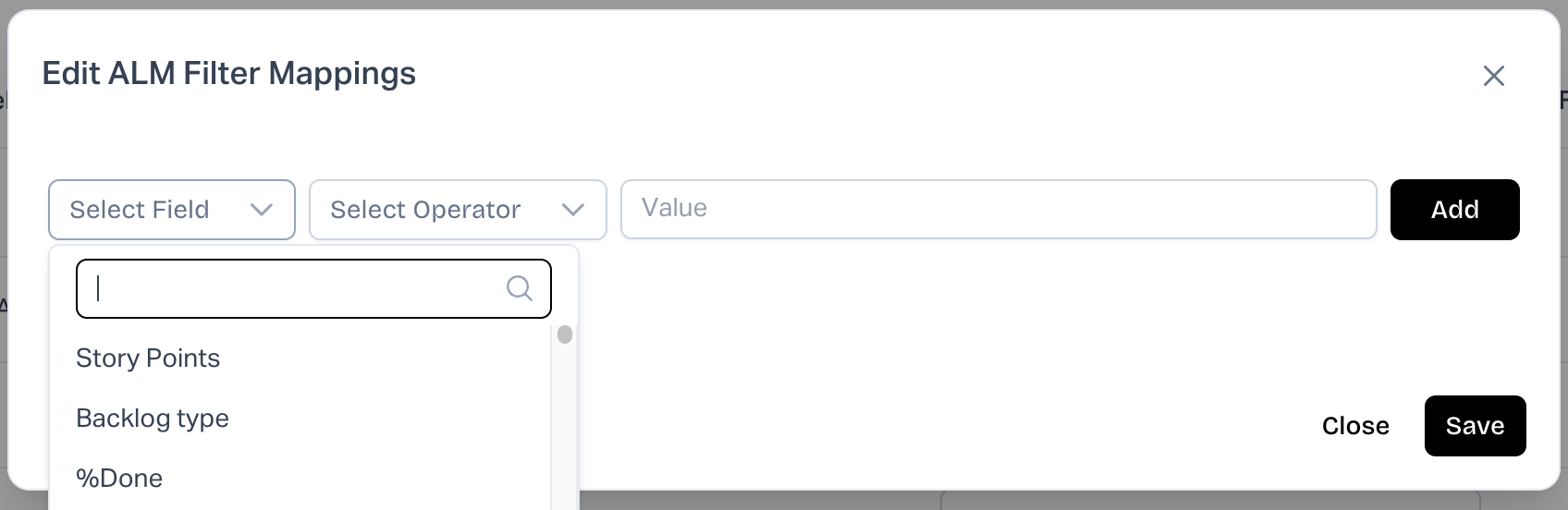
For ALM type **`IBMRTC (IBM Rational Team Concert)`** and **`JIRA`**, we have added the filter to fetch specific work items according to the filter applied.
According to the filter set, only specific work items will get fetched. When the developers progress (via EZ-Commit or merge operation in ARM) on updating the ALM status, they are reflected on the corresponding work items. If the user wishes to discard the filter selected, uncheck the **`Apply My Filter`** option, and all work items will get fetched.
### My Default Page
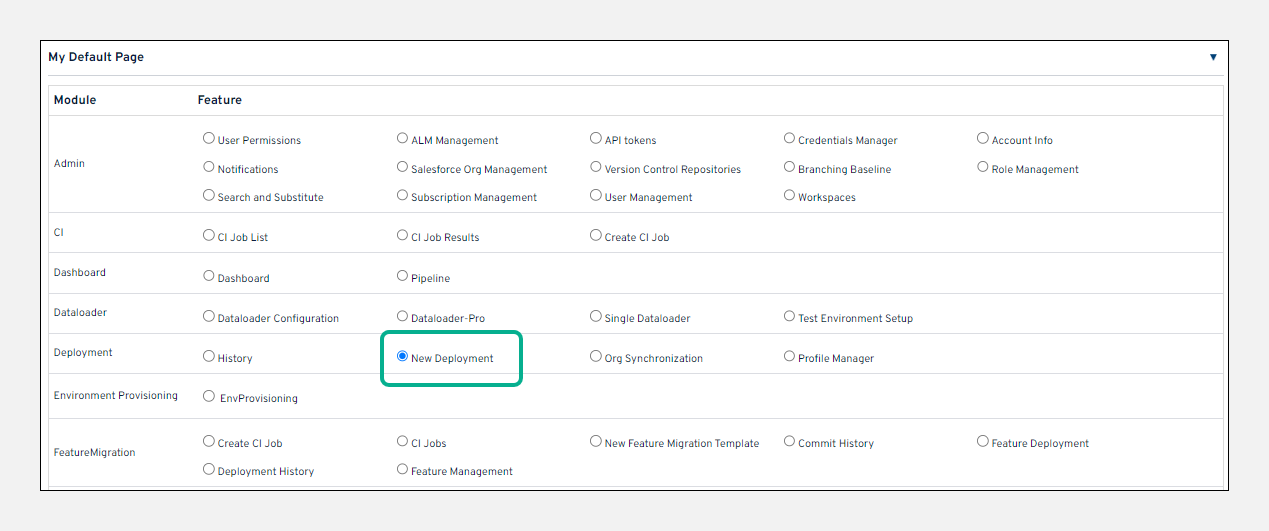
**`My Default Page`** is the first page that appears when you log in to ARM. You can customize ARM to open any page as the default page.
## Mapping Your Profile with Version Control and Salesforce Org
1. Go to the **Profile** section.
2. In **My Salesforce Orgs**:
* Select the Salesforce Org.
* Assign the Salesforce Org user.
3. In **My Version Control Mappings**:
* Select the repository.
* Assign the user.
4. Click **Save**.
5. Go to **Admin > SF Org Mgmt**:
* Select your org.
* Open **Salesforce Org – Mappings**.
* Choose the mapping for the version control you set up.
* Click **Save Mappings**.
Screenshots for each section are attached above to guide you through these steps.
If you maintain a separate Version Control branch for each release, you must map every branch to the Salesforce Org to keep them in sync.
To simplify this, use the **Skip Mapping** option under **Profile > My Roles**. This allows you to bypass org mappings and commit directly when appropriate.
## Uploading Multiple Profile Files
**413: Status Error**: Users may encounter a 413-status error in the browser console when trying to upload duplicate profile files that have been resolved after downloading from version control. This occurs when users try to download numerous files at one time. Download one profile file at a time to resolve the error.
---
# Agent Instructions
This documentation is published with GitBook. GitBook is the documentation platform designed so that both humans and AI agents can read, navigate, and reason over technical content effectively. Learn more at gitbook.com.
## Querying This Documentation
If you need additional information that is not directly available in this page, you can query the documentation by asking a question.
Perform an HTTP GET request on the following URL with the `ask` and `goal` query parameters:
```
GET https://knowledgebase.autorabit.com/product-guides/arm-1/getting-started-1/arm-administration/user-management/view-my-profile.md?ask=&goal=
```
`ask` is the immediate question: it should be specific, self-contained, and written in natural language.
`goal` is what the user is ultimately trying to achieve, the reason they need the answer. Sharing it helps GitBook give you a better, more relevant answer. A goal is most helpful when it describes the outcome the user wants rather than restating the question. For example, with `ask=how do I create an API token`, a goal like `automate deployments from our CI pipeline` lets GitBook tailor the answer to that use case.
The response will contain a direct answer to the question and relevant excerpts and sources from the documentation.
Use this mechanism when the answer is not explicitly present in the current page, you need clarification or additional context, or you want to retrieve related documentation sections.