> For the complete documentation index, see [llms.txt](https://knowledgebase.autorabit.com/llms.txt). Markdown versions of documentation pages are available by appending `.md` to page URLs; this page is available as [Markdown](https://knowledgebase.autorabit.com/product-guides/arm-1/getting-started-1/registration/alm-management.md).
# ALM
{% hint style="warning" %}
**Important Note:** The actions described here are available **only to Org Administrators**. General ARM users cannot access ALM Management.
{% endhint %}
## Why Integrate an ALM?
AutoRABIT can connect to popular **Application Lifecycle Management (ALM)** platforms—Jira, Azure DevOps, IBM RTC, CA Agile Central (Rally), and VersionOne—to:
* Surface active and inactive sprints in one place.
* Sync work-item status automatically during merges, commits, and CI jobs.
* Enforce release governance with smart-commit patterns and webhook automation.
The **ALM Management** page (added in ARM 21.6) lives under **Admin** and lets you register new ALM connections, set integration rules, and manage repository mappings.
***
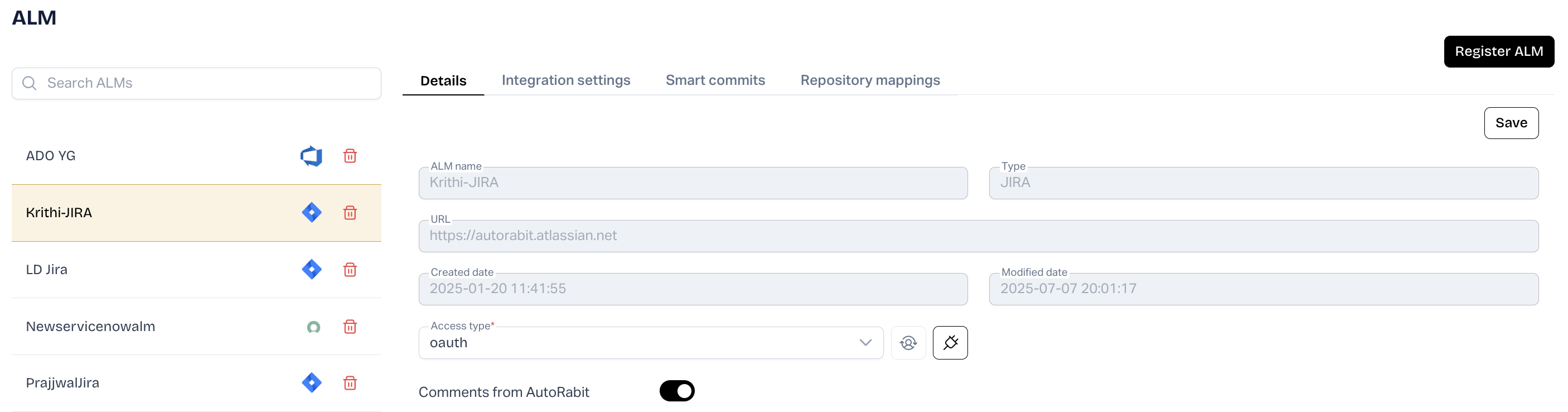
## Register an ALM
1. Log in to ARM as an administrator.
2. Navigate to **Settings › ALM Mgmt**.
3. Click **Register ALM**.
4. Fill the form:
**IBM RTC, CA Agile Central, Salesforce, ServiceNow VersionOne, or Azure DevOps**\
\

* **ALM Name** – friendly label.
* **ALM Type** – choose the platform.
* **ALM URL** – base server URL.
* **Credentials** – select stored credentials (see [Credential Manager](/product-guides/arm-1/troubleshoot/how-tos/create-users-credentials.md)).
**Jira**\
\

* **ALM Name** – friendly label.
* **ALM Type** – *Jira*.
* **Access Type** –
* **Standard** – enter **ALM URL** and credentials.
* **OAuth** – pick **OAuth**, click **Validate & Save**, and grant access in the Jira pop-up.
{% hint style="info" %}
* Jira **OAuth** is supported for **Cloud** editions only.
* OAuth appears only after you register Jira OAuth credentials in **ALM Settings**. Learn how [here](/product-guides/arm/arm-administration/user-management/manage-users-account-settings.md).
* **Access Token** expires after 1 hour; **Refresh Token** after 90 days.
{% endhint %}
5. Click **Test Connection** to verify access, then **Save**.
{% hint style="info" %}
**Troubleshooting Authentication**\
An *Authentication Failed* error on the EZ-Commit screen often stems from VPN issues or outdated credentials.
1. Go to **My Account › ALM Configuration**.
2. Click **Test Connection** to re-authenticate.
3. If it still fails, create a new credential and relink the ALM.
{% endhint %}
4. The new ALM appears in the **ALM List**.
* Toggle **AR Comments** to disable AutoRABIT-generated comments in Jira.
* For Jira, you can switch **Access Type** between *Standard* and *OAuth* and click **Re-Authenticate** when tokens expire.
{% hint style="info" %}
**Limitation:** Jira OAuth is Cloud-only and enabled on request. Contact **** if you need it.
{% endhint %}
***
## Integration Settings
Configure how work items are shown and filtered:
1. **Display work items from inactive sprints** – include backlog items.
2. **Enable global filter criteria on work items** – add column filters as needed.
3. Click **Save Settings**.\
{% hint style="info" %}
To remove a field’s filter, click the trash-can icon next to the rule.
{% endhint %}
***
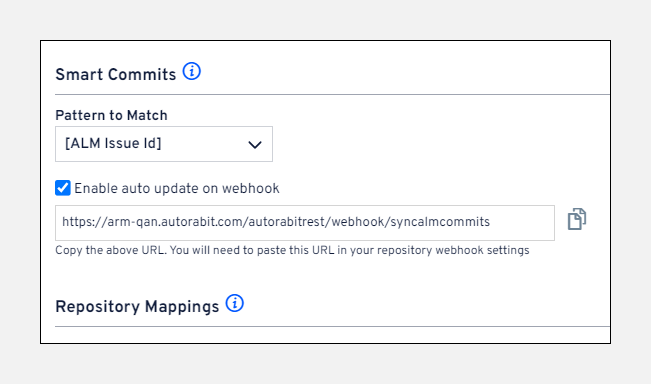
## Smart Commits
Define the pattern AutoRABIT uses to parse work-item references in commit messages—for example:
```
git commit -m "\[PROJECT-123] add README"
```
* **Enable auto update on webhook** – reveals a webhook URL you can add to your VCS so external commits update the ALM automatically. See setup guides [here](/product-guides/arm-1/arm-features/webhooks.md).
* Optionally **sync external smart commits** made outside AutoRABIT.
***
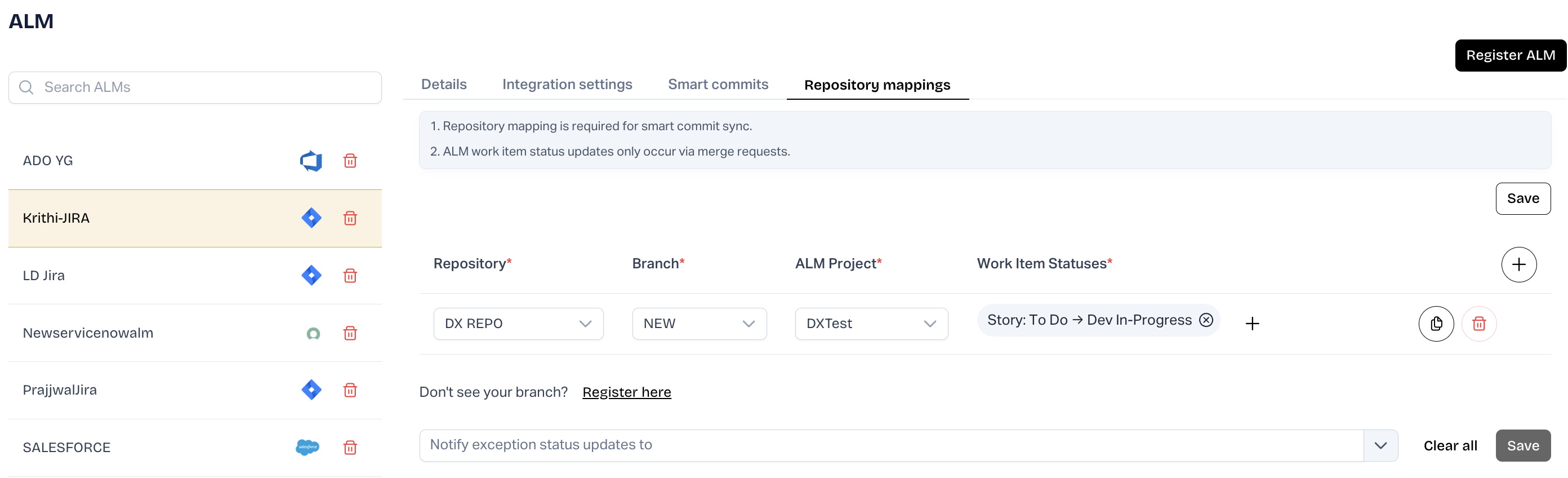
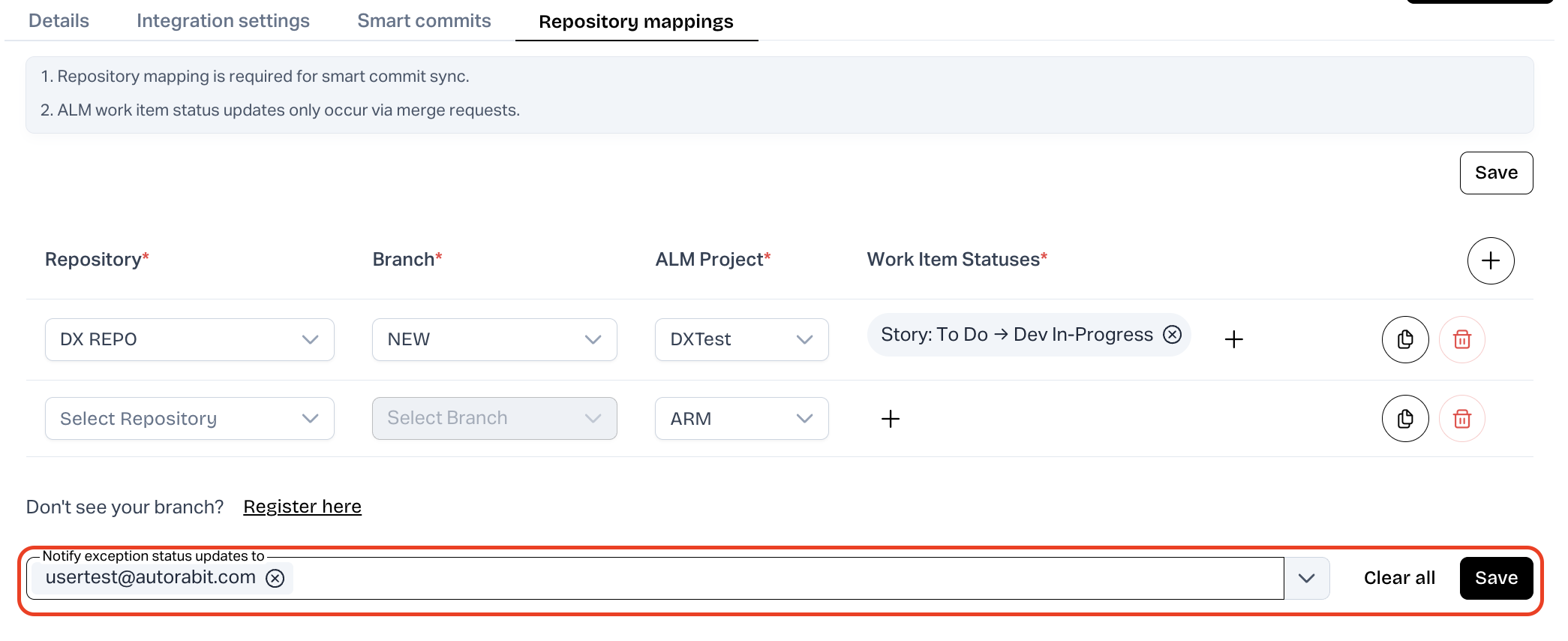
## Merge request settings/ Repository Mappings
Repository mappings let AutoRABIT update ALM work-item status after a successful merge.
{% hint style="info" %}
* A mapping is **required** for smart-commit syncing.
* Status changes apply **only** to merges performed through merge requests.
{% endhint %}
1. Choose the version-control **Repository**.
2. Select the **Source Branch** (click *Register here* if it’s missing).
3. Pick the **ALM Project**.
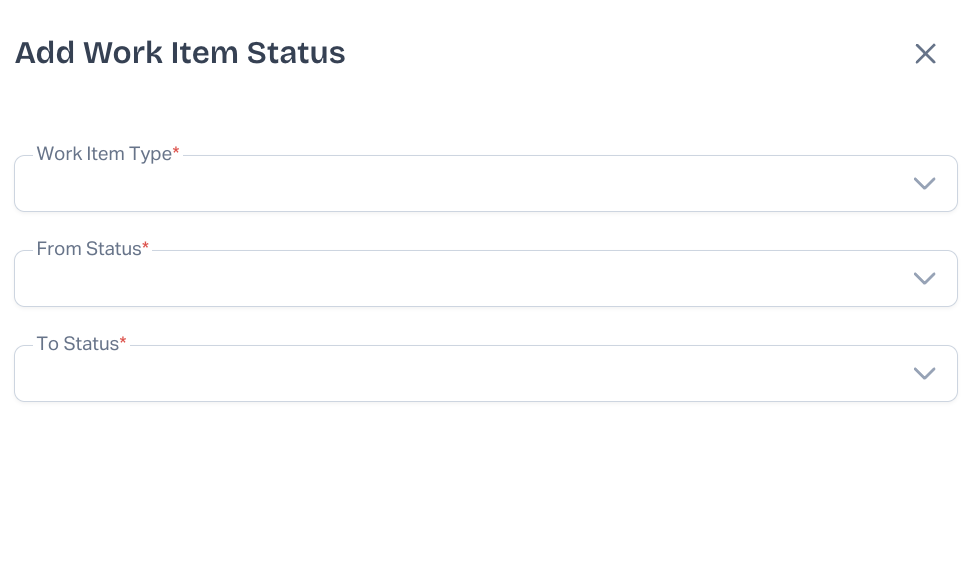
4. In **ALM Work Item Status**, define:
* **Work Item Type**
* Current status
* Target status after merge
5. Click **Save**.
{% hint style="info" %}
Branches and repos you **can’t** access won’t appear in the dropdowns.
{% endhint %}
6. Suppress ALM email noise by listing addresses in **Notify exception status updates to**.\
### For Salesforce as ALM
1. Log in to ARM as an administrator.
2. Navigate to Settings **› ALM**.
3. Click **Register ALM**.\\
1. Fill the form:
1. **ALM Name** – friendly label.
**Field Mapping for Work Item Updates in Salesforce**
b. Salesforce Org Select the Salesforce Org from your list of registered orgs where the work item updates should be applied.
c. Custom Object / Work Item Type Choose the Custom Object that represents your Work Items (e.g., User\_Story\_\_c, Bug\_\_c). This is where the Work Item ID will be updated.
d. Title Field Map the field that represents the project or feature to which the Work Item belongs. This is usually a custom text field like Project\_\_c.
e. Assignee Field Select the custom field that stores the user assigned to the Work Item. This allows AutoRABIT to track ownership of the User Story or Bug.
f. Status Field Choose the custom field that reflects the current status of the Work Item (e.g., New, In Progress, Ready for QA, Closed). This field can be updated automatically based on the commit action.
g. Comment Field Select the custom field where commit-related comments should be posted. The system will populate this with detailed commit information after the action is performed. **1. Select Post Commit Action** Under the Post Commit section, select:
**2. Update ALM Work Item Status**
**Configure ALM Fields** Fill in the required fields to ensure the correct ALM Work Item is updated post-commit:
**ALM Type**: Choose the integrated ALM tool (e.g., Salesforce).
* ALM Label: Select the applicable label for this commit operation.
* ALM Project: Pick the project or module name (e.g., User Story, Bug).
* ALM Work item: Select the Work Item ID you wish to update.
* ALM Work Item Status: Choose the new status you want to set (e.g., To Do, In Progress, Done).
* Current Status: Shows the status of the item (e.g., In Testing).\\


**Complete the Commit** Click Commit after configuring all required fields. The system will:
* Perform the commit action.
* Post-commit, automatically update the ALM Work Item to the new selected status.
* Add relevant commit information to the comment field (if configured), including metadata, user, and validation results.
**Sample Outcome Post Commit Comment Format:** The selected Work Item will reflect the updated status in your ALM tool and include commit metadata like:
\[Message] \[\*\*\*\*\*\*\*\*\*\*\*\*]# Saas tool Integration-2
\[Repository] \*\*\*\*\*\*\*\*\*\*;
\[Branch] 18235\_test
\[Revision] 3637289
\[Committed by] \*\*\*\*\*\***@**.com
\[Committed metadata members] {Apex Class=\[A000, A0000]}
\[Pre-validation Results]
Label Name = \*\*\*\*\*\*\*\*\*\***.**\*\*
Apex Test Results = NA
Static Analysis = NA
Deployment Org = NA
Overall Validate Deployment Status = NA
Approved By = ***.@***\*\*\*.com
---
# Agent Instructions
This documentation is published with GitBook. GitBook is the documentation platform designed so that both humans and AI agents can read, navigate, and reason over technical content effectively. Learn more at gitbook.com.
## Querying This Documentation
If you need additional information that is not directly available in this page, you can query the documentation by asking a question.
Perform an HTTP GET request on the following URL with the `ask` and `goal` query parameters:
```
GET https://knowledgebase.autorabit.com/product-guides/arm-1/getting-started-1/registration/alm-management.md?ask=&goal=
```
`ask` is the immediate question: it should be specific, self-contained, and written in natural language.
`goal` is what the user is ultimately trying to achieve, the reason they need the answer. Sharing it helps GitBook give you a better, more relevant answer. A goal is most helpful when it describes the outcome the user wants rather than restating the question. For example, with `ask=how do I create an API token`, a goal like `automate deployments from our CI pipeline` lets GitBook tailor the answer to that use case.
The response will contain a direct answer to the question and relevant excerpts and sources from the documentation.
Use this mechanism when the answer is not explicitly present in the current page, you need clarification or additional context, or you want to retrieve related documentation sections.