> For the complete documentation index, see [llms.txt](https://knowledgebase.autorabit.com/llms.txt). Markdown versions of documentation pages are available by appending `.md` to page URLs; this page is available as [Markdown](https://knowledgebase.autorabit.com/product-guides/arm-1/getting-started-1/registration/salesforce-org/arm-salesforce-eca-local-connection-setup-steps.md).
# ARM: Salesforce ECA Connection Setup Steps
This is a step by step on how to implement the Local ECA solution to establish a new connection with ARM.
{% stepper %}
{% step %}
### Prereq: Get your Callback URL (redirect URI)
For AutoRABIT’s ARM ECA setup, you need **the callback URL**
The callback URL depends on the instance:
```
{$instancename}/oauth/_callback
```
Example:
```
https://arm-qan5.autorabit.com/oauth/_callback
```
{% endstep %}
{% step %}
### Create the External Client App (ECA) in your Salesforce Org
1. Login into Salesforce
2. In **Salesforce**, go to **Setup**.
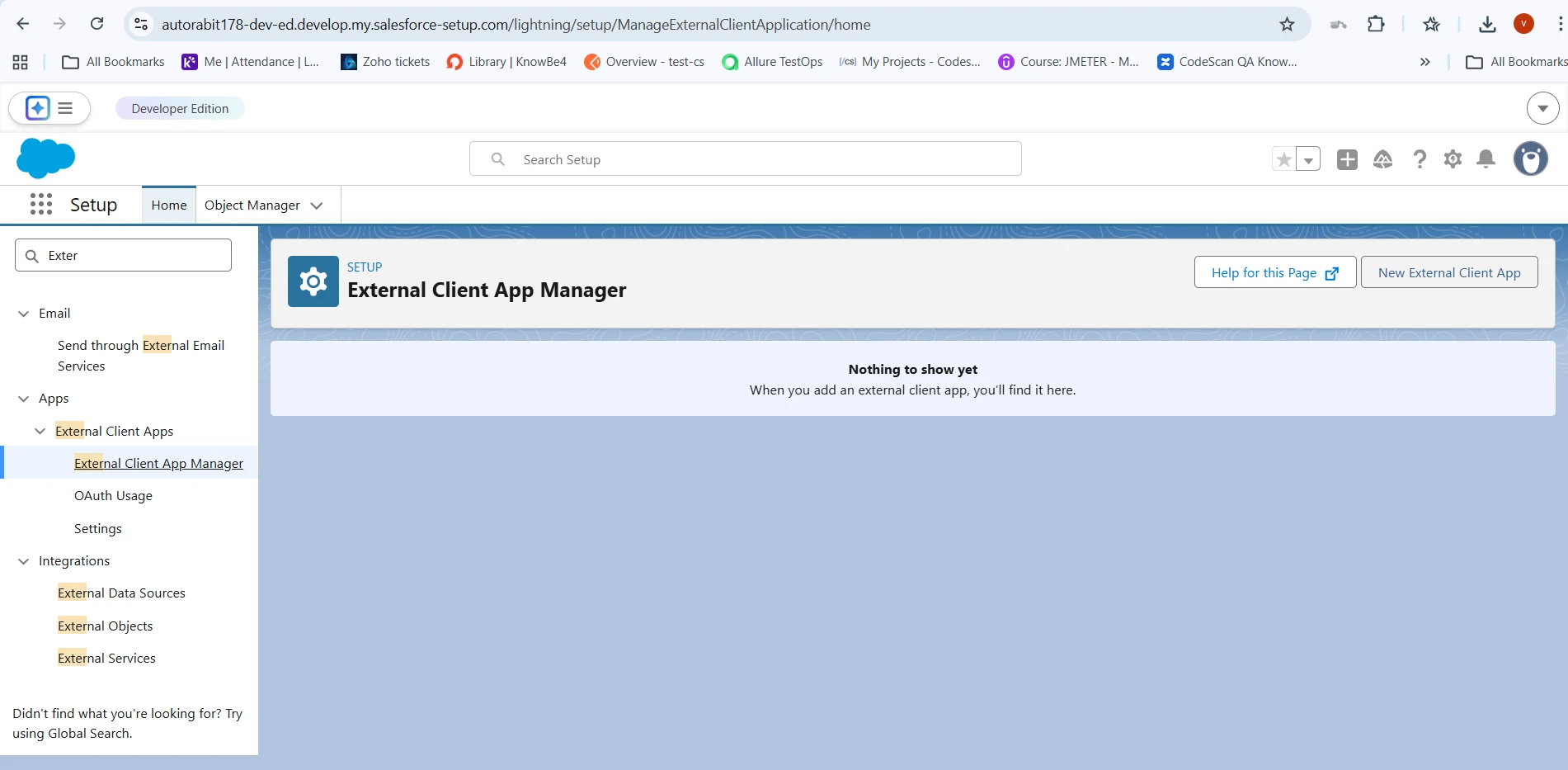
3. In **Quick Find**, search **External Client Apps**.
4. Open **External Client App Manager** (or the External Client Apps area).
5. Click **New External Client App**.
6. Fill in the basics:
* **Name / Label ( e.g. AR\_Local)**
* **API Name** (auto-filled)
* **Contact Email**
* **Distribution State**:
* **Local** (only for this org)
{% endstep %}
{% step %}
{% hint style="info" %}
**Important Note**: After creating the ECA in Salesforce, there may be a replication delay on the Salesforce side. If you encounter the error error=invalid\_client\_id\&error\_description=client%20identifier%20invalid while attempting to connect or register the org, please wait 30 minutes, then try again to allow the Salesforce configuration to sync completely
{% endhint %}
{% endstep %}
{% step %}
### Enable OAuth + set callback URL + scopes
1. Click **Enable OAuth** (or expand **API (Enable OAuth Settings)** and check **Enable OAuth**).
2. Set \**Callback URL*
The URL you collected in step 1.
3. Choose **OAuth Scopes**:
* Access the identity URL service (id, profile, email, address, phone)
* Manage user data via APIs (api)
* Full access (full)
* Access Connect REST API resources (chatter\_api)
* Perform requests at any time (refresh\_token, offline\_access)
* Access custom permissions (custom\_permissions)
{% endstep %}
{% step %}
### Flow Enablement
1. In **Flow Enablement**, select **Enable Authorization Code and Credentials Flow**.
2. **User credentials are required in the POST body** (Salesforce shows this option when you choose that flow) should be disabled.
{% endstep %}
{% step %}
### Security toggles (common defaults)
In the **Security** section, the following options should be enabled:
* **Require secret for Web Server Flow**
* **Require secret for Refresh Token Flow**
* **Enable Refresh Token Rotation(Auto Selected)**
* **Limit Idle Refresh Token Time-to0Live (TTL) to 30 days(Auto Selected)**
**Note:** If this Salesforce Org remains inactive for **30 days**, the refresh token will expire. You must manually re-authenticate the registered Org from the ARM application before it can be used again.
{% endstep %}
{% step %}
### Create the app and capture Client ID / Secret
1. Click **Create**.
2. Open the app’s **Settings** tab and locate **Consumer Key and Secret**:
* **Consumer Key** = **Client ID**
* **Consumer Secret** = **Client Secret**
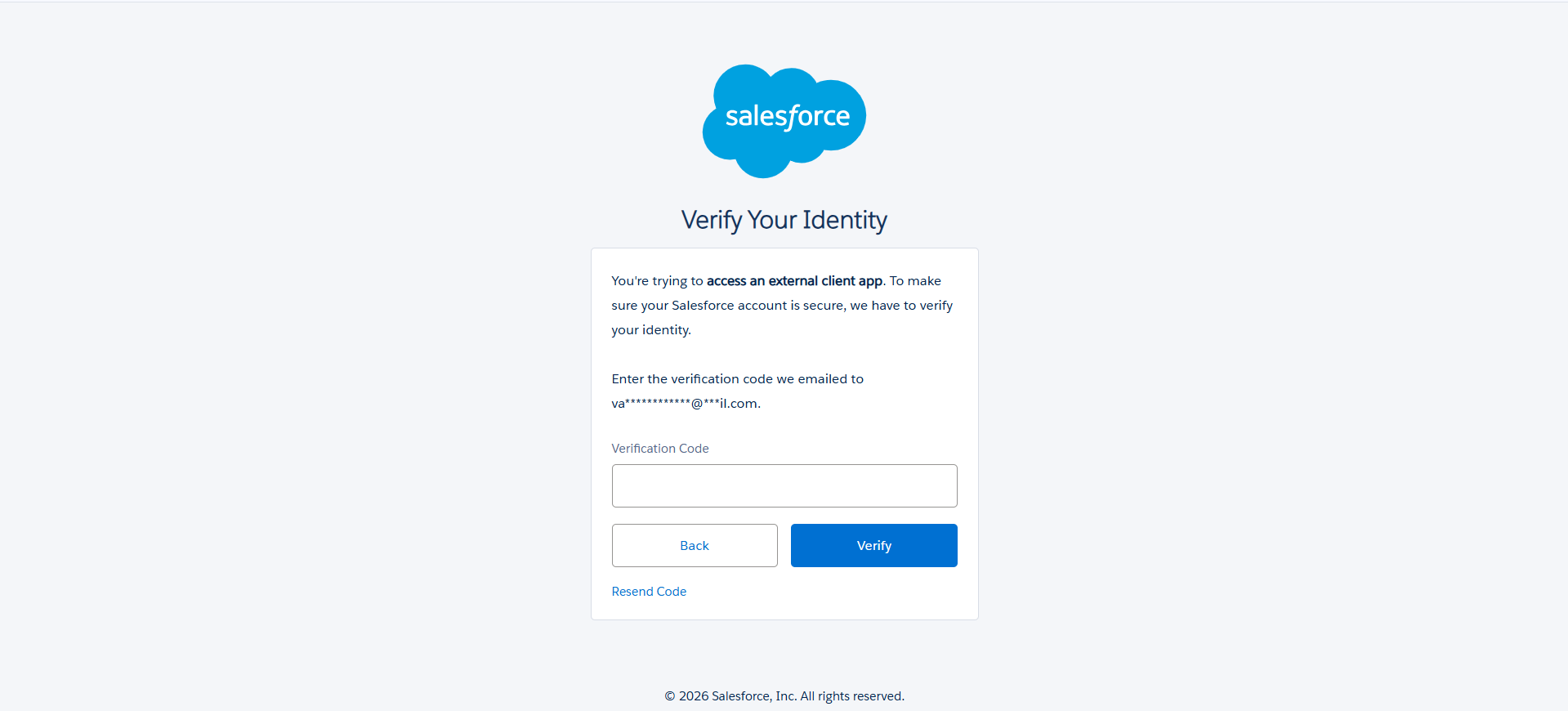
When you click the button for Consumer Key and Secret, a code will be sent to the registered email for the user creating the configuration
After getting the code and verifying in Salesforce, the Consumer Key (ClientID) and Consumer Secret (Client Secret) will be displayed.
**IMPORTANT: STORE THIS VALUE IN A SAFE PLACE WHERE IT CAN BE EASILY USED FOR FUTURE REFERENCE.**
{% endstep %}
{% step %}
### Configure Policies (very important)
After creating the ECA, open the **Policies** tab and adjust as needed (exact options vary by org/security posture), commonly:
* **Permitted Users**: Often set to **Admin approved users are pre-authorized** for controlled rollouts.
* Add the required **profiles/permission sets** (or approved users) for who is allowed to authorize.
{% endstep %}
{% step %}
### What you’ll use in AutoRABIT
Once created, the set of values you’ll reference in your ARM configuration are:
* **Client ID**
* **Client Secret**
Also, the internal direction is to be clear that **one ECA per customer org** can be used across products (rather than creating one per AR product).
***
After the configuration in Salesforce is complete, and you have obtained the ClientID and Client Secret, we can go to ARM to create the connection
In the menu, click Salesforce org and click Register Salesforce org.
Create the connection by filling in the required information obtained from Salesforce.
Important Note: After creating the ECA in Salesforce, there may be a replication delay on the Salesforce side. If you encounter the error error=invalid\_client\_id\&error\_description=client%20identifier%20invalid while attempting to connect or register the org, please wait 30 minutes and try again to allow the Salesforce configuration to sync completely.
Once the Validate and Save button is clicked, a Salesforce login is shown to log in with the user we intend to use for the Connection.
A message from Salesforce will show to request granted permissions for the user to use the scopes defined in the ECA. Click Allow.
Then, you will be returned to ARM and the connection will be saved.
{% endstep %}
{% endstepper %}
{% hint style="info" %}
**Important:** This setup is **Salesforce org-specific**. You must repeat this process **for each customer Salesforce org** you want to connect, since the External Client App is created inside (and scoped to) that org and produces org-specific credentials.
{% endhint %}
---
# Agent Instructions
This documentation is published with GitBook. GitBook is the documentation platform designed so that both humans and AI agents can read, navigate, and reason over technical content effectively. Learn more at gitbook.com.
## Querying This Documentation
If you need additional information that is not directly available in this page, you can query the documentation by asking a question.
Perform an HTTP GET request on the following URL with the `ask` and `goal` query parameters:
```
GET https://knowledgebase.autorabit.com/product-guides/arm-1/getting-started-1/registration/salesforce-org/arm-salesforce-eca-local-connection-setup-steps.md?ask=&goal=
```
`ask` is the immediate question: it should be specific, self-contained, and written in natural language.
`goal` is what the user is ultimately trying to achieve, the reason they need the answer. Sharing it helps GitBook give you a better, more relevant answer. A goal is most helpful when it describes the outcome the user wants rather than restating the question. For example, with `ask=how do I create an API token`, a goal like `automate deployments from our CI pipeline` lets GitBook tailor the answer to that use case.
The response will contain a direct answer to the question and relevant excerpts and sources from the documentation.
Use this mechanism when the answer is not explicitly present in the current page, you need clarification or additional context, or you want to retrieve related documentation sections.