> For the complete documentation index, see [llms.txt](https://knowledgebase.autorabit.com/llms.txt). Markdown versions of documentation pages are available by appending `.md` to page URLs; this page is available as [Markdown](https://knowledgebase.autorabit.com/product-guides/arm-1/getting-started-1/registration/salesforce-org/salesforce-org-management.md).
# SF Org Management
{% hint style="info" %}
**Important Note:** This article is for the **Org Administrator** in particular. The actions discussed in the article will not be available to general users.
{% endhint %}
### Overview
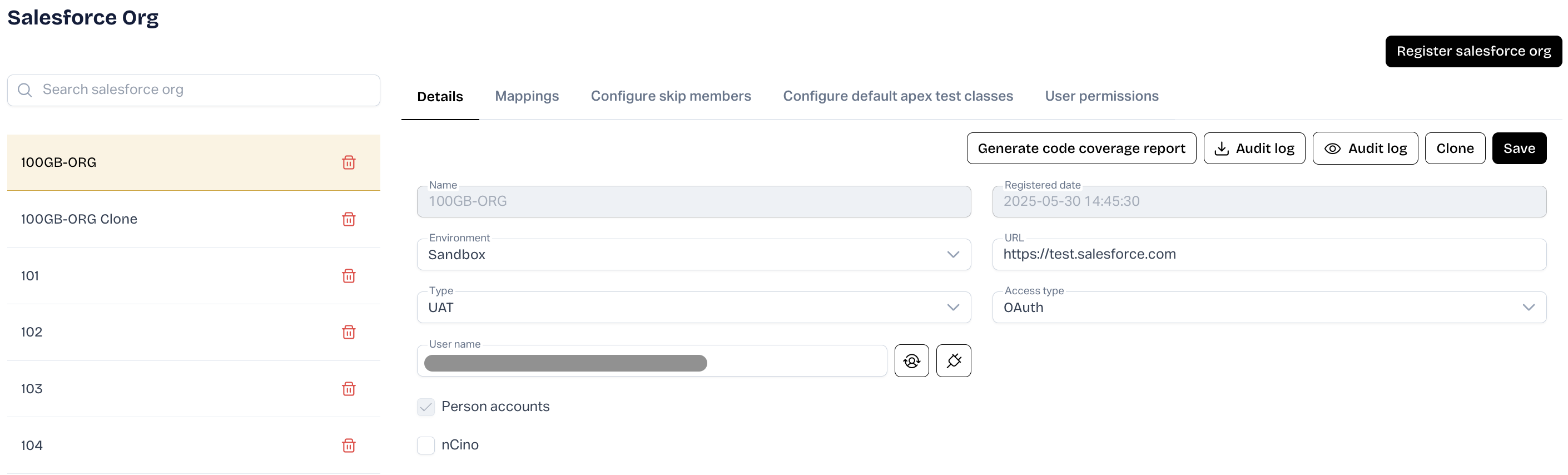
All the org connections added to ARM can be seen on the **Salesforce Org Management** page. This page lists details for the Salesforce orgs you have added and any org that has been shared with you by your team members.
The **Salesforce Org Management** page shows information about:
1. Details of your Salesforce org
2. ALM / Plugins mapped with your Salesforce org
3. List of metadata members available with your Salesforce org
4. Default Apex Test Class configured
5. User Permissions assigned to your Salesforce org\
### Salesforce Org - Details
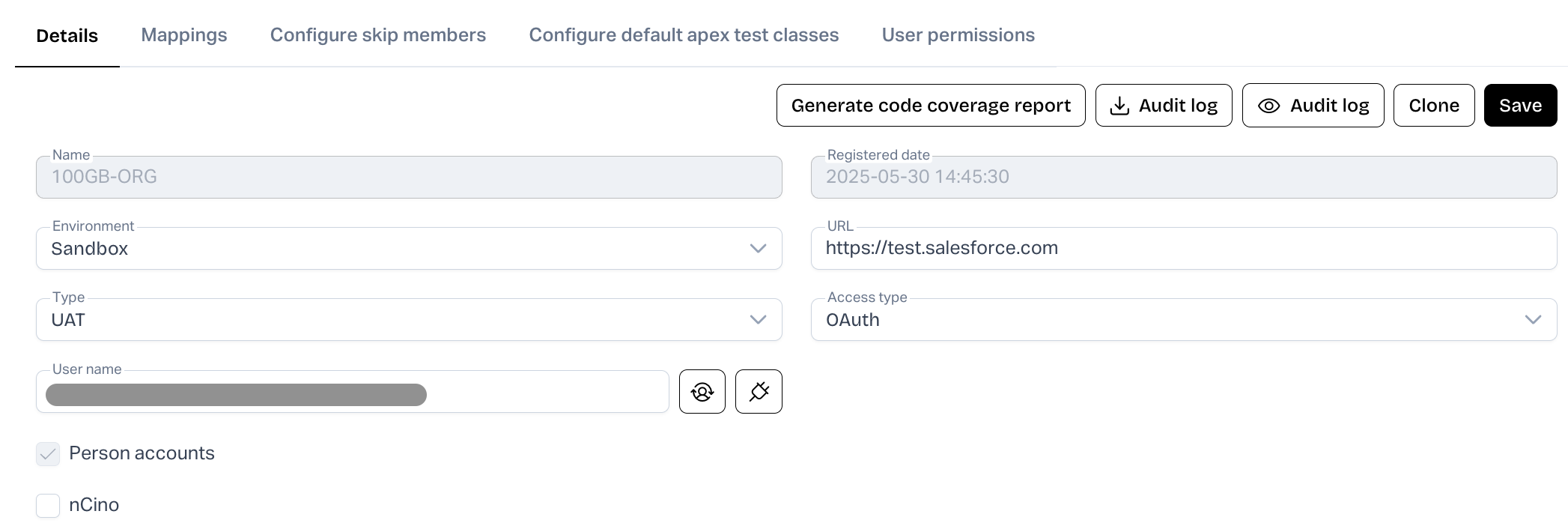
A summary of the Salesforce org registered with ARM is displayed in this area.\
The fields displayed in this section are described in the table below:
| Field Name | Indicates |
| ----------------------------- | ------------------------------------------------------------------------------------------------------------------------------------------------------------------------------------------------------------------------------------------------------------------------------------------------------------------------------------------------------------------------------------------------- |
| **`Name`** | Name of the Salesforce org given when registering with ARM. |
| **`Type`** | Salesforce org types such as Developer, Sandbox, or Production. |
| **`Environment`** | Your Salesforce environment, i.e., Production or Development Edition, Sandbox, or Production. |
| **`URL`** | Salesforce login URL. |
| **`Registered Date`** | Date of account activation. |
| **`Access Type`** | Authorization type such as OAuth, Standard. For the *Standard* Access type, the username, password, and security token will be displayed. |
| **`Re-Authenticate`** | If the OAuth token has expired for a saved connection, click this to re-enter your user credentials and refresh the connection so ARM can continue to connect to it. |
| **`Test Connection`** | To check if the connection has been authenticated or not. Once clicked, a success message is displayed once the authentication is complete. |
| **`Person Accounts Enabled`** | When you do business with individual consumers, you can enable the Person Accounts. Person accounts apply to organizations that operate on a business-to-consumer model. Remember that you cannot disable Person Accounts once you enable them. For more information, refer to the article published in Salesforce: |
| **`nCino Package Enabled`** | This checkbox is selected by default if your Salesforce org is enabled with nCino objects. Unselecting the checkbox will remove the nCino objects configured with your Salesforce Org, and you'll be unable to use the nCino metadata and data for deployment. |
About nCino Package Enabled: Selecting the **Enable nCino package** previously required getting all nCino deployed packages of the Salesforce org; however, users without **Modify All Data** and **Download App** permissions could not register the org in the ARM application. To avoid this, the mandatory option to load nCino deployed packages while registering a Salesforce org has been disabled.
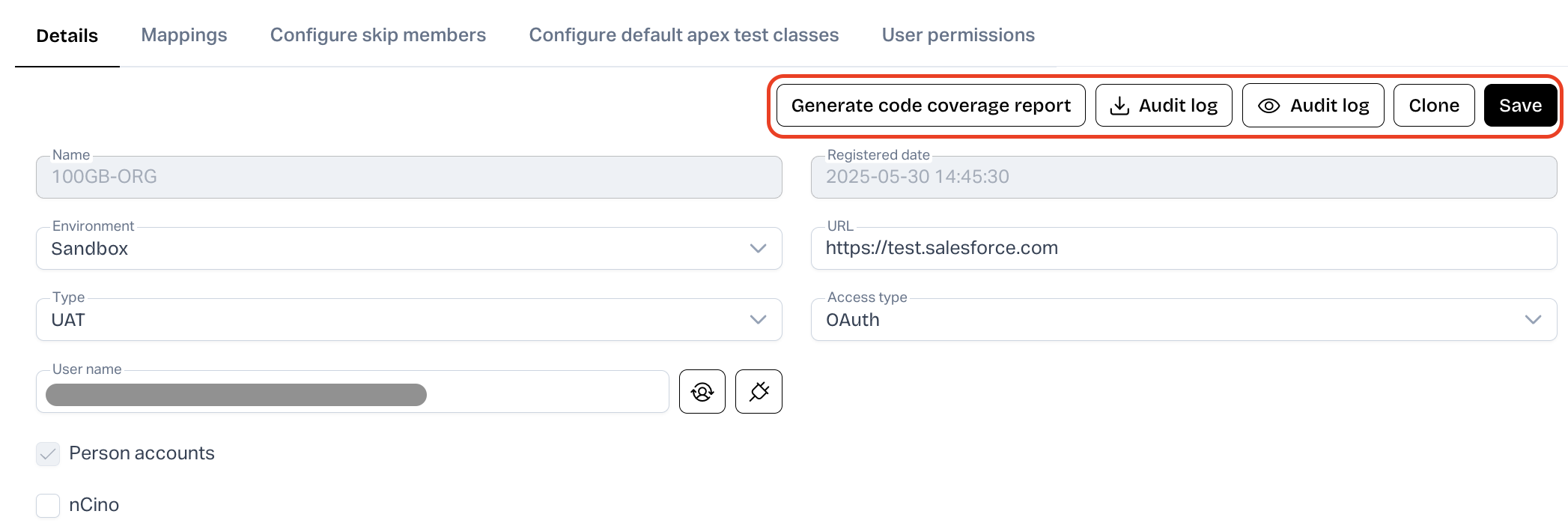
**Additional options under 'Salesforce Org - Details' section**
1. **`Clone:`** ARM clone functionality creates duplicate records to reduce unnecessary retyping.
2. **`View/Download Audit Log:`** The audit log shows the recent changes made to your org. It lists the date of the change, who made it, and what the change was. All objects include fields to store the name of the user who created the record and who last modified the record. This provides some basic auditing information. Use the **`Download Audit Log`** button to save the audit log in your local system.
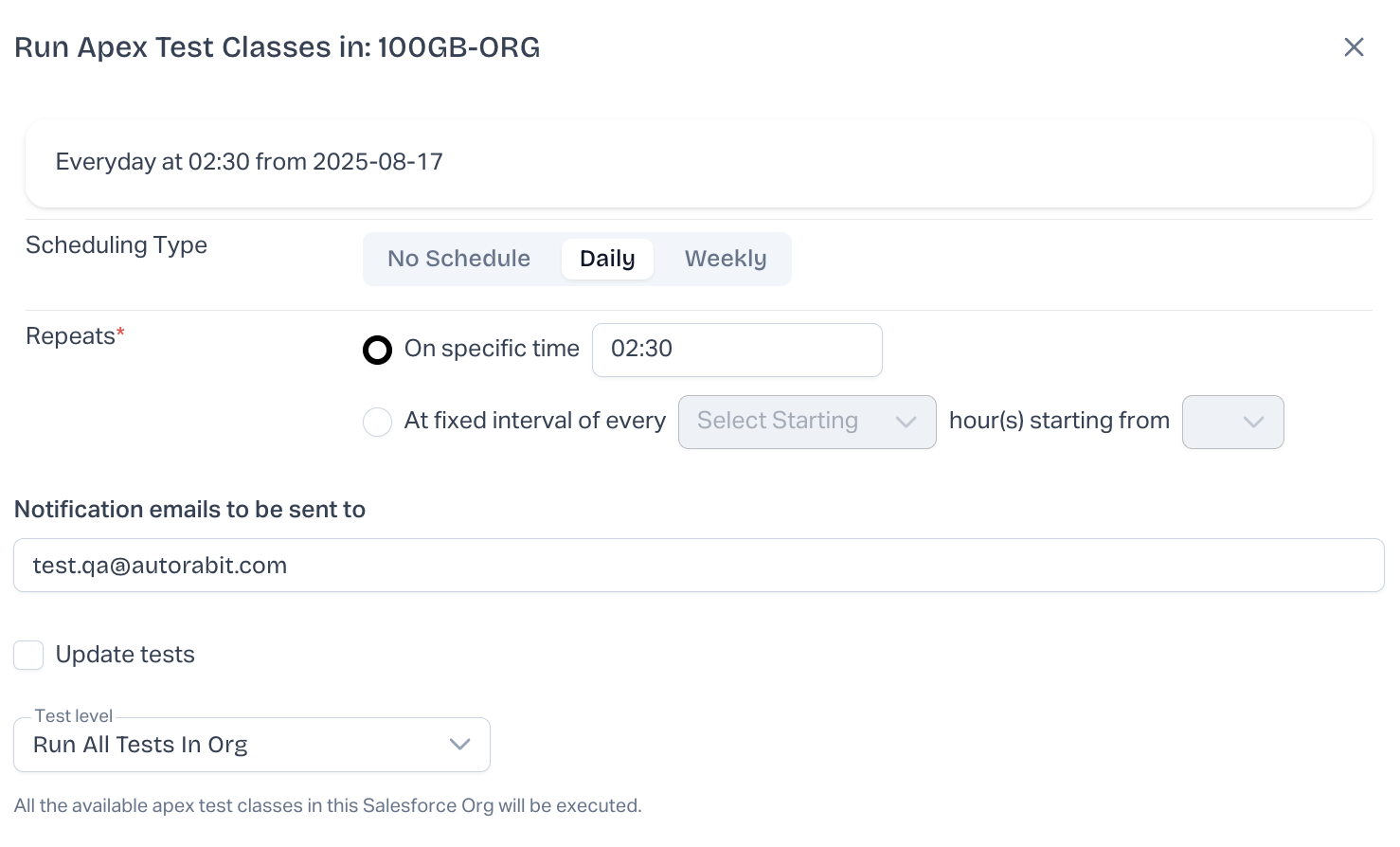
3. **`Generate Code Coverage Report:`** This function allows you to run all available Apex Test Classes in the Salesforce org and generate a code coverage report. The code coverage report will be emailed to your registered email id with the CSV file attached. The CSV file will contain the failed test classes that require the user's attention to resolve. Select **`Do you want us to update the test classes?`** checkbox to avoid classes from getting overwritten after deployment.
4. Attached is the sample email that will be sent to the user whenever the code coverage is run.

### Salesforce Org - Mappings
Mapping your Salesforce org with your version control system or ALM configured in ARM. This helps create a control during a commit, merge, or deployment action performed on your Salesforce org or version control branch.

Suppose you want to connect your Salesforce Org with Version Control as a **`GIT`**.
1. Click on the **`Mapping`** button for Version Control as **`GIT`**.
2. Select the respective version control **`Repository`** and the **`Branch`** for your GIT.
3. Click **`Test Connection`** to authenticate your connection.

4. Remember to click on **`Save Mappings`** to save the details, or else you need to repeat the above steps.
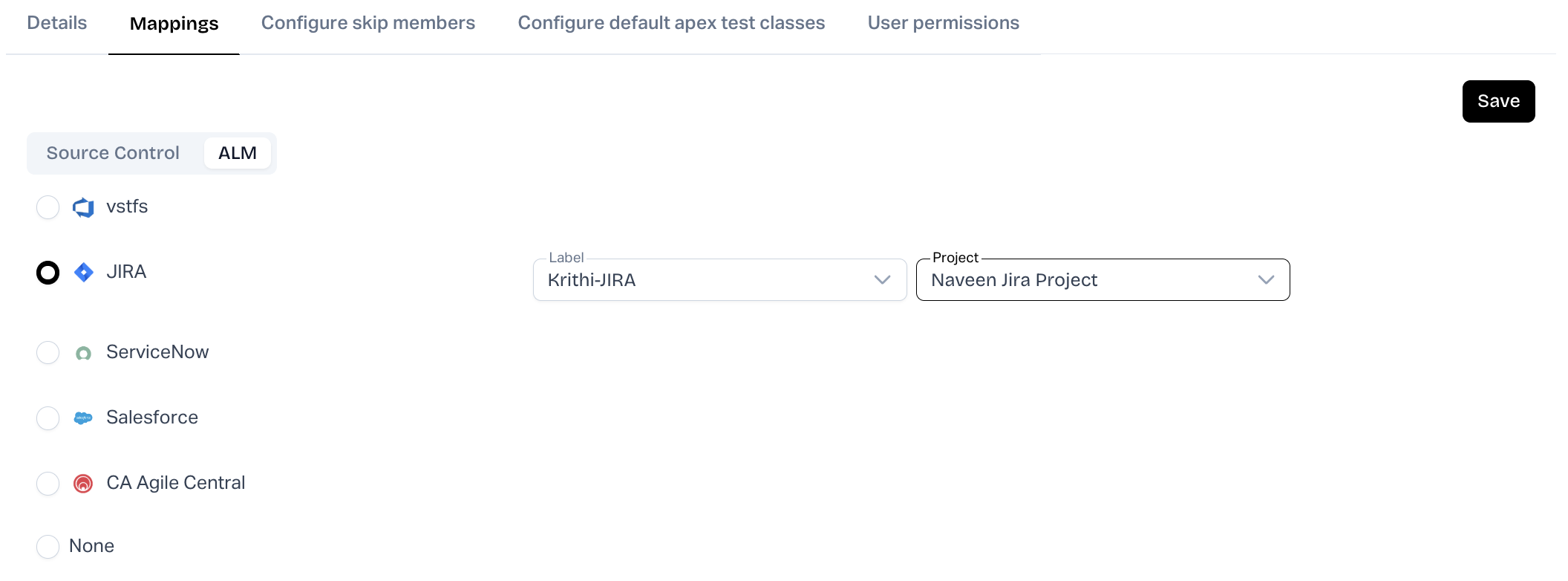
In another scenario, let us assume you also prefer to configure JIRA (ALM tool) with your Salesforce org.
{% hint style="info" %}
**Important Note:** To proceed with the following steps, make sure JIRA is successfully integrated with ARM ([LEARN MORE](/product-guides/arm/integration-and-plugins/jira.md))
{% endhint %}
1. Click on the **`Mapping`** button beside JIRA.
2. Select the **`Jira`** label and the **`Project`** from the drop-down list.
3. Click on **`Save Mappings`** to save the details, and you're done.\
### Salesforce Org - Skip Members
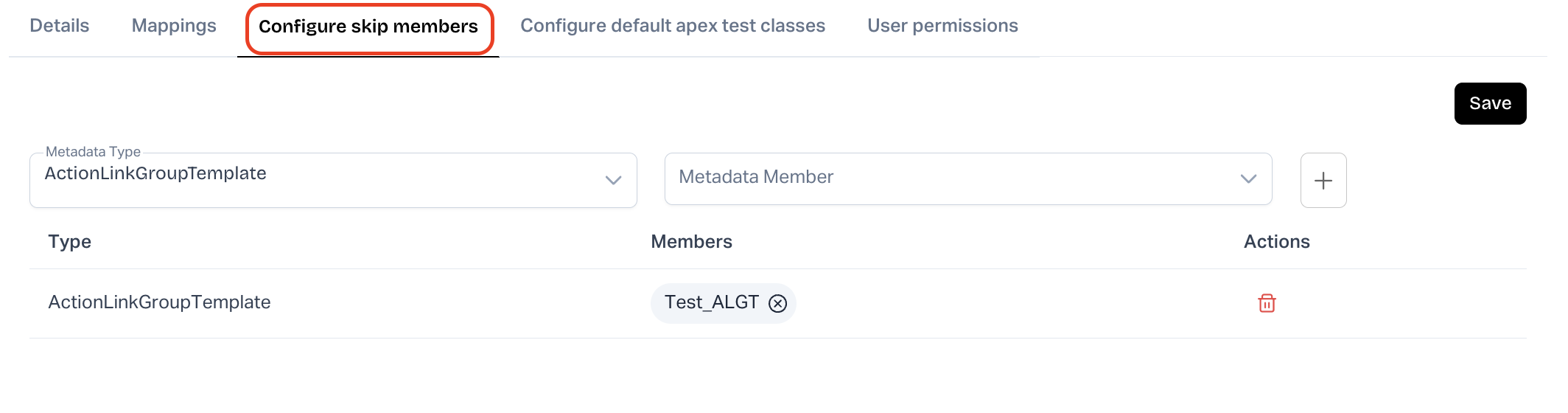
In this section, you can add certain metadata members from your Salesforce org that will be skipped whenever any deployment happens to the org.
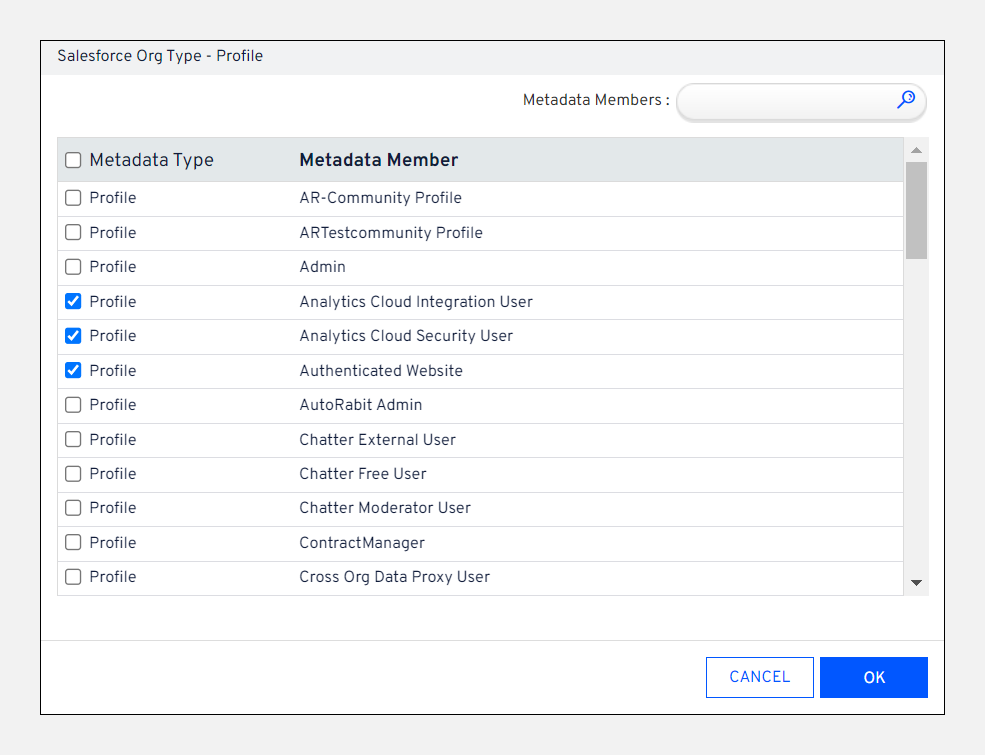
Suppose you want to skip **Analytics Cloud Integration User**, **Analytics Cloud Security User**, and **Authenticated Website** metadata members for the **`Profile`** metadata type. In such a case, select the **`Type`** as **`Profile`** under and click the **`Fetch Members`** button.
Select the metadata members from the list. These members will be skipped each time the deployment is performed on the above Salesforce org. Click **`OK`**.
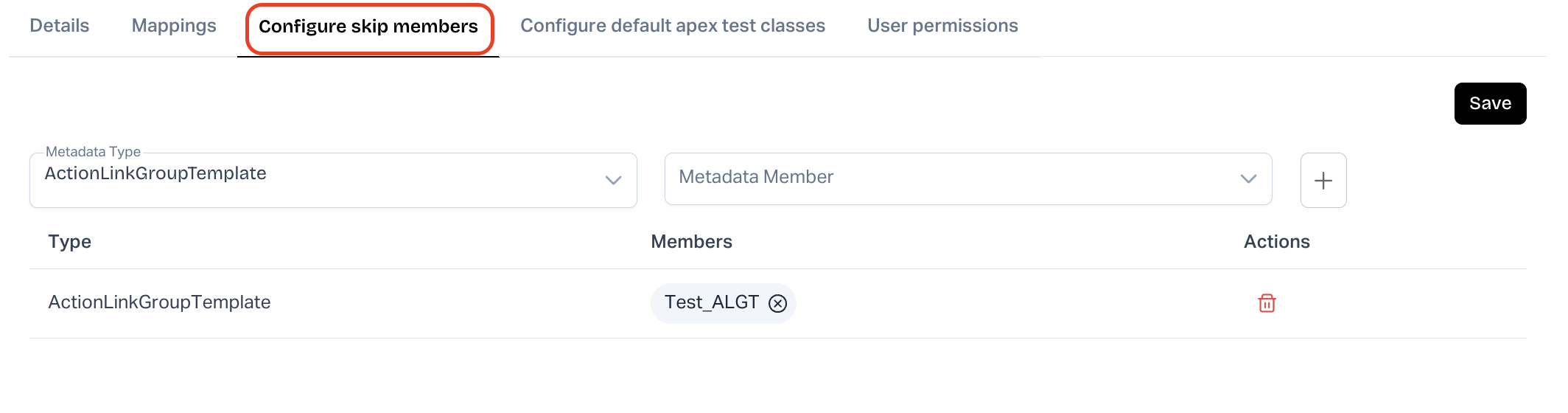
Similarly, you can add different metadata members for various metadata types. Additionally, if you remember certain members you like to add manually, you can enter the **`Enter members manually`** field and click **`Add`**.
The Salesforce Org- Skip Members section shows a summary of the selected metadata members. Click on **`Save Members`** to save the steps configured.
### Salesforce Org - Default Apex Test Class Configuration
This section is about configuring the default Apex Class for your Salesforce Org. This topic is covered in a separate article. Refer to the article [HERE](/product-guides/arm-1/troubleshoot/how-tos/default-apex-class-configuration-1.md).
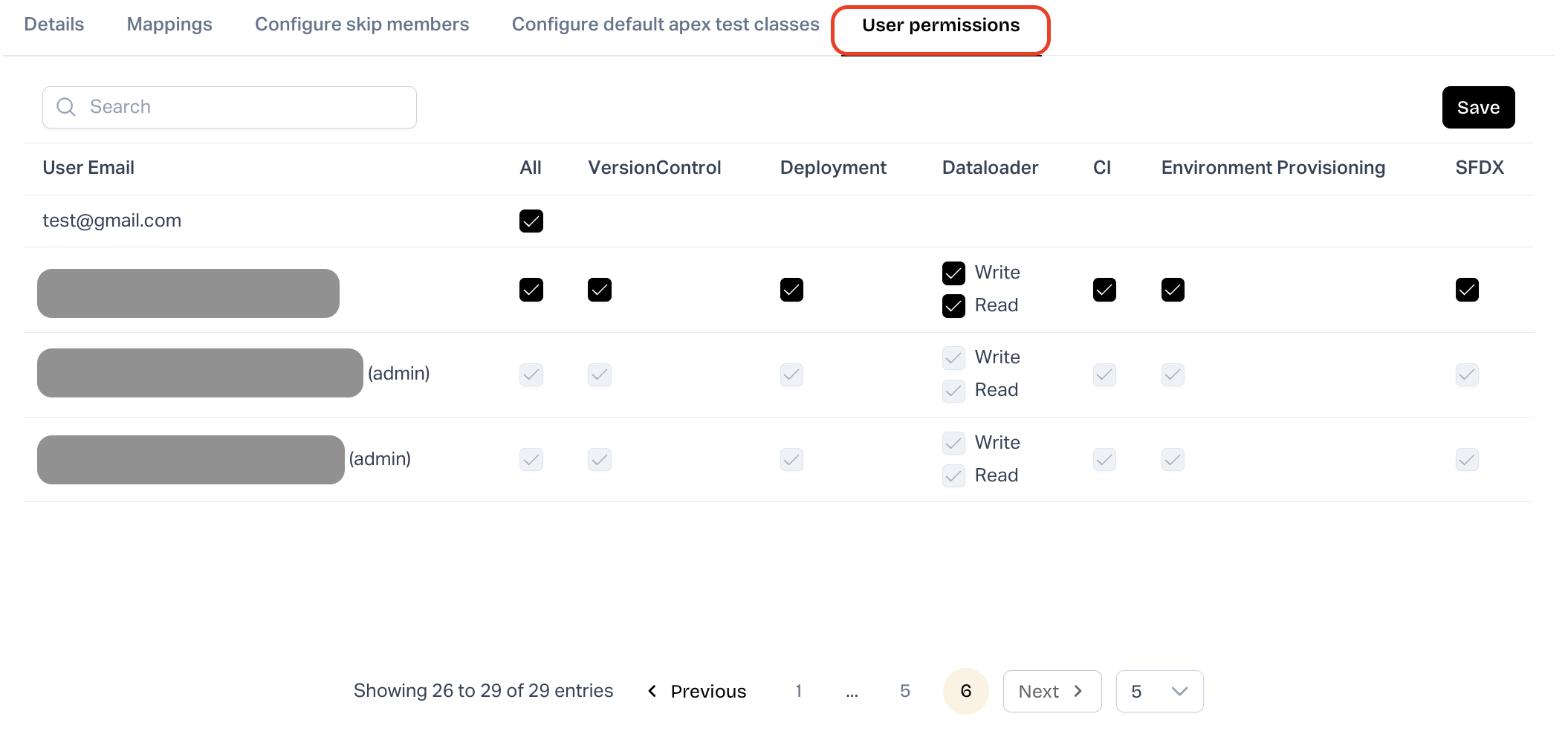
### Salesforce Org - User Permissions
The list of users allowed to work with your Salesforce Org is available in this section. The administrator may assign permission to its users on various modules of ARM that are feasible with the Salesforce Org.\
### How do I update or change the username in all of the Salesforce Orgs specified in AutoRABIT?
To update the username on all registered orgs, re-authenticate the orgs in **Admin > SF Org Management** page.
---
# Agent Instructions
This documentation is published with GitBook. GitBook is the documentation platform designed so that both humans and AI agents can read, navigate, and reason over technical content effectively. Learn more at gitbook.com.
## Querying This Documentation
If you need additional information that is not directly available in this page, you can query the documentation by asking a question.
Perform an HTTP GET request on the following URL with the `ask` and `goal` query parameters:
```
GET https://knowledgebase.autorabit.com/product-guides/arm-1/getting-started-1/registration/salesforce-org/salesforce-org-management.md?ask=&goal=
```
`ask` is the immediate question: it should be specific, self-contained, and written in natural language.
`goal` is what the user is ultimately trying to achieve, the reason they need the answer. Sharing it helps GitBook give you a better, more relevant answer. A goal is most helpful when it describes the outcome the user wants rather than restating the question. For example, with `ask=how do I create an API token`, a goal like `automate deployments from our CI pipeline` lets GitBook tailor the answer to that use case.
The response will contain a direct answer to the question and relevant excerpts and sources from the documentation.
Use this mechanism when the answer is not explicitly present in the current page, you need clarification or additional context, or you want to retrieve related documentation sections.