> For the complete documentation index, see [llms.txt](https://knowledgebase.autorabit.com/llms.txt). Markdown versions of documentation pages are available by appending `.md` to page URLs; this page is available as [Markdown](https://knowledgebase.autorabit.com/product-guides/arm-1/getting-started-1/registration/workspaces.md).
# Workspaces
A **workspace** is your isolated “build room” inside AutoRABIT (ARM).\
Whenever you run an operation that needs local disk—such as **EZ-Commit**, a **merge** or a **CI job**—ARM spins up (or re-uses) a workspace linked to the repo/branch in question. That keeps files, temporary build artifacts, and logs separated per operation, so one task never overwrites another.
***
## What Is a Workspace?
Think of a workspace as a **containerized file system**:
* It’s created (or re-attached) automatically when you start a commit, merge, or CI task.
* Multiple workspaces can exist side-by-side—one per concurrent job.
* If a matching workspace already exists, the new job re-uses it to save spin-up time.
***
## Workspace Storage
* Every tenant receives **500 GB** of workspace capacity.
* ARM emails admins when usage approaches the limit.
* Once the cap is hit, no new jobs can start until you **increase the limit** or **delete idle workspaces**.
***
## Managing a Workspace
Only **Org Administrators** can view, reset, or delete workspaces.
### Viewing the Workspace List
1. Log in to ARM.
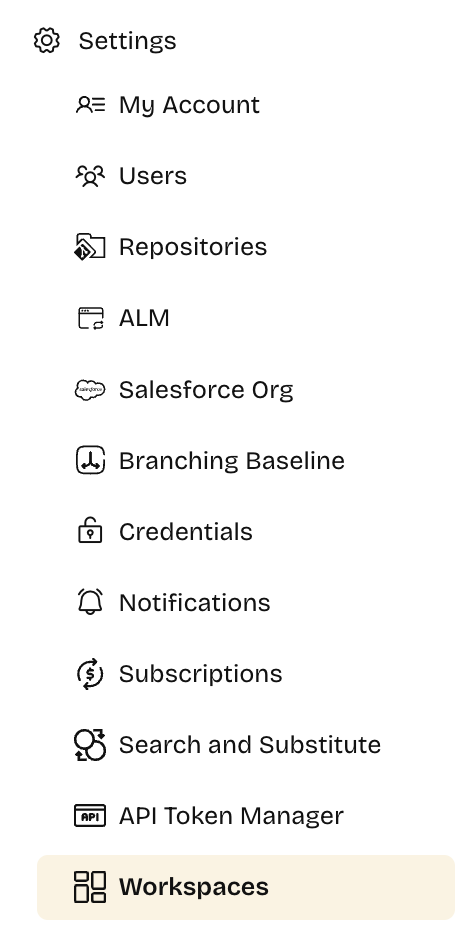
2. Go to **Settings › Workspaces**.
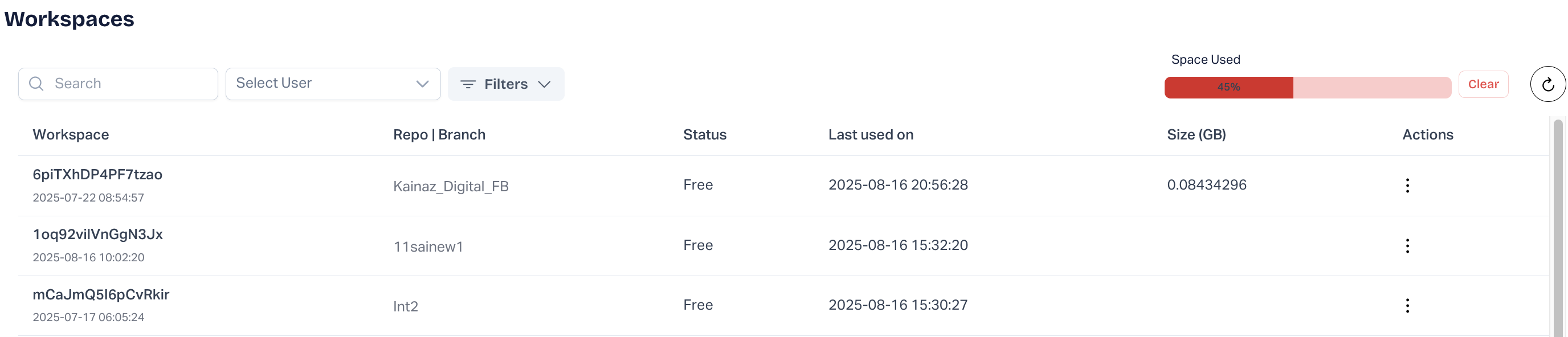
3. The list shows every workspace ever created:\
| Field | Description |
| -------------------- | ----------------------------------------------------- |
| **Label** | Workspace name (auto-generated) |
| **Created On** | Timestamp of first creation |
| **Author** | User who owns the workspace |
| **Repo / Branch** | Git location tied to the workspace |
| **Status** | *Running* or *Idle* |
| **Module** | ARM feature that created it (EZ-Commit, CI Job, etc.) |
| **Last Used / Size** | Date of last activity and storage consumed |
***
### Resetting a Workspace
Reset wipes the folder contents but keeps the workspace record.
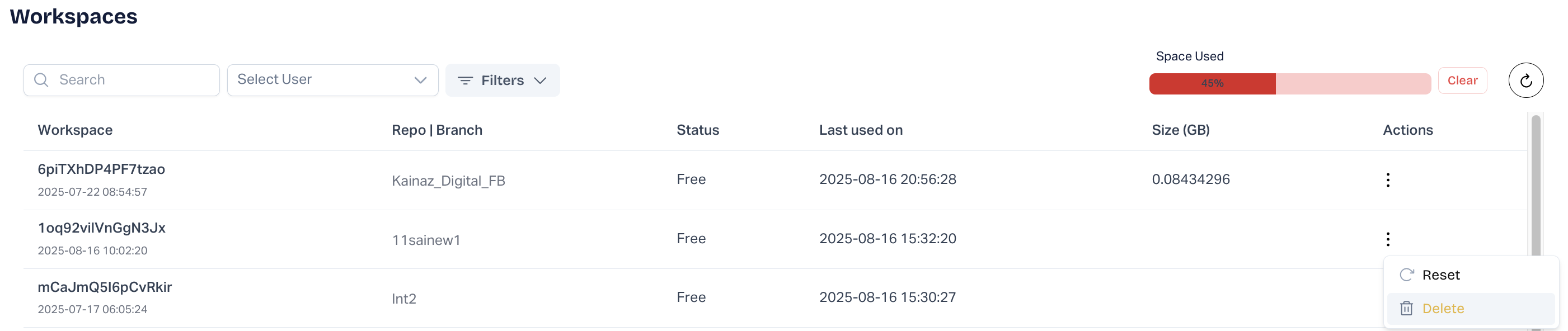
1. Find the workspace and click **Reset**.
2. Confirm to restore default state.\
***
### Deleting a Workspace
Delete removes the workspace permanently (repositories remain intact).
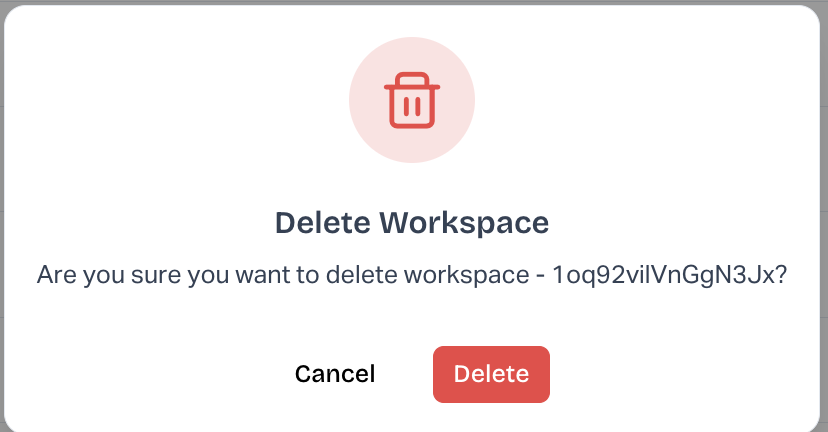
1. Click the trash-can icon next to the workspace.
2. Confirm twice—you cannot undo this.
{% hint style="info" %}
If the **Delete** button is missing, your role lacks the required permission.
{% endhint %}
***
### Bulk-Deleting Inactive Workspaces
Free up space by purging all workspaces idle since a given date.
1. Click **Settings**.
***
## Workspace Configurations
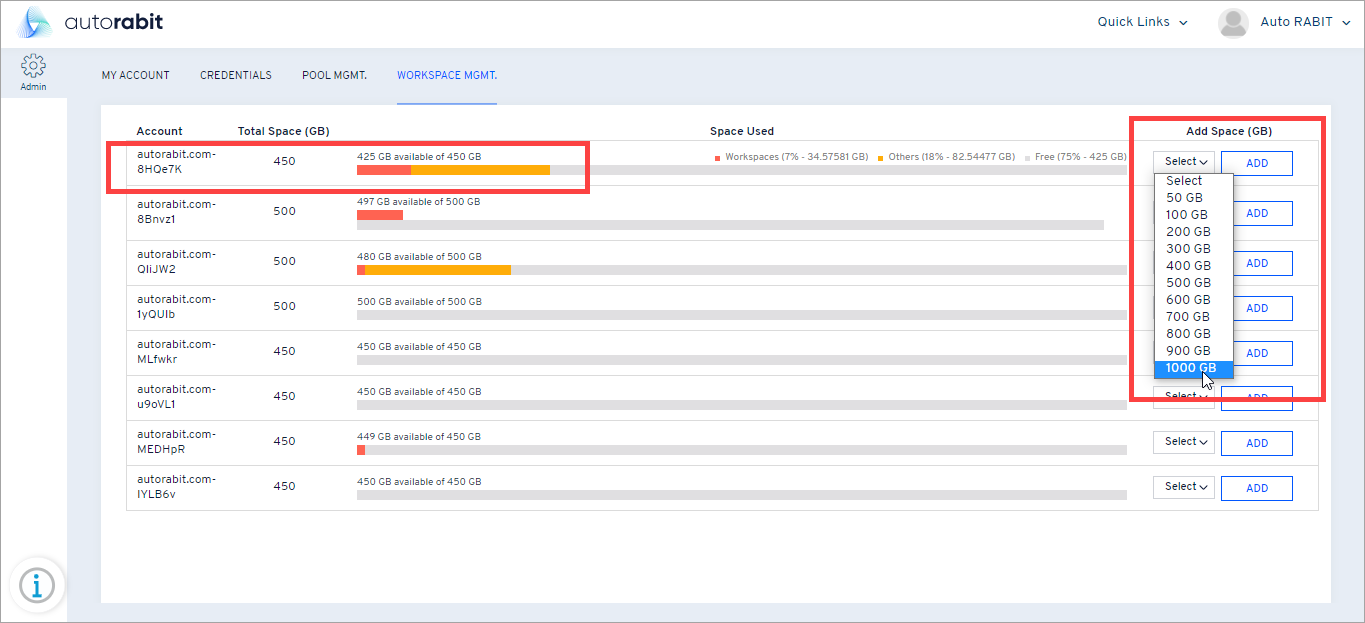
Need more space? An Org Admin can request an increase.
* Super Admin logs in and opens **Workspace Mgmt**.
* Raise the tenant limit—maximum **1 TB** (1000 GB)—based on subscription.
Once approved, the new cap takes effect instantly and users can resume jobs without deleting old workspaces.
***
### Best Practices
* **Clean up idle workspaces weekly** to avoid hitting the limit.
* **Reset** instead of **Delete** if you just want a fresh working directory.
* Monitor the **Last Used / Size** column to spot abandoned, space-hogging workspaces early.
---
# Agent Instructions
This documentation is published with GitBook. GitBook is the documentation platform designed so that both humans and AI agents can read, navigate, and reason over technical content effectively. Learn more at gitbook.com.
## Querying This Documentation
If you need additional information that is not directly available in this page, you can query the documentation by asking a question.
Perform an HTTP GET request on the following URL with the `ask` and `goal` query parameters:
```
GET https://knowledgebase.autorabit.com/product-guides/arm-1/getting-started-1/registration/workspaces.md?ask=&goal=
```
`ask` is the immediate question: it should be specific, self-contained, and written in natural language.
`goal` is what the user is ultimately trying to achieve, the reason they need the answer. Sharing it helps GitBook give you a better, more relevant answer. A goal is most helpful when it describes the outcome the user wants rather than restating the question. For example, with `ask=how do I create an API token`, a goal like `automate deployments from our CI pipeline` lets GitBook tailor the answer to that use case.
The response will contain a direct answer to the question and relevant excerpts and sources from the documentation.
Use this mechanism when the answer is not explicitly present in the current page, you need clarification or additional context, or you want to retrieve related documentation sections.