> For the complete documentation index, see [llms.txt](https://knowledgebase.autorabit.com/llms.txt). Markdown versions of documentation pages are available by appending `.md` to page URLs; this page is available as [Markdown](https://knowledgebase.autorabit.com/product-guides/arm-1/getting-started/signing-up-with-arm/user-profile.md).

# User Profiles

Numerous configuration options are available to users when setting up their profile in ARM. The **`Profile`** section allows users to view and update their basic information, personal email settings, etc. <br>

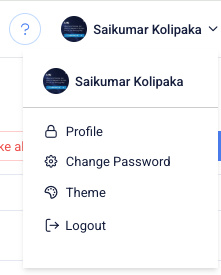
To access user preferences, click your user name in the upper right corner and select **`Profile`**.<br>

<figure><img src="https://1912836914-files.gitbook.io/~/files/v0/b/gitbook-x-prod.appspot.com/o/spaces%2F9vAxMuDrkUkB4OXlH9CL%2Fuploads%2Fv01uIAtLznn6u2p7nVj9%2FScreenshot%202025-08-11%20at%201.56.20%E2%80%AFPM.png?alt=media&amp;token=47aac753-8cf4-4c1a-84a2-203cfbcc212e" alt=""><figcaption></figcaption></figure>

### Personal Details <a href="#personal-details" id="personal-details"></a>

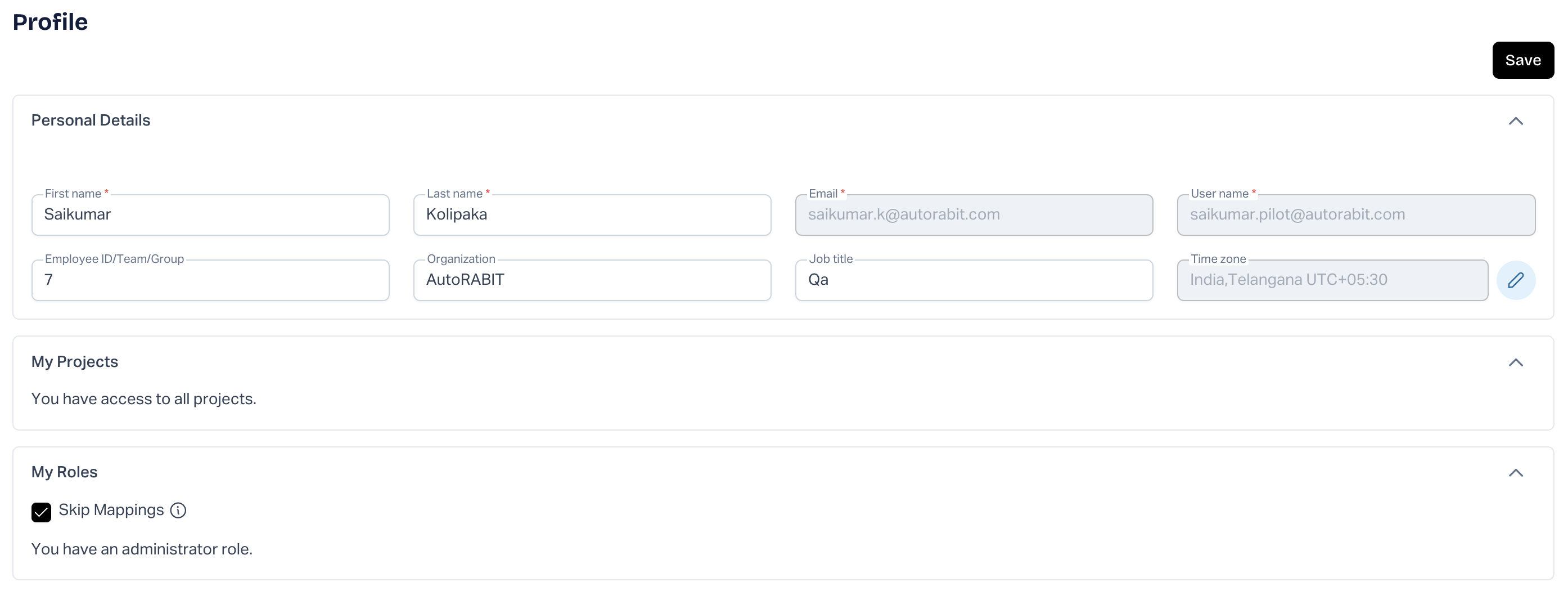
The **`Personal Details`** section displays your full name, ARM user name, email address, phone number, etc. Your personal details will be populated, as the system administrator must enter this information when creating a new user account. In this section, you can update your name, phone number, address, etc., accordingly.\ <br>

<figure><img src="https://1912836914-files.gitbook.io/~/files/v0/b/gitbook-x-prod.appspot.com/o/spaces%2F9vAxMuDrkUkB4OXlH9CL%2Fuploads%2F1b7fN104LNvWz2F8QkZx%2Fimage.png?alt=media&amp;token=a9c2b961-462a-44f4-83e4-31d63f2d31cd" alt=""><figcaption></figcaption></figure>

{% hint style="info" %}
**Important Note:**

1. **System Administrators** can change your **Email** and **Username**.
2. To avoid conflicts and get correct data while conducting any activity in ARM, ensure the **Time Zone** you set here matches the time zone you defined in Salesforce.
   {% endhint %}

### My Projects <a href="#my-projects" id="my-projects"></a>

The **`My Projects`** section will list all the projects that you have created or have permission to view. Users with admin-level permissions will have access to all projects.

### My Roles <a href="#my-roles" id="my-roles"></a>

The **`My Roles`** displays the list of roles assigned to the user. If you have admin roles and permission, you can perform all the tasks an administrator can perform and access all modules within ARM.&#x20;

### About Skip Mappings

If users maintain an individual version control branch for every release, they must map every branch to Salesforce Org and Version Control branches to keep synchronizing with Salesforce Org. To overcome this daily routine, ARM provides the option to skip the Org Mappings part and directly perform commits.

### My Salesforce Orgs <a href="#my-salesforce-orgs" id="my-salesforce-orgs"></a>

{% hint style="info" %}
NOTE:

1. If a sub-user does not have access to the **"**&#x53;F ORG MGM&#x54;**"** page and the Skip Mapping option is not enabled for their profile, they will be unable to view the mapped Salesforce Orgs in EZ Commit, even if they have permission to access those Orgs.<br>

   To resolve this issue, the admin must grant the sub-user access to the **"**&#x53;F ORG MGM&#x54;**"** page. This can be done by selecting the human icon in the screenshot below.

<p align="center"><img src="https://1912836914-files.gitbook.io/~/files/v0/b/gitbook-x-prod.appspot.com/o/spaces%2F9vAxMuDrkUkB4OXlH9CL%2Fuploads%2FSWSoqLUv3BCmUE5DfqFp%2FScreenshot%202026-02-04%20at%2014.22.29.png?alt=media&amp;token=6024c5a1-0d1f-432c-91a4-72c72018ae9c" alt=""></p>

<p align="center"><img src="https://1912836914-files.gitbook.io/~/files/v0/b/gitbook-x-prod.appspot.com/o/spaces%2F9vAxMuDrkUkB4OXlH9CL%2Fuploads%2FrSs2yy1Bxzikd3nAVfJM%2FScreenshot%202026-02-04%20at%2014.20.41.png?alt=media&amp;token=c83ca35c-1db4-4ec4-b966-d655678d7a18" alt=""></p>

1. Then, the sub-users can view the mapped Salesforce Orgs in the EZ Commit screen once the user is added.
   {% endhint %}

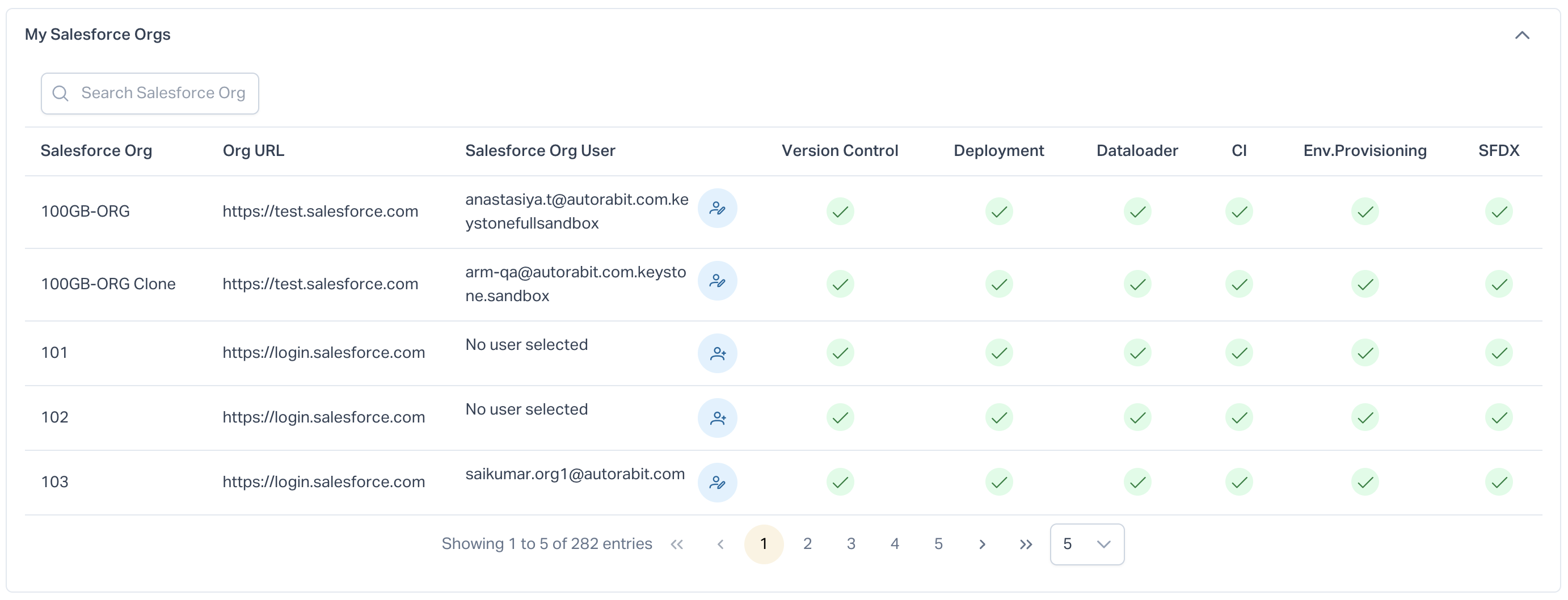
View the **`Salesforce Orgs`** assigned to you, or you have permission to view.\ <br>

<figure><img src="https://1912836914-files.gitbook.io/~/files/v0/b/gitbook-x-prod.appspot.com/o/spaces%2F9vAxMuDrkUkB4OXlH9CL%2Fuploads%2F6ROfakkRd7Ugv1tgtvE8%2Fimage.png?alt=media&amp;token=871a575a-ec52-4ba2-a243-b3446c0a8825" alt=""><figcaption></figcaption></figure>

### My Version Control Mappings <a href="#my-version-control-mappings" id="my-version-control-mappings"></a>

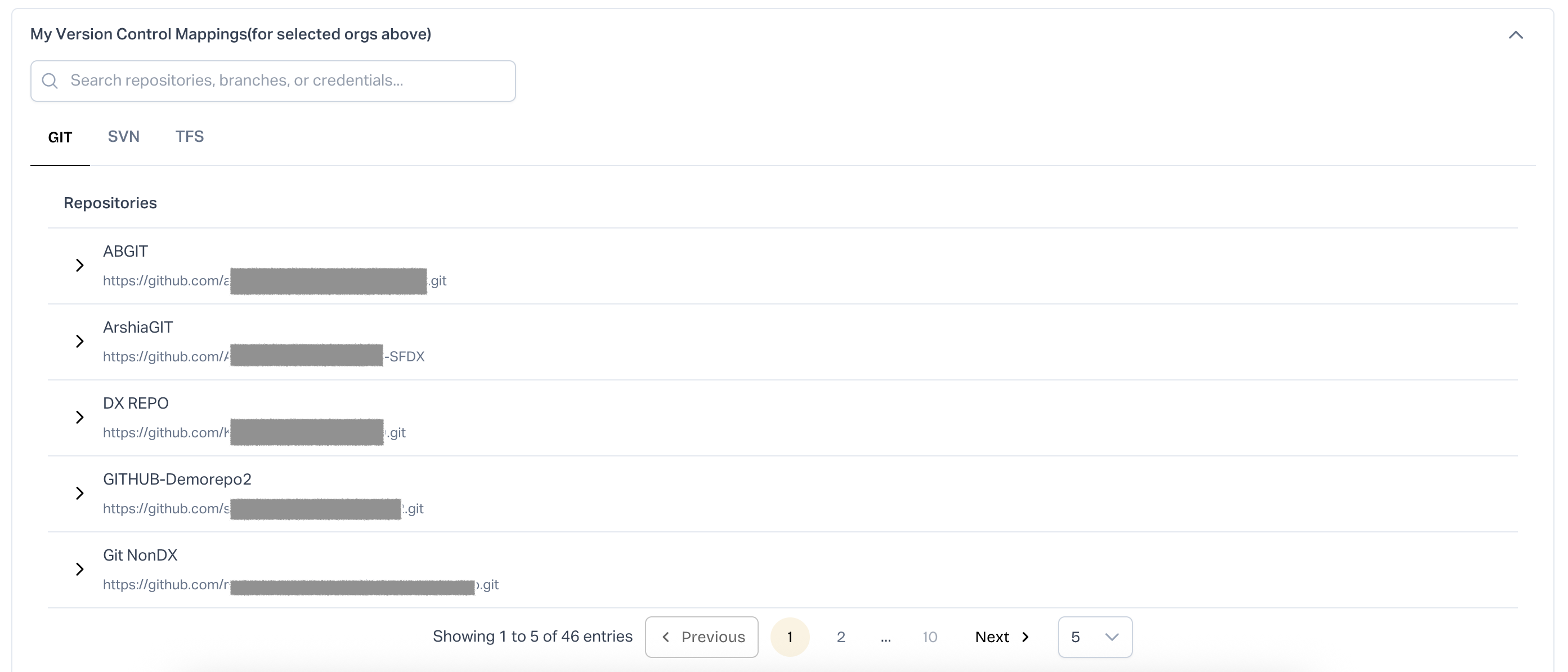
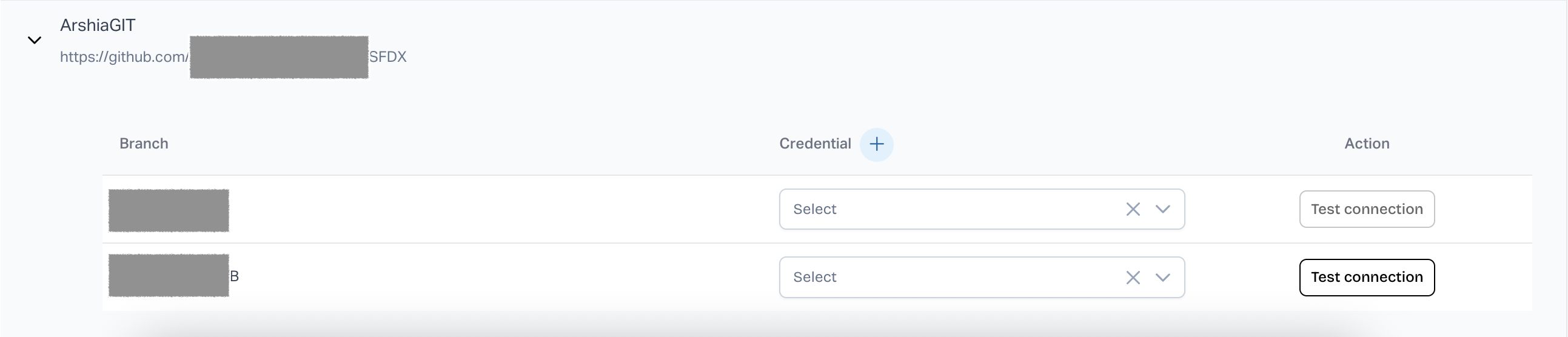
View the Version Control Repositories here based on the Salesforce Orgs selected in the **My Salesforce Orgs** section. \
You can view the list of all repositories configured under each version control system (VC). Select a repository to display its branches. From there, map the required branches by choosing the appropriate **`Credential`** from the drop-down field. Click **`Test Connection`** to determine whether the connection has been authenticated or not.<br>

<figure><img src="https://1912836914-files.gitbook.io/~/files/v0/b/gitbook-x-prod.appspot.com/o/spaces%2F9vAxMuDrkUkB4OXlH9CL%2Fuploads%2FMF8jzhmIRHTKaJPkJ0Sj%2Fimage.png?alt=media&amp;token=5534037e-3a12-4ae4-8dd1-2799bbb48055" alt=""><figcaption></figcaption></figure>

<figure><img src="https://1912836914-files.gitbook.io/~/files/v0/b/gitbook-x-prod.appspot.com/o/spaces%2F9vAxMuDrkUkB4OXlH9CL%2Fuploads%2FiSU0NkULQa2ulAquc8Az%2Fimage.png?alt=media&amp;token=5b95f1f5-4873-426a-9ac0-8ca3e5a2edbf" alt=""><figcaption></figcaption></figure>

### My ALM Mappings <a href="#my-alm-mappings" id="my-alm-mappings"></a>

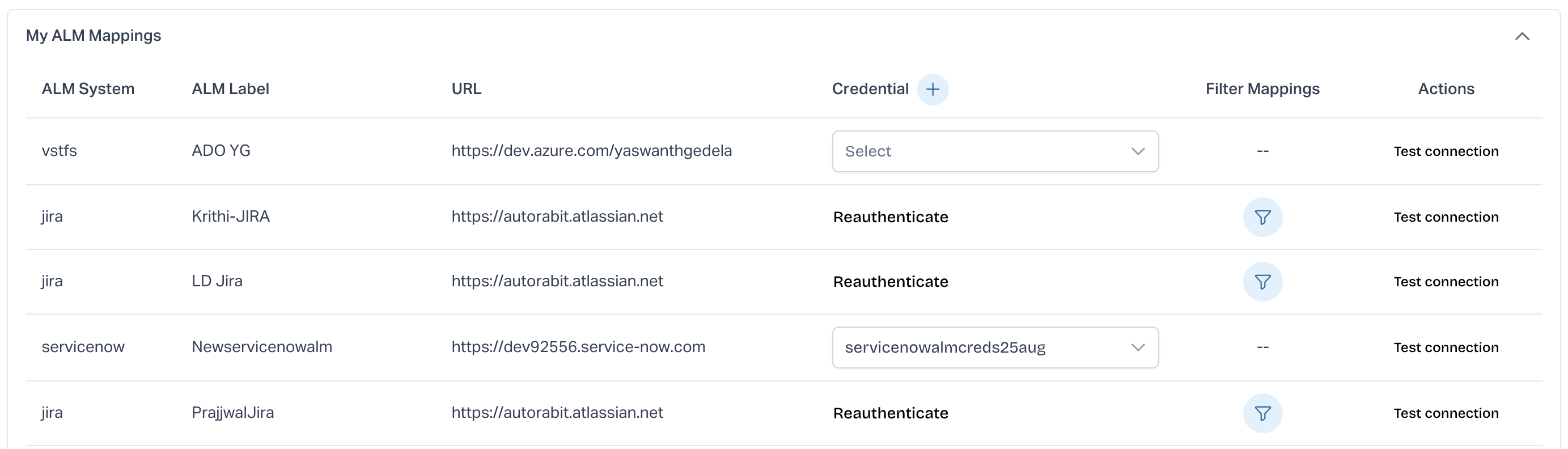
Under **`My ALM Mappings`** section, you can map your ALM using your credentials or **`Re-Authenticate`** Jira ALMs configured with OAuth access.\ <br>

<figure><img src="https://1912836914-files.gitbook.io/~/files/v0/b/gitbook-x-prod.appspot.com/o/spaces%2F9vAxMuDrkUkB4OXlH9CL%2Fuploads%2FjnQjrpf8WdjQn3u5mFBy%2Fimage.png?alt=media&amp;token=41e365c8-c017-4836-9aeb-e6a9f2074ae3" alt=""><figcaption></figcaption></figure>

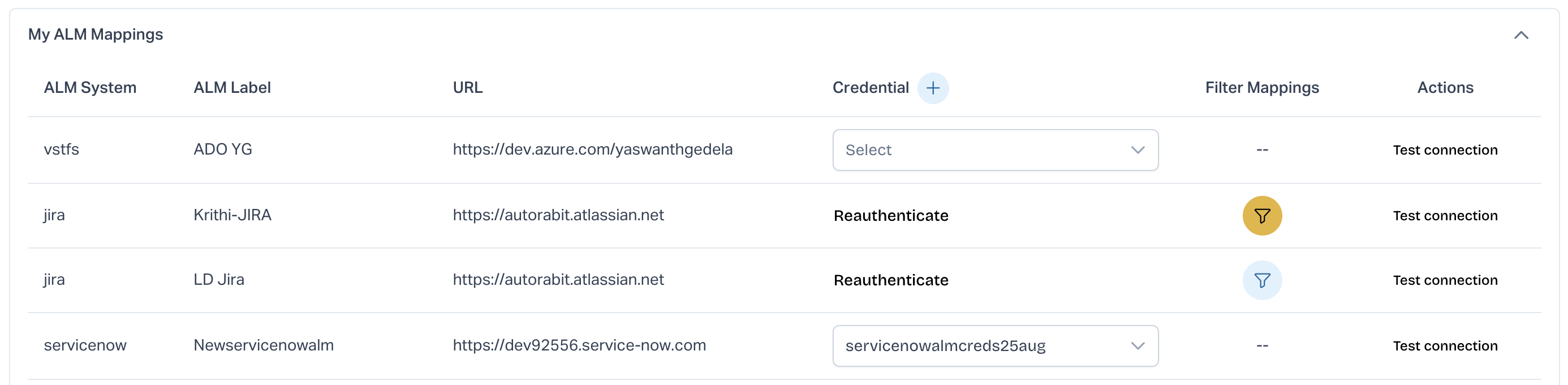
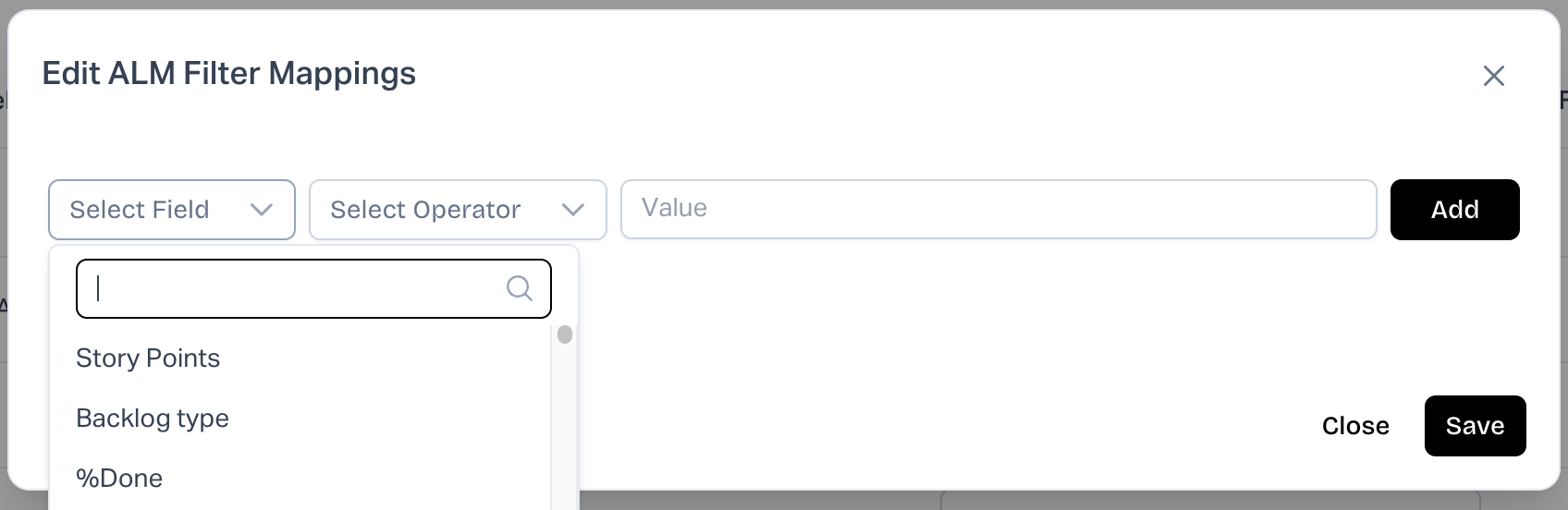
For ALM type **`IBMRTC (IBM Rational Team Concert)`** and **`JIRA`**, we have added the filter to fetch specific work items according to the filter applied.<br>

<figure><img src="https://1912836914-files.gitbook.io/~/files/v0/b/gitbook-x-prod.appspot.com/o/spaces%2F9vAxMuDrkUkB4OXlH9CL%2Fuploads%2FT7g3mjLLoYT6wWXrPGKH%2Fimage.png?alt=media&amp;token=cfb41279-d75e-4e11-9057-830c1cbe937b" alt=""><figcaption></figcaption></figure>

<figure><img src="https://1912836914-files.gitbook.io/~/files/v0/b/gitbook-x-prod.appspot.com/o/spaces%2F9vAxMuDrkUkB4OXlH9CL%2Fuploads%2FRLDcTXfkZxkEHEeEeaGv%2FScreenshot%202025-08-16%20at%202.18.24%E2%80%AFPM.png?alt=media&amp;token=d4395b65-f087-4372-b59e-65a27e852824" alt=""><figcaption></figcaption></figure>

According to the filter set, only specific work items will get fetched. When the developers progress (via EZ-Commit or merge operation in ARM) on updating the ALM status, they are reflected on the corresponding work items. If the user wishes to discard the filter selected, uncheck the **`Apply My Filter`** option, and all work items will get fetched.

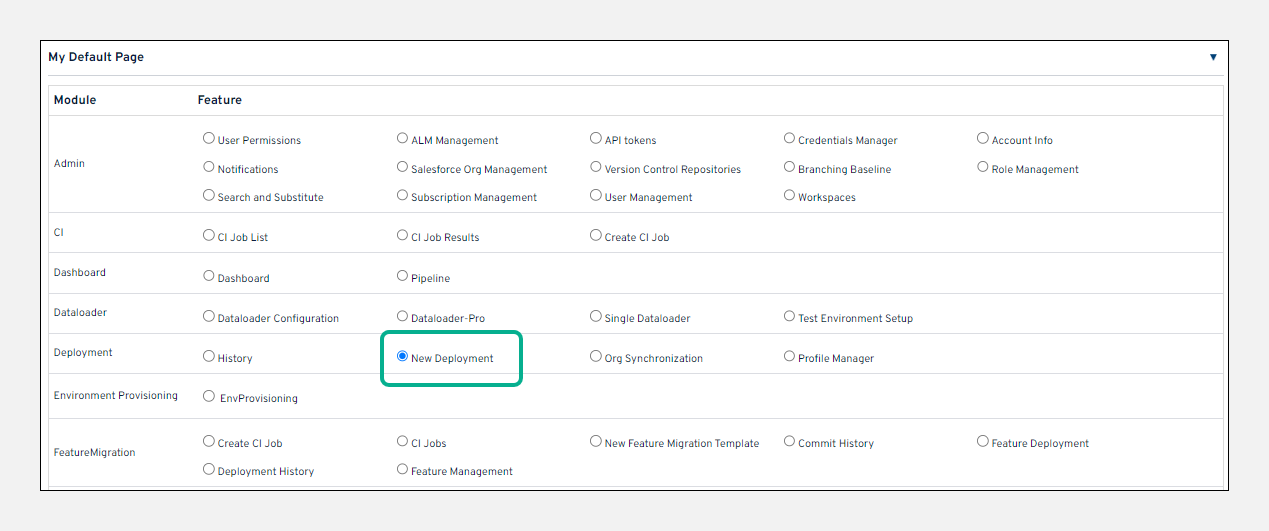
### My Default Page <a href="#my-default-page" id="my-default-page"></a>

**`My Default Page`** is the first page that appears when you log in to ARM. You can customize ARM to open any page as the default page.

<figure><img src="https://1912836914-files.gitbook.io/~/files/v0/b/gitbook-x-prod.appspot.com/o/spaces%2F9vAxMuDrkUkB4OXlH9CL%2Fuploads%2Fxxd1wbhqtrRk5kPTAUOm%2Fimage.png?alt=media&amp;token=1bdf6454-62a4-4ede-b8c8-0062600e3340" alt=""><figcaption></figcaption></figure>

## Mapping Your Profile with Version Control and Salesforce Org <a href="#mapping-your-profile-with-version-control-and-salesforce-org" id="mapping-your-profile-with-version-control-and-salesforce-org"></a>

1. Go to the **Profile** section.
2. In **My Salesforce Orgs**:
   * Select the Salesforce Org.
   * Assign the Salesforce Org user.
3. In **My Version Control Mappings**:
   * Select the repository.
   * Assign the user.
4. Click **Save**.
5. Go to **Admin > SF Org Mgmt**:
   * Select your org.
   * Open **Salesforce Org – Mappings**.
   * Choose the mapping for the version control you set up.
   * Click **Save Mappings**.

Screenshots for each section are attached above to guide you through these steps.

If you maintain a separate Version Control branch for each release, you must map every branch to the Salesforce Org to keep them in sync.

To simplify this, use the **Skip Mapping** option under **Profile > My Roles**. This allows you to bypass org mappings and commit directly when appropriate.

## Uploading Multiple Profile Files

**413: Status Error**: Users may encounter a 413-status error in the browser console when trying to upload duplicate profile files that have been resolved after downloading from version control. This occurs when users try to download numerous files at one time. Download one profile file at a time to resolve the error.

## Setting Up an Integration User for ARM <a href="#zenxyvub95gj" id="zenxyvub95gj"></a>

An integration user is a dedicated Salesforce user that ARM uses to connect to your Salesforce org. Commits, validations, deployments, and data operations that ARM runs against the org appear in the Salesforce audit trail as that user.

ARM also records the ARM user who started the job. Salesforce deployment history shows the integration user. ARM audit logs show both the integration user and the ARM user who triggered the work.

Use one integration user for ARM. Do not share that user with other tools.

{% hint style="info" %}
**Note**: An integration user is not the same as the Salesforce Integration user license. The first is the Salesforce user ARM signs in as. The second is a Salesforce license type. ARM requires a standard Salesforce license.
{% endhint %}

#### Recommended Setup <a href="#g2rykpj7po9d" id="g2rykpj7po9d"></a>

Create one integration user in your production org. Use that same user to register production and every sandbox in ARM.

When you refresh a sandbox from production, Salesforce copies production users into the sandbox. If the integration user exists in production, it is copied automatically. You do not need to create a new user or rebuild permissions after each refresh.

Salesforce appends the sandbox name to the copied username. For example, <devops@yourcompany.com> becomes <devops@yourcompany.com.uat>. The password from production is copied. After a refresh, update the username in ARM and validate the connection.

If you create a separate user only inside each sandbox, the refresh replaces that user, and you have to set it up again.

#### Why the System Administrator Profile <a href="#vufhbpejkzwq" id="vufhbpejkzwq"></a>

ARM works through the Salesforce Metadata API. A release can include Apex, flows, fields, layouts, profiles, permission sets, roles, sharing rules, reports, dashboards, email templates, translations, custom permissions, and connected apps. Each of those metadata types has its own Salesforce permission.

The System Administrator profile grants those permissions and continues to cover new metadata types that Salesforce adds in a seasonal release.

If your security policy does not allow an administrator profile on a service account, use a custom profile and permission set as described below. Review that permission set after each Salesforce seasonal release. A missing permission usually shows up as one metadata type failing while the rest of the deployment succeeds.

#### Alternative: a custom profile with a permission set <a href="#id-7pis0qvqs4py" id="id-7pis0qvqs4py"></a>

Create a custom profile with minimal base permissions. Create a permission set with the access below and assign it to the integration user.

**Access settings**

<table><thead><tr><th valign="top">Setting</th><th valign="top">Value</th></tr></thead><tbody><tr><td valign="top">Assigned apps</td><td valign="top">All apps</td></tr><tr><td valign="top">Apex class access</td><td valign="top">All classes, including system classes</td></tr><tr><td valign="top">Visualforce page access</td><td valign="top">All pages</td></tr><tr><td valign="top">Custom setting definitions</td><td valign="top">All custom settings</td></tr><tr><td valign="top">Custom metadata types</td><td valign="top">All custom metadata types</td></tr></tbody></table>

#### **System permissions**

This list covers the full range of metadata a release can contain. Grant the ones that match what you deploy. If you never deploy org security settings, for example, you can leave out Manage IP Addresses, Manage Password Policies, Manage Login Access Policies, and Manage Session Permission Set Activations. The Needed for column tells you what each one is there to support.

<table><thead><tr><th valign="top">Permission</th><th valign="top">Needed For</th></tr></thead><tbody><tr><td valign="top">API Enabled</td><td valign="top">Every call ARM makes. Nothing works without it</td></tr><tr><td valign="top">Modify Metadata Through Metadata API Functions</td><td valign="top">Every retrieve, validation, and deployment. Required in all cases</td></tr><tr><td valign="top">View Setup and Configuration</td><td valign="top">Reading setup, and the Setup Audit Trail ARM uses for change detection</td></tr><tr><td valign="top">View All Data</td><td valign="top">Running Apex tests during validation and deployment</td></tr><tr><td valign="top">Author Apex</td><td valign="top">Apex classes and triggers</td></tr><tr><td valign="top">Customize Application</td><td valign="top">Objects, fields, picklists, and layouts</td></tr><tr><td valign="top">Manage Profiles and Permission Sets</td><td valign="top">Profile and permission set deployment, and Profile Manager</td></tr><tr><td valign="top">Manage Roles</td><td valign="top">Roles and the role hierarchy</td></tr><tr><td valign="top">View Roles and Role Hierarchy</td><td valign="top">Retrieving the role hierarchy</td></tr><tr><td valign="top">Manage Sharing</td><td valign="top">Sharing rules</td></tr><tr><td valign="top">Manage Custom Permissions</td><td valign="top">Custom permission deployment</td></tr><tr><td valign="top">Manage Custom Report Types</td><td valign="top">Custom report types</td></tr><tr><td valign="top">Create and Customize Reports</td><td valign="top">Reports</td></tr><tr><td valign="top">Create and Customize Dashboards</td><td valign="top">Dashboards</td></tr><tr><td valign="top">Create and Customize List Views</td><td valign="top">List views</td></tr><tr><td valign="top">Create Report Folders</td><td valign="top">Report folder creation during a deployment</td></tr><tr><td valign="top">Create Dashboard Folders</td><td valign="top">Dashboard folder creation</td></tr><tr><td valign="top">Create Folders for Lightning Email Templates</td><td valign="top">Lightning email template folders</td></tr><tr><td valign="top">Manage Reports in Public Folders</td><td valign="top">Shared reports</td></tr><tr><td valign="top">Manage Dashboards in Public Folders</td><td valign="top">Shared dashboards</td></tr><tr><td valign="top">Manage Public List Views</td><td valign="top">Shared list views</td></tr><tr><td valign="top">Manage Public Classic Email Templates</td><td valign="top">Classic email templates</td></tr><tr><td valign="top">Manage Public Lightning Email Templates</td><td valign="top">Lightning email templates</td></tr><tr><td valign="top">Edit HTML Templates</td><td valign="top">Classic email template content</td></tr><tr><td valign="top">Manage Public Documents</td><td valign="top">Shared documents</td></tr><tr><td valign="top">Manage Reporting Snapshots</td><td valign="top">Reporting snapshots</td></tr><tr><td valign="top">Manage Data Categories</td><td valign="top">Data categories for Knowledge articles</td></tr><tr><td valign="top">Manage Translation</td><td valign="top">Translations and object translations</td></tr><tr><td valign="top">Manage Connected Apps</td><td valign="top">Connected apps and External Client Apps</td></tr><tr><td valign="top">Manage Package Licenses</td><td valign="top">Reading managed package namespaces</td></tr><tr><td valign="top">Manage IP Addresses</td><td valign="top">Deploying org security settings</td></tr><tr><td valign="top">Manage Login Access Policies</td><td valign="top">Deploying login access settings</td></tr><tr><td valign="top">Manage Password Policies</td><td valign="top">Deploying org password policy settings</td></tr><tr><td valign="top">Manage Session Permission Set Activations</td><td valign="top">Session-based permission sets</td></tr><tr><td valign="top">Manage Synonyms</td><td valign="top">Knowledge article synonyms</td></tr><tr><td valign="top">Modify Data Classification</td><td valign="top">Field data classification and privacy settings</td></tr><tr><td valign="top">View All Custom Settings</td><td valign="top">Custom settings</td></tr><tr><td valign="top">View All Users</td><td valign="top">Metadata that records user ownership</td></tr><tr><td valign="top">Password Never Expires</td><td valign="top">Prevents the service account password from expiring</td></tr></tbody></table>

**Add these only if you use the feature**

<table><thead><tr><th valign="top">Permission</th><th valign="top">Needed For</th></tr></thead><tbody><tr><td valign="top">Bulk API Hard Delete</td><td valign="top">Dataloader hard delete operations. Leave it off unless you use hard delete</td></tr><tr><td valign="top">Object-level create, read, edit, and delete</td><td valign="top">The specific objects your Dataloader jobs touch. Grant per object</td></tr><tr><td valign="top">Dev Hub enabled on the org, with scratch org permissions</td><td valign="top">Salesforce DX scratch org creation</td></tr></tbody></table>

Salesforce adds metadata types in each seasonal release, and some arrive with a new permission. When a deployment fails on one metadata type and everything else succeeds, check the permission set first.

#### Connecting the Org <a href="#kreoib3n9dt7" id="kreoib3n9dt7"></a>

Register each org with OAuth or OAuth through an External Client App. Go to Admin > SF Org Mgmt. For the full registration steps, see[ ](https://knowledgebase.autorabit.com/product-guides/arm/registration/salesforce-org)[Registering Your Salesforce Org](https://knowledgebase.autorabit.com/product-guides/arm/registration/salesforce-org) and[ ](https://knowledgebase.autorabit.com/product-guides/arm/registration/salesforce-org/register-salesforce-org-using-oauth-via-external-client-app-eca)[Register Salesforce Org using OAuth via External Client App (ECA)](https://knowledgebase.autorabit.com/product-guides/arm/registration/salesforce-org/register-salesforce-org-using-oauth-via-external-client-app-eca).

Both methods open the Salesforce login page so the integration user can approve access. The integration user must therefore be able to sign in to Salesforce. Leave API Only User off.

**Do not build a new connection on username and password authentication.** *Salesforce is retiring the authentication methods that use a username, a password, and a security token.*

#### Why the Salesforce Integration license cannot be used

Salesforce provides a Salesforce Integration user license for system-to-system API access, and several customers ask whether ARM can use it. It cannot, and the reason is worth stating clearly so you do not spend time on it.

The license requires the Minimum Access - API Only Integrations profile, shown in some orgs as Salesforce API Only System Integrations. On that profile, API Enabled and API Only User are both switched on and cannot be turned off. API Only User is the setting that stops a user from reaching the Salesforce login page.

ARM registers orgs with OAuth or OAuth through an External Client App. Both open the Salesforce login page so the user can approve access. A user who cannot reach that page cannot complete a registration or a re-authorization.

So the license and the registration methods are incompatible. Use a standard Salesforce license for your ARM integration user, with either the System Administrator profile or the custom profile and permission set described above.

#### Settings that prevent avoidable outages <a href="#yq96p5oymp7g" id="yq96p5oymp7g"></a>

* Set Password Never Expires on the integration user's profile or permission set. An expired service account password stops every commit, CI job, and deployment at once, and the error message does not always say the password expired.
* Exempt the user from login IP ranges, or add the AutoRABIT IP ranges to the trusted list on the profile. If the org restricts login by IP and AutoRABIT addresses are not allowed, the connection is refused. Contact AutoRABIT Support for the current ranges for your region.
* Do not use a person's Salesforce account. When they leave, change their password, or reset MFA, the pipeline stops.
* Use one integration user for ARM only. Sharing an account across several tools makes the Salesforce audit trail harder to read and means one tool's password change can break another tool.

#### After a sandbox refresh <a href="#n7tpuk9s11mn" id="n7tpuk9s11mn"></a>

A refresh replaces the sandbox with a copy of production. The connection has to be re-established.

1. The integration user is copied from production, so there is nothing to create.
2. The username now includes the sandbox name, for example, <devops@yourcompany.com.uat>.
3. Confirm the permission set is still assigned.
4. Re-authorize the org in Admin > SF Org Mgmt. using OAuth or OAuth through an External Client App. Sign in as the integration user when Salesforce prompts you.

#### Common problems and what causes them <a href="#aarushtszpxs" id="aarushtszpxs"></a>

<table><thead><tr><th valign="top">What You See</th><th valign="top">Usual Cause</th></tr></thead><tbody><tr><td valign="top">The org will not register at all</td><td valign="top">API Enabled is missing, or the user cannot complete the Salesforce login page</td></tr><tr><td valign="top">Registration or re-authorization fails at the Salesforce login page</td><td valign="top">API Only User is enabled. Turn it off so the user can approve OAuth access</td></tr><tr><td valign="top">The user is on the Salesforce Integration license and cannot register</td><td valign="top">That license forces API Only User on. Move the user to a standard Salesforce license</td></tr><tr><td valign="top">Everything works, then all jobs fail at once with no obvious change</td><td valign="top">The password expired</td></tr><tr><td valign="top">Login is refused from ARM but works in a browser</td><td valign="top">Login IP ranges are blocking AutoRABIT addresses</td></tr><tr><td valign="top">Most of a deployment succeeds and one metadata type fails</td><td valign="top">A permission specific to that metadata type is missing from the permission set</td></tr><tr><td valign="top">Deployments fail after a Salesforce seasonal release</td><td valign="top">A new metadata type arrived with a new permission requirement</td></tr><tr><td valign="top">Everything breaks after a sandbox refresh</td><td valign="top">The username now carries the sandbox suffix and needs updating in ARM</td></tr><tr><td valign="top">The permission set will not assign to the user</td><td valign="top">The user is on a license that does not accept that permission</td></tr></tbody></table>

#### In short <a href="#id-8cyr6jgh1v6c" id="id-8cyr6jgh1v6c"></a>

Create one integration user in production on a standard Salesforce license, give it the System Administrator profile, and connect every environment with it. This is the least work to set up, the least work to keep working, and it survives a sandbox refresh.

If your security policy does not allow that, use the custom profile and permission set in this article, and review it after each Salesforce seasonal release.

Register orgs with OAuth or OAuth through an External Client App. The integration user must be able to sign in to Salesforce to approve access, so leave API Only User off.

&#x20;

&#x20;


---

# Agent Instructions
This documentation is published with GitBook. GitBook is the documentation platform designed so that both humans and AI agents can read, navigate, and reason over technical content effectively. Learn more at gitbook.com.

## Querying This Documentation
If you need additional information that is not directly available in this page, you can query the documentation dynamically by asking a question.

Perform an HTTP GET request on the current page URL with the `ask` query parameter, and the optional `goal` query parameter:

```
GET https://knowledgebase.autorabit.com/product-guides/arm-1/getting-started/signing-up-with-arm/user-profile.md?ask=<question>&goal=<endgoal>
```

`ask` is the immediate question: it should be specific, self-contained, and written in natural language.
`goal` is optional and describes the broader end goal you are ultimately trying to accomplish on behalf of the user. GitBook uses it to tailor the answer towards what is most useful for that goal.

The response will contain a direct answer to the question and relevant excerpts and sources from the documentation.

Use this mechanism when the answer is not explicitly present in the current page, you need clarification or additional context, or you want to retrieve related documentation sections.