> For the complete documentation index, see [llms.txt](https://knowledgebase.autorabit.com/llms.txt). Markdown versions of documentation pages are available by appending `.md` to page URLs; this page is available as [Markdown](https://knowledgebase.autorabit.com/product-guides/arm-1/integration-and-plugins/provar.md).
# Provar
his article will discuss various steps required to configure Provar (new and older versions) in AutoRABIT.
Supported Version: Provar version **2.2.0**
### Provar Integration Steps with AutoRABIT (for version 2.2.0)
The first step in integrating Provar is adding the same configurations in AutoRABIT that you have set in Provar and uploading the **'provar license properties'** file under the **Plugin** section.
1. Login to your AutoRABIT account.
2. Click on the Admin module go to the **My Account** tab from the AutoRABIT home page.
3. Under the **Plugins** section, select the **Provar** checkbox.
4. Fill in Provar info in the next popup screen:
* **Name**: Enter a name of your choice (max. of 126 characters). The name should not include any special characters except **"-"**.
* **Web Browser Configuration**: Choose the Web Browser Configuration as **Desktop Full Screen**.
* **Web Browser Provider Name**: Choose **Desktop** as Web Browser Provider Name.
* **Web Browser Device Name**: Choose the Web Browser Device Name as **Desktop Full Screen**.
* **Exclude Callable Test Cases:** To exclude callable test cases from execution, select this checkbox.
* **LicenseFile**: Browse the provar license’s properties file from your local system and upload it here. This license file will be used by all users activated for their clients. You can even download the recently uploaded license file if needed.\
The license properties file should contain the information in the same order as shown below:
* **#Thu Jul 05 15:52:26 IST 2018**
* **licenseStatus=Activated**
* **licenseType=FixedSeat**
* **licenseKey=XXXXX-XXXXX-XXXXXX-XXXXX-XXXXX**
* **lastOnlineAvailabilityCheckUtc=153078614616**
1. Click on **OK** once you're done filling in the Provar information.
2. Ensure the above configurations are saved in AutoRABIT by clicking on the **Save** button. It is an important step, otherwise, all modifications will be lost and you will have to configure Provar from the beginning.
### Integration steps with AutoRABIT( for version older than 2.2.0)
To integrate previous Provar versions with AutoRABIT, refer to the below steps:
#### A. Configuring in Provar IDE
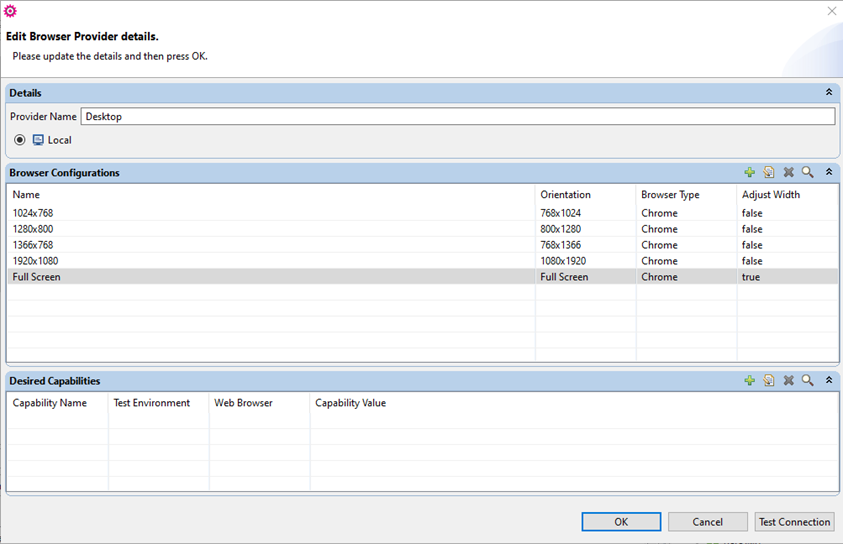
1. Set the Web Browser to **Desktop: Full Screen.**
2. Select the **Provider Name** to **Desktop** and the **Browser Configurations** to **Full Screen**.
3. If test cases are running under ant, make sure that the build file consists of the following run test case configurations.
* **webBrowserConfiguration="Desktop Full Screen"**
* **webBrowserProviderName="Desktop"**
* **webBrowserDeviceName="Desktop Full Screen"**
#### B. Integrate Provar as a plugin on the 'My Account' page
1. Login to your AutoRABIT account.
2. Go to the **My Account** tab from the AutoRABIT home page.
3. In the **Plugins** section, select the **Provar** checkbox under Test Types.
4. Fill in the required Provar details to integrate with AutoRABIT:
* **Name (mandatory field):** Enter a name of your choice (max. of 126 characters). The name should not include any special characters except "-".
* **License File**: Browse the provar license’s properties file from your local system and upload it here. This license file will be used by all users activated for their clients.
* The license properties file should contain the information in the same order as shown below:
* **#Thu Jul 05 15:52:26 IST 2018**
* **licenseStatus=Activated**
* **licenseType=FixedSeat**
* **licenseKey=XXXXX-XXXXX-XXXXXX-XXXXX-XXXXX**
* **lastOnlineAvailabilityCheckUtc=153078614616**
5. Once the file gets uploaded, you can view the name of the file which you have under the **License File** field. You can even download the license file if required.
6. Click **Save** to save the Provar configuration in AutoRABIT.
### Adding Provar configuration in CI Job
Now, you're done with the integration of Provar as a plugin with AutoRABIT, let's see how we can use it while running CI Job.
1. Navigate to the **Create CI Job** page, found under the **CI Jobs** tab.
2. On the next page, select one of the criteria for running the CI Job. For example, Run Test Automation Scripts
3. Next, give the job a descriptive name in the **CI Job Name** field.
4. Go to the **Test** section. In this section, you need to select **Provar** to run the functional test cases to test the functionality of the code being deployed to production.
5. Select **Fetch Test Cases From** as **Provar**.
6. Select your **Version Control Repository** and its mapped **Branch**.
7. Now, you need to add the **Test Cases Root path** and **Test Cases Execution path**.
* **Test Cases Root path**: Enter the test case root path till the **.testproject** file
* **Test Cases Execution Path**: Enter the test cases execution path here. For example- tests/sample. If not specified, all the test cases from the **'tests'** folder will get executed.
8. Cross-browser compatibility testing needs to be performed to ensure if the rendering of data is correct across multiple browsers. Select the **browser** in which you would like to run the test cases.
9. Fill in other section details as required and click on **Save**.
10. So, once the configured CI job is run and the build is triggered, Provar will review the code changes and functional review information can be found in the **CI Job Result** under the **Functional Tests** section. Here, you can find the status of the functional test done along with other details such as the number of components that successfully got reviewed, the number of components failed to review, components that are about to get reviewed or are in the queue.
### Troubleshooting
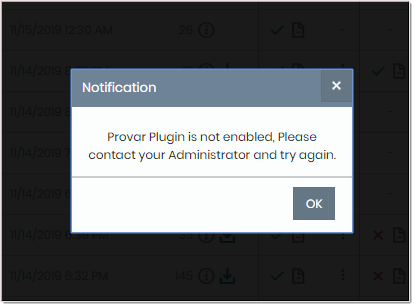
While triggering a build for Provar configured CI job, AutoRABIT application throws the error: **'Provar Plugin is not enabled. Please contact your Administrator and try again.'**
**Reason:**
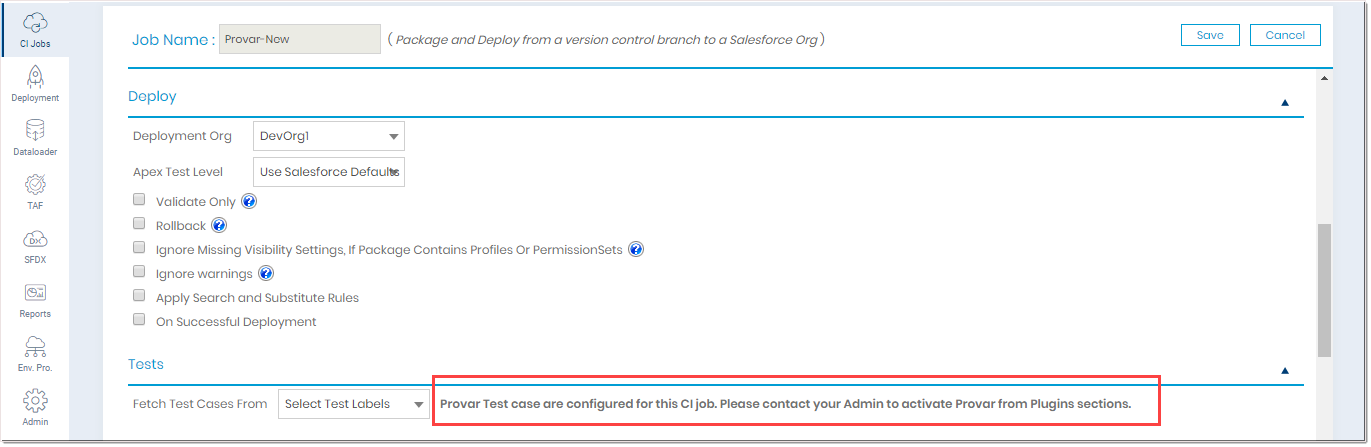
Typically this happens if you have built a CI Job with the provar configured in our application. However, for whatever reason, your org admin has disabled the Provar plugin for your account. Therefore, if you trigger a build for Provar configured CI job, our application will throw the previously described error, as your account is no longer configured with the Provar plug-in. Another scenario in which you would like to fetch the provar configured CI job with other test cases will promptly notify you that your CI job is already configured with the provar.
---
# Agent Instructions
This documentation is published with GitBook. GitBook is the documentation platform designed so that both humans and AI agents can read, navigate, and reason over technical content effectively. Learn more at gitbook.com.
## Querying This Documentation
If you need additional information that is not directly available in this page, you can query the documentation by asking a question.
Perform an HTTP GET request on the following URL with the `ask` and `goal` query parameters:
```
GET https://knowledgebase.autorabit.com/product-guides/arm-1/integration-and-plugins/provar.md?ask=&goal=
```
`ask` is the immediate question: it should be specific, self-contained, and written in natural language.
`goal` is what the user is ultimately trying to achieve, the reason they need the answer. Sharing it helps GitBook give you a better, more relevant answer. A goal is most helpful when it describes the outcome the user wants rather than restating the question. For example, with `ask=how do I create an API token`, a goal like `automate deployments from our CI pipeline` lets GitBook tailor the answer to that use case.
The response will contain a direct answer to the question and relevant excerpts and sources from the documentation.
Use this mechanism when the answer is not explicitly present in the current page, you need clarification or additional context, or you want to retrieve related documentation sections.