> For the complete documentation index, see [llms.txt](https://knowledgebase.autorabit.com/llms.txt). Markdown versions of documentation pages are available by appending `.md` to page URLs; this page is available as [Markdown](https://knowledgebase.autorabit.com/product-guides/arm-1/troubleshoot/how-tos/configure-mail-server-settings.md).
# Mail Server Settings
{% hint style="info" %}
**Important Note:** This article is for the **Org Administrator** in particular. The actions discussed in the article are not available to general users.
{% endhint %}
### Overview
You can use the mail server settings in this article to manually set up your email to send and receive an email with an iCloud email account. ARM requires mail server settings to send the ARM notification emails for events like build failures, build successes, deployment failures, merge reports, etc.
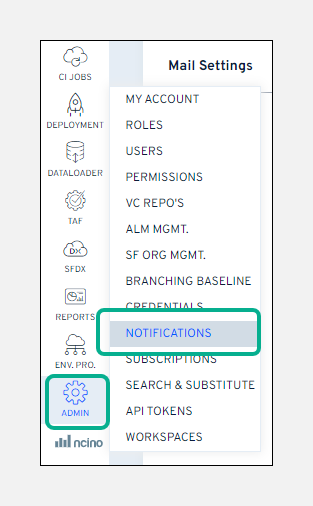
Begin the process by hovering your mouse over the **`Admin`** module and selecting the option: **`Notifications`**.
You’ll then be presented with a screen divided into **`Mail Settings`**, **`Send a test email`**, **`Restricted Emails`**, and **`Teams/Slack Settings`** sections.
#### Mail Settings
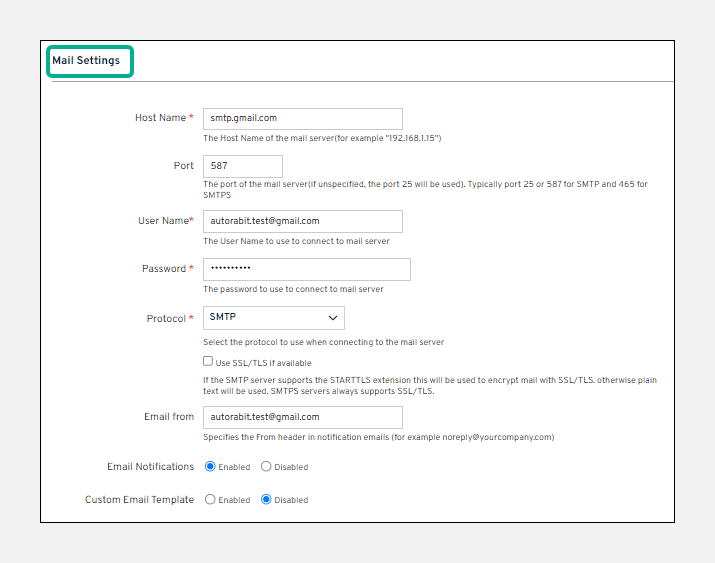
To set up a mail client, it’s necessary to configure the server to take care of your email delivery. And here’s the standard procedure for mail configuration and adding the correct parameters in the **`Mail Settings`** section:
Fill in the required details as listed below (mandatory fields are marked with an asterisk (\*) mark.
1. **`Host Name:`** Your incoming mail server name. *Ex- smtp.office365.com*
2. **`Port:`** The port number your incoming mail server uses. *Ex- Port 25*
3. **`User Name:`** The email address you want to set up. *Ex- *
4. **`Password:`** The password associated with your email account.
5. **`Protocol:`** The protocol to manage the transmission and outgoing mail over the internet. If your email is encrypted using SSL, select the **`Use SSL/TLS if available`** checkbox.
6. **`Email From:`** Enter the email addresses you want to receive notifications while configuring the mail server.
7. Select the **`Email Notifications`** checkbox to receive notification alerts.
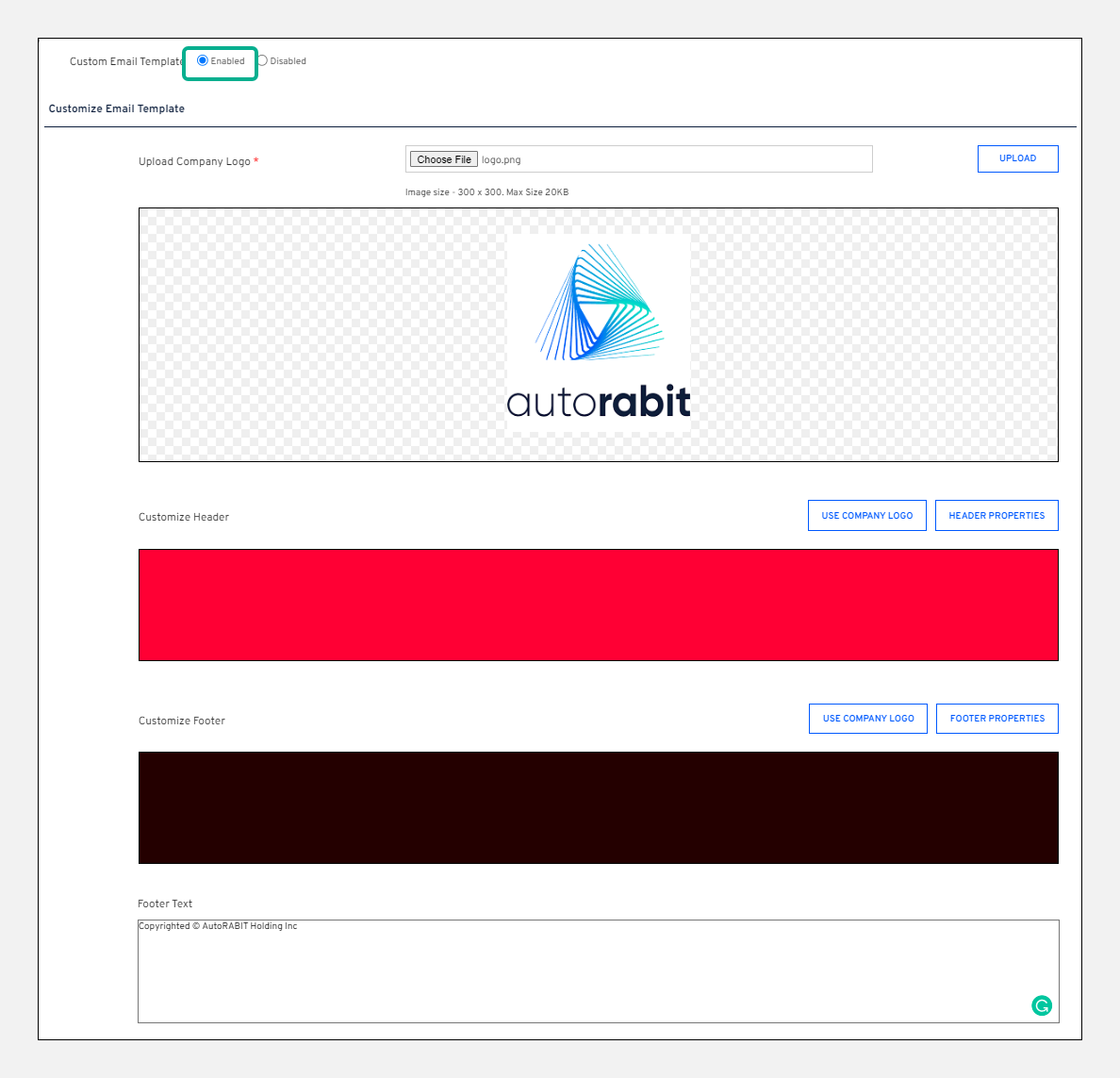
8. **`Custom Email Template:`** ARM has its default email template styles, but you can also create your own. Enable the **`Custom Email Template`** field and add your logo at the top or bottom of the page. You can add footer text too. Once you're happy with your template, save it.
9. You can use the **`Reset`** button to clear all the data in the **`Mail Settings`** section and again fill in the fields.
#### How to reset your mail preferences?
You won't be able to switch back to the default ARM mail preferences once you have configured your email template. If you want to switch back to the default email style, please email us at [support@autorabit.com](mailto:%20support@autorabit.com), and we can do it for you.
#### Send a Test Mail
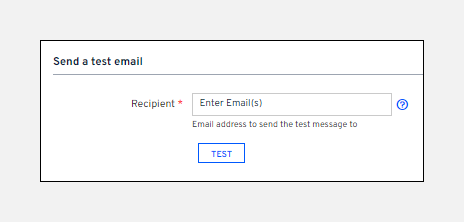
Before you use your customized email style, you can preview it once to make sure everything is showing correctly. Enter your email address in the **`Recipient`** field and click on the **`Test`** button to receive a test mail notification.
#### Restricted Emails
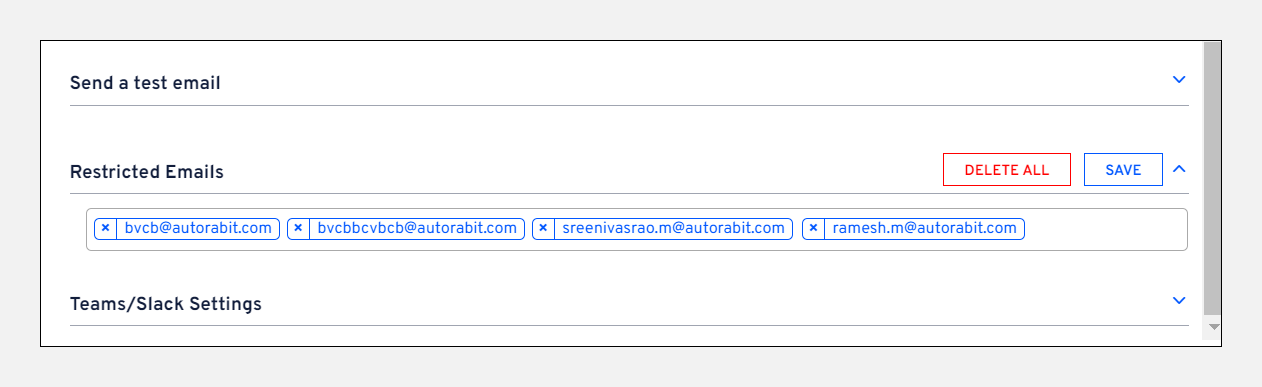
This section helps ensure that ARM-related emails are not sent to deactivated users who are no longer with the organization. Users in this list will not receive ANY emails, including deactivation, forgotten password, reset the password, jobs executed in the application, etc.
The email address of a user who has been deactivated by an admin is immediately added to this list. If an inactive user is reactivated, the email address is deleted from this list. Enter the email address(es) for the user(s) to be added to the restricted list manually. The ’x' icon next to each user’s email address allows the admin to remove any user from this list. Click **`Save`** while adding or removing users manually.
To remove all users from the **`Restricted Emails`** list, click **`Delete All`**, and then click **`Yes`** to confirm.
Note: If you are not receiving any emails related to the application, you can contact your admin to check if you've been added to the restricted emails list. After the admin removes you from the list, you will receive any new emails from that point forward.
#### Teams/Slack Settings
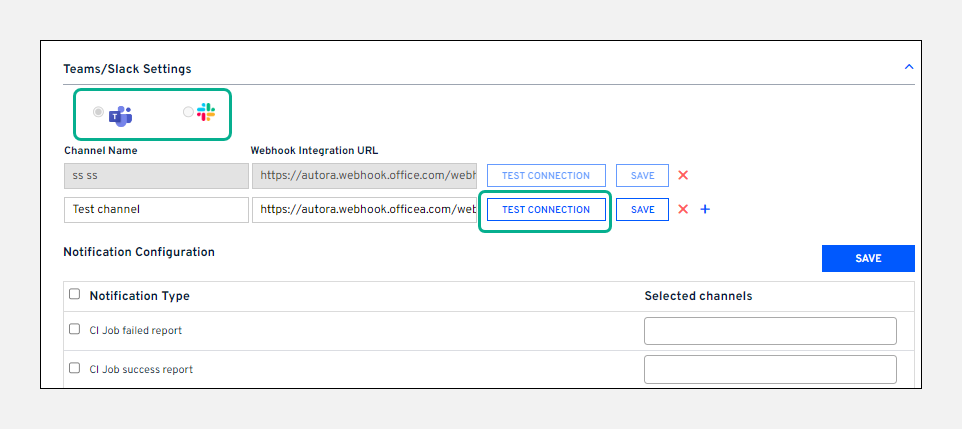
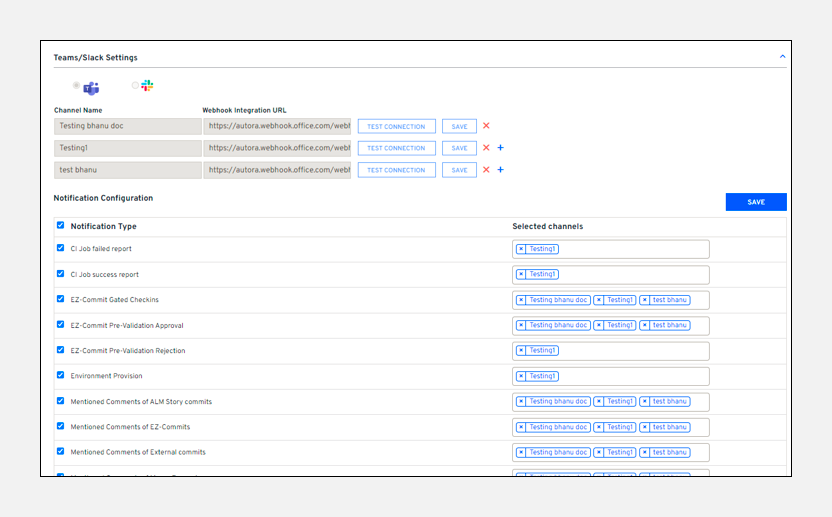
When an event is triggered in ARM, email notifications are sent to the selected individuals. If you want to send notifications for particular events to an entire group within your organization through **`Teams`** or **`Slack`**, then integrate your Teams or Slack application with ARM using the respective **`Webhook Integration URL`**. For more information on configuring a webhook on **`Teams`**, click [here](broken://pages/8waADP8rVqvezIsahchk). For **`Slack`**, click [here](/product-guides/arm/arm-features/webhooks/configure-a-webhook-in-slack.md).
1. Select either **`Teams`** or **`Slack`** as per your organization's requirements.
2. Enter a **`Channel Name`** and the **`Webhook Integration URL`**.
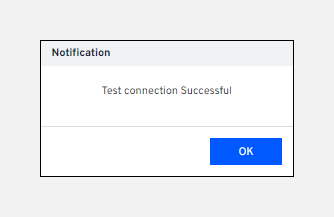
3. Click on **`Test Connection`**. A **`Test connection Successful`** notification will be displayed.
* If the test connection fails, an error message will be displayed. Check and re-enter the correct webhook URL.
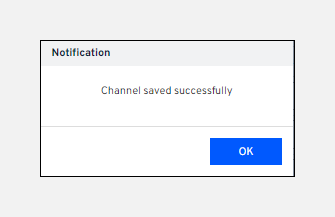
4. After a successful test connection, click **`Save`**.
{% hint style="info" %}
**Important Note:** The first channel you add is automatically configured to all the events by default. To remove the channel from any notification type, click on theicon. Channels added after that will have to be configured to events manually.
{% endhint %}
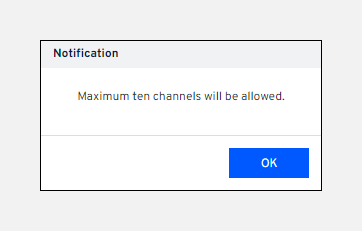
5. Click on the **`+`** icon to add another channel. You can add up to **10** channels.
6. Click the **`x`** icon to delete a channel and click **`Yes`** on the confirmation message.
**Notification Configuration**
This section is a guide to configuring the channels to the notification types. You can select which group(s) on Teams or Slack should be notified when a particular event is triggered.
1. Select the checkbox for the **`Notification Type`** that you want to configure.
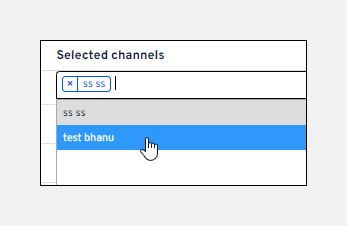
2. Click the **`Selected Channels`** field to display a list of configured channels.
3. Click the channel that you want to send the notification to when this event is triggered. You can select up to five channels for each notification type, meaning you can select as many channels as you have configured.
4. You can select multiple checkboxes for numerous notification types and select the channels to which you want to send notifications for each event.
5. Click **`Save`**. All the selected **`Notification types`** will be saved simultaneously.
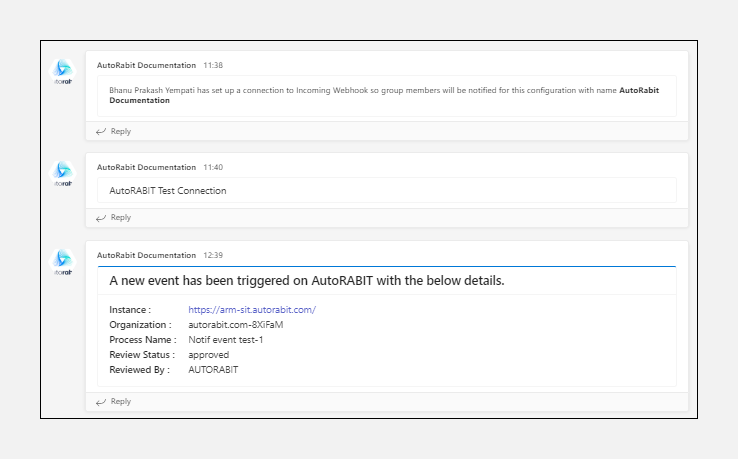
6. When an event is triggered in ARM, the configured channels will receive a notification.\
The image below is an example of what these notifications look like on Teams.
---
# Agent Instructions
This documentation is published with GitBook. GitBook is the documentation platform designed so that both humans and AI agents can read, navigate, and reason over technical content effectively. Learn more at gitbook.com.
## Querying This Documentation
If you need additional information that is not directly available in this page, you can query the documentation by asking a question.
Perform an HTTP GET request on the following URL with the `ask` and `goal` query parameters:
```
GET https://knowledgebase.autorabit.com/product-guides/arm-1/troubleshoot/how-tos/configure-mail-server-settings.md?ask=&goal=
```
`ask` is the immediate question: it should be specific, self-contained, and written in natural language.
`goal` is what the user is ultimately trying to achieve, the reason they need the answer. Sharing it helps GitBook give you a better, more relevant answer. A goal is most helpful when it describes the outcome the user wants rather than restating the question. For example, with `ask=how do I create an API token`, a goal like `automate deployments from our CI pipeline` lets GitBook tailor the answer to that use case.
The response will contain a direct answer to the question and relevant excerpts and sources from the documentation.
Use this mechanism when the answer is not explicitly present in the current page, you need clarification or additional context, or you want to retrieve related documentation sections.