> For the complete documentation index, see [llms.txt](https://knowledgebase.autorabit.com/llms.txt). Markdown versions of documentation pages are available by appending `.md` to page URLs; this page is available as [Markdown](https://knowledgebase.autorabit.com/product-guides/arm-1/troubleshoot/how-tos/create-users-credentials.md).
# Create User Credentials
{% hint style="info" %}
**Important Note:** This article is for **Org Administrators** in particular. The actions discussed in the article are not available to general users.
{% endhint %}
## Credential Manager: Overview
Credential Manager (CM) is the "digital locker" where ARM stores login credentials like usernames and passwords. It securely stores your credentials, so you only need to enter them once for each remote repository you access. Storing login information in the ARM CM saves you time when you frequently access a file shared on another machine.
## Create a New Credential
Log into ARM with username **, for example, then do the following:
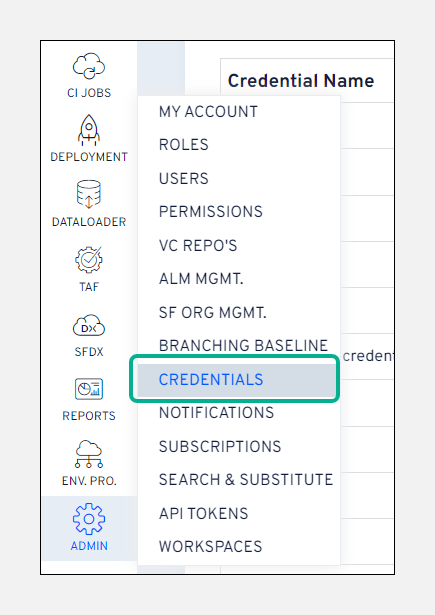
1. Hover your mouse over the **`Admin`** tile and select the option for **`Credentials`**.
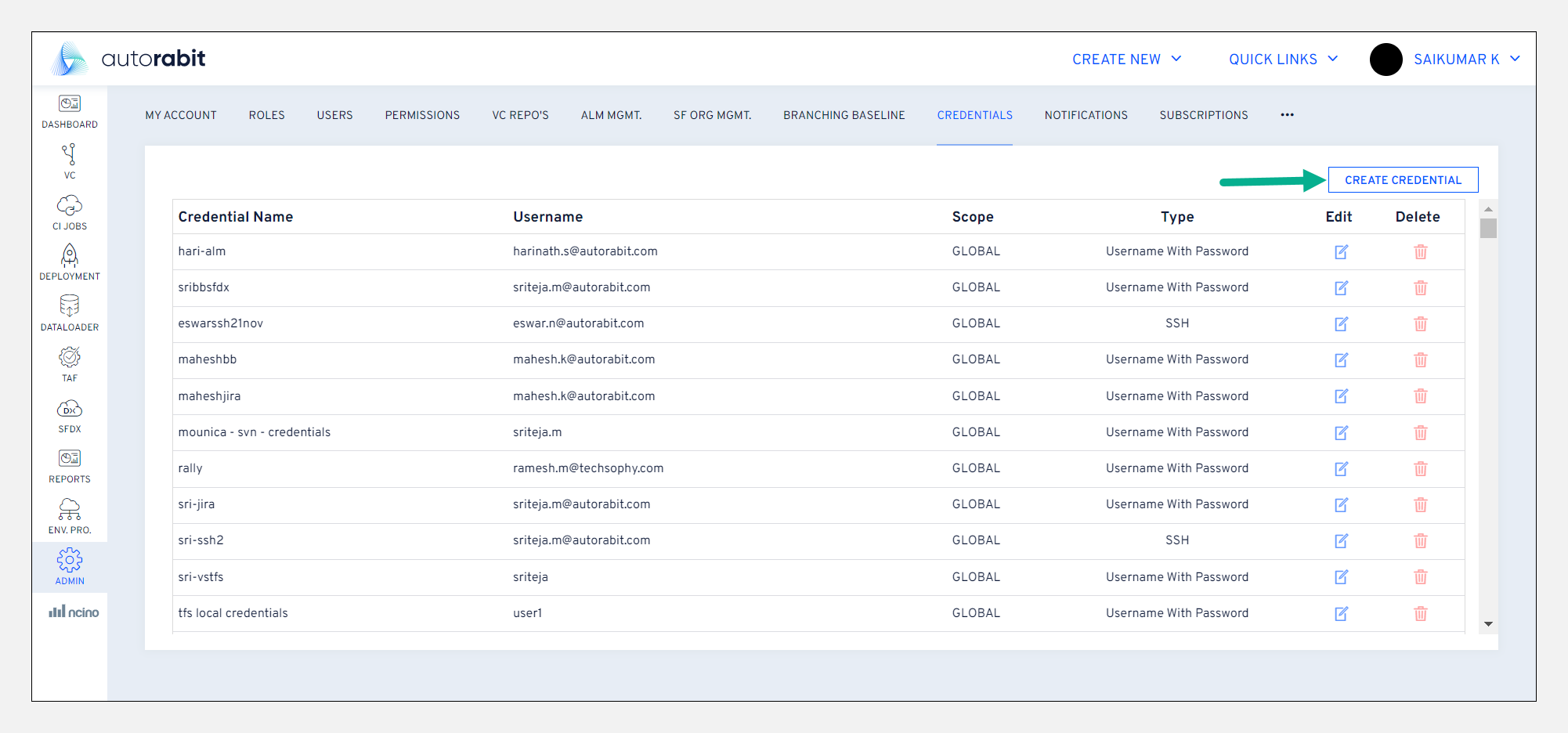
2. Click **`Create Credential`**.
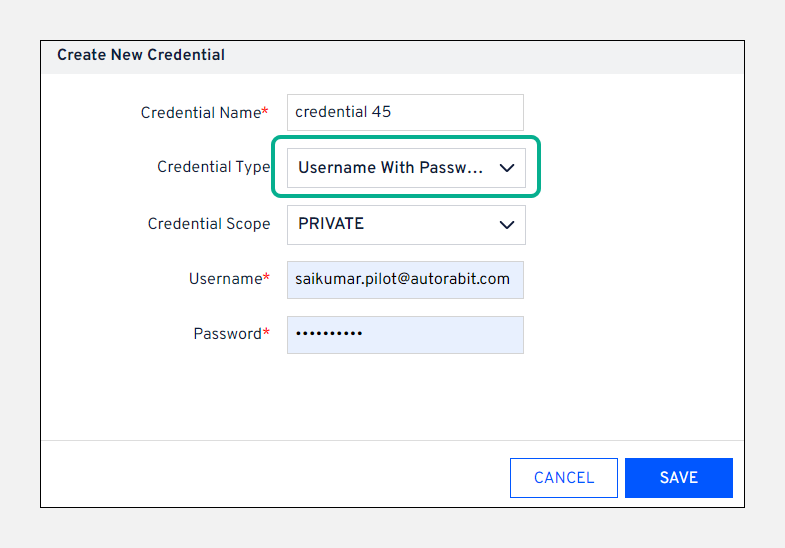
3. On the next pop-up screen, enter a **`Credential name`**.
4. Choose a **`Credential Type`** from the dropdown field:
* Username with Password
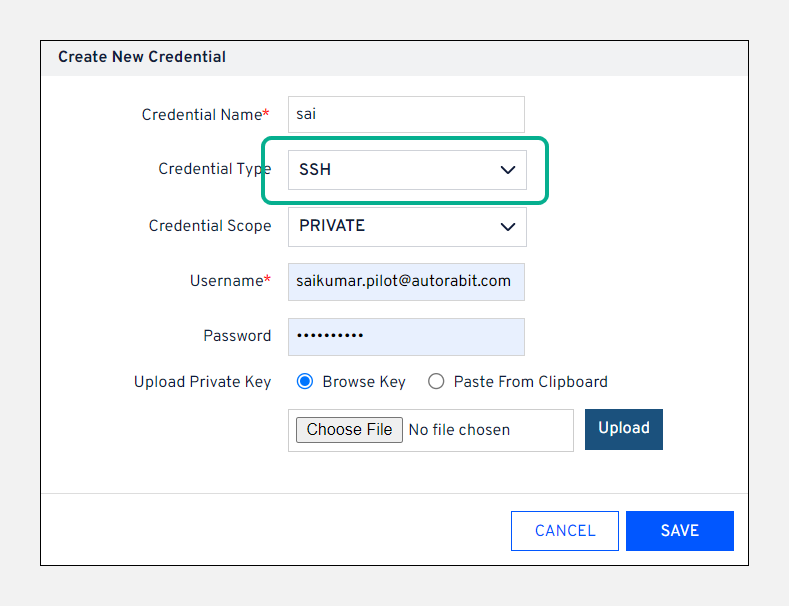
* SSH
* HashiCorp Vault
* SSH Certificate
### Username with Password
Password-based authentication requires the user to enter their username and password to create a credential.
Credential Scope lets you specify exactly what type of access you need:
* **`Global:`** Credential to be accessed by the team.
* **`Private:`** Credential for private usage.
### SSH
**`SSH`** is an encrypted protocol used to administer and communicate with servers. SSH is a secure way to access a site’s server remotely. The user must generate a public/private key pair on the client machine to identify them on the servers. You can choose to protect it with a password. Entering it with no password means anyone with access to the key files has the same level of access as the user, and no password is required when the client connects to the servers. Protecting the keys with a password means that whenever the user connects to a server using those keys, the password for decrypting it is required.
{% hint style="info" %}
**Important Note:**
1. We recommend using SSH-type credentials rather than password-type credentials for increased security.
2. Credential Scope lets you specify exactly what type of access you need:
* **`Global:`** Credential to be accessed by the team.
* **`Private:`** Credential for private usage.
3. Upload the Private key, if available on your local machine, or paste it into the clipboard provided.
{% endhint %}
### HashiCorp Vault
You can now choose the **`AWS Authentication`** method while adding HashiCorp credentials to ARM to generate the **`Vault Token`** automatically whenever the existing token expires. Now the user does not have to update the token manually from the application when it expires. Click [here](https://knowledgebase.autorabit.com/product-guides/arm/integration-and-plugins/hashicorp-vault#adding-hashicorp-credential-into-autorabit) for a more detailed article on this topic.
### Authentication using SSH Certificates
### **About SSH Certificates**
**`SSH certificates`** allow one SSH key to sign another SSH key, resulting in an SSH certificate. A server that trusts the Certificate Authority (CA) can verify the certificate’s signature and trust the certificate and its associated metadata.
Learn more information about SSH certificate authorities at .
#### **How is an SSH certificate different than an SSH key?**
SSH uses key-based authentication with public key cryptography, while an SSH certificate-based authentication attaches a signed certificate to each key to verify their identities. By using a certificate signed by a trusted CA, users can do away with passwords, which are not secure, given that passwords can either be stolen or cracked via brute force, and leverage a partially automated, trust-based certificate authentication process to gain access to systems.
#### **How do I add SSH certificates?**
To give organizations more control over how their members access their repositories in GitHub, ARM now supports credentials of the **`SSH Certificate`** type. The user must upload the key for the SSH certificate while creating a credential. Then the user can later authenticate the repositories and add them inside ARM using the credential.
SSH certificates only allow access to repositories that belong to their organization.
{% hint style="warning" %}
**Limitation:** Adding SSH certificates is currently limited to organizations using GitHub Enterprise Cloud.
{% endhint %}
---
# Agent Instructions
This documentation is published with GitBook. GitBook is the documentation platform designed so that both humans and AI agents can read, navigate, and reason over technical content effectively. Learn more at gitbook.com.
## Querying This Documentation
If you need additional information that is not directly available in this page, you can query the documentation by asking a question.
Perform an HTTP GET request on the following URL with the `ask` and `goal` query parameters:
```
GET https://knowledgebase.autorabit.com/product-guides/arm-1/troubleshoot/how-tos/create-users-credentials.md?ask=&goal=
```
`ask` is the immediate question: it should be specific, self-contained, and written in natural language.
`goal` is what the user is ultimately trying to achieve, the reason they need the answer. Sharing it helps GitBook give you a better, more relevant answer. A goal is most helpful when it describes the outcome the user wants rather than restating the question. For example, with `ask=how do I create an API token`, a goal like `automate deployments from our CI pipeline` lets GitBook tailor the answer to that use case.
The response will contain a direct answer to the question and relevant excerpts and sources from the documentation.
Use this mechanism when the answer is not explicitly present in the current page, you need clarification or additional context, or you want to retrieve related documentation sections.