> For the complete documentation index, see [llms.txt](https://knowledgebase.autorabit.com/llms.txt). Markdown versions of documentation pages are available by appending `.md` to page URLs; this page is available as [Markdown](https://knowledgebase.autorabit.com/product-guides/arm-1/troubleshoot/how-tos/default-apex-class-configuration-1.md).
# Default Apex Class Configuration
{% hint style="info" %}
**Important Note:** This article is for **Org Administrators** in particular. The actions discussed in this article are not available to general users.
{% endhint %}
### Configure Default Apex Test Class for your Salesforce Org
To configure the default **Apex Test Class** for your Salesforce org, follow the below steps:
1. Log in to your ARM account.
2. Hover your mouse over the Settings tab and click on the option: **`Salesforce Org`**.
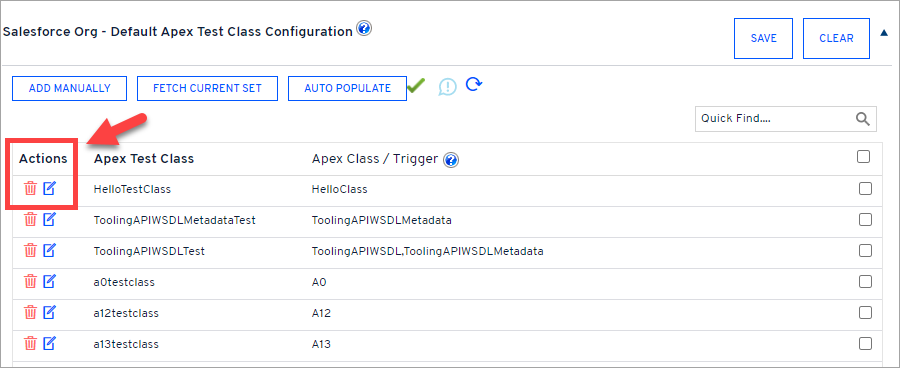
1. Select your **`Salesforce Org`** from the list and go to the **`Salesforce Org - Configure Default Apex Test Class`** section. While deploying through ARM, this works in sync with the **Run Test** based on the **Changes Test** level option. If ARM cannot find dependent test classes, these default classes will run as Specified Tests.
**`a. Fetch Current Set:`** This option fetches Apex and Test classes dependency. From the list fetched, select the required Apex Test Class that you would like to configure and run into the Destination Org
**`b. Auto-populate:`** This option will run all local tests and get the complete dependency map
{% hint style="warning" %}
**Troubleshooting:** If it takes longer to fetch the test classes using Auto-Populate, refresh the status by clicking theicon.
{% endhint %}
{% hint style="info" %}
**Important Note:** If Apex Tests are not being populated, follow the steps below to ensure that the **Store Only Aggregated Code Coverage** check box is unchecked:
1. Log in to your Salesforce org through the browser.
2. Go to **Setup**.
3. Use the **Quick Find/Search** box to open the **Apex Test Execution** page.

4. Click on **Options**. The **Apex Test Execution Options** pop-up appears.

5. Ensure that the **Store Only Aggregated Code Coverage** check box is unselected.
6. Click **OK**, and return to ARM.
{% endhint %}
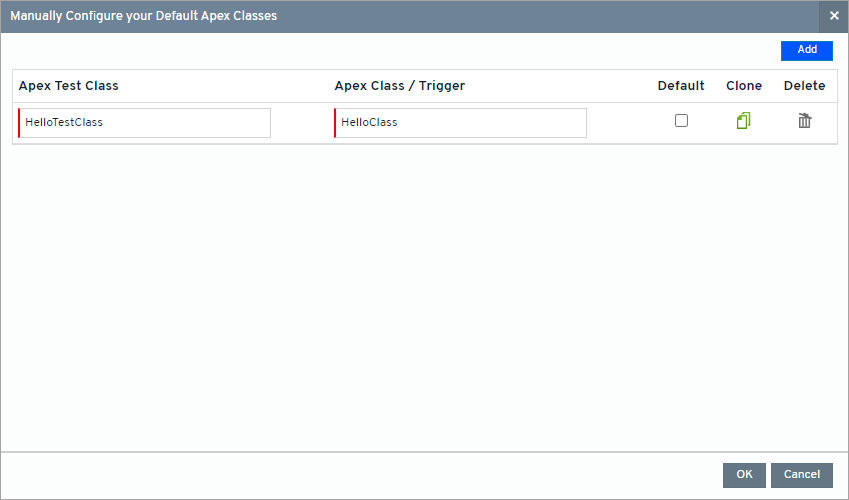
**`c. Add Manually:`**Manually configure your default Apex Test class.
5. On the next auto-populated screen, enter the **`Apex Test Class`** name and **`Apex Class/Trigger`** name in the respective fields. Mark the Apex class as default, and select the **`Default`** checkbox for such a test class.
6. Click the **`Add`** button at the top right corner to add another Apex Class name, or click the **`Clone`** icon to copy the details of the previous Apex Class.
7. Click **`OK`**. You can find the manually added Apex class on the previous screen, i.e., the [**`Salesforce Org Management`**](/product-guides/arm/registration/salesforce-org/salesforce-org-management.md) page.
### Manage Apex Class
Once you have added an Apex test class or classes, you can perform various actions:
1. Click the **`edit`** icon next to the class name to modify its contents in a simple editor.
2. Click the **`delete`** icon to delete the class from your organization. You can select individual test classes or all the apex test classes in one go.
{% hint style="info" %}
**Important Note:** For each code coverage operation executed for your Salesforce org, AutoRABIT will either update or append the Apex Test Class mapping dynamically. Therefore, to view the added or modified Apex Test classes once the code coverage operation is performed, the user must ensure to refresh its Salesforce org from the [**`Salesforce Org Management`**](/product-guides/arm/registration/salesforce-org/salesforce-org-management.md) section.
{% endhint %}
## Bulk Management of Apex Test Mappings (New UI)
#### Overview
ARM now supports bulk management of Apex Test Class mappings in the **New UI** using a **CSV file**. You can download the current mappings, edit them offline, and upload them back to replace the existing configuration. This reduces unnecessary test execution and improves CI/CD efficiency.
***
### A. Download Current Test Mappings (CSV)
1. **Open ARM (New UI)** and go to **Test Mapping**.
2. Click **Download Test Cases**.
3. Save the downloaded CSV file to your machine.
**What happens next**
* The downloaded file contains **all active mappings**.
* A **success message** appears after download.
* Download is available only to users with access.
**CSV Columns (supported / required)**
* **Sno**
* **Apex Test Class**
* **Apex Class/Trigger**
> Only these three columns are processed during import.
***
### B. Update the CSV File
1. Open the downloaded CSV file in Excel / Google Sheets / a CSV editor.
2. Update mappings as needed (add, remove, or modify rows).
3. Ensure the file remains in **CSV format** with the same column headers.
4. Save the file.
**Important**
* Keep column names exactly as provided.
* Avoid extra columns (they will be ignored or may cause validation issues depending on implementation).
***
### C. Upload Updated Test Mappings (Replace Existing Set)
1. In **Test Mapping** (New UI), click **Upload Test Cases**.
2. Select your edited **CSV** file.
3. ARM validates the file:
* Checks CSV format
* Checks required columns exist
* Validates structure and entries
4. If validation passes, a **confirmation prompt** appears.
5. Click **Confirm** to proceed.
**If validation fails**
* Upload is stopped
* Clear error messages are shown
* Existing mappings remain unchanged
***
### D. What “Replace” Means (After Successful Upload)
After confirmation and successful upload:
* The **entire existing mapping set is replaced**
* Old mappings are **removed** and **no longer visible**
* Only the newly uploaded mappings are used moving forward
* **Partial updates are not supported**
***
### E. Automatic Backup (Safety Net)
ARM automatically keeps **one backup** of the previous file.
**How it works**
* On every successful upload, the current active file is stored as a **backup**
* Only **one backup version** is retained
* Backup is available only **after at least one successful import**
* When you upload again, the backup is **overwritten** with the most recent previous file
***
### F. Download Backup (If Needed)
1. Go to **Test Mapping** (New UI).
2. If a backup exists, click **Download Backup**.
3. Save the backup CSV locally.
***
### Key Notes
* Available only in the **New UI**
* **CSV only** is supported
* Only these columns are supported:
* **Sno**
* **Apex Test Class**
* **Apex Class/Trigger**
* Every upload **replaces the full mapping set**
* Only **one backup** file is maintained at a time
---
# Agent Instructions
This documentation is published with GitBook. GitBook is the documentation platform designed so that both humans and AI agents can read, navigate, and reason over technical content effectively. Learn more at gitbook.com.
## Querying This Documentation
If you need additional information that is not directly available in this page, you can query the documentation by asking a question.
Perform an HTTP GET request on the following URL with the `ask` and `goal` query parameters:
```
GET https://knowledgebase.autorabit.com/product-guides/arm-1/troubleshoot/how-tos/default-apex-class-configuration-1.md?ask=&goal=
```
`ask` is the immediate question: it should be specific, self-contained, and written in natural language.
`goal` is what the user is ultimately trying to achieve, the reason they need the answer. Sharing it helps GitBook give you a better, more relevant answer. A goal is most helpful when it describes the outcome the user wants rather than restating the question. For example, with `ask=how do I create an API token`, a goal like `automate deployments from our CI pipeline` lets GitBook tailor the answer to that use case.
The response will contain a direct answer to the question and relevant excerpts and sources from the documentation.
Use this mechanism when the answer is not explicitly present in the current page, you need clarification or additional context, or you want to retrieve related documentation sections.