# Email Notifications

{% hint style="info" %}
**Important Note**: This article is for the **'Org Administrator'** in particular. The actions discussed in the article will not be available to the General Users. &#x20;
{% endhint %}

### Overview <a href="#overview" id="overview"></a>

You can use the mail server settings in this article to manually set up your email to send and receive an email with an iCloud email account. AutoRABIT requires mail server settings to send the AutoRABIT notification emails for events like build failures, build success, deployment failure, merge reports, etc.&#x20;

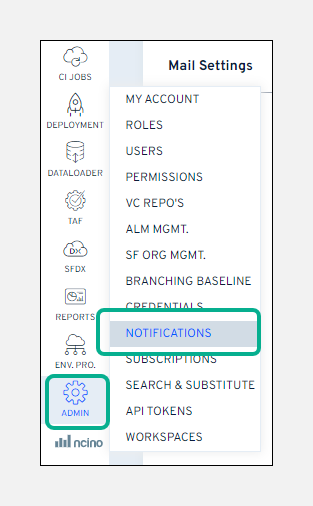
Begin the process by hovering your mouse over the **Admin** module and selecting the option: **Notifications**.

<figure><img src="https://1912836914-files.gitbook.io/~/files/v0/b/gitbook-x-prod.appspot.com/o/spaces%2F9vAxMuDrkUkB4OXlH9CL%2Fuploads%2F65mo1ylLnMuw4Fe5hCfT%2Fimage.png?alt=media&#x26;token=0a1be1aa-29cd-4a1d-abe0-8b6f593cc9f3" alt="" width="235"><figcaption></figcaption></figure>

You’ll then be presented with a screen divided into **Mail Settings,** **Send a Test Mail,** and **Teams/Slack Settings** sections.&#x20;

#### Mail Settings <a href="#mail-settings" id="mail-settings"></a>

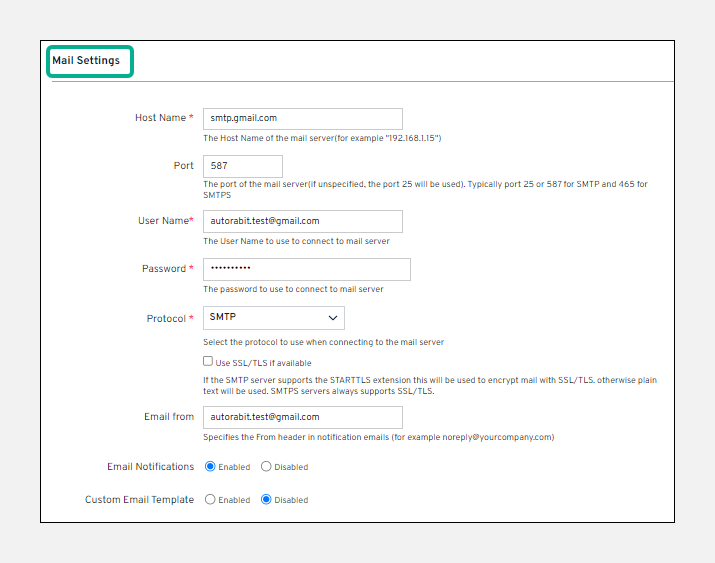
To set up a mail client, it’s necessary to configure the server that will take care of the delivery of your emails. And here’s the standard procedure of mail configuration and adding the right parameters in the **Mail Settings** section:

<figure><img src="https://1912836914-files.gitbook.io/~/files/v0/b/gitbook-x-prod.appspot.com/o/spaces%2F9vAxMuDrkUkB4OXlH9CL%2Fuploads%2F7NUyRKSsdZg9TfukXVKs%2Fimage.png?alt=media&#x26;token=a84d927b-b015-4847-96c5-a89cc6f39c73" alt="" width="536"><figcaption></figcaption></figure>

Fill in the required details as listed below (mandatory fields are marked with an asterisk (\*) mark.&#x20;

1. **Host Name:** Your incoming mail server name. *Ex- smtp.office365.com*
2. **Port:** The port number your incoming mail server uses. *Ex- Port 25*
3. **User Name:** The email address you want to set up. *Ex- <yourusername@autorabit.com>*
4. **Password:** The password associated with your email account.
5. **Protocol:** The protocol to manage the transmission and outgoing mail over the internet. And, is your email encrypted using SSL? If YES, then select the **SSL/TLS if available** checkbox.
6. **Email From:** Enter the email addresses from which you want to receive email notifications while configuring the mail server.&#x20;
7. Select the **Email Notifications** checkbox to receive notification alerts.
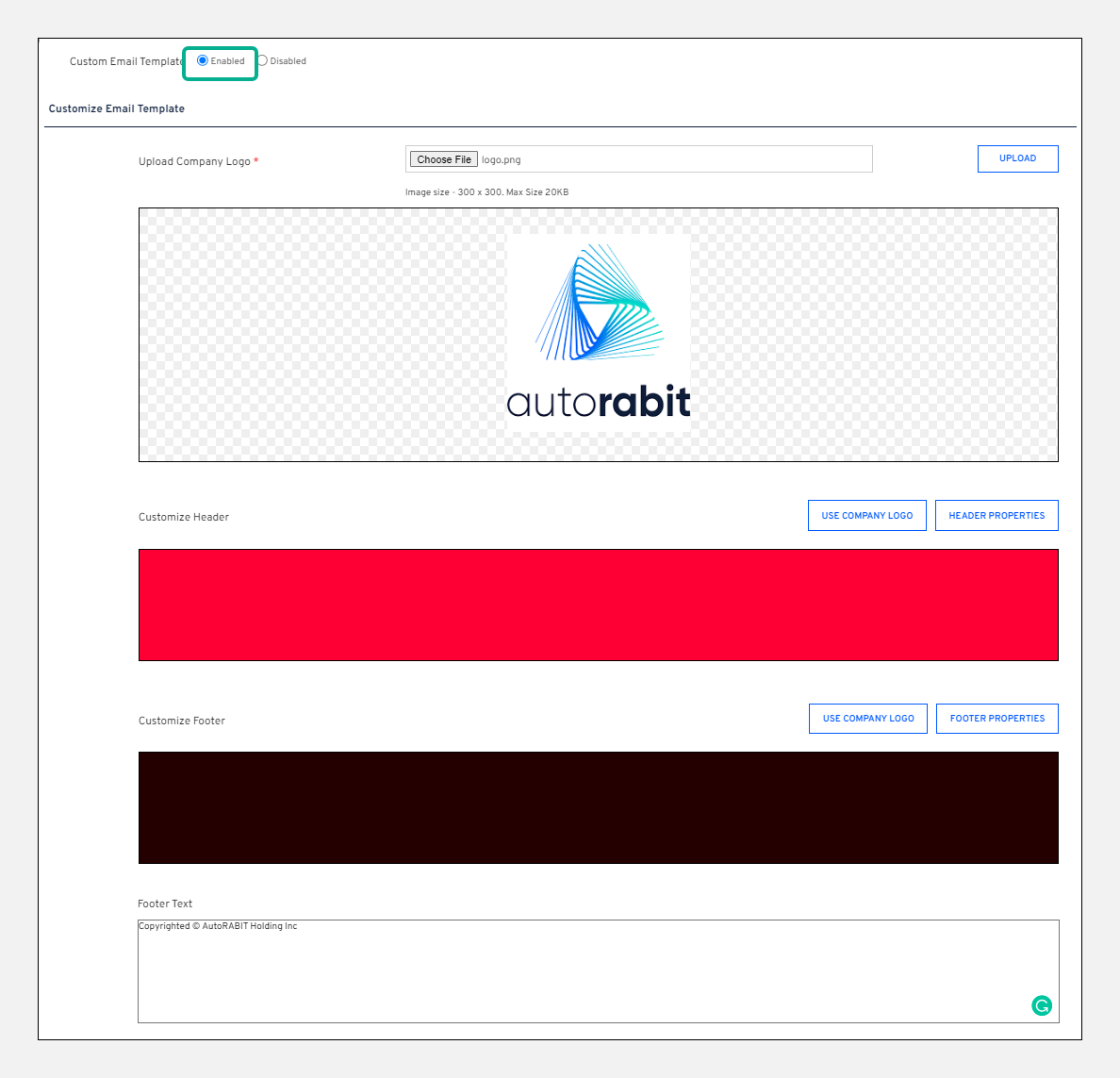
8. **Custom Email Template:** AutoRABIT comes with its default email template styles but you can also create your own. Simply enable the **Custom Email Template** field and add your logo at the top or bottom of the page. You can add footer text too. Once you're happy with your template, save it.
9. To clear all the data in the **Mail Settings** section and fill in the fields once again, you can use the **Reset** button.

<figure><img src="https://1912836914-files.gitbook.io/~/files/v0/b/gitbook-x-prod.appspot.com/o/spaces%2F9vAxMuDrkUkB4OXlH9CL%2Fuploads%2FP78V9uwejHCBcTe6Yaby%2Fimage.png?alt=media&#x26;token=e8b5108a-bf8b-452e-81af-589b42d115b7" alt="" width="563"><figcaption></figcaption></figure>

#### How to reset your mail preferences?

You won't be able to switch back to the default AutoRABIT mail preferences once you have configured your own email template. To switch back to the default email style, you can email us at [support@autorabit.com](mailto:%20support@autorabit.com) and we can get it done for you.

#### Send a Test Mail <a href="#send-a-test-mail" id="send-a-test-mail"></a>

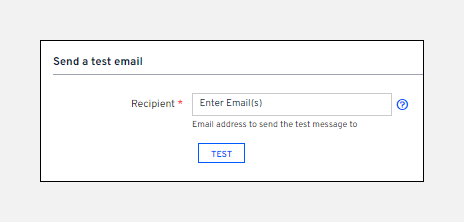
Before using your customized email style, be sure to preview it once to be sure everything is displaying correctly. Simply enter your email address in the **Recipient** field and click on the **Test** button to receive a test mail notification. Sample email notification attached.

<figure><img src="https://1912836914-files.gitbook.io/~/files/v0/b/gitbook-x-prod.appspot.com/o/spaces%2F9vAxMuDrkUkB4OXlH9CL%2Fuploads%2FnB2eJ1Gv7JuheulwsqCe%2Fimage.png?alt=media&#x26;token=be2aa835-317c-443b-b28d-53fa1fac0537" alt=""><figcaption></figcaption></figure>

#### Teams/Slack Settings <a href="#teamsslack-settings" id="teamsslack-settings"></a>

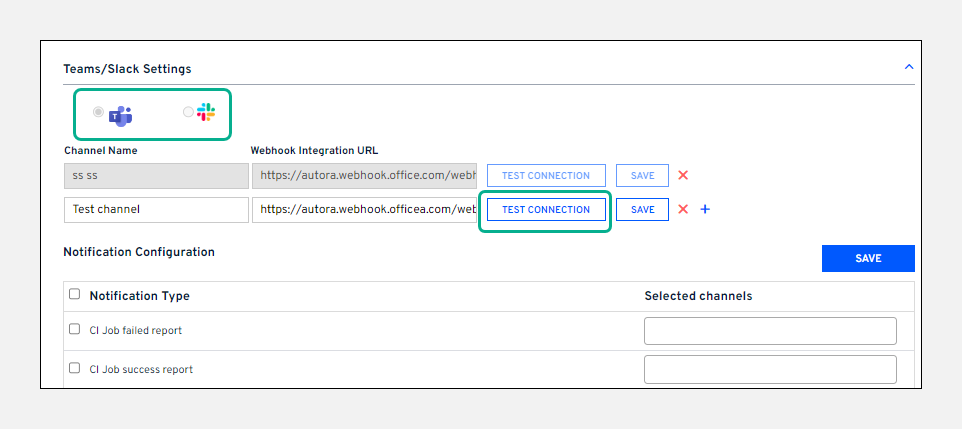
When an event is triggered in ARM, email notifications are sent to the selected individuals. If you want to send notifications for particular events to an entire group within your organization through **Teams** or **Slack**, then integrate your Teams or Slack application with ARM using the respective **Webhook Integration URL**. For more information on configuring a webhook on **Teams**, click [HERE](https://knowledgebase.autorabit.com/product-guides/arm/arm-features/webhooks/configure-a-webhook-in-teams). For **Slack**, click [HERE](https://knowledgebase.autorabit.com/product-guides/arm/arm-features/webhooks/configure-a-webhook-in-slack).

1. Select either **Teams** or **Slack** as per your organization's requirements.
2. Enter a **Channel Name** and the **Webhook Integration URL**.&#x20;
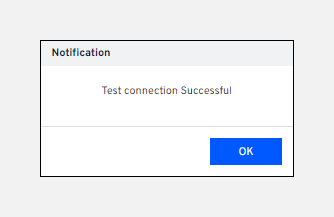
3. Click on **Test Connection**. A **Test connection Successful** notification will be displayed.

<figure><img src="https://1912836914-files.gitbook.io/~/files/v0/b/gitbook-x-prod.appspot.com/o/spaces%2F9vAxMuDrkUkB4OXlH9CL%2Fuploads%2Fy5ogD27hY98pGj0gmToJ%2Fimage.png?alt=media&#x26;token=a2a6cbff-8ff4-4f28-84bb-24aba27c8eb6" alt=""><figcaption></figcaption></figure>

4. If the test connection fails, an error message will be displayed. Check and re-enter the correct webhook URL.

<figure><img src="https://1912836914-files.gitbook.io/~/files/v0/b/gitbook-x-prod.appspot.com/o/spaces%2F9vAxMuDrkUkB4OXlH9CL%2Fuploads%2FCuNrnqQWTISHKO6CxnDb%2Fimage.png?alt=media&#x26;token=ba50b2cd-3a6a-488c-8645-2cae8d1a5e61" alt=""><figcaption></figcaption></figure>

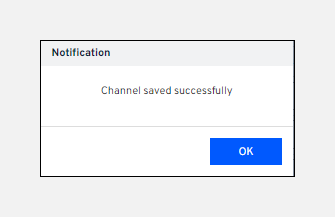
5. After a successful test connection, click **Save**.

{% hint style="info" %}
**Important Note:** The first channel that you add is automatically configured to all the events by default. To remove the channel from any notification type, click on the![](https://1912836914-files.gitbook.io/~/files/v0/b/gitbook-x-prod.appspot.com/o/spaces%2F9vAxMuDrkUkB4OXlH9CL%2Fuploads%2FJiafLsNApEARk4wWBJ5o%2Fimage.png?alt=media\&token=1d25b7e8-296a-4916-a507-e8f6005e0626)icon. Channels added after that will have to be configured to events manually.
{% endhint %}

<figure><img src="https://1912836914-files.gitbook.io/~/files/v0/b/gitbook-x-prod.appspot.com/o/spaces%2F9vAxMuDrkUkB4OXlH9CL%2Fuploads%2F2UwMYdxYUW1gYoe9emqq%2Fimage.png?alt=media&#x26;token=8f68a427-be2f-4d28-a3f9-8c37606f17d2" alt=""><figcaption></figcaption></figure>

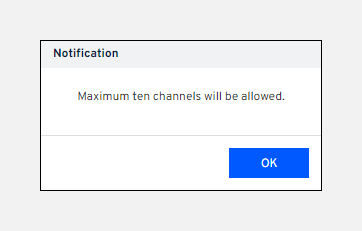
6. To add another channel, click on the (**+**) icon. You can add up to **10** channels.

<figure><img src="https://1912836914-files.gitbook.io/~/files/v0/b/gitbook-x-prod.appspot.com/o/spaces%2F9vAxMuDrkUkB4OXlH9CL%2Fuploads%2F07Bcvn41nqnUGy8ADGLD%2Fimage.png?alt=media&#x26;token=89855e22-041e-408e-a760-5b1aef40d7d2" alt=""><figcaption></figcaption></figure>

7. To delete a channel, click on the (**x**) icon and then click **YES** on the confirmation message.

**Notification Configuration**

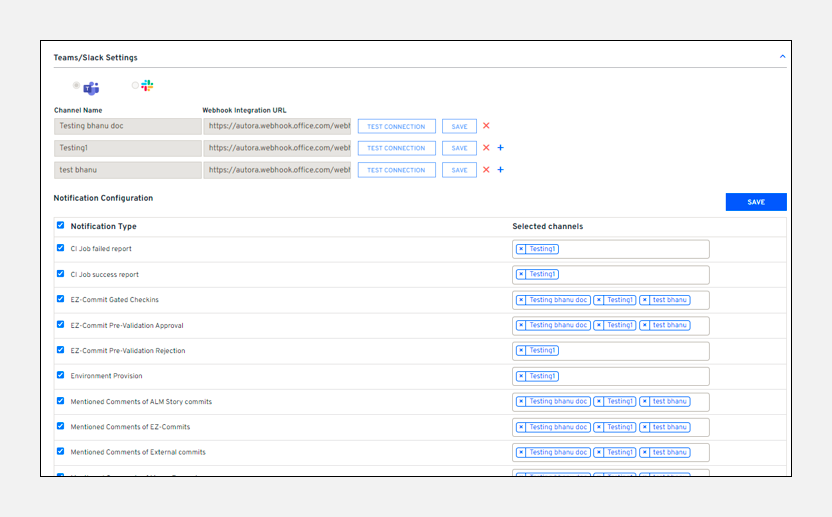
This section is a guide to configuring the channels to the notification types. You can select which group(s) on Teams or Slack should get a notification when a particular event is triggered.&#x20;

<figure><img src="https://1912836914-files.gitbook.io/~/files/v0/b/gitbook-x-prod.appspot.com/o/spaces%2F9vAxMuDrkUkB4OXlH9CL%2Fuploads%2FYpTNOILCTlIqpadxLe5V%2Fimage.png?alt=media&#x26;token=190409c9-c5d1-4b3d-a758-66686b7d9654" alt="" width="563"><figcaption></figcaption></figure>

1. Select the checkbox for the **Notification Type** that you want to configure.
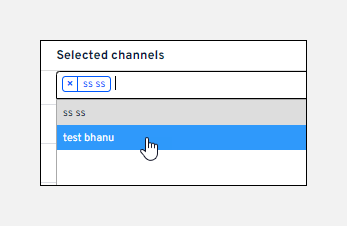
2. Click in the **Selected channels** field to display a list of configured channels.

<figure><img src="https://1912836914-files.gitbook.io/~/files/v0/b/gitbook-x-prod.appspot.com/o/spaces%2F9vAxMuDrkUkB4OXlH9CL%2Fuploads%2FuplteSVtdtnTlQaxy5fd%2Fimage.png?alt=media&#x26;token=f0ee12b3-2995-435e-9397-d11dd4729315" alt=""><figcaption></figcaption></figure>

3. Click the channel that you want to send the notification to when this event is triggered. You can select up to five channels for each notification type, which means that you can select as many channels as you have configured.
4. You can select multiple checkboxes for numerous notification types and select the channels to which you want to send notifications for each event.
5. Click **Save**. All the selected **Notification types** will be saved simultaneously.&#x20;
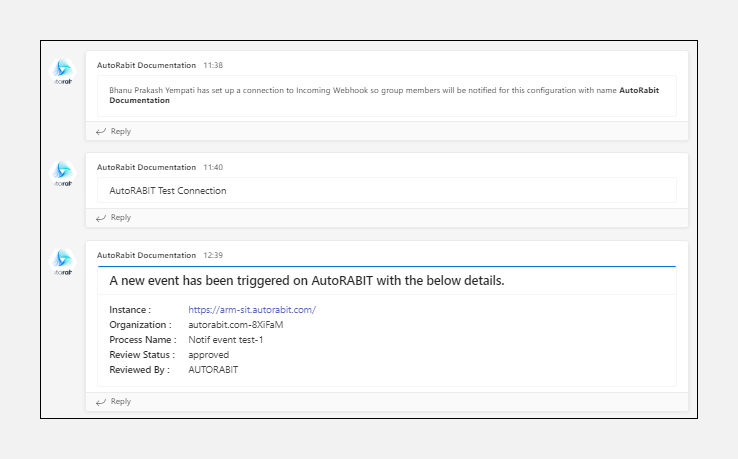
6. When an event is triggered in ARM, the configured channels will receive a notification.\
   The image below is an example of what these notifications look like on Teams.

<figure><img src="https://1912836914-files.gitbook.io/~/files/v0/b/gitbook-x-prod.appspot.com/o/spaces%2F9vAxMuDrkUkB4OXlH9CL%2Fuploads%2FfwiIyPnz11d8hSRl18HH%2Fimage.png?alt=media&#x26;token=2b7943eb-c4fe-405f-8c33-31900f00697a" alt=""><figcaption></figcaption></figure>

## Email Admin Settings

### Purpose

This guide walks AutoRABIT administrators through configuring outbound **email** notifications and managing restricted recipient lists. Use it when onboarding a new org or revisiting your notification strategy.

***

### 1  Accessing the Page

1. Sign in with an account that has **Admin** privileges.
2. In the global navigation bar, choose **Admin › Notifications**.
3. The page opens with **three** stacked configuration sections:
   * **Mail Settings** (SMTP)
   * **Send a Test Email**
   * **Restricted Emails**

***

### 2  Mail Settings (SMTP)

<table><thead><tr><th width="142">Field</th><th width="350">Description</th><th>Typical Examples</th></tr></thead><tbody><tr><td><strong>Host Name</strong></td><td>FQDN or IP address of your SMTP server.</td><td><code>smtp.company.com</code></td></tr><tr><td><strong>Port</strong></td><td>Network port the server listens on.</td><td><code>25</code>, <code>465</code> (SSL), <code>587</code> (TLS)</td></tr><tr><td><strong>User Name</strong></td><td>Service account allowed to relay mail.</td><td><code>notifications@company.com</code></td></tr><tr><td><strong>Password</strong></td><td>Password or app‑specific token for the above user.</td><td><em>••••••</em></td></tr><tr><td><strong>Protocol</strong></td><td>Transport security: <code>SMTP</code>, <code>SMTP (SSL)</code>, or <code>SMTP (TLS)</code>.</td><td><code>SMTP (TLS)</code></td></tr><tr><td><strong>Email From</strong></td><td>The <strong>From:</strong> address recipients will see.</td><td><code>noreply@company.com</code></td></tr><tr><td><strong>Email Notifications</strong></td><td>Toggle <strong>Enabled / Disabled</strong> globally.</td><td><em>Enabled</em></td></tr><tr><td><strong>Custom Email Template</strong></td><td>Toggle to enable org‑specific templates.</td><td><em>Enabled</em></td></tr></tbody></table>

> **Remember:** Click **Save** (upper right) after any changes. Settings apply immediately to future emails.

#### 2.1  Send a Test Email

1. Enter one or more addresses (comma‑separated) in **Recipient**.
2. Click **Test**.
3. Confirm delivery in the inbox; if nothing arrives, re‑check credentials, firewall rules, or SPF/DKIM settings.

***

### 3  Restricted Emails

Block specific addresses from ever receiving system mail (e.g., DLs, test accounts, ex‑employees).

* Type/paste an address and press **Enter** to add it.
* Click the **×** in a pill to remove.
* **Delete All** wipes the list.
* Click **Save** afterward.

***

### 4  Notification Configuration Matrix

Map **system events** to **delivery channels**.

<table><thead><tr><th width="179">Column</th><th>Purpose</th></tr></thead><tbody><tr><td><strong>Notification Type</strong></td><td>Event emitted by AutoRABIT (e.g., <em>EZ‑Commit Gated Check‑in</em>, <em>Merge Request</em>, <em>PRD Deploy – Custom</em>).</td></tr><tr><td><strong>Select Channel</strong></td><td>Dropdown containing <strong>Email</strong> or <em>None</em>.</td></tr></tbody></table>

**Steps**

1. Tick the checkbox beside each event.
2. Choose **Email** or *None* in the same row.
3. Scroll and click the main **Save** button.

> **Tip:** Keep noise low by selecting only critical events.

***

### 5  Best Practices & Troubleshooting

<table><thead><tr><th width="216">Issue</th><th>Resolution</th></tr></thead><tbody><tr><td>Test email fails</td><td>Verify SMTP host/port, credentials, firewall, and that the <strong>From</strong> address is authorized.</td></tr><tr><td>Emails marked as spam</td><td>Use a real domain and configure SPF/DKIM/DMARC.</td></tr><tr><td>No notifications delivered</td><td>Ensure <strong>Email Notifications</strong> toggle is <em>Enabled</em>, event checkboxes are ticked, and page is saved.</td></tr></tbody></table>

&#x20;
