> For the complete documentation index, see [llms.txt](https://knowledgebase.autorabit.com/llms.txt). Markdown versions of documentation pages are available by appending `.md` to page URLs; this page is available as [Markdown](https://knowledgebase.autorabit.com/product-guides/arm/arm-administration/static-code-analysis-in-ci-cd.md).
# Integrating Static Code Analysis
Static code analysis (SCA) lets you catch bugs, security risks, and “code smells” before code is compiled or deployed. This guide shows how to configure and run SCA tools in ARM so every build, commit, and deployment meets your organization’s quality standards.
### 1. What is a Static Code Analysis (SCA)?
Static code analysis is the process of scanning source code without executing it. Automated tools check the code against coding standards and best practices to surface:
* Syntax and semantic errors
* Unused variables and dead code
* Potential performance issues
* Security vulnerabilities
* General “code smells” indicating poor design
Running SCA early and often improves code quality, maintainability, and reliability while reducing the cost of fixing issues later in the lifecycle.
### 2. SCA tools supported
ARM supports the following SCA tools:
* Apex PMD
* Checkmarx
* CodeScan
* Salesforce Scanner
* SonarQube
### 3. Integrate SCA into your build process
Add an SCA tool to any build or continuous integration (CI) job:
1. Log in to ARM.
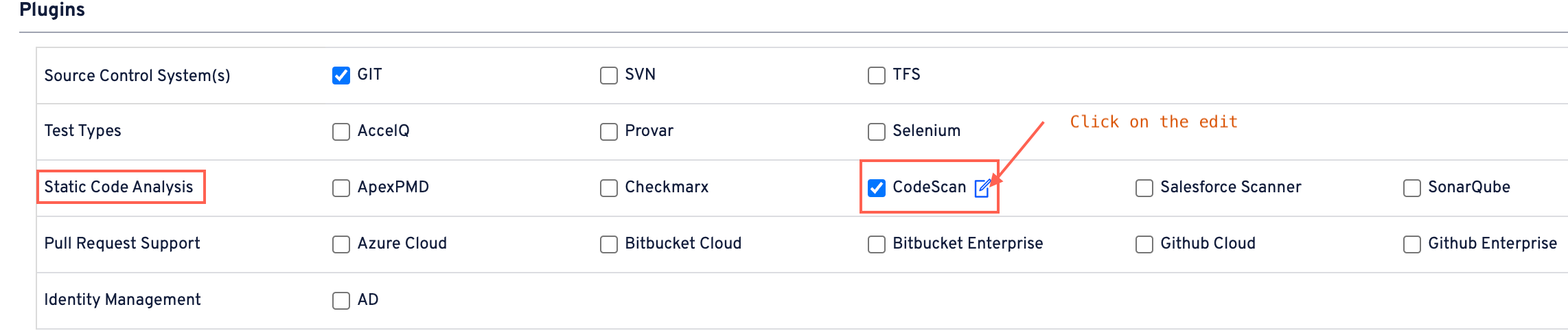
2. Navigate to **`Admin > Plugins`**.
3. In **`Static Code Analysis`**, select the tool you want to enable for builds or CI jobs.
#### 3.1 Integrate Apex PMD
Apex PMD ships with a comprehensive default rule set, but you can supply your own:
1. Click the **Edit** icon next to **Apex PMD**.
2. Under **`Choose file`**, upload a custom ruleset XML.
3. To start from the defaults, click the **Download** icon, edit the XML locally, then re-upload it.
4. Click **Save**.
#### 3.2 Integrate Checkmarx
1. Click the **Edit** icon next to **Checkmarx**.
2. Enter:
* **`CxServer`** – Checkmarx server URL (e.g., `http://server-name`).
* **`Team Name`** – your project’s team name.
* **`Select Credential`** – choose or create credentials (see *Create User’s Credentials*).
3. Click **Test Connection**.
4. Click **Save**.
5. Click **Save** again on **My Account**.
#### 3.3 Integrate CodeScan
**Prerequisites**
* **CodeScan security token** – generate under **`My Account > Security`** in CodeScan.
* **Organization key** – shown in the upper-right corner of your CodeScan organization page.
**Steps**
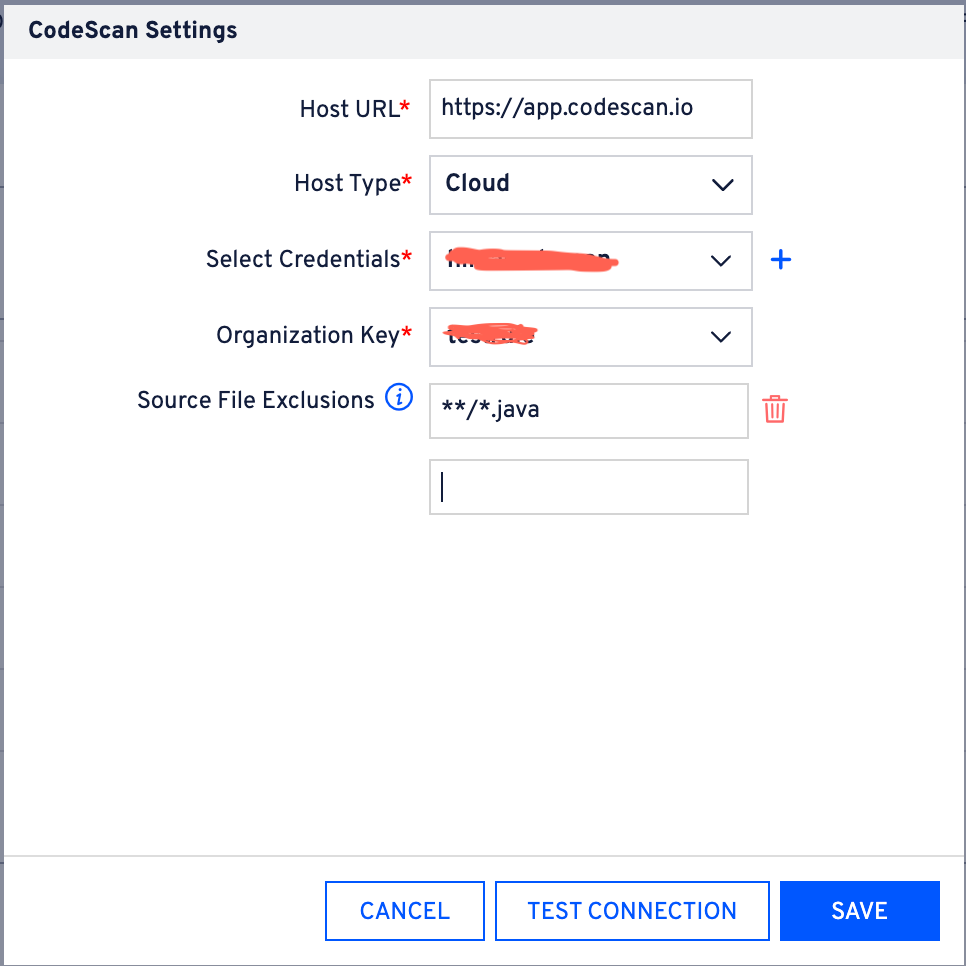
1. Click the **Edit** icon next to **CodeScan**.
2. Enter the **host URL**:
* `https://app.codescan.io/` (US)
* `https://app-eu.codescan.io/` (EU)
* `https://app-aus.codescan.io/` (AUS)
3. Choose **host type** (cloud or on-premises).
4. Select or create **credentials** (use the token in the **Password** field).
5. Enter the **Organization key** (cloud only).
6. Click **Test Connection**, then **Save** (twice).
**Excluding a file in ARM + CodeScan**
1. Go to **`Admin > My Account > Plugins > Static Code Analysis`**.
2. Click **Edit** for CodeScan.
3. Use **Source File Exclusion** to list files you want to skip.
4. Click **Save**, then rerun the analysis.
**Note:** ARM exclusion settings take precedence over CodeScan exclusions. If exclusions are configured in ARM, ARM uses its own exclusion configuration. If no exclusions are configured in ARM, ARM automatically applies the exclusions configured in the CodeScan UI.
#### **CodeScan/SonarQube configuration**
**Select CodeScan Project & Branch**
* Users begin by selecting a CodeScan project from a dropdown list.
* Available branches are automatically fetched from CodeScan, allowing users to select a default branch for analysis.
* Next, users select their ARM repositories and Salesforce orgs — automatically fetched from ARM’s registered resources.
* These repositories or orgs are then mapped to the chosen CodeScan project and branch, establishing the link between the source (ARM) and the analysis destination (CodeScan).
* Users can review, confirm, or override any mapping if required.
**Optional Setup Behavior**
* The configuration is not mandatory. only optional.
* If skipped, ARM follows the normal scanning process—scans will run in the default CodeScan project/branch setup.
* Once mappings are configured, all future scans will run in the specified project/branch instead of creating new ones.
#### 3.4 Integrate Salesforce Scanner
Salesforce Scanner combines several static analyzers under one ruleset.
**Optional custom rules**
Create files with the exact names:
* `pmdconfig.xml`
* `.eslintrc.json`
* `tsconfig.json`
{% hint style="info" %}
**Note:** If a file name or format is incorrect, an error appears. Rename or re-format the file and upload again.
{% endhint %}
**Steps**
1. Select the **Salesforce Scanner** checkbox.
2. For extra configuration:
* Click **Edit**.
* Use **`Choose File`** to upload any of the config files above.
* Click **Save**.
3. Click **Save** again on **My Account**.
#### 3.5 Integrate SonarQube
**Prerequisites**
1. **SonarQube security token** – create under **`User > My Account > Security`**.
2. **Organization key** – view under **`My Account > Organizations`**.
**Steps**
1. Click the **Edit** icon next to **SonarQube**.
2. Enter the **host URL** (e.g., `https://sonarcloud.io`).
3. Choose **host type** (cloud or on-premises). If cloud, enter the **Organization key**.
4. Select or create **credentials** (use the token in the **Password** field).
5. Click **Test Connection**, then **Save**.
6. Click **Save** again on **My Account**.
{% hint style="info" %}
**Note:**\
If no Master (baseline) analysis exists, ARM shows a prompt recommending you run one before proceeding. Click **Continue anyway** to treat the next analysis as the baseline.
{% endhint %}
### 4. Setting global criteria for SCA
You can enforce pass/fail thresholds for SCA across CI jobs, deployments, and gated commits.
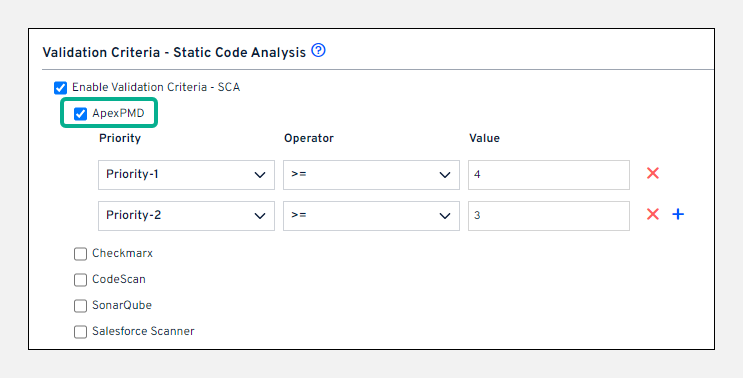
1. Go to **`Admin > My Account > Validation Criteria – Static Code Analysis`**.
2. Select **`Enable Validation Criteria – SCA`**.
3. For each tool, define priority/severity thresholds (e.g., Apex PMD priorities 1–5). Use **`+`** to add multiple thresholds.
### 5. Running SCA in a CI job
To include SCA in a CI job:
1. In the **Build** section, select **`Run Static Analysis Report`**.
2. Choose an SCA tool.
3. Complete any tool-specific fields.
**Apex PMD and Salesforce Scanner**
* **Run On All Supported Metadata Types** – scans all metadata listed below.
* **Apex PMD:** `Apex Classes`, `Apex Triggers`, `Apex Pages`, `AuraDefinitionBundle`, `LightningComponentBundle`
* **Salesforce Scanner:** all of the above plus `CustomObject`, `Flow`, `Profile`, `PermissionSet`, `Settings`, `SharingRules`, `Workflow`, `StaticResource`
* **Run On Newly Added Supported Metadata Types** – scans only new or changed metadata.
* **Mark Build As Unstable If Doesn't Meet Below Criteria** – fail the build if thresholds aren’t met.
**Checkmarx**
* **Run On All Apex Classes, Triggers, Apex Pages & AuraDefinitionBundles** – scans supported metadata.
* **Criteria rules for the stable build** – set thresholds as above.
**CodeScan and SonarQube**
* **Run On All Supported Metadata Types** – scans everything in the branch (merge) or commit (pre-validation).
* **Run On Newly Added Supported Metadata Types** – scans only new/changed items.
* **Run On All Supported Metadata Types from the full source** – scans the entire branch in CI jobs.
* **Mark Build As Unstable If Doesn't Meet Below Criteria** – fail if thresholds aren’t met.
{% hint style="info" %}
**Available only for these CI jobs:**
* Build a package from Version Control
* Deploy from Version Control to a Salesforce Org
* Deploy from SFDX branch to a Salesforce Org
{% endhint %}
### 6. Running SCA in CI job
ARM also enforces SCA during EZ-Commits.
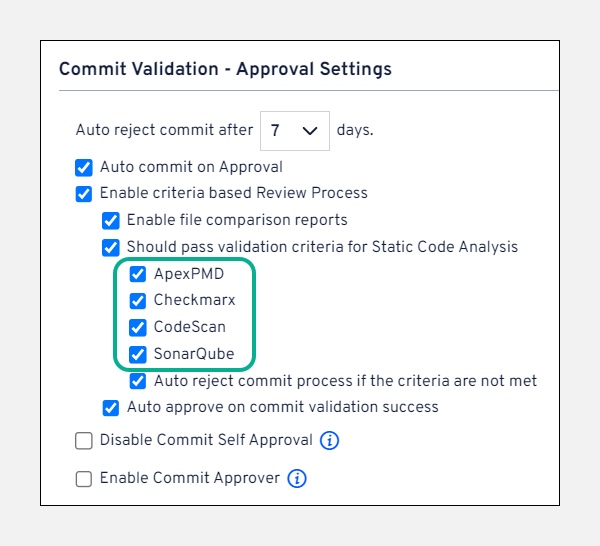
1. Go to **`Admin > My Account > Commit Validation – Approval Settings`**.
2. Select **`Enable criteria-based review process`**.
3. Check **`Should pass validation criteria for Static Code Analysis`** and choose one or more tools.
4. Optional:
* **Auto reject commit process if the criteria are not met** – reject automatically.
* **Auto-approve on commit validation** – approve when thresholds pass.
* **Auto-commit on approval** – commit immediately after approval.
### 7. Running an SCA during deployment
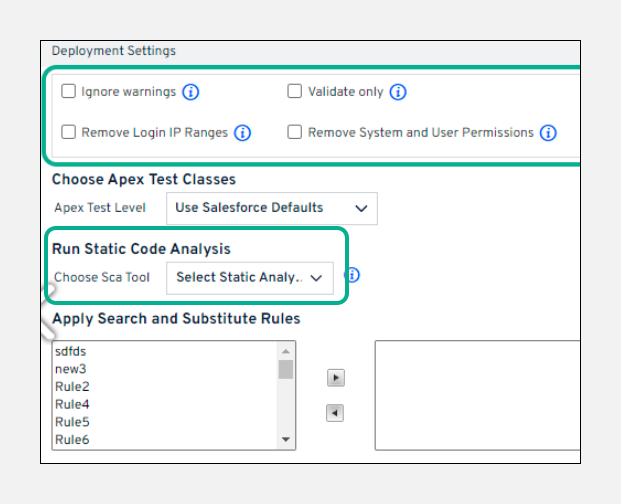
On the **Deployment Settings** screen you can enable an SCA tool before deployment starts.
ARM stores SCA source content for 90 days and deletes it afterward. PMD reports younger than 90 days omit source files from the report.
**Supported metadata**
* **Apex PMD, Checkmarx, SonarQube:** `Apex Classes`, `Apex Triggers`, `Apex Pages`, `AuraDefinitionBundle`, `LightningComponentBundle`
* **CodeScan:** everything above plus `CustomObjects`, `Flow`, `PermissionSets`, `Profiles`, `Settings`, `SharingRules`, `Workflows`
Select **`Stop deployment if build doesn't meet global criteria`** to block deployment until thresholds pass. Use **SCA Mail Notifications** to alert recipients.
### 8. Running an SCA during an EZ-Merge
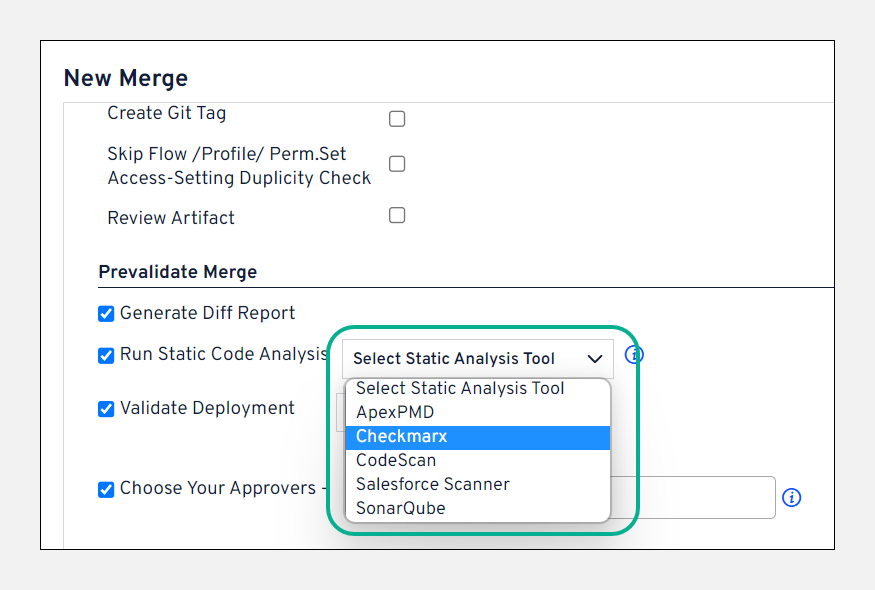
Choose an SCA tool during a pre-validation merge.
* **Run Static Code Analysis** – enabled by default if SCA criteria are set globally.
* **All supported metadata** – scans the whole target branch during an EZ-Merge, or only commit files during an EZ-Commit.
**Timeouts**
* ARM waits up to 5 hours for any SCA tool to finish.
* A merge label stays valid for 7 days; related SCA reports expire at the same time.
---
# Agent Instructions
This documentation is published with GitBook. GitBook is the documentation platform designed so that both humans and AI agents can read, navigate, and reason over technical content effectively. Learn more at gitbook.com.
## Querying This Documentation
If you need additional information that is not directly available in this page, you can query the documentation by asking a question.
Perform an HTTP GET request on the following URL with the `ask` and `goal` query parameters:
```
GET https://knowledgebase.autorabit.com/product-guides/arm/arm-administration/static-code-analysis-in-ci-cd.md?ask=&goal=
```
`ask` is the immediate question: it should be specific, self-contained, and written in natural language.
`goal` is what the user is ultimately trying to achieve, the reason they need the answer. Sharing it helps GitBook give you a better, more relevant answer. A goal is most helpful when it describes the outcome the user wants rather than restating the question. For example, with `ask=how do I create an API token`, a goal like `automate deployments from our CI pipeline` lets GitBook tailor the answer to that use case.
The response will contain a direct answer to the question and relevant excerpts and sources from the documentation.
Use this mechanism when the answer is not explicitly present in the current page, you need clarification or additional context, or you want to retrieve related documentation sections.