> For the complete documentation index, see [llms.txt](https://knowledgebase.autorabit.com/llms.txt). Markdown versions of documentation pages are available by appending `.md` to page URLs; this page is available as [Markdown](https://knowledgebase.autorabit.com/product-guides/arm/on-premises-dedicated-instances/upload-new-license-key.md).
# Upload New License Key
## How to upload new license key in on-prem ARM
You’ve been using AutoRABIT ARM on premises for some time, and now the renewal period has arrived. Your Account Executive or Customer Success Manager has provided you with a new license key. To ensure uninterrupted access and avoid being locked out of the application, you need to apply this new license key promptly.
### User Story / Use Case
As a **Super Admin**, you want to update your ARM instance with the new license key provided by AutoRABIT so that your team can continue using ARM without disruption. This process is straightforward and can be completed in just a few steps.
### Feature Overview
Super Admins can upload and activate new license keys for on-premises deployments. This ensures:
* **Continuous Access**: Prevents downtime due to expired licenses.
* **Security Compliance**: Keeps your instance aligned with AutoRABIT’s licensing terms.
* **Ease of Use**: Simple upload process directly from the login screen.
### Feature Considerations
* You **must** have **Super Admin** privileges to upload a license key.
* Ensure you are using the **correct license key file** provided by AutoRABIT.
* The license key file name **must be exactly**:
`rabitkey.l4j`
Do not add extra characters, spaces, or rename the file.
* Uploading an incorrect or corrupted key will result in an error.
### Step-by-Step Guide
* **Navigate to Your ARM Instance URL**\
Use the same URL you normally use to log in to ARM.
* **Login Screen Prompt**\
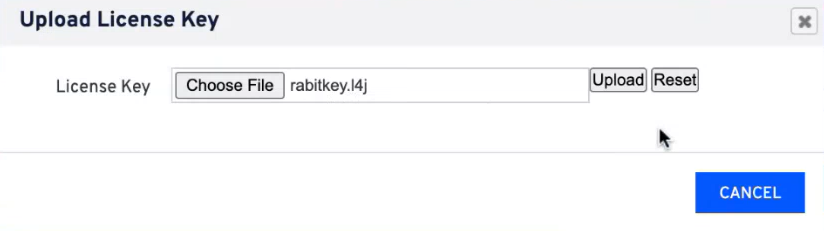
When you attempt to log in, you will see a screen prompting you to upload the new license key.
* **Click on “Choose File” and Click on the Correct License Key**\
Confirm that the file name is exactly `rabitkey.l4j`.
* **Upload the License Key**\
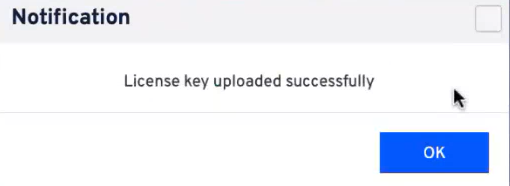
Click **Upload**, then wait for the confirmation message indicating the key was successfully uploaded.\
### Troubleshooting
* **Error, clicking upload does nothing**\
Ensure the file name is `rabitkey.l4j` with no additional characters.\
Check that the file is not corrupted (redownload and try again) and was provided by AutoRABIT.
* **Still Locked Out?**\
Contact AutoRABIT Support with your instance details and license key file.
Updating your license key is a quick process that ensures uninterrupted access to ARM. Always verify the file name and source before uploading. For any issues, reach out to AutoRABIT Support.
---
# Agent Instructions
This documentation is published with GitBook. GitBook is the documentation platform designed so that both humans and AI agents can read, navigate, and reason over technical content effectively. Learn more at gitbook.com.
## Querying This Documentation
If you need additional information that is not directly available in this page, you can query the documentation by asking a question.
Perform an HTTP GET request on the following URL with the `ask` and `goal` query parameters:
```
GET https://knowledgebase.autorabit.com/product-guides/arm/on-premises-dedicated-instances/upload-new-license-key.md?ask=&goal=
```
`ask` is the immediate question: it should be specific, self-contained, and written in natural language.
`goal` is what the user is ultimately trying to achieve, the reason they need the answer. Sharing it helps GitBook give you a better, more relevant answer. A goal is most helpful when it describes the outcome the user wants rather than restating the question. For example, with `ask=how do I create an API token`, a goal like `automate deployments from our CI pipeline` lets GitBook tailor the answer to that use case.
The response will contain a direct answer to the question and relevant excerpts and sources from the documentation.
Use this mechanism when the answer is not explicitly present in the current page, you need clarification or additional context, or you want to retrieve related documentation sections.