> For the complete documentation index, see [llms.txt](https://knowledgebase.autorabit.com/llms.txt). Markdown versions of documentation pages are available by appending `.md` to page URLs; this page is available as [Markdown](https://knowledgebase.autorabit.com/product-guides/codescan/codescan-integration/bitbucket-pipelines/reattaching-bitbucket-projects.md).
# Reattaching Bitbucket Projects
At AutoRABIT, we have made some changes to make our Bitbucket project webhooks more secure. To take advantage of this change, Bitbucket projects that were created in CodeScan need to be reattached.
[CodeScan Cloud](https://www.codescan.io/products/cloud/) allows you to do this *without erasing* the historical data present in your project. It will only reconnect the CodeScan project with the Bitbucket repository.
{% hint style="info" %}
This only affects projects created in CodeScan with our internal integration.
This **DOES NOT** include:
* Projects created from Bitbucket pipelines
* Projects being cloned from Bitbucket and scanned from a separate CI platform
{% endhint %}
Follow these steps to reattach your project analysis:
1. Open your Bitbucket **project.**
Open Your Bitbucket Project
2. Navigate to the **Project Settings > Project Analysis** page.
Project Analysis page
3. Make sure you do not have the "**Delete this project also?**" box checked. This will delete your history and is not reversible. Click **Delete Analysis**.
Delete Analysis
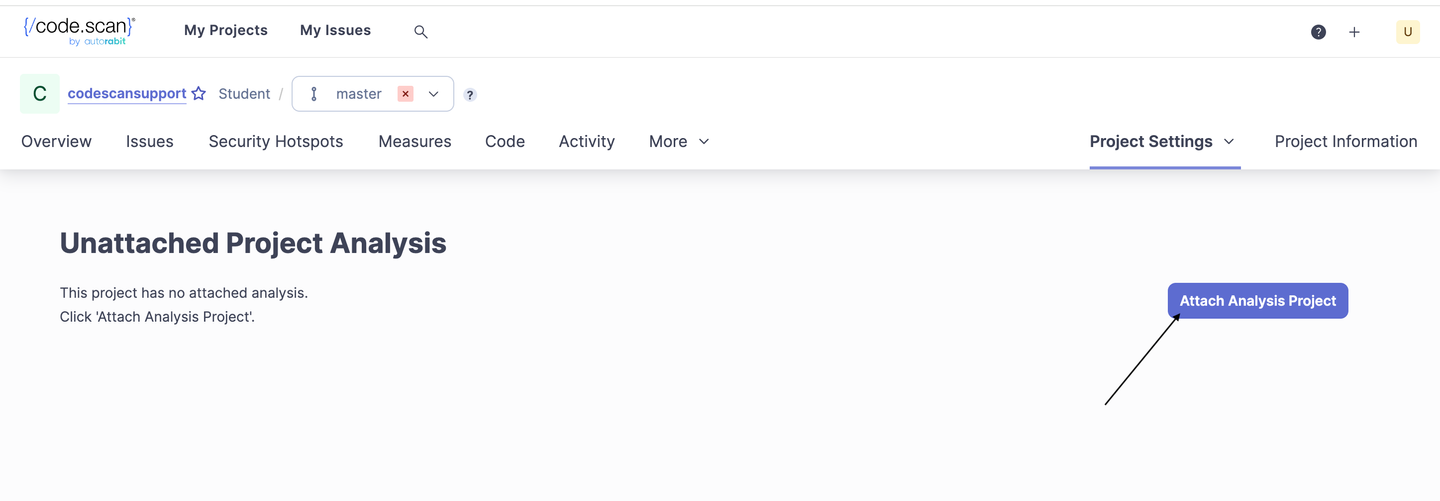
4. Now use the **Attach Analysis Project** button at the top right of the screen to re-add the link.
Attach Project Analysis
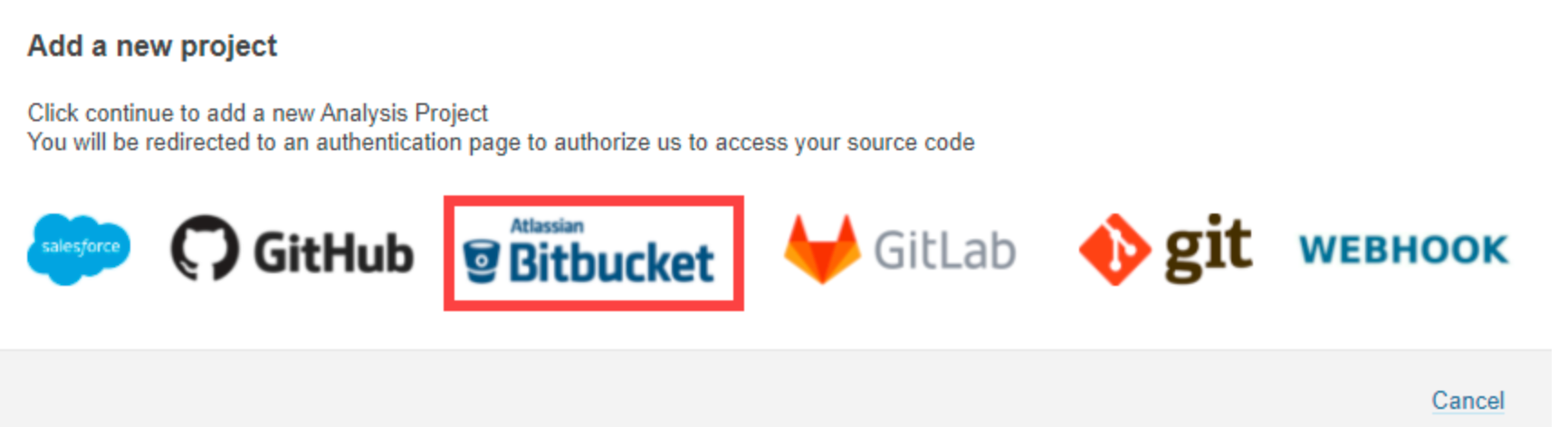
5. You will now see a new popup window. Select the required option from the options given (e.g., Bitbucket).
Add a New Project
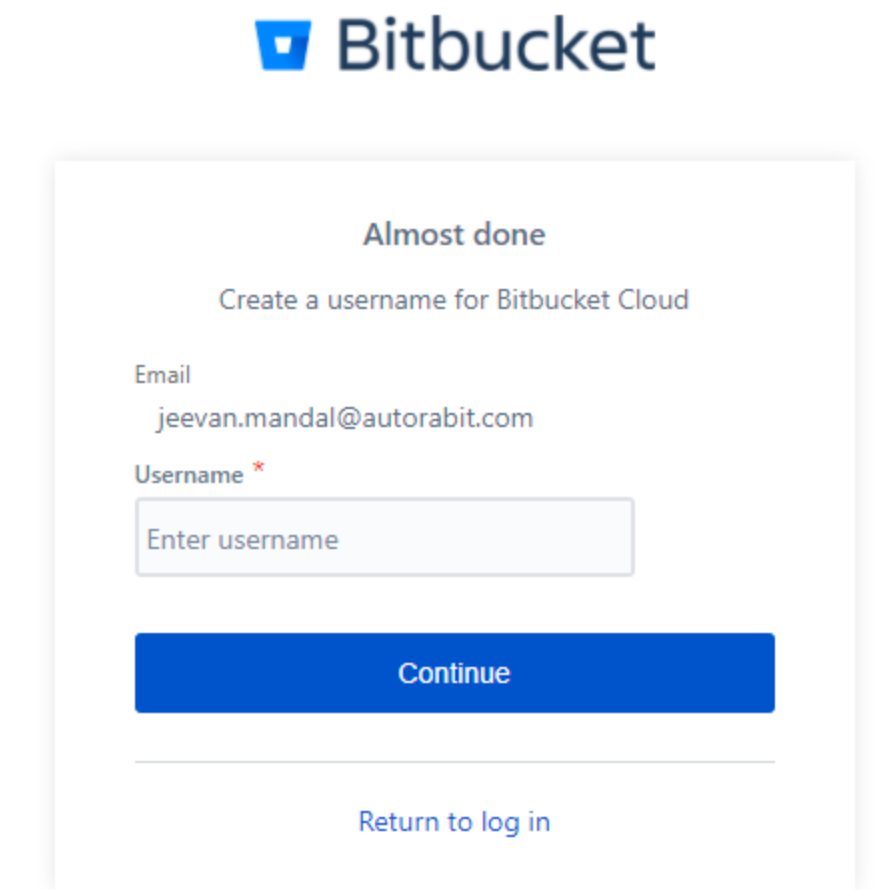
7. Once you select **Bitbucket**, it will redirect you to the **Bitbucket login page**. Validate your credentials and click on **Login**.
Bitbucket
8. Choose your **repository**.
9. Make sure you select the checkbox under **Check Pull Requests**.
Attach Analysis to Project
10. Once you fill out all the details in the popup window, select **Add and Run Now**.
11. This triggers the project analysis along with the project being added under your CodeScan organization.
---
# Agent Instructions
This documentation is published with GitBook. GitBook is the documentation platform designed so that both humans and AI agents can read, navigate, and reason over technical content effectively. Learn more at gitbook.com.
## Querying This Documentation
If you need additional information that is not directly available in this page, you can query the documentation dynamically by asking a question.
Perform an HTTP GET request on the current page URL with the `ask` query parameter, and the optional `goal` query parameter:
```
GET https://knowledgebase.autorabit.com/product-guides/codescan/codescan-integration/bitbucket-pipelines/reattaching-bitbucket-projects.md?ask=&goal=
```
`ask` is the immediate question: it should be specific, self-contained, and written in natural language.
`goal` is optional and describes the broader end goal you are ultimately trying to accomplish on behalf of the user. GitBook uses it to tailor the answer towards what is most useful for that goal.
The response will contain a direct answer to the question and relevant excerpts and sources from the documentation.
Use this mechanism when the answer is not explicitly present in the current page, you need clarification or additional context, or you want to retrieve related documentation sections.