> For the complete documentation index, see [llms.txt](https://knowledgebase.autorabit.com/llms.txt). Markdown versions of documentation pages are available by appending `.md` to page URLs; this page is available as [Markdown](https://knowledgebase.autorabit.com/product-guides/codescan/getting-started/connection-to-salesforce-with-eca.md).
# Connecting a Salesforce Org to CodeScan using local ECA flow
{% hint style="info" %}
Starting October 20th 2026, all new Salesforce org registrations will go through AuthHub. Existing connections are not affected by this change.
For details, timelines, and what to expect, see [Upcoming Salesforce authentication changes for new AutoRABIT CodeScan connections](https://knowledgebase.autorabit.com/fundamentals/announcements/upcoming-salesforce-authentication-changes-for-new-autorabit-codescan-salesforce-connections)
{% endhint %}
{% hint style="info" %}
As of release 26.0.4, CodeScan has adopted the External Client App (ECA) flow for Salesforce, replacing our existing Connected Apps flow.
Key points:
1. If you have an existing Salesforce org registered, you are using the existing Connected App flow. No action is required at this time, and your analyses will run as expected.
2. Please note that any new Salesforce org that you wish to register in CodeScan must use the new local ECA flow.
3. Please note that if your existing Salesforce orgs need to be reattached, if your tokens expire, or after Sandbox refresh, your Connected App flow will no longer work, and you will need to re-register your org using the local ECA flow. Please note that in these circumstances, your comparison branches in Salesforce will need to be set up again.
{% endhint %}
This is a step-by-step guide on how to implement the local ECA flow to establish a new connection with CodeScan.
### 1) Pre-requisite: get your Callback URL (redirect URI)
For AutoRABIT’s CodeScan ECA setup, you need **the callback URL**
Callback URL depends on the instance:
*{$instancename}/\_codescan/oauth2/authorize*
Example:
**
### 2) Create the External Client App (ECA) in your Salesforce Org
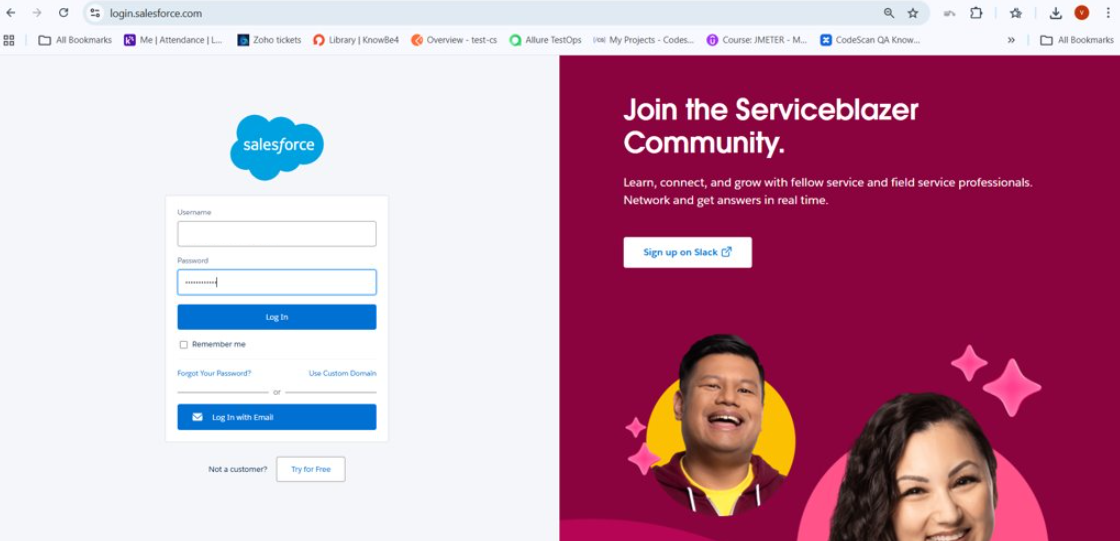
1. Login into Salesforce
1. In **Salesforce**, go to **Setup**.
2. In **Quick Find**, search **External Client Apps**.
3. Open **External Client App Manager** (or the External Client Apps area).
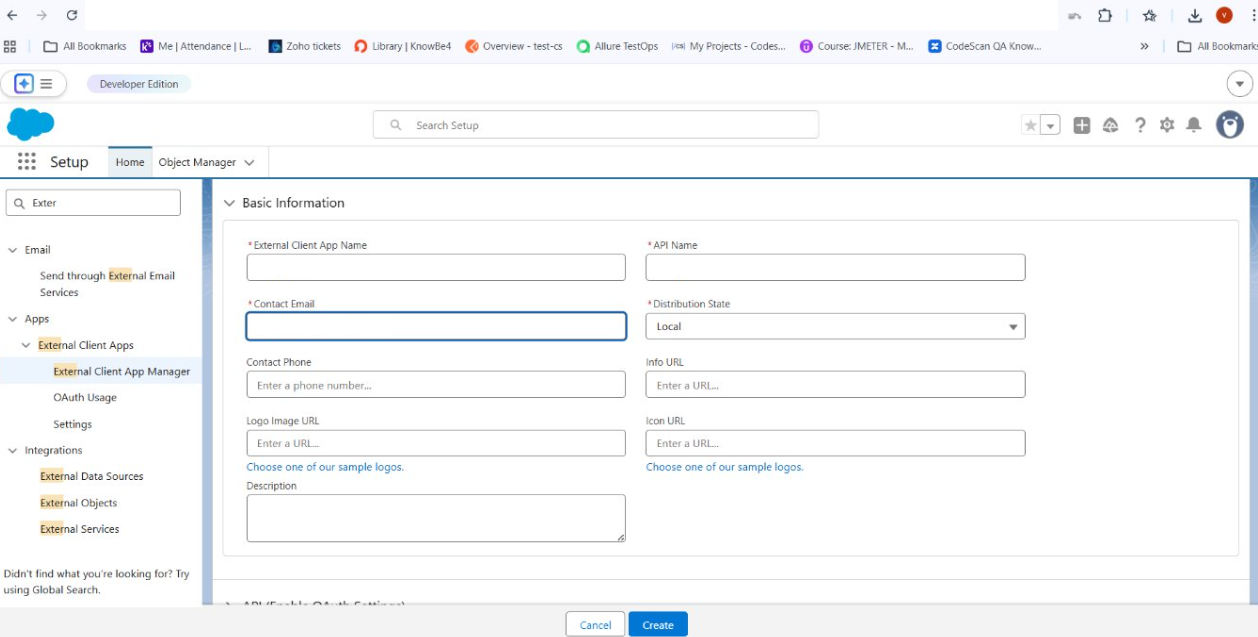
2. Click **New External Client App**.
3. Fill in the basics:
* **Name / Label ( e.g. AR\_Local)**
* **API Name** (auto-filled)
* **Contact Email**
* **Distribution State**:
* **Local** (only for this org)
### 3) Enable OAuth + set callback URL + scopes
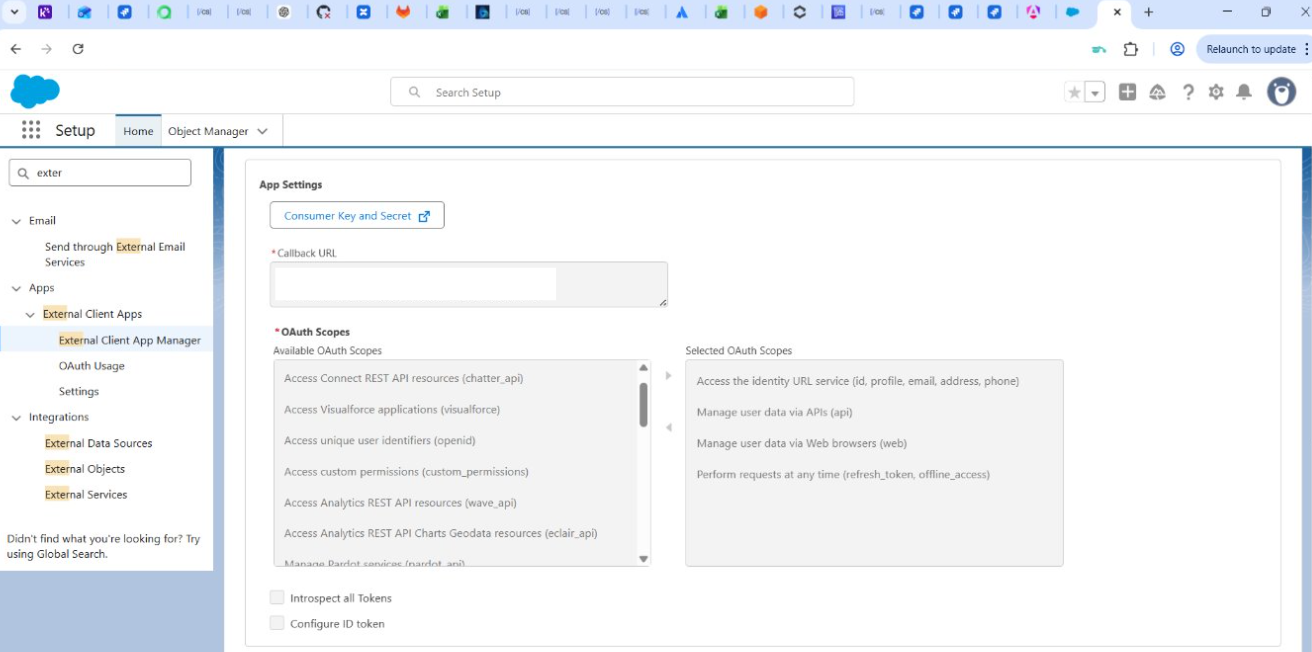
1. Click **Enable OAuth** (or expand **API (Enable OAuth Settings)** and check **Enable OAuth**).
2. Set \**Callback URL*
The URL you collected in step 1.
3. Choose **OAuth Scopes**:
* Access the identity URL service (id, profile, email, address, phone)
* Manage user data via APIs (api)
* Manage user data via Web browsers (web)
* Perform requests at any time (refresh\_token, offline\_access)
{% hint style="info" %}
By default, refresh tokens are valid for **365 days**.
{% endhint %}
### 4) Flow Enablement
1. In **Flow Enablement**, select **Enable Authorization Code and Credentials Flow**.
2. **User credentials are required in the POST body** (Salesforce shows this option when you choose that flow) should be disabled.
### 5) Security toggles (common defaults)
In the **Security** section the next options should be enabled:
* **Require secret for Web Server Flow**
* **Require secret for Refresh Token Flow**
### 6) Create the app and capture Client ID / Secret
1. Click **Create**.
2. Open the app’s **Settings** tab and locate **Consumer Key and Secret**:
* **Consumer Key** = **Client ID**
* **Consumer Secret** = **Client Secret**
When you click the button for Consumer Key and Secret, a code will be sent to the registered email for the user creating the configuration:
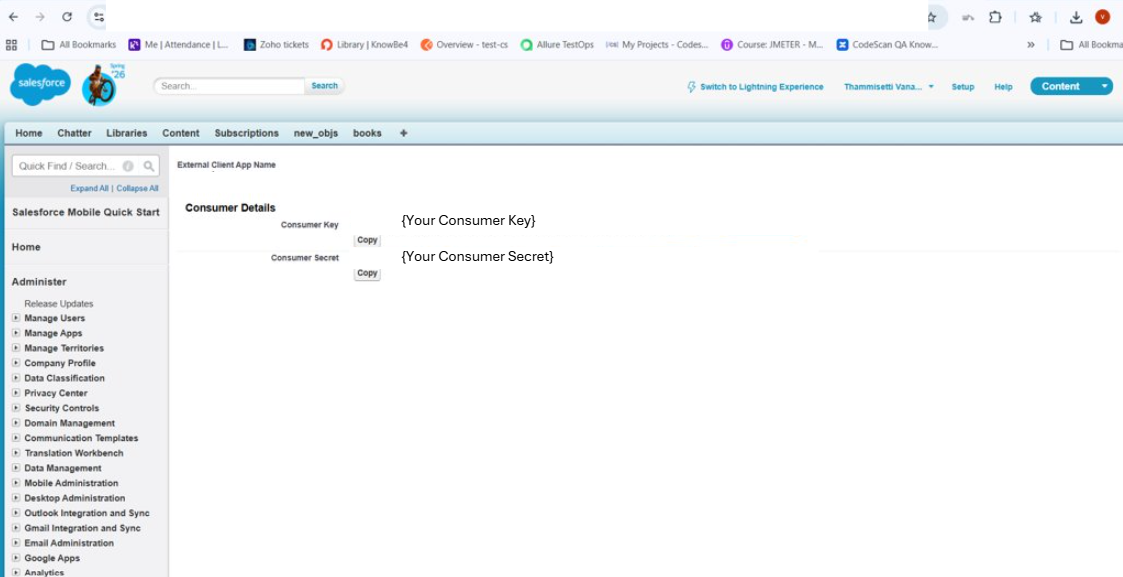
After receiving the code and verifying in Salesforce, the Consumer Key (Client ID) and Consumer Secret (Client Secret) will be displayed:
{% hint style="info" %}
Store these values in a safe place and make sure you can access them as needed
{% endhint %}
### 7) Configure Policies
After creating the ECA, open the **Policies** tab and adjust as needed (exact options vary by org/security posture), commonly:
* **Permitted Users**: often set to **Admin approved users are pre-authorized** for controlled rollouts.
* Add the required **profiles/permission sets** (or approved users) for who is allowed to authorize.
### 8) What you’ll use in AutoRABIT
Once created, the set of values you’ll reference in your CodeScan configuration are:
* **Client ID**
* **Client Secret**
Also, the internal direction is to be clear that **one ECA per customer org** can be used across products (rather than creating one per AR product).
After the configuration in Salesforce is complete, and you have obtained the ClientID and Client Secret, we can go to CodeScan to create the connection.
In Project analysis, click on Add Analysis Project
If no previous connections are found or the required org is not present in the Connection list, a message to navigate to the Salesforce Connections page is displayed.
If that is the case, move the Salesforce Connections page, click on the existing connection, or select the Create connection button
Create the connection by entering the required information obtained from Salesforce.
Once the connection is created, go back and add a new Analysis. Please click on Add Analysis Project and select the desired connection:
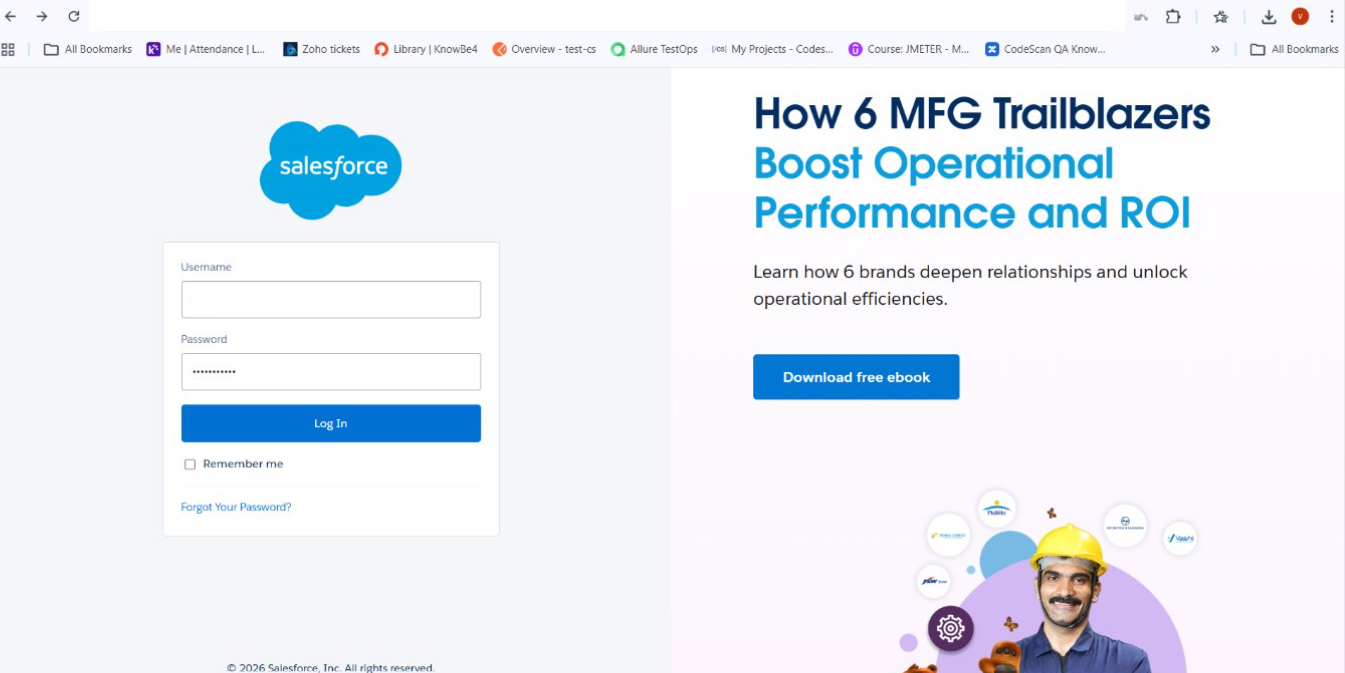
Once confirmed, the Salesforce login page will be shown. Please log in again.
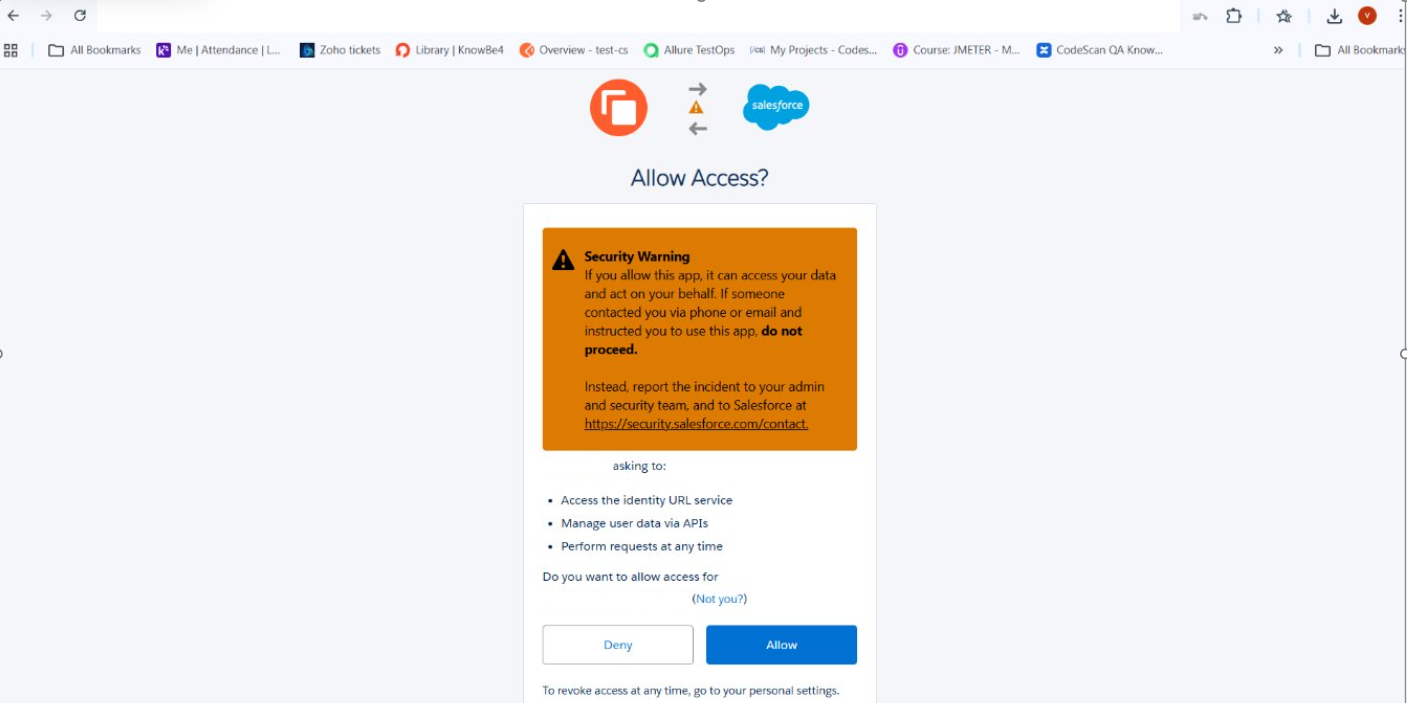
A message from Salesforce will appear. Click "Allow":
Then, you will be redirected to configure the new Analysis. Fill in the details:
Then the analysis with the connection will be added to the list:
At this point, the setup for local ECA flow has been completed; your Salesforce analyses will now run as expected.
---
# Agent Instructions
This documentation is published with GitBook. GitBook is the documentation platform designed so that both humans and AI agents can read, navigate, and reason over technical content effectively. Learn more at gitbook.com.
## Querying This Documentation
If you need additional information that is not directly available in this page, you can query the documentation by asking a question.
Perform an HTTP GET request on the following URL with the `ask` and `goal` query parameters:
```
GET https://knowledgebase.autorabit.com/product-guides/codescan/getting-started/connection-to-salesforce-with-eca.md?ask=&goal=
```
`ask` is the immediate question: it should be specific, self-contained, and written in natural language.
`goal` is what the user is ultimately trying to achieve, the reason they need the answer. Sharing it helps GitBook give you a better, more relevant answer. A goal is most helpful when it describes the outcome the user wants rather than restating the question. For example, with `ask=how do I create an API token`, a goal like `automate deployments from our CI pipeline` lets GitBook tailor the answer to that use case.
The response will contain a direct answer to the question and relevant excerpts and sources from the documentation.
Use this mechanism when the answer is not explicitly present in the current page, you need clarification or additional context, or you want to retrieve related documentation sections.