> For the complete documentation index, see [llms.txt](https://knowledgebase.autorabit.com/llms.txt). Markdown versions of documentation pages are available by appending `.md` to page URLs; this page is available as [Markdown](https://knowledgebase.autorabit.com/product-guides/codescan/getting-started/using-codescan/understanding-branches-for-salesforce-project.md).
# Understanding Branches for Salesforce projects
When you create an analysis project from Salesforce, the org or sandbox you authorize will become your main branch. You can add your sandboxes as analysis project branches by editing your project (from the **Project Analysis** page). This allows for easy comparison between the production orgs or sandboxes and is especially good for checking features before production.
1. Select your Salesforce project from the **My Projects** screen.
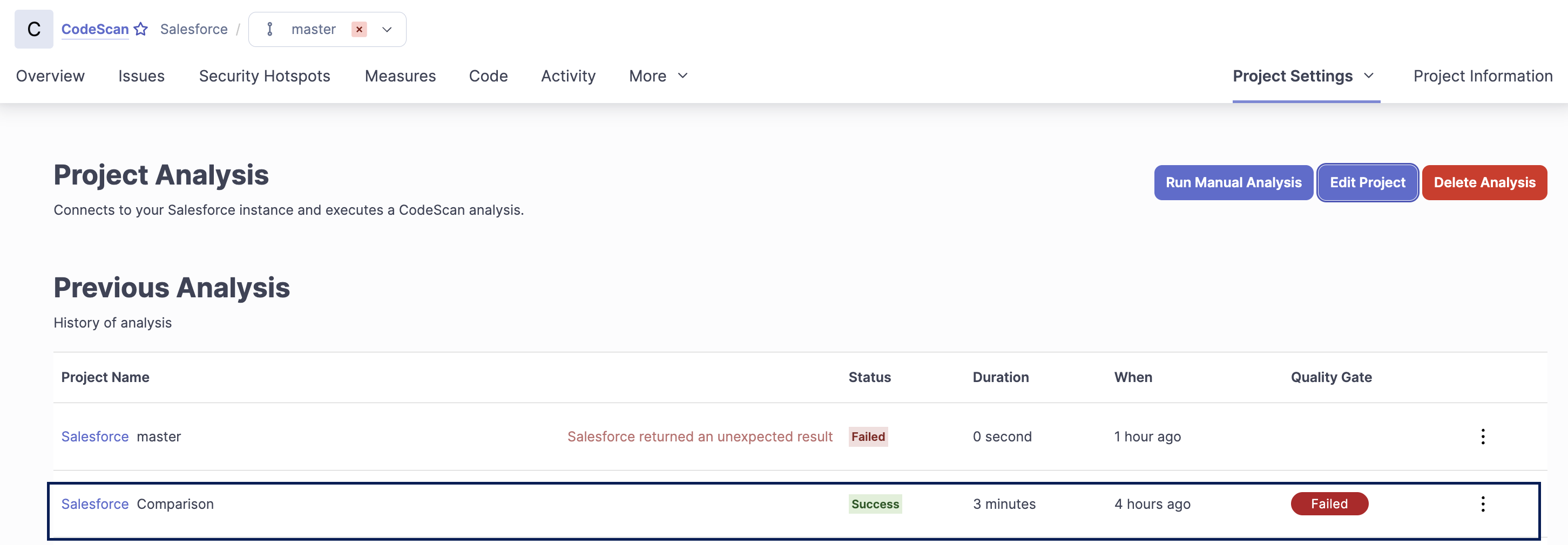
2. Go to the **More** tab and select **Project Analysis** from the dropdown.
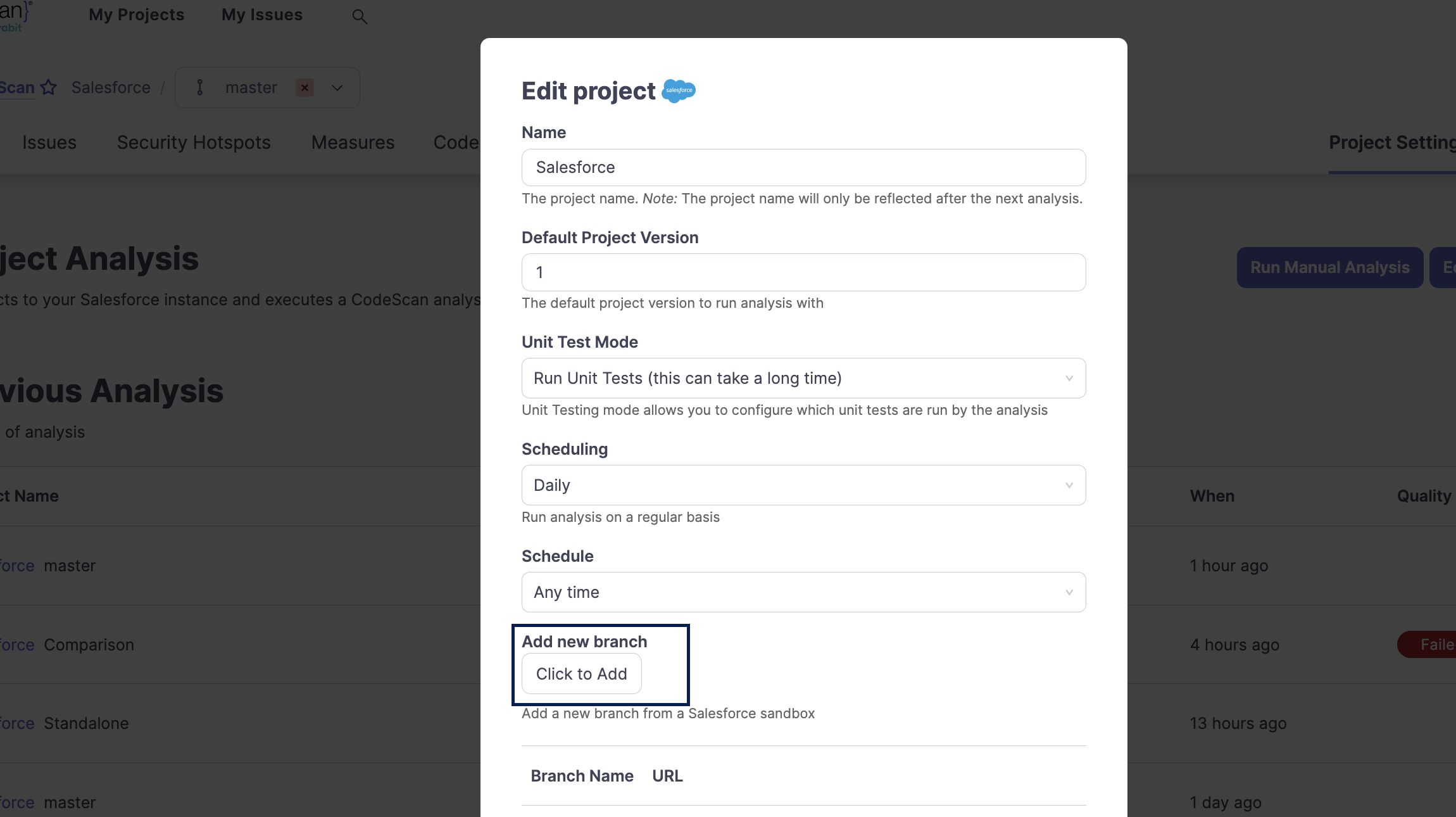
2. Click on **Edit Project**.
3. Click onbutton to add a new branch.
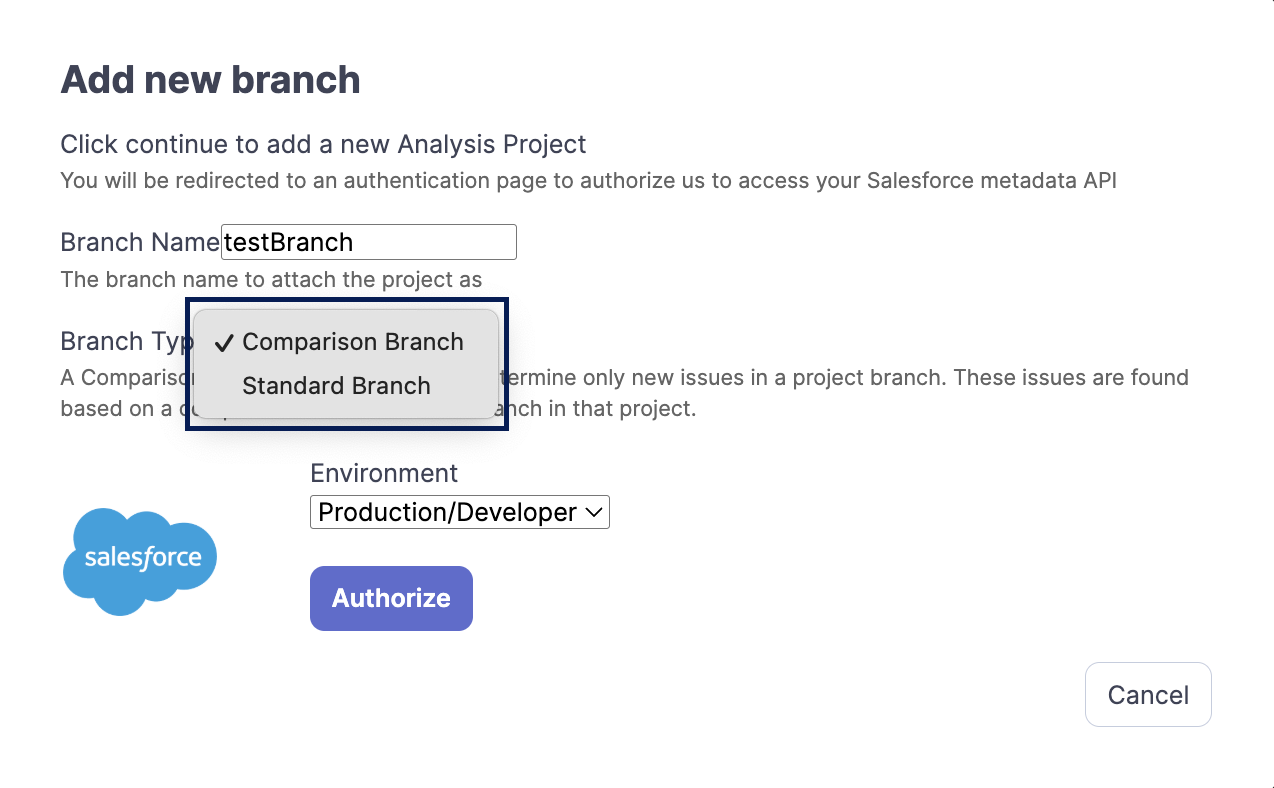
4. Assign a name to your branch and choose the branch type:
* **Comparison Branch:** This branch determines only the recent issues in a project branch based on comparing with the standard branch in your project.
* **Standard Branch:** This branch will have your project's entire history and dashboards.
5. Select your Salesforce environment.
6. Once you click on **Authorize**, it will redirect you to the Salesforce login page to validate your credentials.
7. This triggers the project analysis and the project being added under your CodeScan organization.
8. You'll be redirected to the **Project Analysis** screen, where you can view the status of your triggered analysis.
### Features of a comparison branch
When you create a comparison branch, the issues shown are only the new ones in that branch, not the general issues you see in the project's main branch.
The property below is responsible for changing the UI labels and texts from *Pull Requests* to *Comparison Branches*.
```
codescan.comparison.branches
```
{% hint style="info" %}
**Note:** The `codescan.comparison.branches` property is in OFF state by default.
{% endhint %}
The comparison branches feature is enabled automatically when you:
* create new comparison branch via CodeScan user interface inside project with Salesforce as the integration type or,
* run sonar-scanner or CodeScan SFDX utility with these two new scanner properties:
> -Dsonar.comparison.branch=...\
> -Dsonar.comparison.base=...
Another way is via **AutoRABIT-CodeScan** integration.
The new properties `sonar.comparison.branch` and `sonar.comparison.base` are equivalents/aliases of these existing two: `sonar.pullrequest.branch` and `sonar.pullrequest.base`.
So, because they are equivalents - the logic will be the same. If you mark any issue as `False Positive` or `Resolve as Won't fix` in your Comparison Branch, then this issue will not re-appear in the project's main branch after changes are merged.\
Similarly, the new comparison branches reflect the changes on issues made by the user on the project’s main branch.
To test the new feature using sonar-scanner:
1. Execute the initial analysis on base branch using the below command:
```
sonar-scanner -Dsonar.host.url=https://app.codescan.io -Dsonar.organization=
-Dsonar.projectKey= -Dsonar.login=
```
2. Execute analysis on a comparison branch:
```
sonar-scanner -Dsonar.host.url=https://app.codescan.io -Dsonar.comparison.branch=
-Dsonar.comparison.base= -Dsonar.organization= -Dsonar.projectKey=
-Dsonar.login=
```
### Managing branches
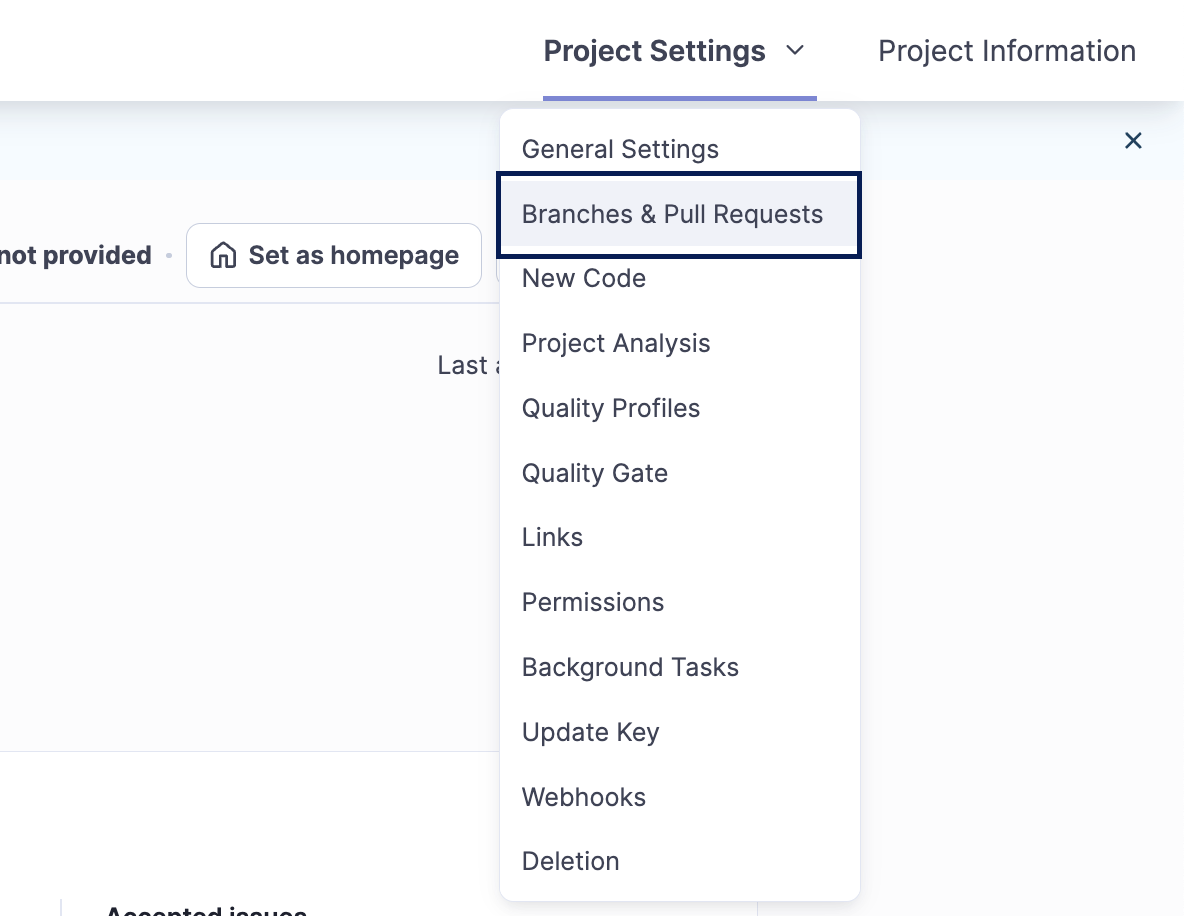
On your **Project Analysis** page, go to **Project Setting > Branches**.
On this page, you can:
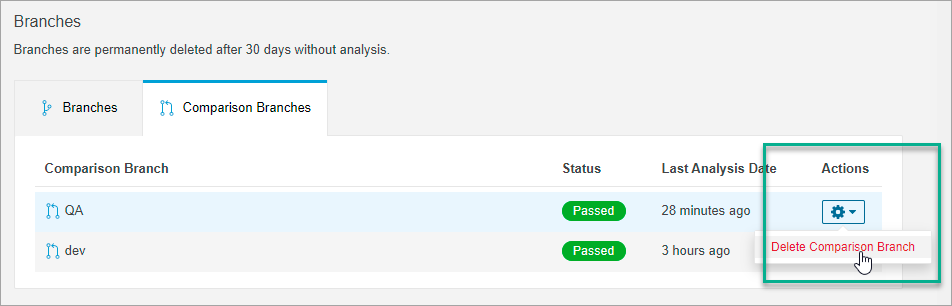
* View the branches you have created and segregated into master branches (including standalone branches) and comparison branches in two different tabs.
* Delete all the branches except the main branch.
* Renaming of the branch applies only to the main branch.
#### Delete a branch
For example, to delete a comparison branch, navigate to the **Comparisons Branches** tab, click on icon and click on **Delete Comparison Branch**. Note that this process cannot be undone.
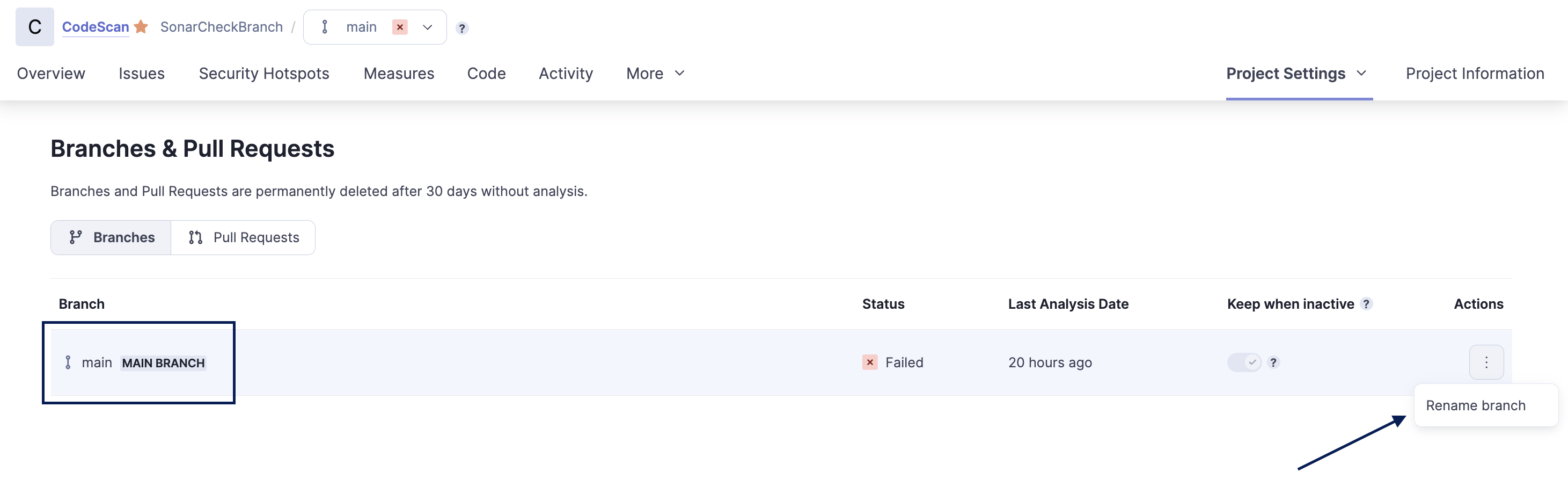
#### Rename the main branch
To update the name of the main branch, navigate to the **Branches** tab, and look for the main branch.\
Click on icon under the **Actions** tab and click on **Rename branch**.
Give the main branch a new name and click on **Rename**.
### Comparing Branches
1. Select your Salesforce project from the **My Projects** page.
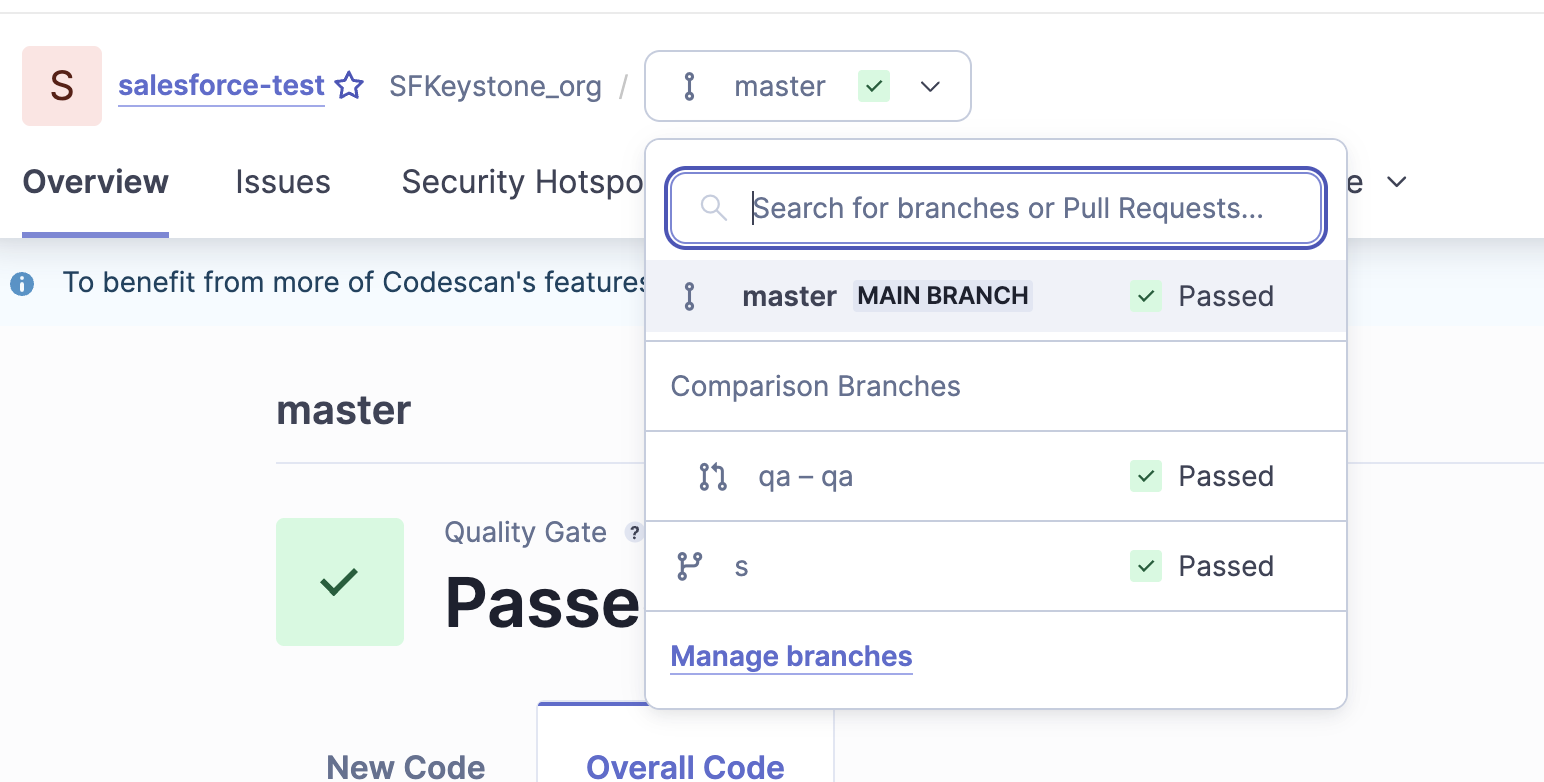
2. When you click on the main branch dropdown for your project, you can see the list of all branches that you have created or added.
3. If there are any violations for your branch, such details will appear. If you click on a branch, the details of the violations can be seen on the **Quality Gate Status** screen.
{% hint style="info" %}
**Important Note:**
All new branches added in this way will be deleted in **30 days** if they are not analyzed again. If you have any further questions about CodeScan Cloud, please [contact us](https://www.codescan.io/contact/).
{% endhint %}
---
# Agent Instructions
This documentation is published with GitBook. GitBook is the documentation platform designed so that both humans and AI agents can read, navigate, and reason over technical content effectively. Learn more at gitbook.com.
## Querying This Documentation
If you need additional information that is not directly available in this page, you can query the documentation by asking a question.
Perform an HTTP GET request on the following URL with the `ask` and `goal` query parameters:
```
GET https://knowledgebase.autorabit.com/product-guides/codescan/getting-started/using-codescan/understanding-branches-for-salesforce-project.md?ask=&goal=
```
`ask` is the immediate question: it should be specific, self-contained, and written in natural language.
`goal` is what the user is ultimately trying to achieve, the reason they need the answer. Sharing it helps GitBook give you a better, more relevant answer. A goal is most helpful when it describes the outcome the user wants rather than restating the question. For example, with `ask=how do I create an API token`, a goal like `automate deployments from our CI pipeline` lets GitBook tailor the answer to that use case.
The response will contain a direct answer to the question and relevant excerpts and sources from the documentation.
Use this mechanism when the answer is not explicitly present in the current page, you need clarification or additional context, or you want to retrieve related documentation sections.




 icon and click on **Delete Comparison Branch**. Note that this process cannot be undone.
 icon under the **Actions** tab and click on **Rename branch**.