

Email Templates
IZ Suite sends emails from templates: notifications, invitations, password resets and a shared footer. Every workspace uses the shared default templates, which stay up to date automatically, until it customizes one. Use this tab to review the templates and edit their HTML.
Open it from Administration → Global Settings → Email templates in the sidebar.

Message Templates
Use Search templates or events to find a template by name, title or notification event. The source filter shows All templates, Using default or Customized, and the refresh button reloads the list.
Each template shows:
Name
The template's name.
Category and title
For example Notifications · Application removed, Account access · Reset your password, or Shared footer · Email footer.
Events
How many notification events use the template.
Source
Using default or Customized.
Edit template
Opens the template editor (View template for read-only roles).
Edit a Template
Click Edit template on the template.
Edit the HTML under Email HTML. Keep the variables the message needs.
Check the Preview.
Click Save workspace template.
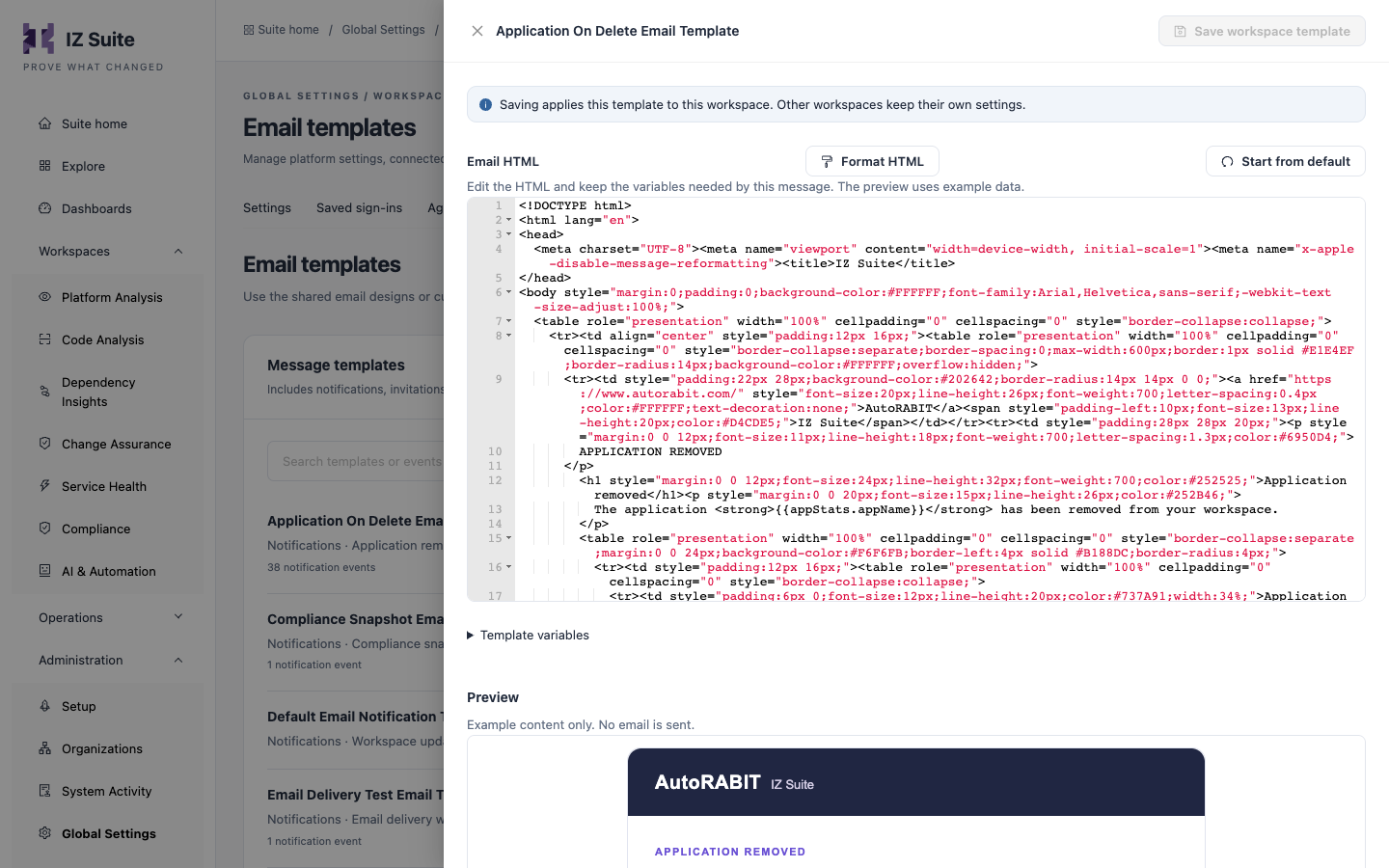
Email HTML
The template's HTML. Variables are written in double braces, for example {{appStats.appName}}.
Format HTML
Tidies the indentation of the HTML.
Start from default
Replaces the editor content with the shared default, so you can start over. Saved only when you click Save workspace template.
Template variables
Expand it to list the variables this template can use.
Preview
Renders the template with example data. No email is sent.
Saving applies the template to this workspace only. Other workspaces keep their own settings.
Go Back to the Default
A customized template can switch back to the shared default and receive future default updates again.
Open the customized template.
Click Use default template.
Confirm with Use default template.
Next Steps
Organization Subscriptions: choose who receives the notification emails.
Settings: review the other workspace settings.
Global Settings: the other configuration screens.
Last updated
Was this helpful?