> For the complete documentation index, see [llms.txt](https://knowledgebase.autorabit.com/llms.txt). Markdown versions of documentation pages are available by appending `.md` to page URLs; this page is available as [Markdown](https://knowledgebase.autorabit.com/product-guides/integral-zone/iz-suite/administration/global-settings/saved-sign-ins.md).
# Saved Sign-ins
A saved sign-in holds the credentials a monitor or setting signs in with. When you change a saved sign-in, every monitor that uses it picks up the change on its next check. Administrators and the people who manage monitors use this tab.
Open it from **Administration** → **Global Settings** → **Saved sign-ins** in the sidebar.
Saved sign-ins
{% hint style="warning" %}
You need a role that can edit global settings, or one that can view, create or edit monitors, to open this tab. Deleting a sign-in needs a role that can edit global settings.
{% endhint %}
{% hint style="danger" %}
Secrets are encrypted at rest and never shown again after you save them. Only the agent receives them when it runs a check.
{% endhint %}
## Filters
| Filter | Description |
| ----------------- | --------------------------------------------------------------------------------------------- |
| **STATUS** | **All**, **Used by monitors** or **Not used**. |
| **KIND** | One or more sign-in kinds. |
| **Saved filters** | Pick a filter combination you saved earlier. **Save filters** stores the current combination. |
## Sign-ins Table
Above the table: **Search sign-ins** (name, kind or description), the number of sign-ins, **Refresh**, **Columns** (choose the columns to show) and **Export**.
| Column | Description |
| ----------- | ------------------------------------------------------------------------------- |
| **Name** | The sign-in's name, with its description underneath. Click the name to edit it. |
| **Kind** | How it signs in (see **Sign-in Kinds** below). |
| **Used by** | How many monitors use it, or **Not used**. |
| **Updated** | When it last changed. |
| **Actions** | **Edit** opens the sign-in. **Delete** deletes it after you confirm. |
{% hint style="danger" %}
Deleting a sign-in permanently deletes it and its secrets. If monitors still use it, the confirmation tells you how many: switch them to another sign-in first.
{% endhint %}
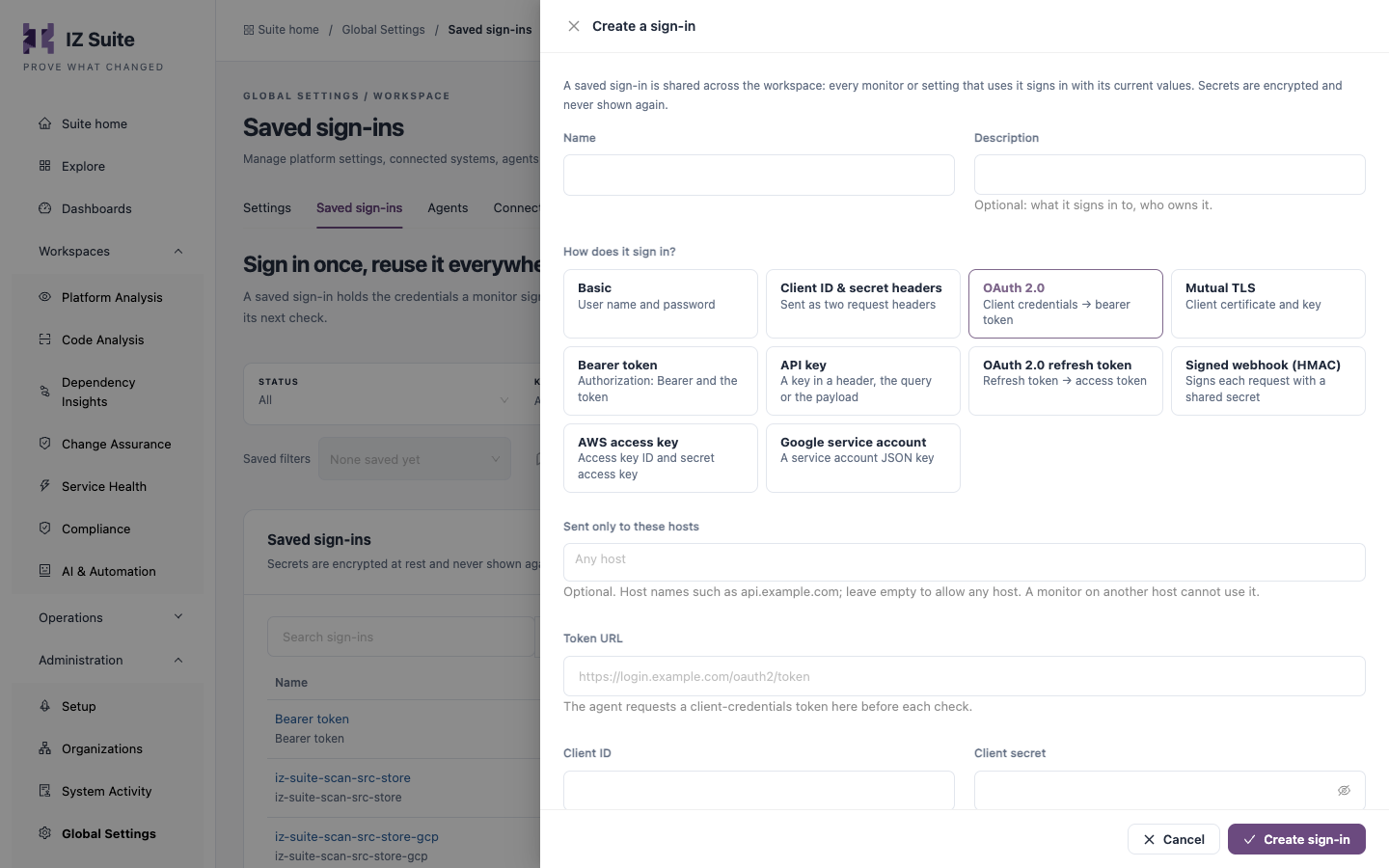
## Create a Sign-in
1. Click **Create sign-in**.
2. Enter a **Name** and, optionally, a **Description**.
3. Under **How does it sign in?**, choose a kind.
4. Optionally, list the hosts in **Sent only to these hosts**.
5. Fill in the fields of the kind you chose.
6. Click **Create sign-in**.
Create a sign-in
| Field | Description |
| ---------------------------- | -------------------------------------------------------------------------------------------------------------------------------------------------------------------------------------------------------------- |
| **Name** | **Required.** Up to 100 characters. |
| **Description** | Optional: what it signs in to and who owns it. |
| **How does it sign in?** | The sign-in kind. **Required.** You cannot change the kind of a saved sign-in later. |
| **Sent only to these hosts** | Optional. Host names such as `api.example.com`, up to 10. Leave it empty to allow any host. A monitor on another host cannot use the sign-in. Not shown for **AWS access key** and **Google service account**. |
To change a sign-in, click its name or **Edit**, change the fields and click **Save sign-in**. A secret that is already saved is not shown: leave its field blank to keep it, or type a new value to replace it.
## Sign-in Kinds
The first six kinds can be used by monitors. The others are for the calls IZ Suite makes itself, such as storing source code for AI reviews in a private bucket.
| Kind | Fields |
| ------------------------------ | ------------------------------------------------------------------------------------------------------------------------------------------------------------------------------------------------------------------------------------------------------------------------------------------------------------ |
| **Basic** | **User name** and **Password**. |
| **Client ID & secret headers** | **Client ID header** (for example `client_id`), **Client ID**, **Client secret header** (for example `client_secret`) and **Client secret**. Sent as two request headers. |
| **OAuth 2.0** | **Token URL** (the agent requests a client-credentials token there before each check), **Client ID**, **Client secret**, optional **Scope** (space separated) and **Audience**, and **Send the client secret** **In the request body** or **As a Basic header**. |
| **Mutual TLS** | **Client certificate** (with any intermediates), **Private key**, optional **Key passphrase** (only if the key is encrypted) and optional **Server CA bundle**. Each PEM field can be filled with **Load from a file**. With a CA bundle the agent verifies the server certificate; without one it does not. |
| **Bearer token** | **Token**, sent as `Authorization: Bearer` followed by the token. |
| **API key** | **Send the key in** **A header**, **The query string** or **The JSON payload**; **Name** of the header, parameter or field; optional one-word **Prefix**; and **Key**. Monitors cannot send the key in the JSON payload. |
| **OAuth 2.0 refresh token** | **Token URL** where the refresh token is exchanged for an access token, **Client ID**, **Client secret**, **Refresh token**, optional **Token prefix** (`Bearer` when empty) and **Send the client secret**. |
| **Signed webhook (HMAC)** | **Signature**: **Standard Webhooks** or **One custom header** (with **Header** and **Algorithm** **SHA-256** or **SHA-512**), and the **Signing secret**. Standard Webhooks secrets start with `whsec_`. |
| **AWS access key** | **Access key ID** (upper-case letters and digits, for example `AKIA…`) and **Secret access key**. |
| **Google service account** | **Service account key (JSON)**: paste the service account's JSON key file. Only its email, project and private key are kept. |
## Next Steps
* [Settings](https://knowledgebase.autorabit.com/product-guides/integral-zone/iz-suite/administration/global-settings/settings.md): review the other workspace settings.
* [Agents](https://knowledgebase.autorabit.com/product-guides/integral-zone/iz-suite/administration/global-settings/agents.md): check the agents that run the checks using these sign-ins.
* [Global Settings](https://knowledgebase.autorabit.com/product-guides/integral-zone/iz-suite/administration/global-settings.md): the other configuration screens.
---
# Agent Instructions
This documentation is published with GitBook. GitBook is the documentation platform designed so that both humans and AI agents can read, navigate, and reason over technical content effectively. Learn more at gitbook.com.
## Querying This Documentation
If you need additional information that is not directly available in this page, you can query the documentation by asking a question.
Perform an HTTP GET request on the following URL with the `ask` and `goal` query parameters:
```
GET https://knowledgebase.autorabit.com/product-guides/integral-zone/iz-suite/administration/global-settings/saved-sign-ins.md?ask=&goal=
```
`ask` is the immediate question: it should be specific, self-contained, and written in natural language.
`goal` is what the user is ultimately trying to achieve, the reason they need the answer. Sharing it helps GitBook give you a better, more relevant answer. A goal is most helpful when it describes the outcome the user wants rather than restating the question. For example, with `ask=how do I create an API token`, a goal like `automate deployments from our CI pipeline` lets GitBook tailor the answer to that use case.
The response will contain a direct answer to the question and relevant excerpts and sources from the documentation.
Use this mechanism when the answer is not explicitly present in the current page, you need clarification or additional context, or you want to retrieve related documentation sections.