> For the complete documentation index, see [llms.txt](https://knowledgebase.autorabit.com/llms.txt). Markdown versions of documentation pages are available by appending `.md` to page URLs; this page is available as [Markdown](https://knowledgebase.autorabit.com/product-guides/integral-zone/iz-suite/administration/global-settings/seed-data.md).
# Seed Data
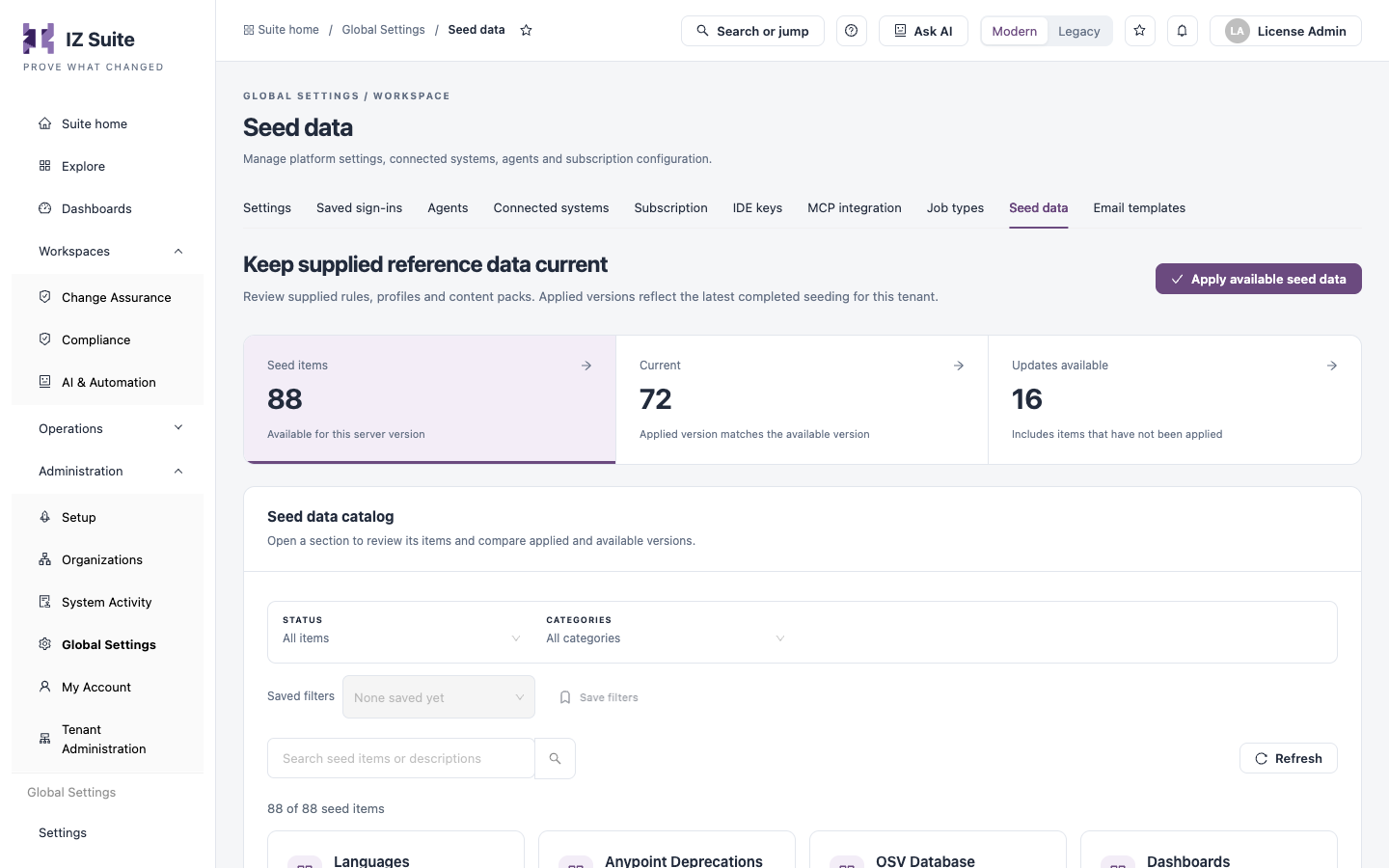
Seed data is the reference content supplied with IZ Suite: languages, rules, rule profiles, security references, compliance standards, dashboards, default settings, MCP tools and other content packs. The **Seed data** tab compares the version of each item applied to your workspace with the version available for the running IZ Suite release, and applies the updates.
Open it from **Administration** → **Global Settings** → **Seed data** in the sidebar.
{% hint style="info" %}
In multi-tenant instances, this is managed by your platform administrator.
{% endhint %}
Seed data
{% hint style="warning" %}
You need a role that can manage seed data to open this tab.
{% endhint %}
## How Seeding Works
* Seed data is grouped into categories, such as **Languages**, **Rules**, **Rule Profiles**, **Security References** and **Compliance Standards**. Each item has a version.
* Only the items that apply to the running IZ Suite version are listed.
* IZ Suite checks for pending seed data every time the server starts and applies it in the background. An item already applied at its available version is skipped.
* An item's **Applied version** is the latest version that completed seeding. An item is **Current** when that matches the available version.
## Counts and Filters
| Tile | Description |
| --------------------- | -------------------------------------------------------------------- |
| **Seed items** | Items available for this server version. Click to list all of them. |
| **Current** | Items whose applied version matches the available version. |
| **Updates available** | Items with a newer version available, including items never applied. |
| Filter | Description |
| ------------------------------------- | ------------------------------------------------------------------- |
| **Status** | **All items**, **Current** or **Updates available**. |
| **Categories** | One or more seed data categories. |
| **Search seed items or descriptions** | Free-text search on the item name, its description or its category. |
**Saved filters** and **Save filters** keep a filter combination, and **Refresh** reloads the catalog.
## Seed Data Catalog
Each category is a card with its description, the number of seed items, how many are **Current**, and either **All current** or the number of updates available. Click a card to open its items:
| Column | Description |
| --------------------- | ------------------------------------------------------- |
| **Item** | The item's name and description. |
| **Applied version** | The version that completed seeding, or **Not applied**. |
| **Available version** | The version supplied with this release. |
| **State** | **Current** or **Update available**. |
Categories with more than five items have a search box for their items.
## Apply Available Seed Data
Use it when the catalog shows **Updates available**, for example after a seeding run did not complete and you do not want to wait for the next server start.
1. Click **Apply available seed data**.
2. In **Apply available seed data to every tenant?**, click **Queue seeding for all tenants**, or close it to cancel.
3. Click **Refresh** later to see the applied versions.
Seeding runs in the background for every tenant and covers all available items, including items hidden by your filters. Follow its progress in [Scheduler Audit Logs](https://knowledgebase.autorabit.com/product-guides/integral-zone/iz-suite/administration/system-activity/scheduler-audit-logs.md) (handler `Seed Metadata Handler`).
## Next Steps
* [Job Types](https://knowledgebase.autorabit.com/product-guides/integral-zone/iz-suite/administration/global-settings/job-types.md): review the runtime behind each kind of work.
* [Scheduler Audit Logs](https://knowledgebase.autorabit.com/product-guides/integral-zone/iz-suite/administration/system-activity/scheduler-audit-logs.md): follow the seeding work.
* [Global Settings](https://knowledgebase.autorabit.com/product-guides/integral-zone/iz-suite/administration/global-settings.md): the other configuration screens.
---
# Agent Instructions
This documentation is published with GitBook. GitBook is the documentation platform designed so that both humans and AI agents can read, navigate, and reason over technical content effectively. Learn more at gitbook.com.
## Querying This Documentation
If you need additional information that is not directly available in this page, you can query the documentation by asking a question.
Perform an HTTP GET request on the following URL with the `ask` and `goal` query parameters:
```
GET https://knowledgebase.autorabit.com/product-guides/integral-zone/iz-suite/administration/global-settings/seed-data.md?ask=&goal=
```
`ask` is the immediate question: it should be specific, self-contained, and written in natural language.
`goal` is what the user is ultimately trying to achieve, the reason they need the answer. Sharing it helps GitBook give you a better, more relevant answer. A goal is most helpful when it describes the outcome the user wants rather than restating the question. For example, with `ask=how do I create an API token`, a goal like `automate deployments from our CI pipeline` lets GitBook tailor the answer to that use case.
The response will contain a direct answer to the question and relevant excerpts and sources from the documentation.
Use this mechanism when the answer is not explicitly present in the current page, you need clarification or additional context, or you want to retrieve related documentation sections.