> For the complete documentation index, see [llms.txt](https://knowledgebase.autorabit.com/llms.txt). Markdown versions of documentation pages are available by appending `.md` to page URLs; this page is available as [Markdown](https://knowledgebase.autorabit.com/product-guides/integral-zone/iz-suite/administration/global-settings/settings.md).
# Settings
The **Settings** tab is the catalog of every configuration value and template in the workspace. Administrators use it to find a setting, see what kind of value it holds, and change it.
Open it from **Administration** → **Global Settings** → **Settings** in the sidebar.
Settings catalog
{% hint style="warning" %}
You need a role that can view global settings to open this tab. Creating, editing and deleting settings each need their own global settings permission.
{% endhint %}
## Categories
The list on the left groups the catalog by purpose. Select a category to show only its settings.
| Category | Shows |
| --------------------- | ---------------------------------------------------------------------------------------------------------------------------------------------------------- |
| **All configuration** | The complete settings catalog. |
| **Pinned settings** | The settings you pinned. The number beside it is how many you have pinned. Pins belong to your account, so they follow you on every device you sign in on. |
| **Collection & sync** | Settings that control inventory discovery and collection (names containing "Sync"). |
| **Access & sign-in** | Authentication and login settings (names containing "Auth" or "Login"). |
| **Agents & workers** | Settings for the processes that collect evidence (names containing "Agent" or "Worker"). |
| **Notifications** | Notification delivery settings (names containing "Email", "Slack" or "Notification"). |
| **Assessment** | Shared variables used during analysis, such as the rule settings of each language. |
| **Templates** | Reusable messages and matching definitions, such as email templates and pattern matchers. |
| **Custom settings** | Settings your team created. Settings supplied with IZ Suite are left out. |
## Settings List
Use **Search setting names** to filter the current category by name. The record count and **Refresh** sit beside the search box, and the pager under the list sets how many settings show per page.
Each setting shows:
| Item | Description |
| -------------------- | --------------------------------------------------------------------------------------------------------------------------------------------------------------------------------------------- |
| Star | Select it to pin or unpin the setting. |
| Name and description | The setting's name and what it is for. |
| Kind | **Single value** (one value), **Key-value group** (a set of named values) or **Template** (a reusable template or matching definition). Review where a template is used before you change it. |
| **Updated** | When the setting last changed. |
| Tag | **System setting** for settings supplied with IZ Suite, **Custom** for settings your team created. |
| Edit (pencil) | Opens **Edit setting**. |
| Delete | Deletes the setting. Only custom settings can be deleted. |
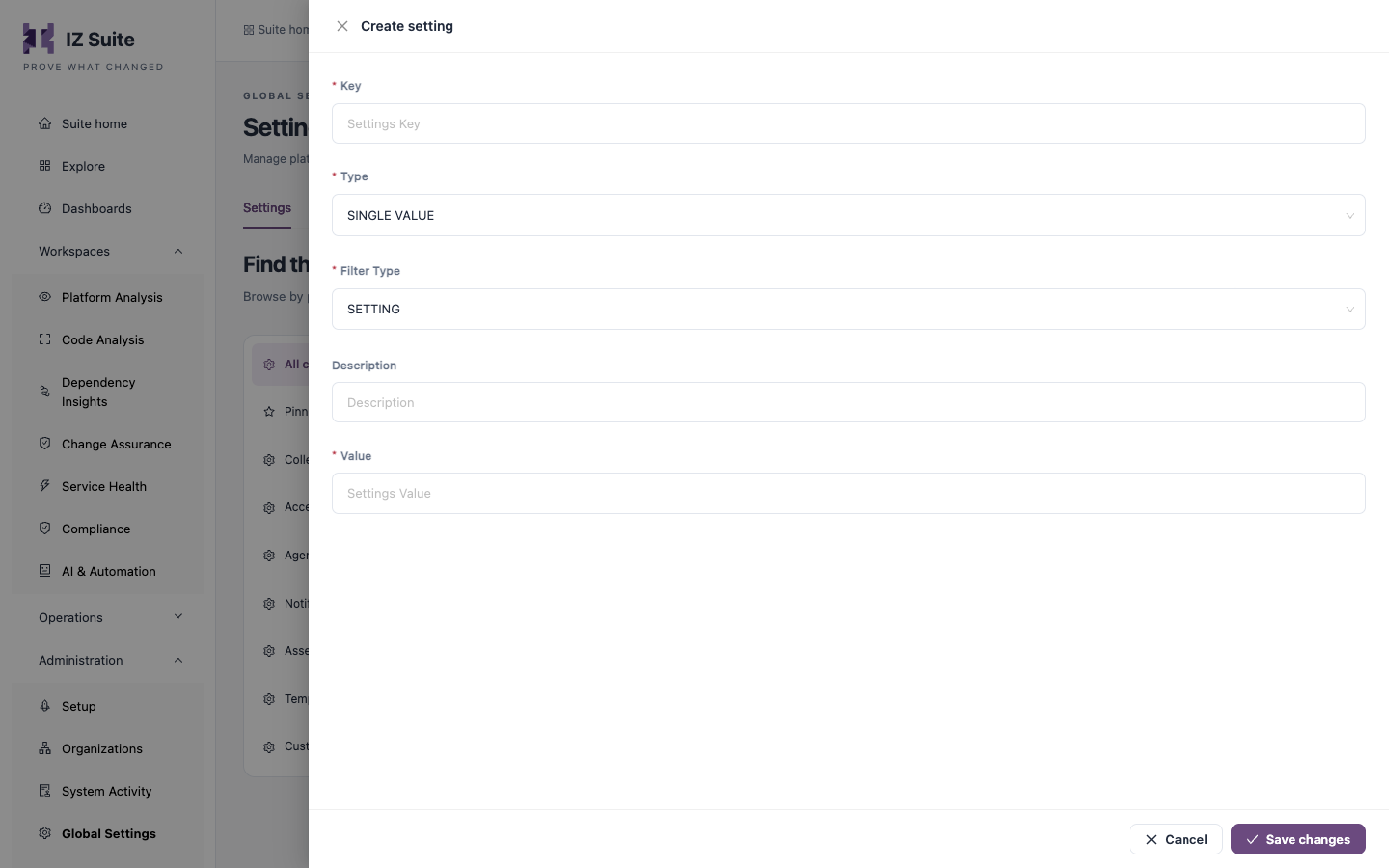
## Create a Setting
1. Click **Create setting**.
2. Fill in the form (see the fields below).
3. Click **Save changes**.
Create setting
| Field | Description |
| ------------------- | ------------------------------------------------------------------------------------------------------------------------------------------------------------------ |
| **Key** | The setting's name. **Required.** |
| **Type** | **SINGLE VALUE** for one value, or **MULTI VALUE** for a group of key-value pairs. **Required.** |
| **Filter Type** | **SETTING** for a configuration value, or **TEMPLATE** for a reusable template. **Required.** |
| **Description** | What the setting is for. It shows in the settings list. |
| **Value** | Shown for **SINGLE VALUE**. The value of the setting. **Required.** |
| **Key Value Pairs** | Shown for **MULTI VALUE**. Click **Add Entry** to add a row with **Is Secure**, **Key** and **Value**. At least one entry is required, and each entry needs a key. |
{% hint style="danger" %}
Select **Is Secure** for an entry that holds a password, token or other secret. Once a secure entry is saved, its **Is Secure** box cannot be cleared.
{% endhint %}
## Edit a Setting
1. Find the setting and click the edit (pencil) icon.
2. Change the values in **Edit setting**.
3. Click **Save changes**.
The form has the same fields as **Create setting**. For a system setting, **Key**, **Type** and **Filter Type** cannot be changed, and the entries of a key-value group cannot be removed. A single value that holds long text, such as a template, opens in a code editor.
## Next Steps
* [Saved Sign-ins](https://knowledgebase.autorabit.com/product-guides/integral-zone/iz-suite/administration/global-settings/saved-sign-ins.md): store credentials once instead of in each setting or monitor.
* [Email Templates](https://knowledgebase.autorabit.com/product-guides/integral-zone/iz-suite/administration/global-settings/email-templates.md): edit email templates in a preview editor.
* [Agents](https://knowledgebase.autorabit.com/product-guides/integral-zone/iz-suite/administration/global-settings/agents.md): check the agents that run your jobs.
* [Global Settings](https://knowledgebase.autorabit.com/product-guides/integral-zone/iz-suite/administration/global-settings.md): the other configuration screens.
---
# Agent Instructions
This documentation is published with GitBook. GitBook is the documentation platform designed so that both humans and AI agents can read, navigate, and reason over technical content effectively. Learn more at gitbook.com.
## Querying This Documentation
If you need additional information that is not directly available in this page, you can query the documentation by asking a question.
Perform an HTTP GET request on the following URL with the `ask` and `goal` query parameters:
```
GET https://knowledgebase.autorabit.com/product-guides/integral-zone/iz-suite/administration/global-settings/settings.md?ask=&goal=
```
`ask` is the immediate question: it should be specific, self-contained, and written in natural language.
`goal` is what the user is ultimately trying to achieve, the reason they need the answer. Sharing it helps GitBook give you a better, more relevant answer. A goal is most helpful when it describes the outcome the user wants rather than restating the question. For example, with `ask=how do I create an API token`, a goal like `automate deployments from our CI pipeline` lets GitBook tailor the answer to that use case.
The response will contain a direct answer to the question and relevant excerpts and sources from the documentation.
Use this mechanism when the answer is not explicitly present in the current page, you need clarification or additional context, or you want to retrieve related documentation sections.