

Pipeline Access Tokens
A pipeline signs in to IZ Suite with an access token. The token acts as the person who created it, with only the roles chosen for it. For pipelines, give it the Pipeline scanner role and nothing else.
The Pipeline scanner role
Pipeline scanner is a role made for pipeline tokens. It lets the scanner read what it needs to run and record results, and nothing more:
Read the quality profiles, quality gates, metric profiles, quality rules and global settings the scanner uses.
Create and update Code Analysis applications for each licensed technology, in the default organization.
To create it, open Administration → Setup → Create roles for pipelines and AI assistants, tick Create a Pipeline scanner role, keep Also give me these roles so my tokens can carry them ticked, and click Create roles. Nothing already in a role is removed; if the role exists, missing permissions are added. See Setup.
Scan into other organizations
The role's scan rights cover the default organization. When your pipeline passes -organization to file results under another organization, the token's role must also cover that organization: open the role's Permission matrix in Roles, click Add permissions and pick the organizations. Otherwise the scan stops with an error saying the organization was not found or the token lacks permission to configure the application there.
Create a token for a pipeline
You can create the token from Setup or from Access tokens. Both open the same form.
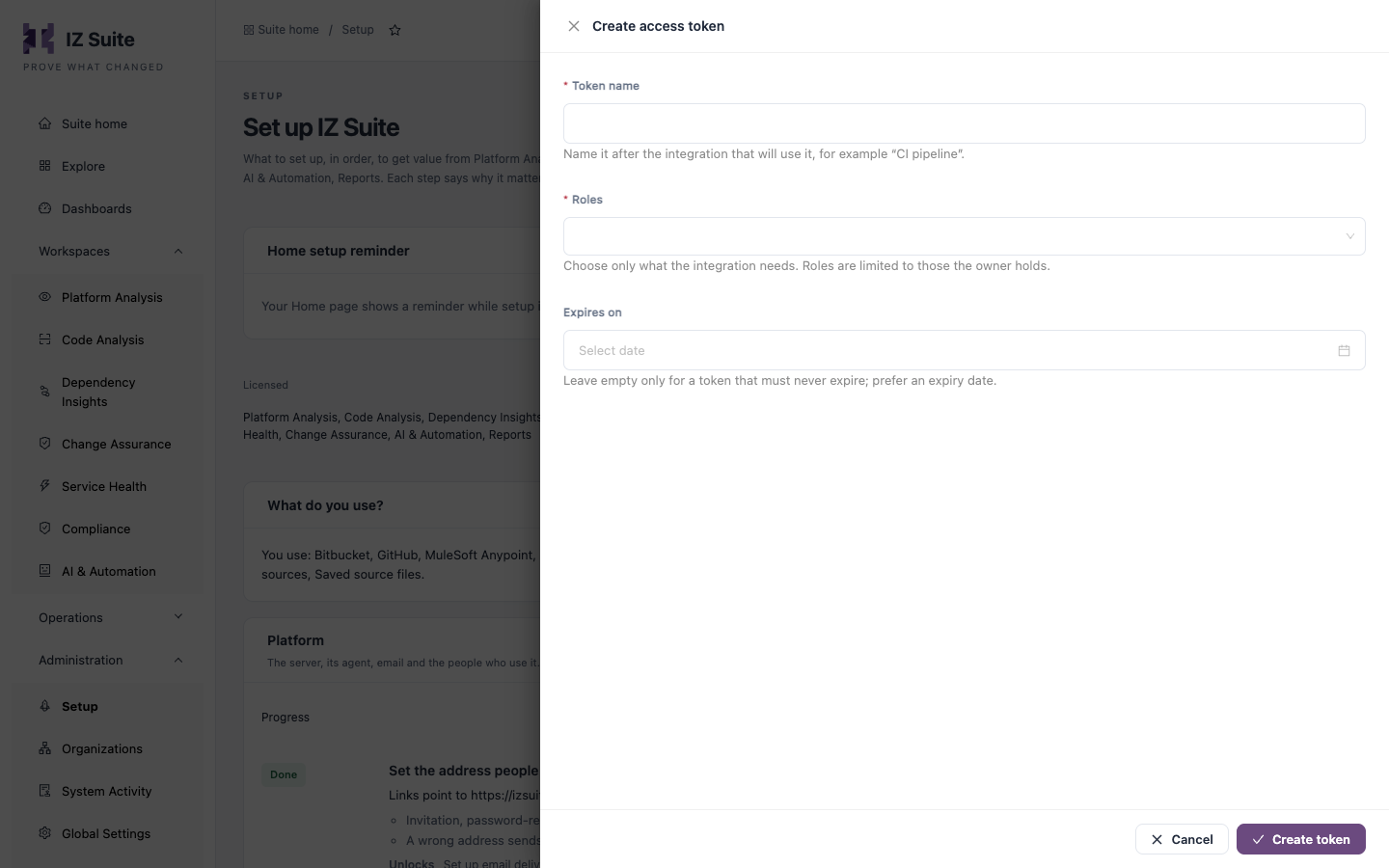
Open Administration → Setup → Scan in your CI/CD pipeline and click Create access token (or click Create access token in Access Tokens).
Enter a Token name, for example "CI pipeline". Use one token per pipeline or repository so you can disable one without stopping the others.
Under Roles, choose Pipeline scanner.
Set Expires on. Prefer an expiry date and rotate the token before it.
Click Create token.
Copy the value under Copy this token now. It is shown only once.
Store the token as a pipeline secret
Store the value as a masked secret named IZ_ACCESS_TOKEN. The steps that Setup generates read it from there and never contain the token.
Bitbucket Pipelines
A secured repository or workspace variable IZ_ACCESS_TOKEN.
GitHub Actions
A repository or organization secret IZ_ACCESS_TOKEN, read as ${{ secrets.IZ_ACCESS_TOKEN }}.
GitLab CI
A masked CI/CD variable IZ_ACCESS_TOKEN.
Jenkins
A Secret text credential with the ID iz-access-token, bound to IZ_ACCESS_TOKEN with withCredentials.
Maven
Any of the above; the command passes it as -DauthToken="$IZ_ACCESS_TOKEN".
Check that the token works
The Scan in your CI/CD pipeline step in Setup checks every 15 seconds and turns Done when a pipeline scan has arrived since you created your first token. Run the pipeline once and watch the step.
Rotate, disable or remove a token
Rotate: create a new token with the same role, replace the secret value in your CI/CD platform, run the pipeline once, then disable the old token.
Disable: click Disable token on the token's row in Access Tokens or Disable credential in Security Credentials. The pipeline loses access on its next request. You can enable it again later.
Expired tokens stop working on their expiry date. The Expiring in 30 days tile in Access tokens lists the ones to rotate soon.
A token's value cannot be shown again. If it is lost, create a new token.
Next steps
Command-Line Scanner: use the token with the scanner.
Pipeline Examples: add the scan step to your pipeline.
Access Tokens: review every token in the workspace.
CI/CD Integration: how a pipeline scan works.
Last updated
Was this helpful?