

Scheduled Reports
A scheduled report prepares a PDF of a saved dashboard before your next review. Each run uses the dashboard's current saved layout and live evidence, read with the schedule owner's access at run time, and records the layout revision and evidence timestamp.
Open it from Dashboards → Scheduled reports in the sidebar.
Schedule Summary
Active schedules
Schedules that are switched on.
Scheduled PDFs ready
PDFs generated by schedules and ready to download.
Timezone-aware timing
Schedules run daily or weekly in their own time zone, with daylight saving handled.
Schedules List
Schedule / dashboard
The schedule's name and the dashboard it generates. Click the name to edit the schedule.
Frequency
Daily, or the weekday, with the time and time zone.
Next run
When it runs next, or Paused. Also shows whether it reads live evidence or the sample scenario.
Delivery
Email to you or Report history only.
Status
Active or Paused, with the last error if a run failed.
Actions
Run now, Pause or Resume, and delete.
When there are no schedules, the page says A calmer Monday starts here.
Create a Schedule
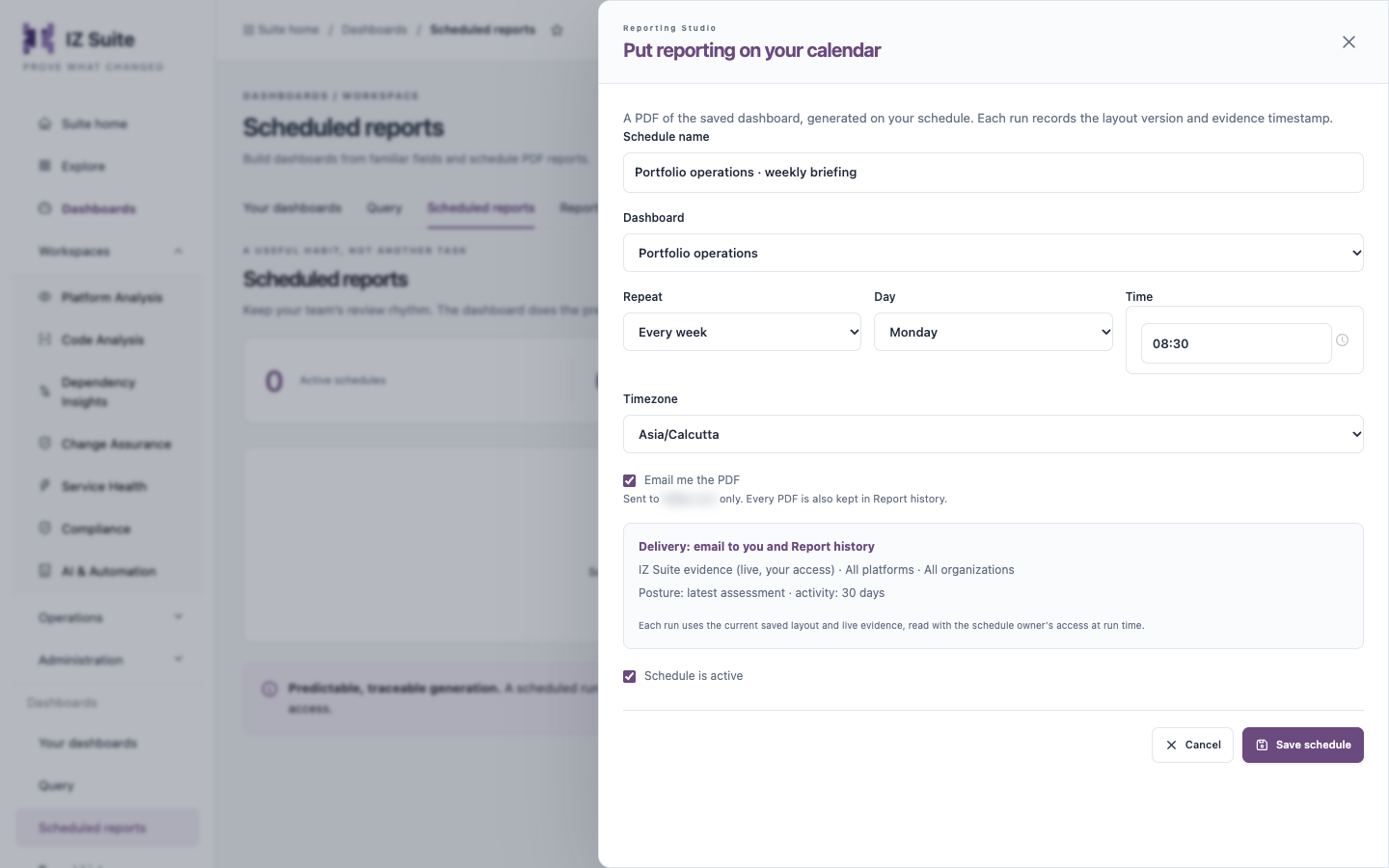
Click New schedule, or Schedule this dashboard at the bottom of a dashboard.
Fill in the form in Put reporting on your calendar.
Check the delivery summary: where the PDF goes and the evidence scope it uses.
Click Save schedule.
Schedule name
The name in the list. Required.
Dashboard
The saved dashboard to generate.
Repeat
Every week or Every day.
Day
The weekday, for a weekly schedule.
Time
The time of day.
Timezone
The time zone the time is in.
Email me the PDF
Emails each PDF to your own address only. Every PDF is also kept in Report History.
Schedule is active
Clear it to save the schedule paused.
The schedule uses the evidence source and scope that were set when you opened it, as shown in the delivery summary.
Manage Schedules
Run now: queues a PDF immediately. It appears in Report history.
Pause / Resume: stops or restarts the schedule.
Delete (bin icon): deletes the schedule. PDFs it already generated stay in Report history.
Next steps
Report History: download the PDFs your schedules produce.
Your Dashboards: set the report layout and branding of the PDF.
Dashboards: back to the overview.
Last updated
Was this helpful?