

Explore
Explore shows what the suite does for you. Choose a role or a topic, then a job: each story walks through the screens and products that deliver it. You can also browse every feature and follow complete customer use cases. Use it to learn the product, to plan a rollout or to show IZ Suite to someone else.
Open it from Explore in the sidebar.
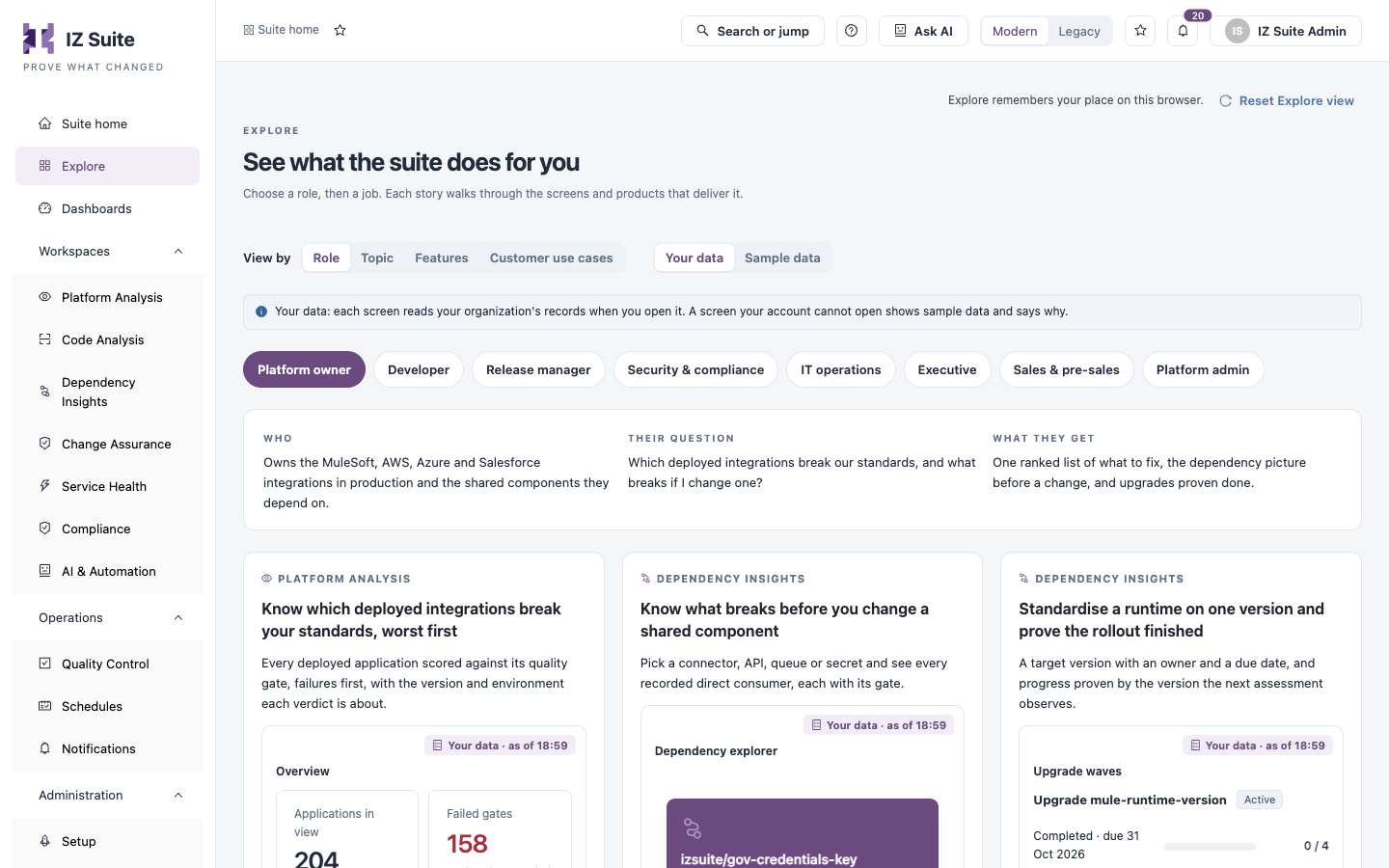
Choose How to Browse
View by
Role, Topic, Features or Customer use cases.
Your data / Sample data
Chooses what the previews show. See Your Data and Sample Data.
Reset Explore view
Returns Explore to its starting view: by role, on sample data.
Explore remembers your place in this browser, and the page address keeps your choices, so you can share a link to a story.
Your Data and Sample Data
Your data
Each screen reads your organization's records when you open it, with the time it was read (for example Your data · as of 18:50). A screen your account cannot open shows sample data and says why. Missing evidence is shown as missing.
Sample data
A fictional company, Northwind Retail. It shows how each story works; none of it is your organization's data or a measured customer outcome. Previews are marked Sample data — not your organization's.
Explore starts on Your data when you can open at least one workspace, and on Sample data otherwise. The Sales & pre-sales role always starts on sample data. You can switch at any time, also inside a story.
View by Role
Choose a role. A brief shows WHO the role is, THEIR QUESTION and WHAT THEY GET, followed by a card for each job that role does.
Platform owner
Which deployed integrations break our standards, and what breaks if I change one?
Developer
What did my change introduce, and what is mine to fix next?
Release manager
Is this release ready, and is every change in it backed by evidence and approval?
Security & compliance
Where are we exposed, and can we prove our change controls actually ran?
IT operations
Is anything down, would we know, and how fast do we recover?
Executive
Is delivery getting faster and safer, and where is the risk concentrated?
Sales & pre-sales
How do I show the value in five minutes, safely?
Platform admin
Is collection healthy, is access least-privilege, and what runs out next?
Sales & pre-sales covers people who show the suite to prospects, on sample data or on the prospect's own estate once it is connected.
Each story card shows:
The product that delivers the job (for example PLATFORM ANALYSIS), the job's title and what it gives you.
A live preview of the screen that does the work, with a link to open that screen or record.
Delivered by: the products involved, in order (for example Dependency Insights, then Change Assurance).
See how it works: opens the story.
View by Topic
Choose a topic: Security, Compliance & audit, Change & release, Reliability & service health, Code quality, Dependencies & lifecycle, Delivery performance or Setup & administration. A brief shows The question, What the suite gives and Who asks it. The cards are the same as in the role view, and each card also lists the roles that ask for it.
Follow a Story
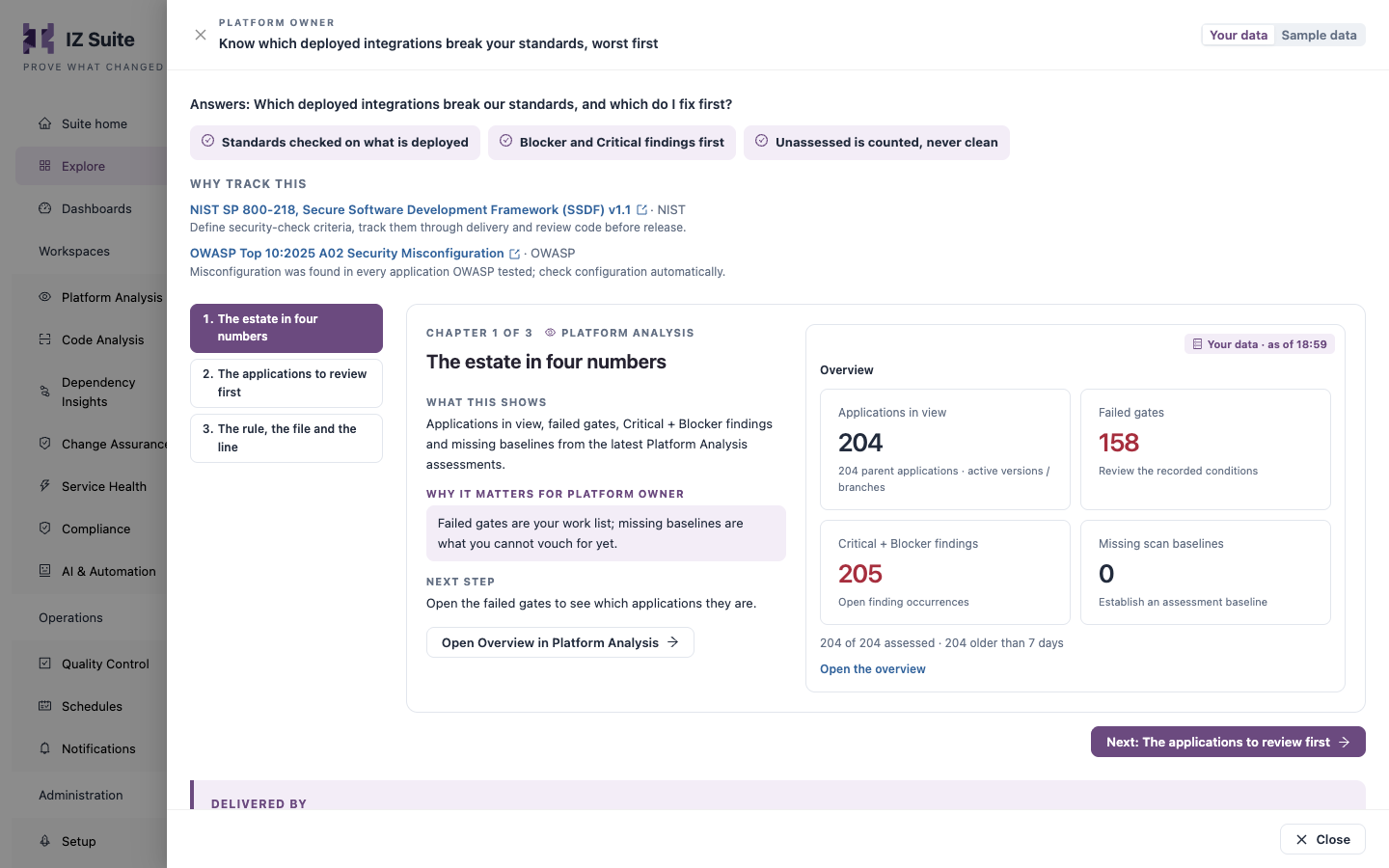
Click See how it works on a card.
Read the question the story answers and, under Why track this, the published references behind it (they open in a new tab).
Click a chapter in the list on the left, or use Next and Previous. The left and right arrow keys also move between chapters.
In each chapter, read What this shows, Why it matters for the role, and Next step, next to a preview of the screen.
Click Open … in … (for example Open Overview in Platform Analysis) to go to that screen. The button is disabled, with the reason, when your account cannot open it.
Click Close to return to the cards.
Delivered by, at the end of the story, lists each screen used and the product it belongs to.
View by Features
The feature library lists every capability of the suite.
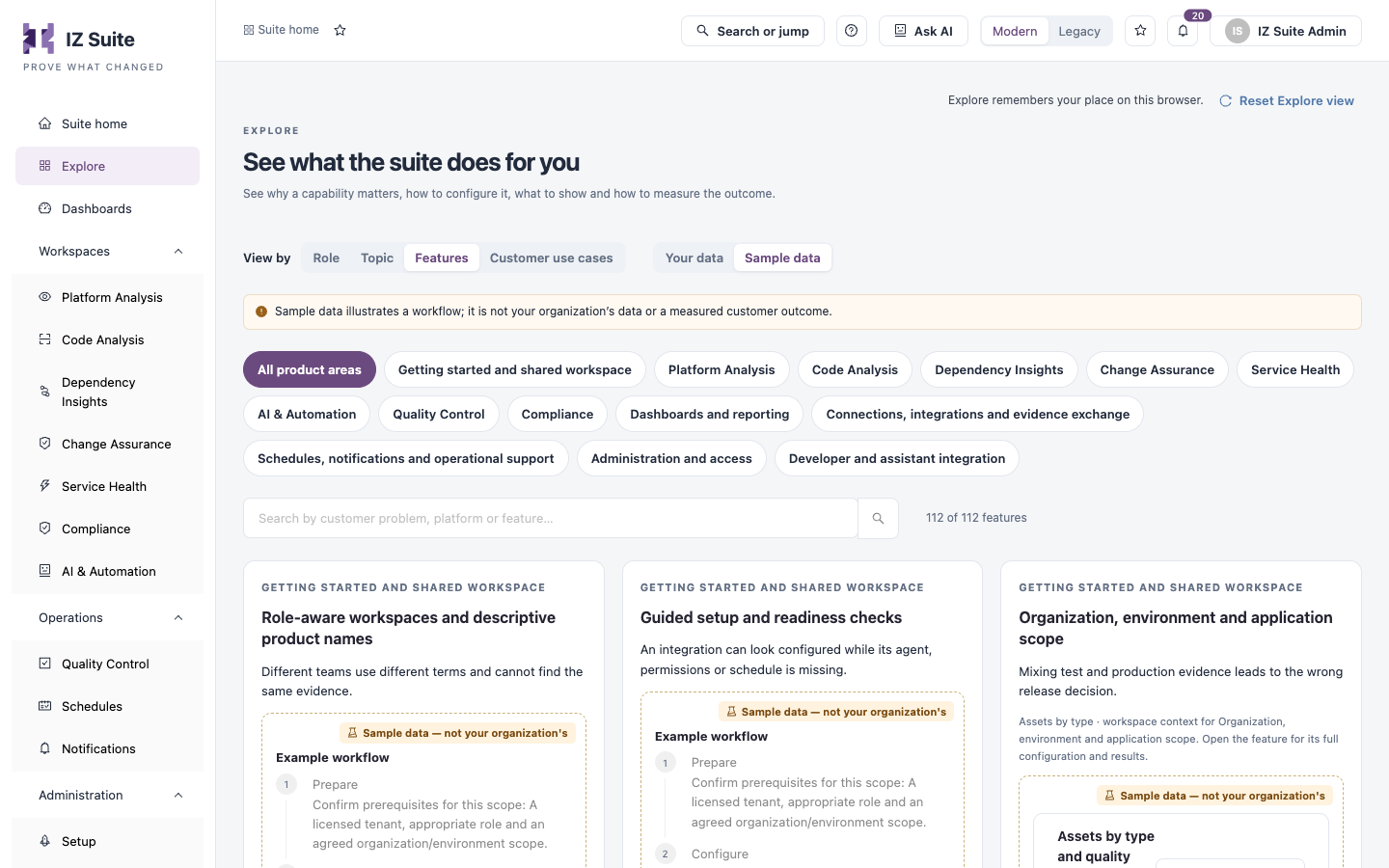
Choose a product area, or All product areas.
Type in Search by customer problem, platform or feature… to narrow the list. The count beside it shows how many features match.
On a feature card, read the problem it solves, the example workflow and the value it brings.
Click Set up to open the setup guide for the feature in the help drawer, or See how it works to open the feature.
The feature drawer has four chapters:
Why and how
What the feature does and how it helps.
Walkthrough
Actions in order: Prepare, Open the workspace, Try the workflow, Verify the evidence, Measure progress, each with what proves it worked. Use Previous action and Next action.
Set up and verify
The setup steps, with checks against your organization's setup when you view your data.
Measure value
The measures (KPIs) that show the feature's value, with the evidence needed, the owner and how to read them.
Guide me through setup and Ask AI about this feature are available from the drawer. Use the pager at the bottom of the list to change page or page size.
View by Customer Use Cases
Customer use cases follow practical workflows across teams and platforms.
Optionally, type in the search box to narrow the list.
Click See how it works on a use case.
Read The estate · illustrative, Why this is difficult and A useful outcome.
Go through the steps. Each step names its owner, What to do, What proves it worked and the Features used, with a preview. Guide me through setup opens the setup guide for the step's feature.
Open Measure value · KPIs and evidence and Limits and process responsibilities for the measures and the limits of the workflow.
Click Adapt this use case with AI to ask Ask AI to fit the use case to your estate.
Next steps
Suite Home: see the platform reports for your estate.
Navigating IZ Suite: page help and Ask AI on every page.
About IZ Suite: how the workspaces fit together.
Last updated
Was this helpful?