

Navigating IZ Suite
Every modern page shares the same frame: the sidebar on the left and the top bar above the page. This page describes both.

Sidebar
The sidebar lists only what your licences and roles allow.
Suite home
Platform reports and what to act on next. See Suite Home.
Explore
What each part of the suite does, by role, topic, feature or customer use case. See Explore.
Dashboards
Your dashboards, queries, scheduled reports and report history. See Dashboards.
Workspaces
Platform Analysis, Code Analysis, Dependency Insights, Change Assurance, Service Health, Compliance and AI & Automation. See Workspaces.
Operations
Quality Control, Schedules and Notifications. See Operations.
Administration
Setup, Organizations, System Activity, Global Settings and My Account. See Administration.
Click a group name to expand or collapse it. When you open a workspace or area, its own sections appear at the bottom of the sidebar under its name (for example Your dashboards, Query, Scheduled reports and Report history under Dashboards). The section you are on is highlighted.
Click the IZ Suite logo to go back to Suite home.
Breadcrumb and Favourites
The breadcrumb at the top left shows where you are, for example Suite home / Dashboards / Report history. Click any part of it to go back to that level.
The star next to the breadcrumb adds the current page to your favourites. A favourite keeps the page's filters, so you can save a filtered view and come back to it.
To add a favourite:
Open the page, and set any filters you want to keep.
Click the star next to the breadcrumb.
In Add to favourites, check or change the Favourite name (up to 80 characters).
Click Add favourite.
To remove a page from your favourites, click its filled star. You can keep up to 20 favourites.
To open a favourite, click the star button in the top bar (Favourites with the number you have). The Favourites drawer lists them all; the one you use as your home page is tagged Home page. Click Rename, reorder or remove favourites to manage them in My Preferences.
Top Bar
Search or jump (⌘ K on Mac, Ctrl K on Windows)
Opens Where would you like to go? to find a page, setting or feature guide.
? (page help)
Opens Help with this page: what the page helps you do, why it matters and how to measure its value.
Ask AI
Opens Ask AI about IZ Suite to ask how to use the product.
Modern / Legacy
Switches between the modern interface and the classic one.
Star (Favourites)
Opens the Favourites drawer.
Bell (Notifications)
Opens your recent notifications. The badge shows how many are unread.
Your name
Opens the account menu.
Search or Jump
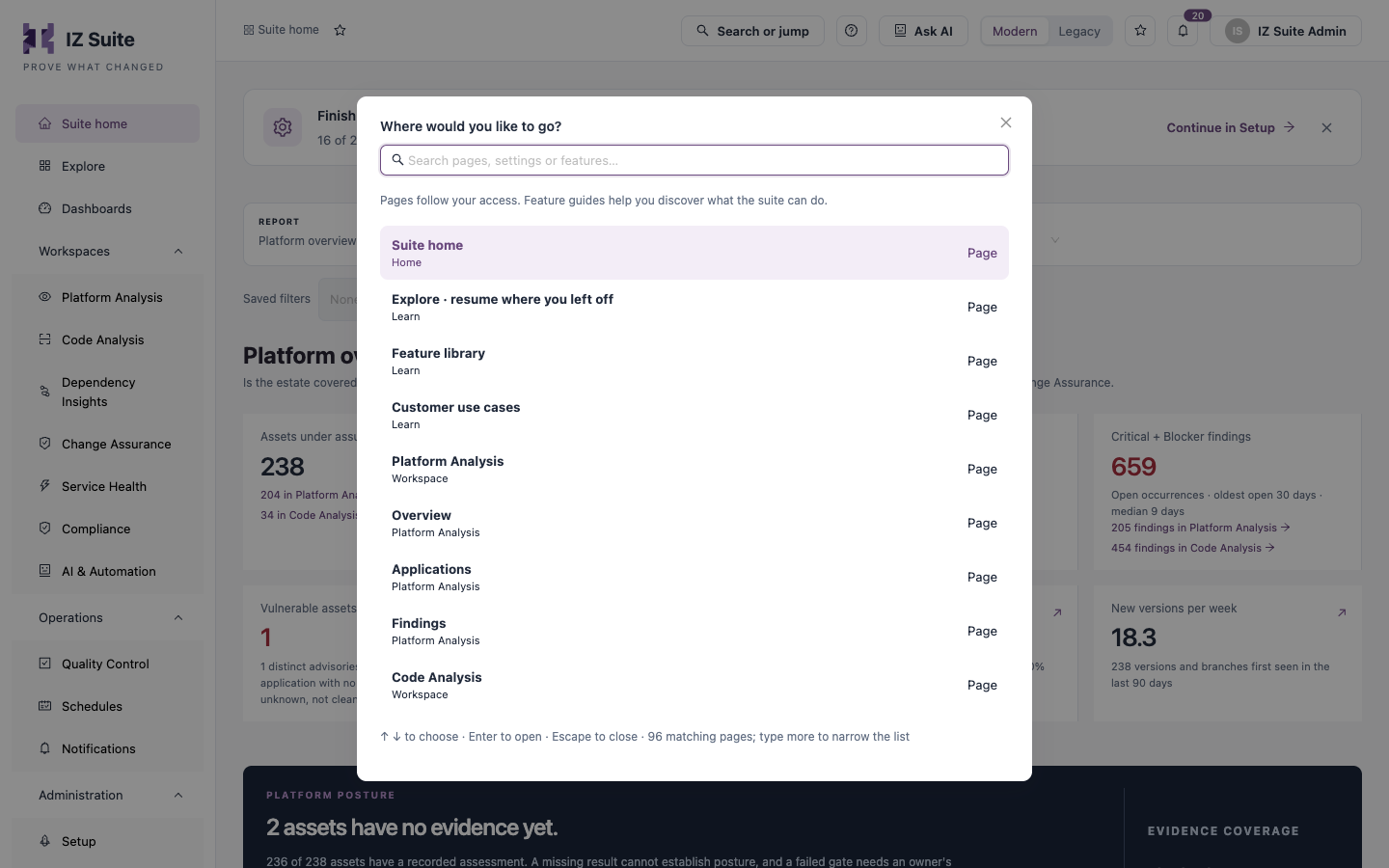
Click Search or jump, or press ⌘ K (Mac) or Ctrl K (Windows).
Type part of a page name, task or customer problem in Search pages, settings or features….
Use the up and down arrow keys to choose a result, and press Enter to open it. Press Escape to close.
Before you type, the list shows your recent pages first. Results are labelled Page, Recent page or Feature guide. Pages follow your access: you only see pages you can open.
Page Help
Click ? in the top bar to open Help with this page. For each feature on the page you see what it does, its customer value and the measures that show its value. From there you can:
Click Walk through this feature for a step-by-step walkthrough.
Click Guide me through setup to follow the setup steps. While a setup guide is in progress, a bar at the bottom of the screen offers Resume guide and Dismiss.
Choose another guide in Browse another feature….
Click Explore all features and use cases to open the feature library in Explore.
Ask AI
Ask AI answers questions about features, configuration, customer use cases and proving value. Answers come from the product guide; Ask AI does not read your live records or make changes.
Click Ask AI.
Type your question under What would you like to do? (up to 3,000 characters), or pick one of the suggested questions.
Click Ask AI.
Each answer is tagged AI guidance, and Supporting guides lists the guides it used, with links. Click Clear conversation to start again.
Modern and Legacy
Click Legacy to open the classic interface, and Modern to come back. IZ Suite remembers your choice for your account in this browser. The classic interface is described in IZ Suite (Legacy).
Notifications
Click the bell to open the Notifications drawer.
Unread / All
Shows only unread notifications, or all of them.
Type
All types, Errors, Warnings or Info.
Mark all read
Marks every unread notification as read.
Mark read
Marks one notification as read.
Notification title
Opens the record the notification is about, or expands its details.
Open My updates
Opens My Updates.
Manage subscriptions
Opens My Subscriptions.
Delivery log
Opens the Delivery Log. Shown when your role can view global settings.
Account Menu
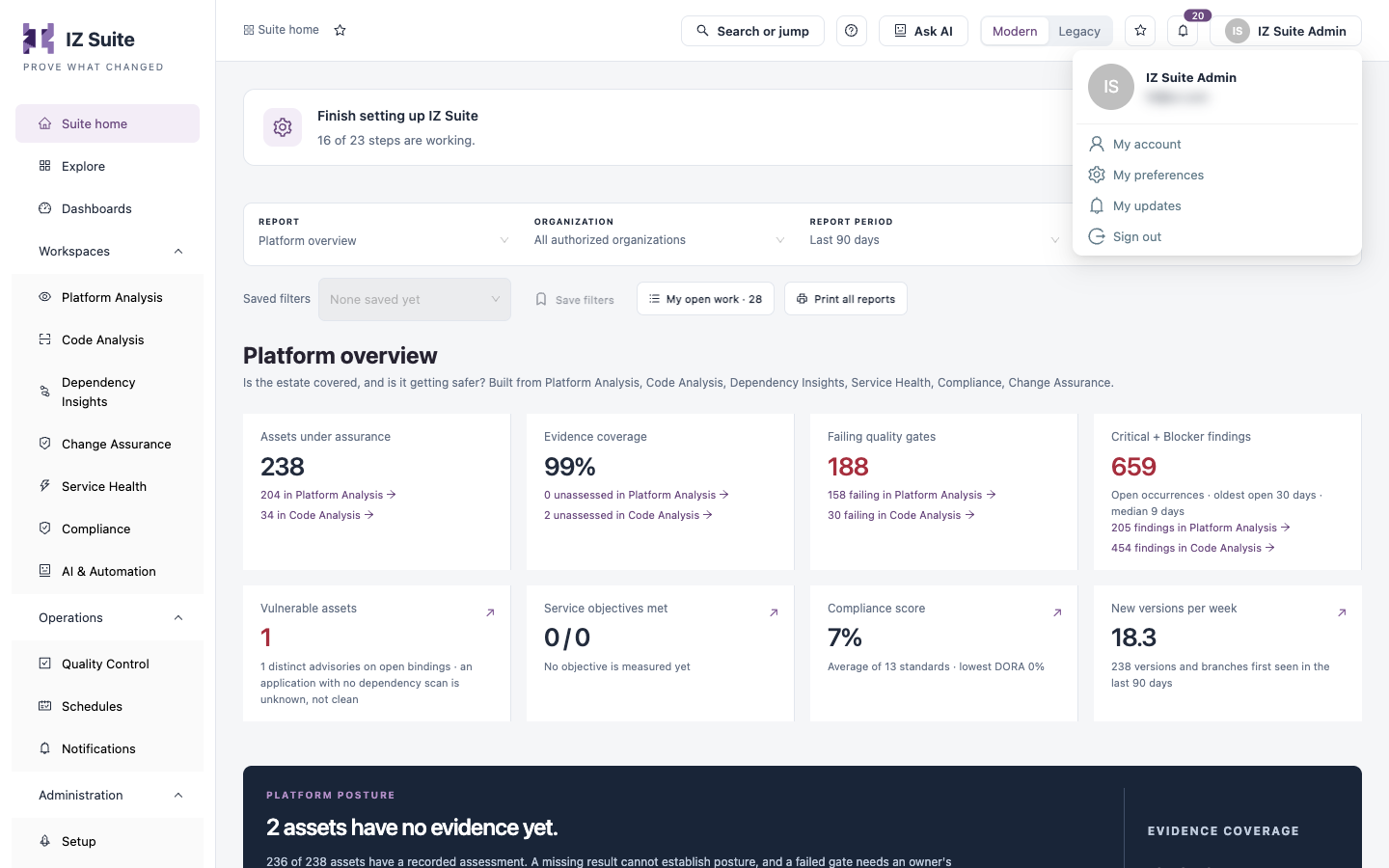
Click your name in the top bar. The menu shows your picture, name and email, and these entries:
My account
My Account: your profile, security credentials, IDE projects and activity.
My preferences
My Preferences: picture, availability, home page, favourites and appearance.
My updates
My Updates.
Sign out
Ends your session.
Licence Messages
When the workspace licence is about to expire, has expired, or a licensed allowance reaches 90%, a banner at the top of the page says so. Click View license details if you can see them; otherwise contact your administrator.
Next steps
Suite Home: read the platform reports.
Explore: see what each part of the suite does for your role.
My Preferences: set your home page and manage favourites.
Getting Started: back to the overview.
Last updated
Was this helpful?