

Amazon Web Services
IZ Suite connects to each AWS account with a read-only access key. Each account becomes an organization and each region an environment. Assessment jobs then discover the resources of each AWS service and check their configuration against that service's rules. IZ Suite never creates, changes or deletes AWS resources, and never reads secret values.
Create a read-only access key in AWS
Create one IAM user with an access key in each AWS account you connect. You can attach the AWS managed ReadOnlyAccess policy, or the narrower policy below, which lists only the calls IZ Suite makes.
Create the IAM policy
In the AWS console, open IAM → Policies and click Create policy.
Choose the JSON editor and paste the policy below.
Name the policy, for example
IZSuiteReadOnly, and create it.
{
  "Version": "2012-10-17",
  "Statement": [
    {
      "Sid": "IZSuiteDiscovery",
      "Effect": "Allow",
      "Action": [
        "ec2:DescribeRegions",
        "lambda:ListFunctions",
        "lambda:GetFunction",
        "lambda:GetPolicy",
        "lambda:ListFunctionUrlConfigs",
        "lambda:ListEventSourceMappings",
        "cloudformation:ListStacks",
        "cloudformation:DescribeStacks",
        "cloudformation:GetTemplate",
        "states:ListStateMachines",
        "states:DescribeStateMachine",
        "apigateway:GET",
        "ecs:ListClusters",
        "ecs:ListServices",
        "ecs:DescribeServices",
        "ecs:DescribeTaskDefinition",
        "rds:DescribeDBInstances",
        "rds:DescribeDBClusters",
        "rds:DescribeDBEngineVersions",
        "elasticloadbalancing:DescribeLoadBalancers",
        "elasticloadbalancing:DescribeLoadBalancerAttributes",
        "elasticloadbalancing:DescribeListeners",
        "elasticloadbalancing:DescribeTargetGroups",
        "elasticloadbalancing:DescribeTargetGroupAttributes",
        "secretsmanager:ListSecrets",
        "secretsmanager:DescribeSecret",
        "secretsmanager:GetResourcePolicy",
        "cloudfront:ListDistributions",
        "cloudfront:GetDistribution",
        "dynamodb:ListTables",
        "dynamodb:DescribeTable",
        "dynamodb:DescribeContinuousBackups",
        "dynamodb:DescribeTimeToLive",
        "sqs:ListQueues",
        "sqs:GetQueueUrl",
        "sqs:GetQueueAttributes",
        "sns:ListTopics",
        "sns:GetTopicAttributes",
        "sns:ListSubscriptionsByTopic",
        "events:ListEventBuses",
        "events:DescribeEventBus",
        "events:ListRules",
        "events:DescribeRule",
        "events:ListTargetsByRule",
        "codepipeline:ListPipelines",
        "codepipeline:GetPipeline",
        "codebuild:ListProjects",
        "codebuild:BatchGetProjects",
        "codedeploy:ListApplications",
        "codedeploy:ListDeploymentGroups",
        "codedeploy:BatchGetDeploymentGroups",
        "codedeploy:GetDeploymentGroup"
      ],
      "Resource": "*"
    },
    {
      "Sid": "IZSuiteExecutionRoles",
      "Effect": "Allow",
      "Action": [
        "iam:GetRole",
        "iam:ListRolePolicies",
        "iam:GetRolePolicy",
        "iam:ListAttachedRolePolicies",
        "iam:GetPolicy",
        "iam:GetPolicyVersion"
      ],
      "Resource": "*"
    }
  ]
}IZSuiteDiscovery
Lists the resources of each service and reads the definitions that are assessed. ec2:DescribeRegions is used only when you leave Regions blank and IZ Suite finds the regions itself.
IZSuiteExecutionRoles
Optional. Reads the IAM roles that Lambda functions, Step Functions state machines and ECS task definitions run with, so the IAM rules (for example over-permissive policies) can be evaluated. Without it the assessment still runs, without those rules.
You can leave out the actions of services you do not license or do not want assessed: a denied call only affects that service.
Create the IAM user and access key
Open IAM → Users and click Create user. Do not give the user console access.
On Set permissions, choose Attach policies directly and attach the policy you created.
Open the new user, choose the Security credentials tab and click Create access key.
Choose Third-party service (or Other) as the use case and create the key.
Copy the Access key and the Secret access key. The secret is shown only once.
Note the 12-digit account ID shown in the account menu at the top right of the console.
Connect the account in IZ Suite
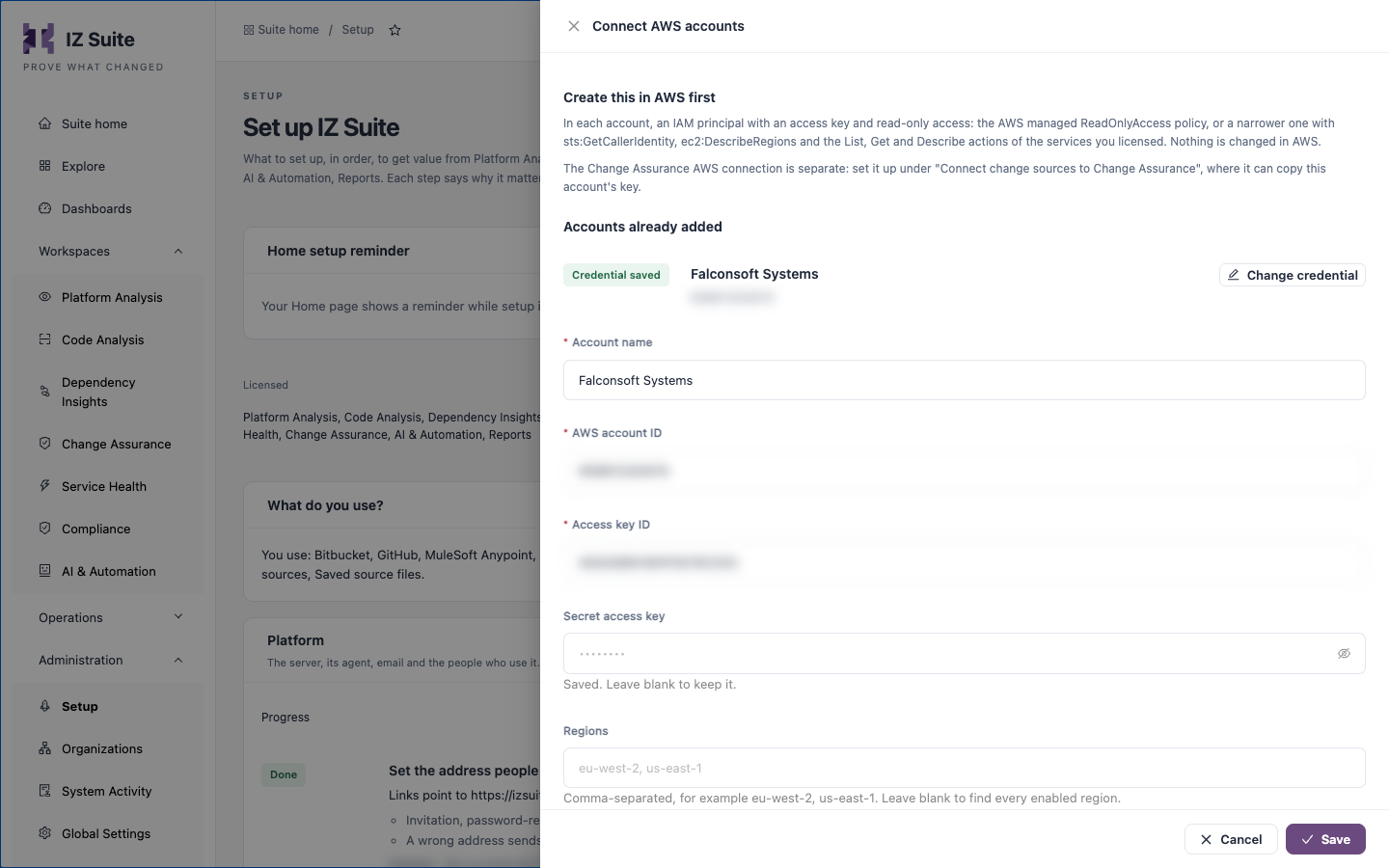
Open Administration → Setup and click Set up (or Review) on Connect AWS accounts.
Fill in the account:
FieldDescriptionAccount name
The organization's name in IZ Suite, for example
Payments Production. Required.AWS account ID
The 12-digit account ID. Required.
Access key ID
The IAM user's access key. Required.
Secret access key
The access key's secret. Stored encrypted; once saved it shows Saved. Leave blank to keep it.
Regions
Comma-separated regions to assess, for example
eu-west-2, us-east-1. Leave blank to let IZ Suite find them.Inventory sync
On runs AWS Sync every 12 hours.
Click Save.
Saving adds the account as an organization with the source AWS, creates its standard roles and starts a one-time AWS Sync. Repeat for each account; Accounts already added lists them. You can also onboard an account from Administration → Organizations → Onboard organization with the source AWS (see Organizations).
Rotate the access key
In AWS, create a second access key for the same IAM user.
In Connect AWS accounts, click Change credential on the account, enter the new Access key ID and Secret access key, and click Save.
Check that the next AWS Sync succeeds under Execution History.
In AWS, deactivate and delete the old key.
What the sync does
On each run, AWS Sync goes through every AWS organization:
Skips an account that has no secret access key yet, and says so in the run log.
Checks that the access key belongs to the entered AWS account ID. If it does not, the account is not synced and the log says why.
Creates one environment per region. With Regions filled in, exactly those regions are used. With Regions blank, IZ Suite checks every region enabled on the account and keeps the regions that hold at least one Lambda function, CloudFormation stack, Step Functions state machine or API Gateway API.
Creates a
globalenvironment for resources that belong to no region, such as CloudFront distributions.Gives the organization's administrator roles access to the AWS applications, so they are visible straight away.
Regions you add later become new environments on the next run. See the environments under Administration → Organizations → Manage environments.
What is assessed
Each AWS service has its own assessment type. A run discovers the service's resources in the scheduled regions and checks each one against the service's rules.
AWS Lambda Analysis
Lambda functions. Functions on a Python runtime also have their deployment package scanned with the Python rules.
AWS CloudFormation Analysis
CloudFormation stacks, including failed stacks.
AWS Step Functions Analysis
Step Functions state machines.
AWS API Gateway Analysis
API Gateway REST, HTTP and WebSocket APIs.
AWS ECS Analysis
The task definitions used by ECS services.
AWS RDS Analysis
RDS instances and Aurora clusters.
AWS Load Balancer Analysis
Elastic Load Balancing (v2) load balancers.
AWS Secrets Manager Analysis
Secrets Manager secrets (metadata only).
AWS CloudFront Analysis
CloudFront distributions, in the global environment.
AWS DynamoDB Analysis
DynamoDB tables.
AWS SQS Analysis
SQS queues.
AWS SNS Analysis
SNS topics.
AWS EventBridge Analysis
EventBridge event buses and their rules.
AWS CodePipeline Analysis
CodePipeline pipelines.
AWS CodeBuild Analysis
CodeBuild projects.
AWS CodeDeploy Analysis
CodeDeploy deployment groups.
CloudFormation and SAM templates, and Lambda function definitions, can also be scanned from source before deployment with Code Analysis (see Supported Languages).
Schedule the assessments
Open Administration → Setup and click Set up on Turn on AWS assessments.
Under What to assess, keep the services you want.
Under When should this work run?, choose One time or Recurring and the interval.
Click Turn on assessments.
To set one cadence per account, with its own regions and exceptions per service, use Schedule platform scan under All Schedules.
Leave resources out
Every discovered resource is assessed by default. Each service has a pattern matcher under Administration → Global Settings → Settings, named AWS Service Pattern Matcher (for example AWS Lambda Pattern Matcher), that includes or excludes resources by name:
The Lambda pattern matcher can also match runtime (for example python3.12) and packageType (Zip or Image). The pattern applies from the next run.
Where the results appear
Accounts and regions
Assessed resources, quality gates and findings
How functions, queues, topics, event buses, state machines, secrets and databases depend on each other
Monitors on AWS resources
Sync and assessment runs
The Change Assurance AWS connection is separate: set it up under Connect change sources to Change Assurance in Setup, where it can copy this account's key.
Next steps
How Assessments Run: agents, job types and schedules.
Azure Integration Services: connect your Azure subscriptions.
All Schedules: review the AWS schedules.
Supported Platforms: back to the platform overview.
Last updated
Was this helpful?