

Azure Integration Services
IZ Suite connects to Azure with a service principal: an app registered in Microsoft Entra ID with the Reader role on your subscriptions. The sync brings in each subscription as an organization and each resource group as an environment. Assessment jobs then check the Logic Apps, API Management policies and Function Apps in those resource groups.
Register an app in Microsoft Entra ID
Create the app and its secret
In the Azure portal, open Microsoft Entra ID → App registrations and click New registration.
Enter a Name for the app.
Under Supported account types, choose the single-tenant option.
Click Register.
On the app's page, click Add a certificate or secret under Client credentials.
On the Client secrets tab, click New client secret, enter a description and choose an expiry that follows your organization's standards.
Click Add and copy the secret's Value. It is shown only once.
Give the app read access
Repeat for each subscription you want IZ Suite to cover:
Open Subscriptions, select the subscription and open Access control (IAM).
Click Add → Add role assignment.
Choose the Reader role.
Under Assign access to, choose User, group, or service principal.
Click Select members, search for the app you registered and select it.
Click Review + assign.
Copy the app's IDs
On the app's Overview page, copy:
Directory (tenant) ID
Application (client) ID
Connect Azure in IZ Suite
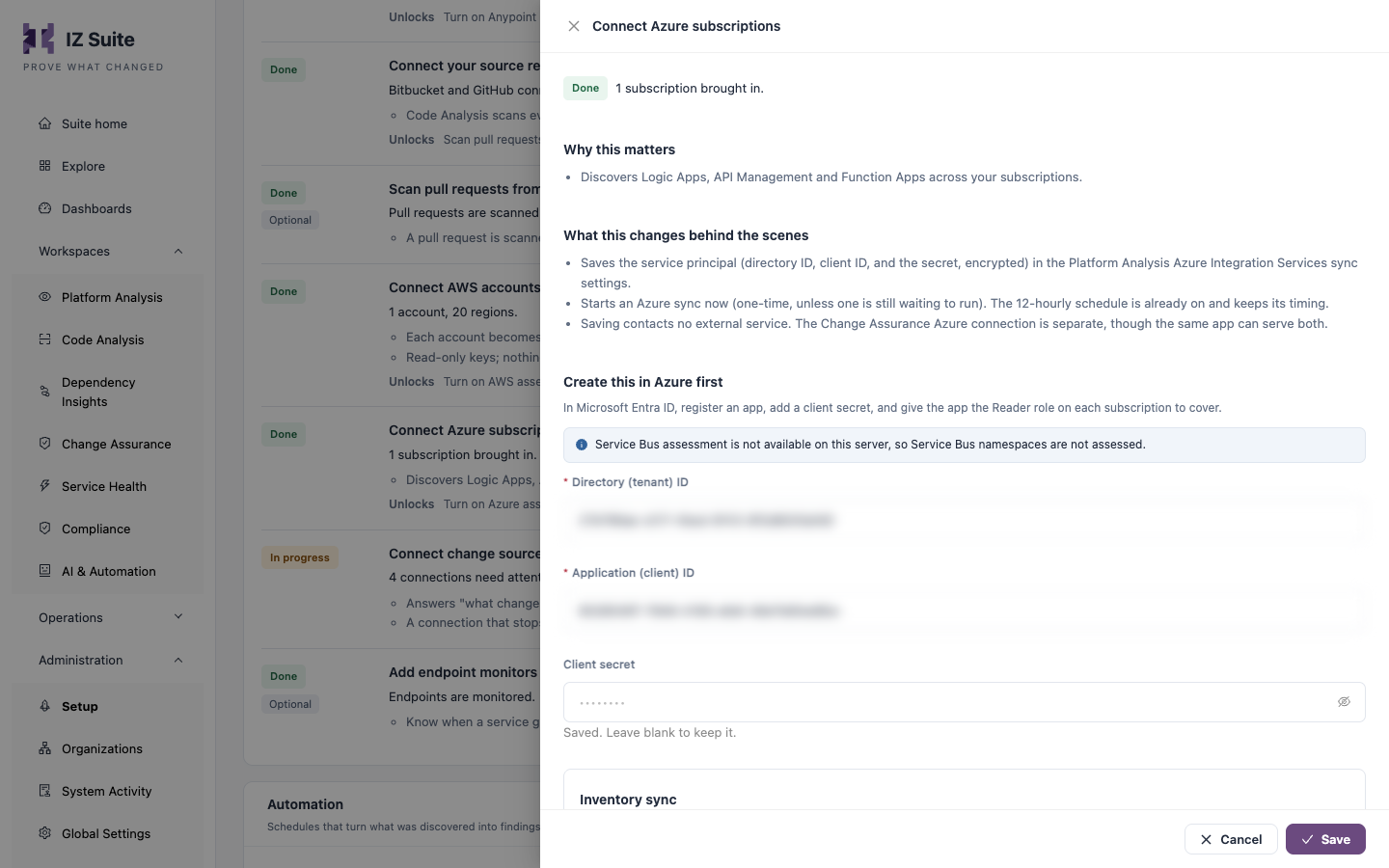
Open Administration → Setup and click Set up (or Review) on Connect Azure subscriptions.
Enter the Directory (tenant) ID, Application (client) ID and Client secret.
Leave Inventory sync on.
Click Save.
Saving stores the client secret encrypted and starts a one-time Azure Integration Services Sync; with Inventory sync on, the sync also runs every 12 hours. There is no test button: the first sync's run log under Execution History says what it found, and the step turns done when subscriptions arrive.
The Change Assurance Azure connection is separate, though the same app can serve both. Signing in to IZ Suite with an Azure account uses a different app registration too (see Single Sign-On).
What the sync brings in
Each Azure Integration Services Sync run signs in with the service principal and:
Brings in every subscription the app can read as an IZ Suite organization (source Azure).
Brings in each subscription's resource groups as that organization's environments.
A recurring sync picks up new subscriptions and resource groups. See them under Administration → Organizations: Manage environments lists a subscription's resource groups.
What is assessed
Azure Logic App Analysis
The Logic Apps in the selected resource groups: their workflow definitions and connections.
Azure API Management Analysis
The policies of the API Management services in the selected resource groups.
Azure Function App Analysis
The Function Apps in the selected resource groups: their configuration and functions.
Schedule the assessments
Open Administration → Setup and click Set up on Turn on Azure assessments. The step unlocks once Connect Azure subscriptions has brought subscriptions in.
Under What to assess, keep the assessment types you want.
Under When should this work run?, choose One time or Recurring and the interval.
Click Turn on assessments.
To set one cadence per subscription, with its own resource groups and exceptions per asset type, use Schedule platform scan under All Schedules.
Logic Apps, API Management policies and Function Apps can also be scanned from source with Code Analysis (see Supported Languages).
Where the results appear
Subscriptions and resource groups
Assessed Logic Apps, API Management services and Function Apps, with their quality gates and findings
Monitors on Azure resources
Sync and assessment runs
Next steps
How Assessments Run: agents, job types and schedules.
Single Sign-On: let people sign in with their Azure account.
Amazon Web Services: connect your AWS accounts.
Supported Platforms: back to the platform overview.
Last updated
Was this helpful?