> For the complete documentation index, see [llms.txt](https://knowledgebase.autorabit.com/llms.txt). Markdown versions of documentation pages are available by appending `.md` to page URLs; this page is available as [Markdown](https://knowledgebase.autorabit.com/product-guides/vault/knowledge-articles/restoring-knowledge-articles-with-vault.md).
# Restoring Knowledge Articles with AutoRABIT Vault
### What is Salesforce Knowledge and why do you need it?
Salesforce Knowledge allows you to build a Knowledge Base for storing and managing documentation to service your internal agents, website visitors, partners, and customers.
Users can create and manage a knowledge base with your company information and securely share it when and where it's needed. Salesforce Knowledge helps you establish a self-service model for your customers to solve their queries, leading to case deflection and increasing customer satisfaction.
AutoRABIT Vault can restore/replicate knowledge data `Knowledge__kav` records with rich text and large image files.
### Point to Consider
* Knowledge Articles should exist in your Salesforce org.
* Restoring of the KAV (knowledge objects) to be always processed in a different job.
* To restore/replicate other metadata/data objects, run a different job, including all the required metadata and data objects.
### Process
To restore Knowledge data objects with AutoRABIT Vault, follow the steps below:
> Similar steps are to be followed for **replicating** KAV objects in Vault. Replicate the KAV objects by navigating to the `Replicate` module.
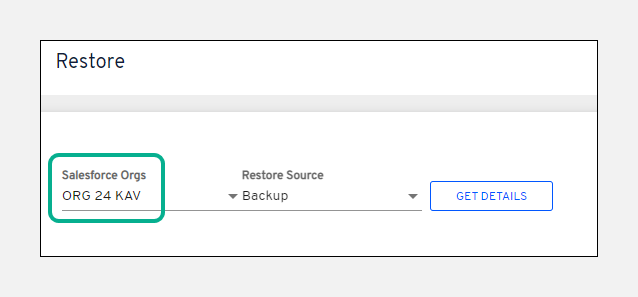
1. Login to your **AutoRABIT Vault** account and navigate to the **`Restore`** module.
2. In the **`Restore`** page, select your **`Salesforce org`** configured with KAV objects.
3. Select the **`Restore Source`** from the dropdown.
4. Click on **`Restore Now`**.
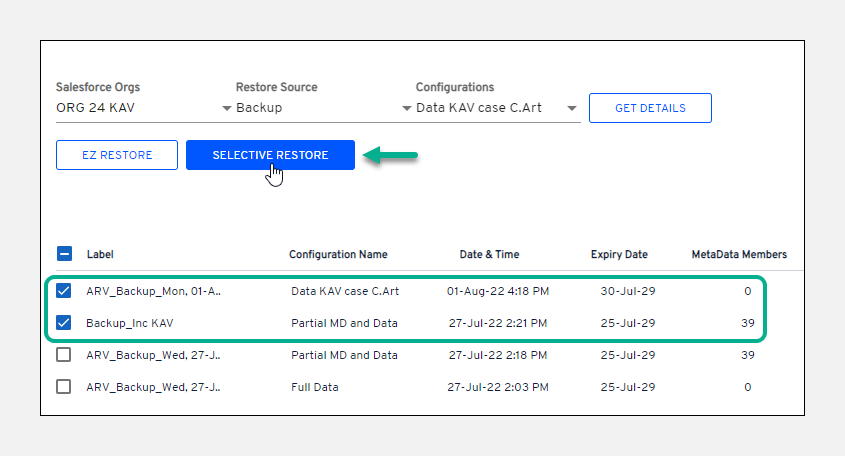
5. On the next screen, choose the **`backup configuration`** from the dropdown if not auto-selected.
6. Click on **`Get Details`**. Based on the **`restore source`** and **`configuration`** selection, the backup configured list will get displayed.
7. Select the **backups** from the list for restoration.
8. Click on **`Selective Restore`**.
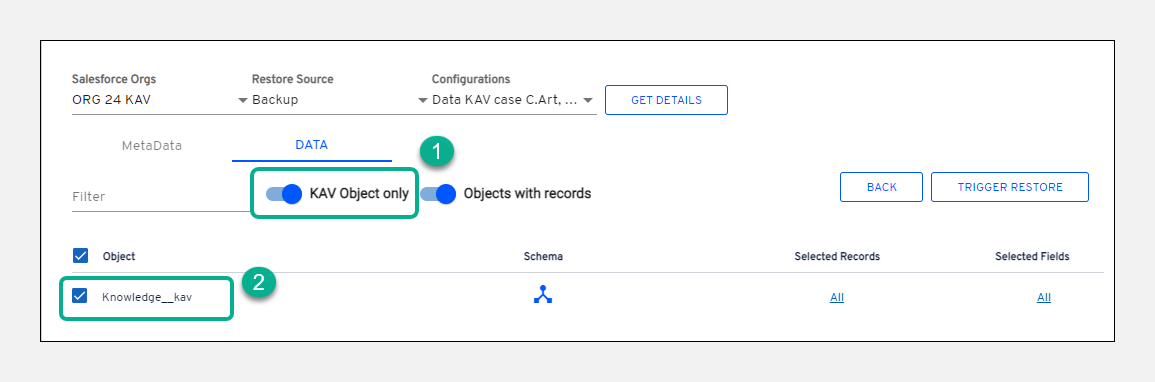
9. Go to the **`Data`** tab and slide the toggle bar to the right side for **`KAV Object only`**. This will allow viewing the KAV-related objects only in the list.
10. Select the **KAV object**.
11. You also have multiple configurations to choose from under the **`Data`** tab:
* **`Schema:`** This option will allow you to view all the child objects for your selected KAV object.
* **`Selected Records:`** This will allow you to choose the records for your object. By default, all the records available in the objects will be auto-selected.
* **`Selected Fields:`** This will allow you to select the fields for your object. By default, all the fields available in the objects will be auto-selected.
12. Click on **`Trigger Restore`**.
{% hint style="info" %}
**Point to Note:**
If you choose to deploy KAV objects along with other metadata/data objects, the AutoRABIT Vault application will not allow you to continue further. The message below pops up:
`Ensure only KAV object is selected for this restore job. KAV is a special object and can be processed only in separate job. To restore other data objects/ metadata run another job including all the required metadata and data objects.`
{% endhint %}
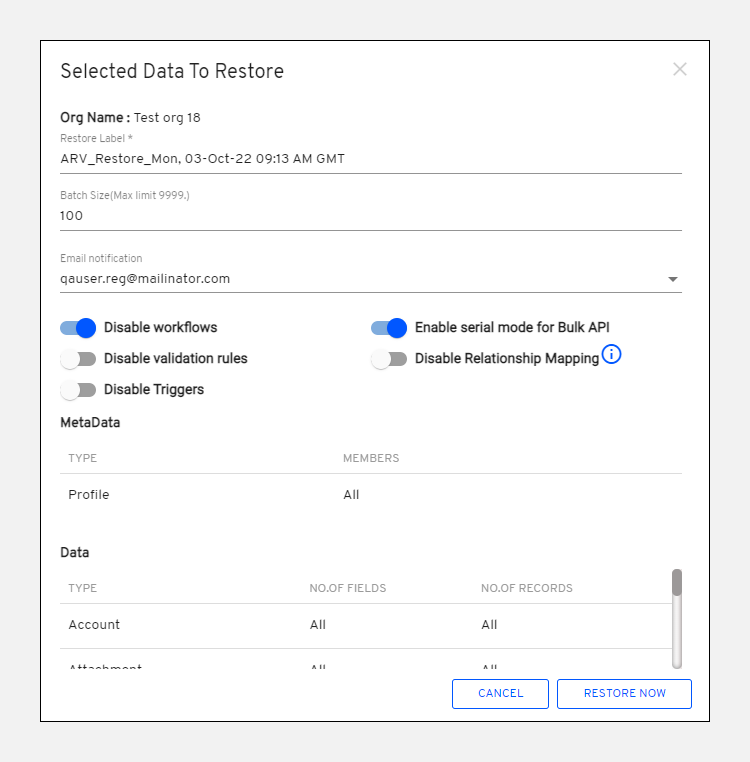
13. On the **`Selected Data To Restore`** screen, enter the **label** of your choice or leave the auto-generated default label.
14. Specify the **batch size** for components to retrieve records.
15. Choose the recipients from the **`Email notification`** dropdown of who should receive notifications whenever the action is performed. The currently logged-in recipient will automatically be checked by default.
16. Select the criteria for performing the restore and click on **`Restore Now`**.
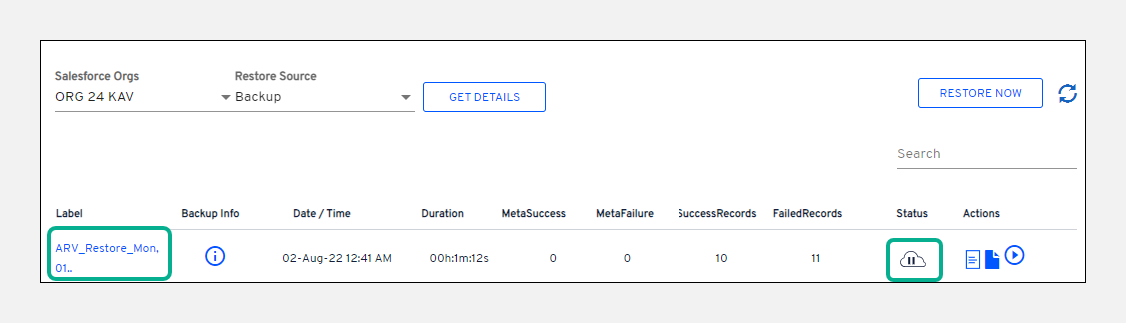
17. You'll be taken to the **`Restore Summary`** screen, which will display the status of the recently triggered restore activity.
18. Once the restore operation is successfully triggered, the status changes to **`Ready to link kav to case`**.
19. Under the **`Actions`** tab, you can perform additional operations:
* For an ongoing restore operation, you can **abort** the process in between using the **`Abort`**icon.
* View the **restore summary report** usingicon.
* View the **restore log report** usingicon.
* Trigger **linking KAV to case** usingicon.
{% hint style="info" %}
**Points to Note:**
* To ensure successful linking, do confirm that the **KAV records** for linking are in `Published` status in Salesforce.
* Once the Kav record is successfully linked, the job status changes to complete () state.
* The **`trigger`** () button will not be available; henceforth, linking KAV to case is triggered.
{% endhint %}
---
# Agent Instructions
This documentation is published with GitBook. GitBook is the documentation platform designed so that both humans and AI agents can read, navigate, and reason over technical content effectively. Learn more at gitbook.com.
## Querying This Documentation
If you need additional information that is not directly available in this page, you can query the documentation by asking a question.
Perform an HTTP GET request on the following URL with the `ask` and `goal` query parameters:
```
GET https://knowledgebase.autorabit.com/product-guides/vault/knowledge-articles/restoring-knowledge-articles-with-vault.md?ask=&goal=
```
`ask` is the immediate question: it should be specific, self-contained, and written in natural language.
`goal` is what the user is ultimately trying to achieve, the reason they need the answer. Sharing it helps GitBook give you a better, more relevant answer. A goal is most helpful when it describes the outcome the user wants rather than restating the question. For example, with `ask=how do I create an API token`, a goal like `automate deployments from our CI pipeline` lets GitBook tailor the answer to that use case.
The response will contain a direct answer to the question and relevant excerpts and sources from the documentation.
Use this mechanism when the answer is not explicitly present in the current page, you need clarification or additional context, or you want to retrieve related documentation sections.