> For the complete documentation index, see [llms.txt](https://knowledgebase.autorabit.com/llms.txt). Markdown versions of documentation pages are available by appending `.md` to page URLs; this page is available as [Markdown](https://knowledgebase.autorabit.com/product-guides/vault/vault-features/search-and-compare.md).
# Search & Compare
### Introduction
The Search & Compare feature enables users to identify, analyze, and restore data changes across Backups and Archives within AutoRABIT Vault. It provides a structured way to search for specific records using defined criteria and compare data across selected point-in-time snapshots.
This functionality helps ensure data integrity, supports audit requirements, and enables controlled restoration of records when needed.
{% hint style="info" %}
**Note:**
The **Search & Compare** functionality is supported only for data available in **AWS S3**. Data stored outside AWS S3 is not supported for Search & Compare operations.
{% endhint %}
### Overview
**Search & Compare allows users to:**
* Define search criteria using an advanced query builder
* Select a specific time range to identify relevant backups and archives
* Retrieve point-in-time data from historical snapshots
* Compare records across multiple snapshots
* Identify additions, modifications, and deletions
* Restore selected records based on comparison results
The feature operates on stored backup and archive data, ensuring that historical states of records can be reviewed and validated without impacting live environments.
Search results are presented in a structured comparison view, allowing users to analyze field-level differences and take appropriate action through targeted restore operations.
## Step-By-Step Guide
#### **Create the Job Config**
1. Navigate to **Search & Compare module** and click on the **Job Config**.
2. Select the required **Salesforce Org** and click **Apply**.
3. Click **New Config** to create a new Search and Compare configuration.
#### **Define Search Criteria**
1. Specify the required parameters:
1. **From Date**\* – Select the start date.
2. **To Date**\* – Select the end date.
3. **Configurations**\* – Select one or more backup/archive configurations.
2. All mandatory fields must be completed before proceeding.
#### **Select Object**
1. Choose the Salesforce **Object** to be searched and compared.
2. The object selection determines the available fields and filtering options.
#### **Select Fields and Apply Filters**
1. Select the required **Fields** from the list.
2. Click **Add Filter** to define filter conditions, if required.
3. Locate the **Case Sensitive** toggle at the bottom of the screen.
Enable or disable the **Case Sensitive** option based on the requirement:
* Enabled: Applies case-sensitive filtering to text-based fields
* Disabled: Applies case-insensitive filtering
Click the **info (i)** icon next to the toggle to view additional details.
4. The **Case sensitivity info** pop-up is displayed.
Review the details:
* Case-sensitive search is enabled by default for text-based fields when using operators such as **Starts with**, **Ends with**, **Contains**, **Equals**, and **Not Equals**
* Disabling this option enables case-insensitive search, which may impact query performance
5. Click **OK** to close the pop-up.
6. Modify the auto-generated query if customization is needed.
7. The query section dynamically updates based on the selected fields and filters.
8. Click **Next** to proceed.
#### **Save Configuration**
1. Enter the following details:
1. Enter a unique **Label**\*. (Alphanumerics, underscores, hyphens, and spaces are allowed.)
2. Specify **Preserve The Result For**\* in days (Maximum: 30 days).
3. Enter a **Description**, if required.
4. Click **Save** to create the configuration.
5. Click **Cancel** to discard the changes.
6. After saving, a confirmation message is displayed:
7. *Search And Compare config '' created successfully*
8. Click **OK** to close the message and return to the configuration screen.
## View Available Configurations
1. After selecting the Salesforce Org and clicking **Apply**, the configured records are displayed in the **Job Config** grid.
2. **The grid displays:**
1. **Label**
2. **Object Name**
3. **Config Names**
4. **Search Range**
5. **Created By / Created Date**
6. **Modified By / Modified Date**
7. **Query**
8. **Actions**
9. **Use Filter By to refine the list.**
10. **Click New Config to create a new configuration.**
### View Query
1. Click the **Query (\)** icon under the *Query* column to view the configured query.
2. The query is displayed in a dialog window.
3. Click OK to close the dialog.
### Run Configuration
1. Click the **Run (****▶****)** icon under the Actions column to execute the configuration.
### Edit Configuration
1. Click the **Edit (****✎****)** icon to modify the existing configuration details.
### Clone Configuration
1. Click the **Clone (****📄****)** icon to create a duplicate of the selected configuration.
### Delete Configuration
1. Click the **Delete (🗑)** icon to remove the selected configuration.
### View All Config Names
1. Click the **Config Names** column to view all associated configuration names.
2. The **Config Names** dialog displays:
* A search field to filter config names
* The list of associated configurations
3. Click **Close** to exit the dialog.
### **Run Search and Compare Configuration**
1. Initiate Run
1. In the **Job Config** grid, click the **Run (▶)** icon under the Actions column for the required configuration.
2. Configure Job Run Details
1. The **Job Run Details** dialog is displayed.
2. **The dialog shows:**
1. **Object Name**
2. Auto-generated **Label**
3. Under **Emails**, select the email addresses to receive job notifications.
4. Click **Search** to execute the configuration.
5. Click **Cancel** to exit without running the job.
### **Restore Records from the Backups:**
AutoRABIT Vault displays the list of backups and archives identified based on the selected date range and the executed Search & Compare operation. From the resulting list, select the required backup to view its associated records. Individual records can then be selected and restored as needed.
1. As soon as the run is initiated, a new job will be start running, with an option to terminate the job run.
2. **Access Job History**: Navigate to **Search & Compare → Job History**.
1. The page displays the list of executed Search and Compare jobs with the following details:
1. **Label**
2. **Configuration Name**
3. **Object Name**
4. **Job Info**
5. **Duration**
6. **Created Date**
7. **Valid Until**
8. **Created User**
9. **Status**
10. **Actions**
2. Click on the required **Label** to view job details.
3. **View Job Details**
1. The job details page displays:
1. **Org Name**
2. **Job Label**
3. **Configuration Label**
4. **Selected Object**
5. **From Date**
6. **To Date**
2. The page lists associated backup jobs, including:
1. **Label Name**
2. **Configuration Name**
3. **Job Type**
4. **Records Matched**
5. **Created Date & Time**
3. Select the required backup entry to proceed.
4. Select Records for Restore
1. Clicking the backup would open the **Selected Object** dialog.
2. Use the available options to:
1. Filter records using **Columns**, **Operator**, and **Search Text**
2. Choose file: Upload a file using this option
3. Navigate between record pages using the “Previous & Next” Rows
4. Download results
5. Change view
3. Select the required records from the list.
4. Click Restore to initiate the restore process.
5. Click **Cancel** to exit.
5. Review Restore Prerequisites
1. A validation message is displayed highlighting important considerations such as:
1. Active triggers, workflows, flows, and validation rules
2. Metadata size limitations
3. Inactive owners
4. Missing dependencies
2. Review the information and click **Got It** to continue.
6. Restore Summary
1. The **Restore Summary** dialog displays:
1. **Org Name**
2. **Restore Label**
3. **Batch Size**
4. **Email Notification**
5. **Salesforce Automation controls**
2. It also provides a summary of:
1. Selected **Metadata**
2. Selected **Data**
3. Number of records
3. Click **Restore Now** to proceed.
4. Click **Cancel** to abort.
7. Restore Job Confirmation
1. A confirmation message is displayed indicating that the restore job has been created successfully.
2. Click **OK** to continue.
8. Access Restore Page: Click “OK” will redirects the navigation to the “Restore” module.
9. Observe the restore page for job details
10. View Restore Job Details
1. Click the required restore job label.
2. **The details dialog displays**: 1. **MetaData** and **Data** tabs 2. Toggle options to view:
1. Failure Records
2. Success Records
3. Click **Download** to export results if required.
4. Click **Close** to exit.
### **Search & Compare - Job History Page**
1. Navigate to **Search & Compare → Job History**.
2. Select the required **Salesforce Org** and click **Apply**.
3. Review the list of backup jobs displayed with configuration name, object name, duration, and status.
4. Click the required **Label** to proceed with comparison.
#### Select Backups for Comparison
1. From all the listed backups, at least should be selected to perform comparison
2. Select two backup labels using the checkboxes.
3. Ensure two backups are selected.
4. Click the **Compare** button to initiate the comparison process.
5. Click **Compare**.
#### Save Compare Configuration
1. Enter a **Label** for the comparison.
2. Specify the number of days to preserve the result (maximum 30 days).
3. Add a description if required.
4. Click **Save**.
## Search & Compare – Compare Operation
1. Review the confirmation message indicating that the comparison has started successfully.
2. Click **OK**.
3. Clicking OK will redirect the navigation to the “Compare” screen.
#### Compare History Page
1. The recently triggered job would be running on the top of the list.
#### Compare Result View
1. Review the selected object and snapshot details displayed at the top.
2. Use filters such as **All**, **No Changes**, **Modifications**, or **Deletions to navigate across the changes identified in the application**.
3. Click the **View Records** icon to view field-level differences.
#### View Record Details
1. Review field-wise comparison between **Snapshot-1** and **Snapshot-2**.
2. Scroll to view additional fields.
3. Click **Close** to return to the results page.
#### Select Field
1. Click **Select Field**.
2. Map or modify required fields.
3. Click **Apply** to update the selection.
#### Fields to Compare
1. Click **Fields to Compare**.
2. Select the required fields (maximum 20 fields).
3. Click **Compare**.
#### Re-execution Confirmation
1. Review the confirmation message for re-execution.
2. Click **OK**.
3. Monitor the status update in Compare History.
#### Change View / Export
1. Click **Change View** to modify the column display.
2. Click **Export** to download the comparison results if required.
#### Review and Restore
1. From the Compare results page, select the required record.
2. Click **Review and Restore**.
#### Restore Guidelines
1. Review the restore considerations displayed (triggers, workflows, dependencies, metadata limits, etc.).
2. Click **Got It** to proceed.
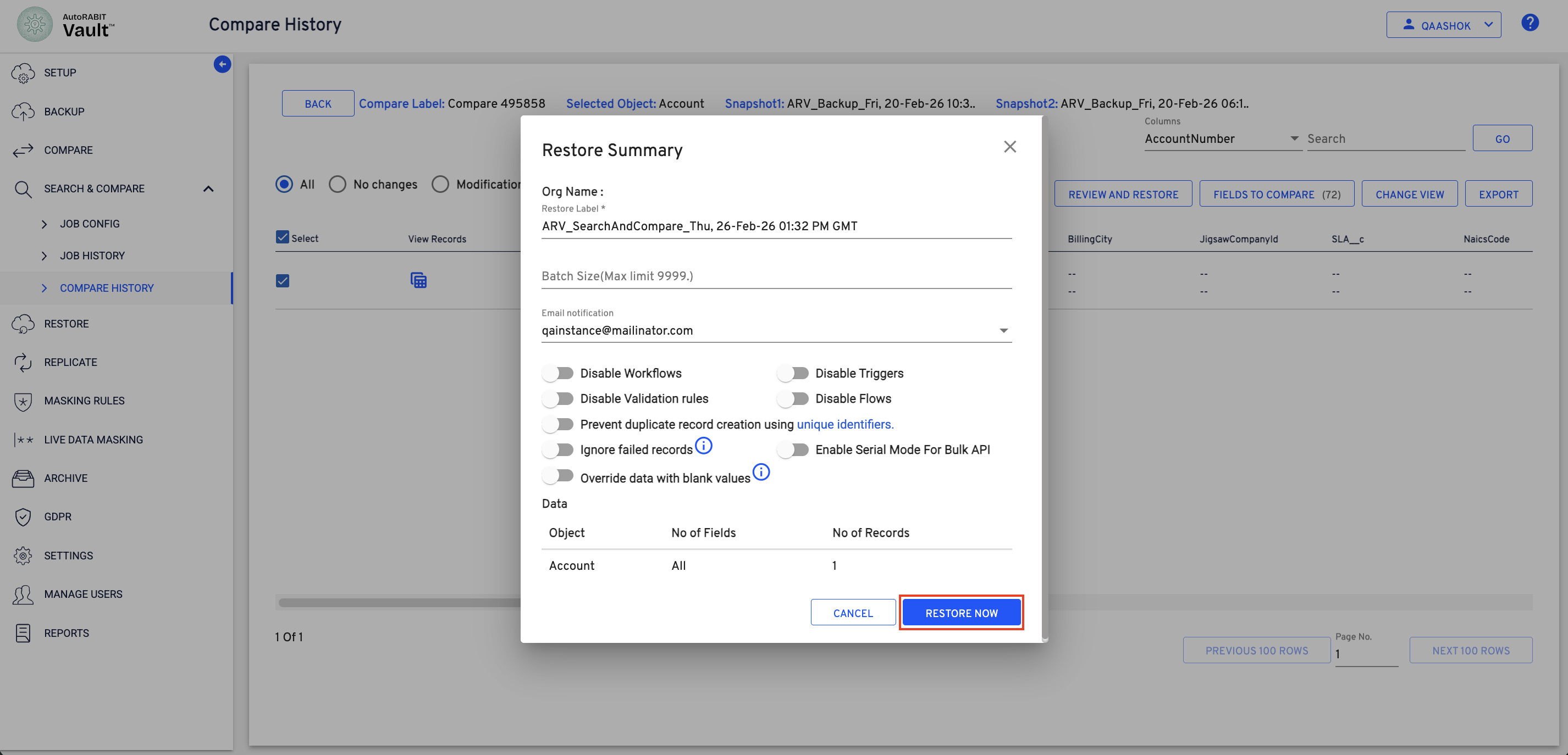
#### Restore Summary
1. Verify the **Org Name** and **Restore Label**.
2. Enter the required **Batch Size** (maximum limit 9999).
3. Select or modify the email notification address if required.
4. Configure restore options such as disabling workflows, triggers, validation rules, flows, or enabling serial mode.
5. Review the object, number of fields, and number of records.
6. Click **Restore Now**.
#### Restore Job Status
1. Navigate to **Restore** from the left panel.
2. Review the restore job entry with date, duration, success records, and status.
3. Monitor the job status until completion.
#### Search and Compare Config
1. Click the “pencil icon” to edit the already created job
## Clone Configuration
1. Navigate to **Search & Compare → Job Config**.
2. In the configuration list, click the **Clone** icon under the **Actions** column for the required configuration.
#### Config Clone Window
1. In the **Config Clone** window, verify the **Source Org**.
2. Select the **Destination Org**.
3. Click the **Configurations** dropdown to choose the required configuration(s).
4. Enter a new **Label** for the cloned configuration.
5. Click **Clone**.
#### Select Configurations
1. From the dropdown list, select one or more configurations to clone.
2. On completing the required selections, click “CLONE” to initiate the cloning.
#### Metadata Validation Warning
1. If metadata differences are detected, review the warning message.
2. Check the listed **Objects** and **Fields** that may be missing in the target org.
3. Click **Confirm** to proceed or **Cancel** to abort the cloning process.
#### Clone Success Message
1. Upon successful cloning, a confirmation message is displayed indicating the target org.
2. Click **OK** to close the message.
3. Verify the cloned configuration in the destination org by selecting it from the Salesforce Org dropdown and clicking **Apply**.
#### Delete Configuration
1. In the configuration list, locate the required config.
2. Click the **Delete** icon under the **Actions** column.
#### Delete Confirmation
1. A confirmation message is displayed with the configuration name.
2. Click **Delete** to permanently remove the configuration.
3. Click **Cancel** to abort the deletion.
4. After successful deletion, the configuration is removed from the list.
---
# Agent Instructions
This documentation is published with GitBook. GitBook is the documentation platform designed so that both humans and AI agents can read, navigate, and reason over technical content effectively. Learn more at gitbook.com.
## Querying This Documentation
If you need additional information that is not directly available in this page, you can query the documentation by asking a question.
Perform an HTTP GET request on the following URL with the `ask` and `goal` query parameters:
```
GET https://knowledgebase.autorabit.com/product-guides/vault/vault-features/search-and-compare.md?ask=&goal=
```
`ask` is the immediate question: it should be specific, self-contained, and written in natural language.
`goal` is what the user is ultimately trying to achieve, the reason they need the answer. Sharing it helps GitBook give you a better, more relevant answer. A goal is most helpful when it describes the outcome the user wants rather than restating the question. For example, with `ask=how do I create an API token`, a goal like `automate deployments from our CI pipeline` lets GitBook tailor the answer to that use case.
The response will contain a direct answer to the question and relevant excerpts and sources from the documentation.
Use this mechanism when the answer is not explicitly present in the current page, you need clarification or additional context, or you want to retrieve related documentation sections.