> For the complete documentation index, see [llms.txt](https://knowledgebase.autorabit.com/llms.txt). Markdown versions of documentation pages are available by appending `.md` to page URLs; this page is available as [Markdown](https://knowledgebase.autorabit.com/product-guides/arm-1/arm-features/version-control/ez-commits/commits-summary.md).
# Commits Summary
## Overview
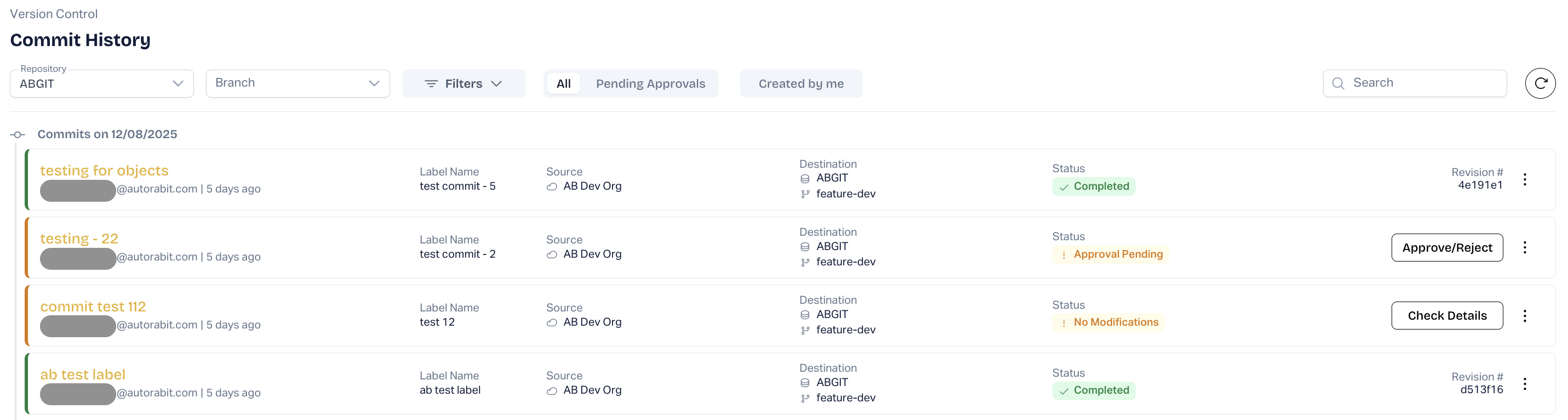
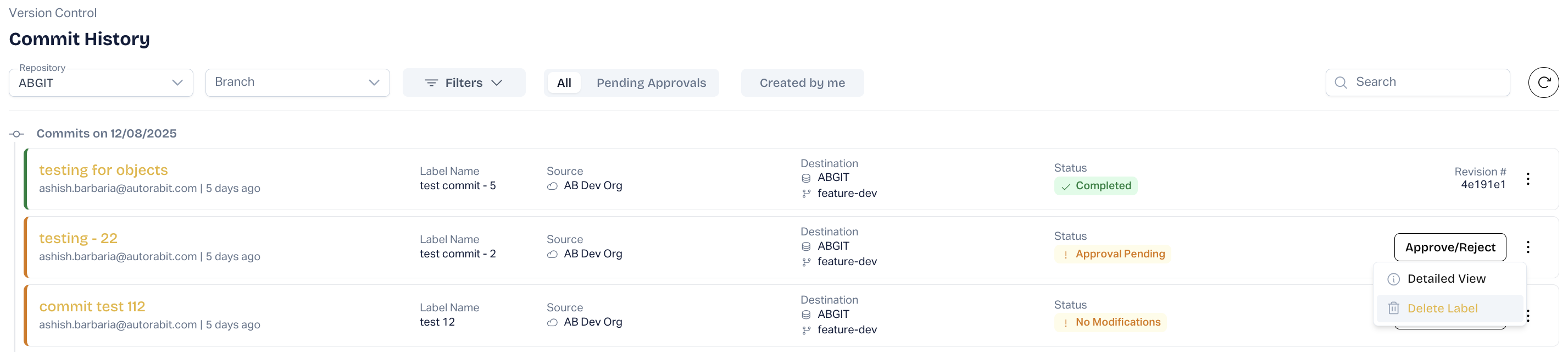
In AutoRABIT ARM, the **Commits Summary** screen provides detailed information about each commit or merge, including diffs of modifications. Commits are organized by the date they were made in ARM. By default, only commits by the logged-in user are displayed in reverse chronological order (most recent first).
## Accessing the Commits Screen
1. Navigate to **Version Control > Commits** to access the **Commits** screen.
2. For optimal viewing, set your browser's zoom level to **80%** (Chrome/Firefox).
## Viewing Commits
* To view all commits (including those by teammates), Click the **Created By Me** switch to the left.
* To filter commits pending reviewer approval, Click the **Pending Approvals** switch to the right.
* Use the search field to filter commits by Commit Type, Board, Created by and Created Range, revision number, or comment. *Note: Search is case-sensitive.*\
## Commit Details
Each commit entry displays:
* **Commit Type Initials**:
* PV: Prevalidation Commit
* EZ: EZ-Commit
* M: Merge Commit
* VM: Validate and Merge
* BB: Branching Baseline
* RC: Revert Commit
* CI: Commit from CI Job
* DR: Dry Run
* EC: External Commit
* Commit label name
* Commit message
* Committer's username
* Commit creation date
* Version Control repository, destination, and source branch details
* Salesforce Org details (if applicable)
* Commit Revision label
* Commit/Merge status
## Quick Merge
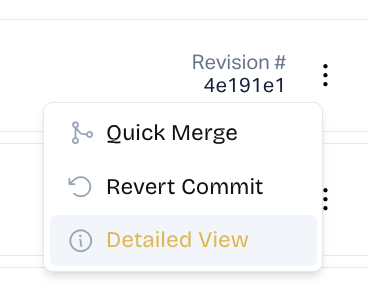
Quick Merge allows direct merging from the Commits screen without navigating to the New Merge screen.
1. Hover over the three dots beside the desired commit.
2. Click **Quick Merge**.
3. Confirm the action in the pop-up.
**Note:** Quick Merge is not available for:
* Prevalidation Merge commits pending approval
* Already merged commits
## Detailed View
1. Hover over the three dots beside a commit and click **Detailed View**.\
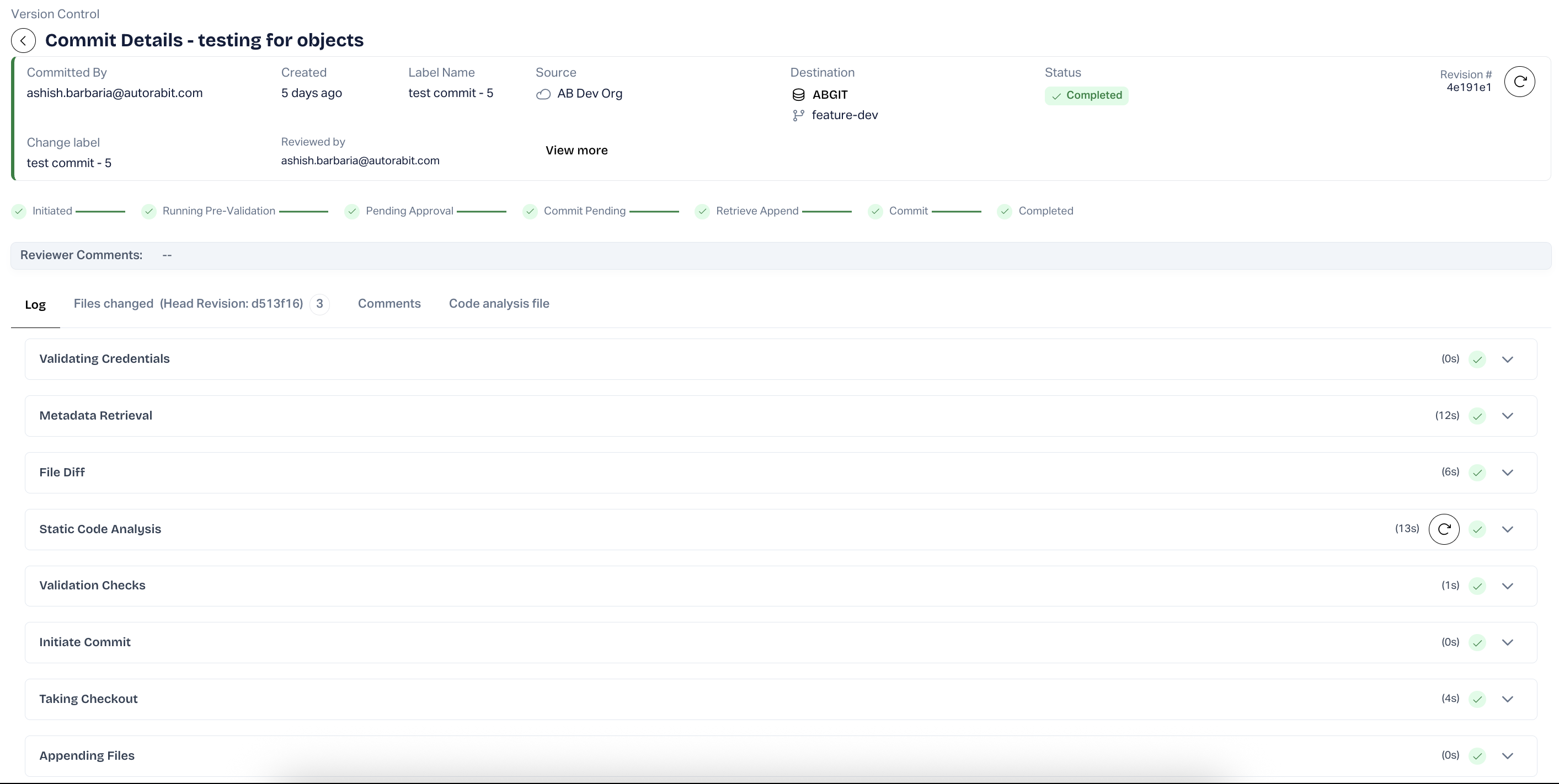
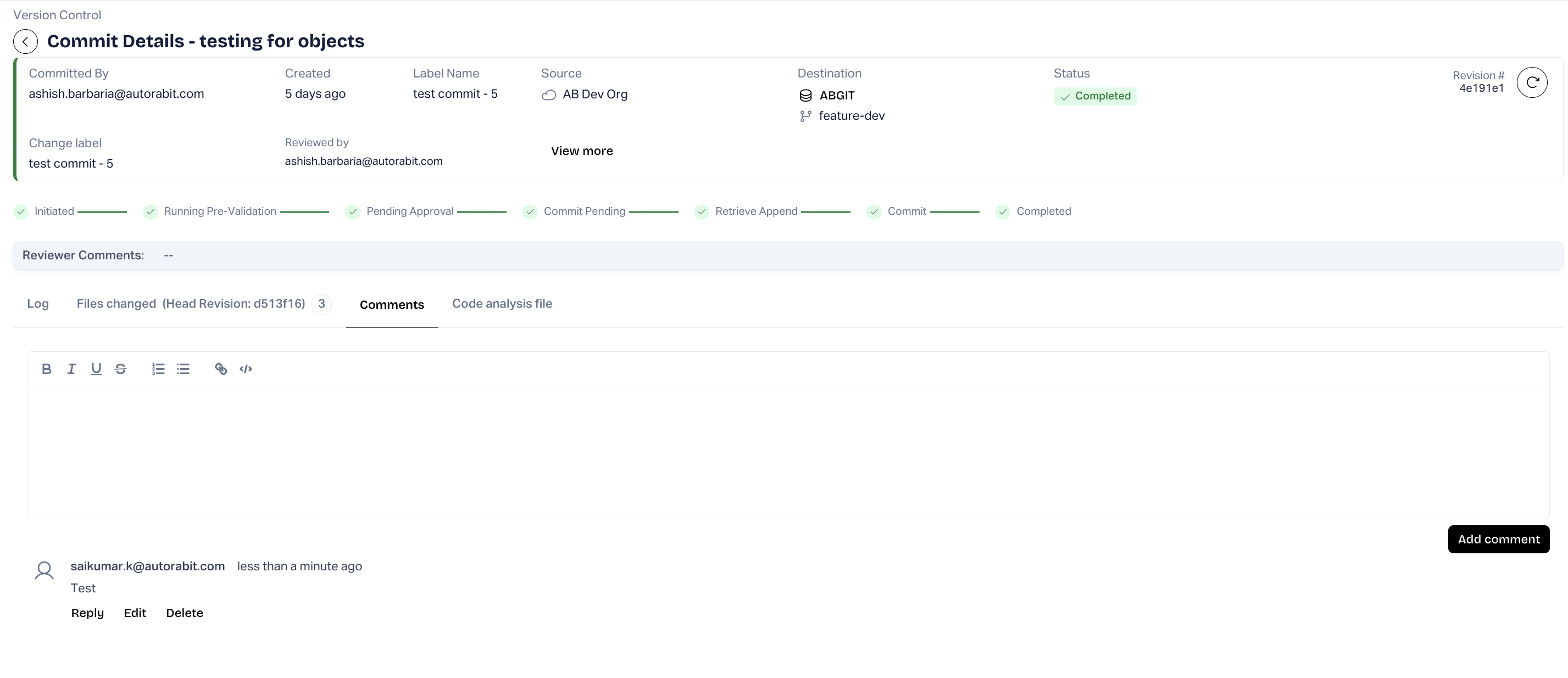
The detailed view includes:
* Commit details
* Merge/EZ-Commit configuration
* Pull Request section (for EZ-Commits only)
* Reviewer comments
* Metadata diffs
* Deployment validation
* Code Analysis
* Logs and ALM integration\
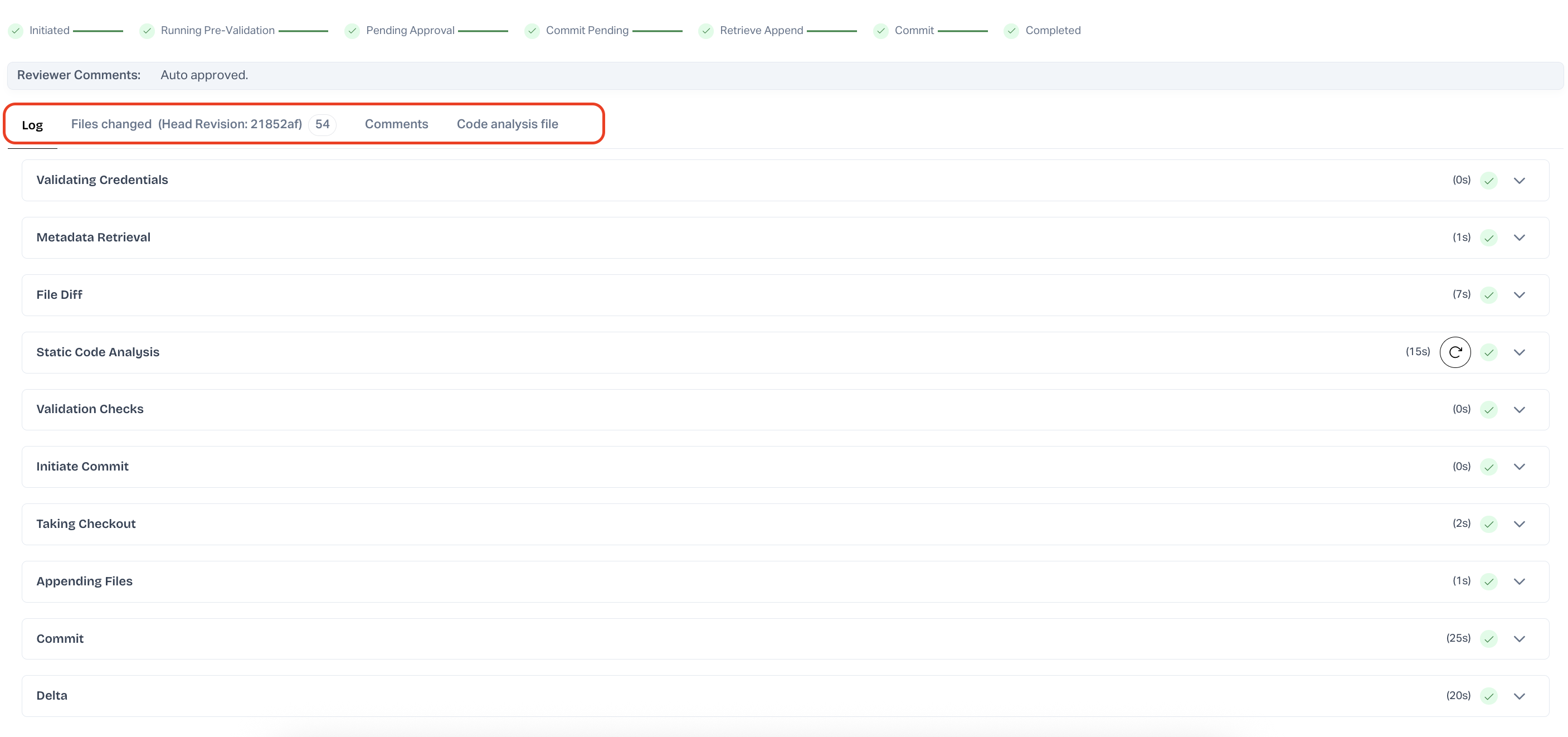
Visual display of Commit steps
Commit details Report panel
## Code Analysis File
Static Code Analysis (SCA) is part of the security development lifecycle. Tools include ApexPMD, Checkmarx, Salesforce Scanner, and CodeScan. Violations are displayed by file and line
Sample Static Code Analysis Report in EZ Commit details
## Files Changed
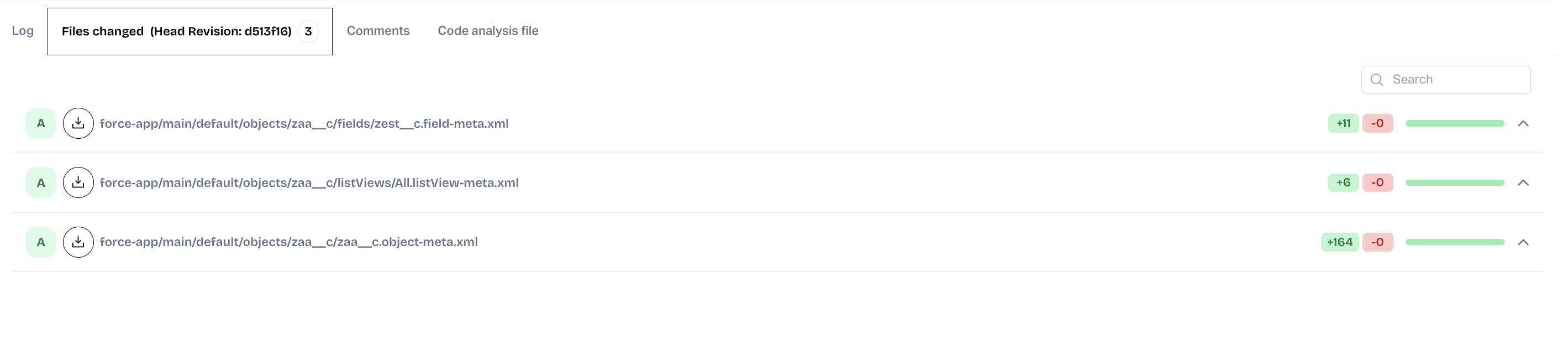
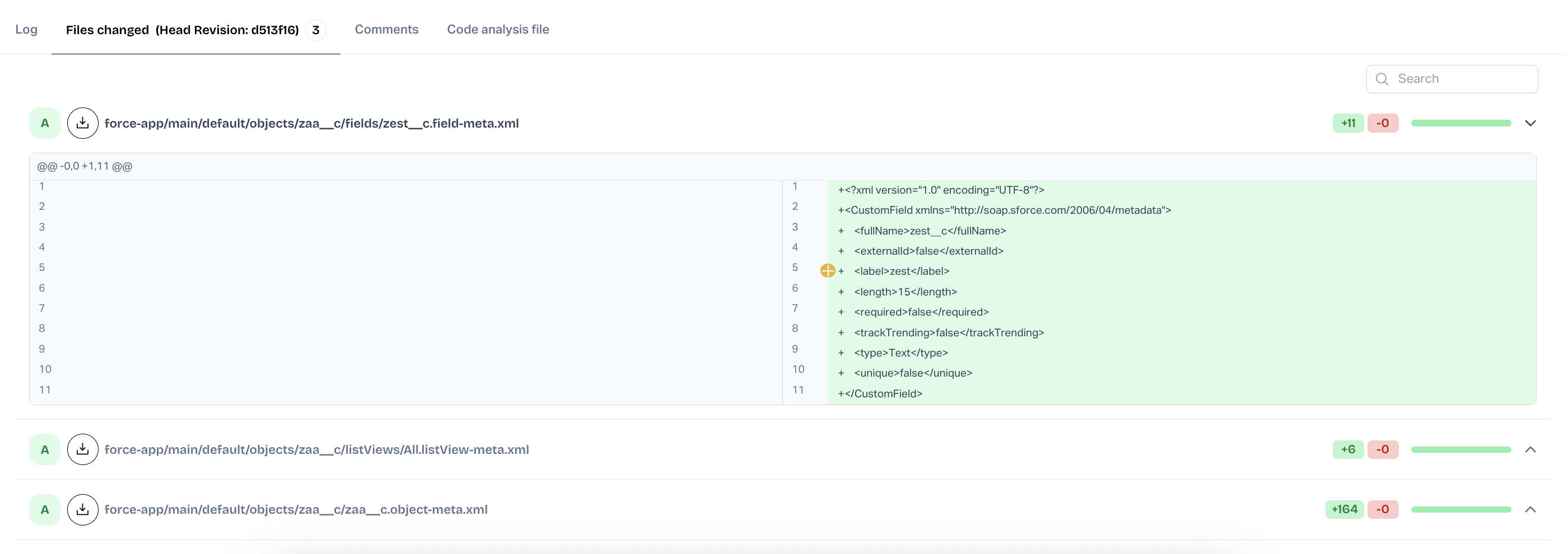
ARM compares metadata changes between branches/orgs. RED indicates deletions or changes from the source; GREEN indicates changes in the destination.\
Metadata Diff view
Inline diff and download options
## Commit Status Types
* **Completed**: Successful commit/merge.
* **Failed**: Validation/deployment failed.
* **Merge Conflicts**: Conflicting files during merge.
* **Auto Rejected**: Review not completed in time.
* **Review Pending**: Awaiting reviewer action.
* **No Modifications**: No differences found.\
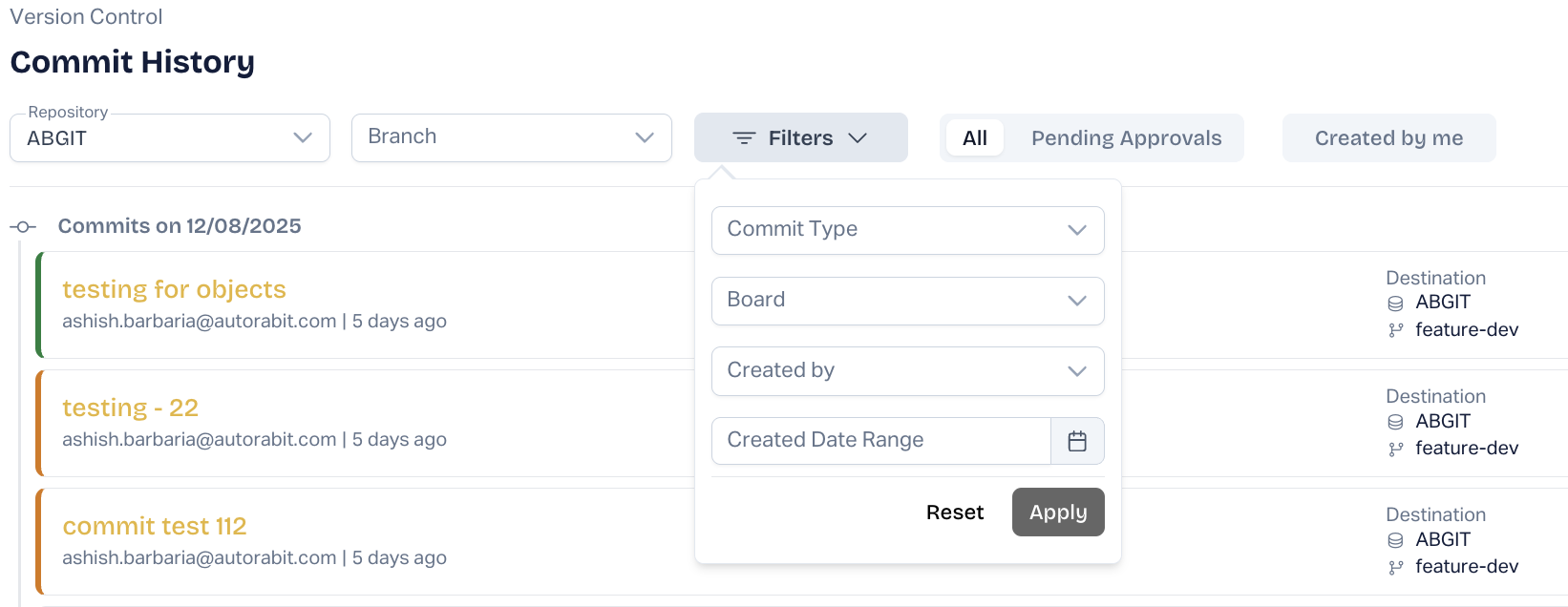
## Filtering Commits
Filter options include:
* Repository and Branch
* Created by me
* All or Pending Approvals
* Pending Approvals
* Date Range
* Commit Type
* Created by
* Board (Salesforce or Vlocity)\
## Delete Commits/Merges
Only users who created the commit or org admins can delete commits (unmerged only).
**Note:**
* Deleted commits are not recoverable.
* An email notification is sent upon deletion.
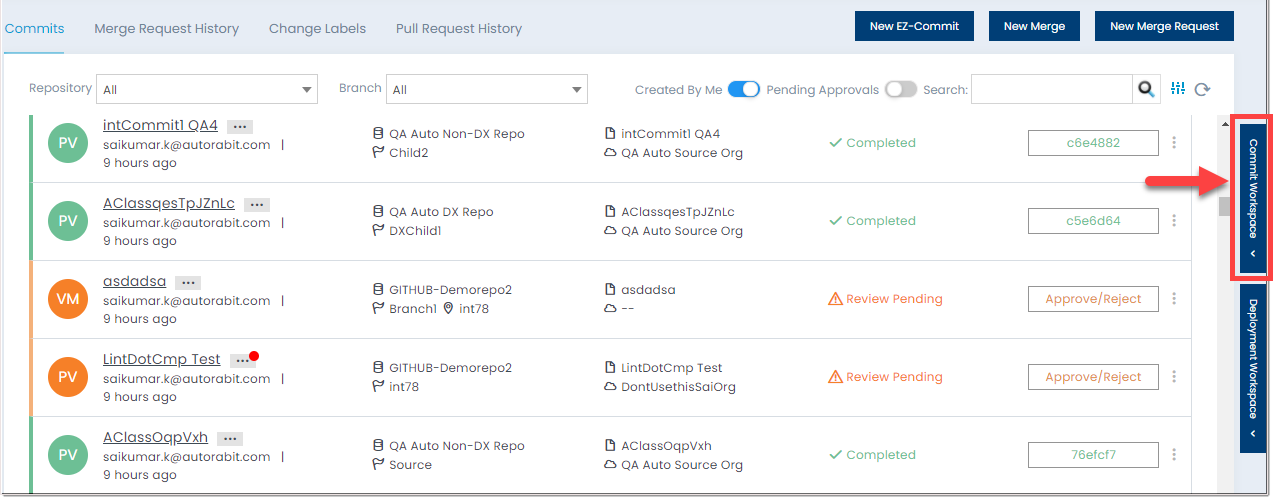
## Commit Workspace
Parallel commits from the same source org to different VC branches are shown in the **Commit Workspace**. Users may remove commits queued for deployment.
Commit queue overview
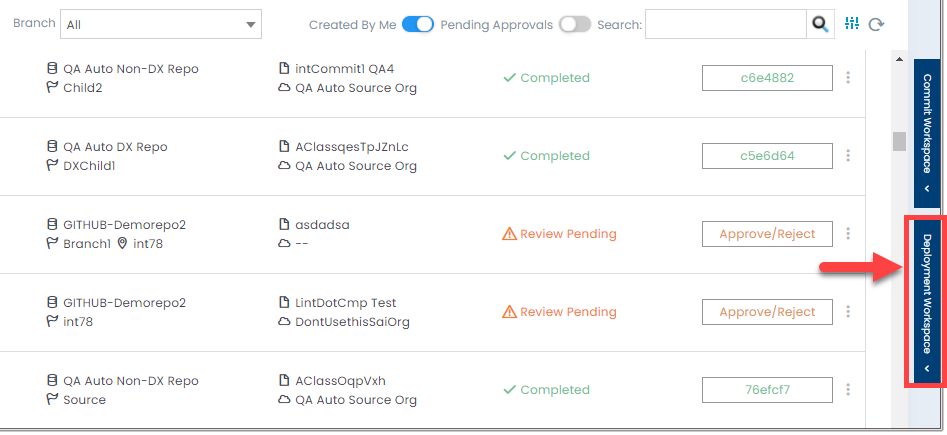
## Deployment Workspace
Prevalidated deployments waiting in the queue are listed in the **Deployment Workspace**.
Prevalidation queue view
---
# Agent Instructions
This documentation is published with GitBook. GitBook is the documentation platform designed so that both humans and AI agents can read, navigate, and reason over technical content effectively. Learn more at gitbook.com.
## Querying This Documentation
If you need additional information that is not directly available in this page, you can query the documentation by asking a question.
Perform an HTTP GET request on the following URL with the `ask` and `goal` query parameters:
```
GET https://knowledgebase.autorabit.com/product-guides/arm-1/arm-features/version-control/ez-commits/commits-summary.md?ask=&goal=
```
`ask` is the immediate question: it should be specific, self-contained, and written in natural language.
`goal` is what the user is ultimately trying to achieve, the reason they need the answer. Sharing it helps GitBook give you a better, more relevant answer. A goal is most helpful when it describes the outcome the user wants rather than restating the question. For example, with `ask=how do I create an API token`, a goal like `automate deployments from our CI pipeline` lets GitBook tailor the answer to that use case.
The response will contain a direct answer to the question and relevant excerpts and sources from the documentation.
Use this mechanism when the answer is not explicitly present in the current page, you need clarification or additional context, or you want to retrieve related documentation sections.