> For the complete documentation index, see [llms.txt](https://knowledgebase.autorabit.com/llms.txt). Markdown versions of documentation pages are available by appending `.md` to page URLs; this page is available as [Markdown](https://knowledgebase.autorabit.com/product-guides/arm-1/arm-features/ncino/feature-deployment/deployment-using-feature-migration-template-1.md).
# Deployment Using Feature Migration Template
This article will walk you through deploying nCino data using the Feature Migration template. This provides a step-by-step procedure for creating a fresh migration using the "Deploy from template configuration." If you're referring to this article for the first time, please navigate to [Feature Migration Templates](/product-guides/arm-1/arm-features/ncino/feature-migration/create-a-feature-migration-template.md), which guides you through the process of creating a new migration template in AutoRABIT.
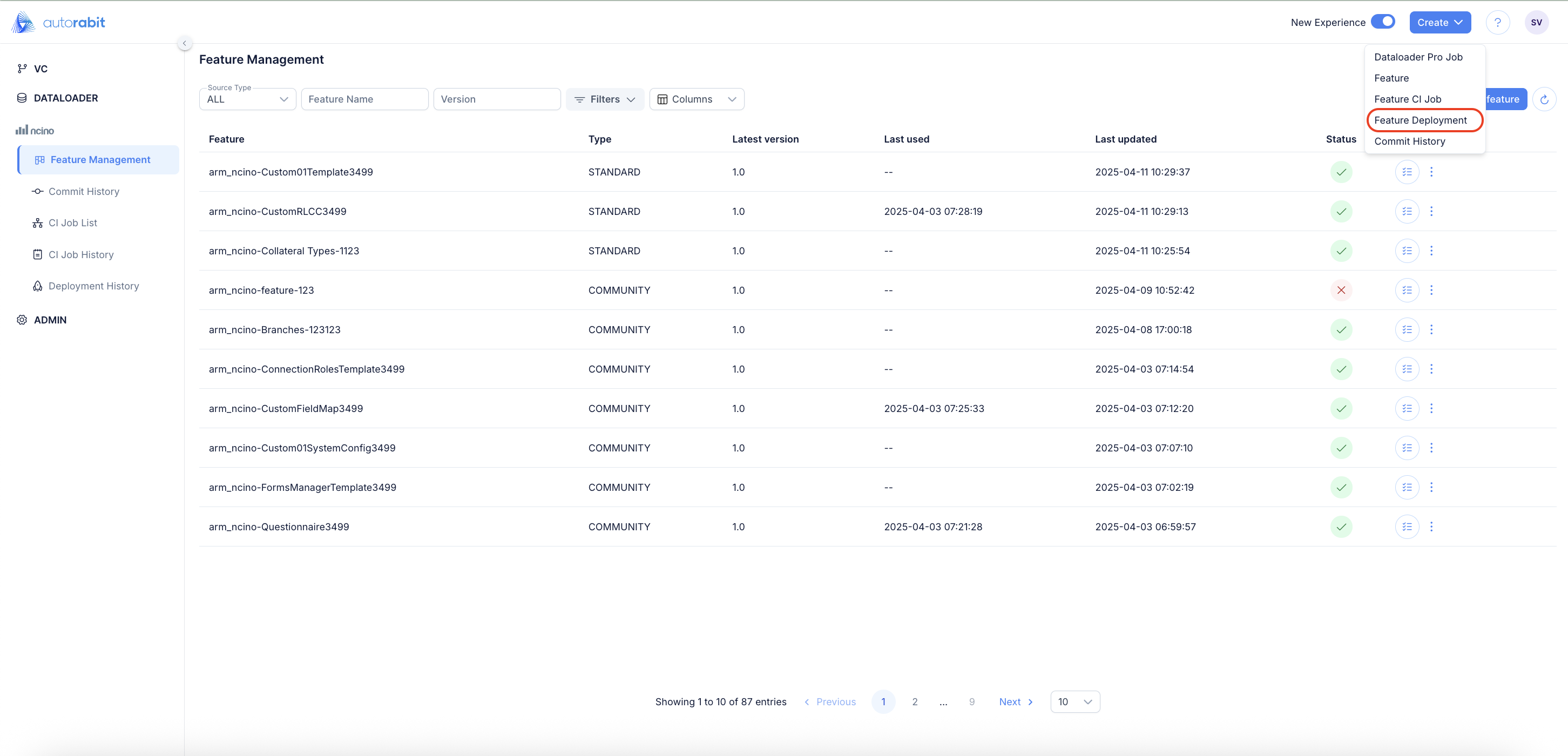
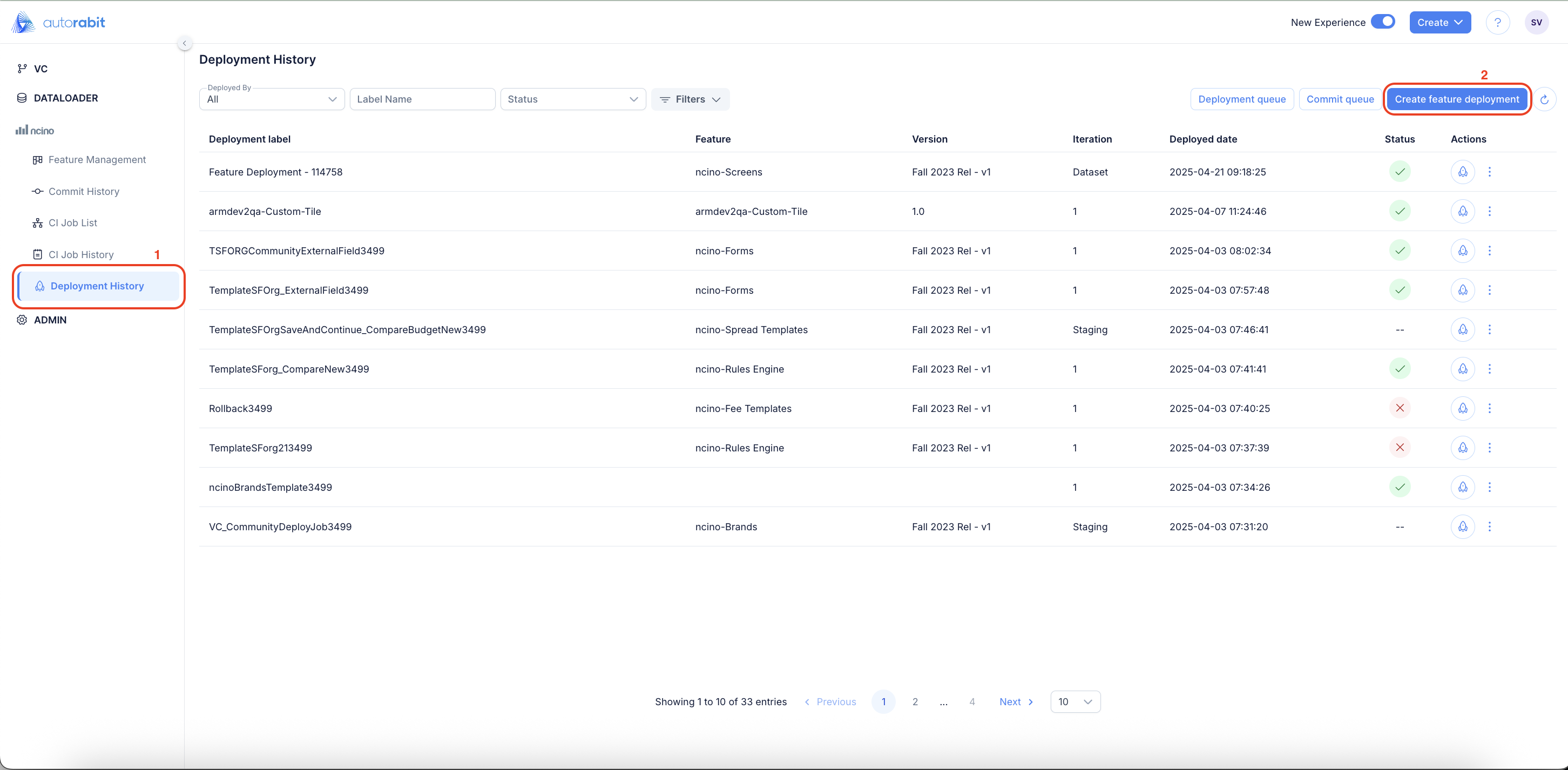
1. A Feature Deployment can be triggered in the following ways:
a. Click on the "Create" button to see the options and select "Feature Deployment" as the option.
b. Click on "Deployment History" under the nCino tab to access "Create feature deployment."
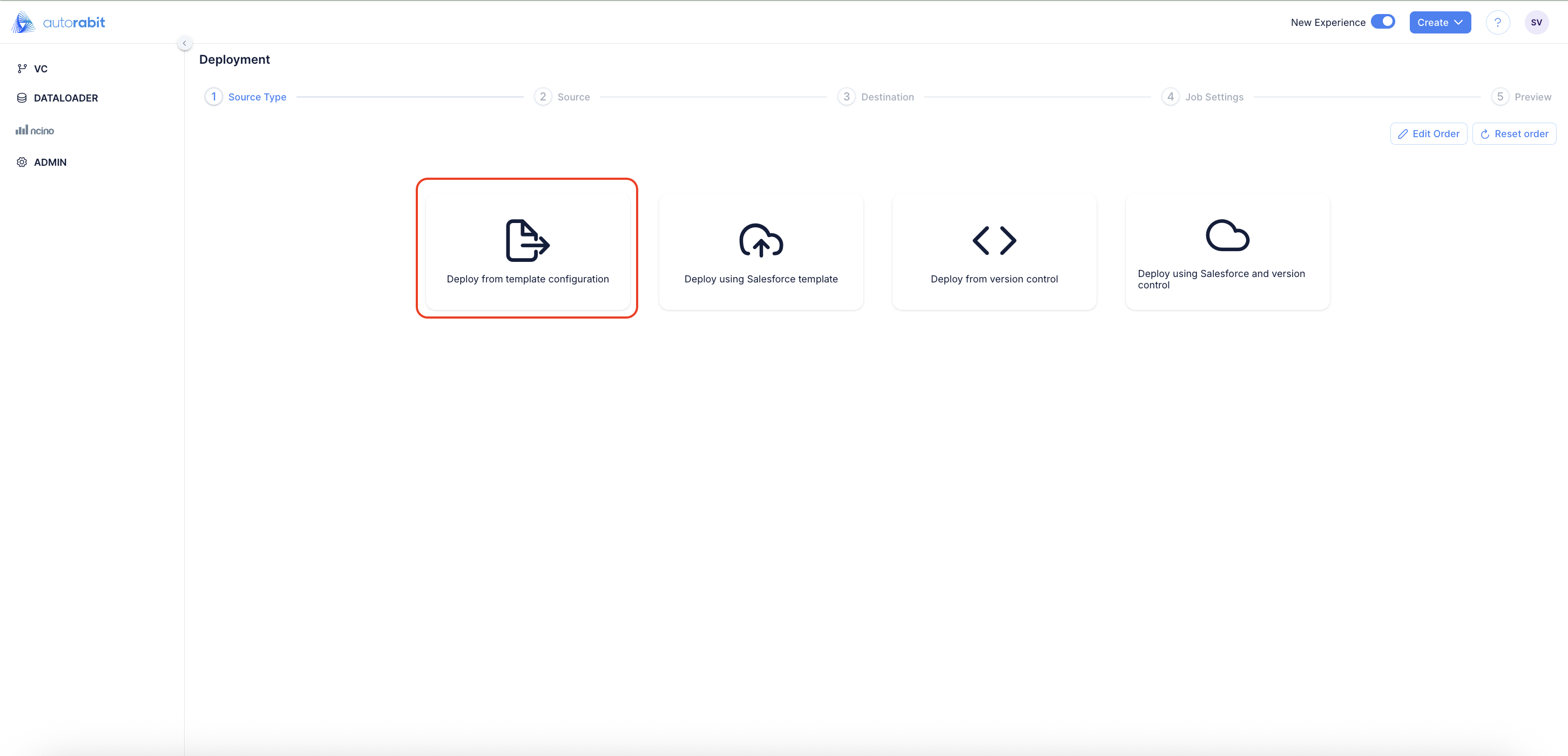
2. Upon selecting **"Create Feature Deployment" or "Feature Deployment,"** a Source Type screen will appear—choose from the available options to proceed.
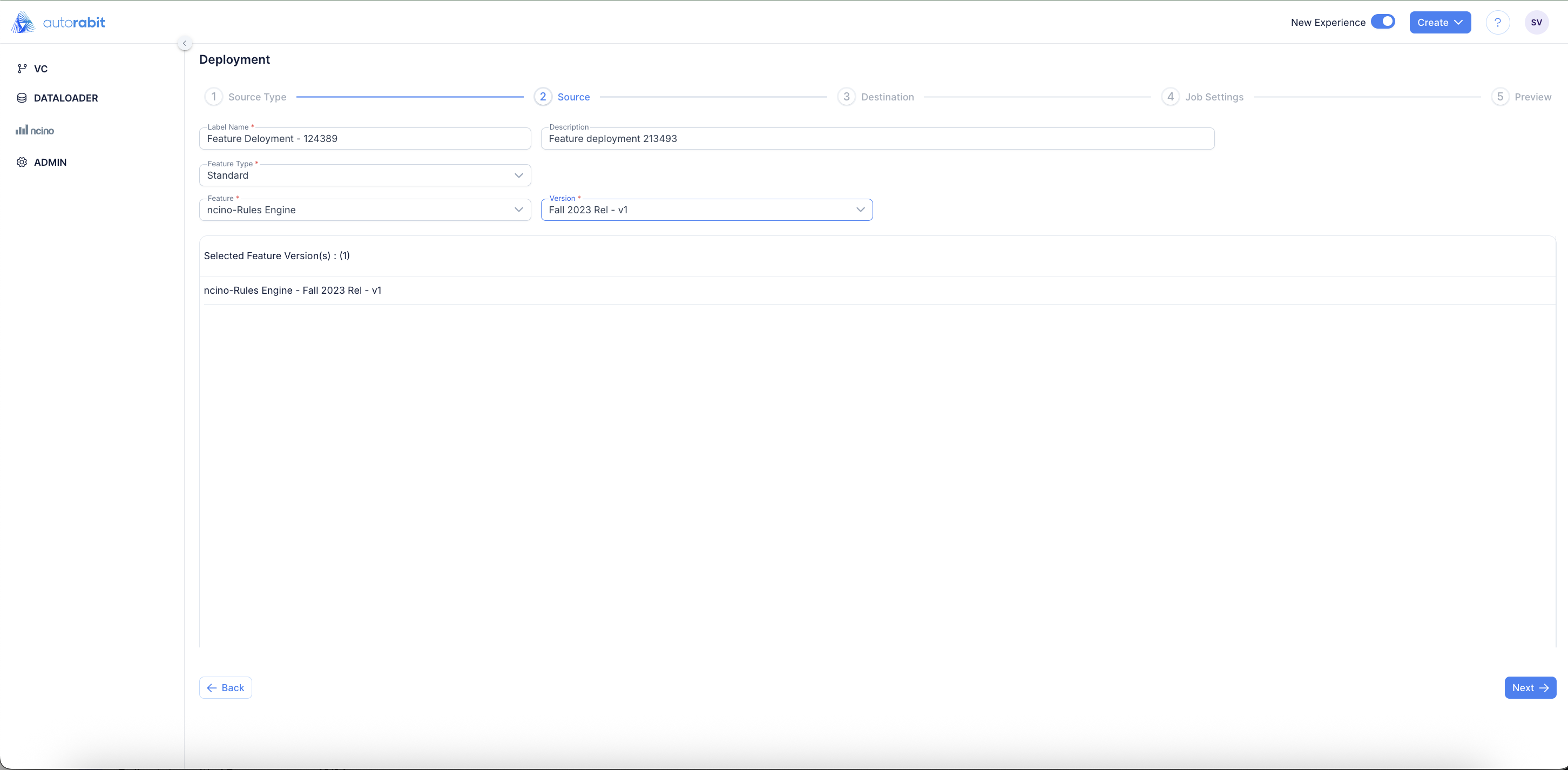
3. On selecting the "Source Type", the "Source" screen will be displayed.
4. Continue to input the required fields on the screen:
1. **Label Name:** Input the desired label name.
2. **Description:** Input a matching description that best describes the deployment.
3. **Feature Type:** Select from either "Standard" or "Community" options.
4. **Feature:** Select the required feature from the list available.
5. **Version:** Select from the versions available.
5. Upon entering the required details, click on 'Next' to continue to the Destination screen.
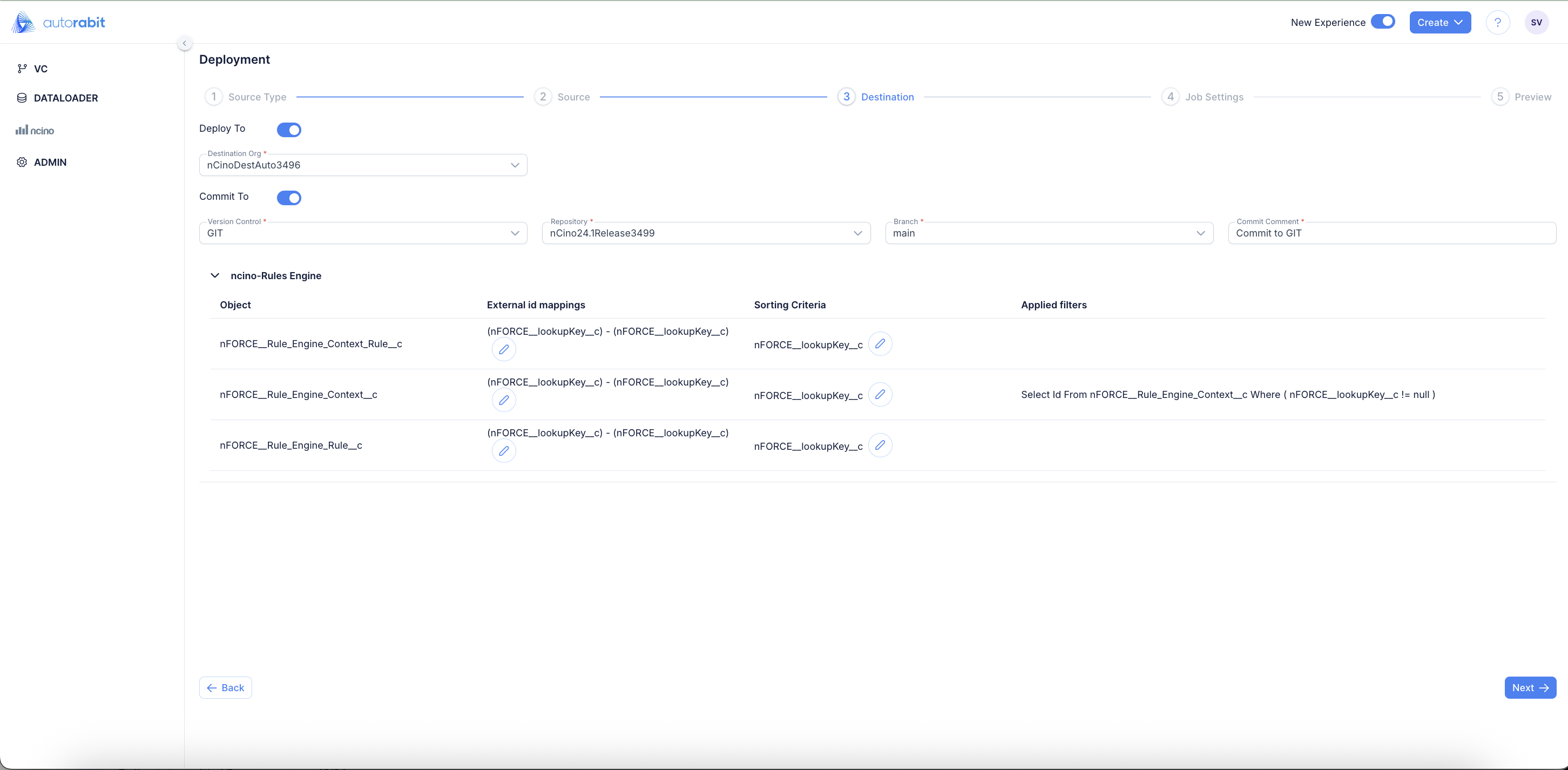
4. The destinations can be "Salesforce Org" and/or "Version Control."
5. To deploy to a Salesforce Org, enable the **Deploy To** slider and choose your **Destination Org**. To commit to a branch, enable the **Commit To** slider, select the **Repository/Branch** details, and enter a **comment** (if any).
6. After selecting the destination(s), continue to the "Job Settings" page to select the required settings.
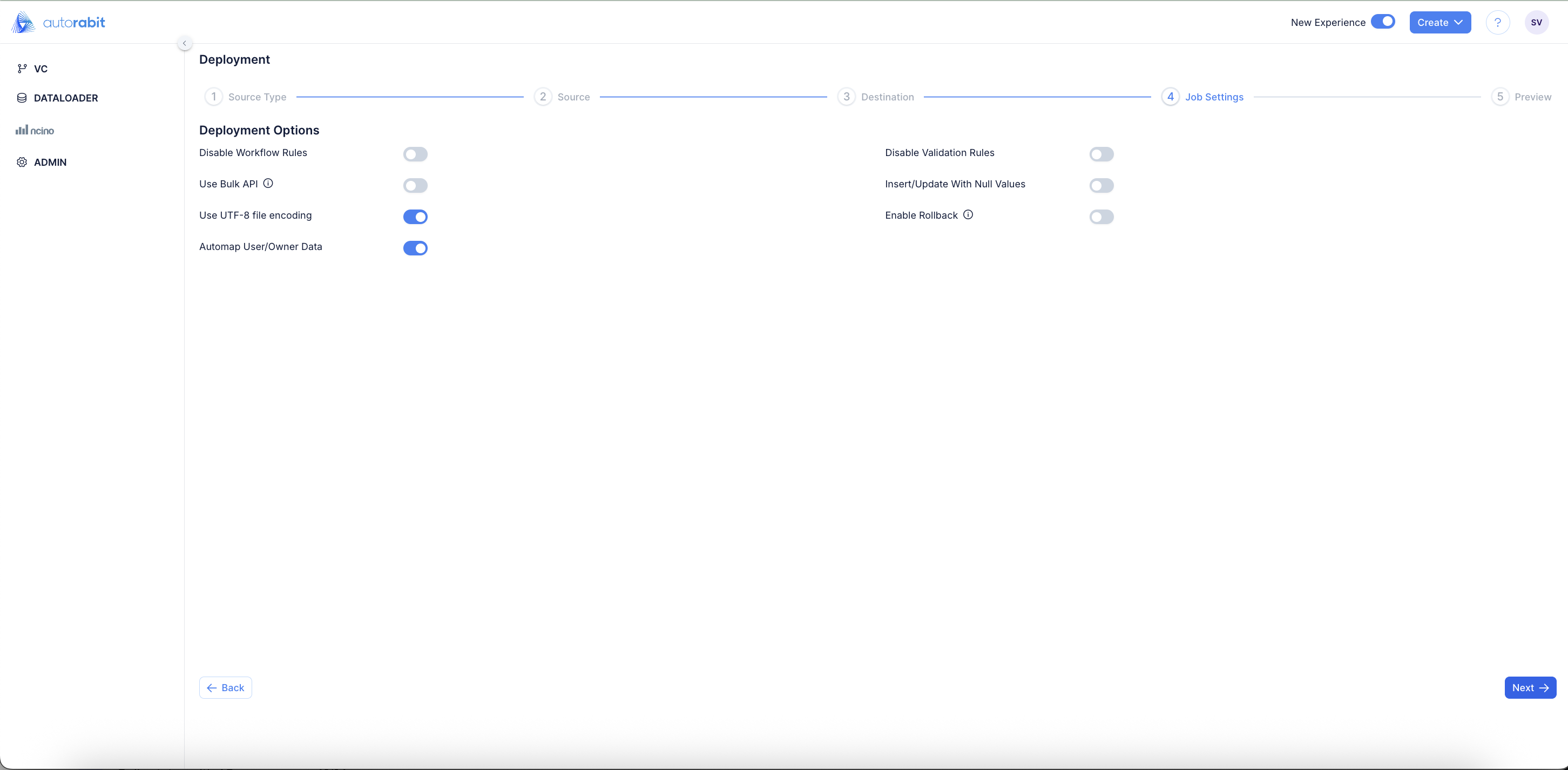
4. Before deploying to the destination, review and select from the available deployment criteria to proceed.
**Deployment Filters**
1. **Disable Workflow Rules:** This option will deactivate the workflow rules associated with the objects part of the deployment.
2. **Use Bulk API (Batch API will be used if not enabled):** You can transfer bulk records at one time from the source and destination org.
3. **Use UTF-8 file encoding for file read and write operations:** Use UTF-8 as the internal representation of strings. Text is transcoded from the local encoding to UTF-8 when data is written to or read from a file. UTF-8 must be enabled if your data exclusively contains English alphabet. UTF-8 must be disabled if your data contains non-English alphabets. UTF-8 should be enabled by default in accordance with Salesforce.
4. **Automap User/Owner Data:** To ensure user permission differences between different environments will not affect the RBC deployments, users are provisioned to disable the auto-assignment of users as they trigger the RBC deployments.
5. **Disable Validation Rules:** This option will deactivate the validation rules associated with the objects part of the deployment.
6. **Insert/update with Null Values:** This will either insert or update record field values with null in the destination org (if the value is null in the source org).
7. **Enable Rollback:** Enabling this option makes sure that the done deployment can be rolled back to the desired previous state.
5. Continue to the "Preview" tab to review to go through the selection made and to either **"Retrieve Dataset"** or **"Retrieve Dataset, Deploy and Commit"**
6. Upon selecting either the **"Retrieve Dataset"** or **"Retrieve Dataset, Deploy and Commit"** options, you will be redirected to the "Deployment History" page.
---
# Agent Instructions
This documentation is published with GitBook. GitBook is the documentation platform designed so that both humans and AI agents can read, navigate, and reason over technical content effectively. Learn more at gitbook.com.
## Querying This Documentation
If you need additional information that is not directly available in this page, you can query the documentation by asking a question.
Perform an HTTP GET request on the following URL with the `ask` and `goal` query parameters:
```
GET https://knowledgebase.autorabit.com/product-guides/arm-1/arm-features/ncino/feature-deployment/deployment-using-feature-migration-template-1.md?ask=&goal=
```
`ask` is the immediate question: it should be specific, self-contained, and written in natural language.
`goal` is what the user is ultimately trying to achieve, the reason they need the answer. Sharing it helps GitBook give you a better, more relevant answer. A goal is most helpful when it describes the outcome the user wants rather than restating the question. For example, with `ask=how do I create an API token`, a goal like `automate deployments from our CI pipeline` lets GitBook tailor the answer to that use case.
The response will contain a direct answer to the question and relevant excerpts and sources from the documentation.
Use this mechanism when the answer is not explicitly present in the current page, you need clarification or additional context, or you want to retrieve related documentation sections.