> For the complete documentation index, see [llms.txt](https://knowledgebase.autorabit.com/llms.txt). Markdown versions of documentation pages are available by appending `.md` to page URLs; this page is available as [Markdown](https://knowledgebase.autorabit.com/product-guides/arm-1/arm-features/ncino/feature-deployment/deployment-via-version-control-using-salesforce-org-1.md).
# Deployment via Version Control using Salesforce Org
This section covers the deployment of **nCino metadata and data** through **version control**, leveraging the **Salesforce dataset** for streamlined and traceable delivery.
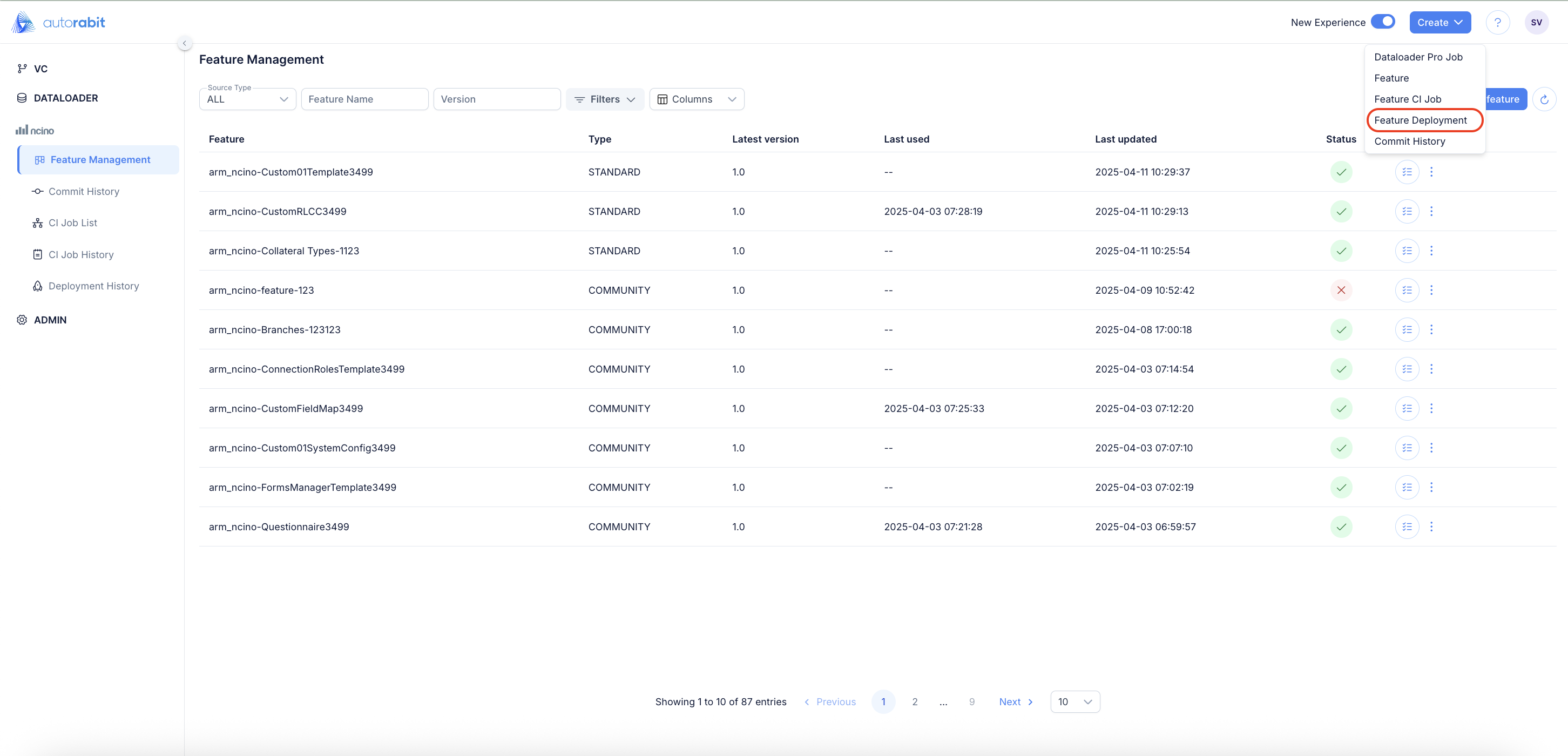
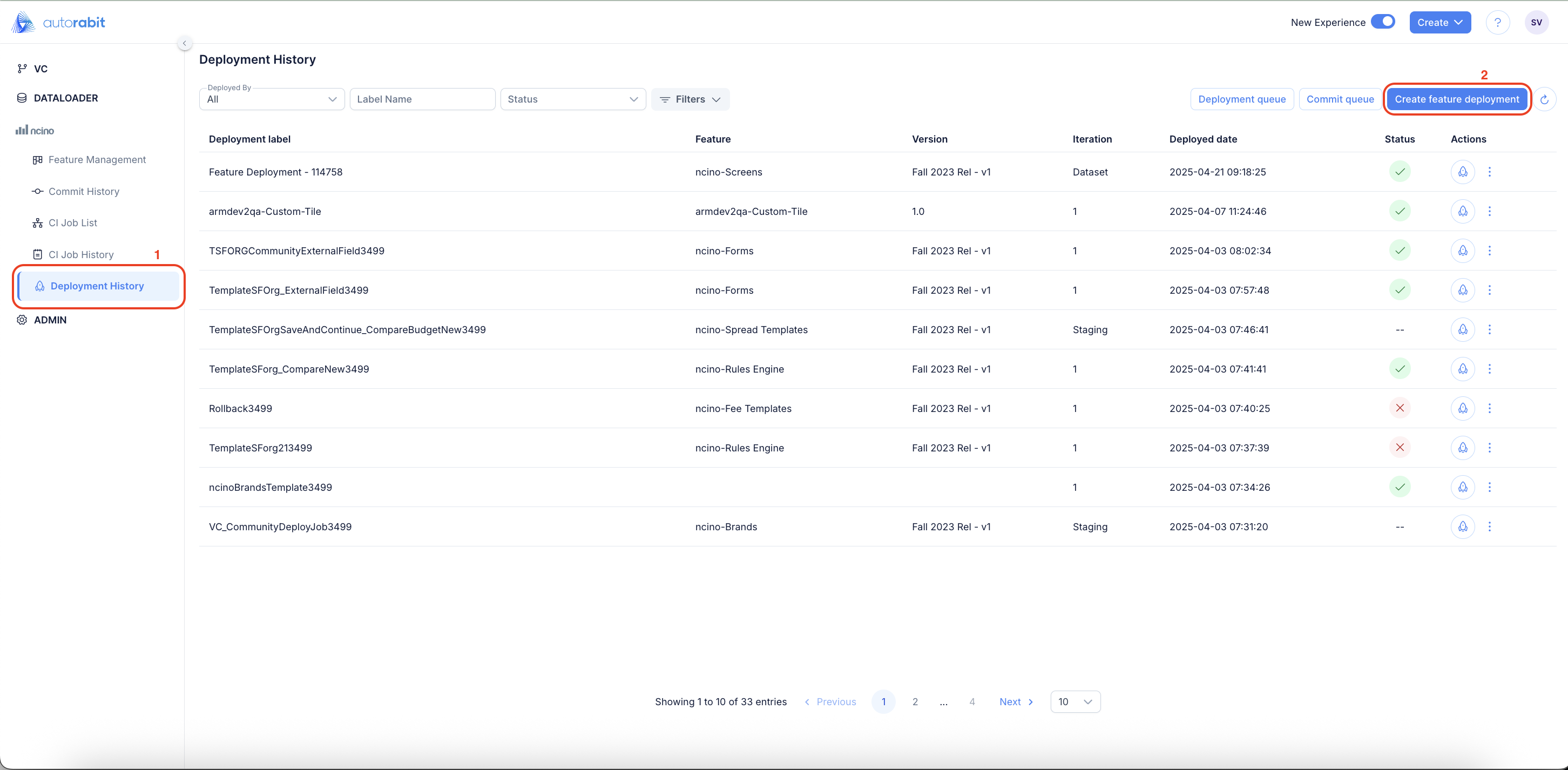
1. The "Feature Deployment" can be triggered in the following way
1. Click on the "Create" drop-down to observe the options to select the "Feature Deployment" as option
2. Click on the "Deployment History" under the nCino tab to access the "Create feature deployment"
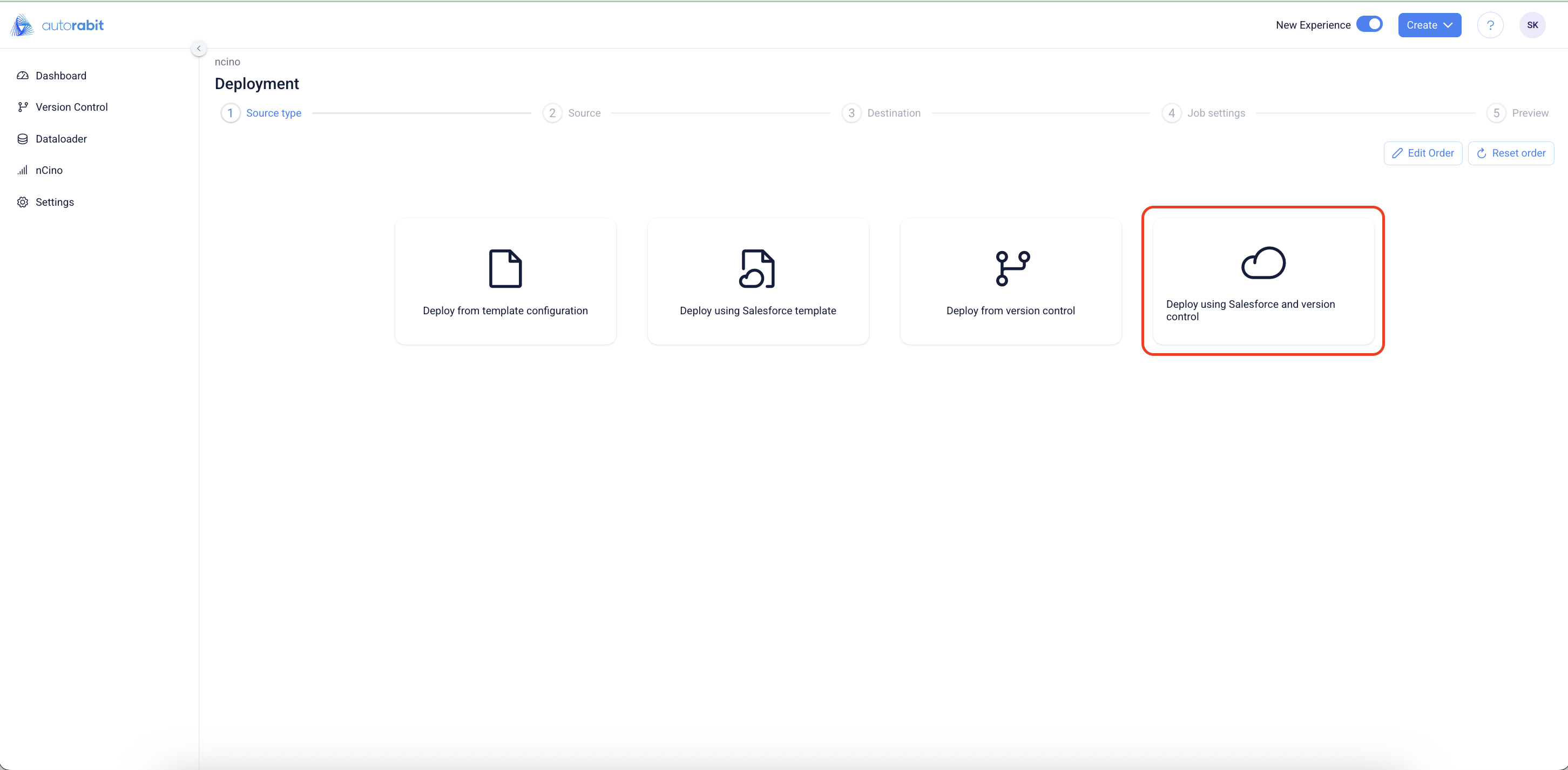
3. Upon clicking on the **"Create Feature Deployment" or** selecting the **"Feature Deployment," the** Source Type screen will appear—choose from the available options to proceed.
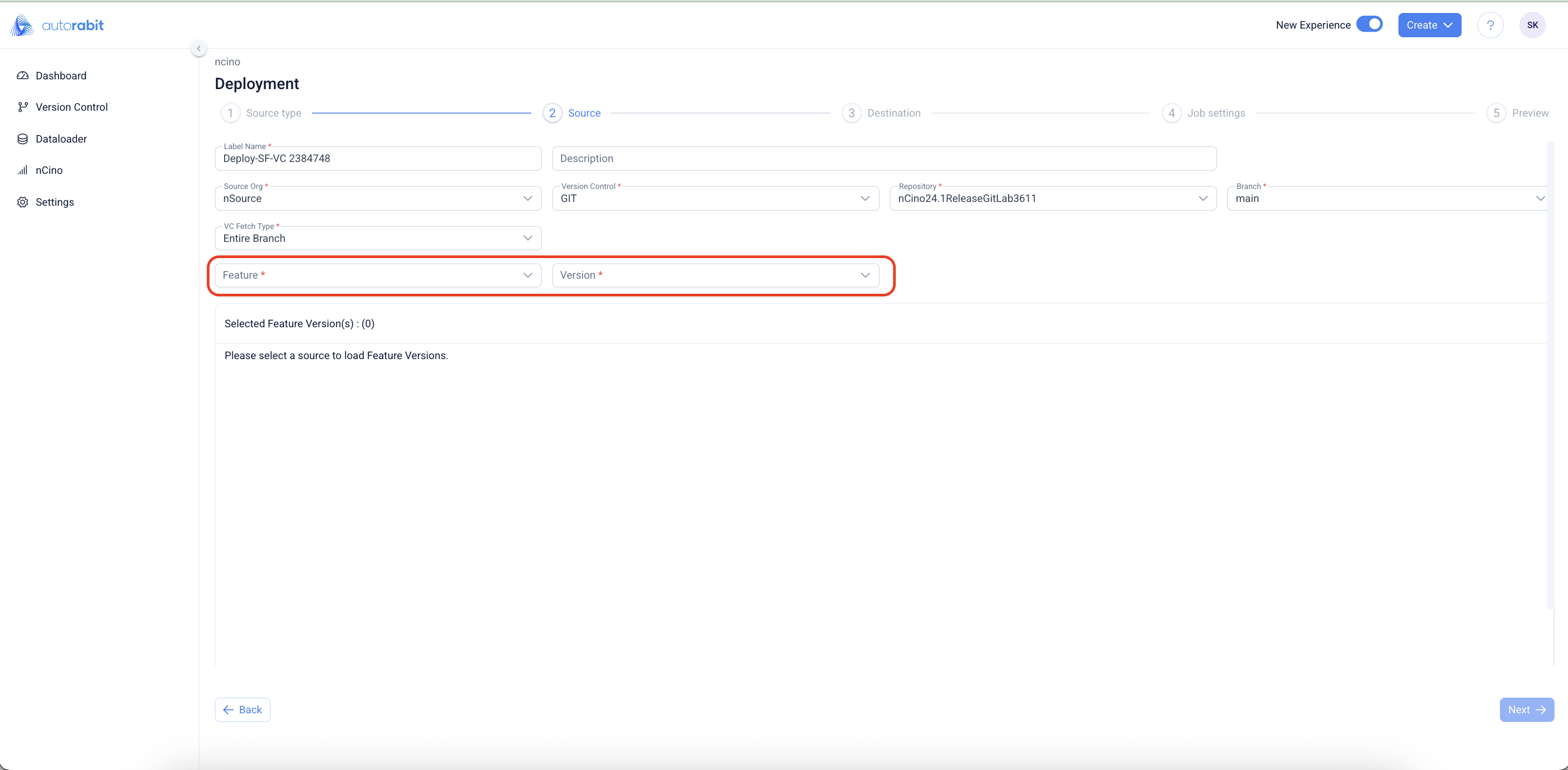
4. Continue to input the fields on the screen with the required inputs
5. The following fields are available on the screen to from:
1. **Label name:** Input label name of the deployment here
2. **Description:** Enter a description that suits the deployment
3. **Source ORG**: Select the source org here
4. **Version Control**: Select the version control type here
5. **Repository**: Select the repository here
6. **Branch**: Select the required branch here
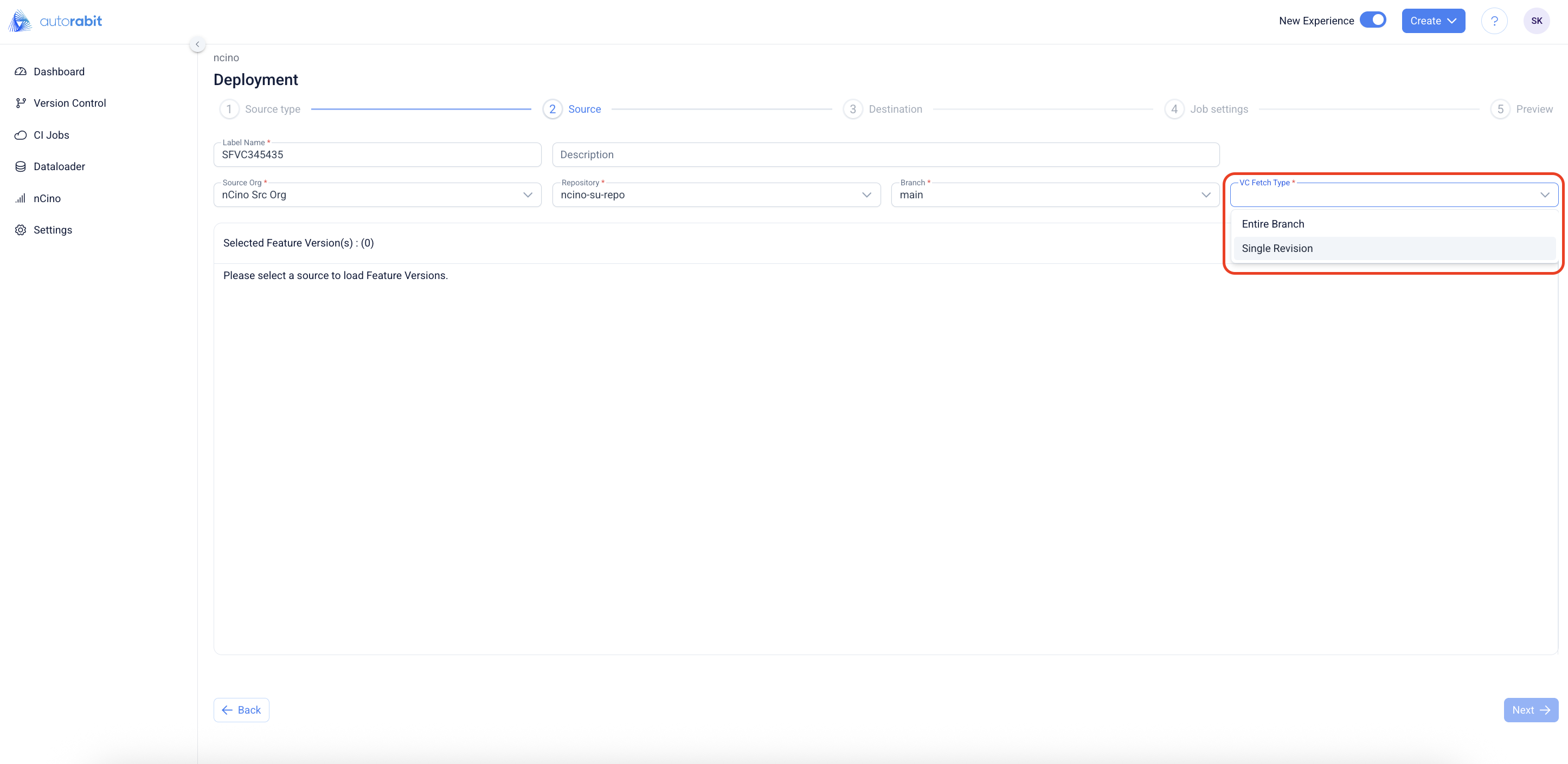
7. **VC Fetch Type**: Select the option to perform the deployment.
1. The following options are available at "VC Fetch Type":
1. Entire Branch
2. Single Revision
2. **Entire Branch**: This option will fetch the feature migration templates configured on your branch. You'll be asked to choose the **feature/template** and **version when selecting** the entire branch option.
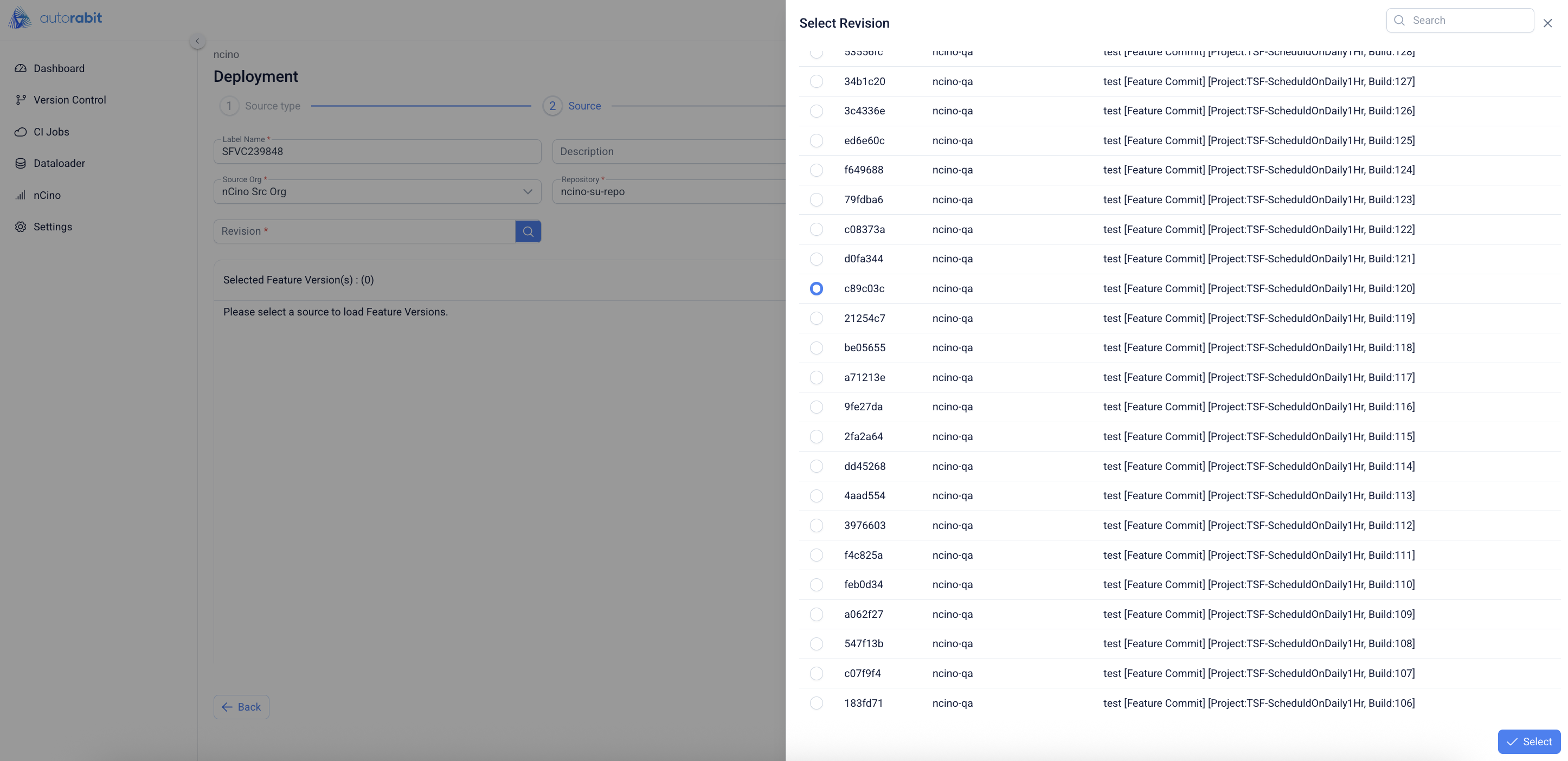
3. **Single Revision**: This option will pull all of the versions from your repo, allowing you to choose which revision to use in the deployment.
4. Observe the values selected at the revision
6. Based on the selected revisions, the respective "feature versions" will be displayed.
7. **`NOTE`:**
1. **`No manual merge conflict resolution is supported.`**` ``In case of data conflicts, the dataset collected from the source environment will be committed by default, even if corresponding data already exists in the target branch.`
2. **`Destructive changes are currently not supported.`**` ``If a record is deleted in the source environment after being committed to Version Control, subsequent commits will not remove that record from the branch. The previously committed record will remain intact.`
8. Click on the "Next" to continue to the "Destination" section of the Feature Deployment flow
9. You can configure several options for your objects before proceeding with a deployment or commit, including:
* **External Id Mappings**
* **Applied Filters**
10. **External ID Mappings**
This section allows you to use an **External ID** instead of a Salesforce **Record ID** to establish relationships between records during an **Upsert** operation.\
For example, if **Object B** has a lookup to **Object A**, you can reference a field on Object A marked as an *External ID* to relate Object B records to the correct Object A records.
* **Source Field**: Select the source field whose values will be used to match and populate the destination’s External ID field.
* **Destination Field**: Choose a field from the destination org that is marked as an External ID and holds **unique values** across all records.
{% hint style="info" %}
#### **Important Note on External ID Mappings**
When deploying via **Template** or **Version Control**, the **source** is a **CSV file**, not a Salesforce Org. As a result:
* **All fields** from the CSV—regardless of External ID designation—will appear in the **Source** column.
* In contrast, only **valid External ID fields** from the **Salesforce destination org** will be shown in the **Destination** column for selection.
Please note that **AutoRABIT-defined External ID fields** are **not supported** for the **Upsert** operation.
{% endhint %}
{% hint style="info" %}
**Note:**
* **No manual merge conflict resolution is supported.** In case of data conflicts, the dataset collected from the source environment will be committed by default, even if corresponding data already exists in the target branch.
* **Destructive changes are currently not supported.** If a record is deleted in the source environment after being committed to Version Control, subsequent commits will not remove that record from the branch. The previously committed record will remain intact.
{% endhint %}
10. **Applied Filters**: If any filters have been applied to the objects, they will be displayed in this section. You can modify an existing filter at any time by selecting **Edit Filter**.
11. On completing the required selection click next to continue to the "Job Settings" section of the "Feature Deployment" flow.
12. Observe the following screenshot for the "Deployment Options" available on this section:
* **Disable Workflow Rules:** This option will deactivate the workflow rules associated with objects part of the deployment
* **Use Bulk API (Batch API will be used if the option is not enabled):** You can transfer bulk records in a go from the source and destination org.
* **Use UTF-8 file encoding for file read and write operations:** Use **UTF-8** as the internal representation for all string data. Text is automatically transcoded between the local encoding and UTF-8 when reading from or writing to files.
* **Enable UTF-8** if your data contains **only English alphabets**.
* **Disable UTF-8** if your data includes **non-English characters** to avoid encoding issues.
* UTF-8 should be **enabled by default**, aligning with Salesforce’s recommended encoding standards.
* **Automap User/Owner Data:**
* **Disable Validation Rules:** Select this option to temporarily deactivate validation rules on objects included in the deployment. This helps ensure smoother deployments without interruptions caused by rule enforcement.
* **Insert/Update with Null Values:** When enabled, this option allows fields with `null` values in the source org to be inserted or updated as `null` in the destination org. It ensures data consistency by reflecting blank or cleared values during migration.
* **Enable Rollback:** Enable this option to allow rollback of the deployment, if needed. Only components explicitly marked for **“Rollback”** during deployment will be eligible for rollback after completion.
13. Based on your destination selection, you will have different deployment options to choose from:
1. **Create Dataset:** Create a dataset from your Salesforce Org
2. **Create Dataset Commit & Deploy:** Create a dataset and proceed for both commit and deployment.
14. Clicking on ether of the deployment options available "**Create Dataset" or "Create Dataset Commit & Deploy"**, the flow will be redirected to the "Deployment History" page.
####
---
# Agent Instructions
This documentation is published with GitBook. GitBook is the documentation platform designed so that both humans and AI agents can read, navigate, and reason over technical content effectively. Learn more at gitbook.com.
## Querying This Documentation
If you need additional information that is not directly available in this page, you can query the documentation by asking a question.
Perform an HTTP GET request on the following URL with the `ask` and `goal` query parameters:
```
GET https://knowledgebase.autorabit.com/product-guides/arm-1/arm-features/ncino/feature-deployment/deployment-via-version-control-using-salesforce-org-1.md?ask=&goal=
```
`ask` is the immediate question: it should be specific, self-contained, and written in natural language.
`goal` is what the user is ultimately trying to achieve, the reason they need the answer. Sharing it helps GitBook give you a better, more relevant answer. A goal is most helpful when it describes the outcome the user wants rather than restating the question. For example, with `ask=how do I create an API token`, a goal like `automate deployments from our CI pipeline` lets GitBook tailor the answer to that use case.
The response will contain a direct answer to the question and relevant excerpts and sources from the documentation.
Use this mechanism when the answer is not explicitly present in the current page, you need clarification or additional context, or you want to retrieve related documentation sections.