> For the complete documentation index, see [llms.txt](https://knowledgebase.autorabit.com/llms.txt). Markdown versions of documentation pages are available by appending `.md` to page URLs; this page is available as [Markdown](https://knowledgebase.autorabit.com/product-guides/arm-1/integration-and-plugins/url-callout-integration-with-tricentis.md).
# Tricentis
How AutoRABIT Uses the URL Callout to Integrate with Tricentis
AutoRABIT ARM integrates with **Tricentis**, a leading continuous-testing platform, to streamline quality gates within CI/CD pipelines. The two systems communicate through **URL callouts**, which let AutoRABIT trigger automated tests and capture the results at key stages of the release lifecycle.
## How URL callouts work in AutoRABIT
A *URL callout* is an HTTP request that AutoRABIT sends to an external service—Tricentis, in this case—when a predefined event occurs (for example, a new build, a successful deployment, or a failure that requires regression testing).
The callout allows AutoRABIT to:
1. **Trigger automated tests** – initiate Tricentis test execution as soon as a build or release package is ready.
2. **Pass context and metadata** – send the build version, target environment, and any specific test collections that must run.
3. **Receive test results** – capture Tricentis responses or callbacks so the pipeline can react immediately (e.g., promote, roll back, or notify stakeholders).
After Tricentis finishes, it returns the results through an API response or a callback URL. AutoRABIT can then notify teams (email, chat, dashboards) and log the outcome for auditing.
## Benefits of the AutoRABIT–Tricentis integration
* **End-to-end automation** – eliminate manual test hand-offs and keep the pipeline fully automated.
* **Targeted, timely tests** – run only the suites mapped to the current build metadata, improving efficiency.
* **Fast feedback loops** – developers see pass/fail status almost immediately, reducing late-cycle rework.
* **Compliance & traceability** – every test run is recorded in AutoRABIT, producing a clear audit trail.
## Setting up a URL callout in ARM
You can create a URL callout inside a **CI Job** to trigger any Tricentis (Testim Salesforce) execution—Test, Test Plan, Test Suite, or Test Label—through a single webhook. No extra VMs or intermediary CI tools are required.
### 1 — Create an API key
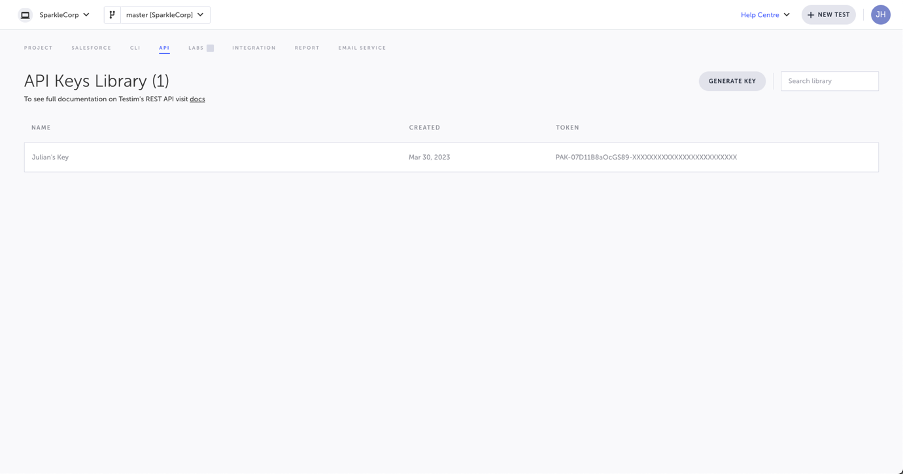
Obtain an API key from Testim Salesforce (available on *Pro* accounts). Copy the key immediately; it is shown only once.
API Keys Library
### 2 — Copy the execution payload
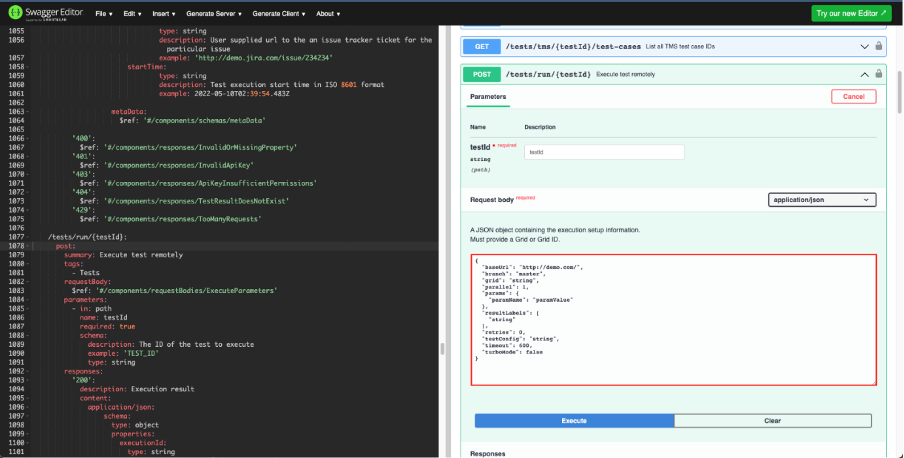
Open the [**Testim.io Public API**](https://editor.swagger.io/?url=https://raw.githubusercontent.com/testimio/public-openapi/main/api.yaml) in Swagger. Select the remote-execution endpoint that matches what you want to run—Test, Test Plan, Test Suite, or Test Label—and copy the sample JSON payload.
Execution endpoint in Swagger
### 3 — Configure the callout in AutoRABIT
When you create (or edit) the CI Job in AutoRABIT:
1. **Choose the stage** – decide whether the callout runs *Pre-Deployment* or *Post-Deployment* (on success or failure).
2. **Method** – set to `POST`.
3. **URL** – paste the REST endpoint from step 2 and append the test entity ID, for example:
---
# Agent Instructions
This documentation is published with GitBook. GitBook is the documentation platform designed so that both humans and AI agents can read, navigate, and reason over technical content effectively. Learn more at gitbook.com.
## Querying This Documentation
If you need additional information that is not directly available in this page, you can query the documentation by asking a question.
Perform an HTTP GET request on the following URL with the `ask` and `goal` query parameters:
```
GET https://knowledgebase.autorabit.com/product-guides/arm-1/integration-and-plugins/url-callout-integration-with-tricentis.md?ask=&goal=
```
`ask` is the immediate question: it should be specific, self-contained, and written in natural language.
`goal` is what the user is ultimately trying to achieve, the reason they need the answer. Sharing it helps GitBook give you a better, more relevant answer. A goal is most helpful when it describes the outcome the user wants rather than restating the question. For example, with `ask=how do I create an API token`, a goal like `automate deployments from our CI pipeline` lets GitBook tailor the answer to that use case.
The response will contain a direct answer to the question and relevant excerpts and sources from the documentation.
Use this mechanism when the answer is not explicitly present in the current page, you need clarification or additional context, or you want to retrieve related documentation sections.