> For the complete documentation index, see [llms.txt](https://knowledgebase.autorabit.com/llms.txt). Markdown versions of documentation pages are available by appending `.md` to page URLs; this page is available as [Markdown](https://knowledgebase.autorabit.com/product-guides/arm-1/arm-features/dataloader/dataloader-configuration.md).
# Configuring DataLoader
### DataLoader Configuration
Dataloader Configuration allows users to configure and define an External ID field that is used during data migration to prevent duplicate record creation. By mapping records based on a unique External ID, the system ensures that existing records are updated instead of creating duplicates.
Example: If Account records are migrated from Sandbox to Production, and some records already exist in Production, configuring an External ID ensures that matching records are updated rather than duplicated. This maintains data integrity and consistency across environments.
This option is useful in the following scenarios:
* Preventing duplicate record creation during data migration
* Synchronizing data between Salesforce orgs using a unique identifier.
* Performing Upsert operations safely.
* Maintaining data consistency across environments.
* Managing repeated data loads without creating redundant records.
### Step-By-Step Guide
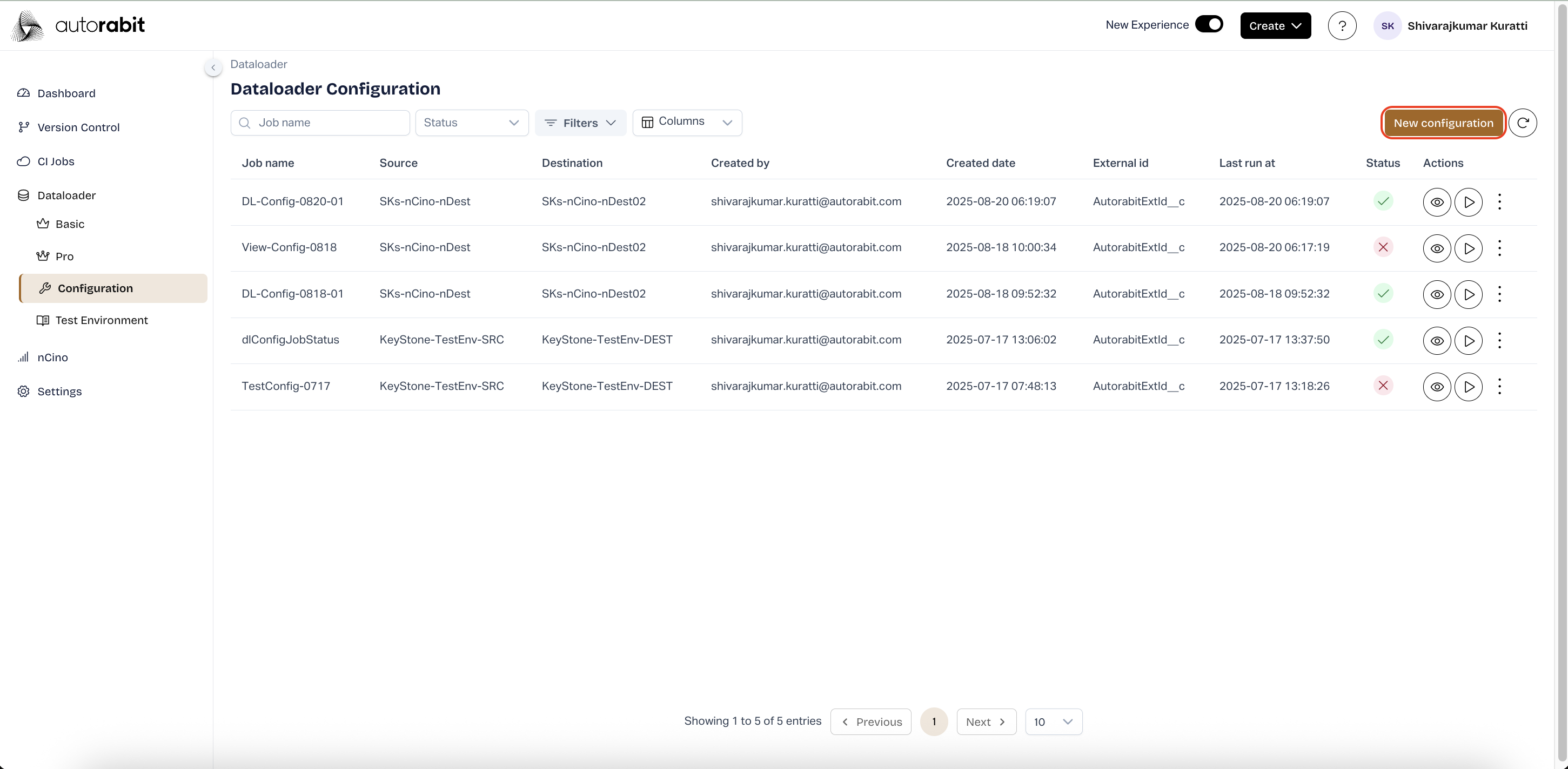
1. **Create New Configuration**
* From the **DataLoader Configuration** page, click **New Configuration** to initiate a new setup.
* This action opens the **New Configuration** page, where Salesforce Org details must be defined.
* Configuration creation allows establishing connections between source and destination orgs for data migration.
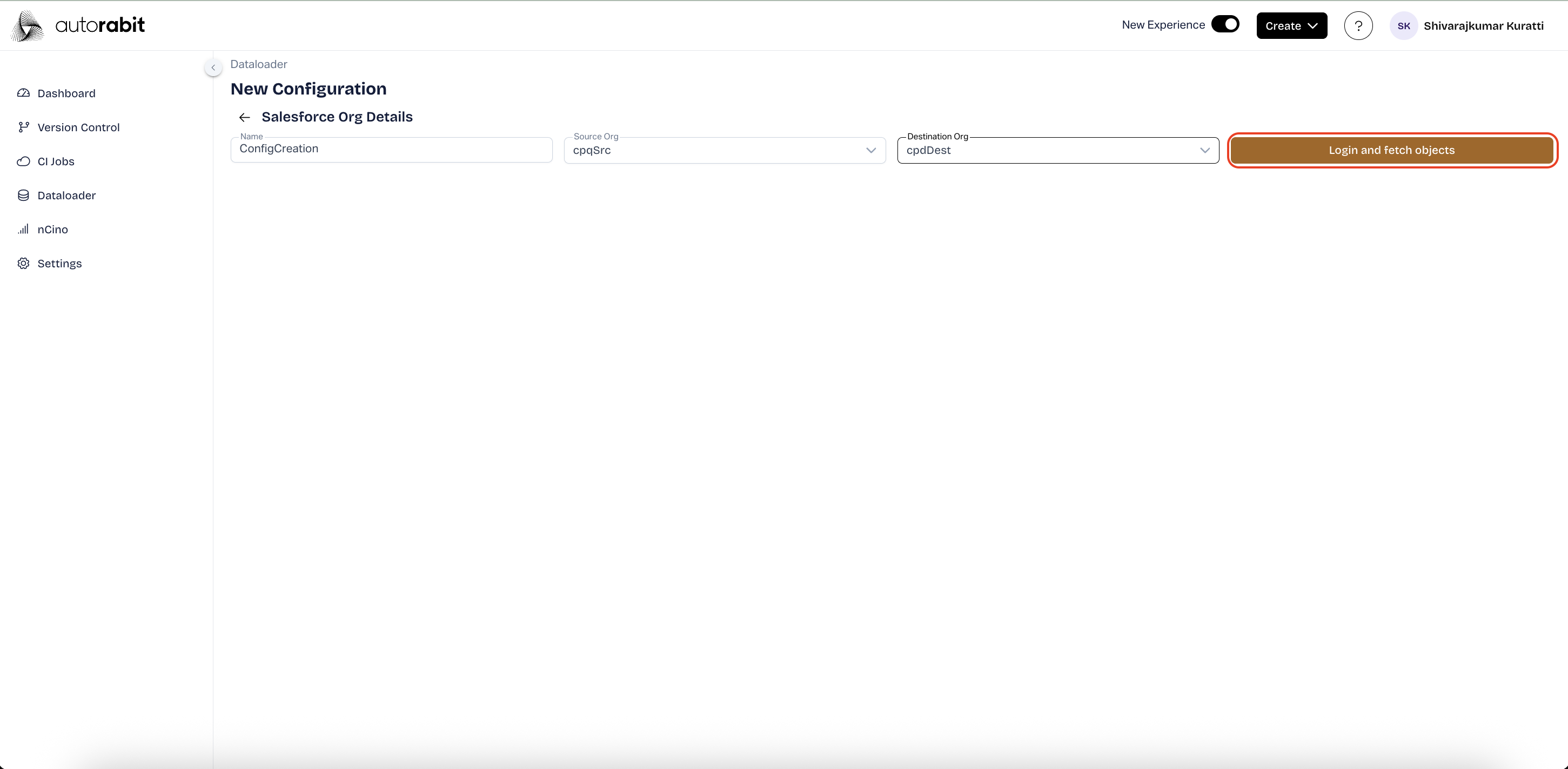
2. **Enter Salesforce Org Details**
* On the **New Configuration** page, enter a **Name** for the configuration.
* Select the **Source Org** from the dropdown menu.
* Select the **Destination Org** from the dropdown menu.
* Click **Login and fetch objects** to proceed with retrieving available objects.
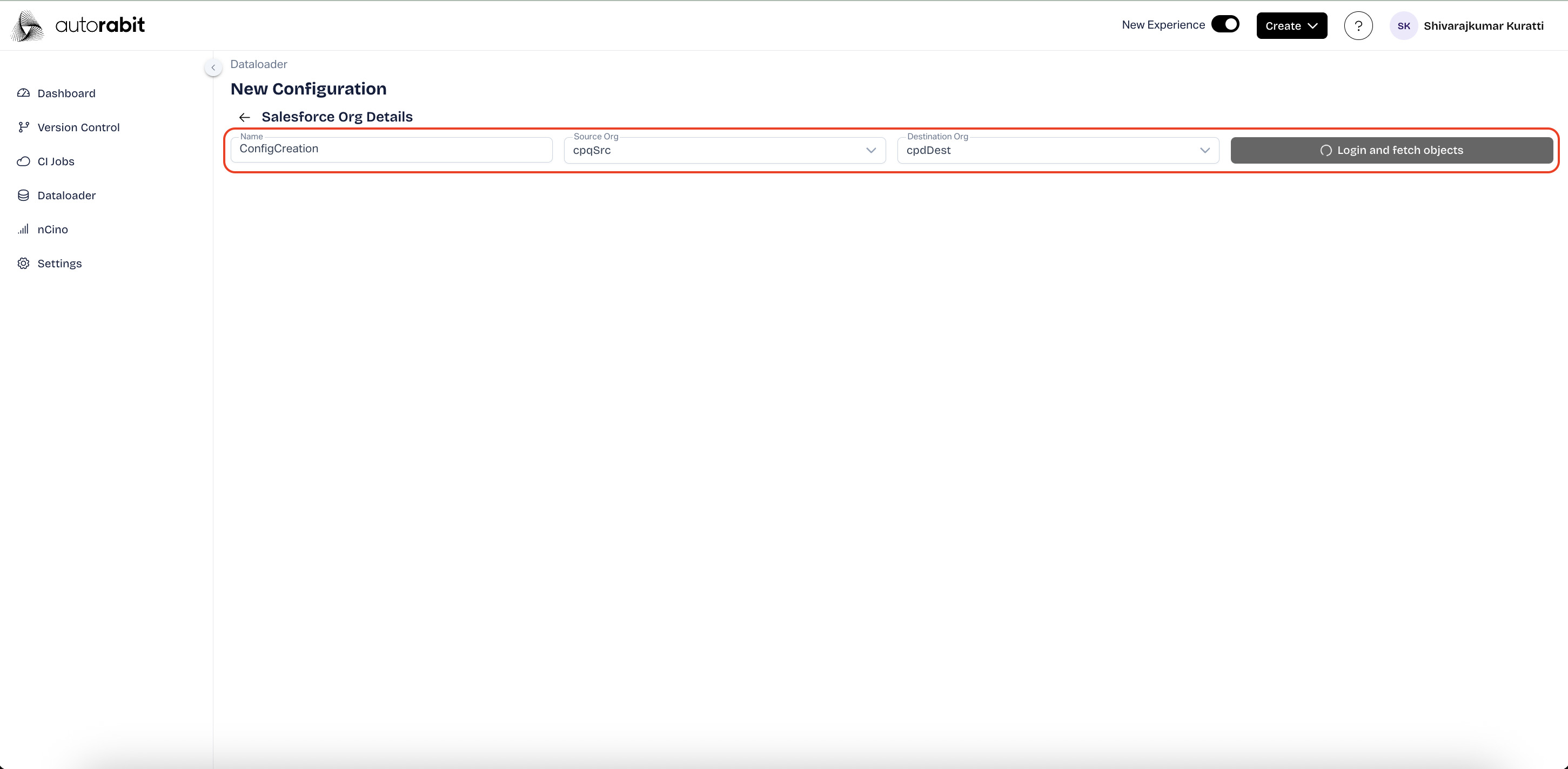
3. **Provide Configuration Information**
* Input a meaningful configuration name in the **Name** field for easy identification.
* Confirm that the correct **Source Org** and **Destination Org** are selected.
* This ensures the data transfer is mapped between the right Salesforce environments.
4. **Verify Configuration Details**
* Review the **Name**, **Source Org**, and **Destination Org** entries.
* Once verified, click **Login and fetch objects** to load available objects for configuration.
* This step is essential before proceeding to object and field selection.
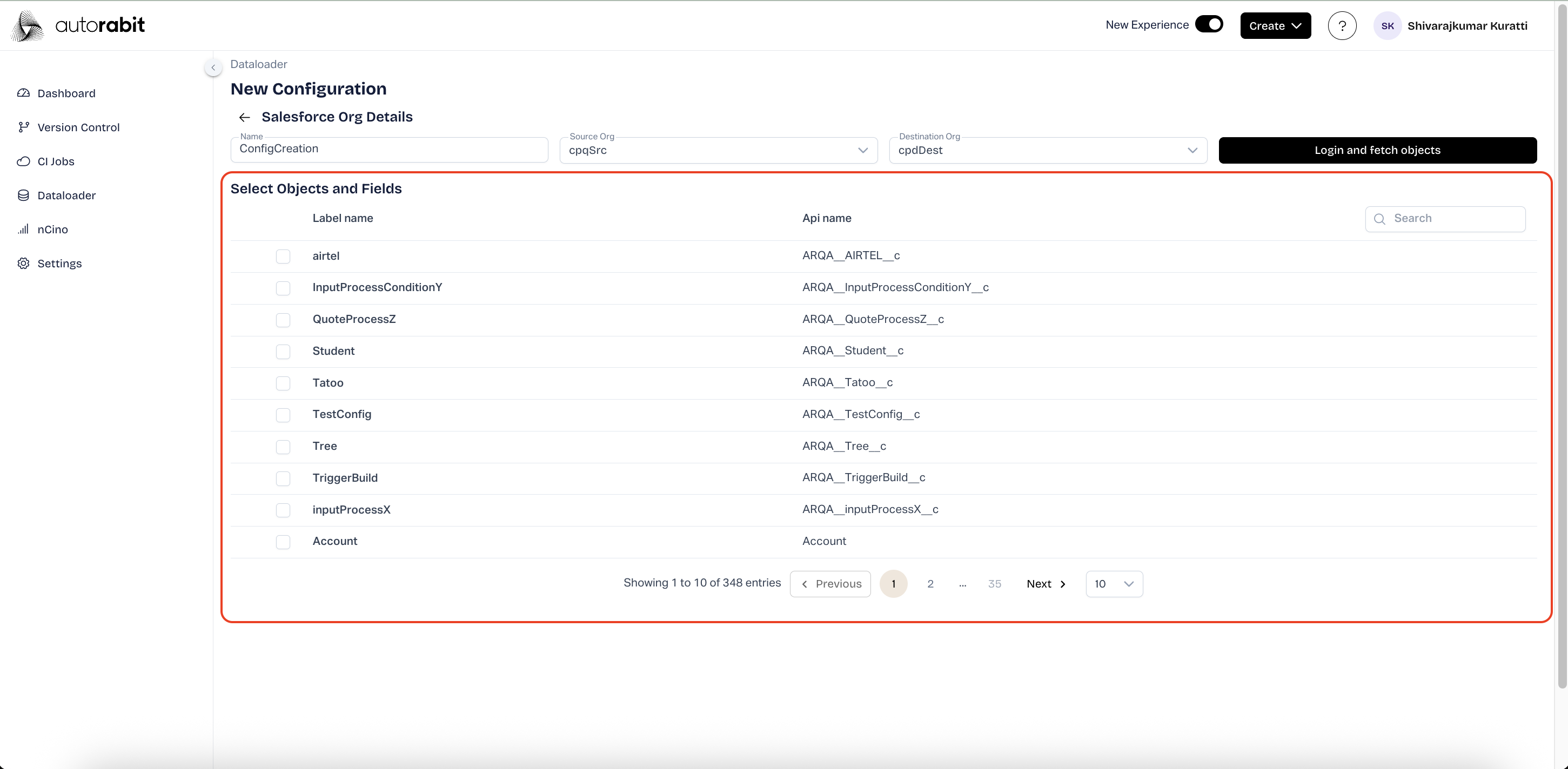
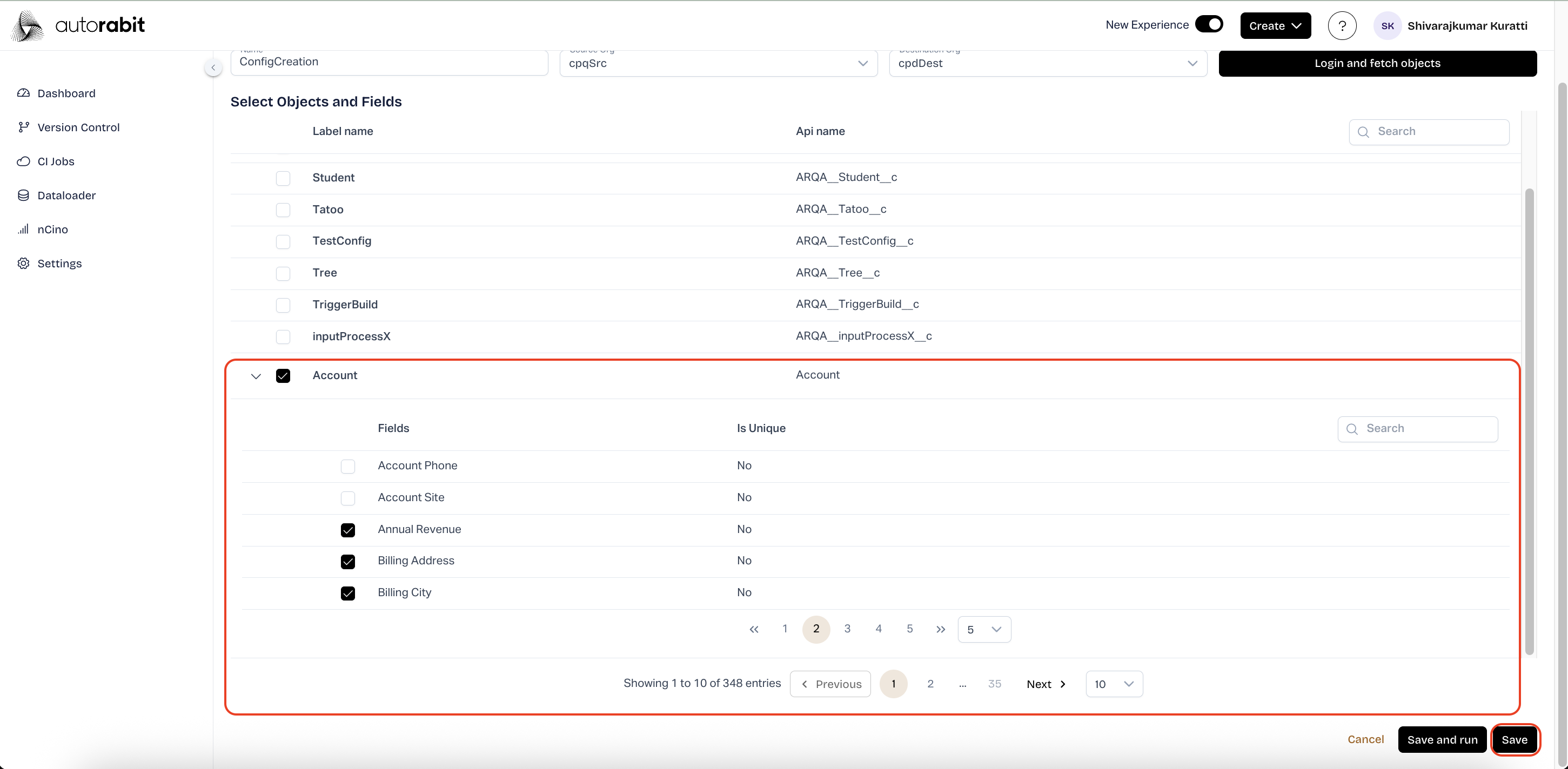
5. **Select Objects and Fields**
* A list of available Salesforce objects is displayed with their **Label Name** and **API Name**.
* Select the required objects by marking the checkbox next to each entry.
* Use the search bar if needed to quickly locate a specific object.
6. **Choose Object Fields**
* Expand the selected object to display its available fields.
* Select the fields required for the configuration (e.g., **Annual Revenue**, **Billing Address**, **Billing City**).
* Fields marked with “Is Unique” provide uniqueness constraints that can be applied if necessary.
* Click **Save** to store the configuration or **Save and Run** to execute it immediately.
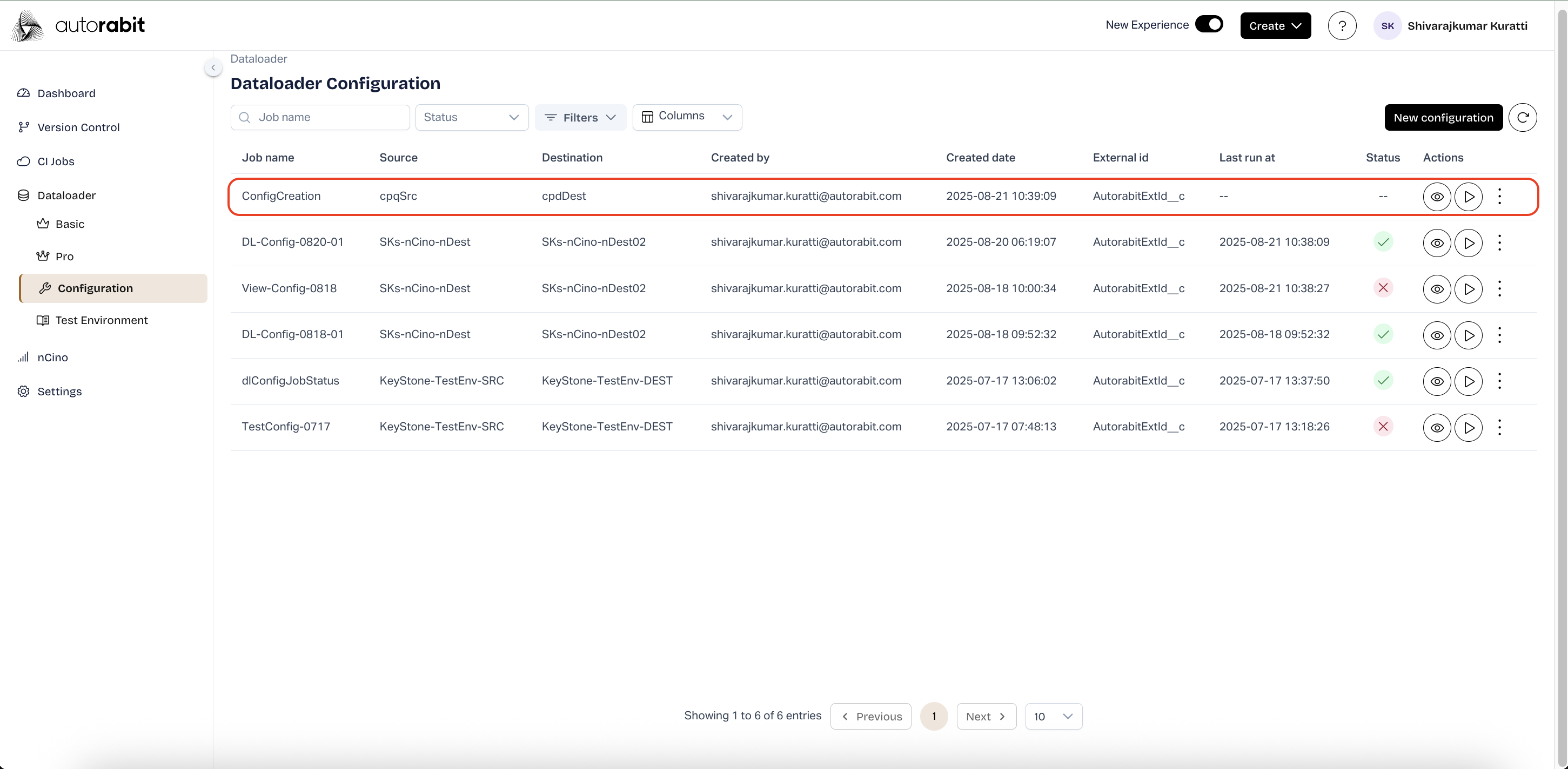
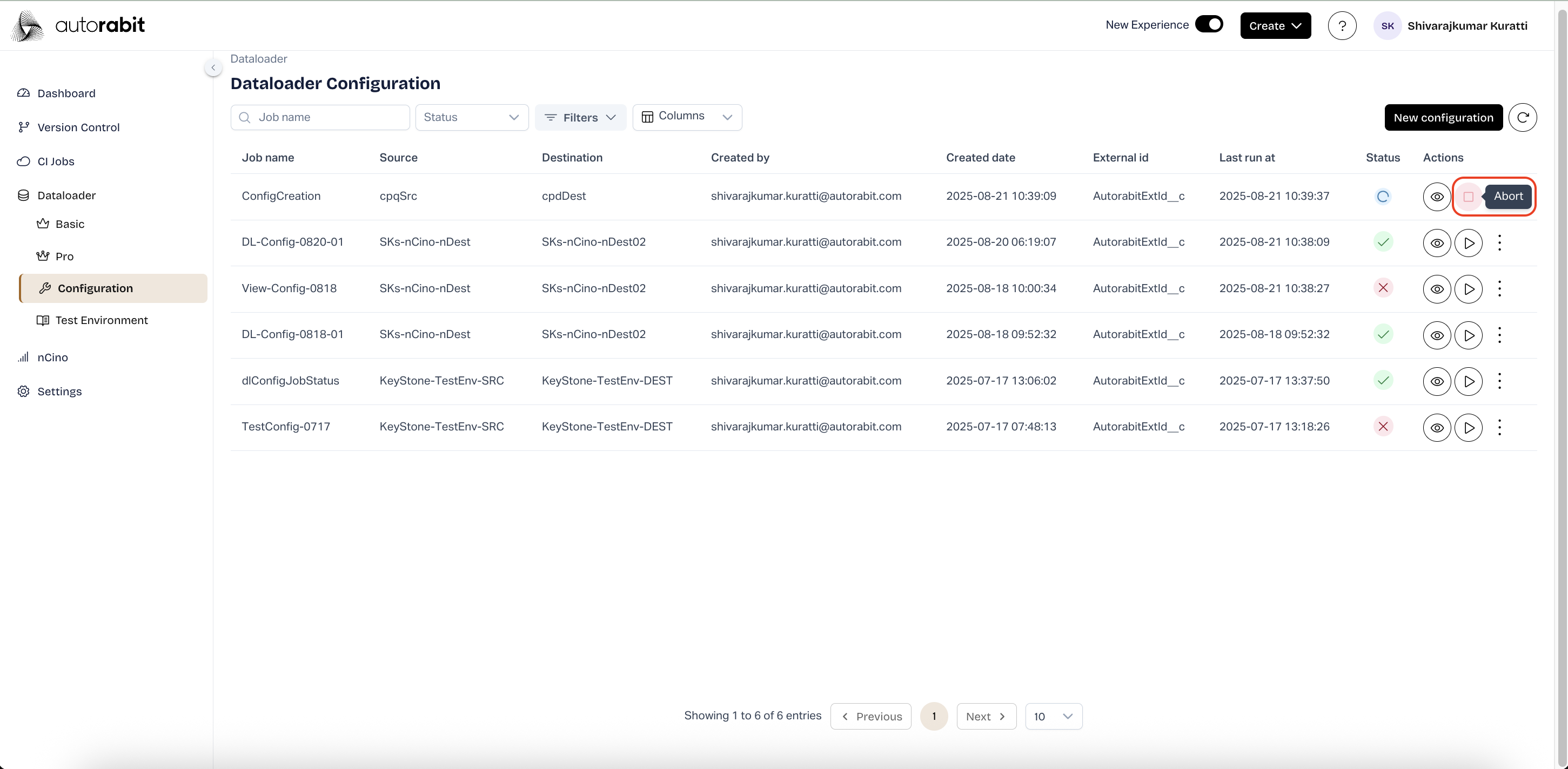
7. **Run Configuration**
* From the Dataloader Configuration page, locate the desired configuration.
* Select the **Run** icon under the Actions column.
* This triggers execution of the chosen configuration.
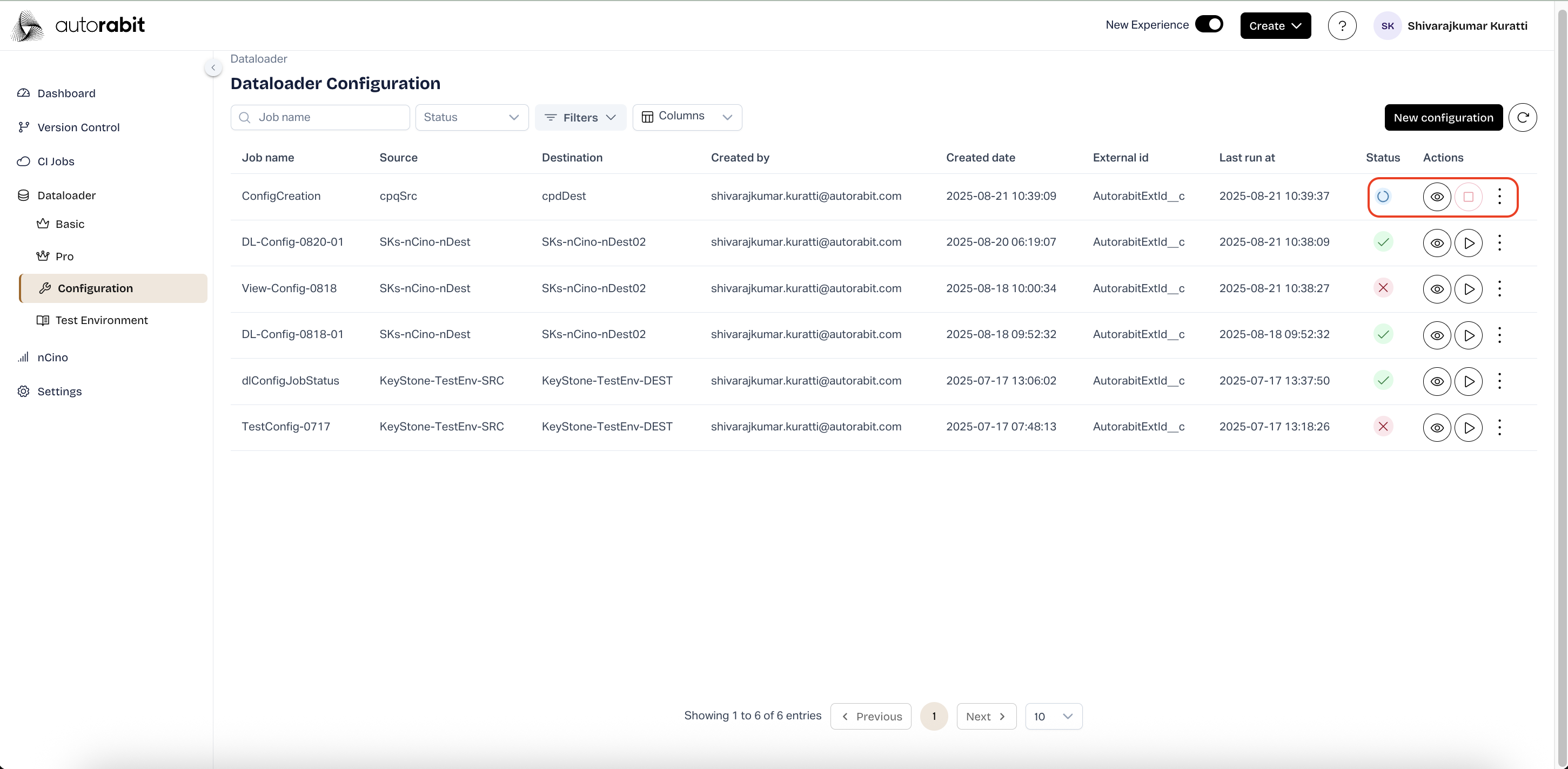
8. **Execution in Progress**
* Once initiated, the configuration run shows a progress indicator.
* The status updates dynamically to reflect the ongoing execution.
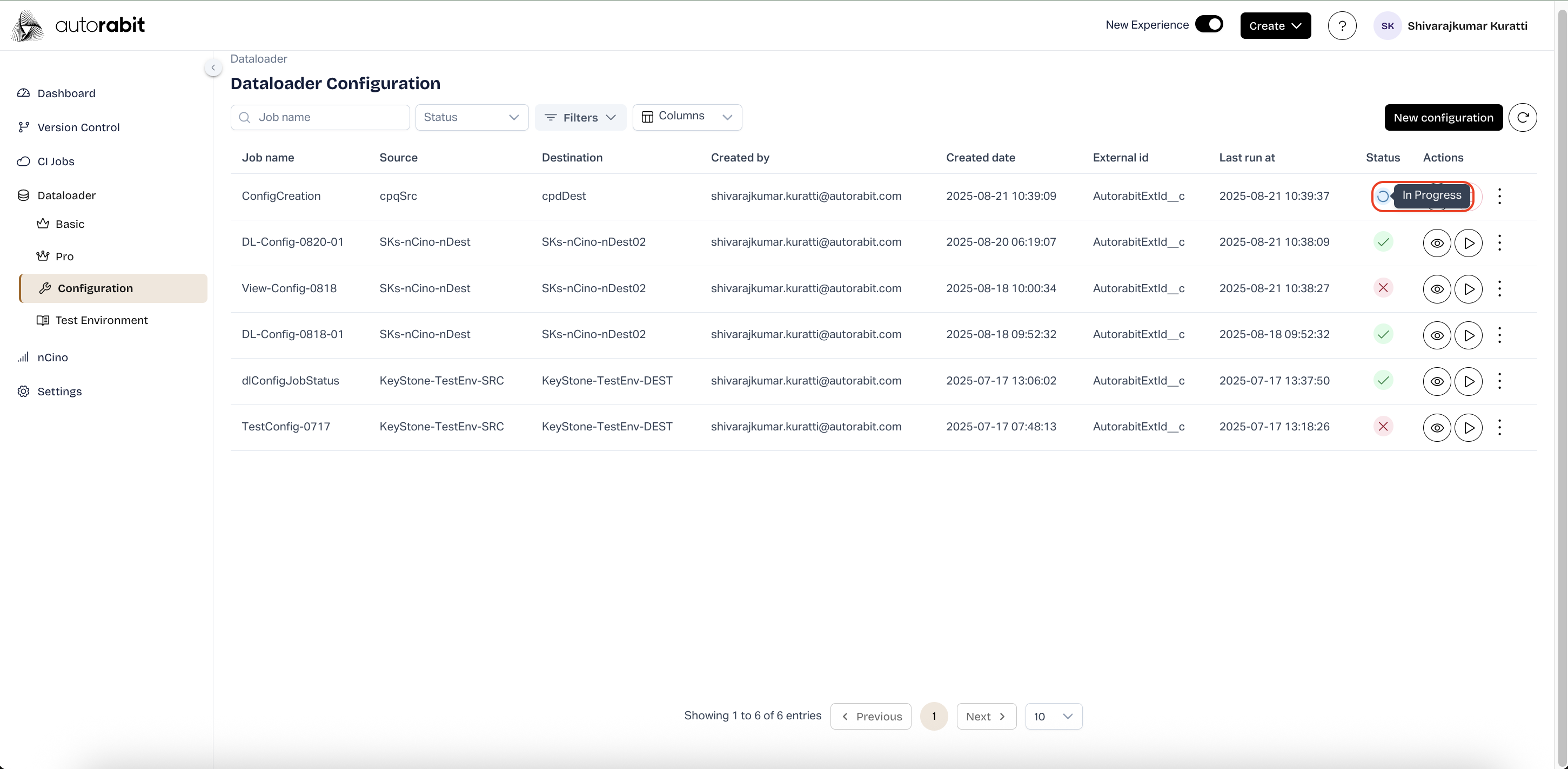
9. **In Progress Status**
* During execution, the **Status** column displays **In Progress**.
* This indicates that the configuration is actively processing.
10. **Abort Execution**
* While a configuration is running, select the **Abort** option.
* Aborting stops the execution immediately.
* This action is useful if the run was triggered in error or needs to be halted.
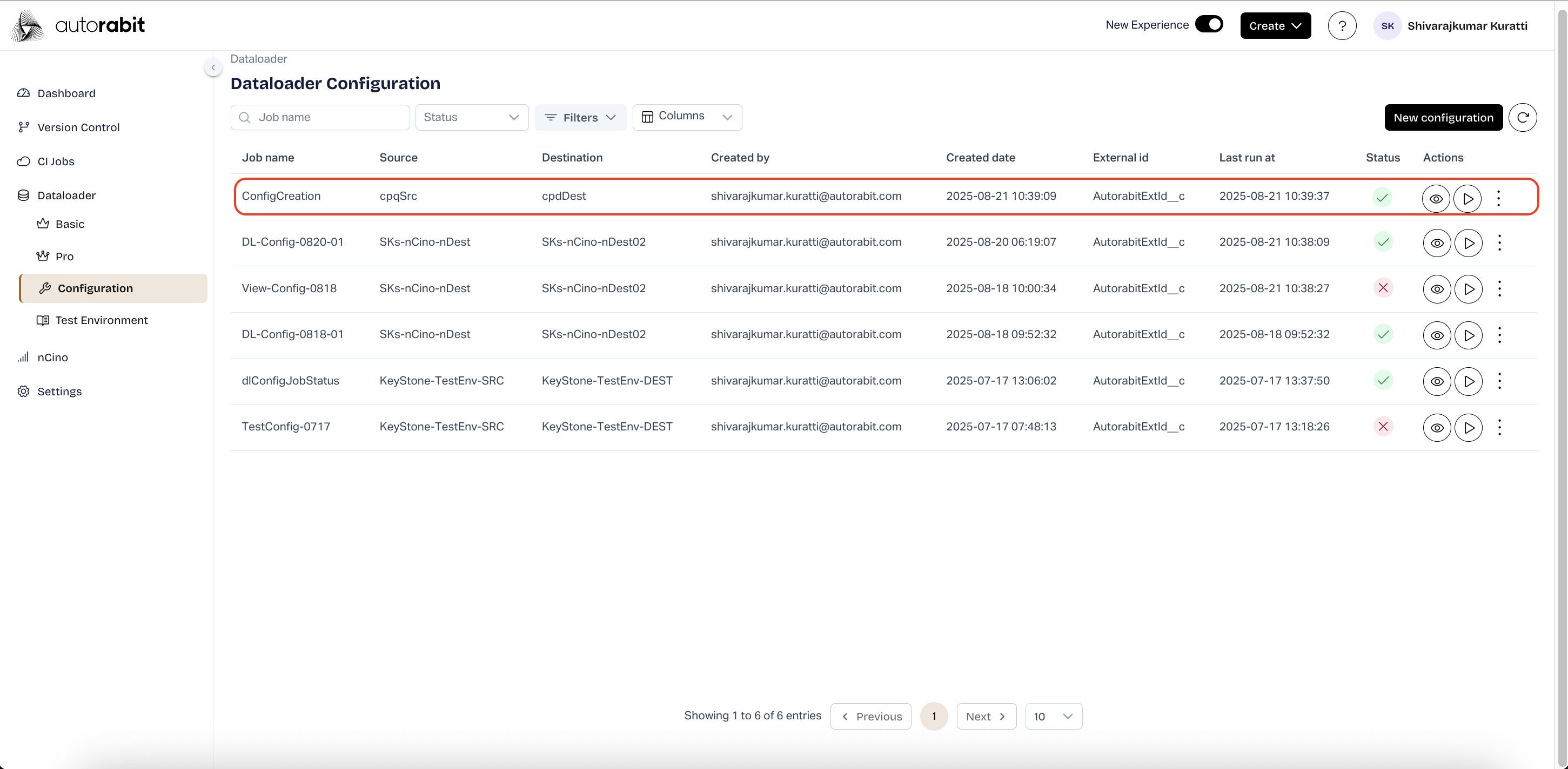
11. **Completed Execution**
* After successful execution, the **Status** column updates with a green check.
* The configuration run is marked as completed.
* Results can then be reviewed or re-run as required.
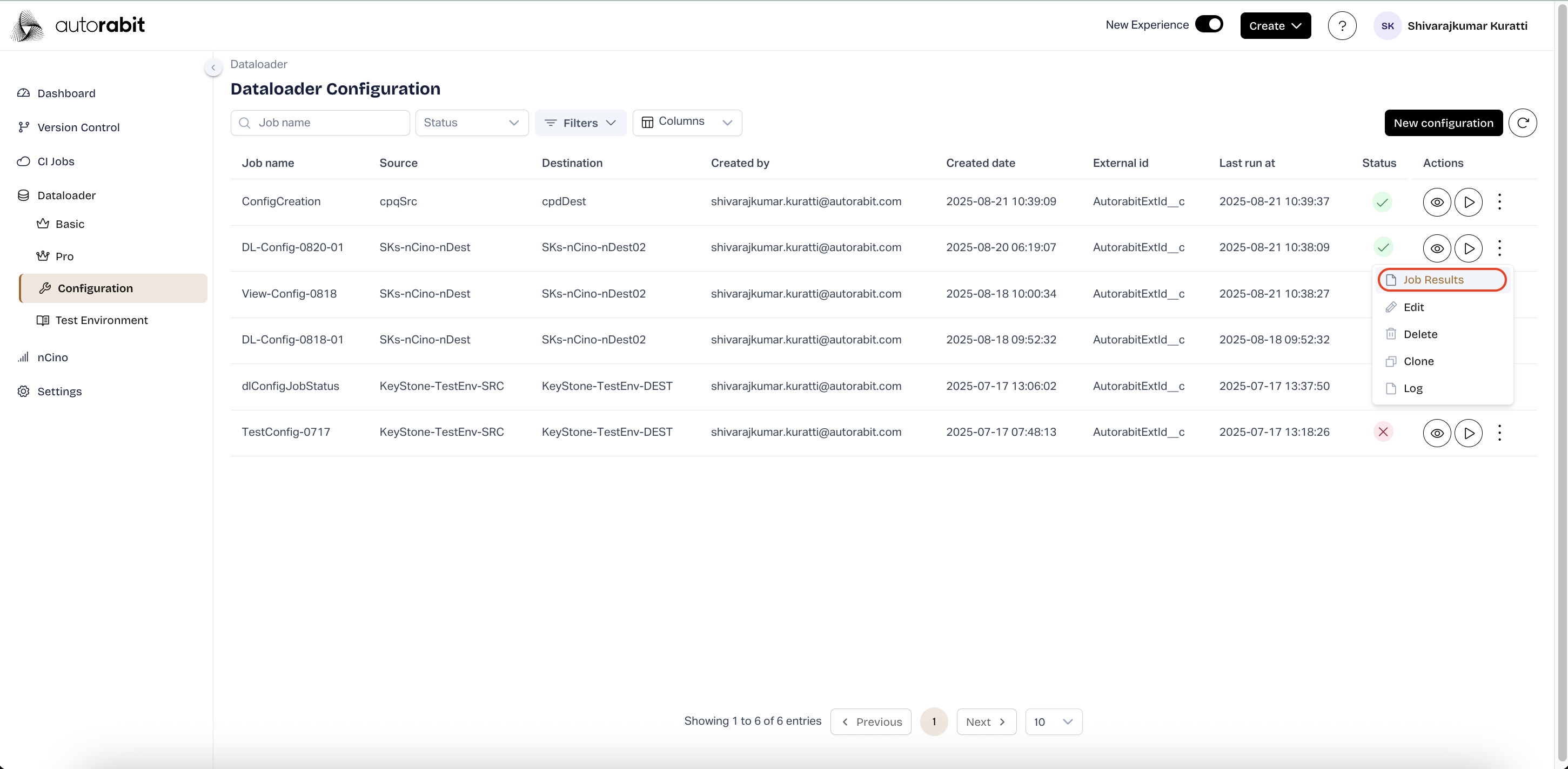
12. **View Job Results**
* From the **Dataloader Configuration** page, select the ellipsis (three dots) for the desired job.
* Choose **Job Results** from the dropdown menu.
* This opens the configuration details page, displaying the objects, unique fields, and execution results.
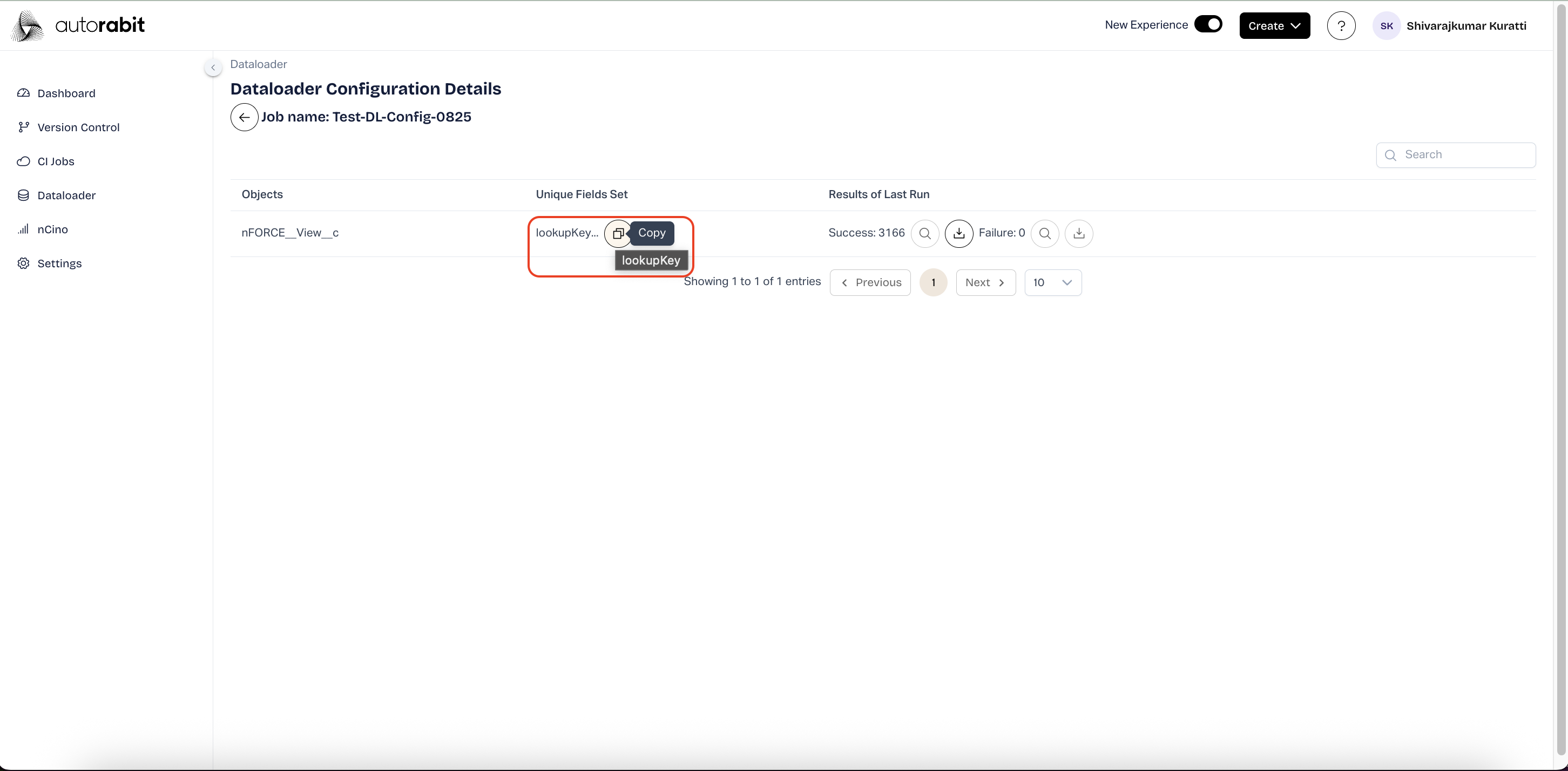
13. **Copy Unique Field Set**
* Within the **Dataloader Configuration Details** page, locate the **Unique Fields Set** column.
* Select the **Copy** icon next to the listed unique field.
* The field is copied to the clipboard for reuse in other configurations or references.
14. **Copy Confirmation**
* After copying, a **Success** message appears at the top right of the screen.
* The notification confirms that the **Unique Fields Set** has been successfully copied.
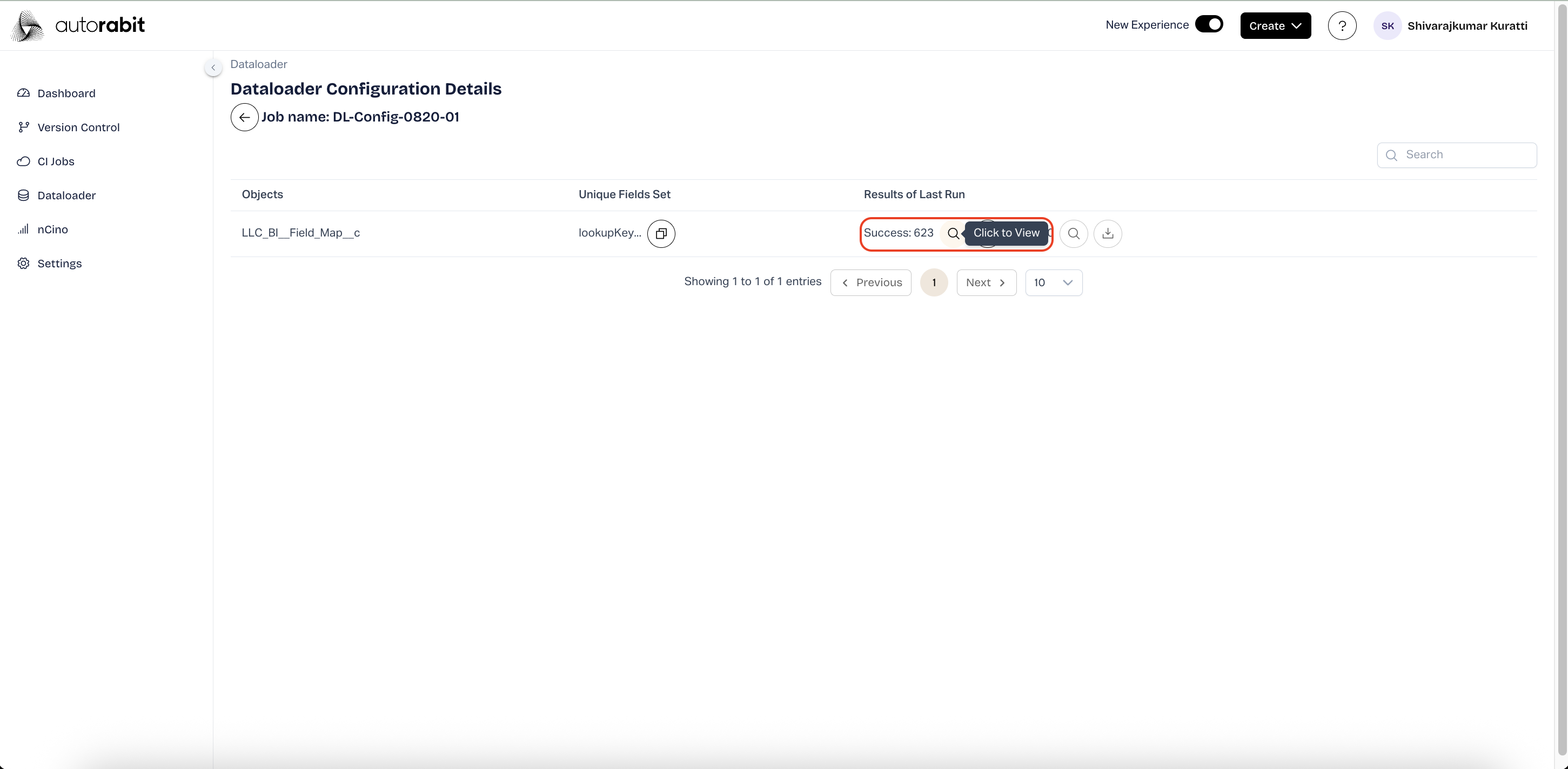
15. #### View Success Results
* From the **Dataloader Configuration Details** page, locate the **Results of Last Run** section.
* Select the **Success count** link (e.g., “Success: 623”) to review detailed results of successfully processed records.
* This opens a detailed view of the success log.
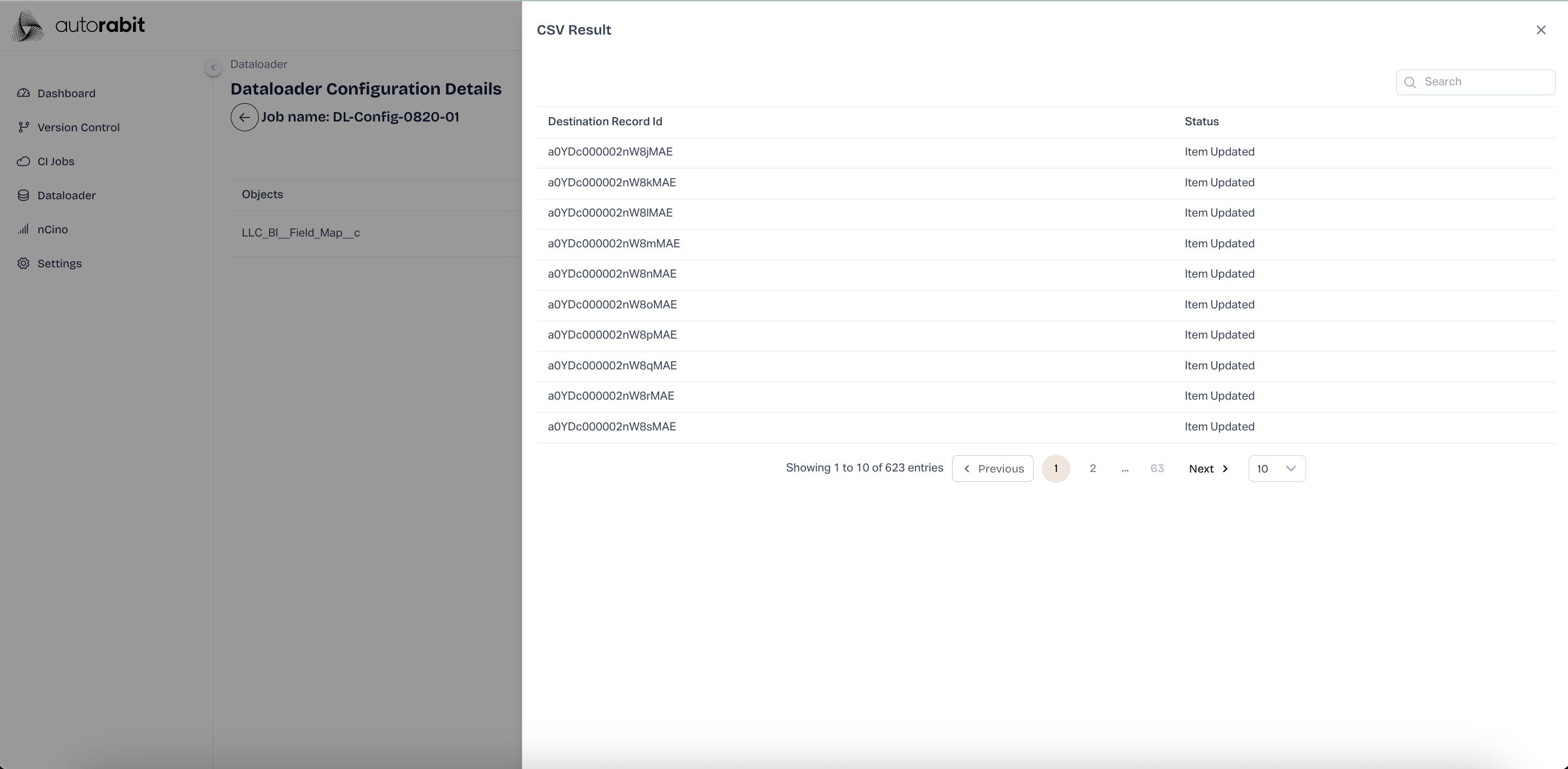
16. #### Review Success Log
* A **CSV Result** view is displayed, listing each **Destination Record Id** along with its **Status** (e.g., “Item Updated”).
* Navigate through the pages to review all processed records.
* This provides a complete audit trail of records updated or inserted successfully.
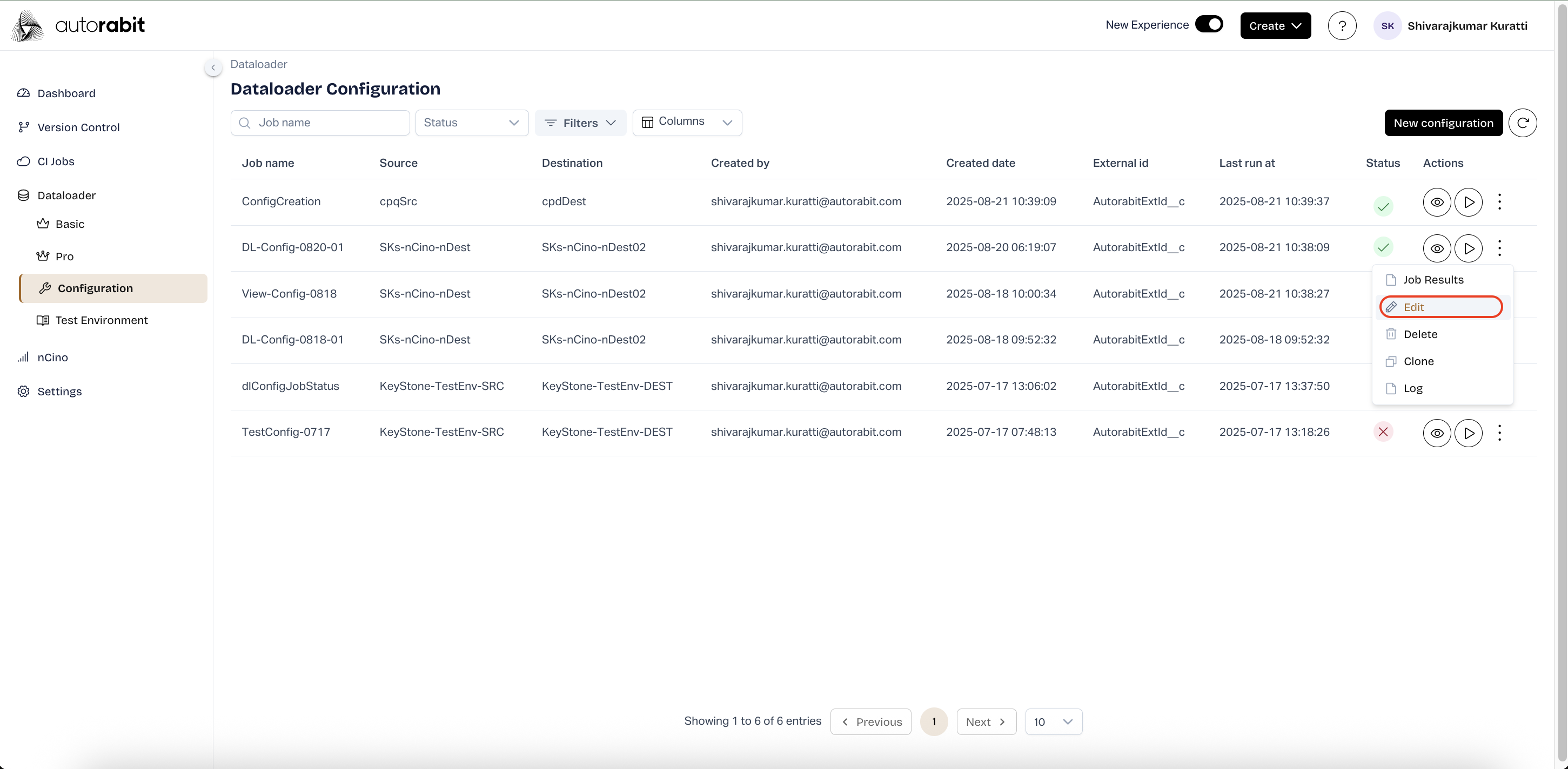
17. **Edit Configuration**
* From the Dataloader Configuration page, select the ellipsis (three dots) for a specific configuration.
* Choose **Edit** from the dropdown menu.
* This opens the Dataloader Configuration Edit page, allowing updates to Salesforce Org details and object/field selections.
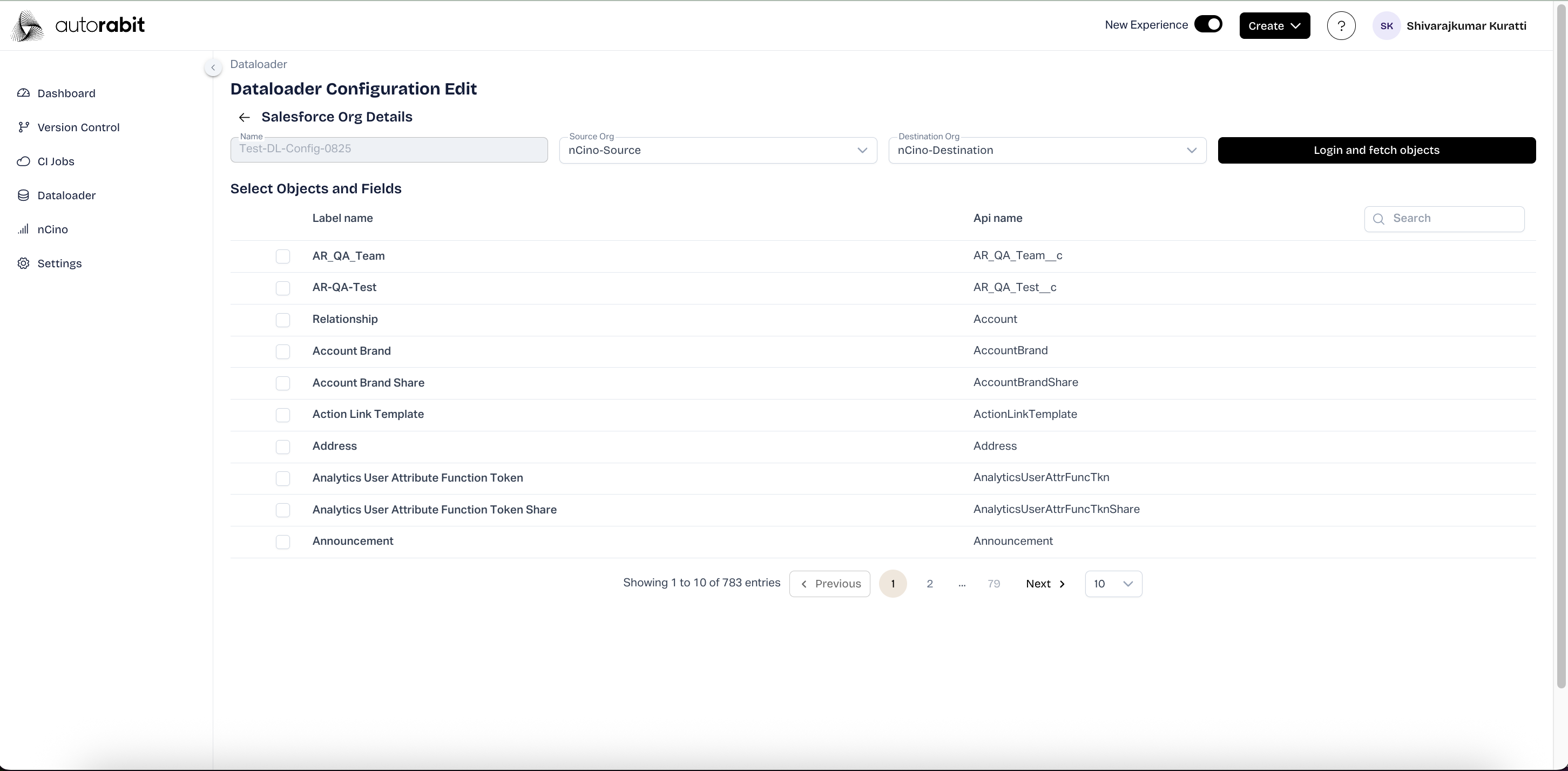
18. **Modify Configuration**
* The Dataloader Configuration Edit page displays the previously saved configuration details.
* Objects and fields can be adjusted as required to reflect the updated configuration.
* Once changes are made, they can be saved to update the existing configuration.
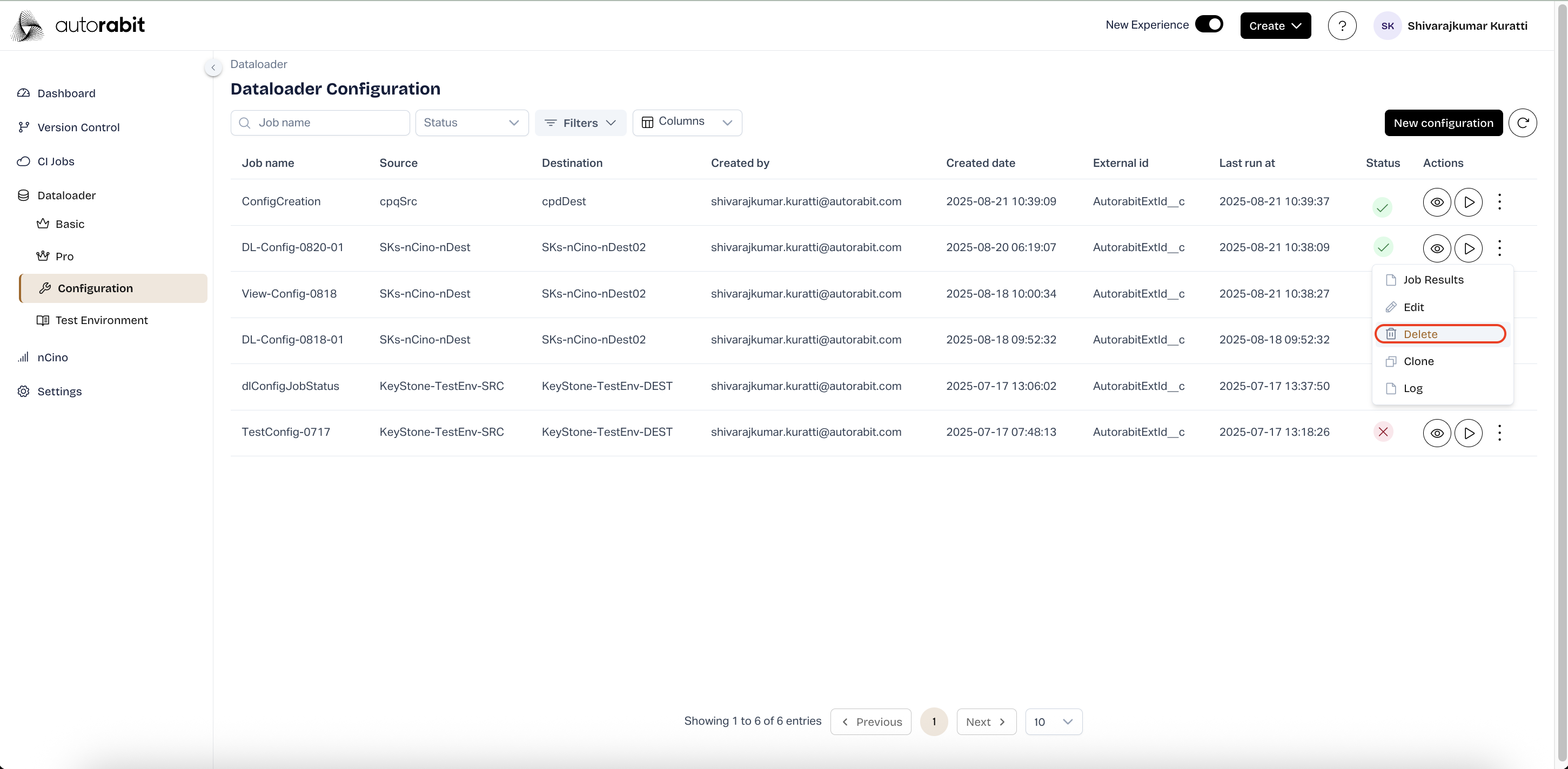
19. **Delete Configuration**
* From the Dataloader Configuration page, open the ellipsis (three dots) menu for the selected configuration.
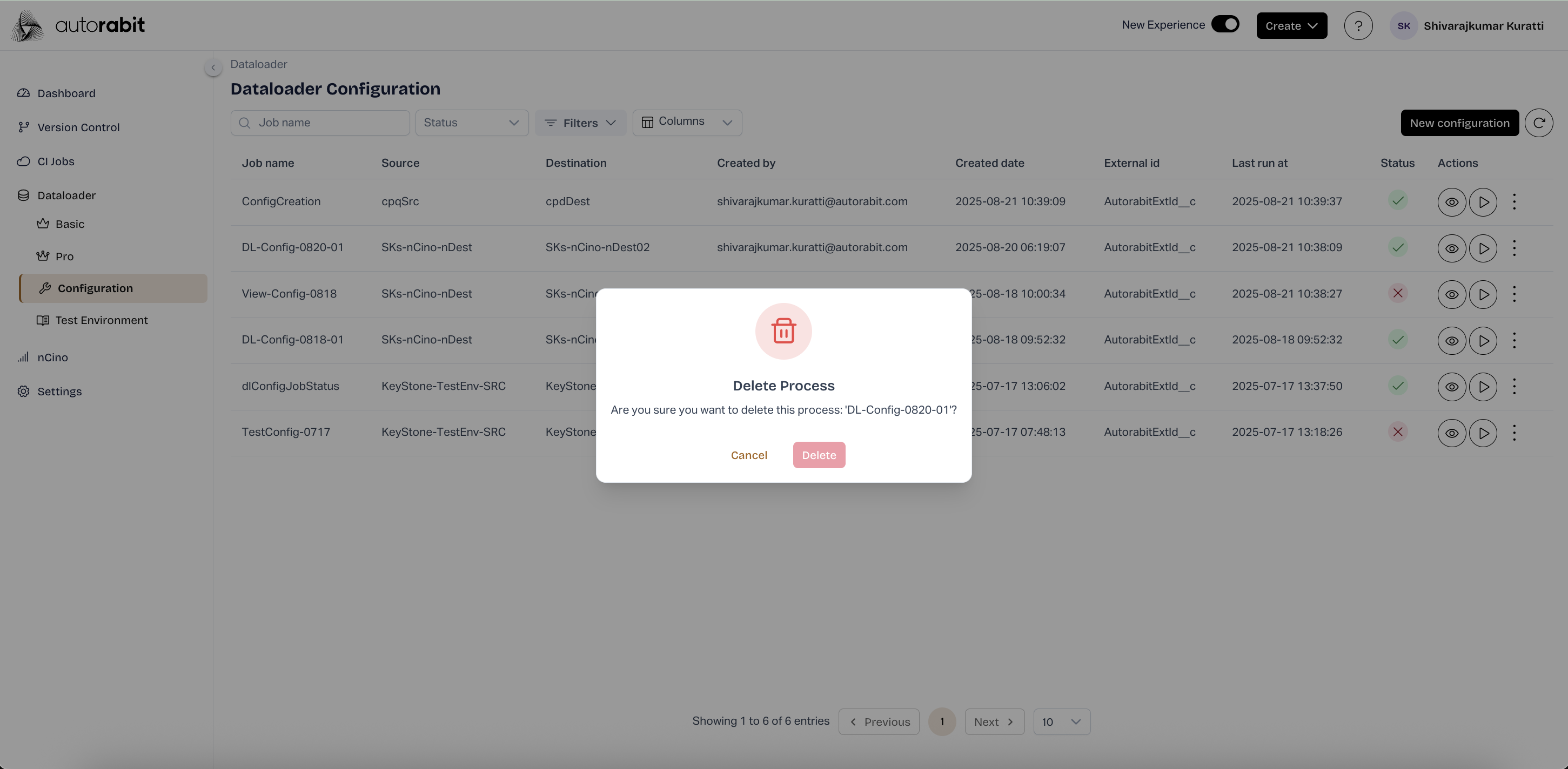
* Choose **Delete** to initiate removal of the configuration.
* A confirmation dialog appears, displaying the configuration name for verification.
* Select **Delete** to permanently remove the configuration, or **Cancel** to abort the action.
* This operation cannot be undone and should only be performed when the configuration is no longer needed.
20. #### Clone Configuration
* From the **Dataloader Configuration** page, select the ellipsis (three dots) corresponding to the job that needs to be cloned.
* Choose **Clone** from the dropdown menu to duplicate the existing configuration.
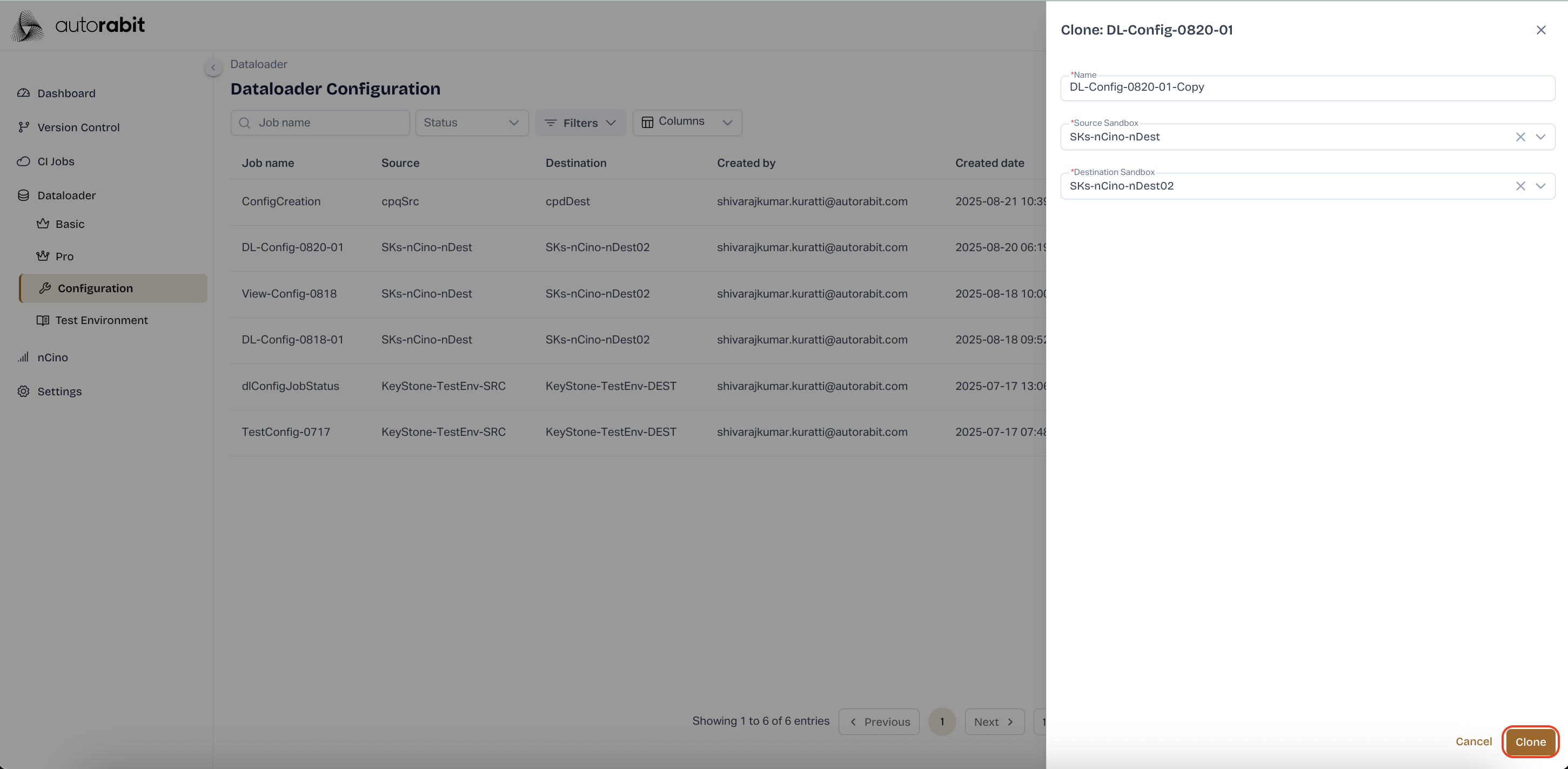
* A **Clone Configuration** dialog will appear, prefilled with the original job name appended with “-Copy.”
* Verify or update the **Name**, **Source Sandbox**, and **Destination Sandbox** values as needed.
* Select **Clone** to finalize the process.
* The cloned configuration will be created and displayed in the Dataloader Configuration list, ready for execution or modification.
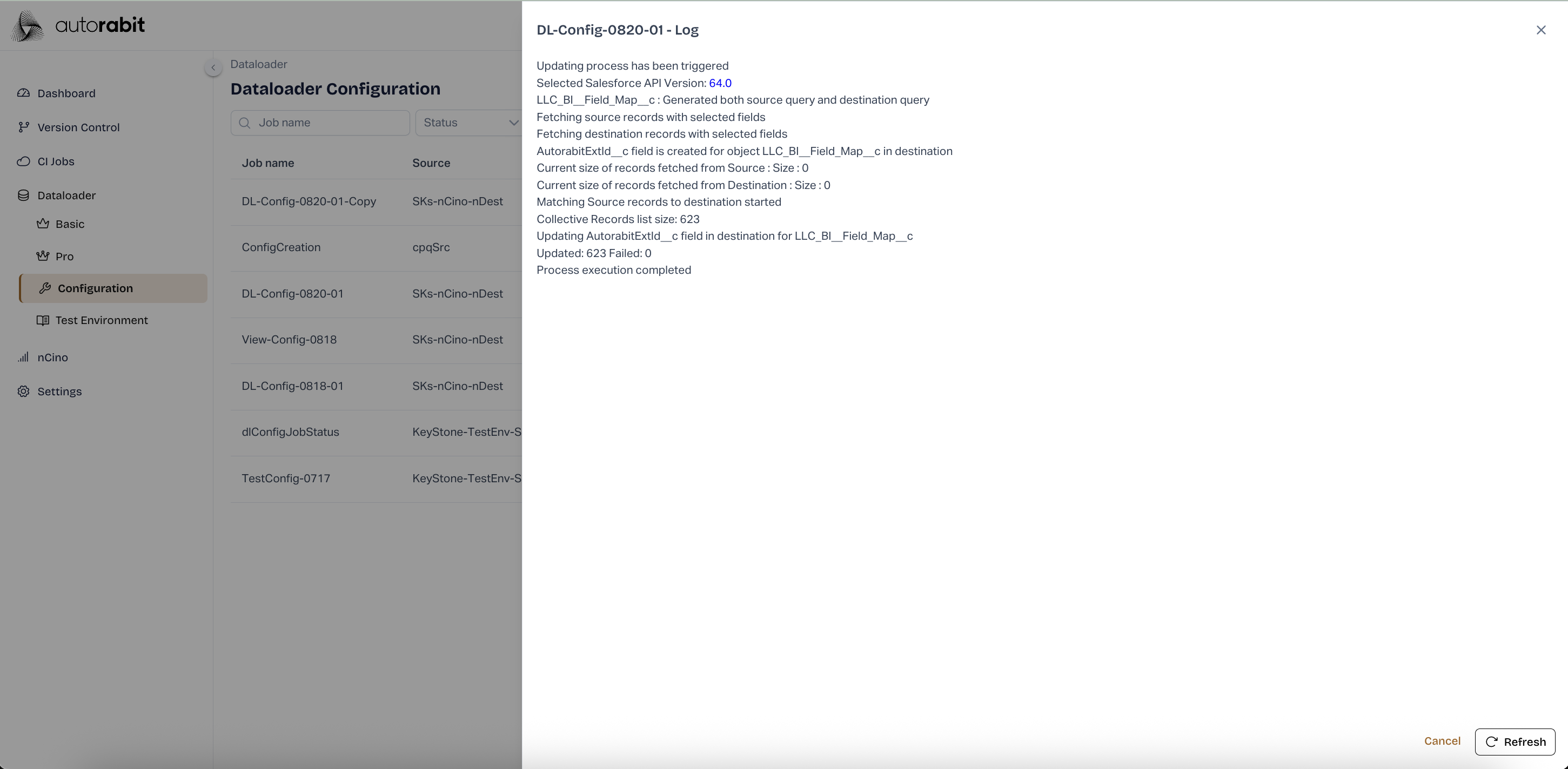
21. **View Logs**
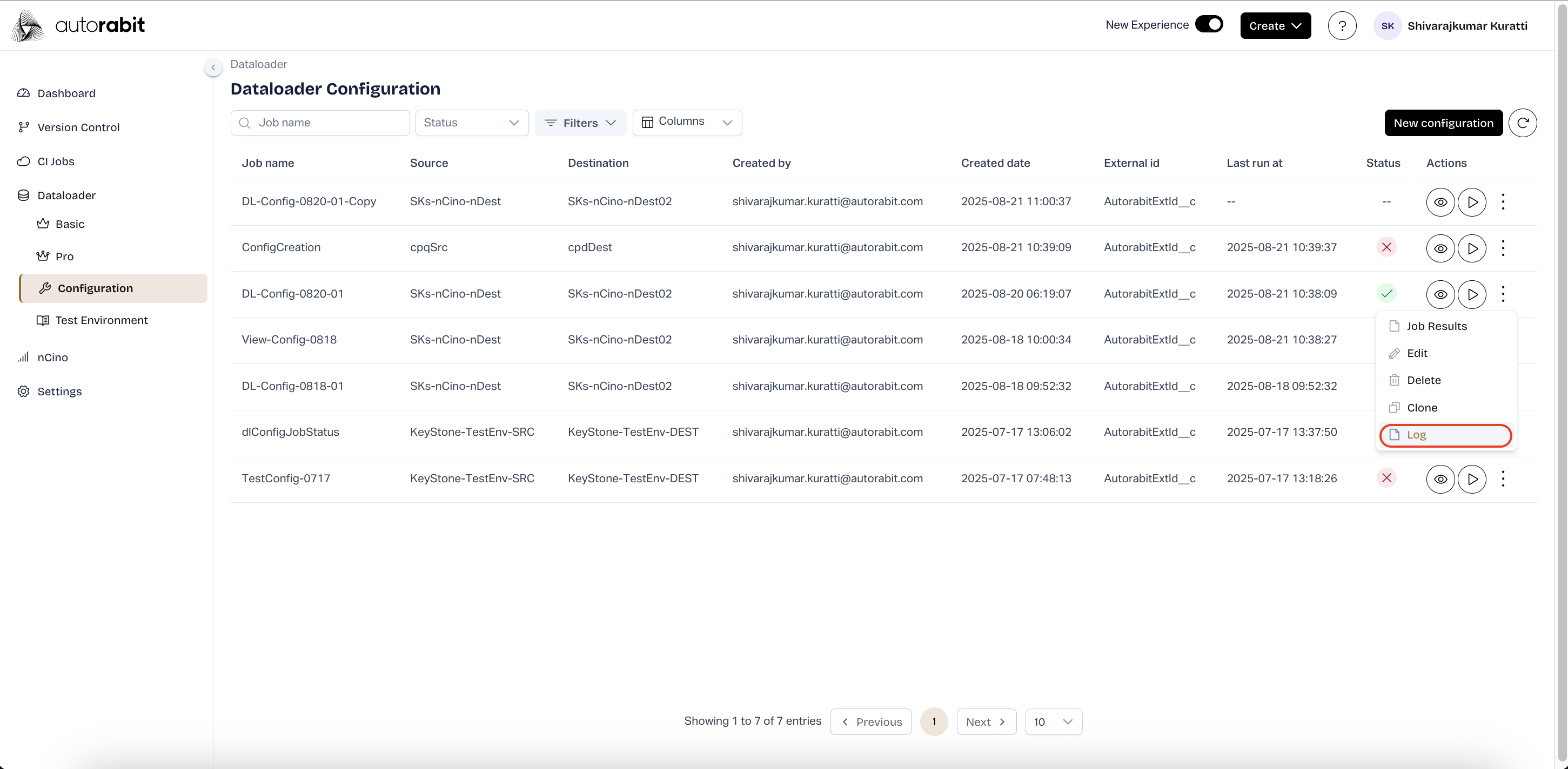
* From the Dataloader Configuration page, select the ellipsis (three dots) for a specific job.
* Choose **Log** to open the detailed execution log for that configuration.
* The log provides complete step-by-step information about the process, including record fetch details, field mappings, execution progress, and success or failure counts.
* This feature is useful for troubleshooting and auditing the data operation.
---
# Agent Instructions
This documentation is published with GitBook. GitBook is the documentation platform designed so that both humans and AI agents can read, navigate, and reason over technical content effectively. Learn more at gitbook.com.
## Querying This Documentation
If you need additional information that is not directly available in this page, you can query the documentation by asking a question.
Perform an HTTP GET request on the following URL with the `ask` and `goal` query parameters:
```
GET https://knowledgebase.autorabit.com/product-guides/arm-1/arm-features/dataloader/dataloader-configuration.md?ask=&goal=
```
`ask` is the immediate question: it should be specific, self-contained, and written in natural language.
`goal` is what the user is ultimately trying to achieve, the reason they need the answer. Sharing it helps GitBook give you a better, more relevant answer. A goal is most helpful when it describes the outcome the user wants rather than restating the question. For example, with `ask=how do I create an API token`, a goal like `automate deployments from our CI pipeline` lets GitBook tailor the answer to that use case.
The response will contain a direct answer to the question and relevant excerpts and sources from the documentation.
Use this mechanism when the answer is not explicitly present in the current page, you need clarification or additional context, or you want to retrieve related documentation sections.