> For the complete documentation index, see [llms.txt](https://knowledgebase.autorabit.com/llms.txt). Markdown versions of documentation pages are available by appending `.md` to page URLs; this page is available as [Markdown](https://knowledgebase.autorabit.com/product-guides/arm-1/arm-features/dataloader/dataloader-pro.md).
# Import Using DataLoader Pro
**DataLoader Pro** is an advanced ARM capability that enables seamless transfer of data from a source sandbox to a destination sandbox. It automatically manages parent-child relationships, ensuring data integrity across related Salesforce objects. With support for multi-object hierarchies, DataLoader Pro simplifies the migration of complex Salesforce datasets, making the process faster, more reliable, and less prone to manual errors.
### Prerequisites for DataLoader Pro
When running **DataLoader Pro** on objects for the first time, ensure that **DataLoader Configuration** is completed between the same orgs for all objects included in the job. This configuration is a one-time requirement.
DataLoader Pro plays a crucial role in migrating data from a source sandbox to a destination sandbox. However, during this migration process, there is always a risk of creating duplicate records. To address this, ARM provides a synchronization feature that leverages the **ARM External ID** field (`AutorabitExtid__c`) to match and align records between orgs, helping prevent duplication.
#### Step-By-Step Guide:
1. Log in to ARM application
2. Click on the PRO option in the left side navigation
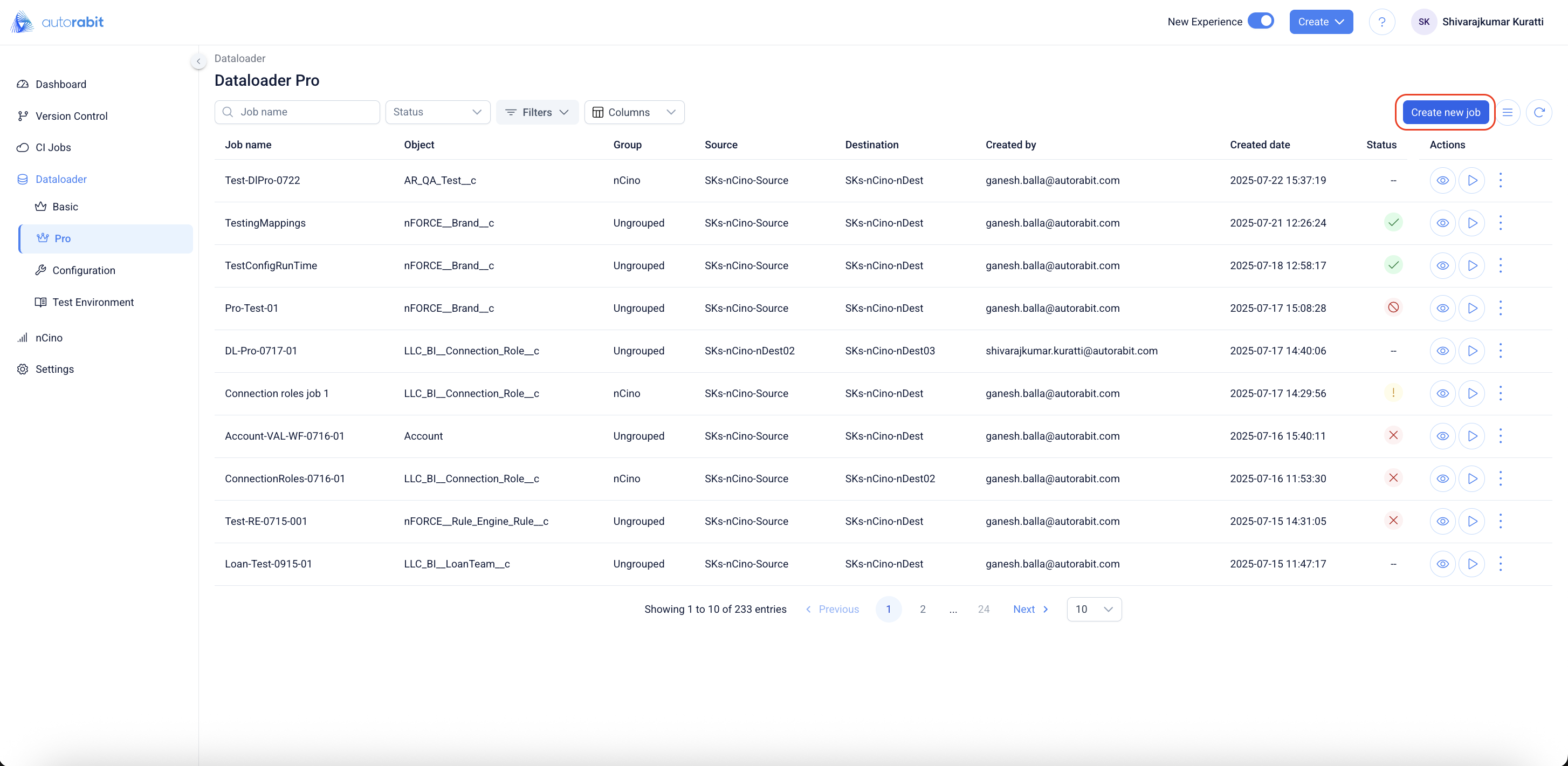
3. Open **DataLoader ▸ Pro** and click **Create new job**.
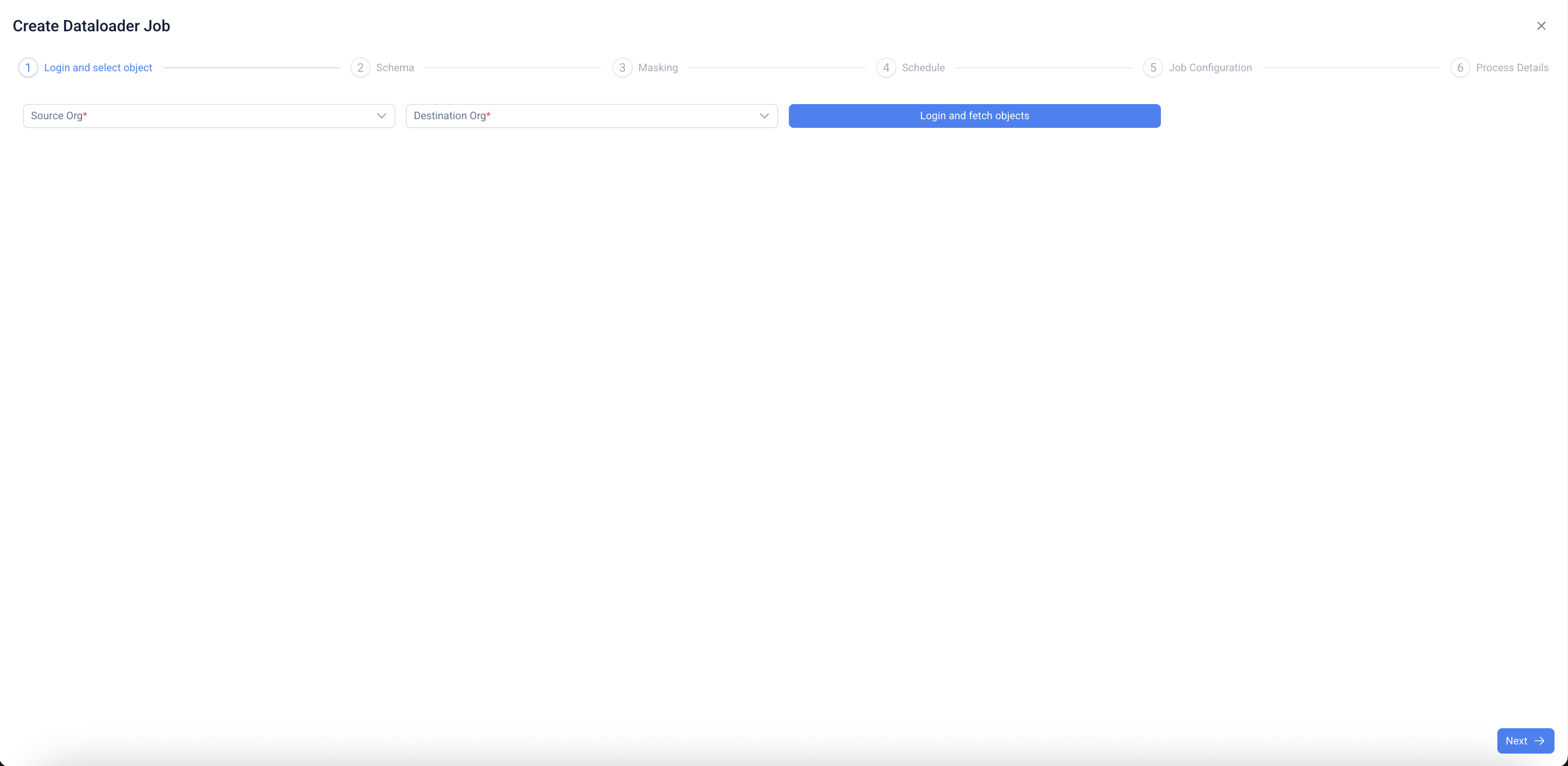
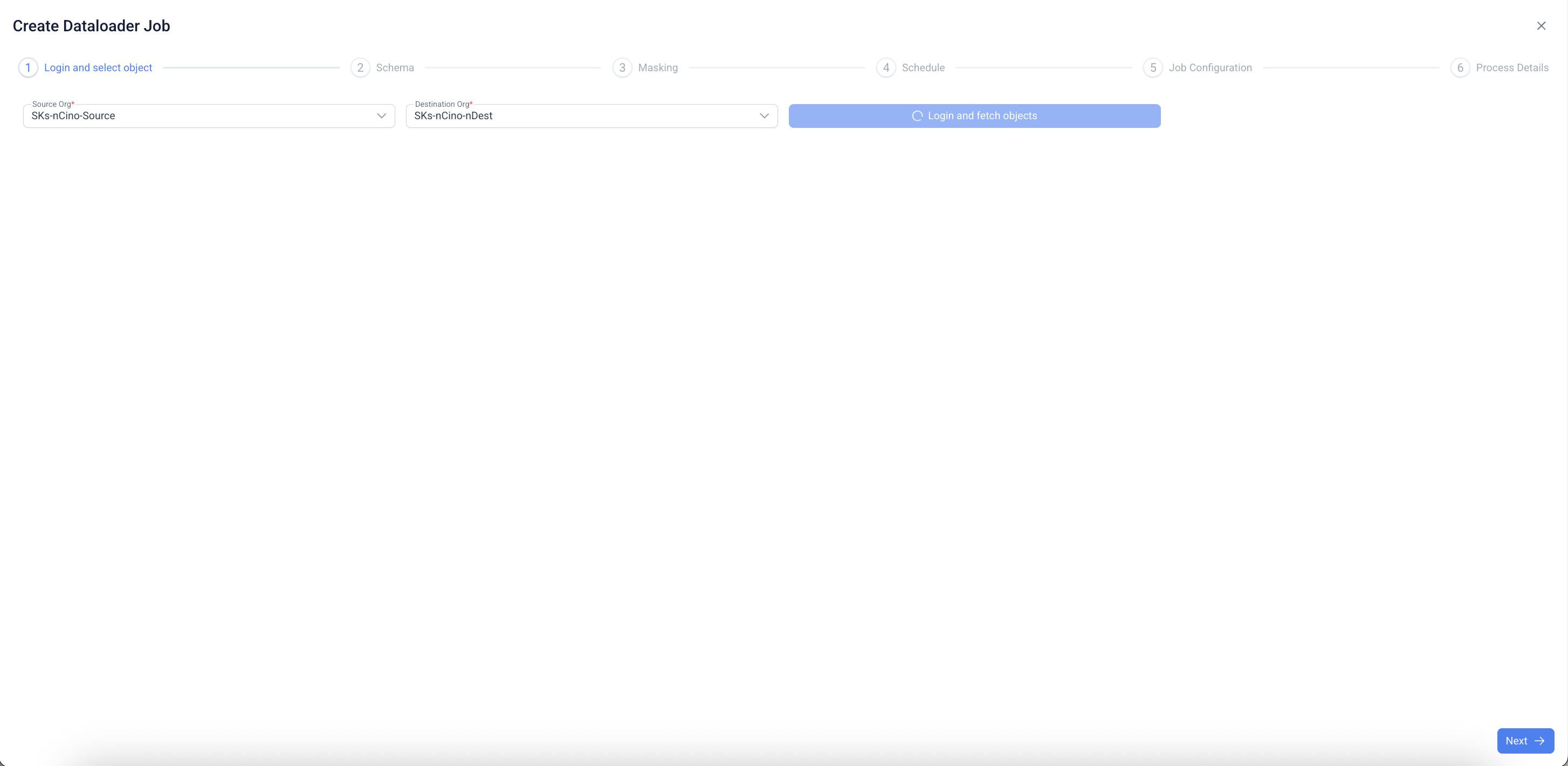
4. In **Create DataLoader Job – Login and select object**, choose the **Source Org** and **Destination Org** from the dropdowns.
5. Click **Login and fetch objects** to authenticate and load available objects from the source org
6. ### Select the source object
The Create Dataloader Job flow starts in the Login and select object step. The source org and destination org are selected, and Login and fetch objects retrieves the available objects from the selected source org.
The required object is selected from the object list. The selected object becomes the master object for schema configuration and filter setup.
Login and select object step with the object list available for selection
7. ### Open the filter configuration
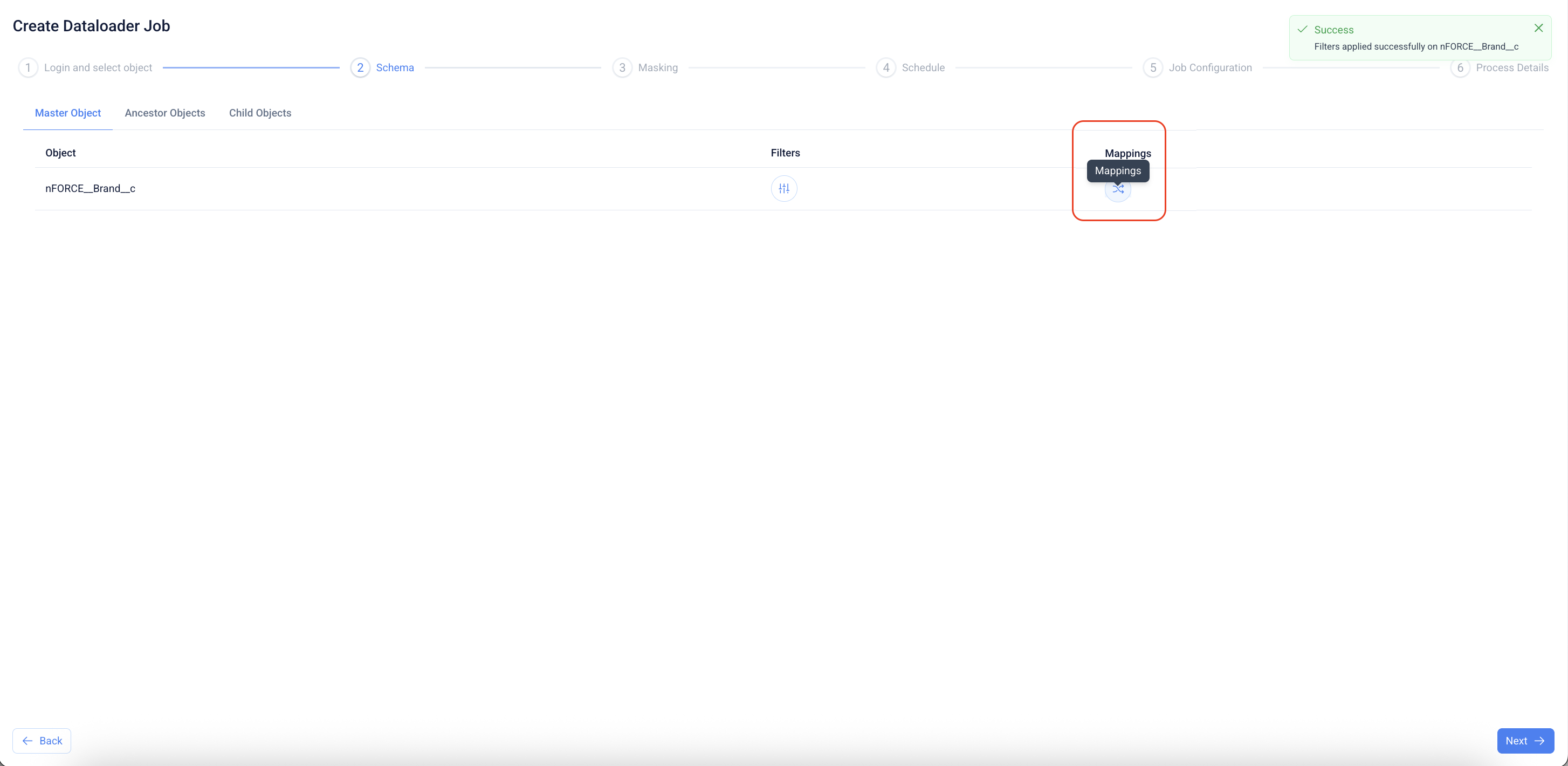
After the object is selected, the flow moves to the Schema step. The Master Object tab displays the selected object and provides access to Filters and Mappings.
Selecting Filters opens the Filter panel for the selected object. The panel supports two input options: Insert Value and Upload CSV File. In this flow, Insert Value is selected to build the condition directly in the application.
Schema step with Filters available for the selected master object
Filter panel with Insert Value selected
8. ### Build filter conditions
The filter condition is defined by selecting a field, choosing the operator, and providing the required value when the operator requires one. The Add Condition icon adds the condition to the filter grid.
Each added condition appears in the grid with its field, operator, value, and optional bracket controls. Multiple conditions can be added and joined through the available logical operator field. Conditions can also be deleted from the grid when they are no longer required.
The generated query is displayed in the query editor area as the conditions are added. This provides visibility into the query that will be validated and applied.
Field and operator selected before adding the condition
Added conditions displayed in the filter grid
Order By configured after adding filter conditions
Record Count configured to limit the query output
9. ### Validate and apply the filter
Validate checks the generated query before it is applied. If the query is valid, Vault displays a success notification and allows the filter to be applied to the selected object.
Apply saves the filter configuration for the selected master object and returns the flow to the Schema step. The filter indicator confirms that a filter is configured for the object.
Validate action available for the generated query
Validation success notification displayed for a valid query
Apply action available after the filter is validated
10. ### Edit the generated query manually
Edit query changes the query from builder-managed mode to manual editing mode. Before this change is applied, Vault displays a confirmation message because manual editing disables the query builder options while keeping the current query available in the editor.
After confirmation, the query can be updated directly in the editor. The builder controls remain disabled, and Switch to query builder becomes available to return to builder-based configuration when needed.
The manually edited query must be validated before it is applied. Once validation succeeds, the updated query can be applied to the selected object.
Confirmation message before manual query editing is enabled
Manual query editing mode with builder controls disabled
Updated query ready for validation
Validation confirmation for the manually edited query
Apply action available after successful validation
Processing state while the filter is applied
Schema step showing the configured filter after the panel closes
11. ### Select the source object
The Create Dataloader Job flow starts in the Login and select object step. After selecting the required source org and destination org, Login and fetch objects retrieves the available objects.
The required object is selected from the object list. This selected object is used as the master object in the Schema step.
Login and select object step with the object list available for selection
12. ### Open the filter configuration
The Schema step displays the selected master object and provides access to Filters and Mappings. Selecting Filters opens the Filter panel for the object.
Upload CSV File is selected under Input Options. This option allows filter values to be loaded from a CSV file instead of entering each value manually.
Schema step with Filters available for the selected master object
Filter panel with Upload CSV File selected
13. ### Upload the CSV file
The field and operator are selected before uploading the CSV file. The file upload control opens the local file picker, where the CSV file containing filter values is selected.
After the file is uploaded, Vault displays a success notification. The uploaded file name appears in the upload field, confirming that the file is attached to the filter configuration.
If the uploaded file format or content is not valid for the selected filter setup, Vault displays a validation message so the file can be corrected before continuing.
Field, operator, and upload action available for the CSV filter
CSV file selected from the local file picker
Success notification after the CSV file is uploaded
Validation message displayed for upload-related issues
Action menu showing available options after file upload
14. ### Auto-populate and review the query
Auto populate reads the uploaded CSV values and generates the corresponding query in the query editor. The generated query uses the selected object and field, then inserts the uploaded values into the filter condition.
Order By can be configured to define the sort order for the query output. Record Count can be used when the job must limit the number of records returned by the query.
Generated query populated from the uploaded CSV file
Record Count area available for limiting returned records
15. ### Validate and apply the filter
Validate checks whether the generated query is valid before the filter is applied. If the query is valid, Vault displays a success notification.
Apply saves the filter configuration for the selected master object. During processing, Vault applies the CSV-based filter and then returns to the Schema step with the filter configured for the object.
Validate action available after the query is generated
Processing state while validation or apply action is in progress
Success notification after the query is validated
Apply action available after validation
Schema step showing the configured filter after the panel closes
16.
17. Back on **Schema**, verify the green **Success** toast and the active **Filters** icon.
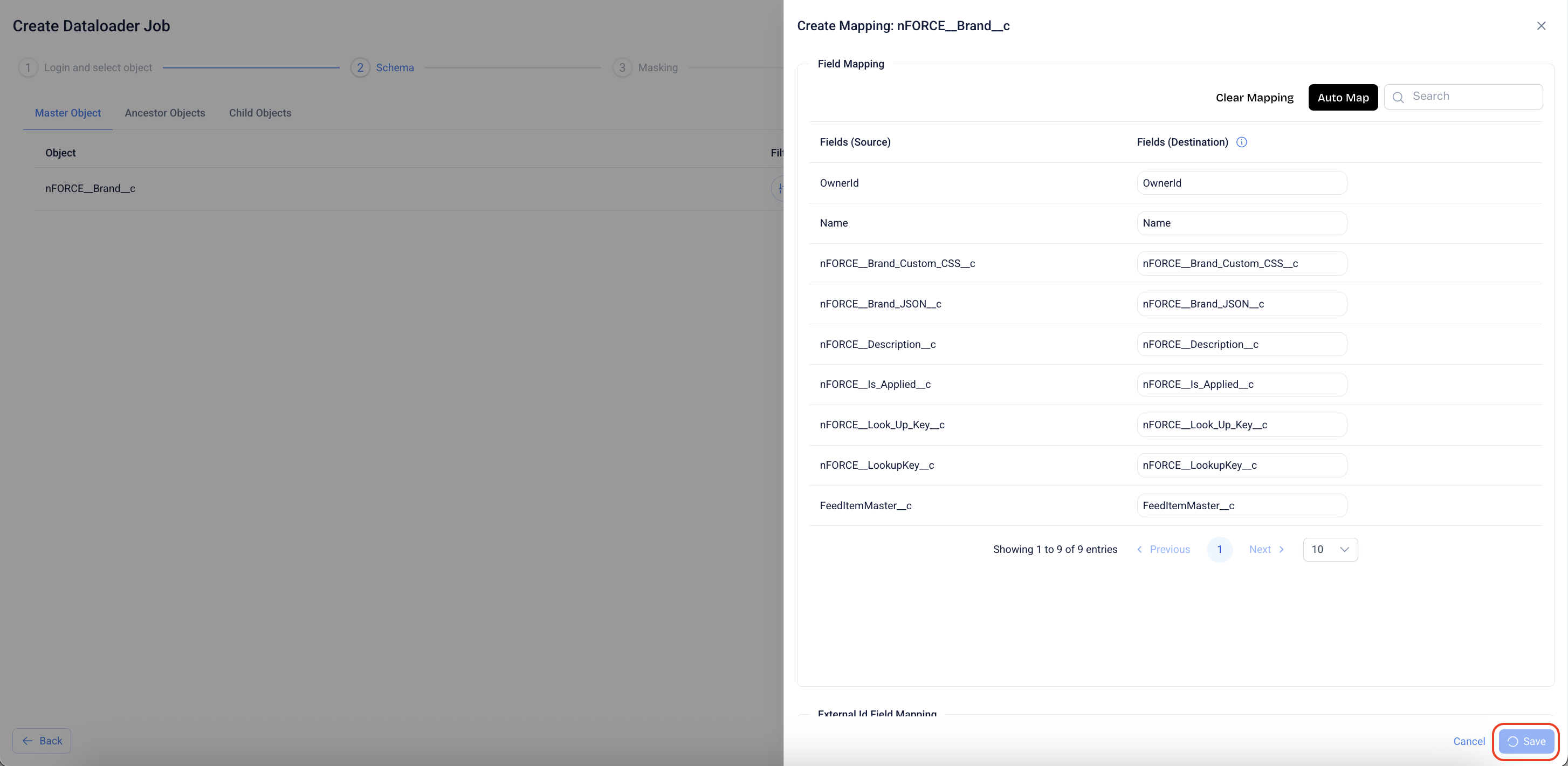
18. **Configure field mappings**
1. Click the **Mappings** icon for the same object.
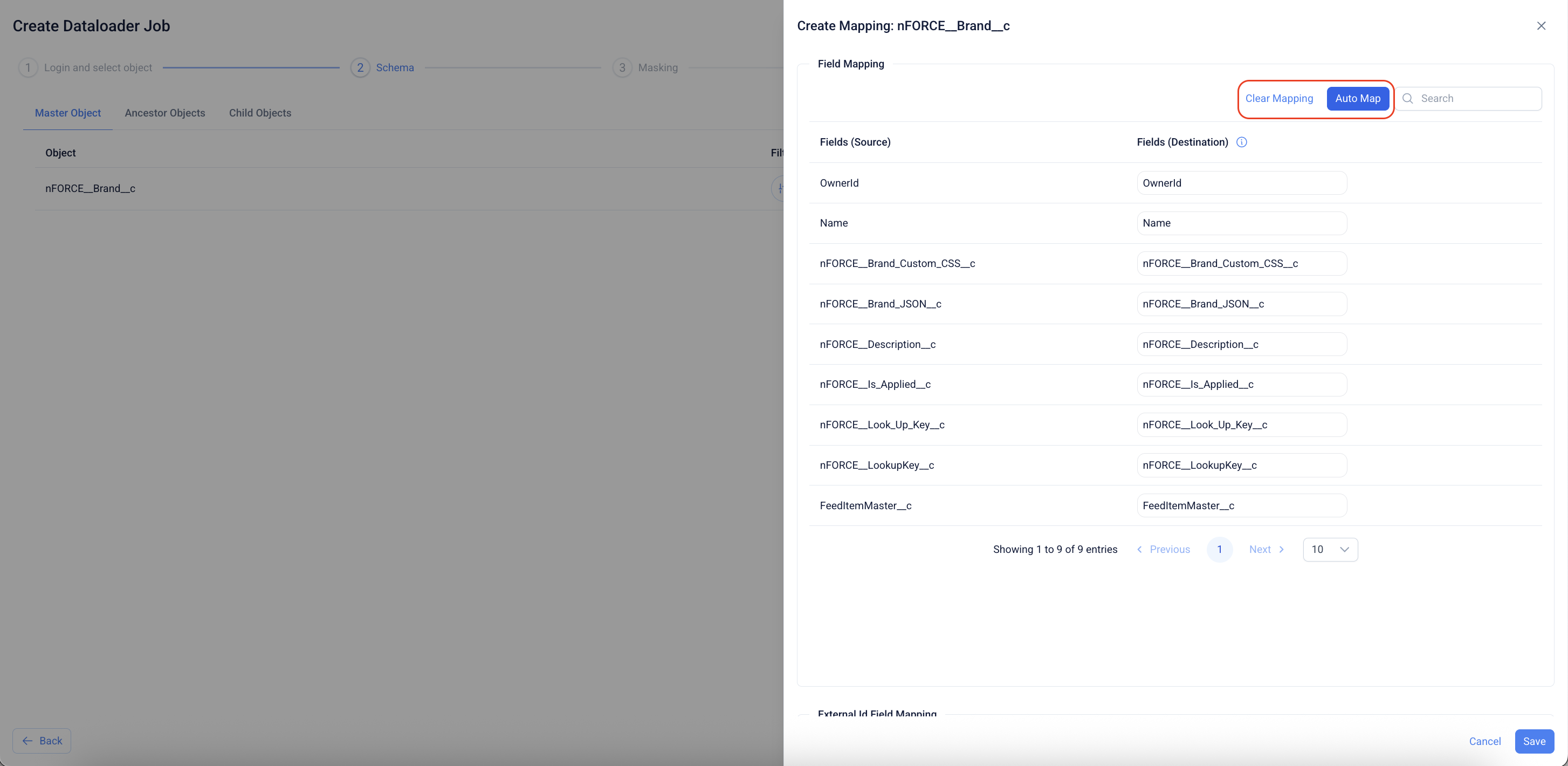
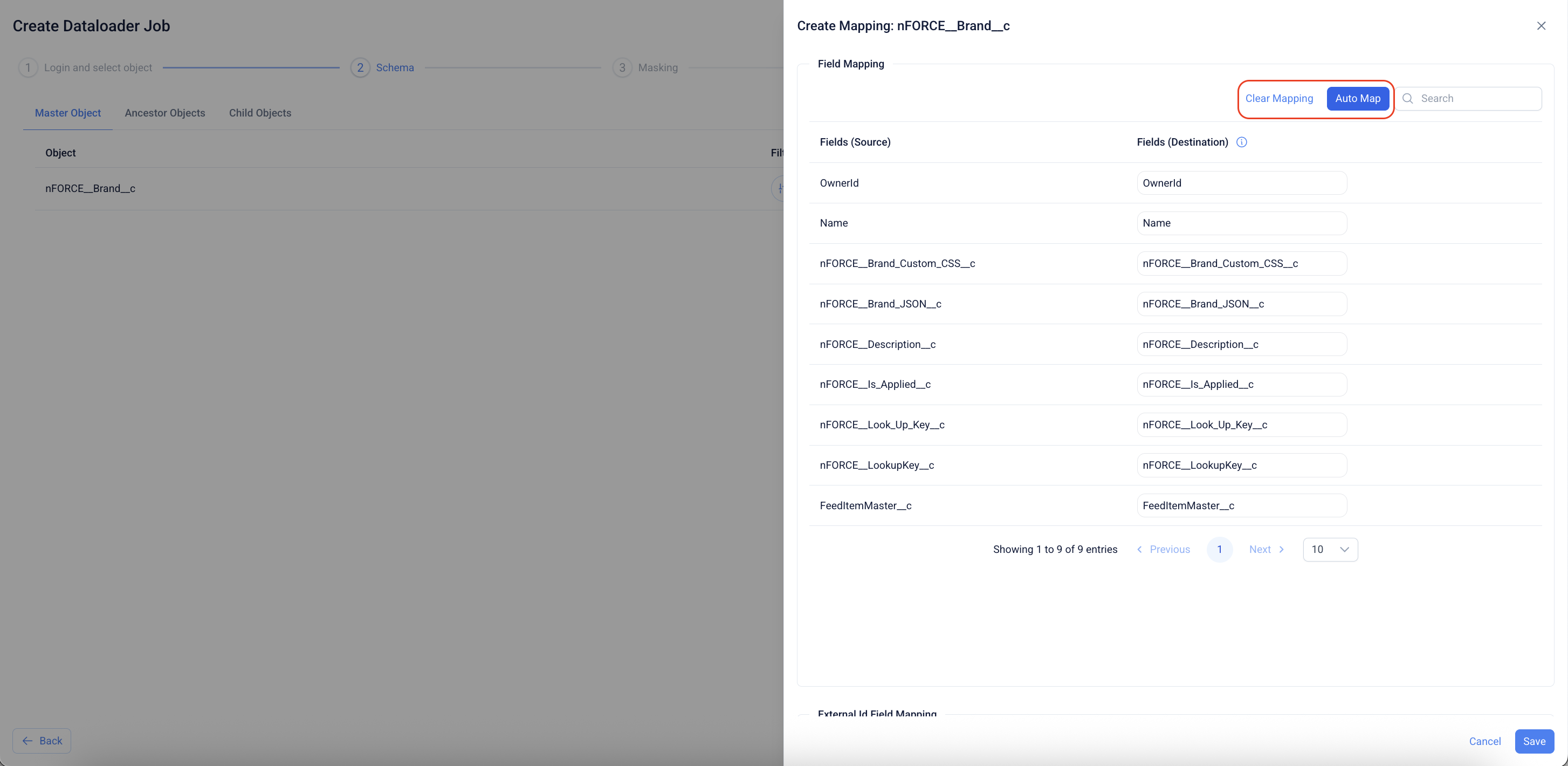
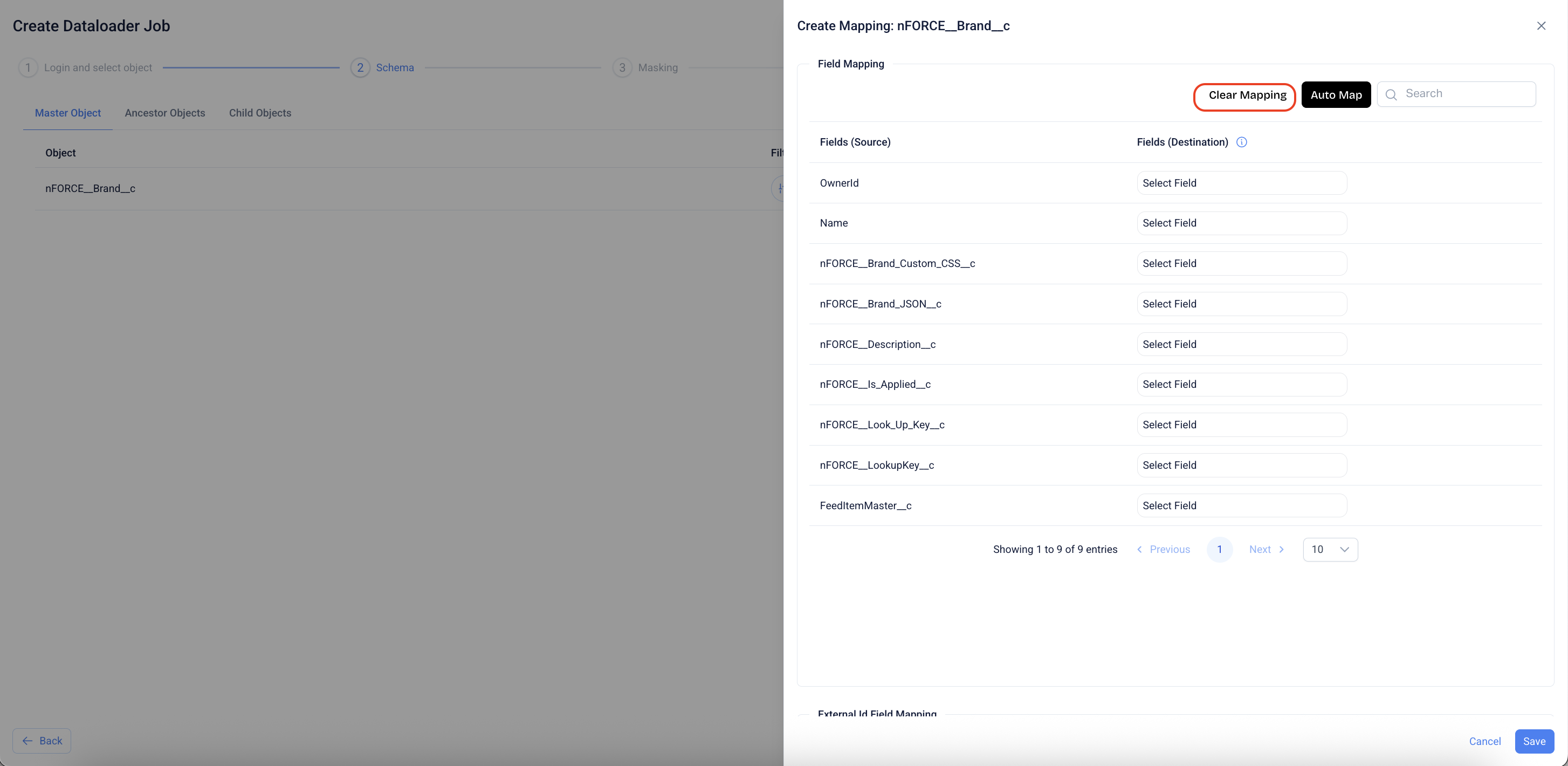
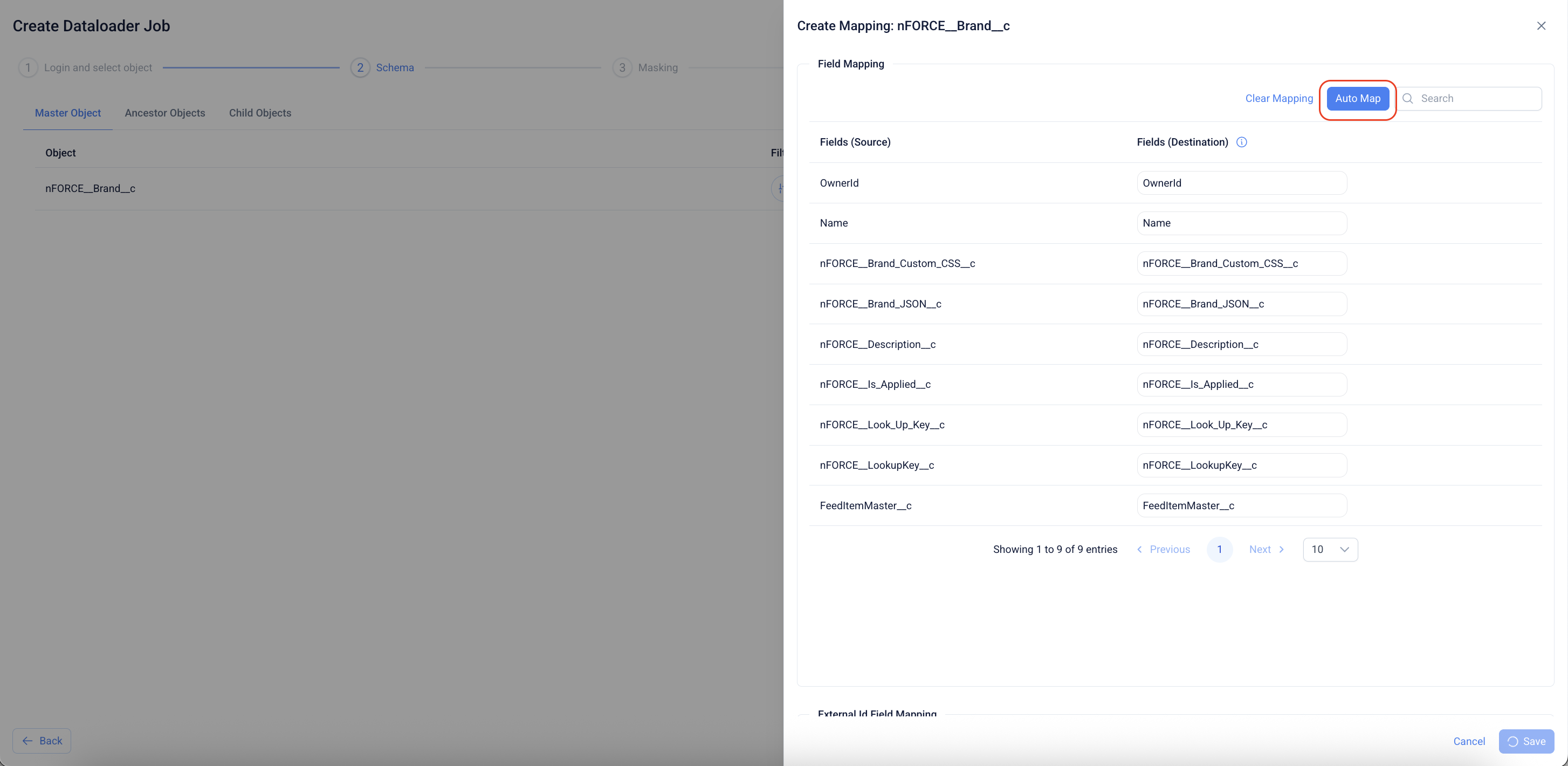
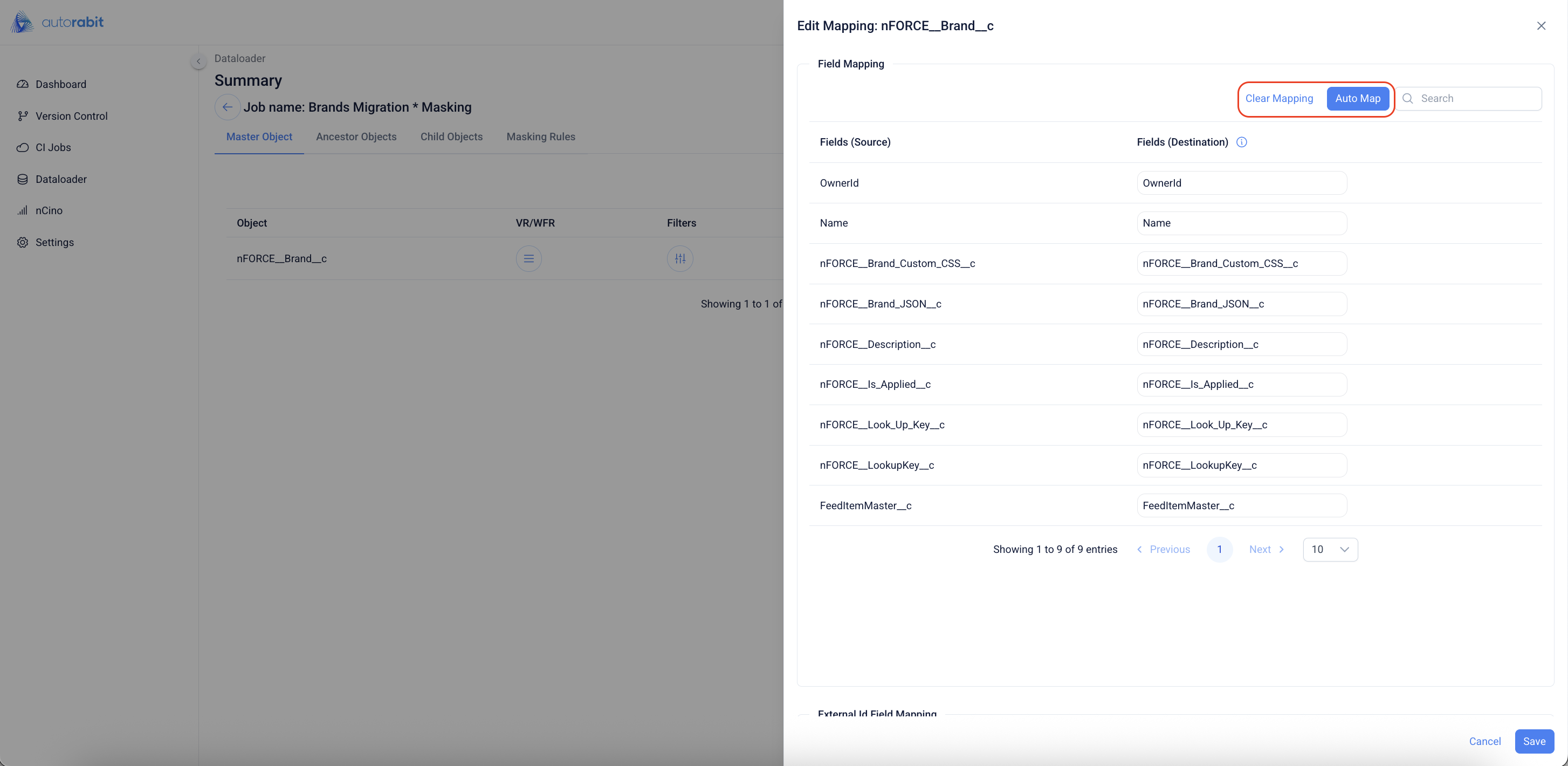
1. In **Create Mapping**, use **Auto Map** to map identical field names or **Clear Mapping** to reset.
1. Click "Clear" to clear the mappings
1. Click on "Automap" to map the similar fields
1. Review and adjust any mappings as needed, then click **Save**.
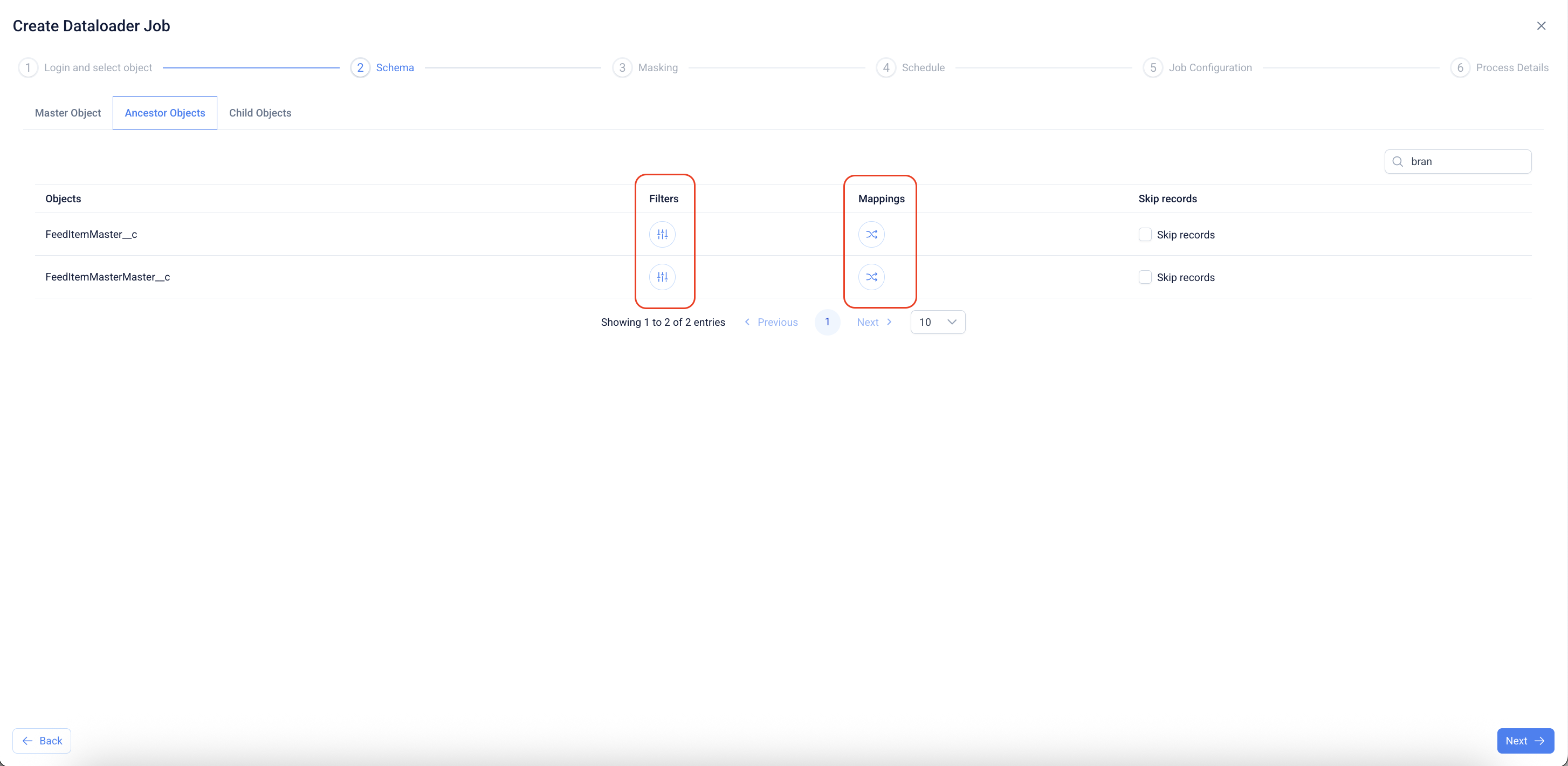
19. Click on the "Filters" and "Mappings" icons to open the respective windows on the "Ancestor Objects" section.
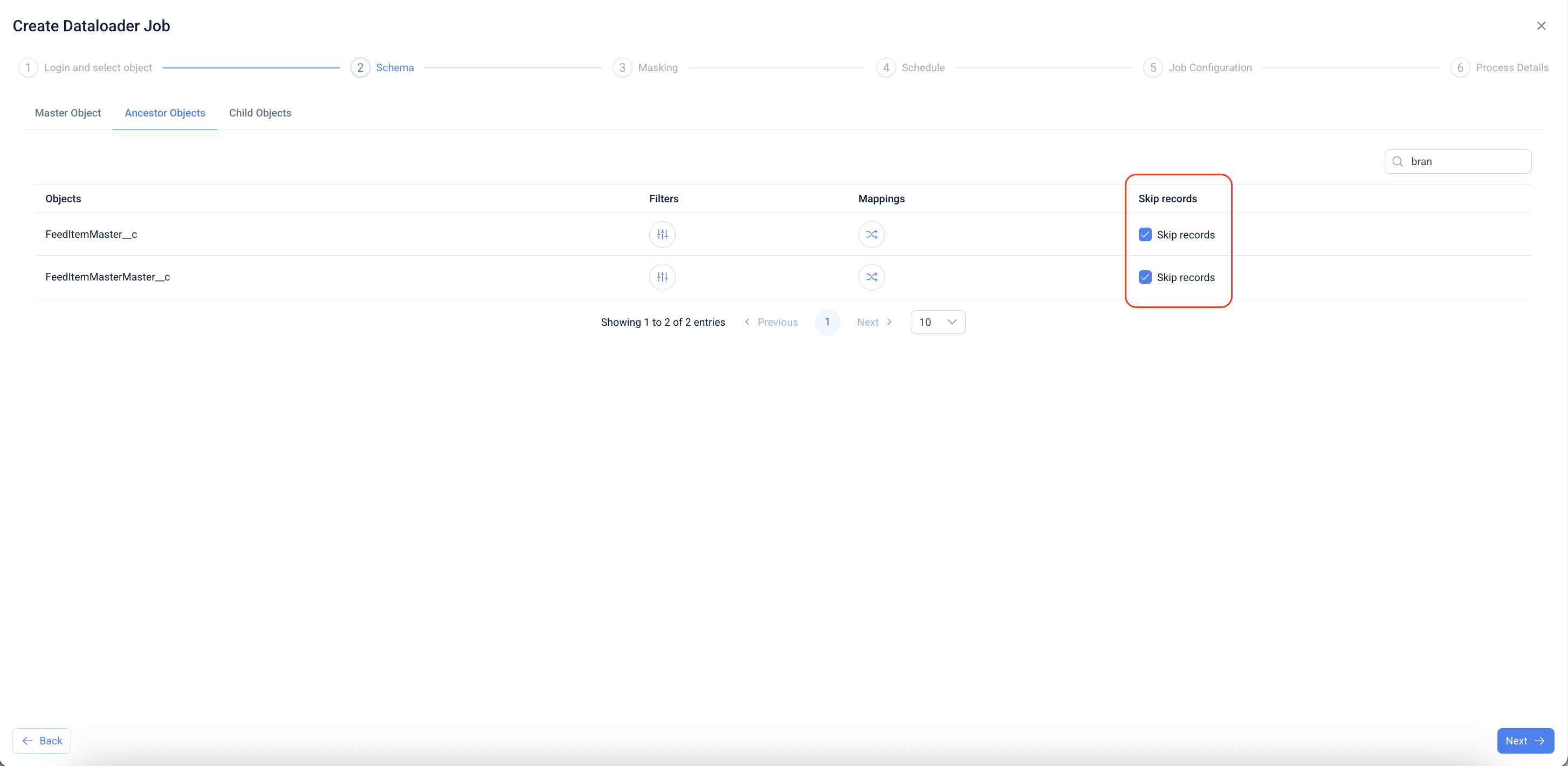
20. Click on "Skip Records" to make sure the records from these objects were skipped from processing.
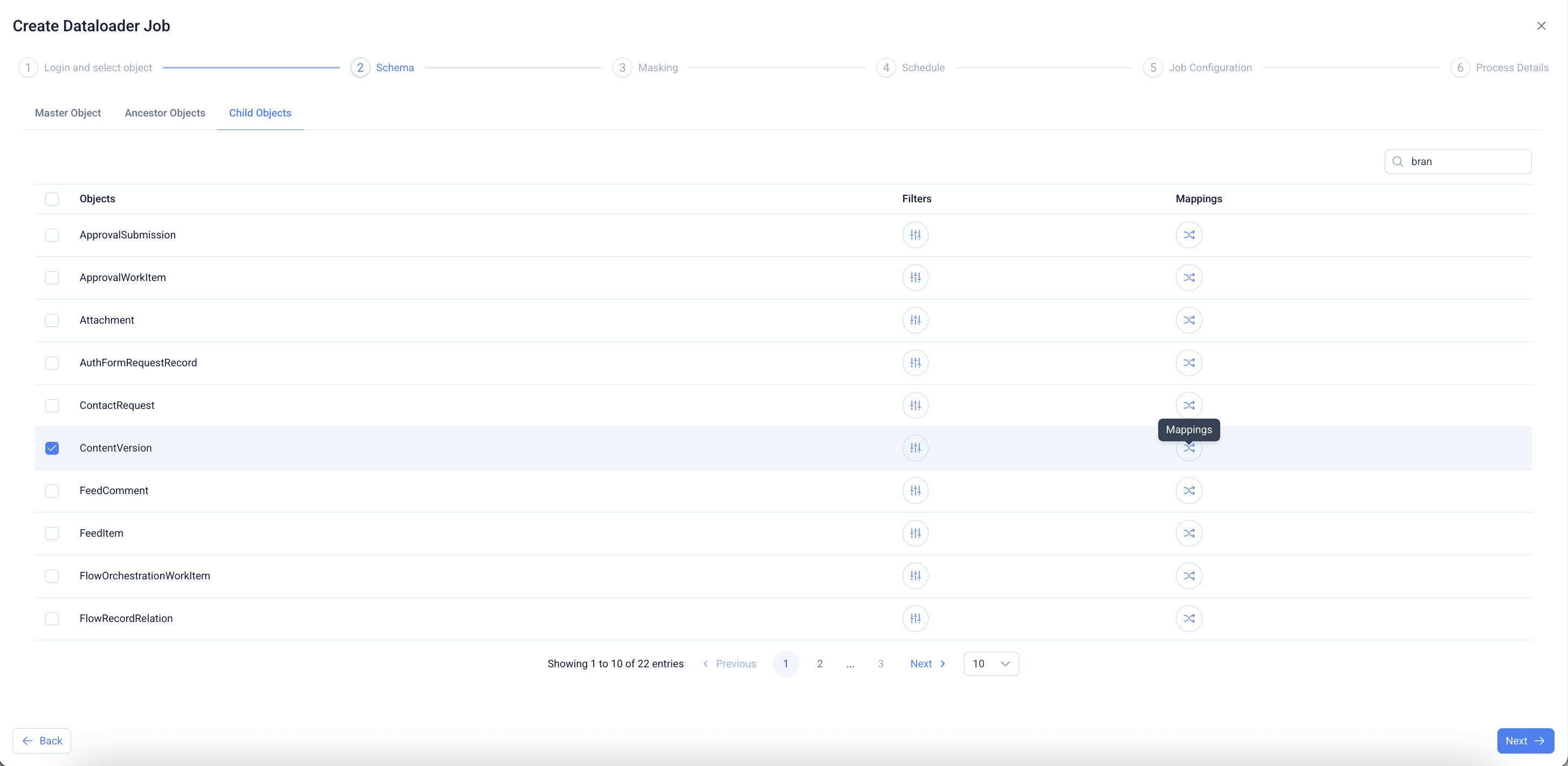
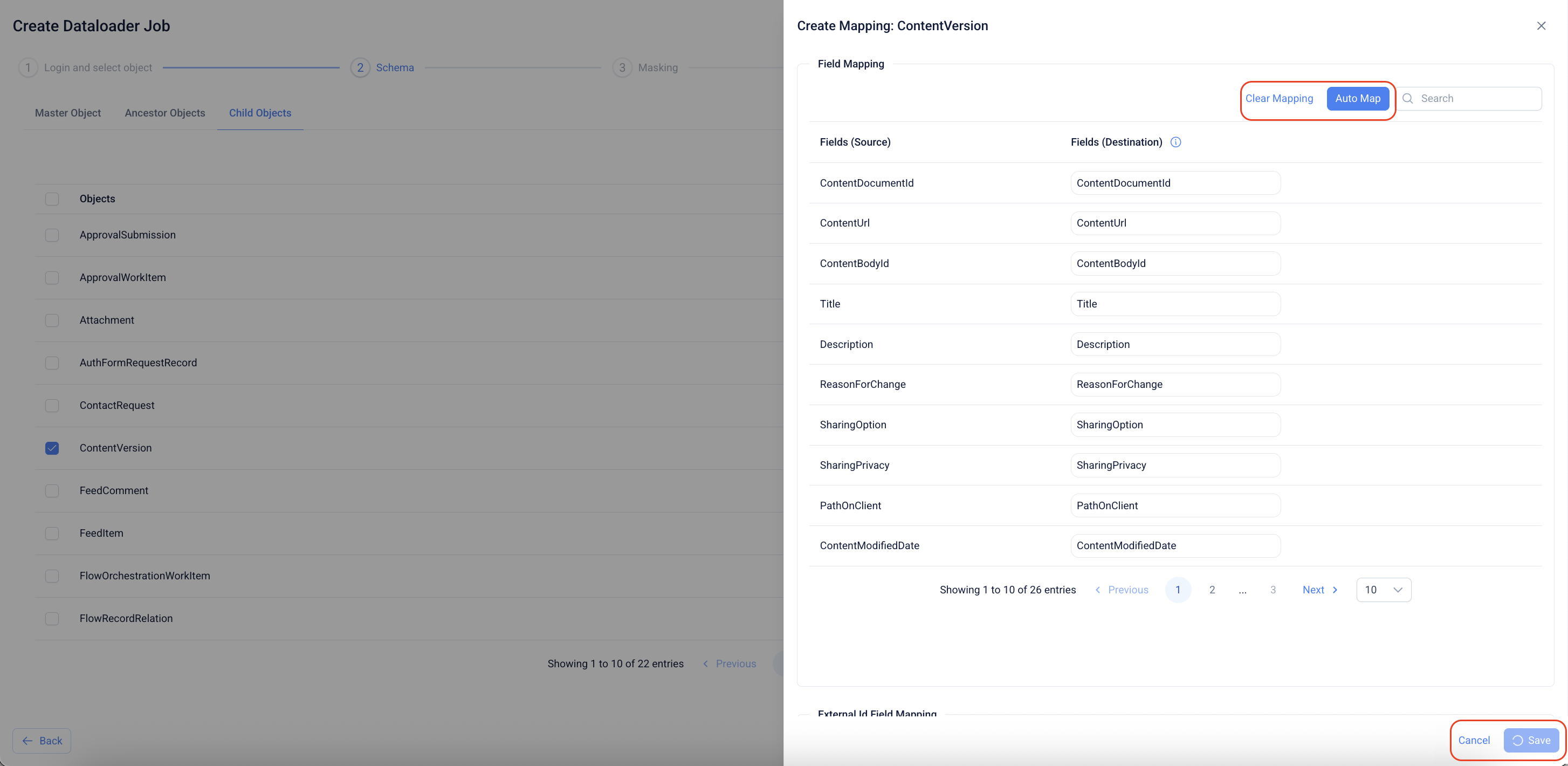
21. **Select child object & open mappings**\
In **Schema → Child Objects**, search and select the required child object (e.g., **ContentVersion**), then click the **Mappings** icon.
22. **Map fields**\
In **Create Mapping**, review source ↔ destination pairs.
* Click **Auto Map** to map identical field names automatically.
* Click **Clear Mapping** to reset if needed.\
Finish by clicking **Save**.
23. **Field Extraction**\
Data Loader Pro retrieves only the fields explicitly mapped by the user, avoiding unnecessary data fetches. When checking for `AutorabitExtId__c`, the system validates that it is marked as both **External ID** and **Unique**; if not, these attributes are set automatically. Newly identified objects are saved to the database to improve processing efficiency.
24. **External ID Field Mapping**\
This feature allows using an external ID instead of a Salesforce record ID to establish relationships between records during the Data Loader Pro operation. For example, if Object B has a lookup to Object A, the values in a field marked as an External ID on Object A can be used to relate the two.
* **Source Field:** Select the source org containing the values to populate the destination external ID field.
* **Destination Field:** Select the destination org where these values remain unique across all records.
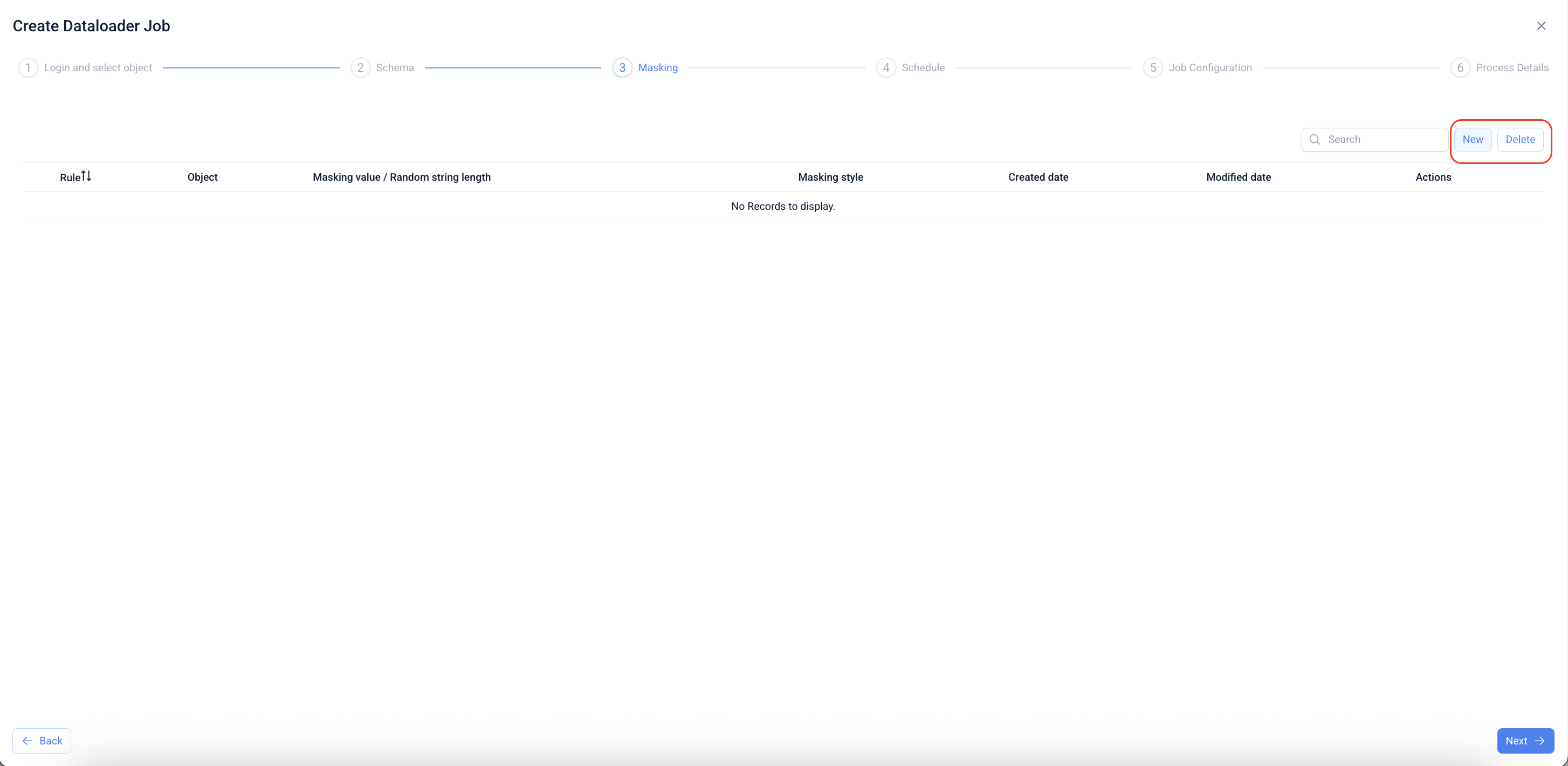
25. **Open Masking**\
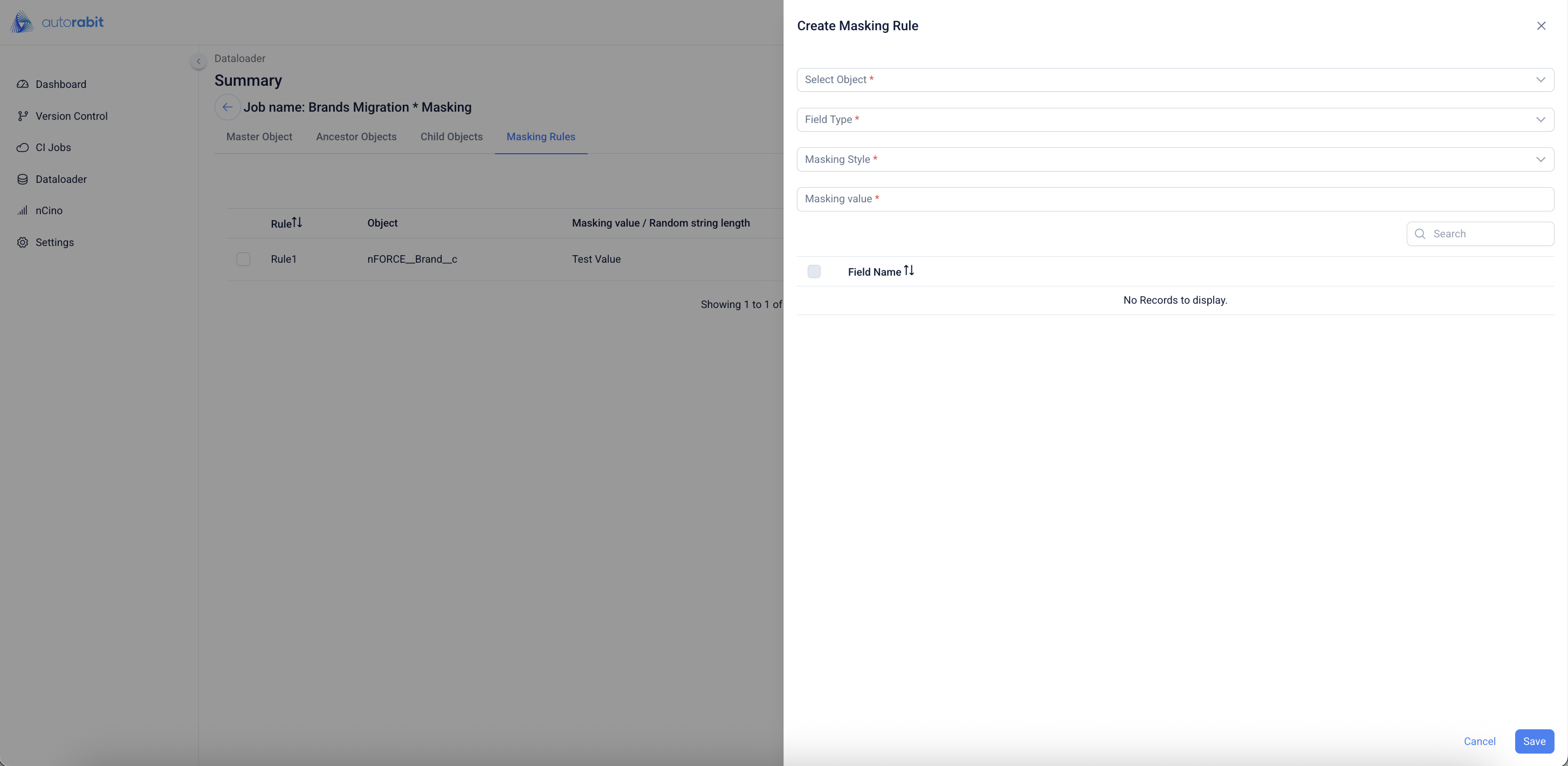
Go to the **Masking** step and click **New** to add a masking rule.
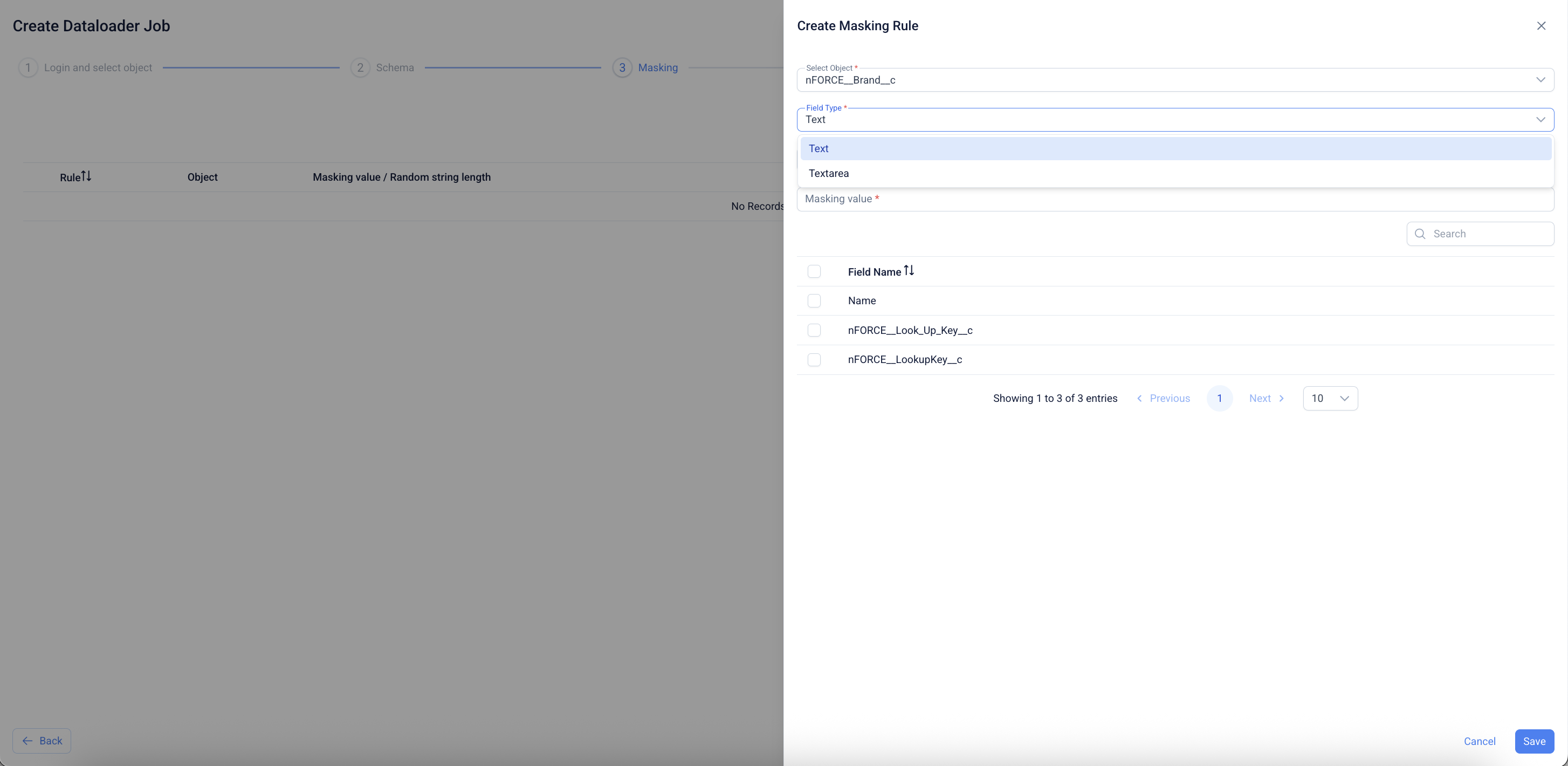
26. **Choose object & field type**\
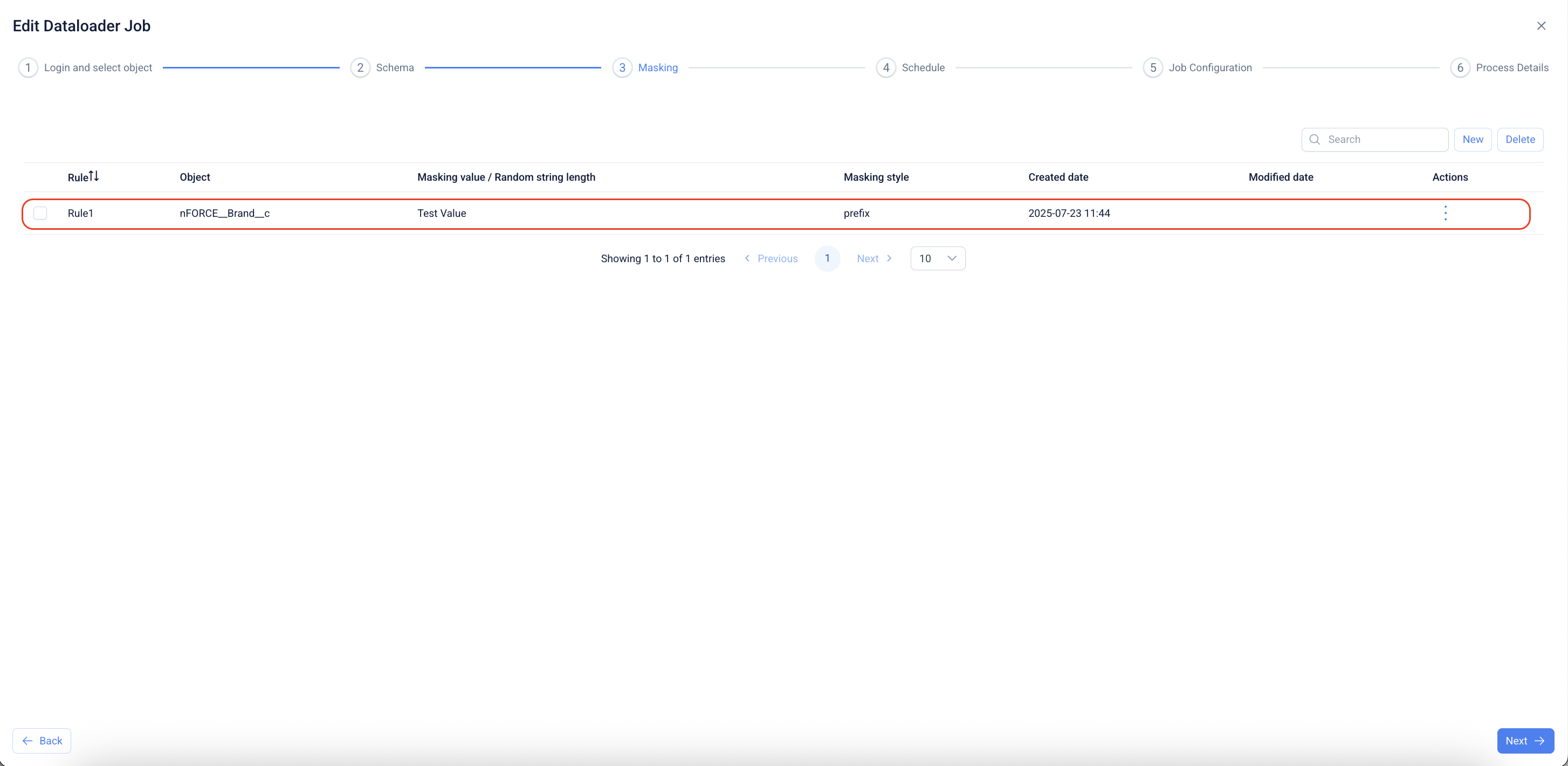
In **Create Masking Rule**, pick the **Object** (e.g., `nFORCE__Brand__c`) and **Field Type** (Text/Textarea). Provide a **Masking value** when required.
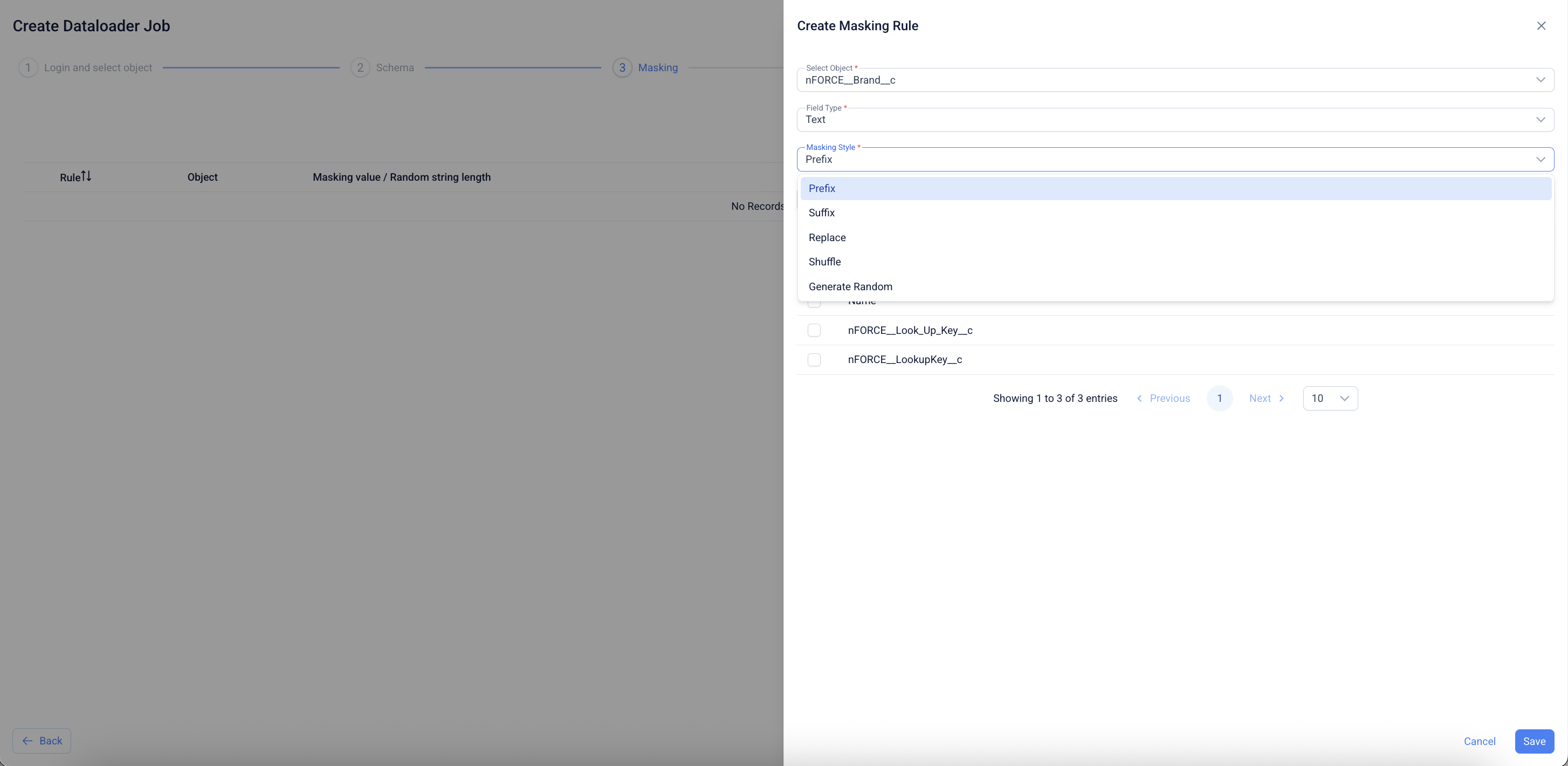
27. **Select masking style**\
Choose a **Masking style**: **Prefix**, **Suffix**, **Replace**, **Shuffle**, or **Generate Random**.
28. **Choose the Masking Style**
* **Prefix** – Adds a specified value before the original field value.\
*Example:* Source value `ABC` with prefix `123` → Deployed value `123.ABC`.
* **Suffix** – Adds a specified value after the original field value.\
*Example:* Source value `ABC` with suffix `123` → Deployed value `ABC.123`.
* **Replace** – Replaces the original field value entirely with the specified masking value.\
*Example:* Source value `ABC` replaced with `123` → Deployed value `123`.
* **Shuffle** – Randomly rearranges characters in the field value while leaving other columns unaffected.\
*Example:* Source value `ABCDE` → Deployed value `DCBEA`.
* **Generate Random** – Replaces the original value with a randomly generated value of a defined length.\
*Example:* Source value `ABC` with random length `7` → Deployed value `15d3aRG`.
***`Note:`**` ``Masking is not applied if the field value is empty.`*
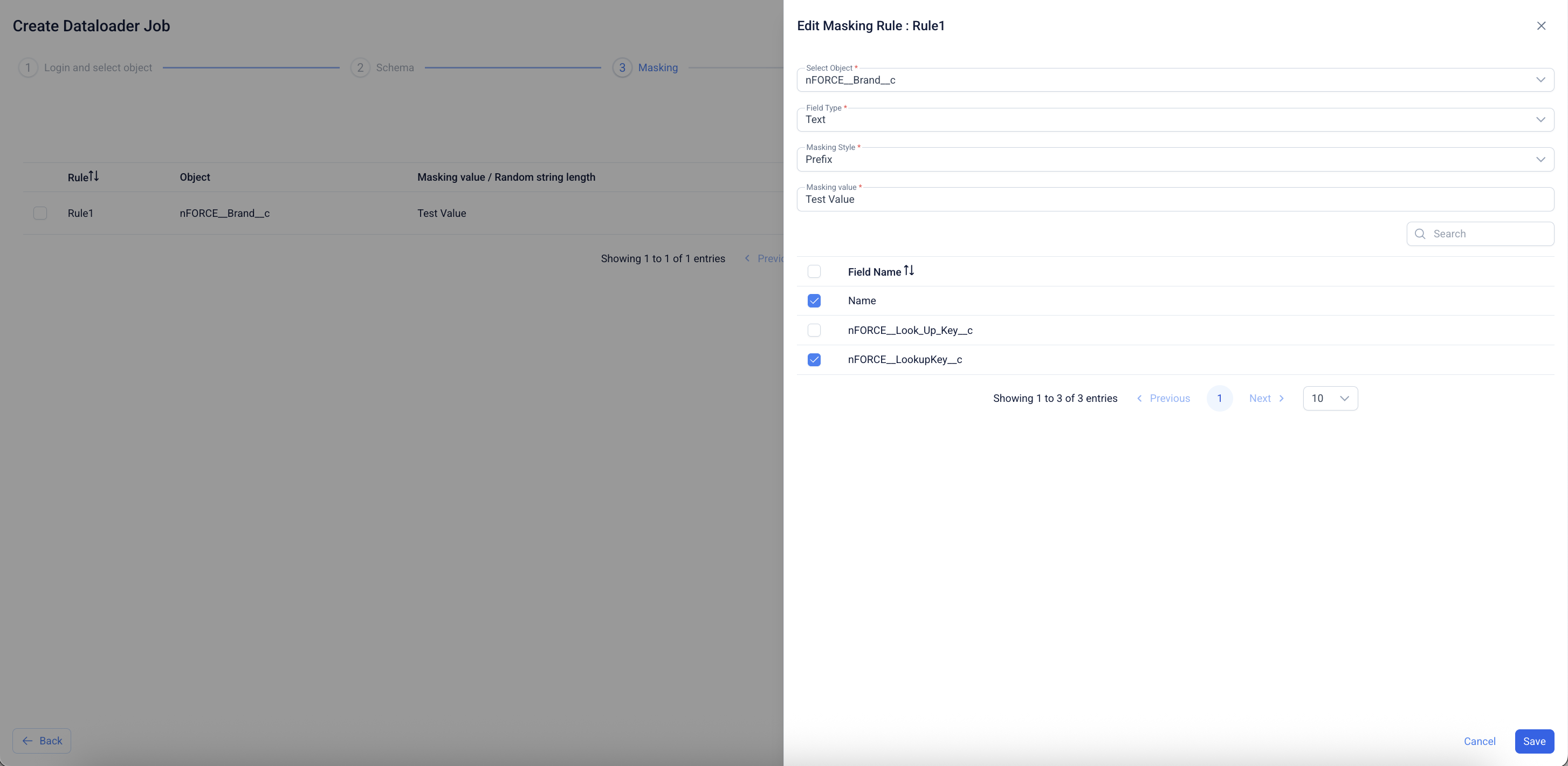
29. **Select target fields & save**\
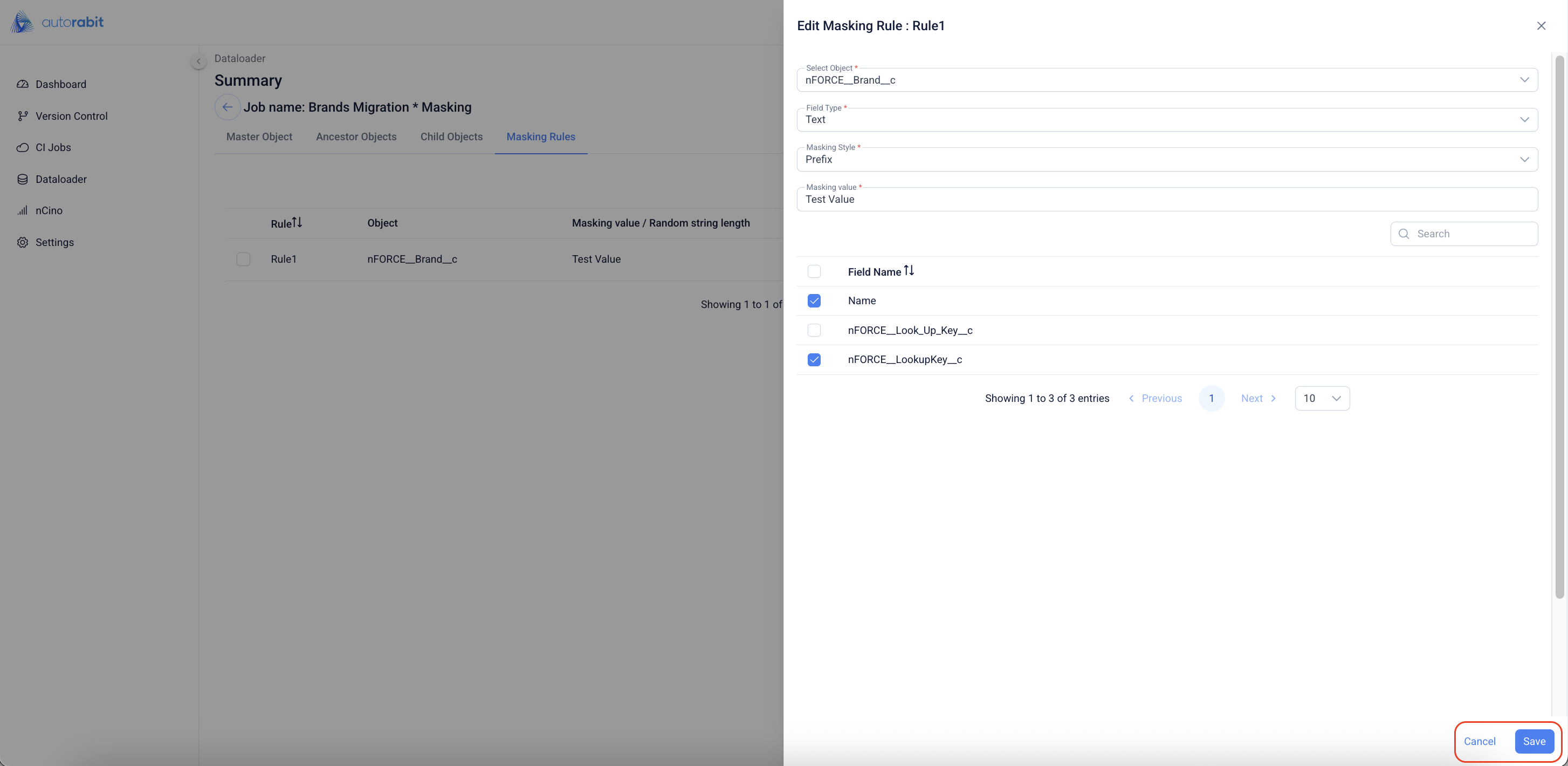
Select the fields the rule should apply to (e.g., **Name**, lookup keys) and click **Save**.
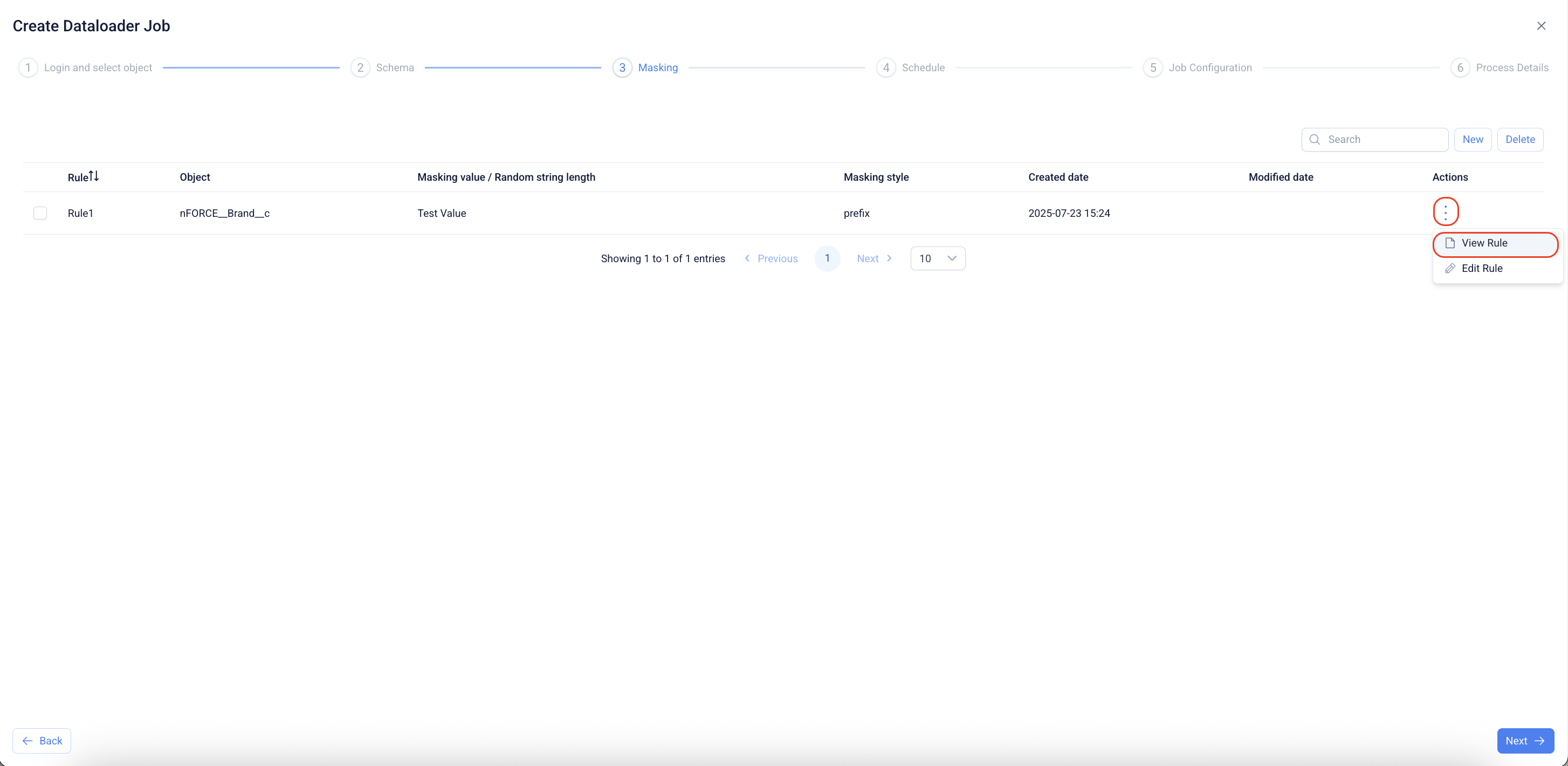
30. **Review rule in list**\
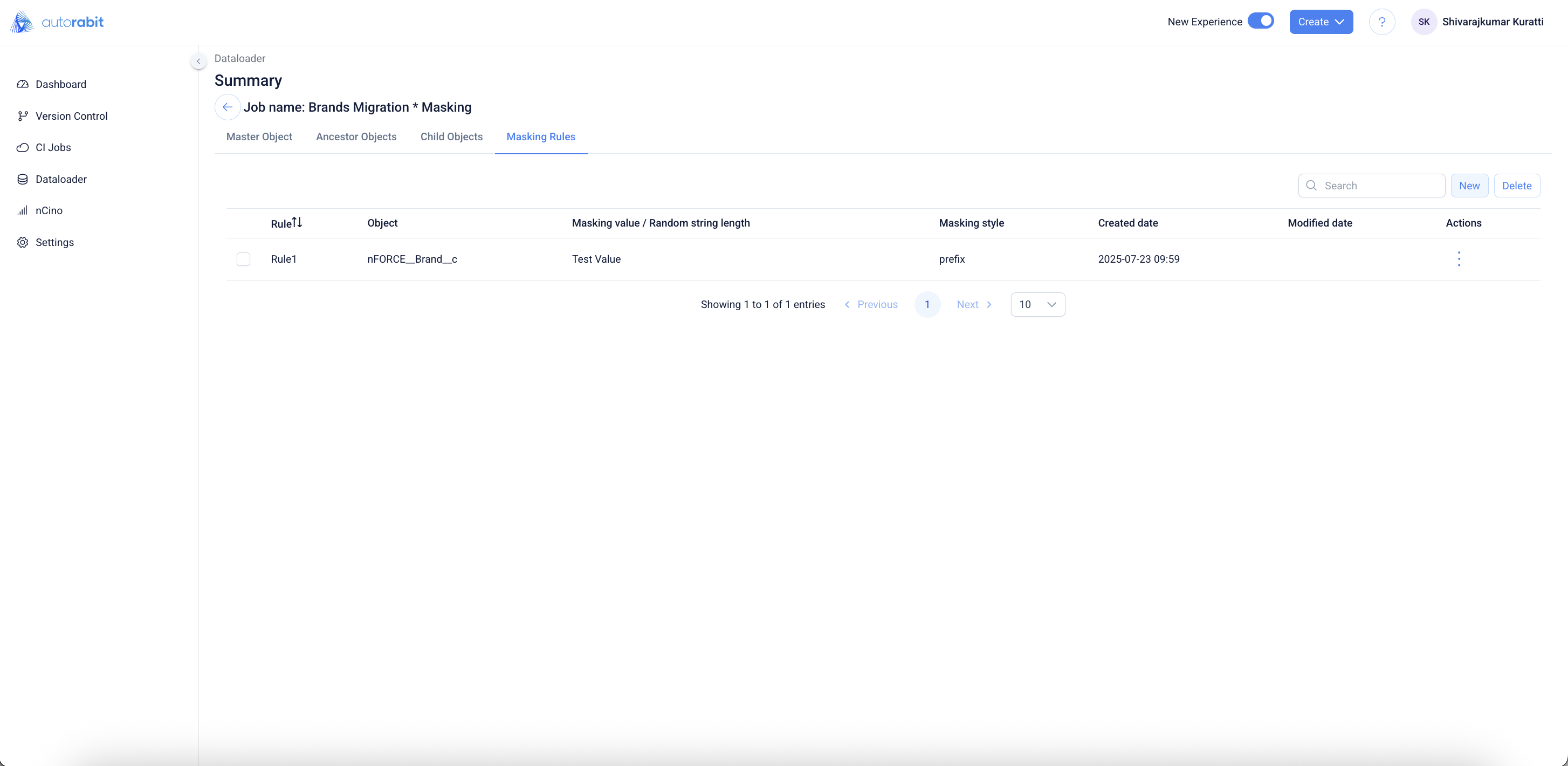
The rule appears in the **Masking** grid with its value and style. Click the actions menu to **View Rule** or **Edit Rule**.
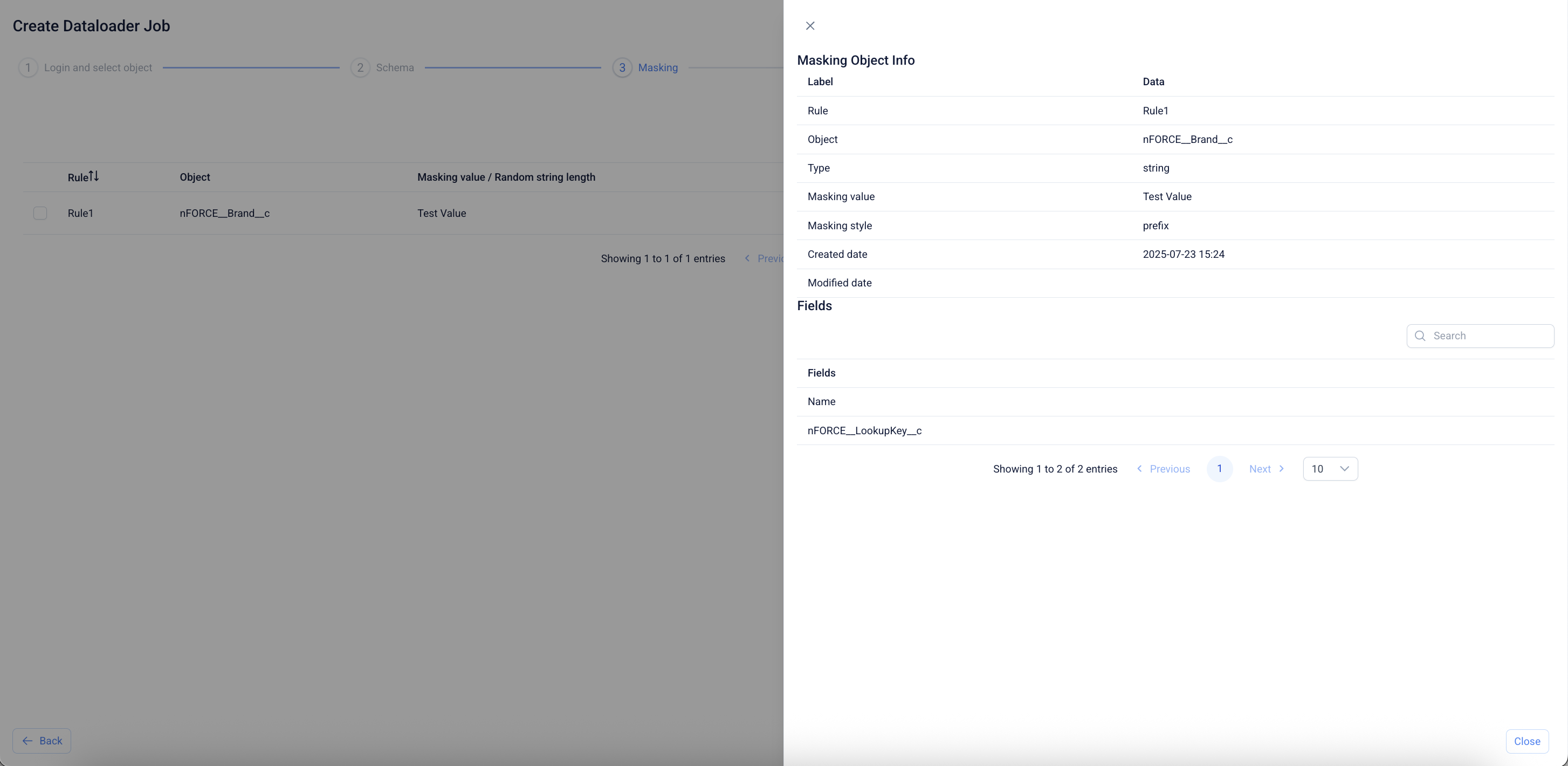
31. **View rule details**\
Use **View Rule** to see the full configuration: rule name, object, type, masking value/style, timestamps, and the fields impacted.
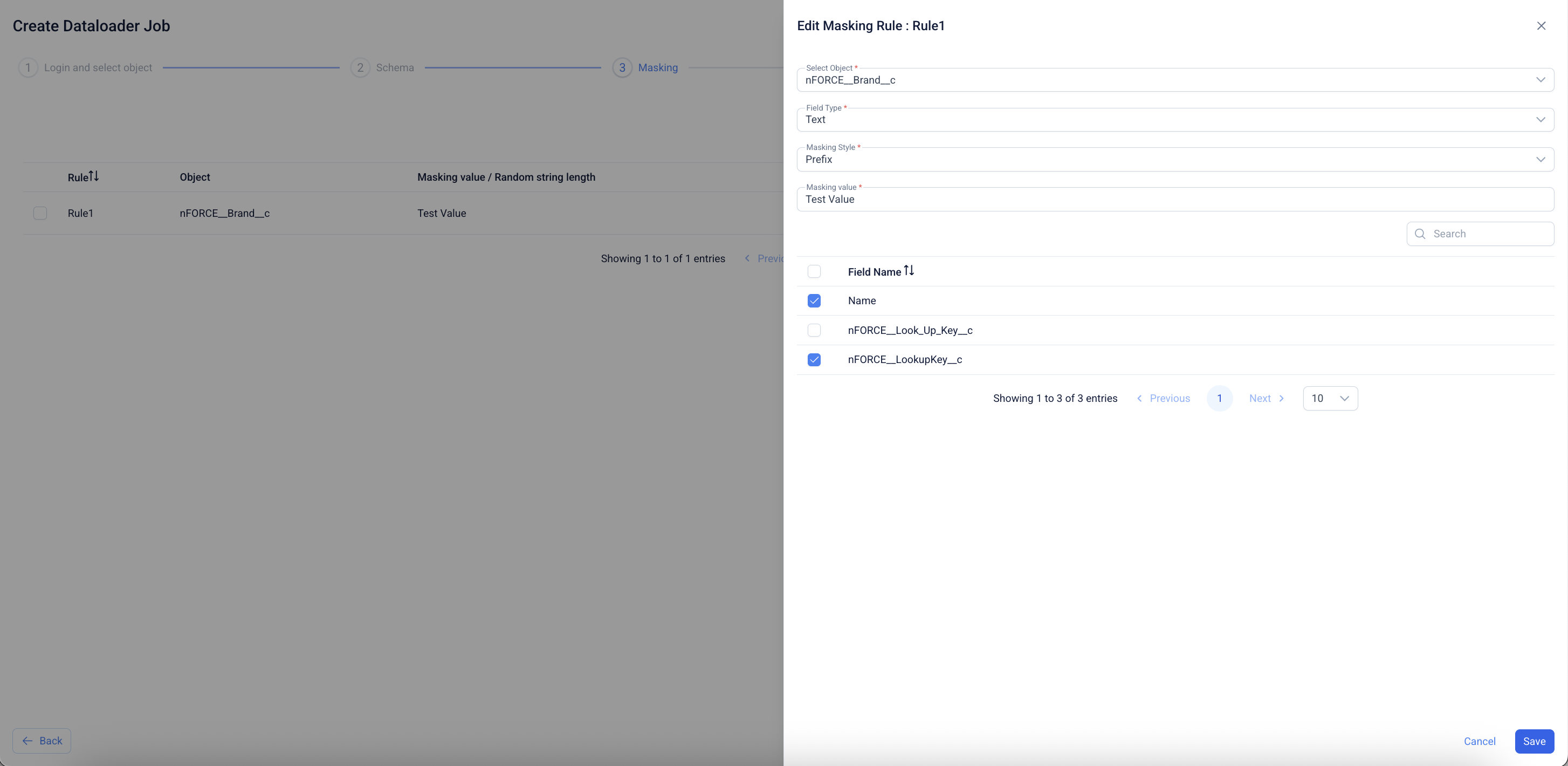
32. **Edit if needed**\
Choose **Edit Rule** from the actions menu to adjust the object, style, value, or field selection, then **Save**.
33. Observe the rule created for masking.
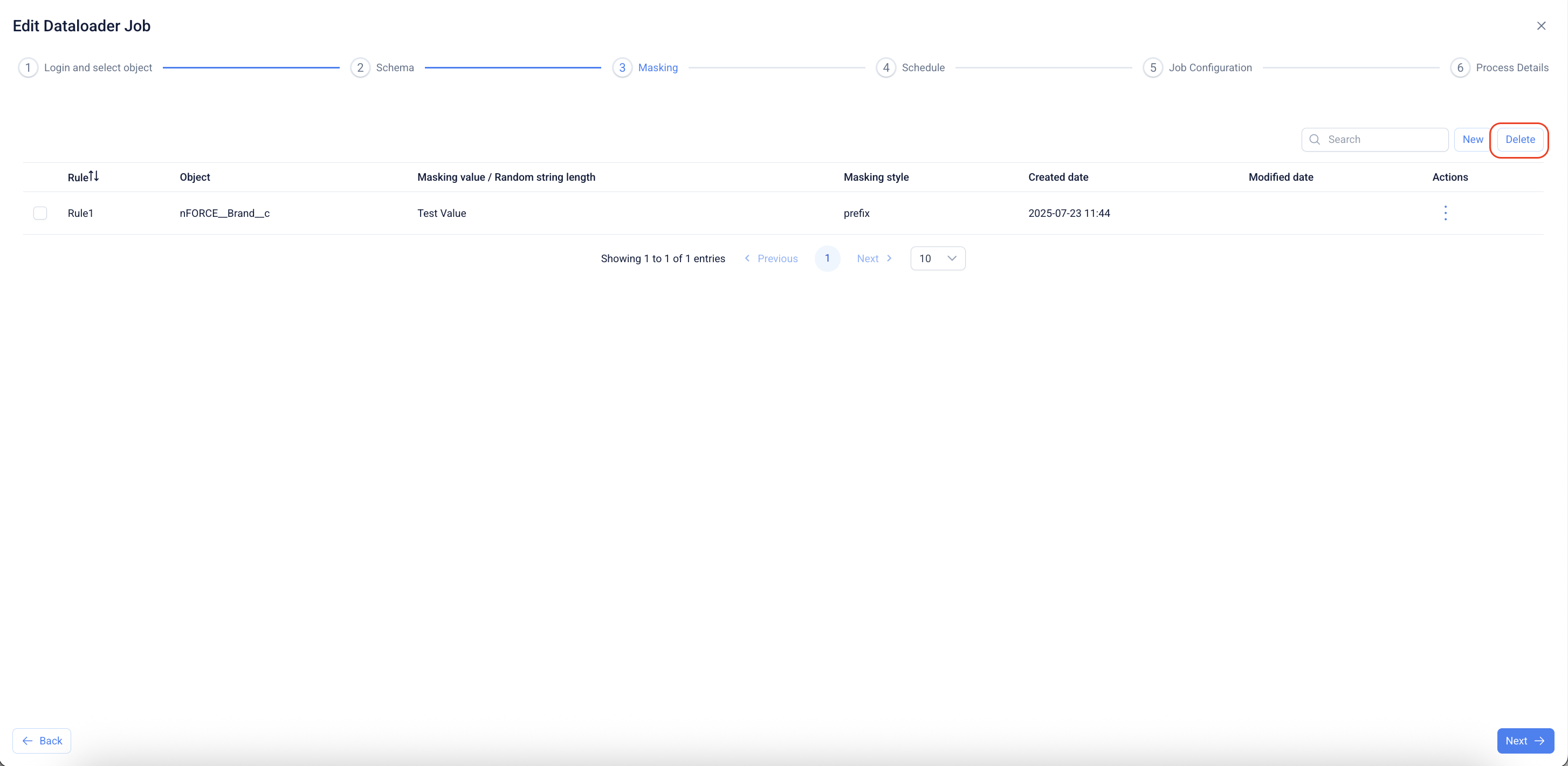
34. Click "Delete" to delete the rule created
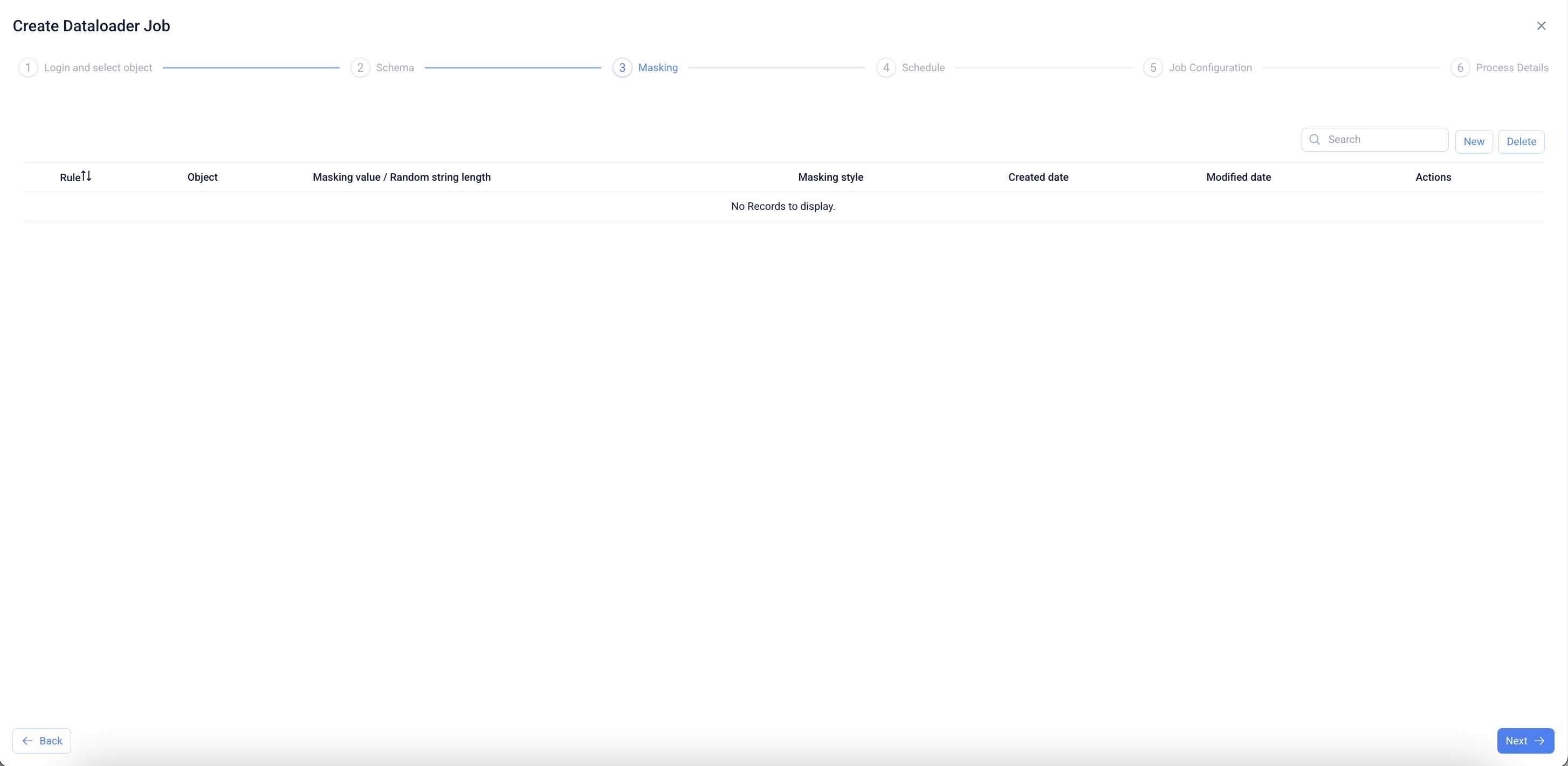
35. Observe the rule deleted
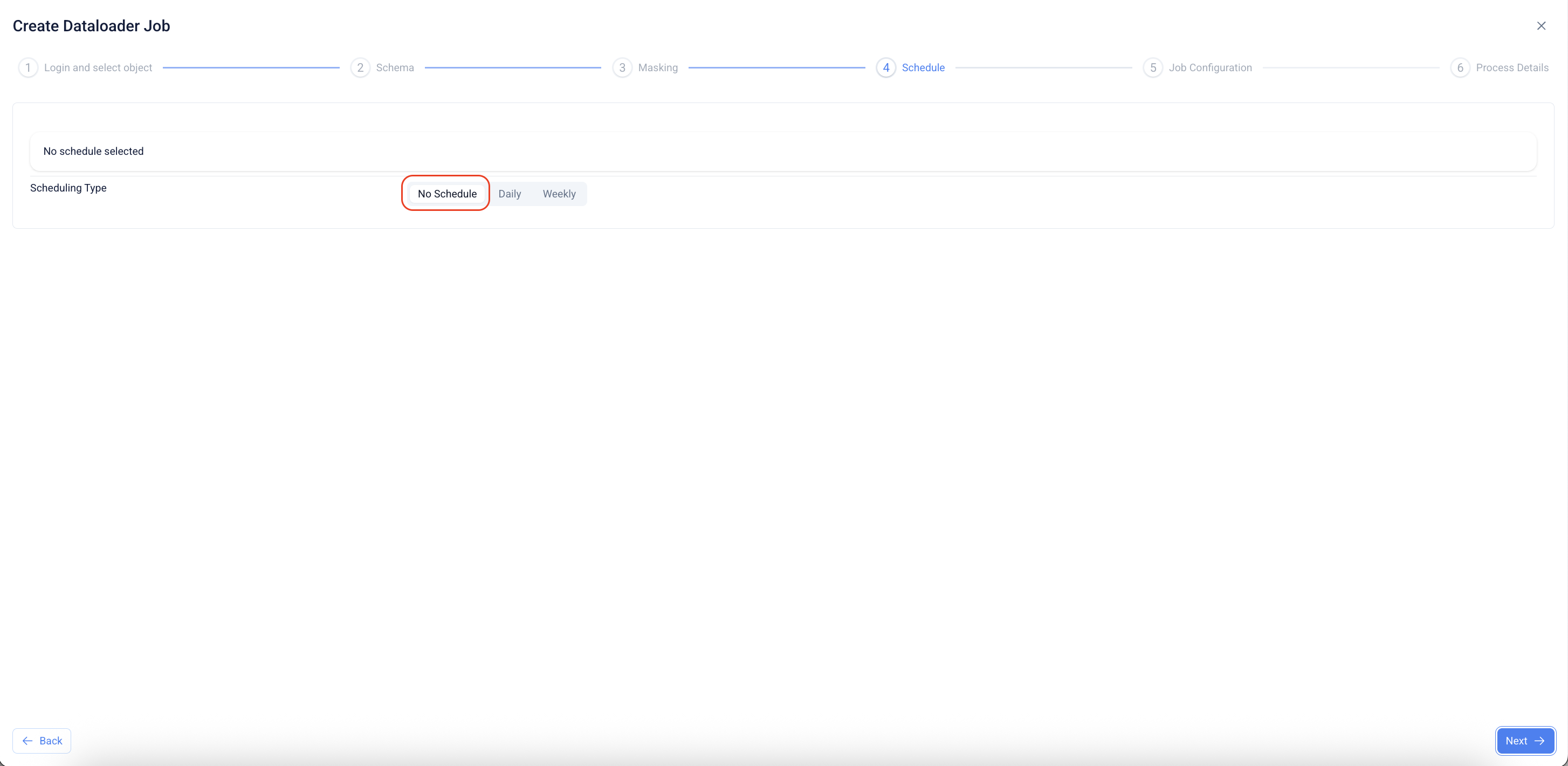
36. Open the Schedule step
* The page defaults to **No Schedule**. This runs the job only when triggered manually. Click **Next** to continue without a schedule.
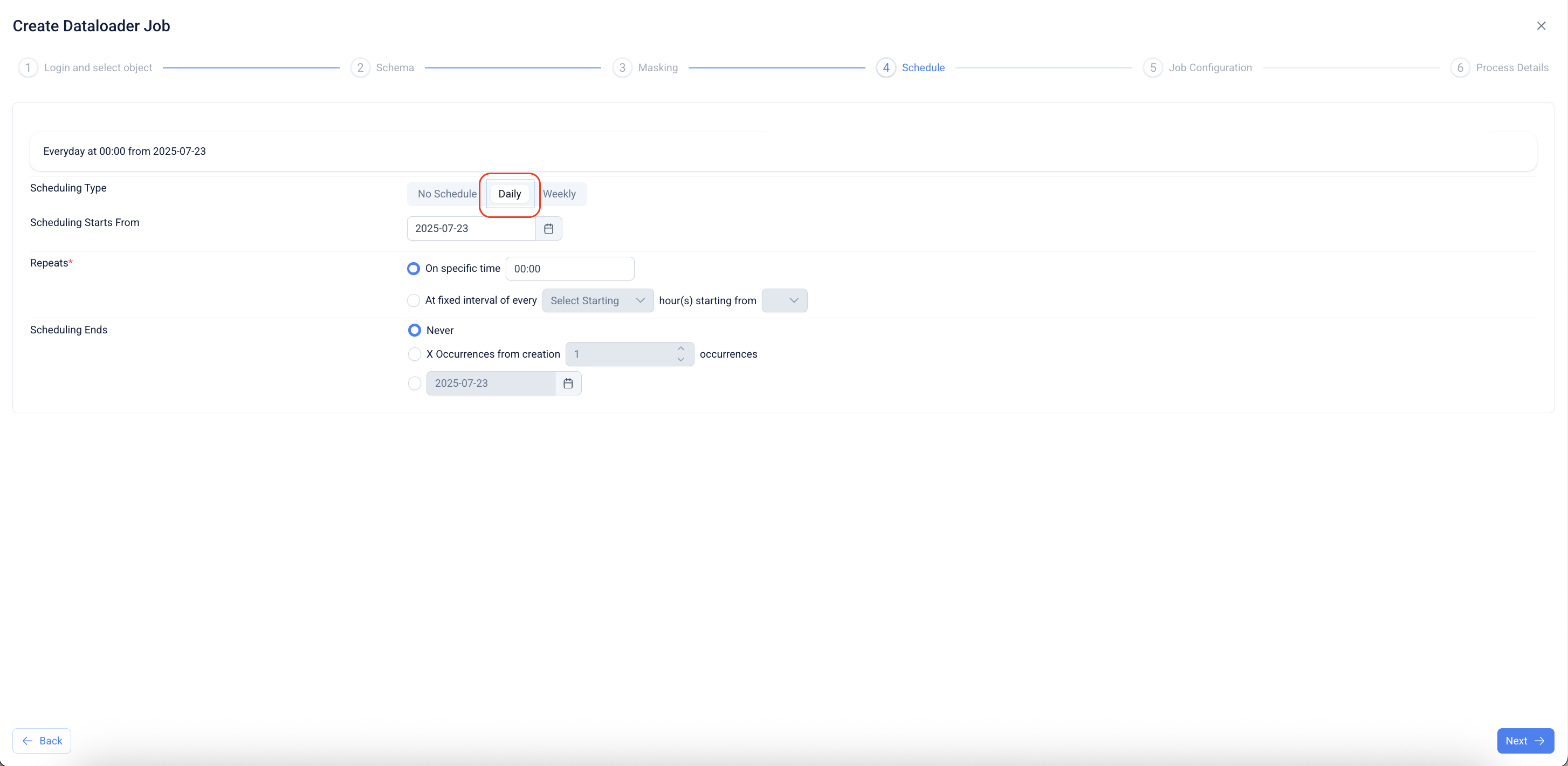
37. Set a Daily schedule
* Click **Daily**.
* Choose **Scheduling Starts From** (start date).
* Under **Repeats**, pick one:
* **On specific time** and set the time, or
* **At fixed interval of every** *N* hours and select the starting hour.
* Under **Scheduling Ends**, choose **Never**, **X Occurrences from creation**, or a specific end date.
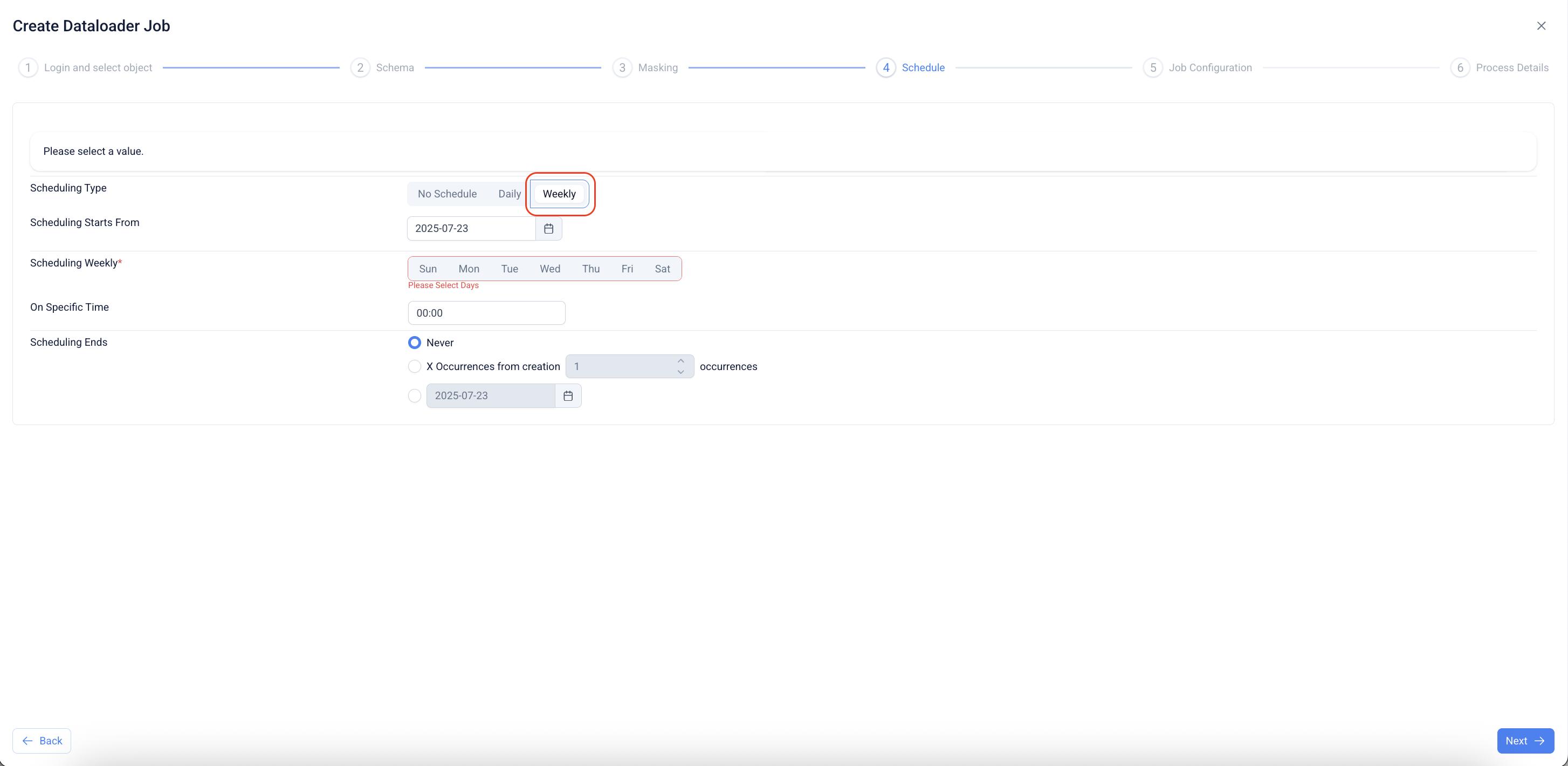
38. Set a Weekly schedule
* Click **Weekly**.
* Choose **Scheduling Starts From** (start date).
* Select one or more days (Sun–Sat).
* Set **On Specific Time**.
* Choose when the schedule ends: **Never**, **X Occurrences from creation**, or a specific end date.
39. Click **Next** to move to **Job Configuration**.
The table below lists the configurations to choose from, along with their descriptions:
| | | |
| - | -------------------------------------------------------------------------- | ---------------------------------------------------------------------------------------------------------------------------------------------------------------------------------------------------------------------------------------------------------------------------------------------------------------------------------------------------------------------------------------------------------------------------------------------------------- |
| 1 | **`Disable workflows`** | When this option is selected, all workflow rules associated with the relevant Salesforce objects are programmatically deactivated prior to initiating the migration process. This ensures that automation triggers do not interfere with the data transfer from the source to the destination sandbox. Upon successful migration completion, all workflow rules are reinstated to their original active state, preserving existing business logic. |
| 2 | **`Disable validation rules`** | Validation rules enforce predefined data integrity constraints before a record can be saved. Selecting this option temporarily disables all validation rules on the associated Salesforce objects for the duration of the migration process. This ensures uninterrupted data transfer from the source to the destination sandbox. Upon successful migration completion, all validation rules are programmatically restored to their original active state. |
| 3 | **`Use Bulk API`** | The Bulk API leverages REST architecture to efficiently handle large-scale data operations, including insert, update, and delete requests. Jobs may execute in **serial mode**, where batches are processed sequentially, or in **parallel mode**, where multiple batches are processed concurrently. Parallel processing increases the degree of parallelism, improving data throughput for high-volume workloads. |
| 4 | **`Insert/update with null values`** | Insert/update with null values |
| 5 | **`Minimize multiple references between the same objects`** | Eliminates redundant API calls in scenarios with multiple references between identical objects. |
| 6 | **`Automatically apply master object filter on other dependency objects`** | All objects in the hierarchy are derived from the Master Object filters, preventing redundant record additions caused by self-references or multiple references. |
| 7 | **`Data encryption for data files`** | Data encryption for data files |
| 8 | **`Incremental data migration`** | After the data load completes, only the newly created records are migrated to the destination sandbox, ensuring no duplicate or pre-existing data is transferred. |
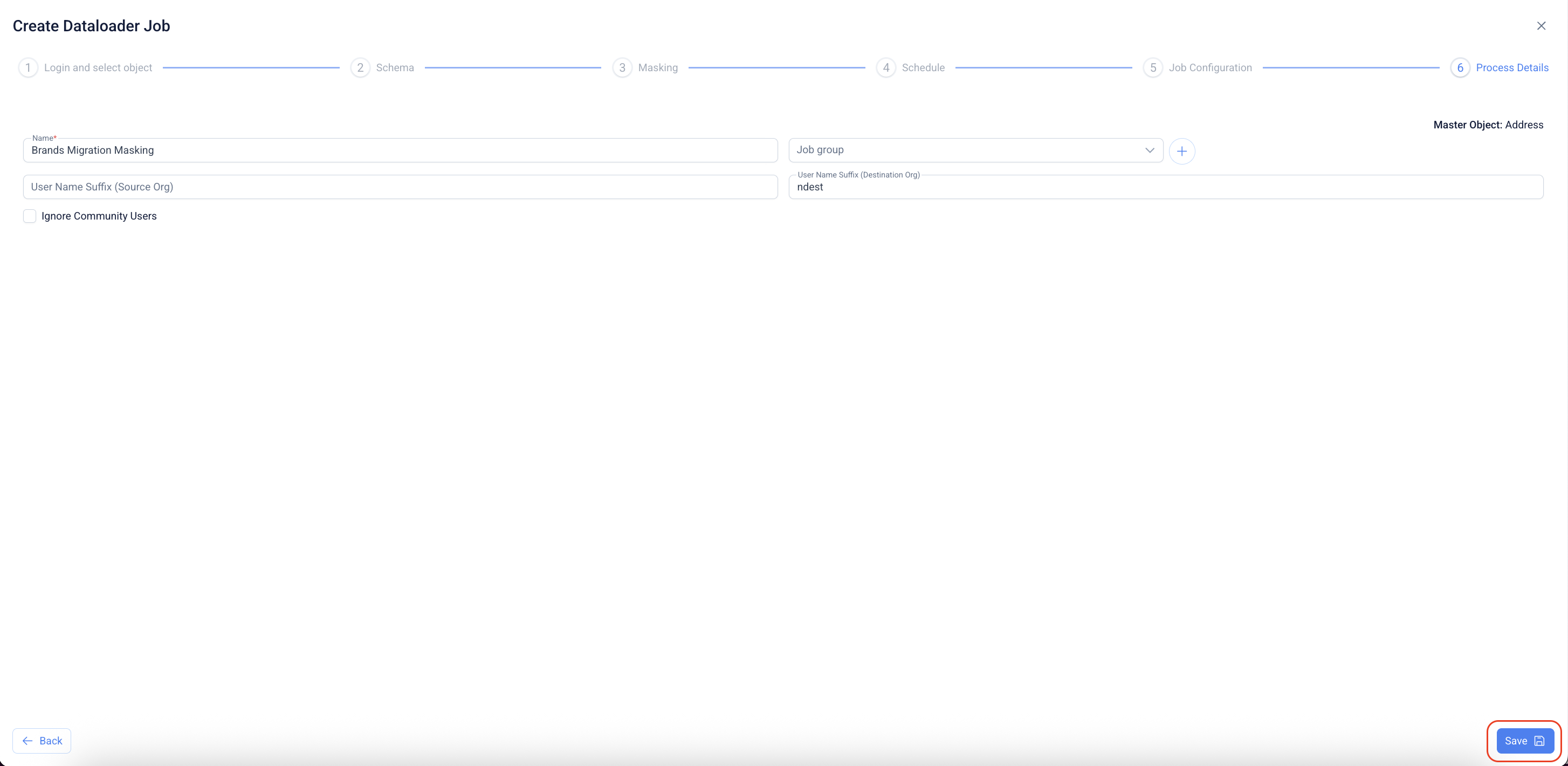
40. Save the job (Process Details)
1. **Fill in process details**
* **Name**: Enter a clear job name (e.g., *Brands Migration Masking*).
* **Job group**: Pick an existing group or click **+** to create one.
* **User Name Suffix (Source Org)** and **(Destination Org)**: Enter the suffixes to avoid username conflicts.
* (Optional) **Ignore Community Users**: Check if you don’t want to migrate community users.
* Review the **Master Object** shown on the right.
41. **Save**
* Click **Save** (bottom-right).
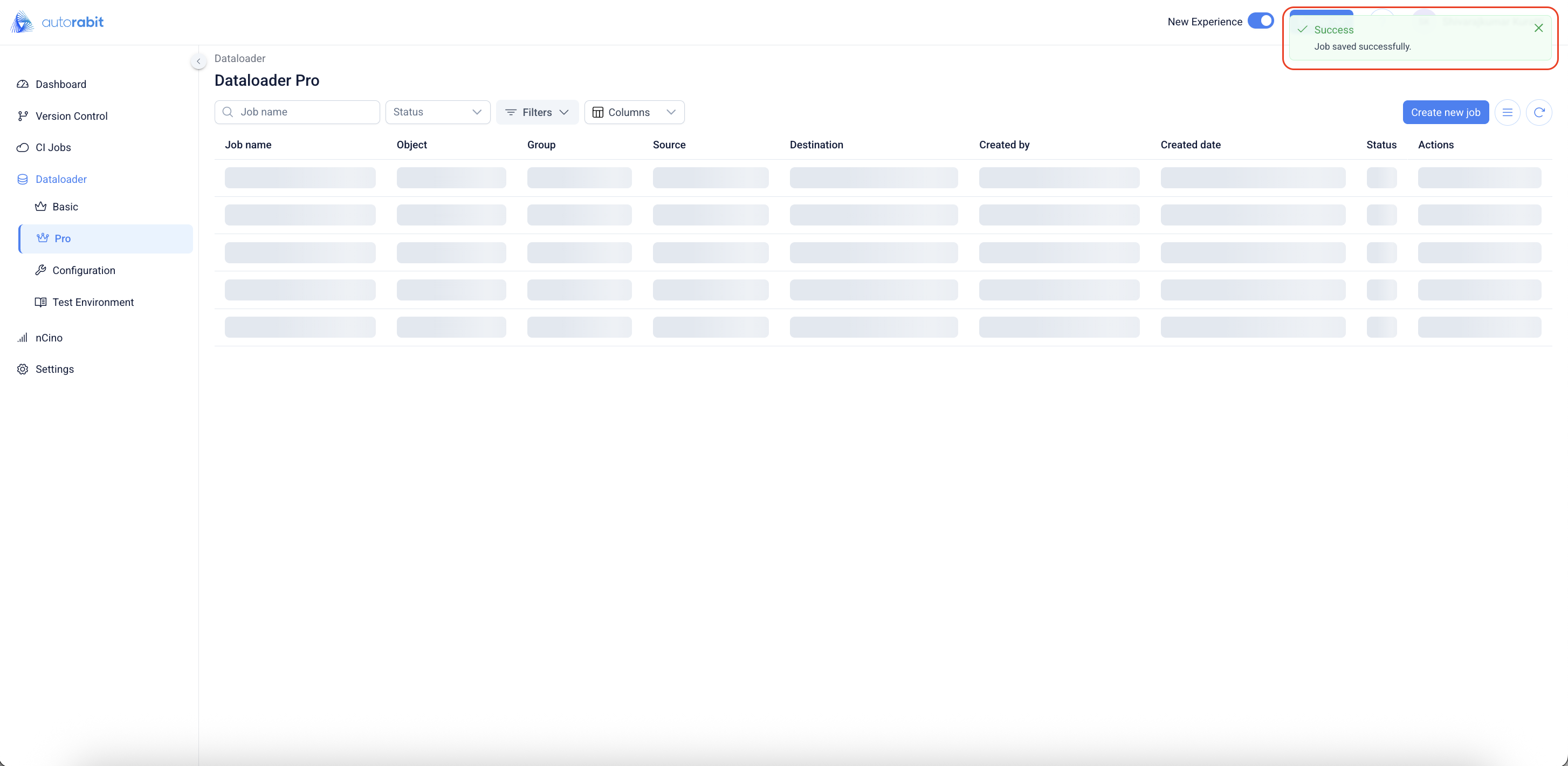
42. **Confirmation**
* You’ll return to the **Dataloader Pro** list and see a green **Success** toast: **“Job saved successfully.”**
* Your new job now appears in the list.
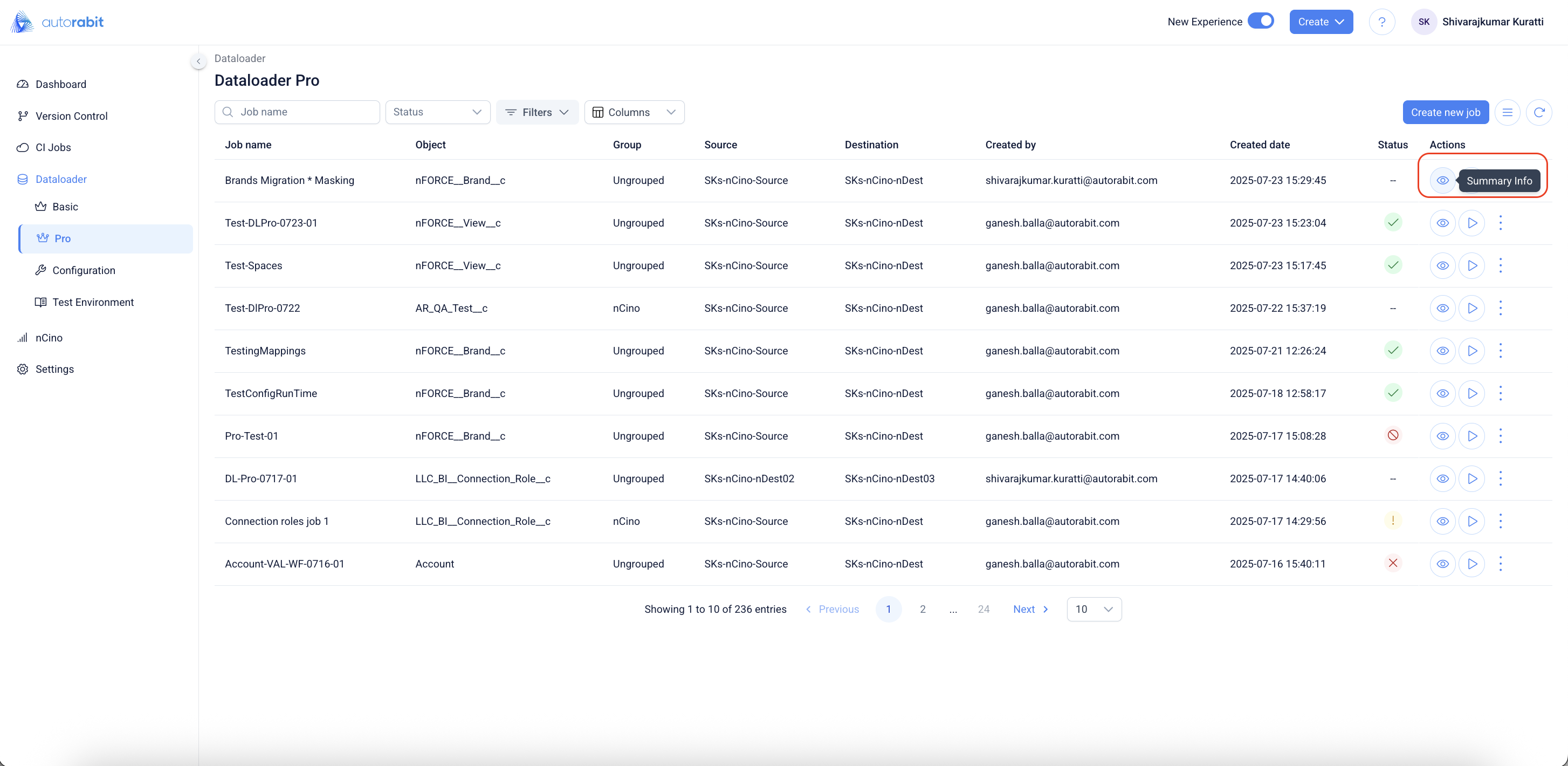
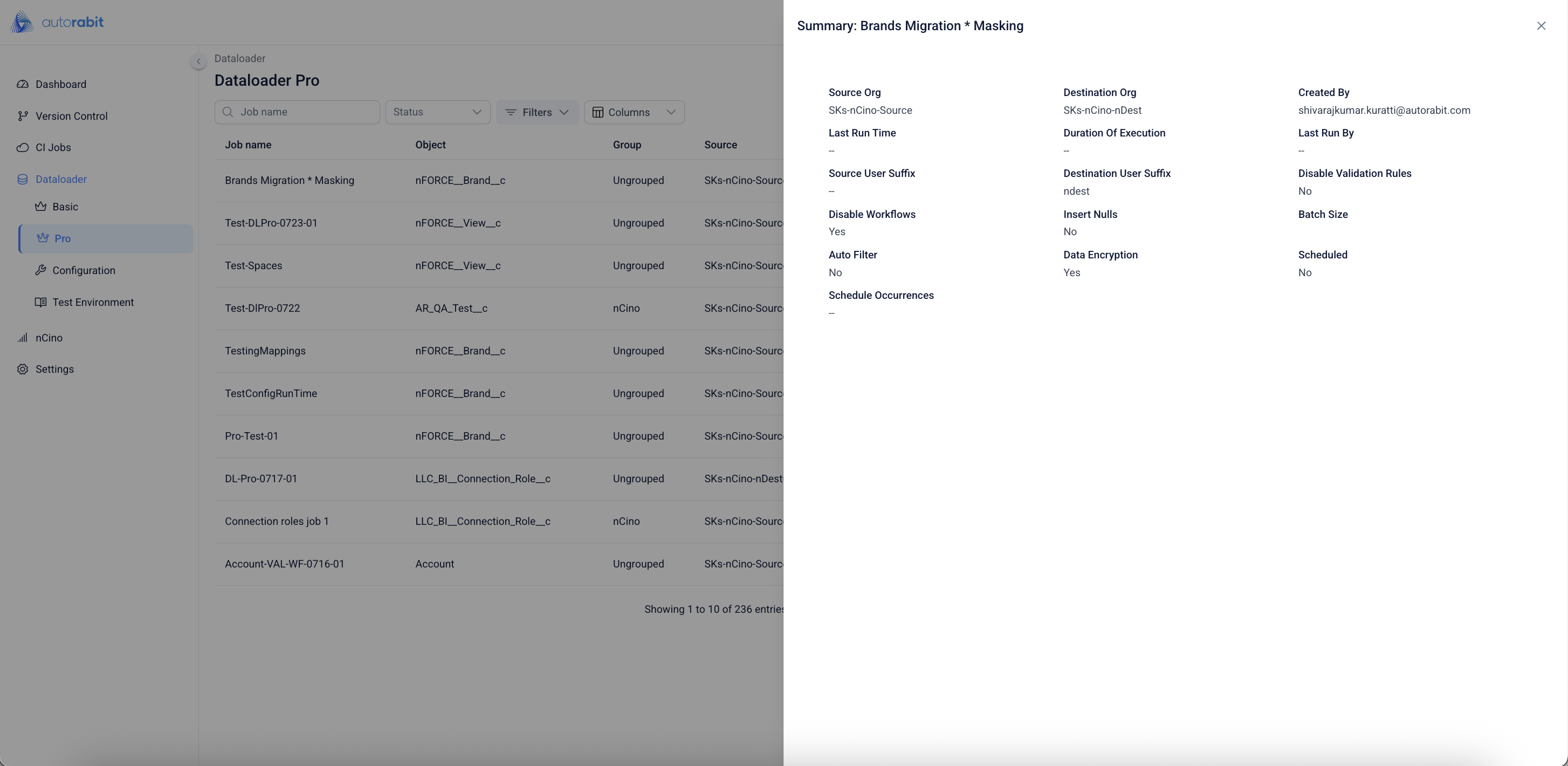
43. Click on the "Summary" to view the job summary
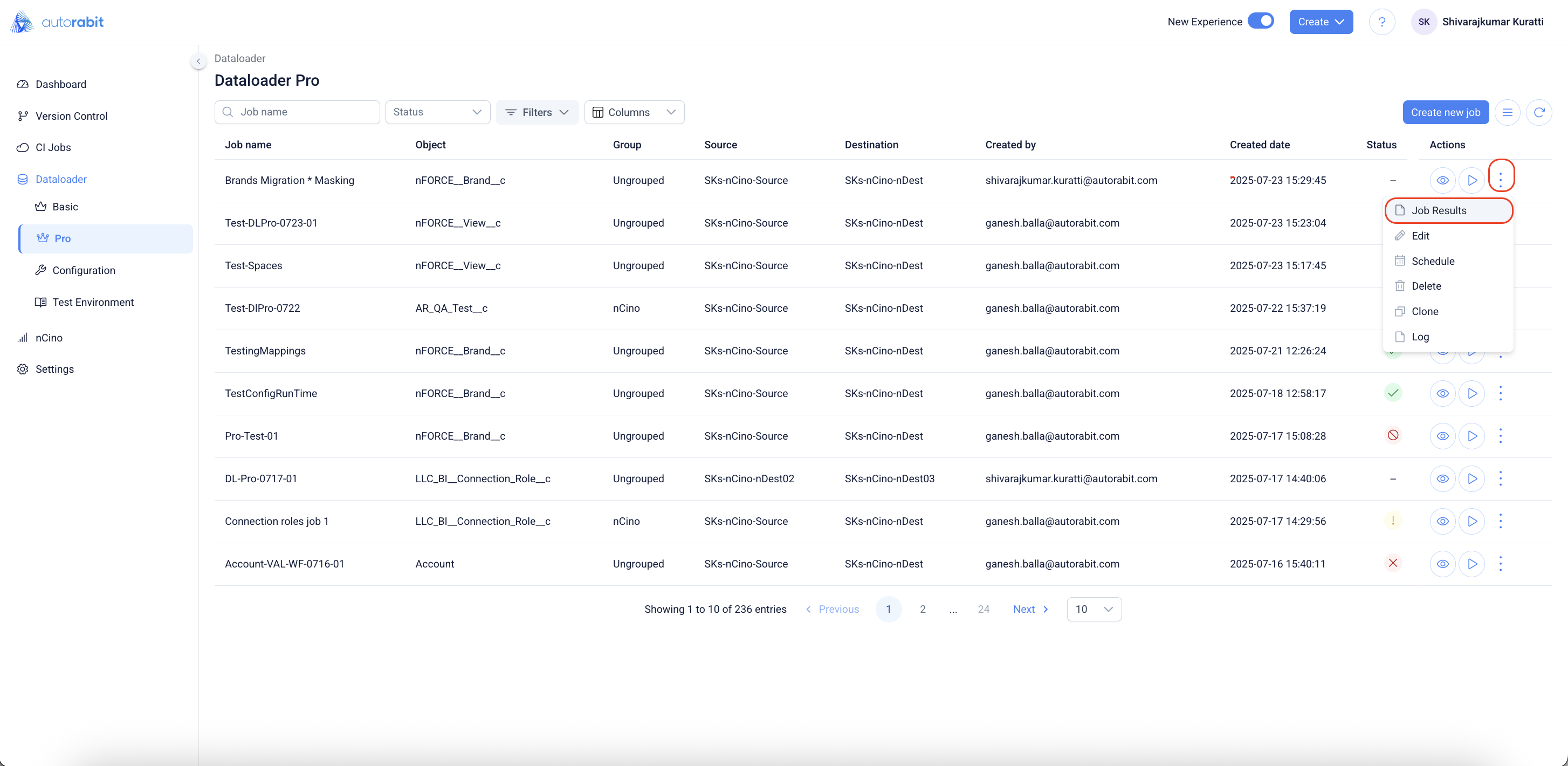
44. Open Job Results
* Go to **DataLoader Pro**.
* For your job (e.g., *Brands Migration \* Masking*), click the **⋮** menu under **Actions** and choose **Job Results**.
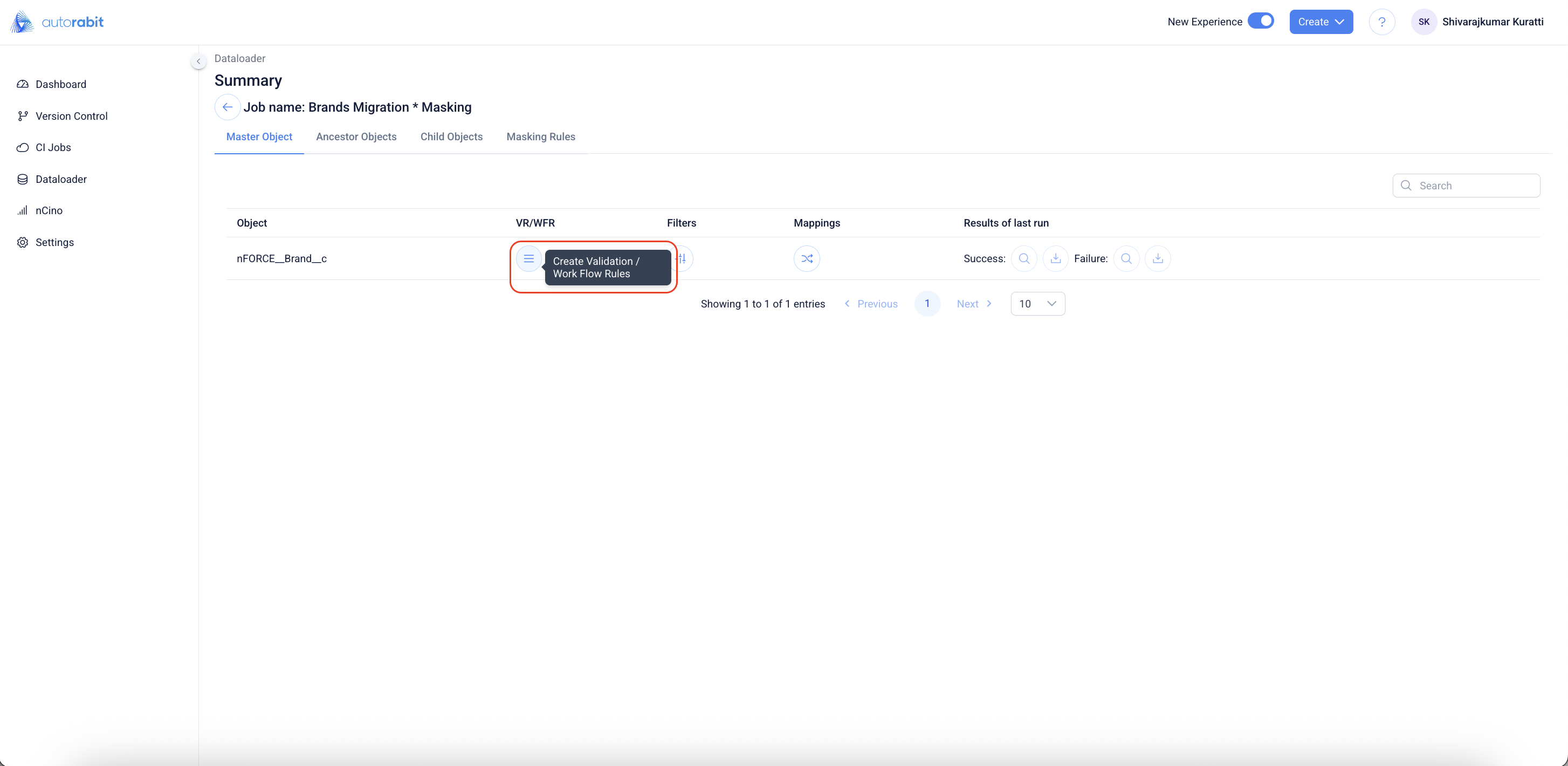
45. Review the Job Summary
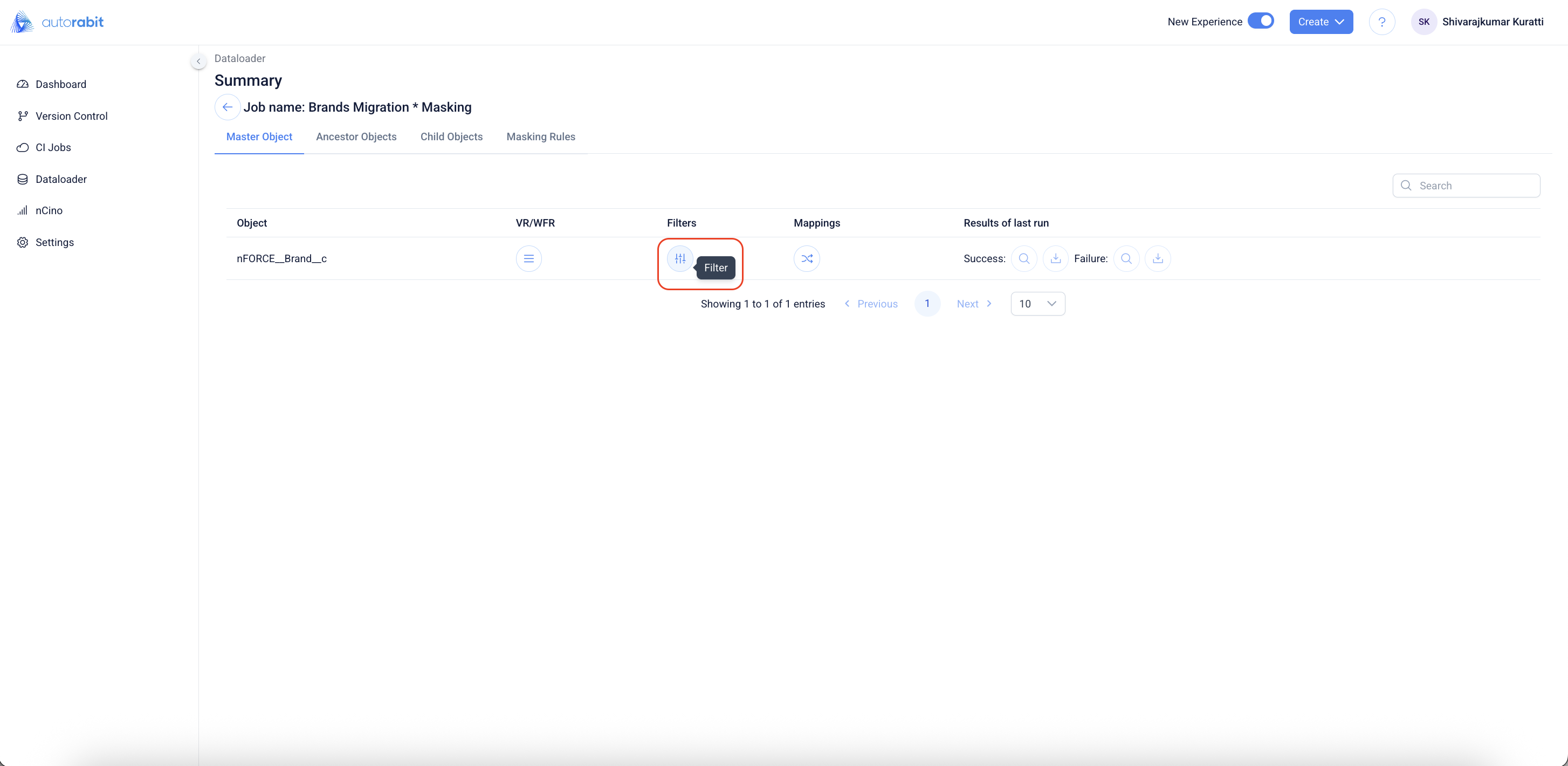
* You’ll land on **Summary** → **Master Object**.
* The row shows quick actions: **VR/WFR** (validation/workflow), **Filters**, **Mappings**, plus **last run results**.
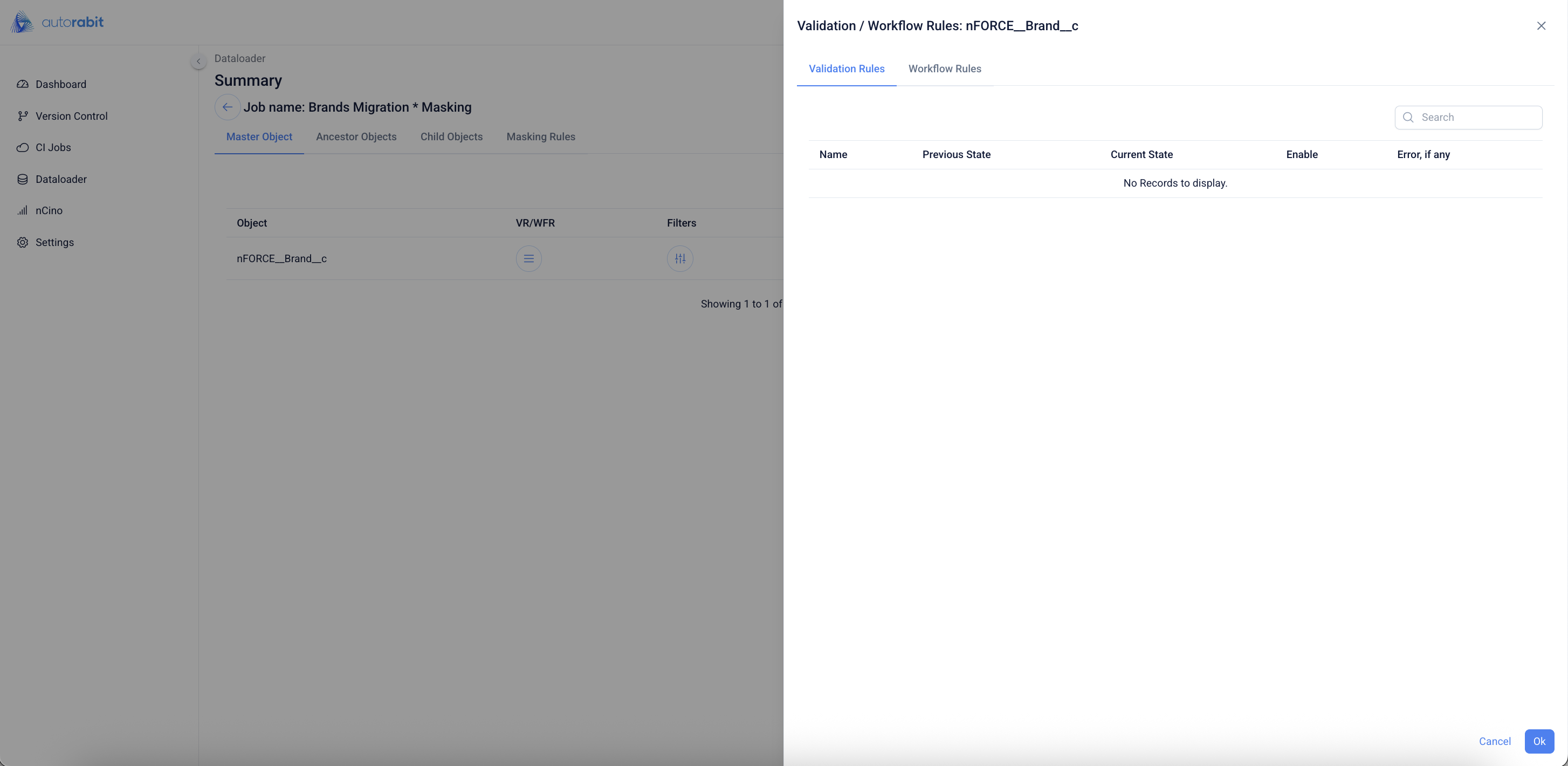
46. Open Validation/Workflow controls
* Click the **VR/WFR** icon (stacked lines) beside the object.
47. Check Validation Rules:
* In the **Validation Rules** tab, review the listed rules (Previous State, Current State).
* Use **Enable** where applicable; click **Ok** when done (or continue to the next tab).
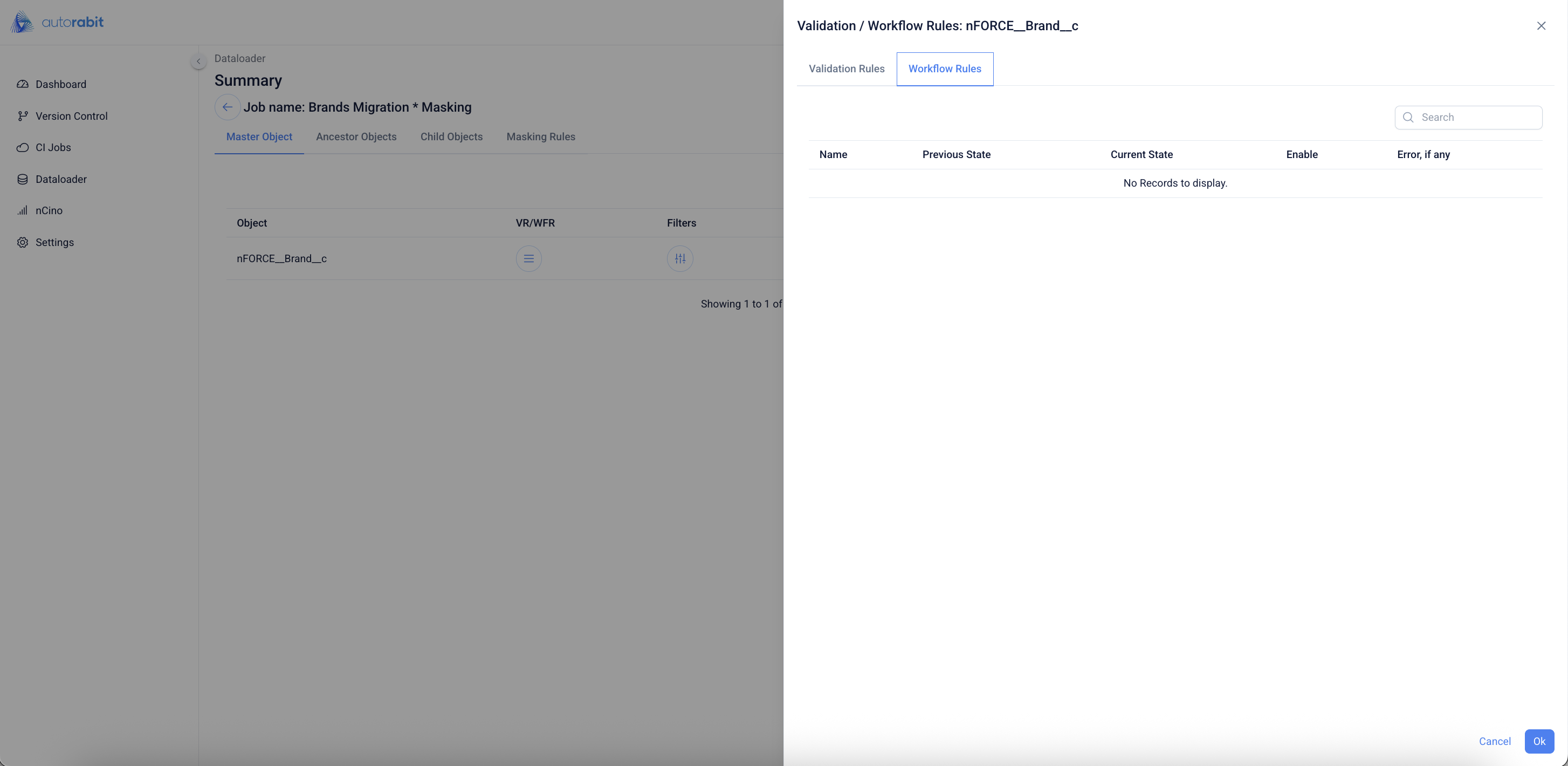
48. Check Workflow Rules
* Switch to the **Workflow Rules** tab and review similarly (enable/disable as needed).
* Click **Ok** to close.
49. Open and Review Filters
* Back on **Summary**, click the **Filter** icon.
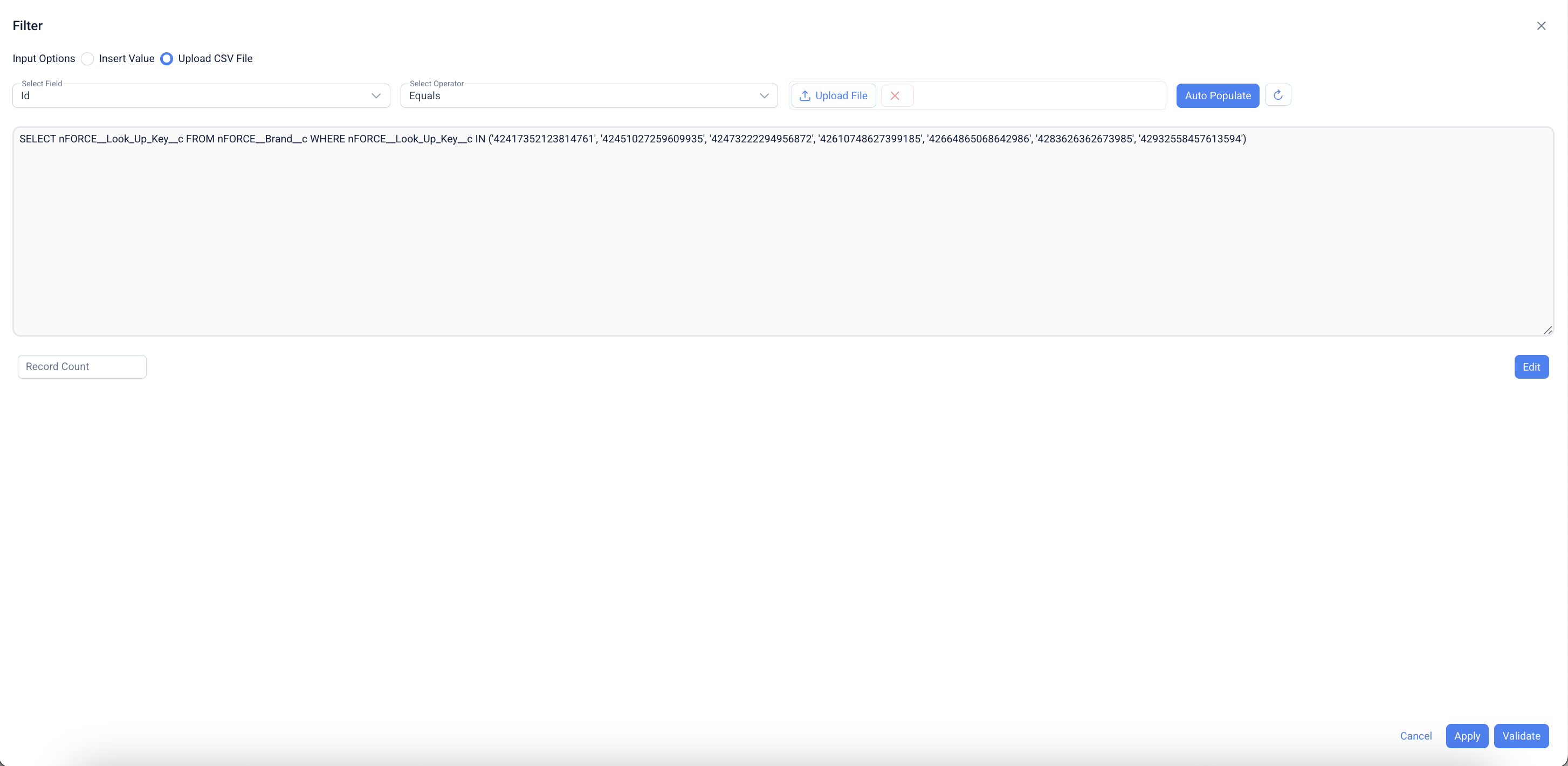
50. Configure Filter criteria
* Choose **Input Options: Upload CSV File**.
* Set **Select Field** and **Operator** (e.g., *Id* + *Equals*).
* Paste or **Auto Populate** your SOQL/values (example shows a SELECT … IN (…) list).
* Optional: click **Record Count**, **Validate**, then **Apply**.
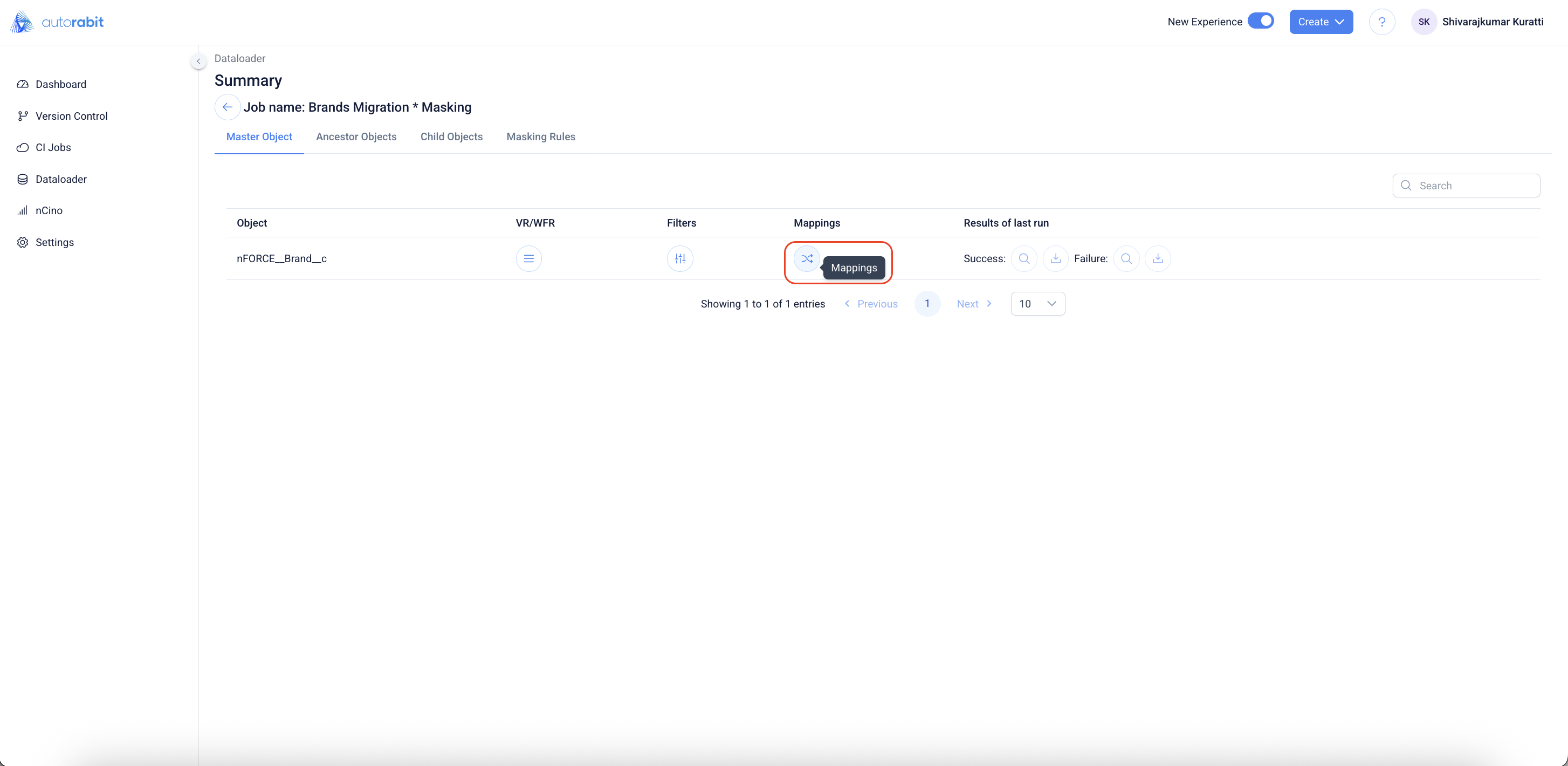
51. Review Field Mappings
* From **Summary**, click **Mappings** to open the mapping dialog and verify/adjust source→destination field mappings.
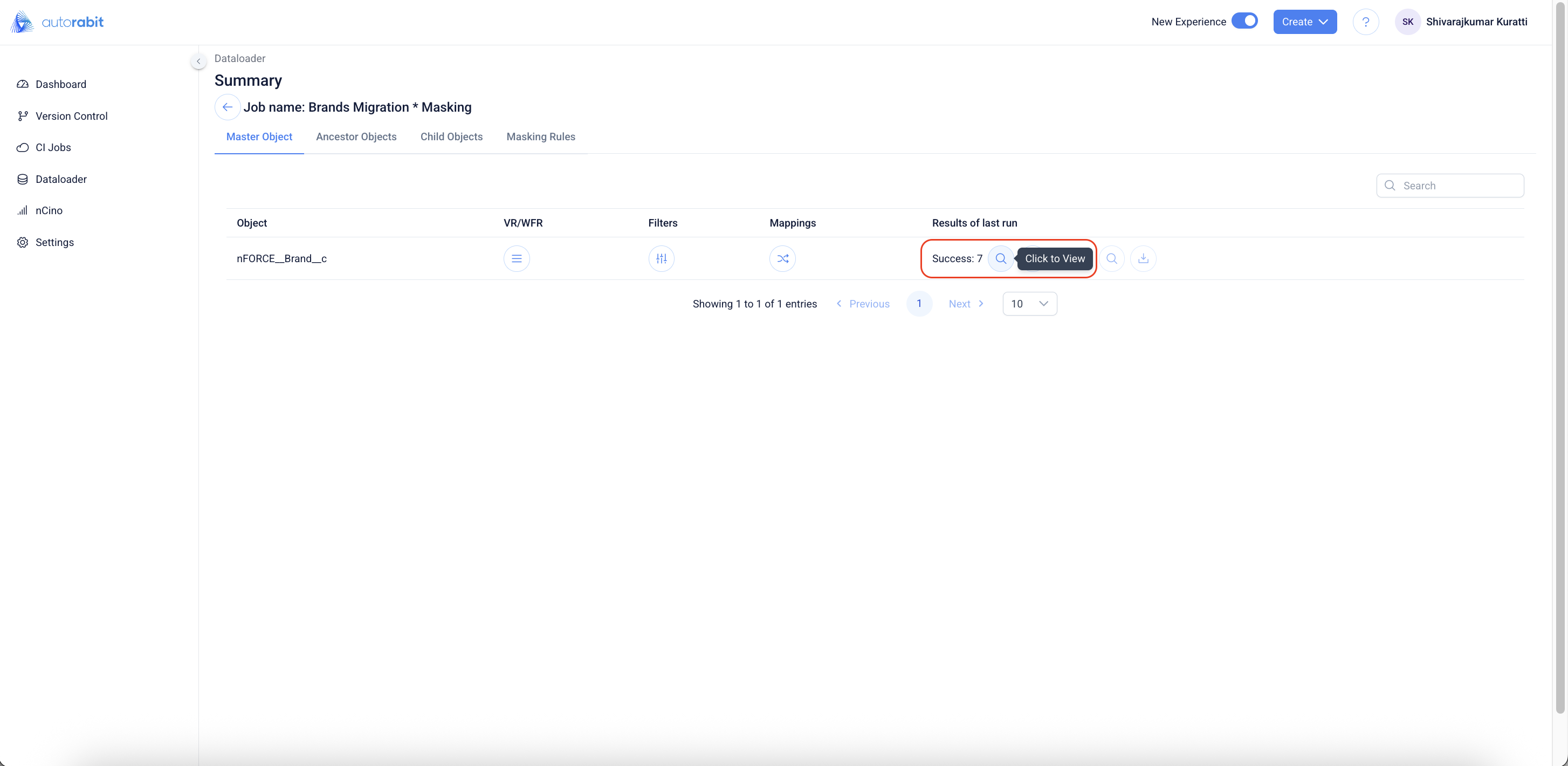
52. View Success Results – Master Object
1. From **Summary → Master Object**, locate **Results of last run**.
2. Click the **Success:** 🔍 icon (**Click to View**) for the master object.
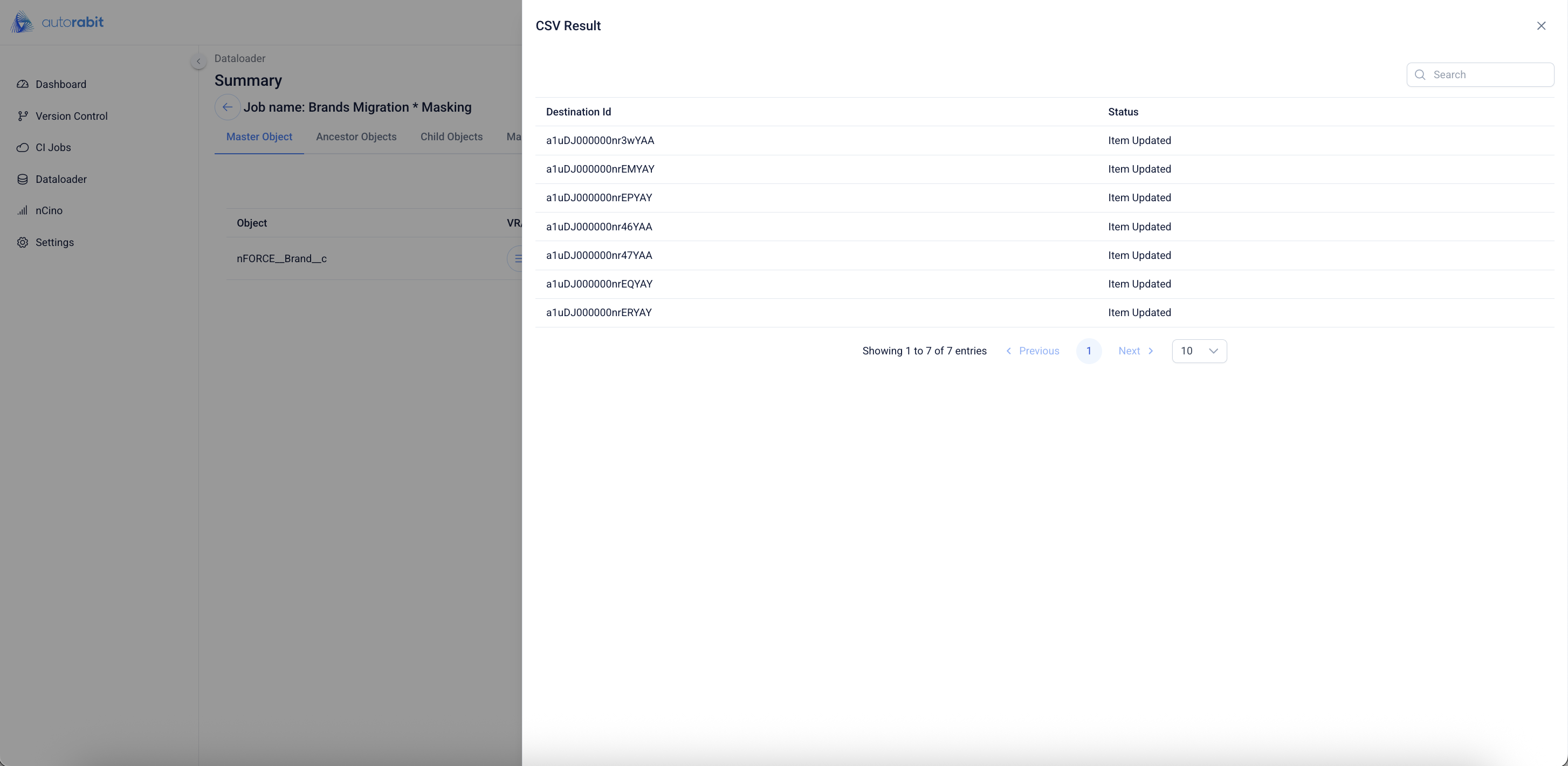
53. See Success Details (CSV)
1. Review the **Destination Id** and **Status** for each processed record.
2. Use **Search** and pagination as needed, then close the dialog.
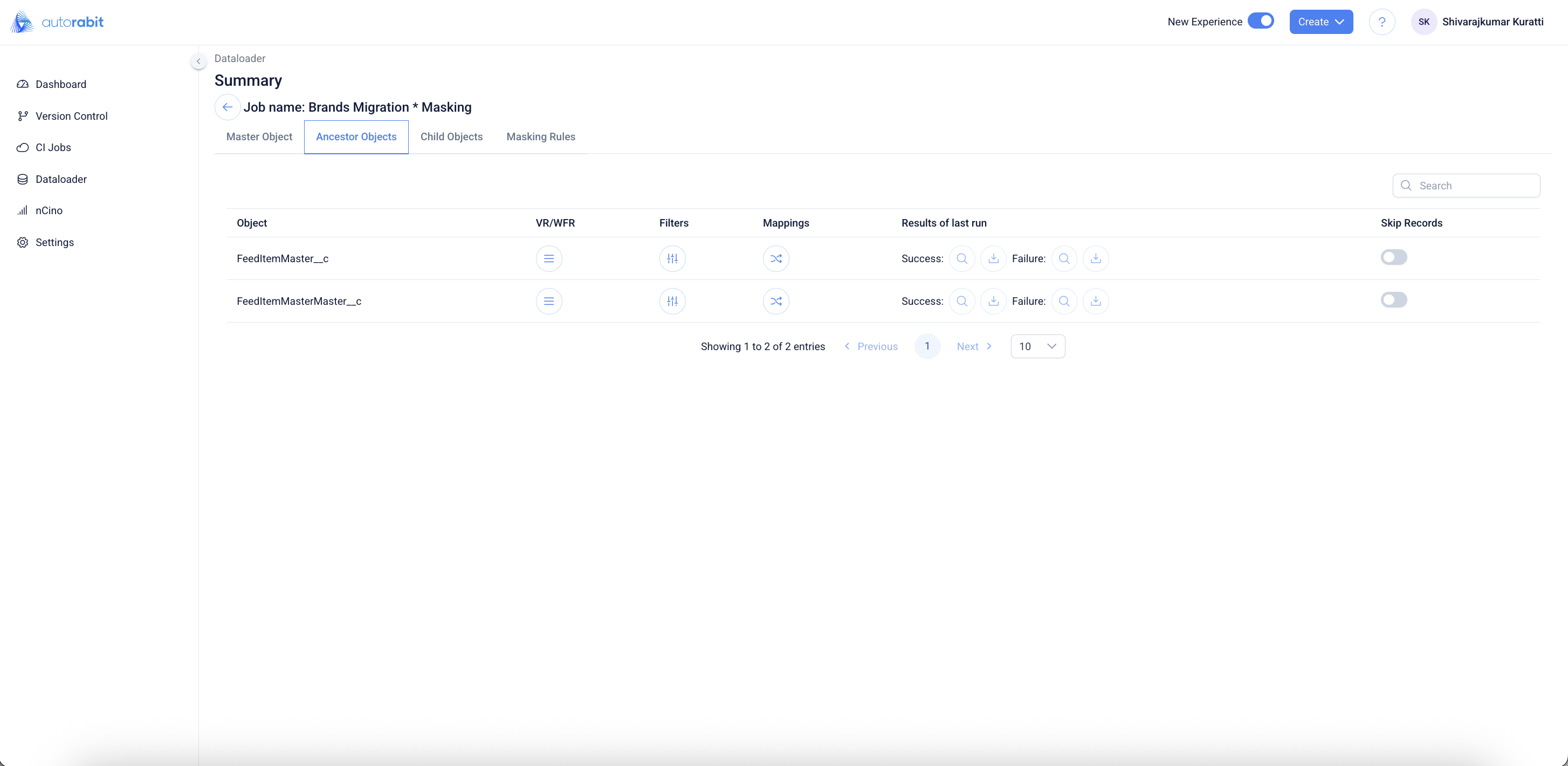
54. Review Ancestor Object Results
1. Open **Summary → Ancestor Objects**.
2. For each ancestor object, click the **Success** 🔍 or **Failure** 🔍 icons to view details.
3. Use the **download** icon to export results if required.
4. The toggle **Skip Records** is in "inactive" state as the records are not choosen to be skipped while creating the job.
55. Review Child Object Results
1. Open **Summary → Child Objects**.
2. Click the **Success** 🔍 or **Failure** 🔍 icons to view child-object run results.
3. Use the **download** icon to export results if needed.
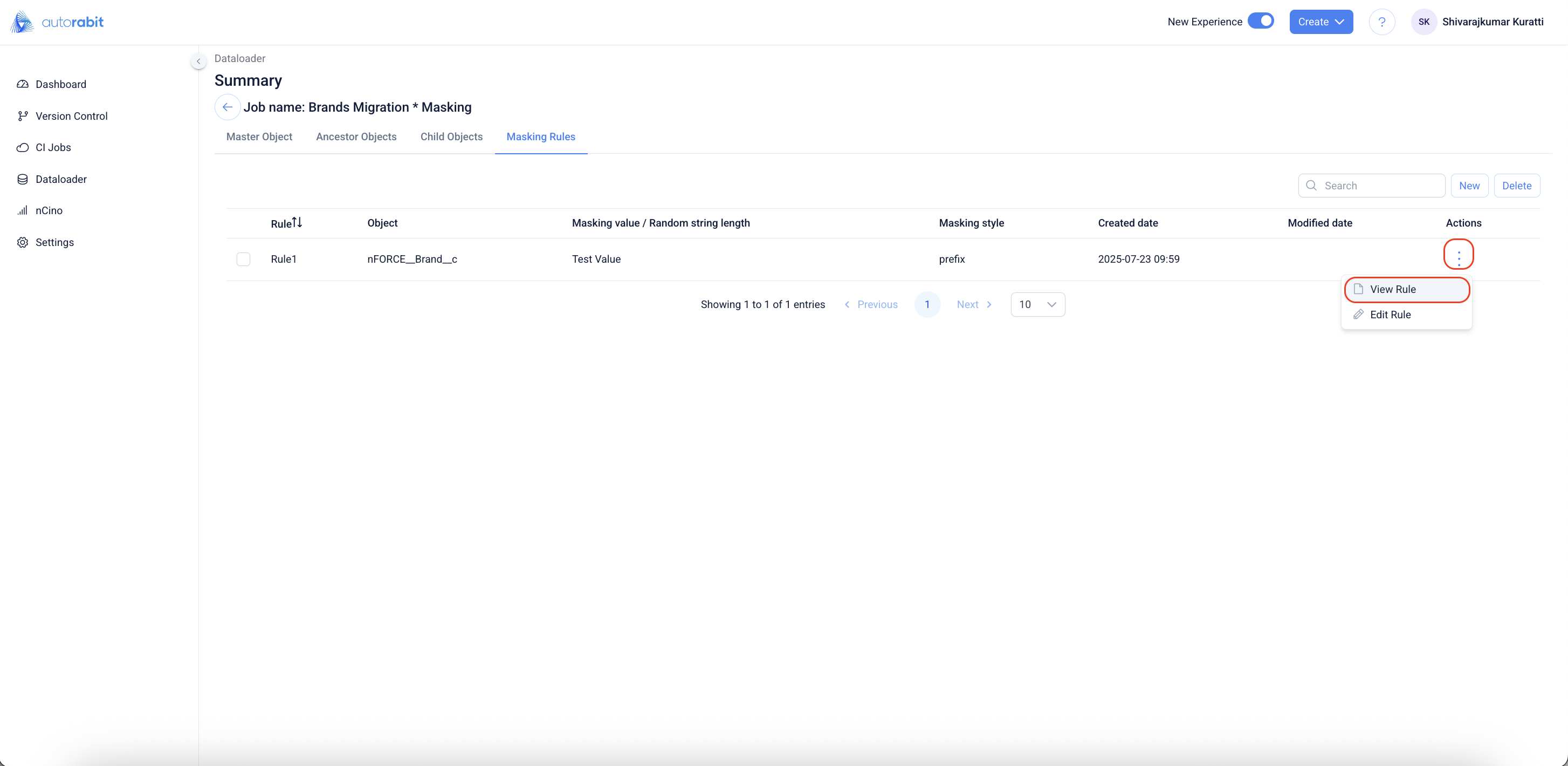
56. Open Masking Rule Actions
1. Go to **Summary → Masking Rules**.
2. Click the **⋮** menu for a rule and choose **View Rule** (or **Edit Rule**).
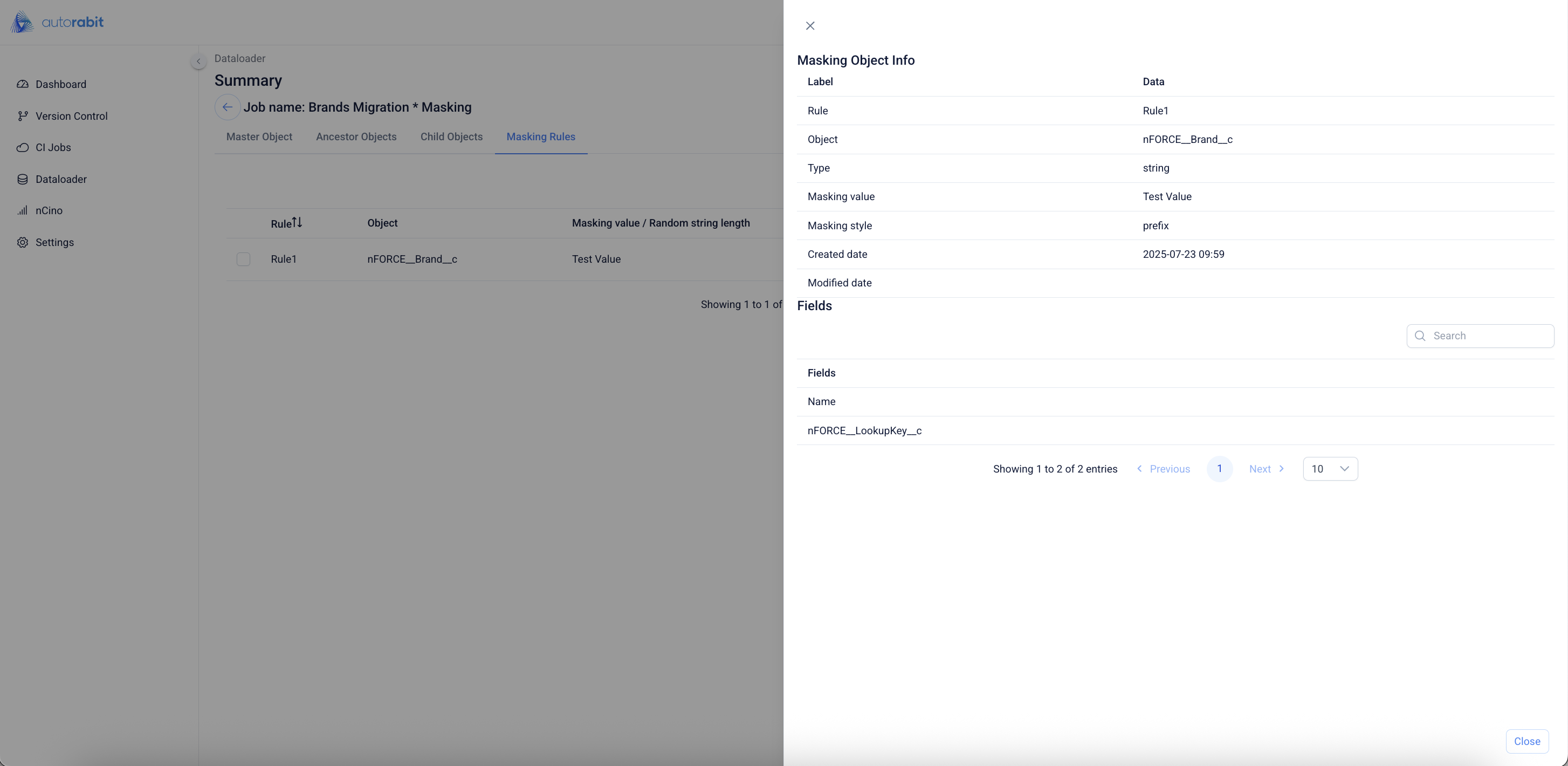
57. View Masking Rule Details
1. In **Masking Object Info**, verify **Rule**, **Object**, **Type**, **Masking style/value**, and the **Fields** impacted.
2. Use **Search** if the field list is long; click **Close** when done.
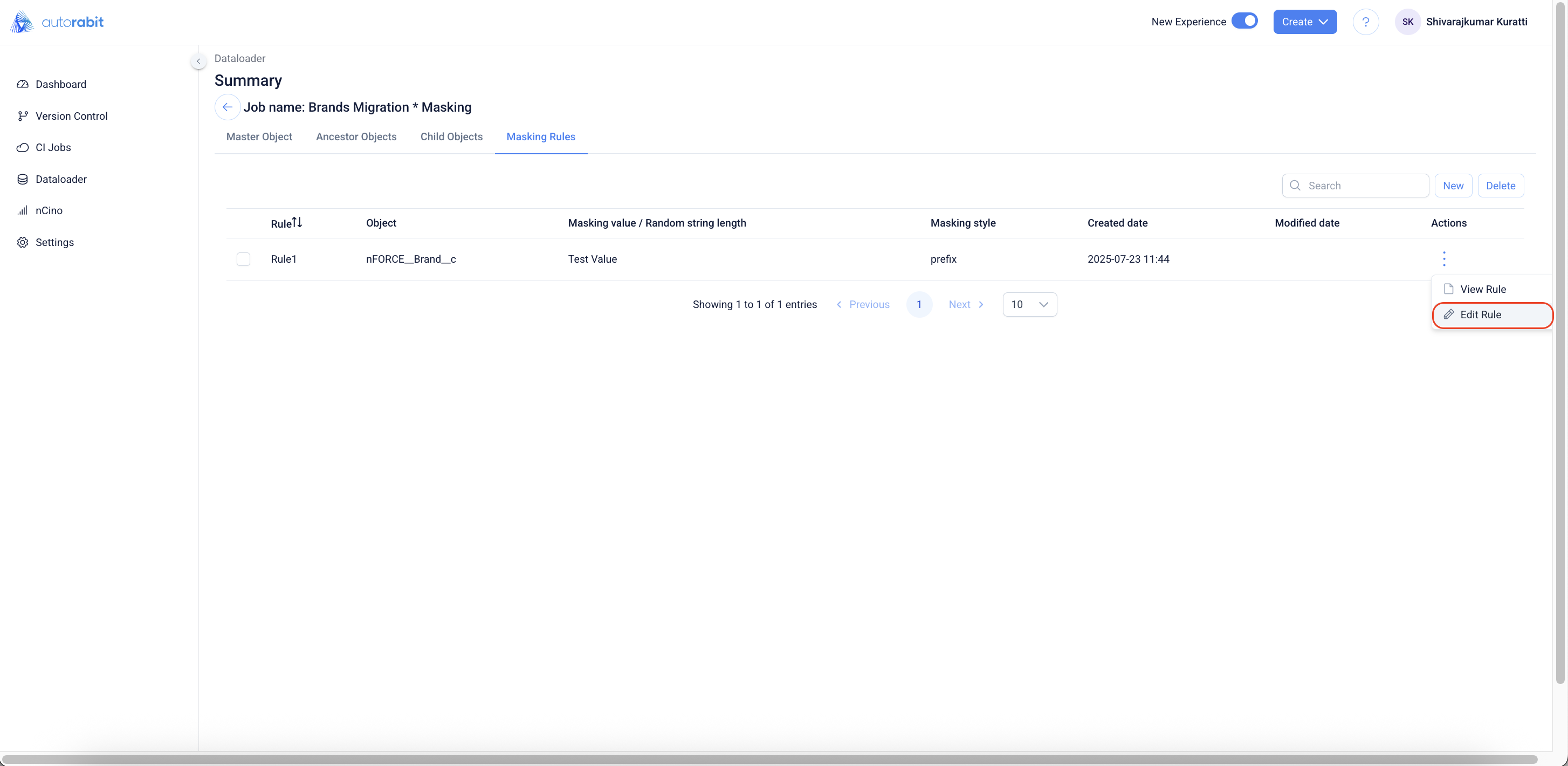
58. Start Editing a Masking Rule
1. From **Masking Rules**, open the **⋮** menu and select **Edit Rule**.
59. Edit Masking Rule
1. In **Edit Masking Rule**, confirm **Select Object**, **Field Type**, **Masking Style**, and **Masking value**.
2. Check the **Fields** to apply the masking to.
3. Click **Save** to apply changes.
60. Confirm Rule List
1. You return to **Masking Rules**.
2. Verify the rule appears as expected (use **Modified date** to confirm updates).
61. Create a New Masking Rule
1. From **Masking Rules**, click **New** to open **Create Masking Rule**.
2. Set **Select Object**, **Field Type**, **Masking Style**, **Masking value**, and select the **Fields**.
3. Click **Save** to add the rule.
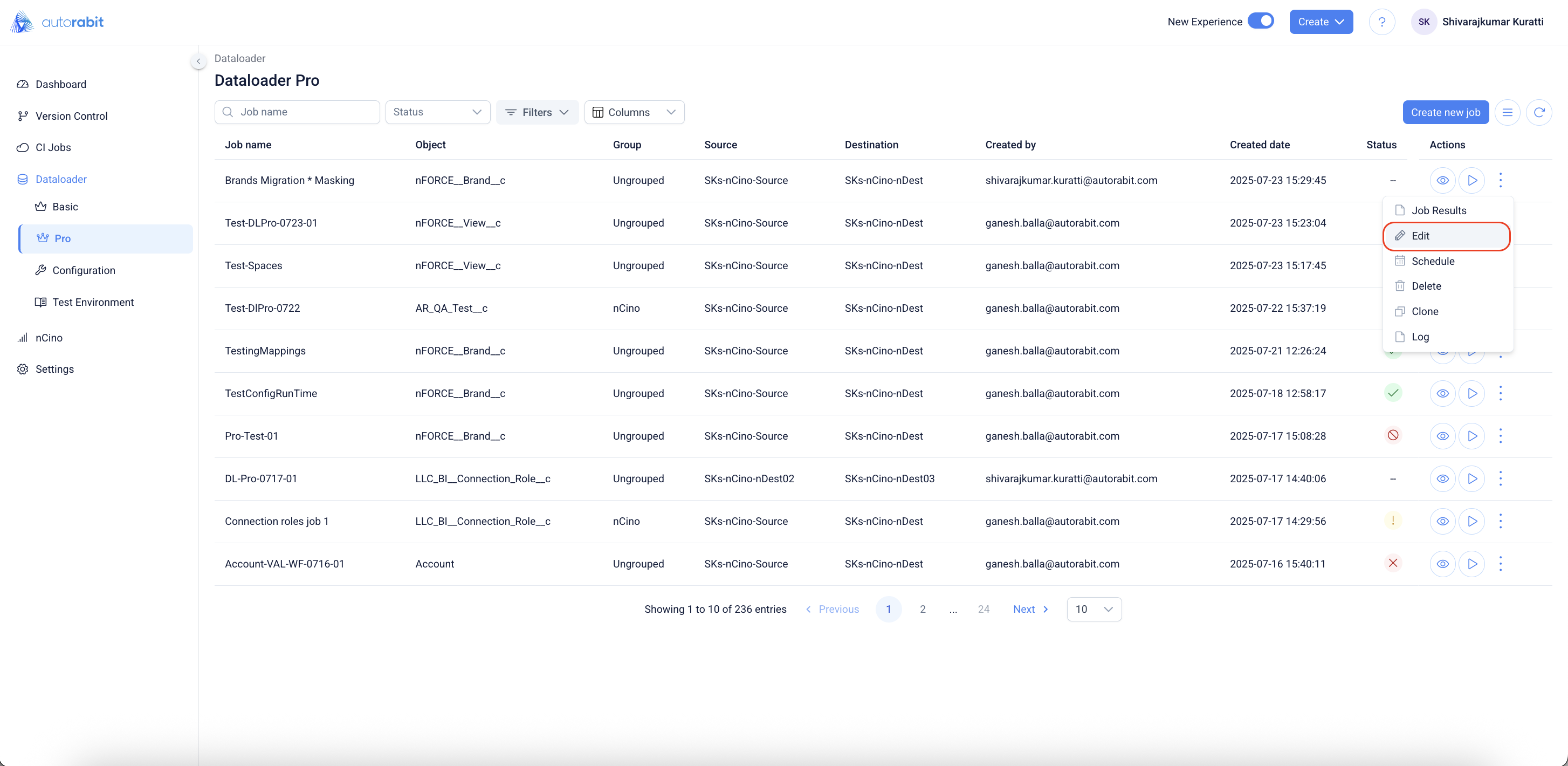
62. **Open Edit**
* From **DataLoader Pro**, find your job.
* In **Actions**, click the **⋮** menu and choose **Edit**.
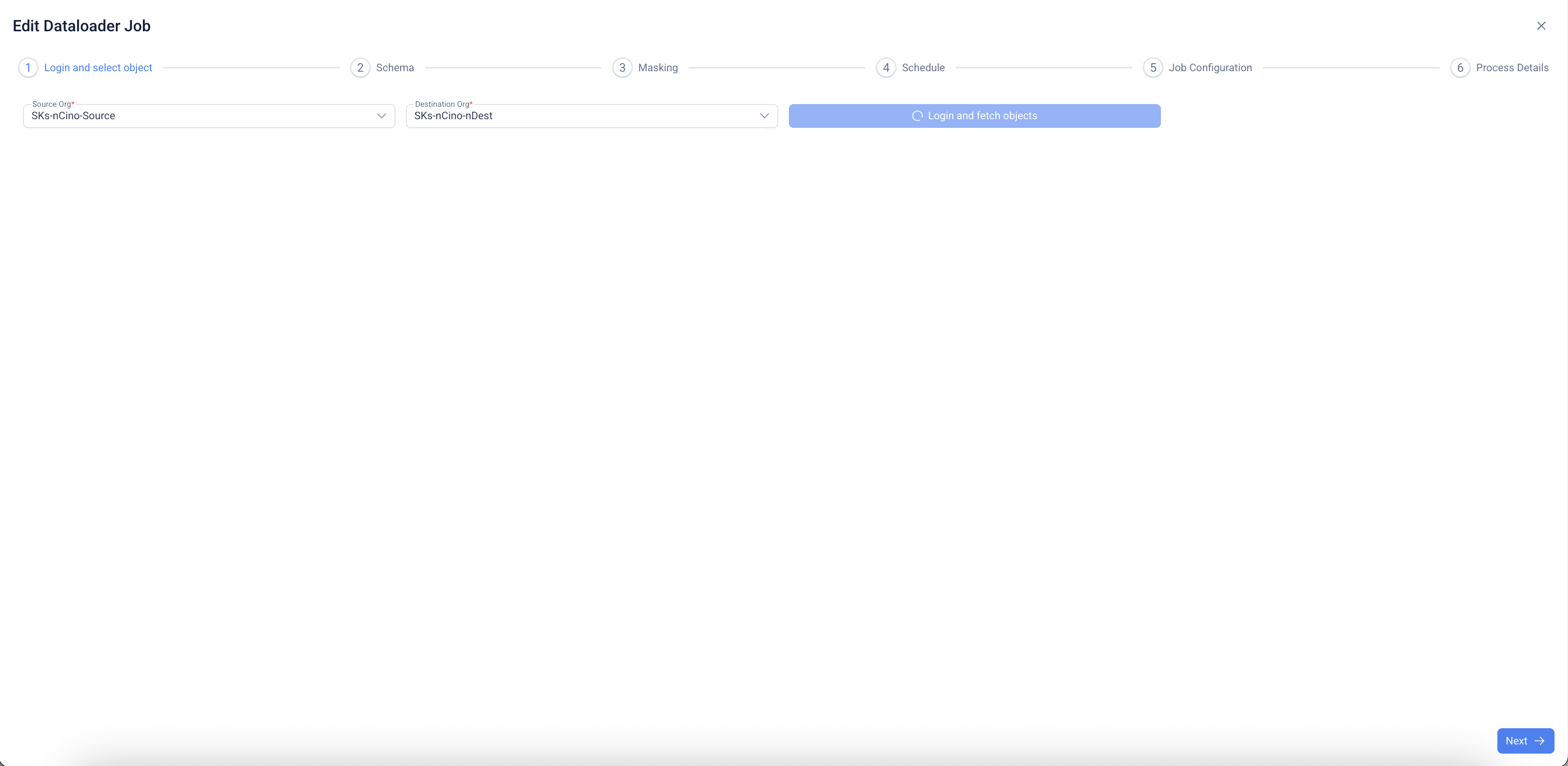
63. **Edit Job – Login & Select Object**
* On **Edit DataLoader Job**, choose **Source Org** and **Destination Org**.
* Click **Login and fetch objects** to load metadata.
* Click **Next** to continue through the setup steps as needed.
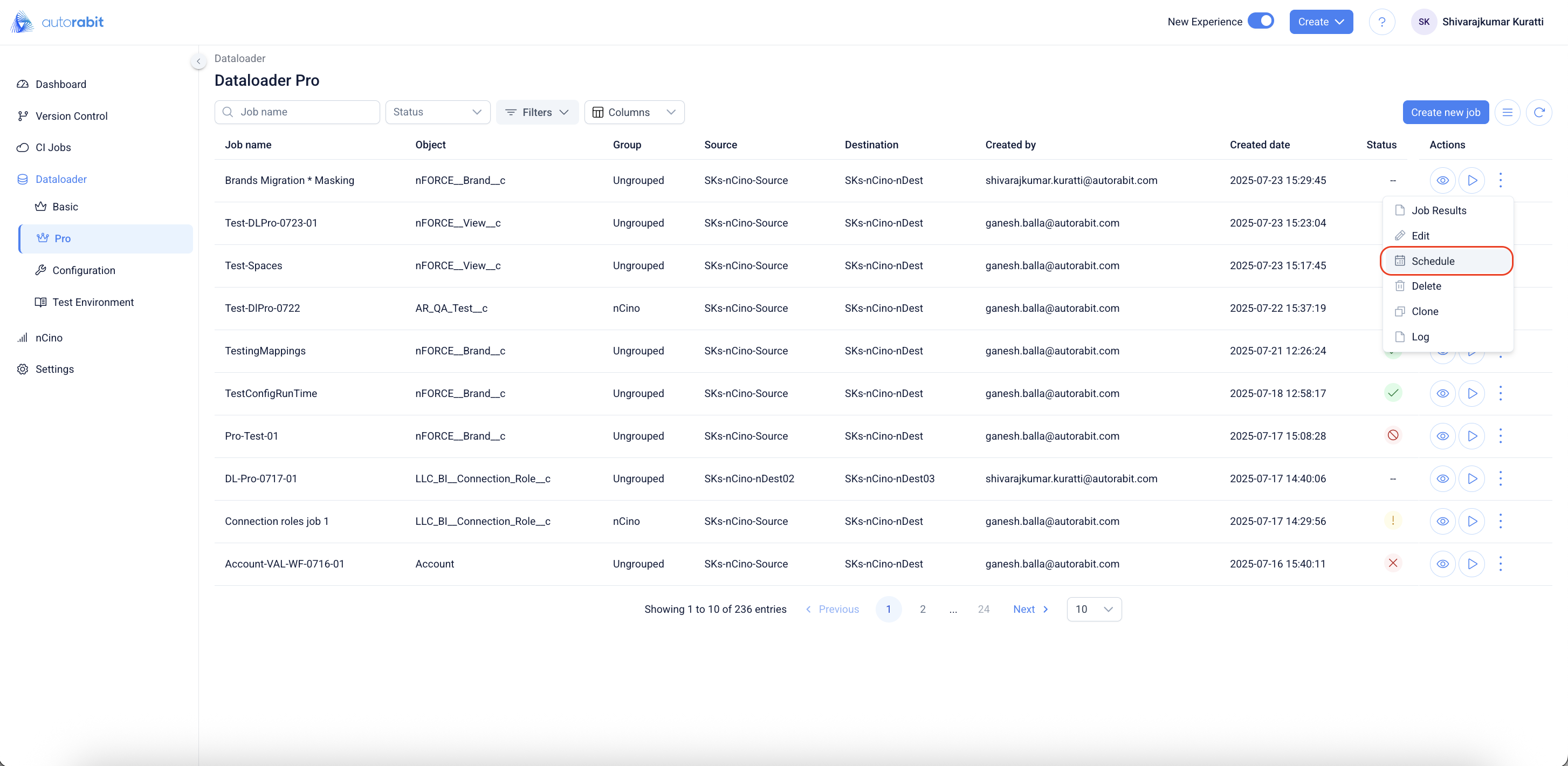
64. **Open Schedule**
* From **DataLoader Pro**, open the **⋮** menu for the job.
* Select **Schedule**.
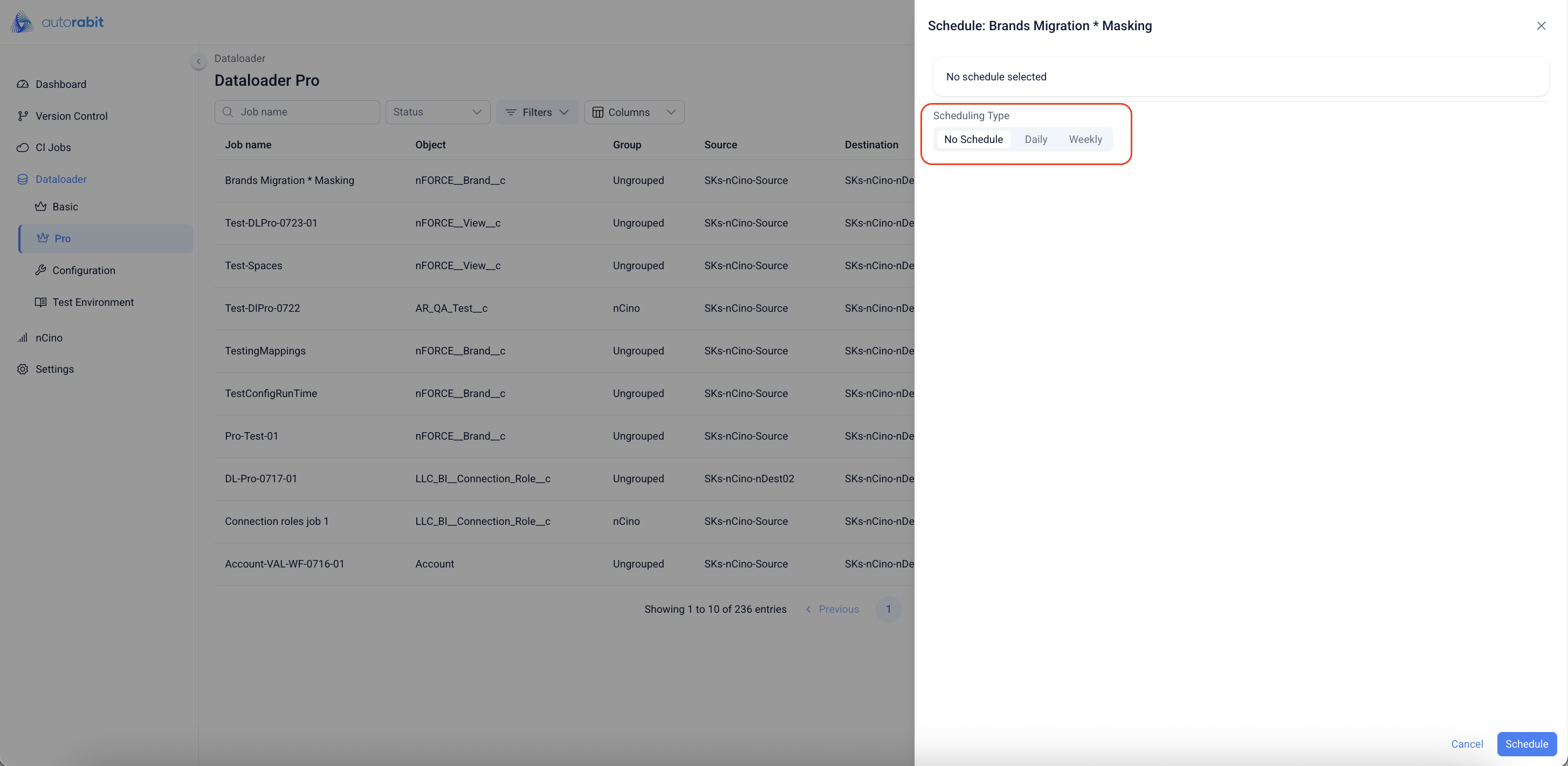
65. **Set Scheduling Type**
* In the **Schedule** panel, choose **No Schedule**, **Daily**, or **Weekly**.
* Follow the [scheduling process](#:~:text=Open%20the%20Schedule%20step) to set up a schedule.
* Configure any timing options shown, then click **Schedule**.
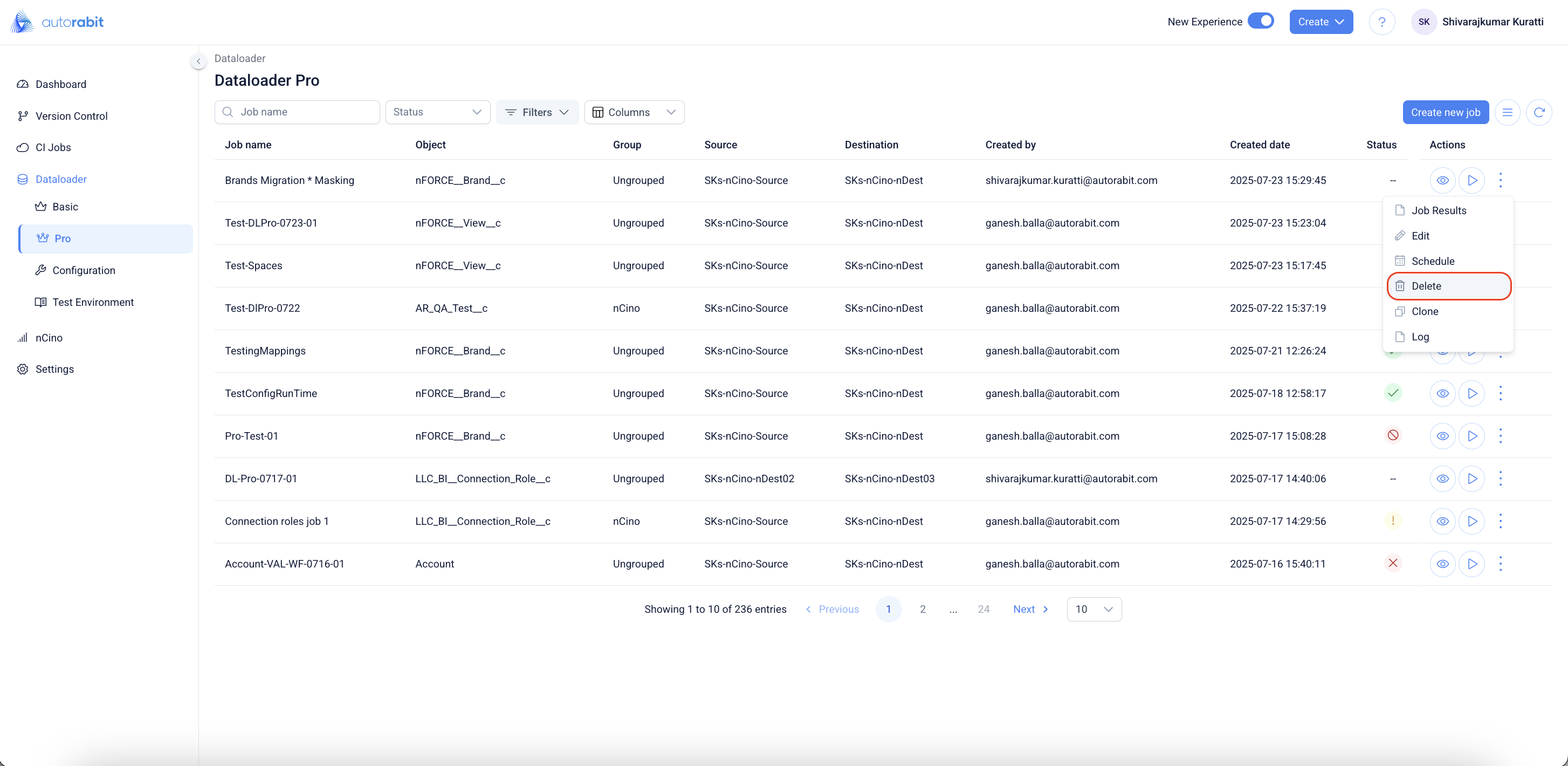
66. **Delete a Job**
* From **DataLoader Pro**, open the job’s **⋮** menu.
* Click **Delete**.
67. **Confirm Deletion**
* Review the job name in the confirmation dialog.
* Click **Delete** to remove or **Cancel** to keep the job.
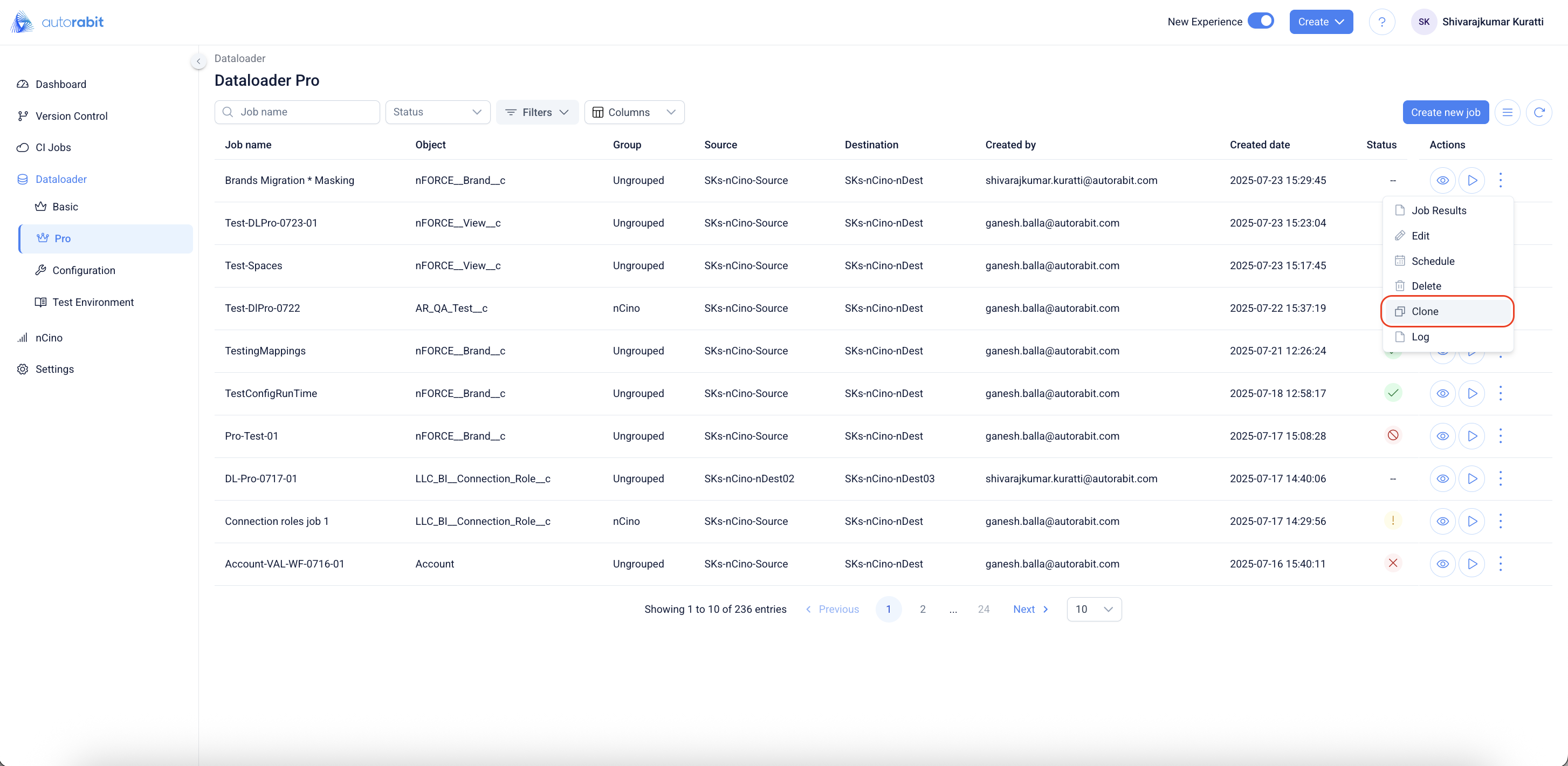
68. **Clone a Job**
* From **DataLoader Pro**, open the job’s **⋮** menu.
* Click **Clone**.
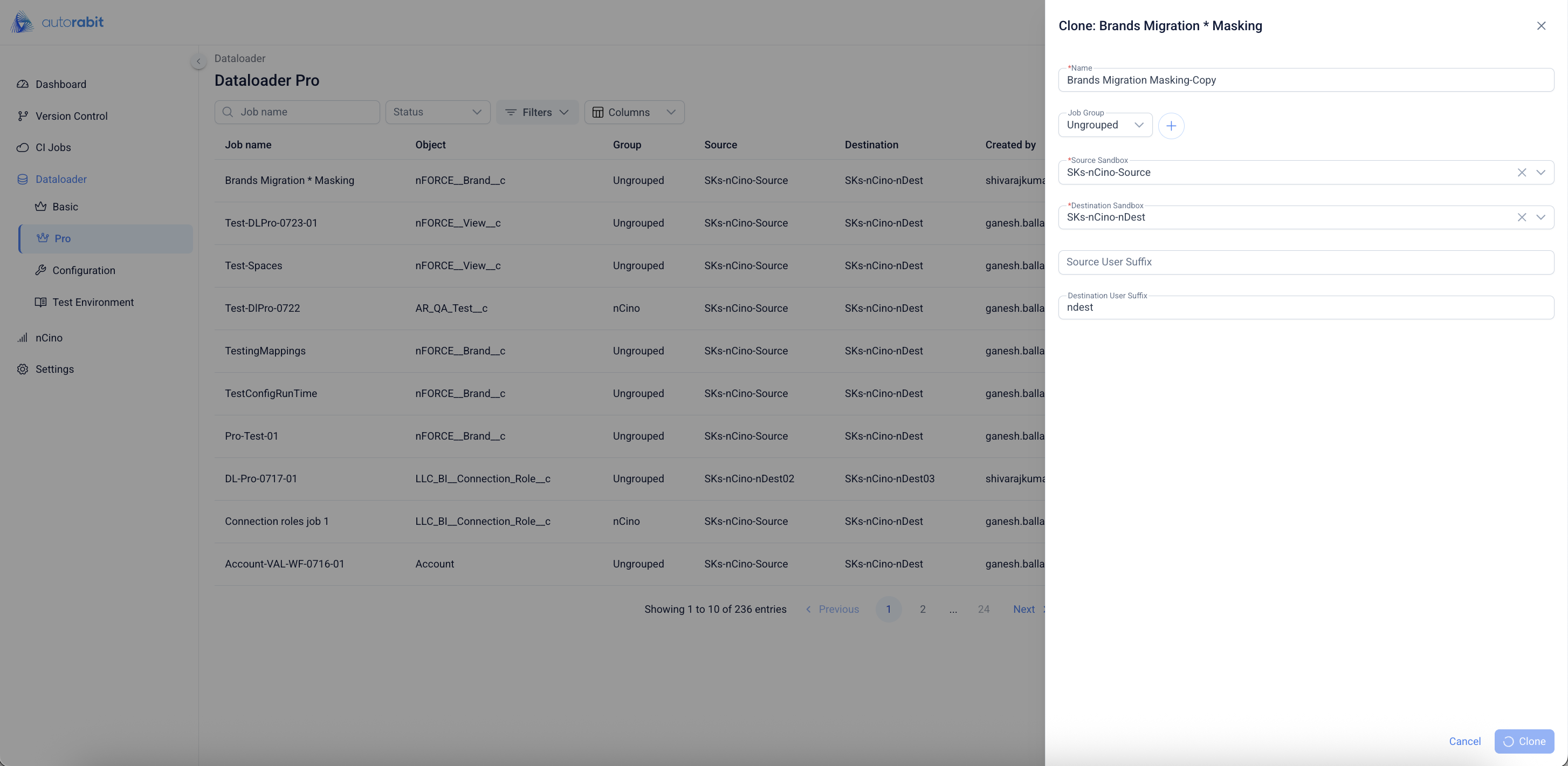
69. **Configure Clone**
* In the **Clone** panel, update **Name**, **Job Group**, **Source Sandbox**, **Destination Sandbox**, and any **User Suffixes**.
* Click **Clone**.
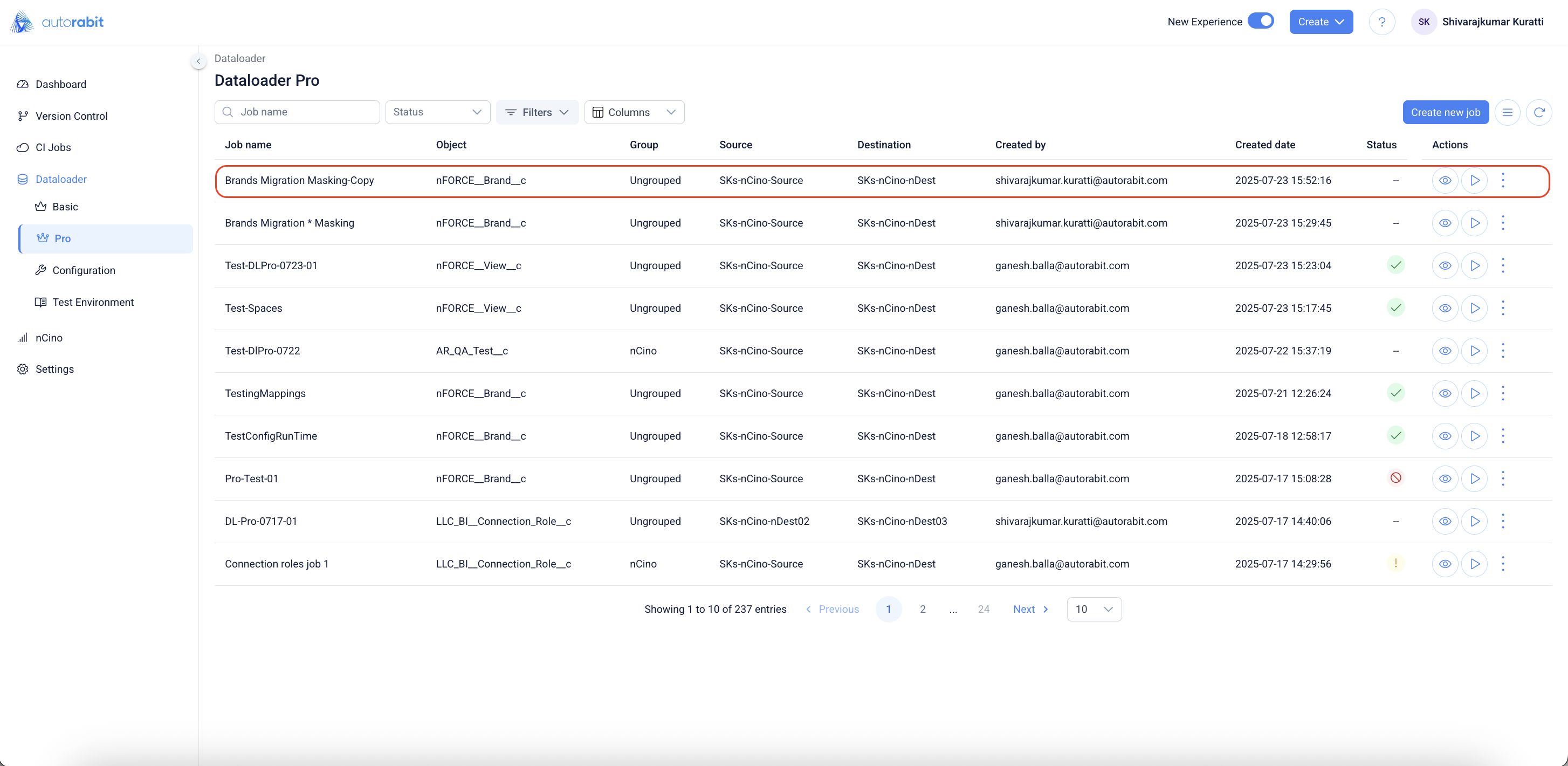
70. **Verify Cloned Job**
* Back on **DataLoader Pro**, confirm the new job (e.g., *Brands Migration Masking-Copy*) appears in the list.
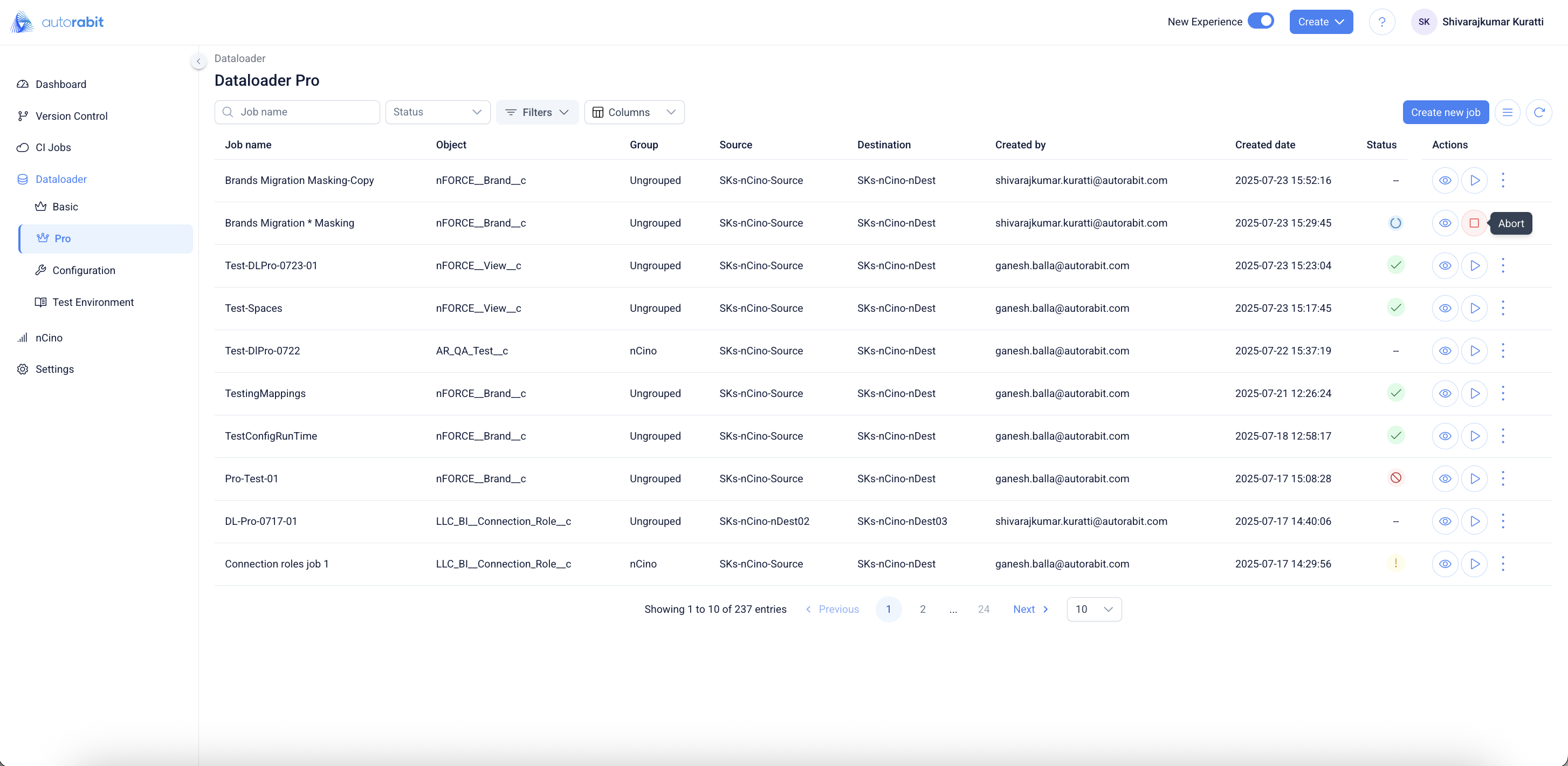
71. Run Job
* From DataLoader Pro, locate your job.
* In **Actions**, click the **▶ Run** icon.
72. Run Configuration
* In **Run Configuration**, review/adjust options (e.g., Disable workflow rules, Use Bulk API, Parallel/Serial mode, Batch size, UTF-8, Encrypt data files).
* Click **Run**.
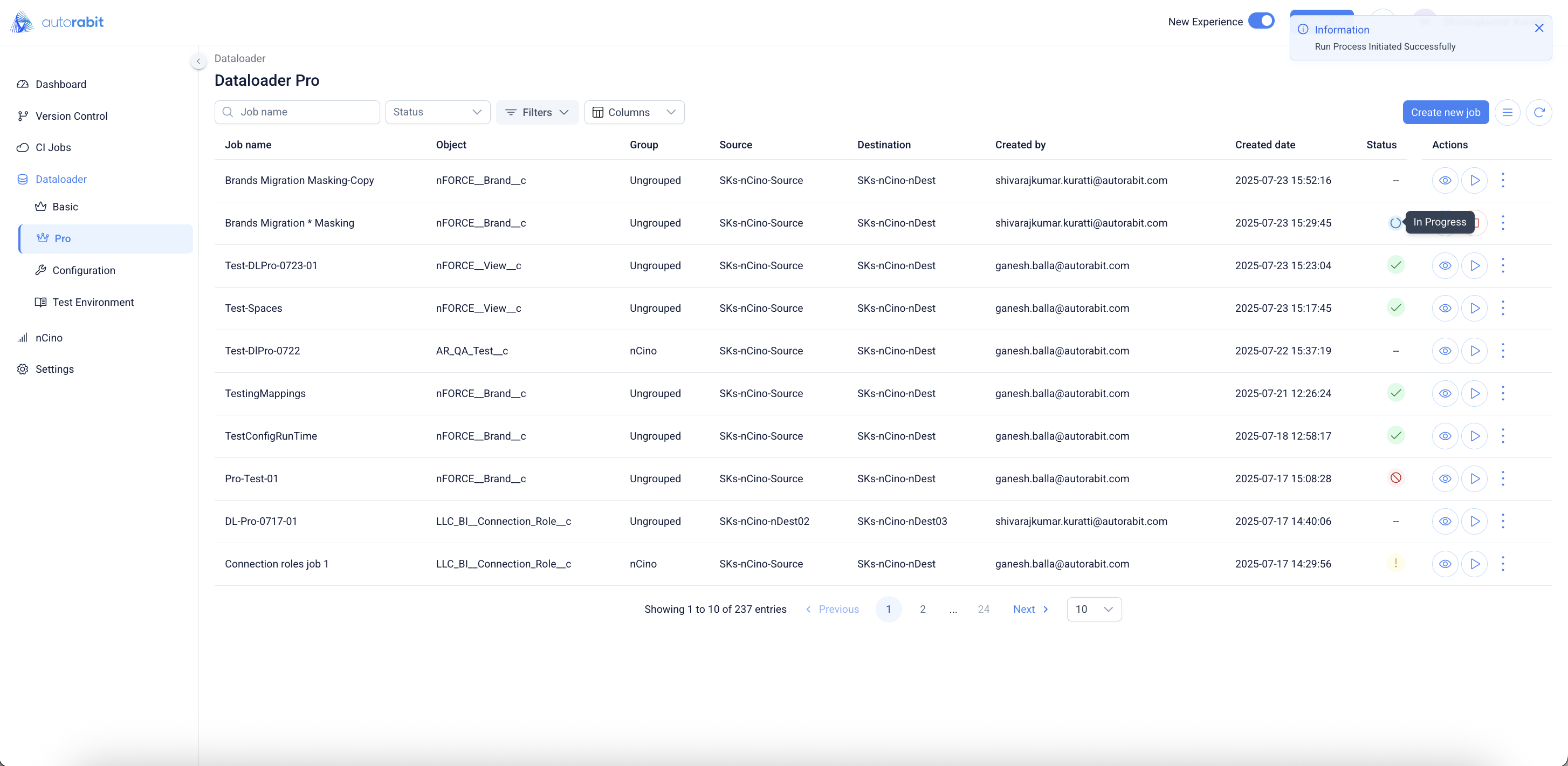
73. Monitor Run Status
* A toast confirms **Run Process Initiated Successfully**.
* The **Status** shows **In Progress** until the job completes.
74. Abort a Running Job
* While the job is running, click the **⏹ Abort** icon in **Actions** to stop execution.
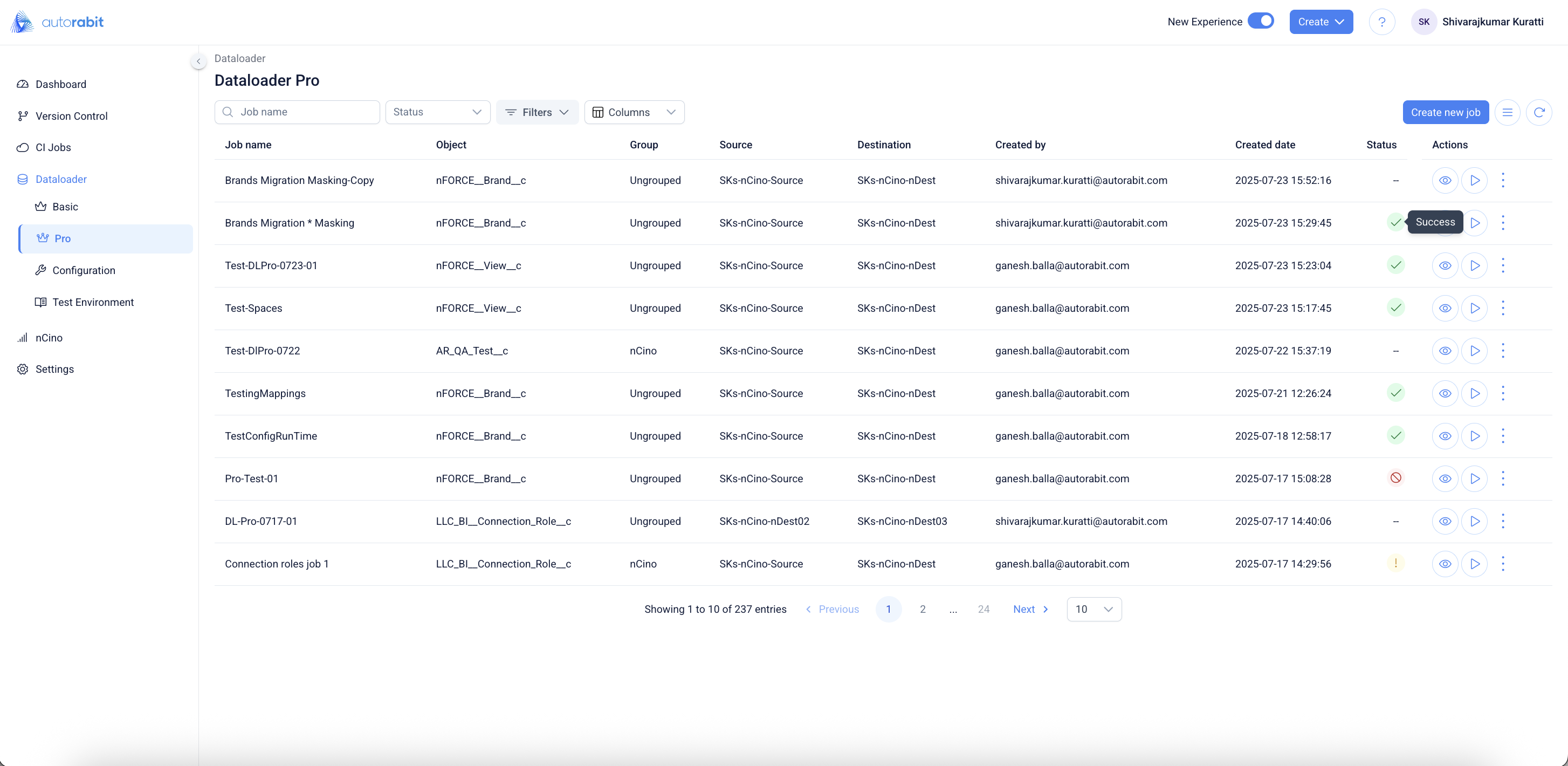
75. Confirm Completion
* When finished, verify the **Status** shows **Success** (or review failures if shown).
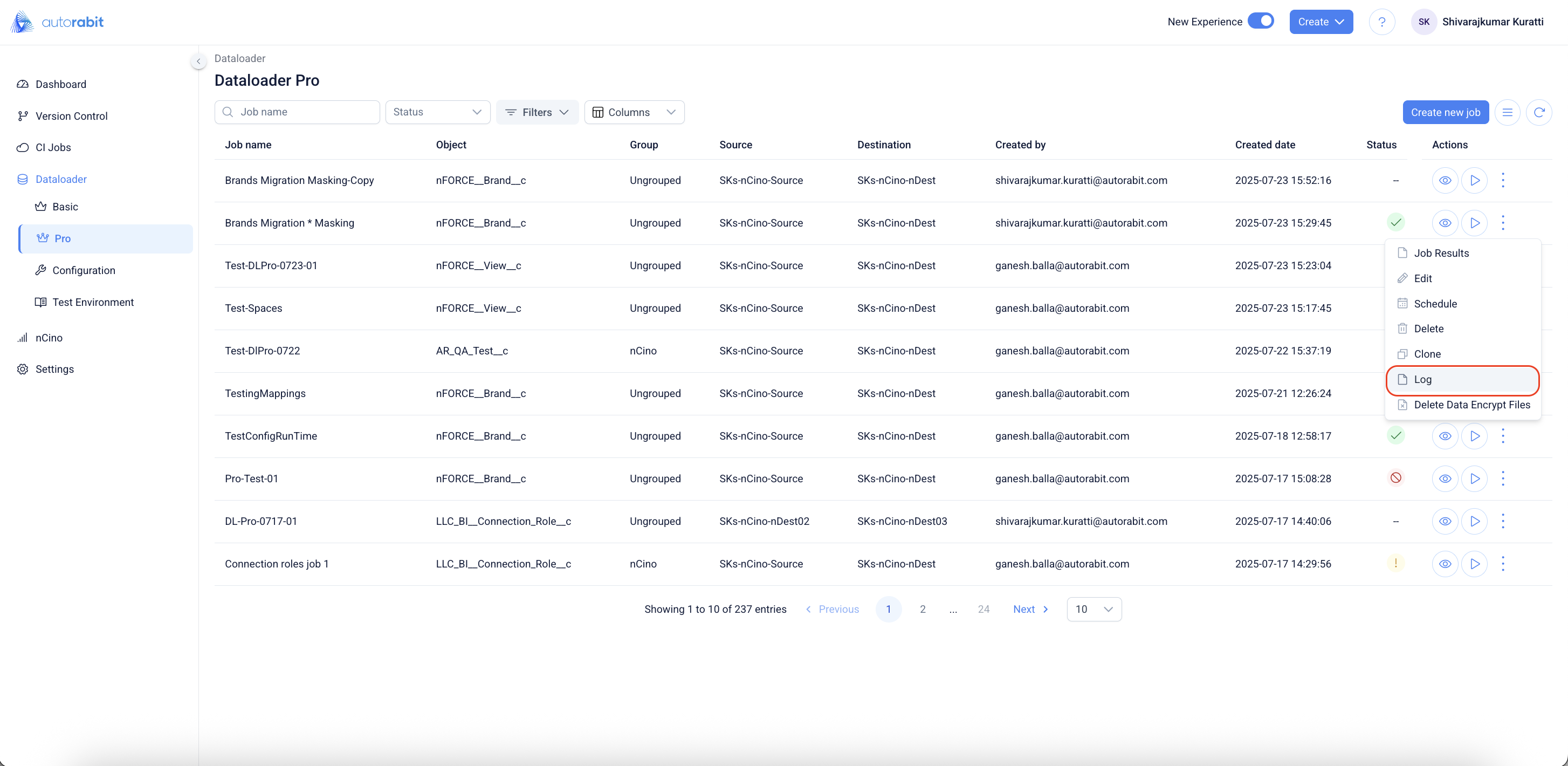
76. Open Job Log
* From DataLoader Pro, open the job’s **⋮** menu.
* Select **Log**.
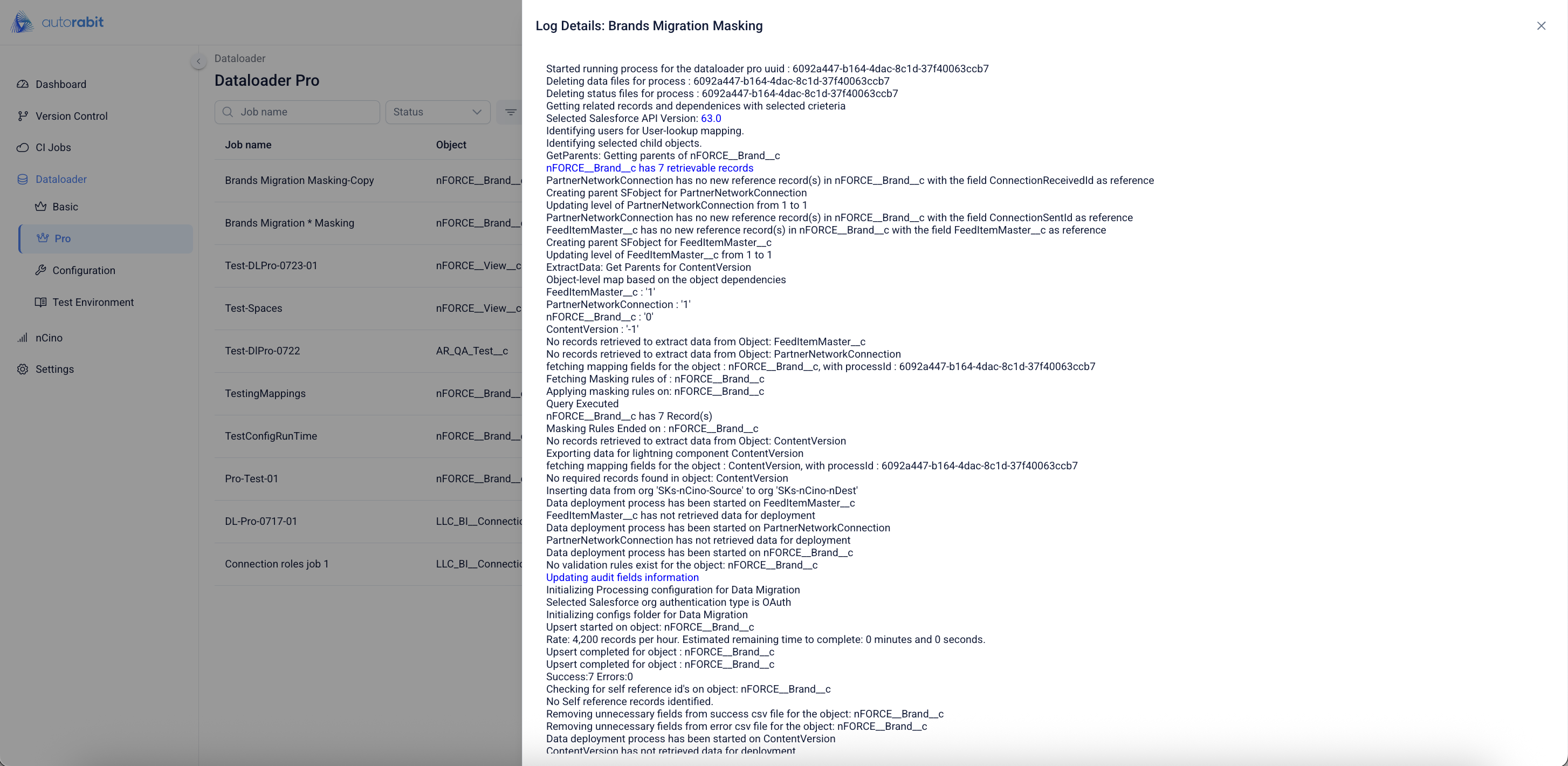
77. Review Log Details
* In **Log Details**, review each step, object counts, and success/error messages.
* Use search as needed; close when done.
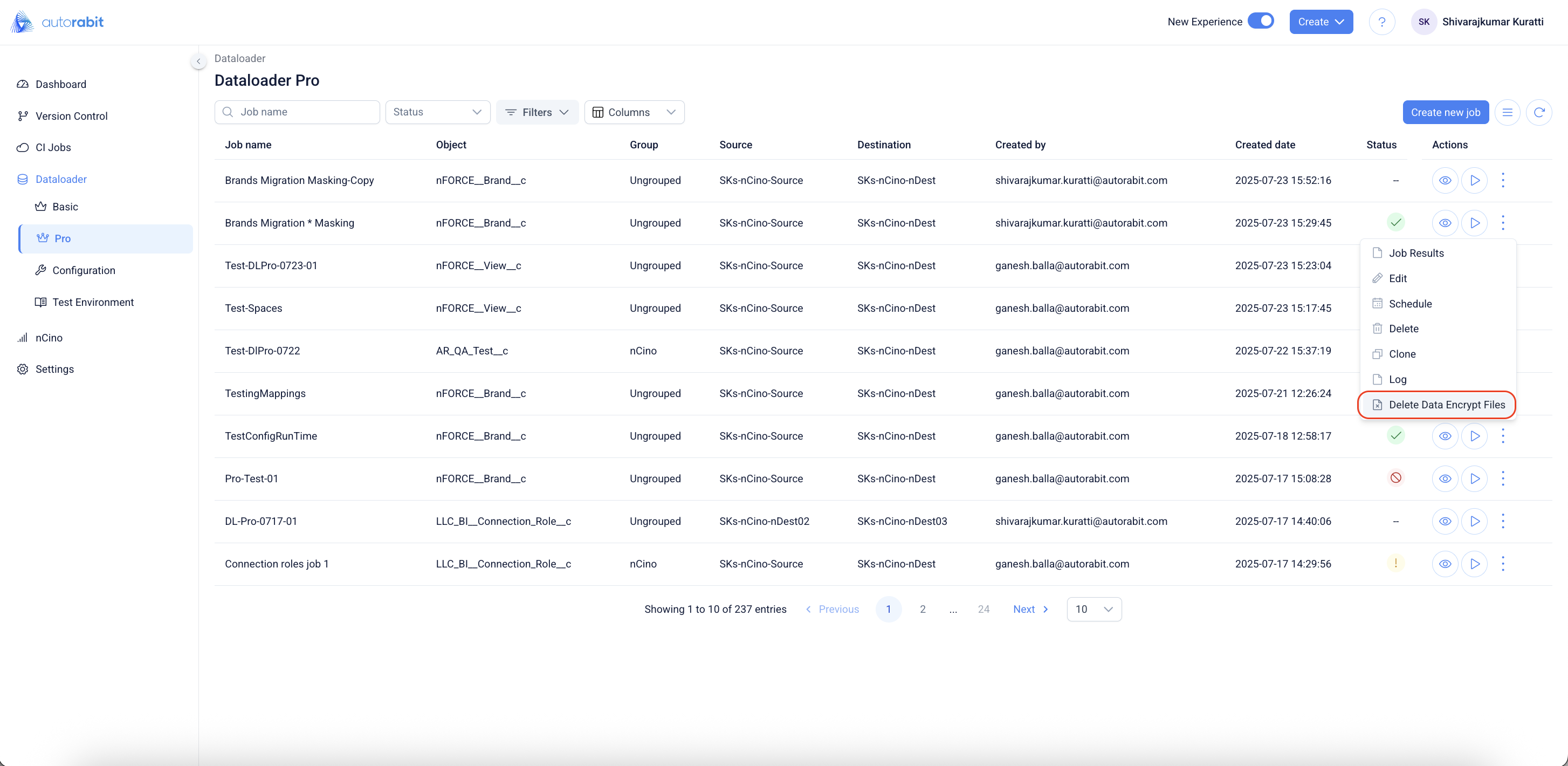
78. Delete Data Encrypt Files
* From the job’s **⋮** menu, choose **Delete Data Encrypt Files** to remove protected artifacts created during runs.
79. Confirm Deletion
* In the confirmation dialog, click **Delete** to permanently remove the encrypted files, or **Cancel** to keep them.
---
# Agent Instructions
This documentation is published with GitBook. GitBook is the documentation platform designed so that both humans and AI agents can read, navigate, and reason over technical content effectively. Learn more at gitbook.com.
## Querying This Documentation
If you need additional information that is not directly available in this page, you can query the documentation by asking a question.
Perform an HTTP GET request on the following URL with the `ask` and `goal` query parameters:
```
GET https://knowledgebase.autorabit.com/product-guides/arm-1/arm-features/dataloader/dataloader-pro.md?ask=&goal=
```
`ask` is the immediate question: it should be specific, self-contained, and written in natural language.
`goal` is what the user is ultimately trying to achieve, the reason they need the answer. Sharing it helps GitBook give you a better, more relevant answer. A goal is most helpful when it describes the outcome the user wants rather than restating the question. For example, with `ask=how do I create an API token`, a goal like `automate deployments from our CI pipeline` lets GitBook tailor the answer to that use case.
The response will contain a direct answer to the question and relevant excerpts and sources from the documentation.
Use this mechanism when the answer is not explicitly present in the current page, you need clarification or additional context, or you want to retrieve related documentation sections.