> For the complete documentation index, see [llms.txt](https://knowledgebase.autorabit.com/llms.txt). Markdown versions of documentation pages are available by appending `.md` to page URLs; this page is available as [Markdown](https://knowledgebase.autorabit.com/product-guides/arm-1/arm-features/dataloader/test-environment-setup.md).
# Setting Up a Test Environment
## **Test Environment Setup: Overview**
The ARM test environment enables efficient data transfer from CSV files into destination sandboxes, optimizing job execution times. This setup is particularly beneficial for validating data migration scenarios before performing a full-scale execution.
### Step-By-Step Guide:
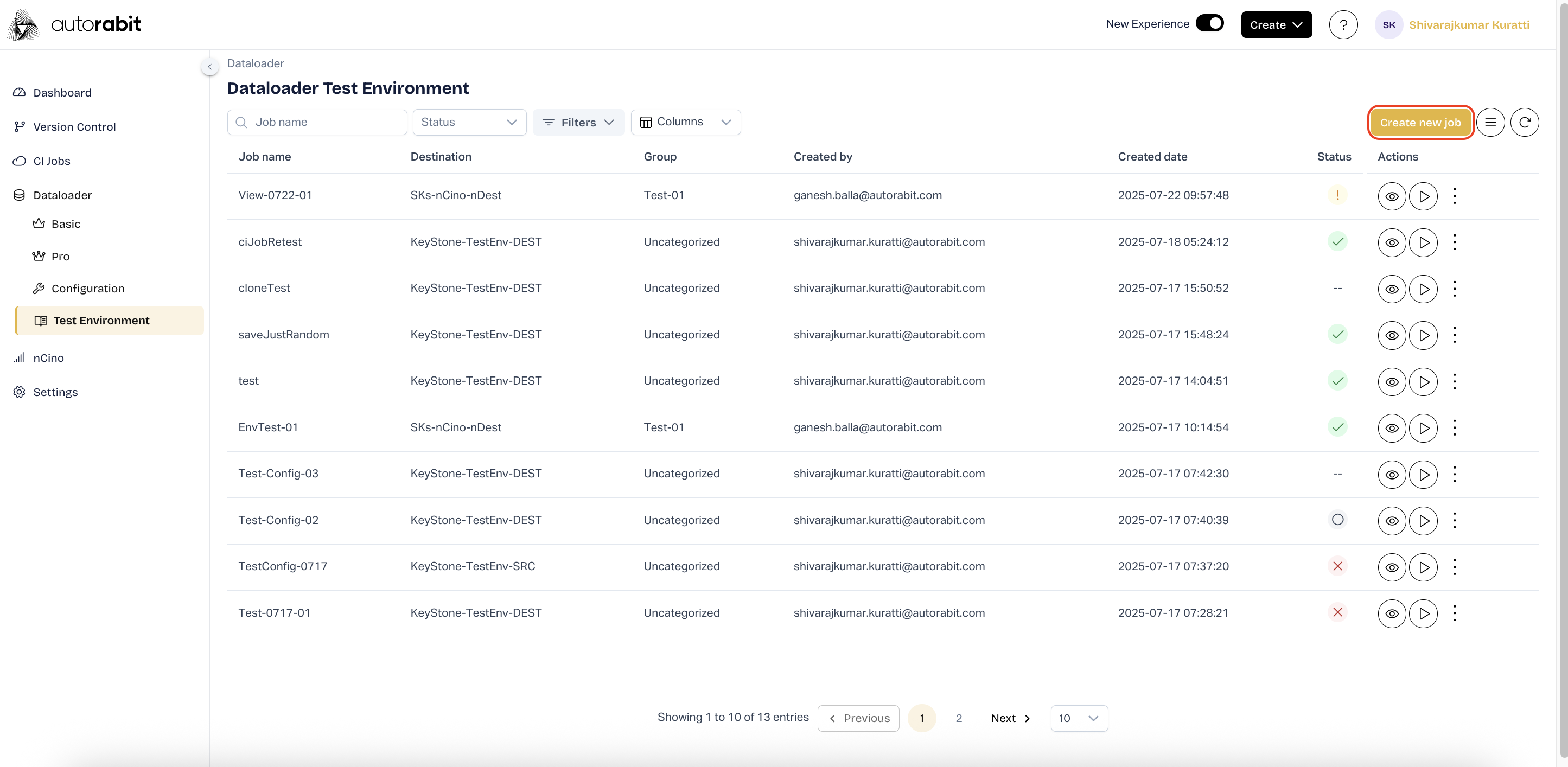
1. Navigate to the "DataLoader - Test Environment" by logging into ARM application.
2. Click on the "Create new job" button to initiate the job creation.
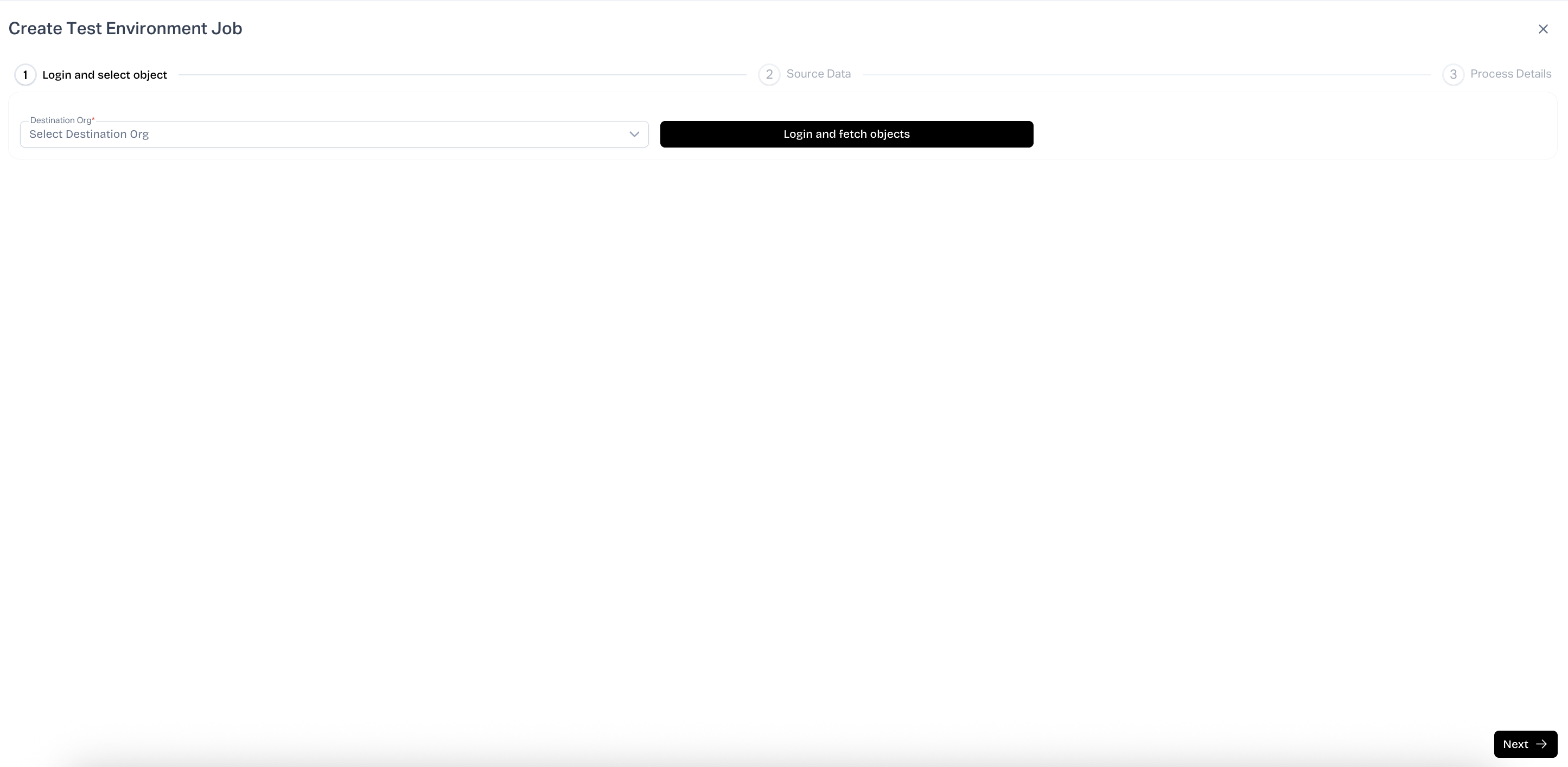
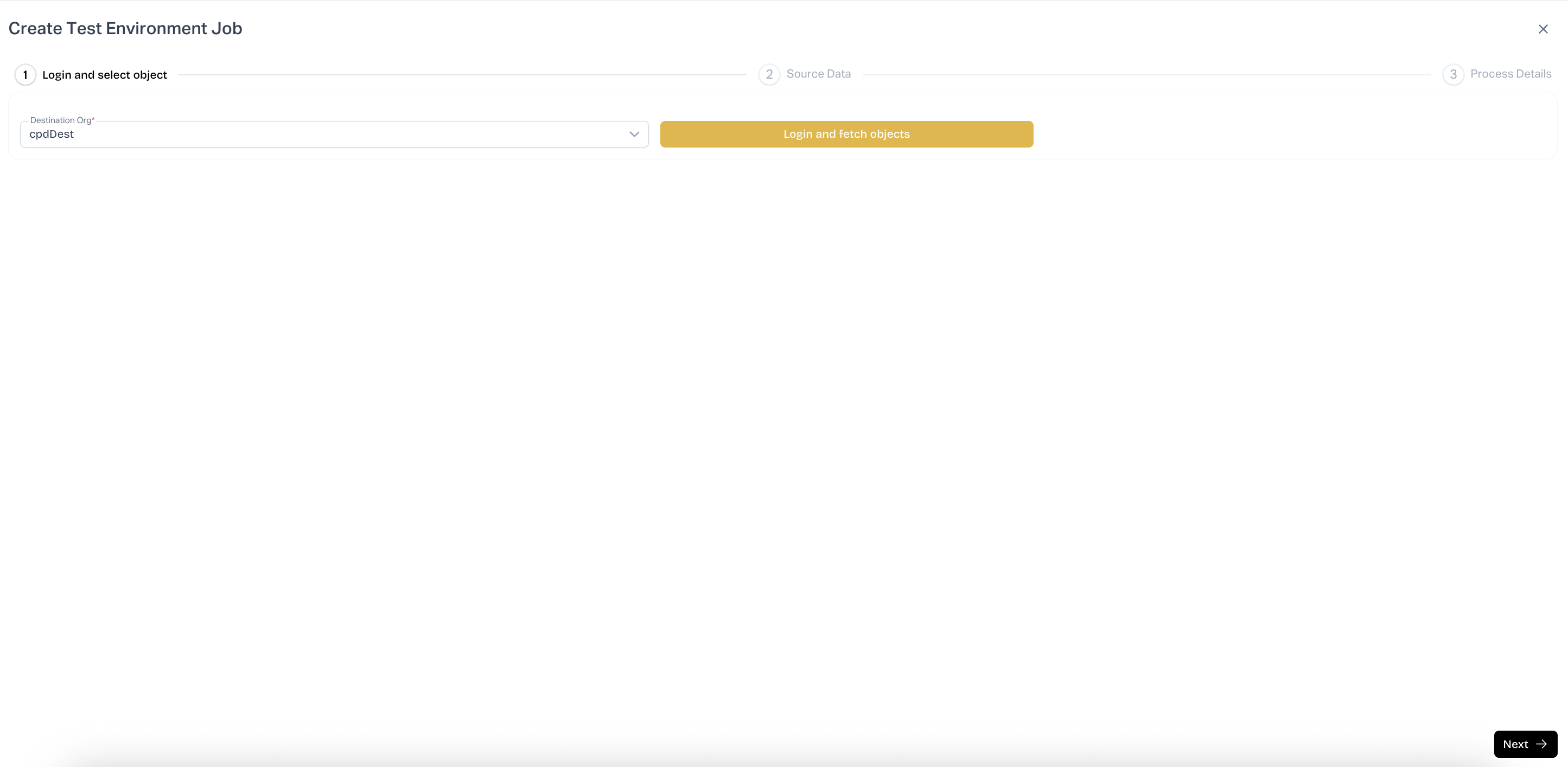
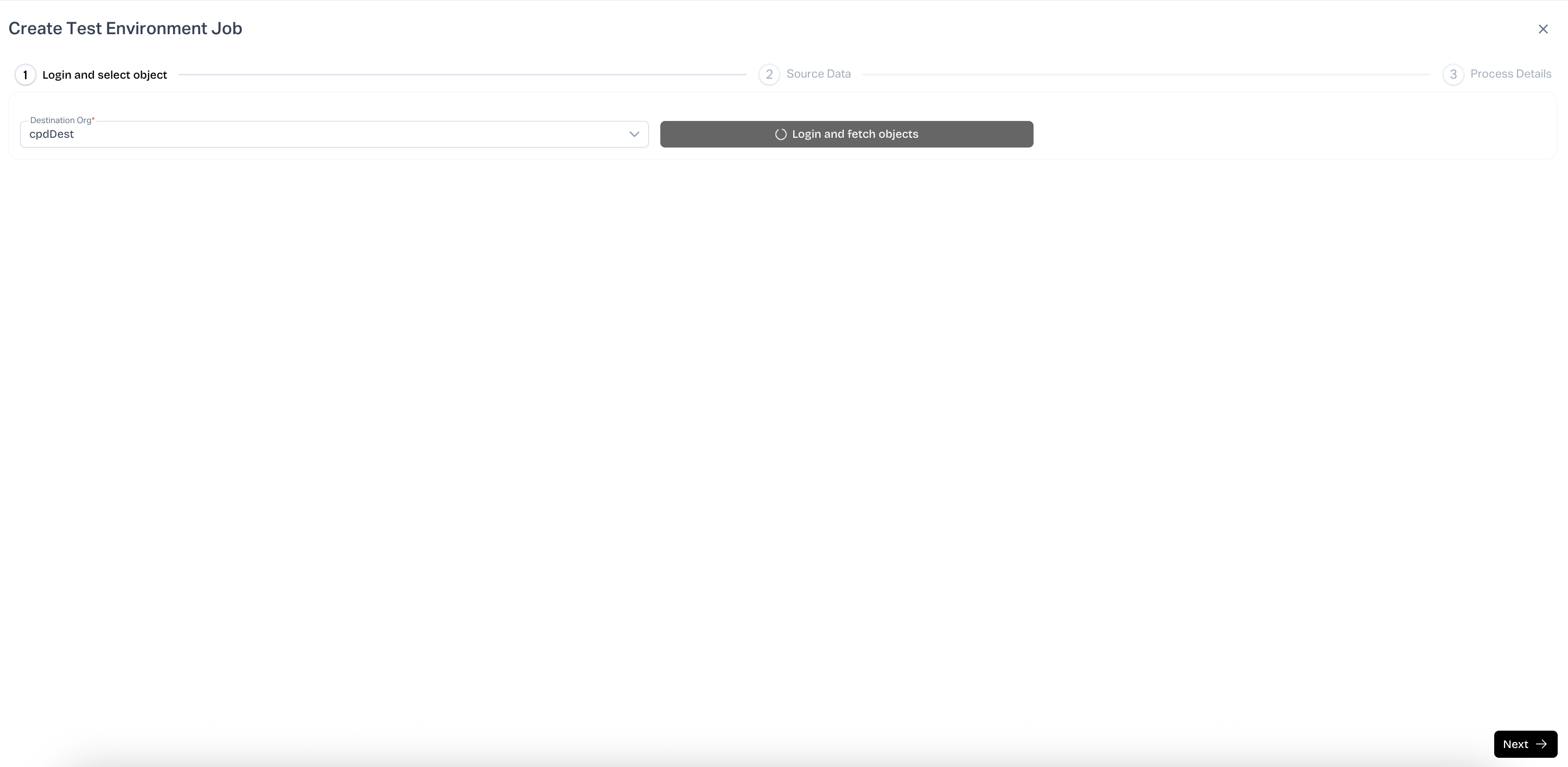
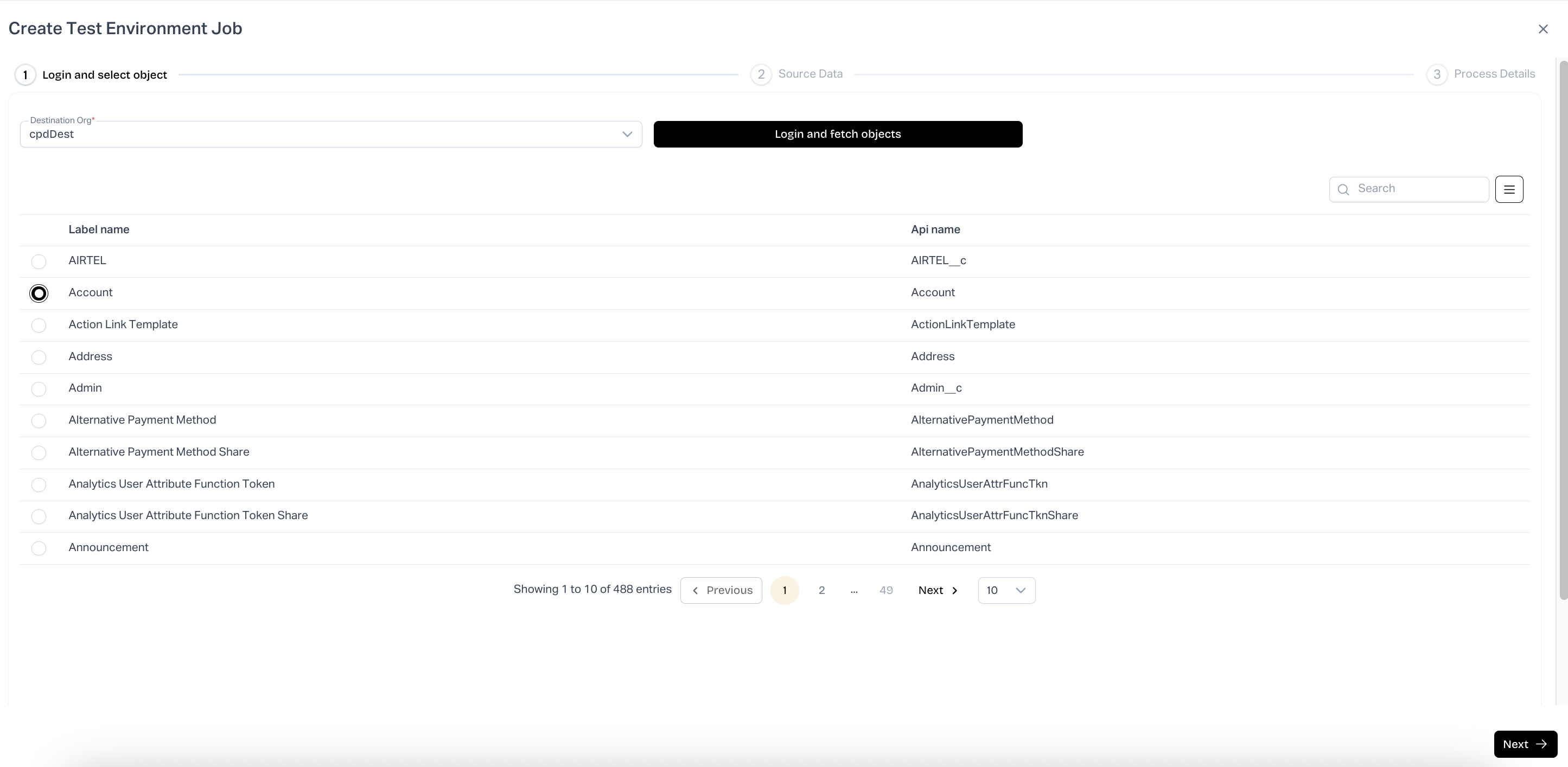
3. Select the required Org and click on the "Log and fetch objects" button to fetch the objects.
4. Observe the object list fetched and select the required object.
5. Click "Next" to continue to the "Source Data" section.
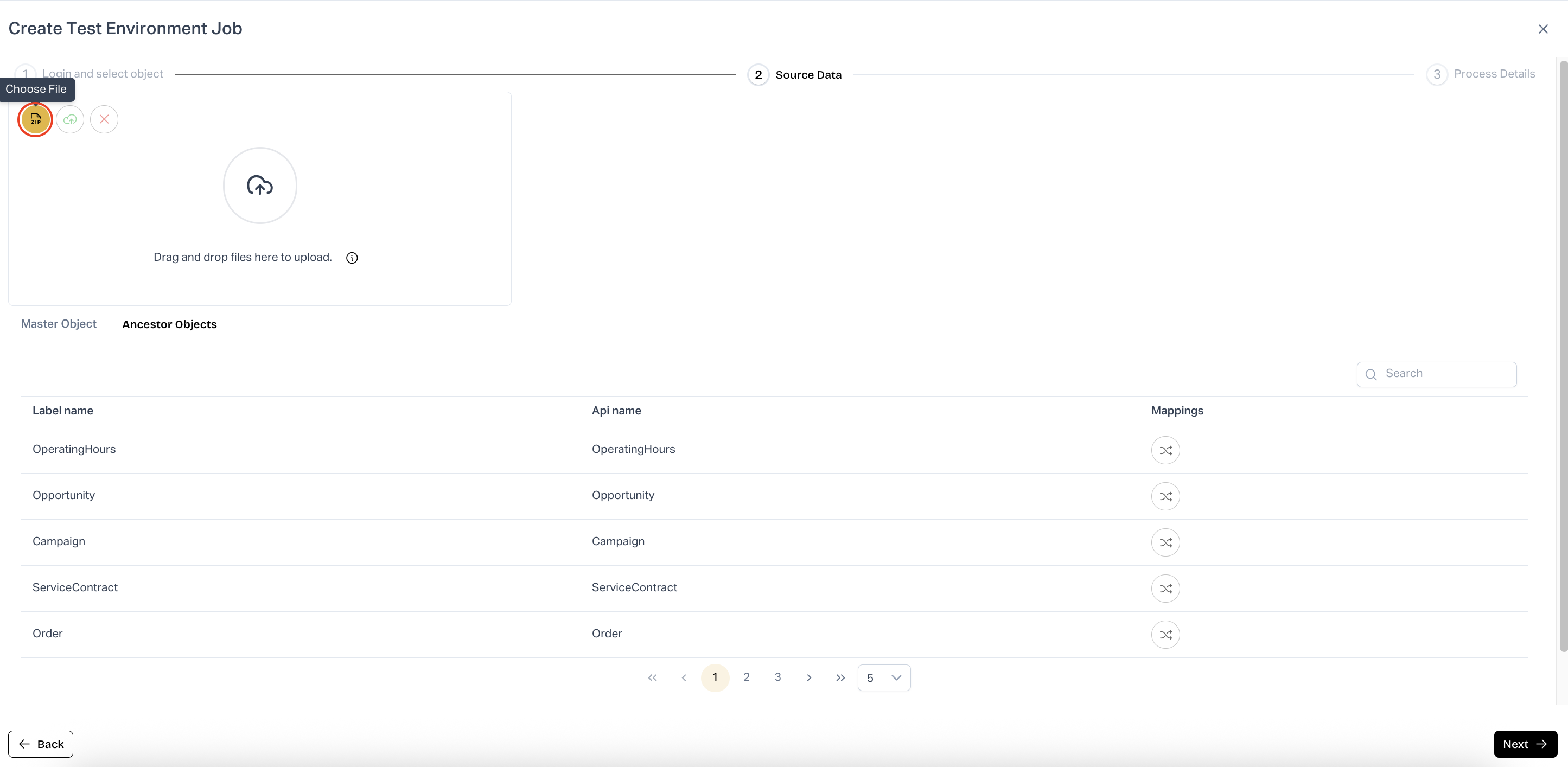
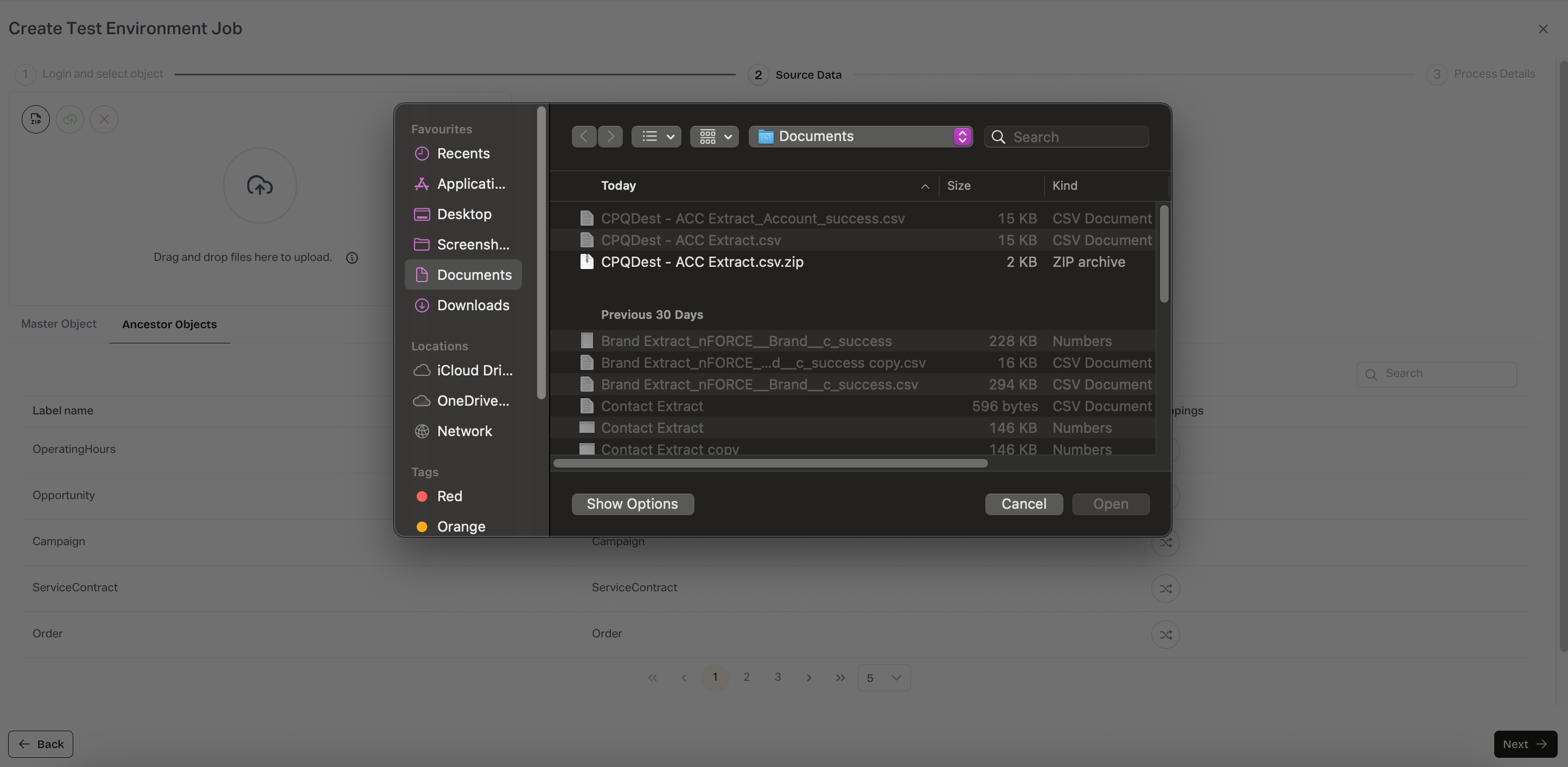
6. Either select the required file or drop the file onto the box to continue with the data import.
7. Drop the file
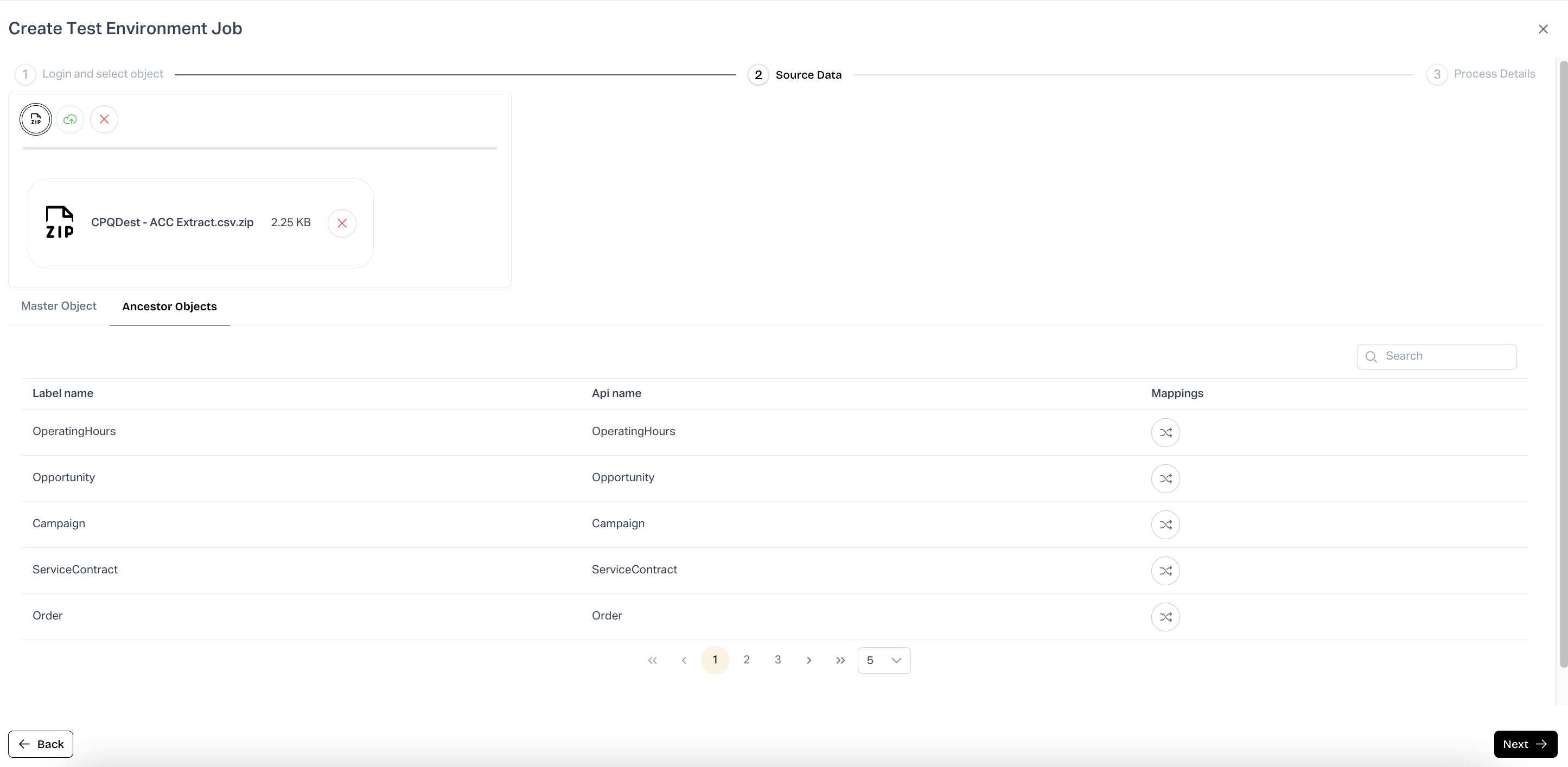
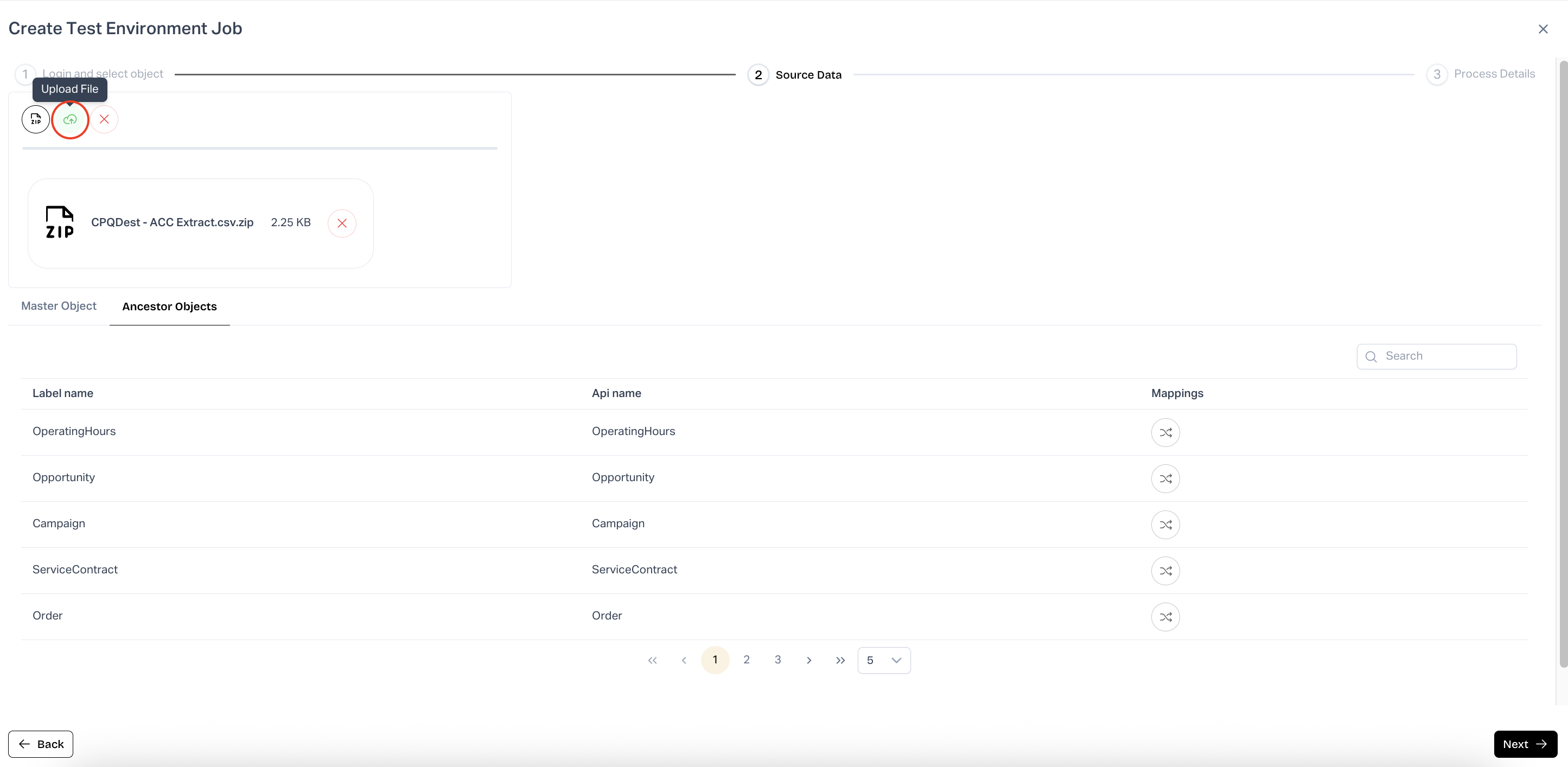
8. After adding the file, click upload file to upload the file
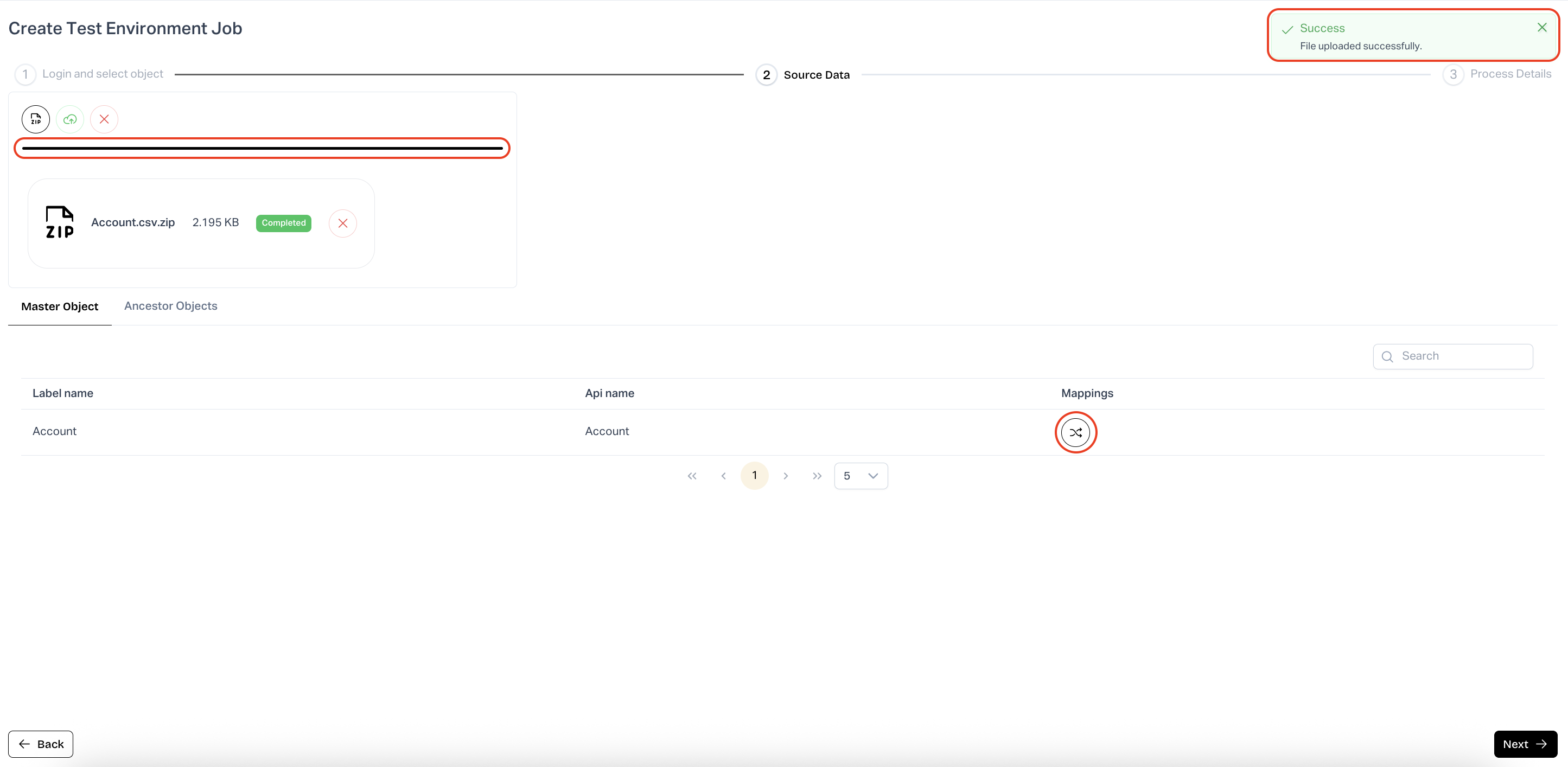
9. To indicate the progress of the upload, a progress bar will be displayed. On successfull upload, a success message will be displayed
10. Auto-Map Fields – Master Object
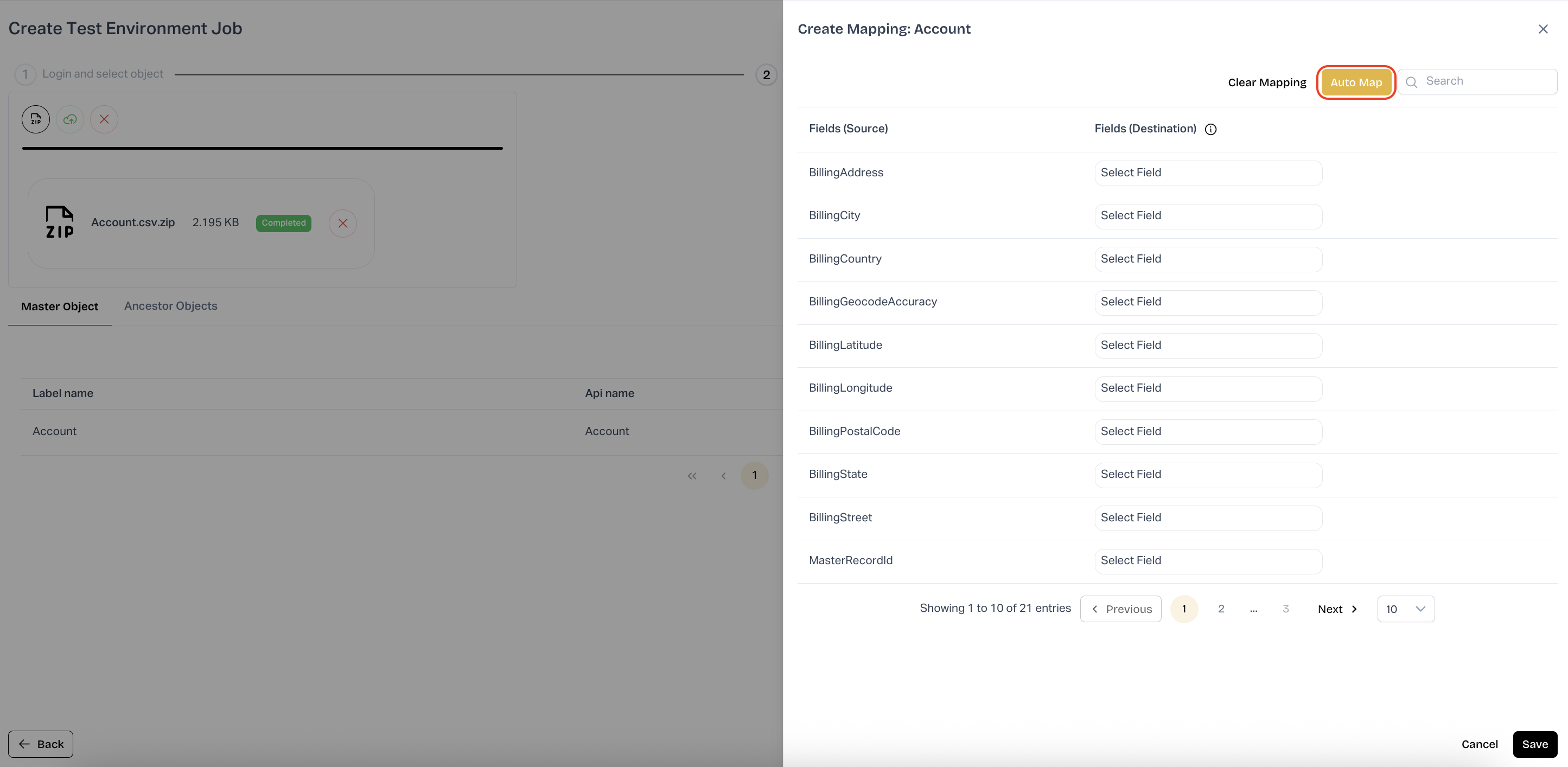
* Under **Master Object**, click the **Mappings** icon for **Account**.
* In **Create Mapping: Account**, click **Auto Map** to match like-named fields.
* Use **Search** to locate specific fields if needed.
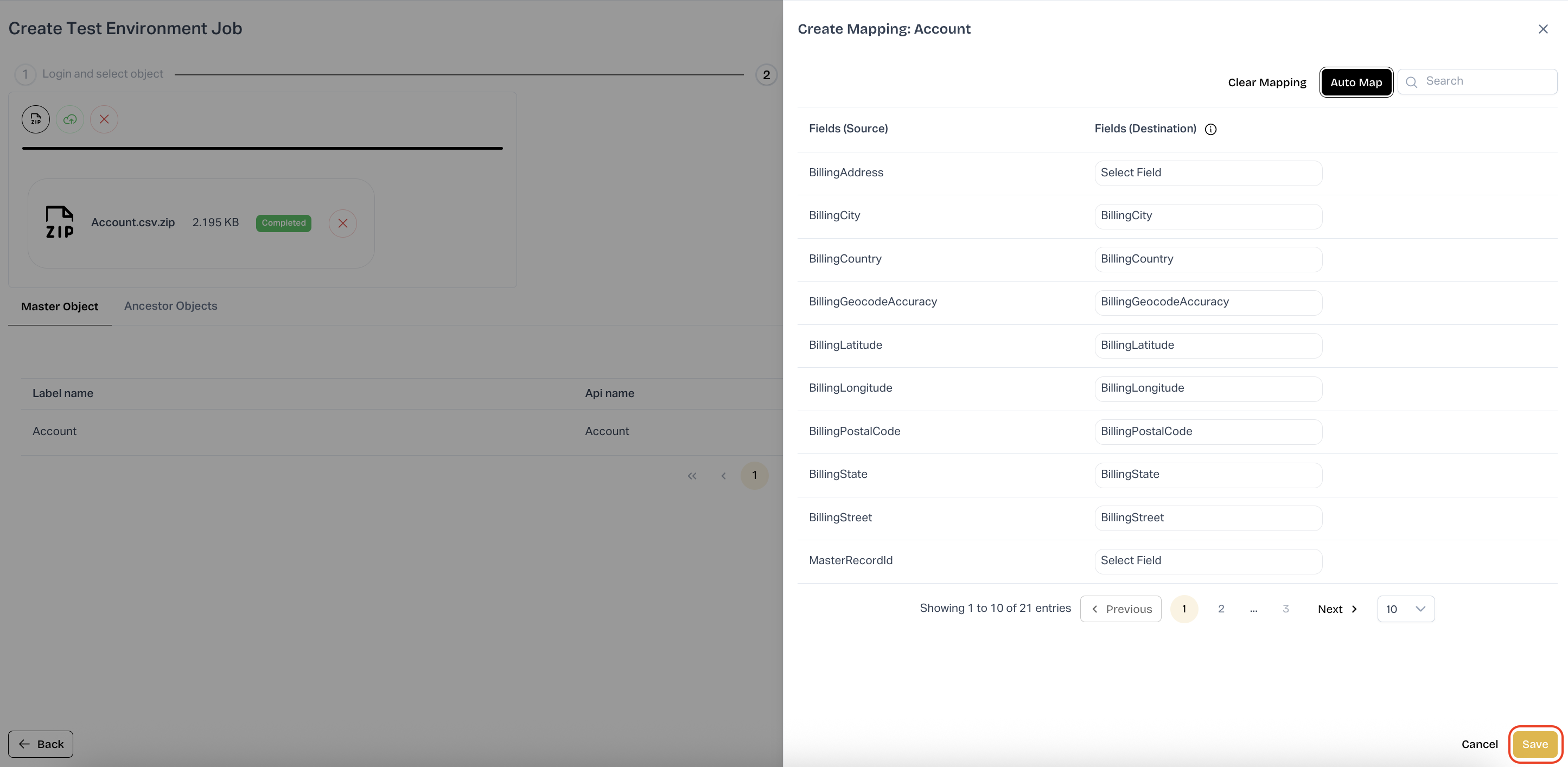
11. Save Master Object Mapping
* Review the mapped **Fields (Destination)** and complete any unmapped ones.
* Click **Save**.
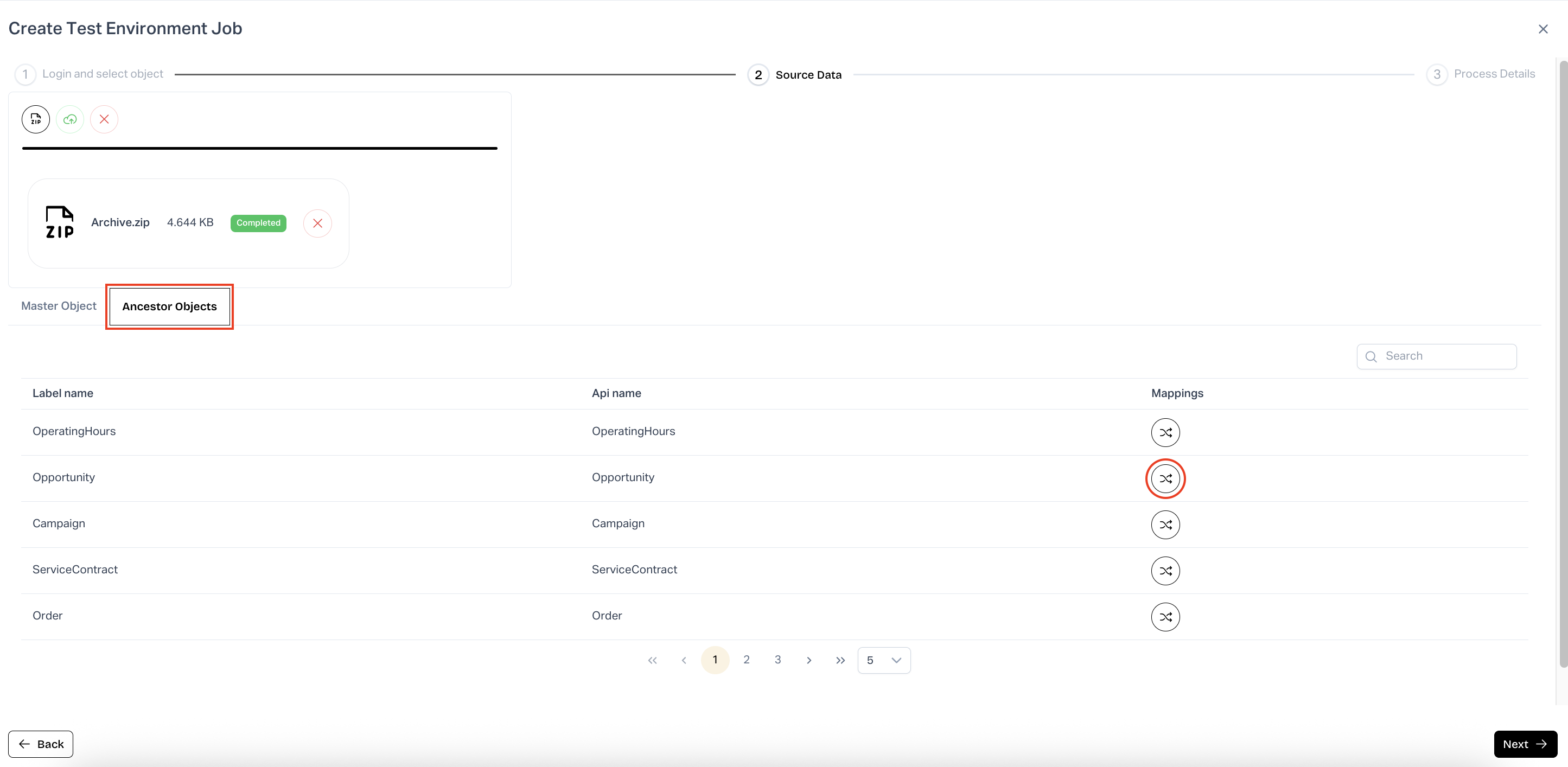
12. Open Ancestor Object Mapping
* Switch to the **Ancestor Objects** tab.
* For each object (e.g., **Opportunity**), click the **Mappings** icon.
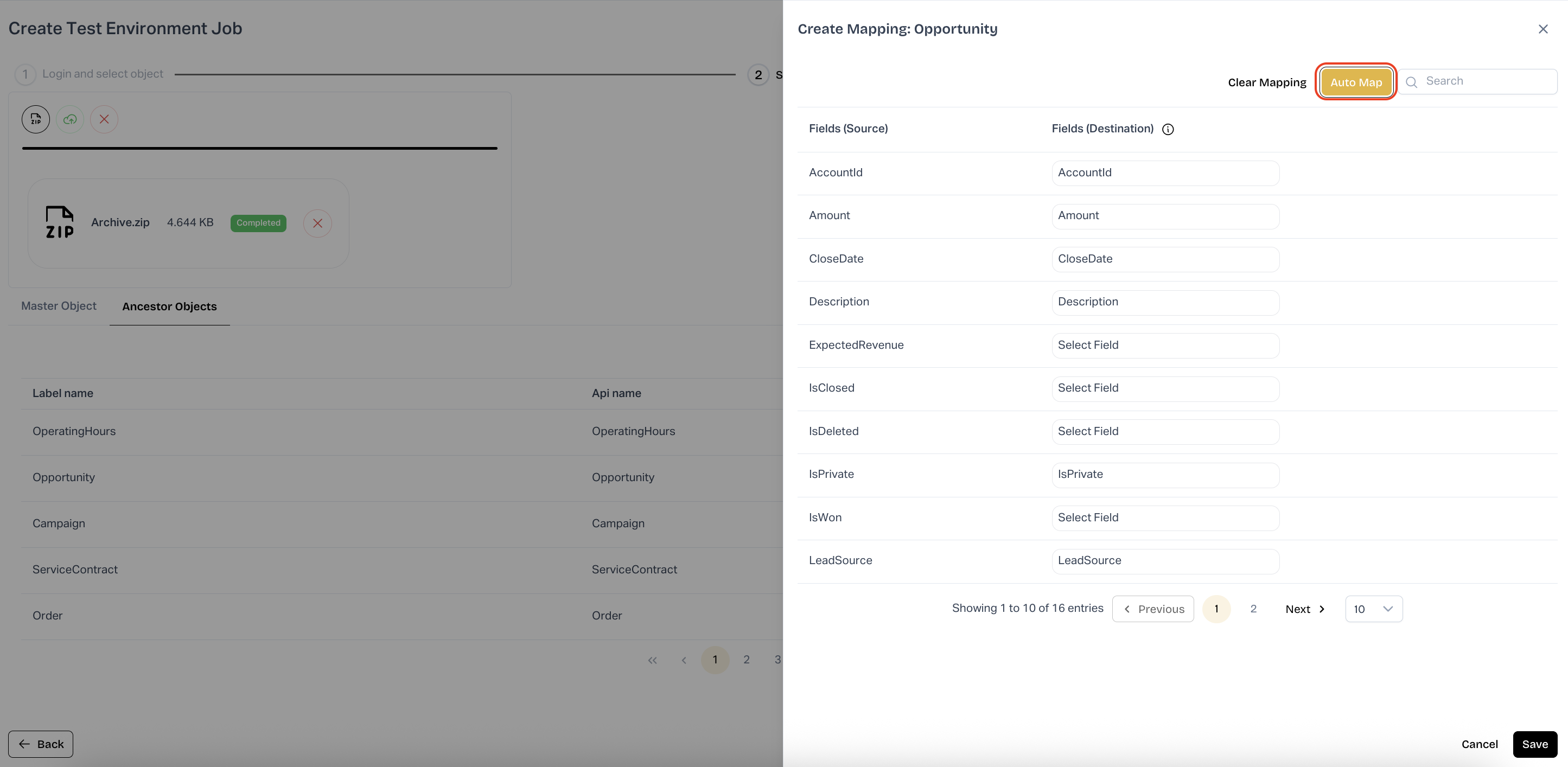
13. Auto-Map Fields – Ancestor Object
* In **Create Mapping: Opportunity**, click **Auto Map**.
* Verify mappings and manually adjust where required.
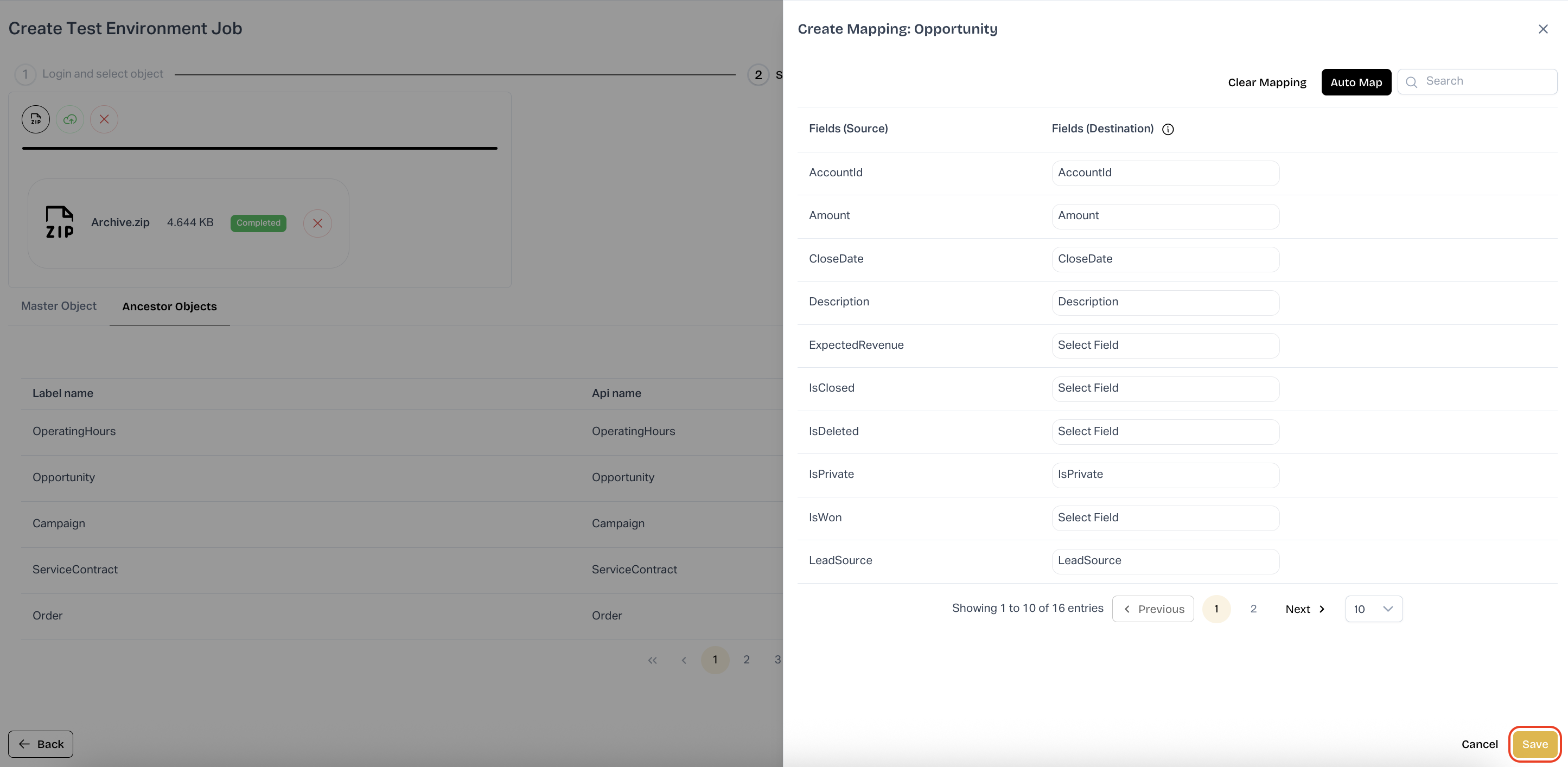
14. Save Ancestor Object Mapping
* Confirm the field selections for the ancestor object.
* Click **Save**.
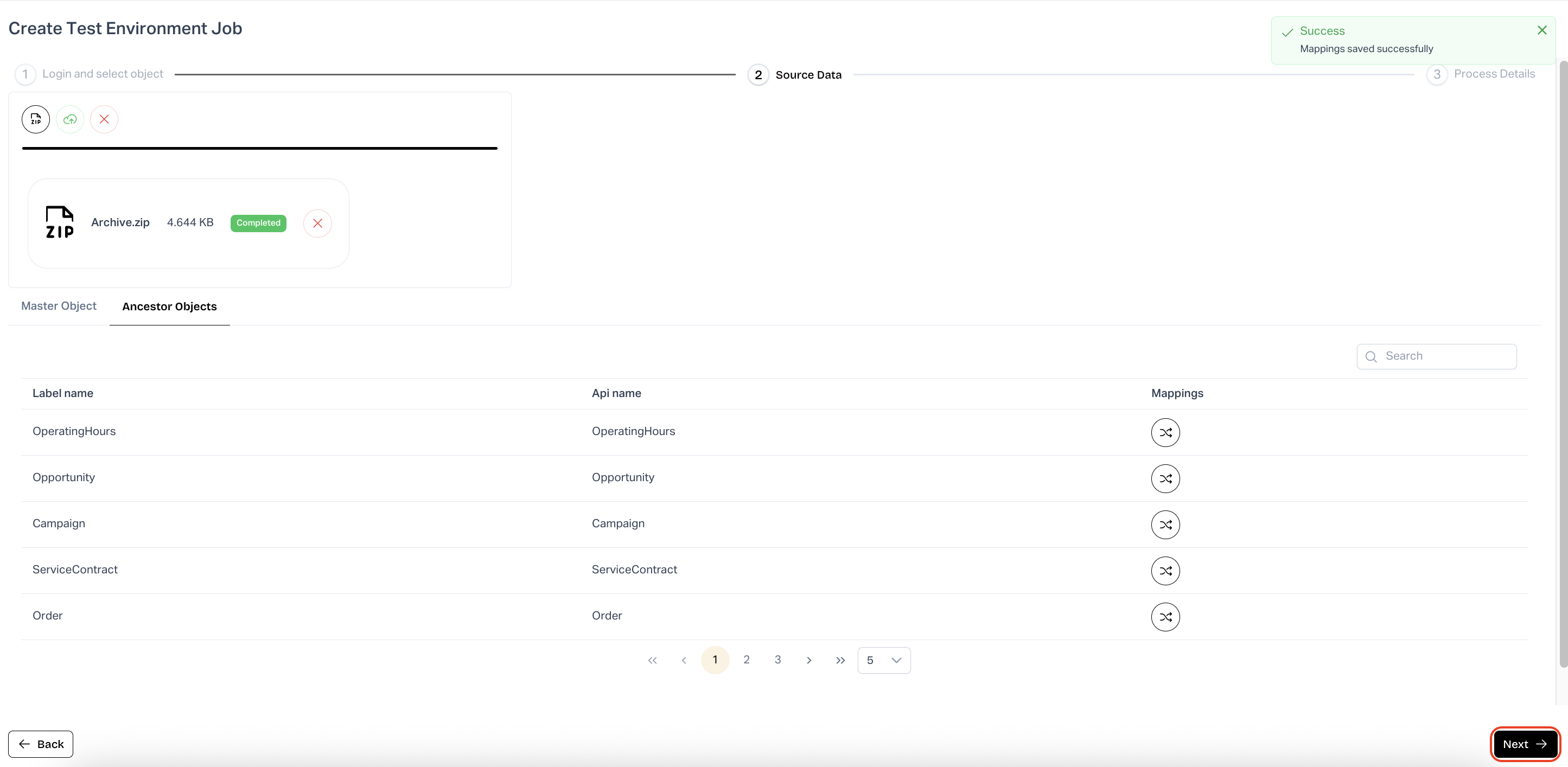
15. Proceed to Process Details
* Ensure the **Success: Mappings saved successfully** message appears.
* Click **Next** to continue to **Process Details**.
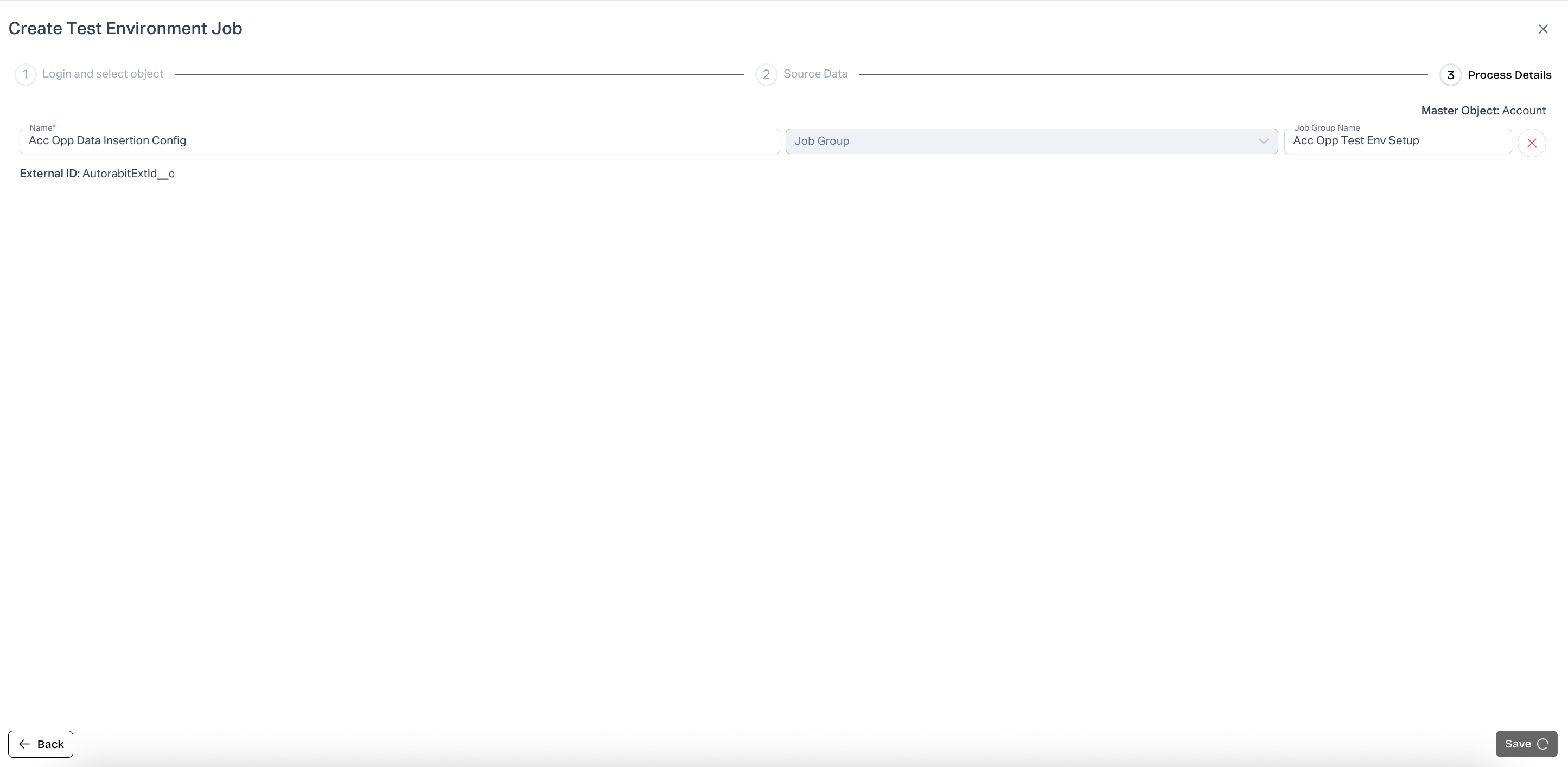
16. Configure Job Details
* In **Create Test Environment Job → Process Details**, provide a **Job Name**.
* Select or enter a **Job Group Name**.
* Click **Save**.
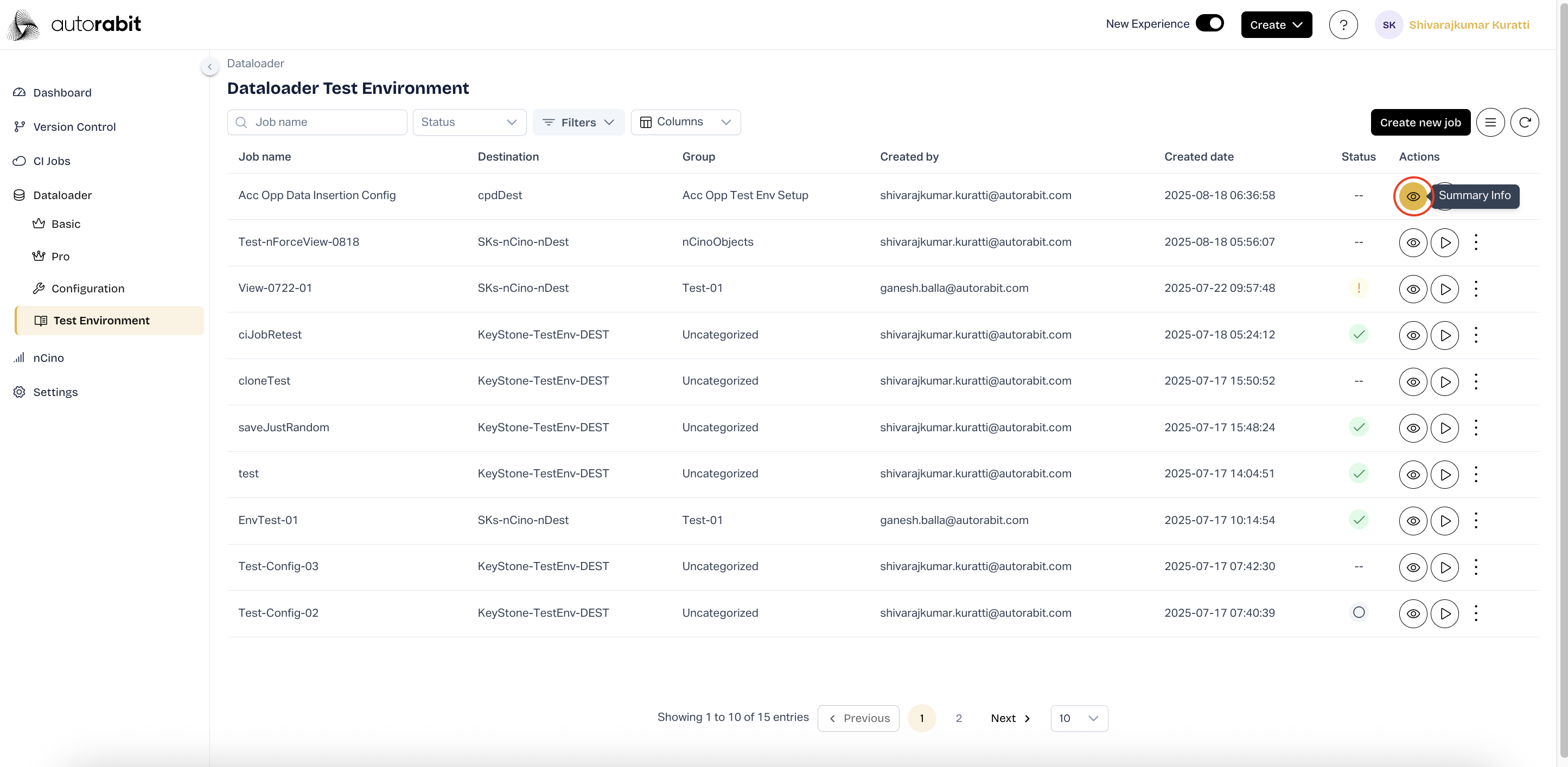
17. #### View Job in Test Environment List
* Clicking "Save" will redirect to the "Test Environment" dashboard..
* The newly created job appears in the list under the configured group.
* Under **Actions**, click the **eye icon** to view job summary.
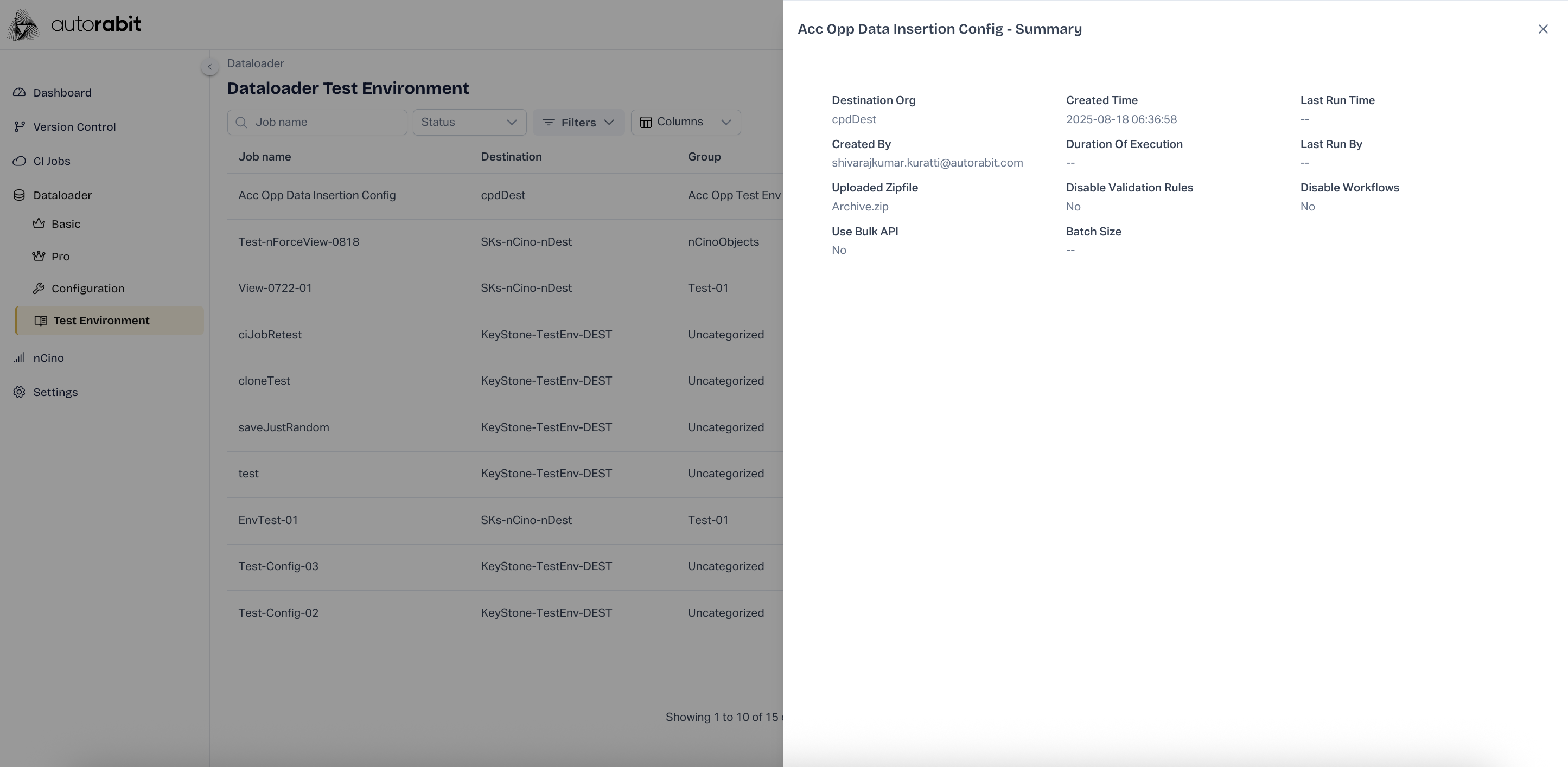
18. #### Review Job Summary
* The **Summary panel** displays key job information:
* Destination Org
* Created Time & Created By
* Uploaded Zipfile
* Validation/Workflow Rules status
* Batch Size
* Review details and close the summary.
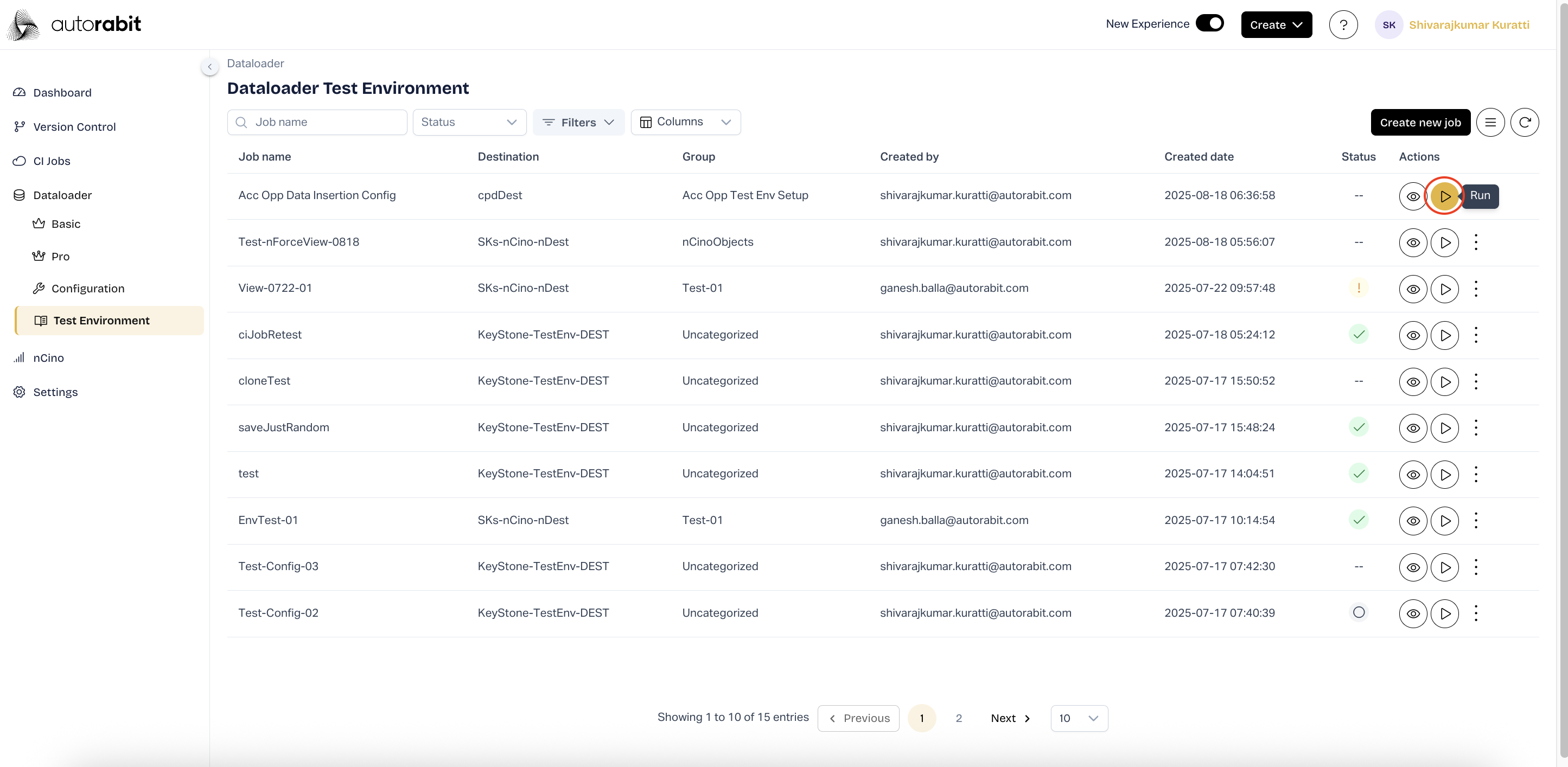
19. #### Run the Test Environment Job
* From the job list, click the **Run icon** under **Actions** for the created job.
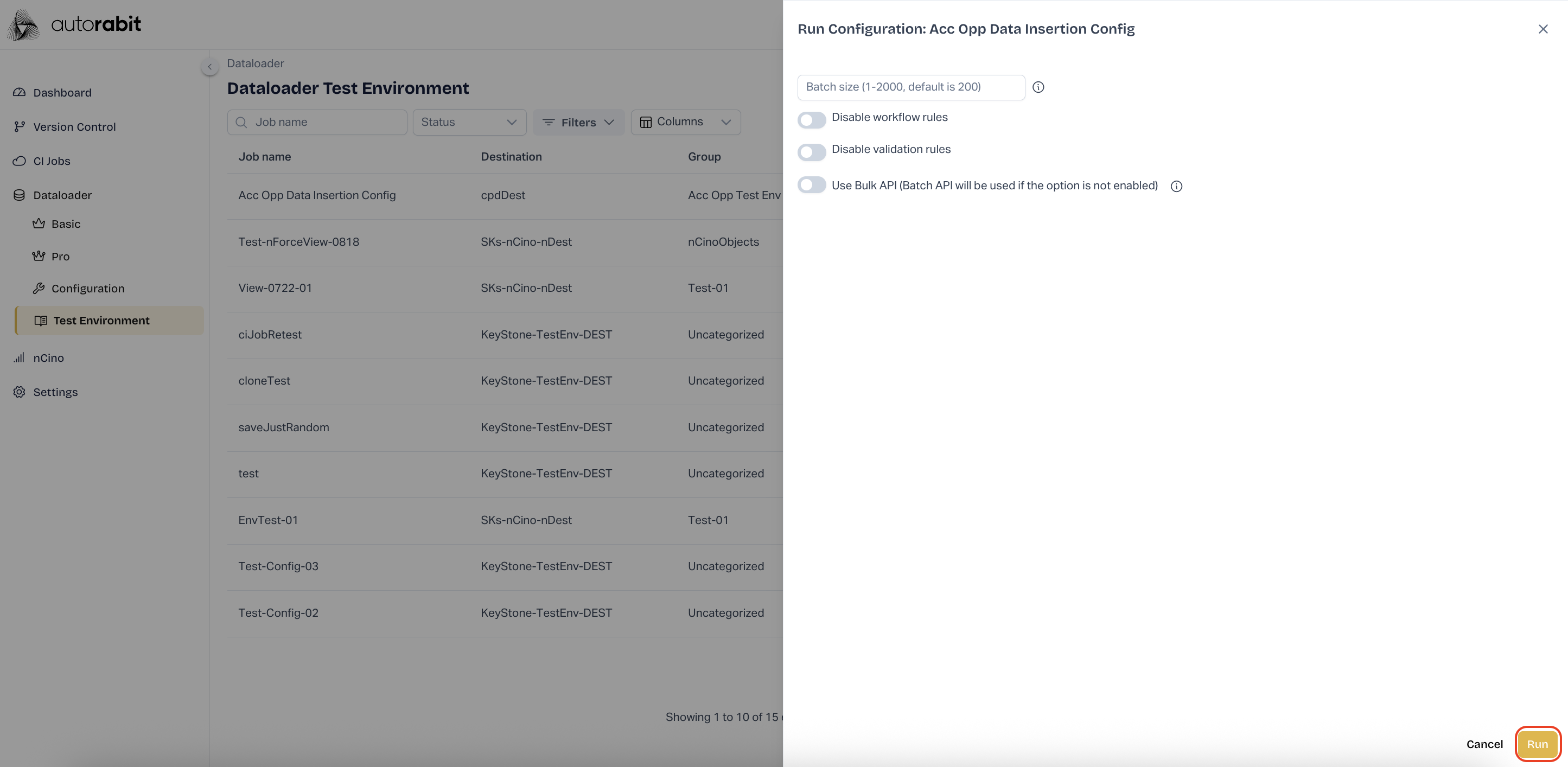
20. #### Run Configuration Settings
* In the **Run Configuration** panel, set the following:
* **Batch Size** (default 200, range 1–2000).
* Toggle options if required:
* *Disable workflow rules*
* *Disable validation rules*
* *Use Bulk API*
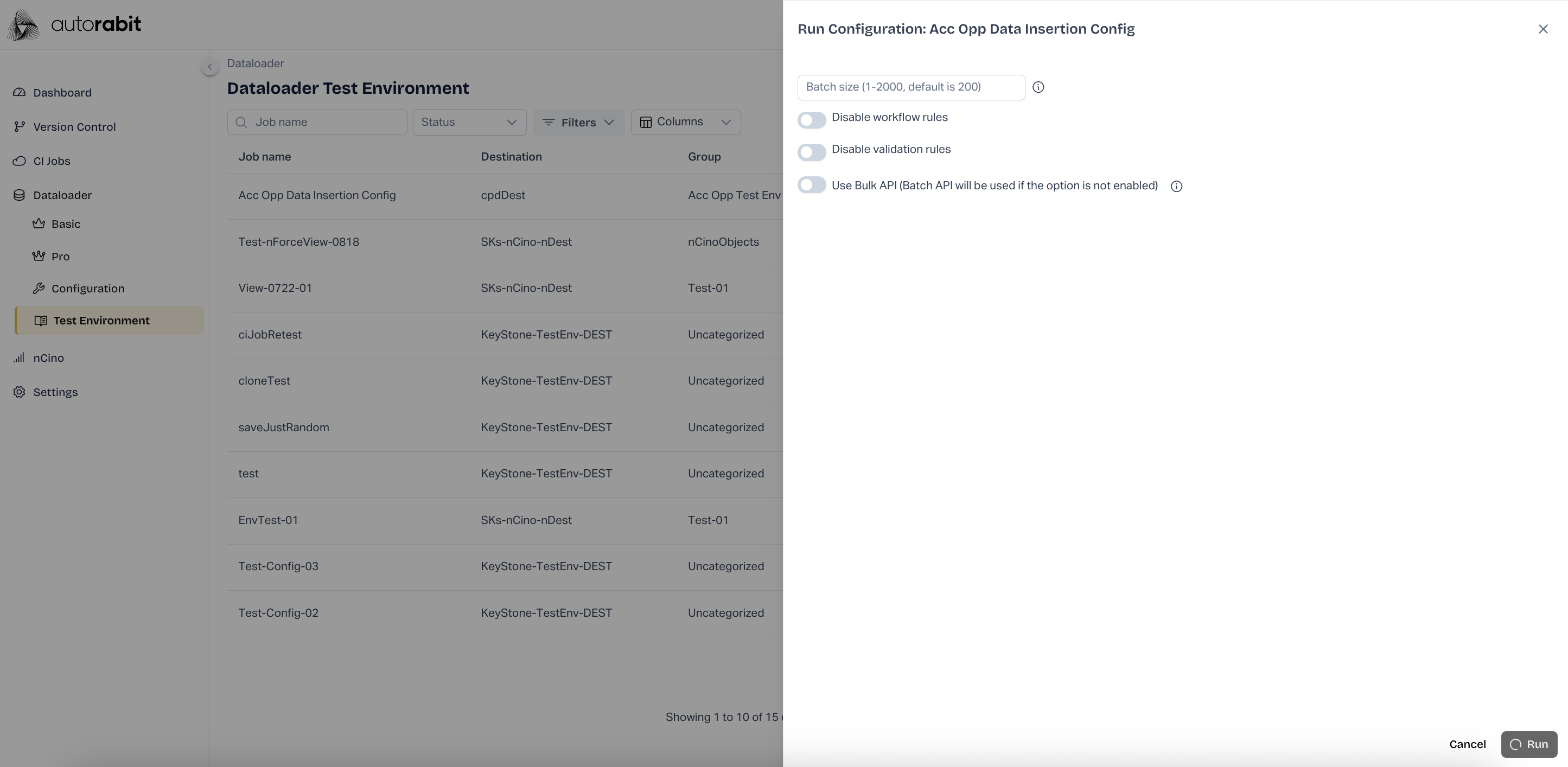
* Click **Run** to initiate the process.
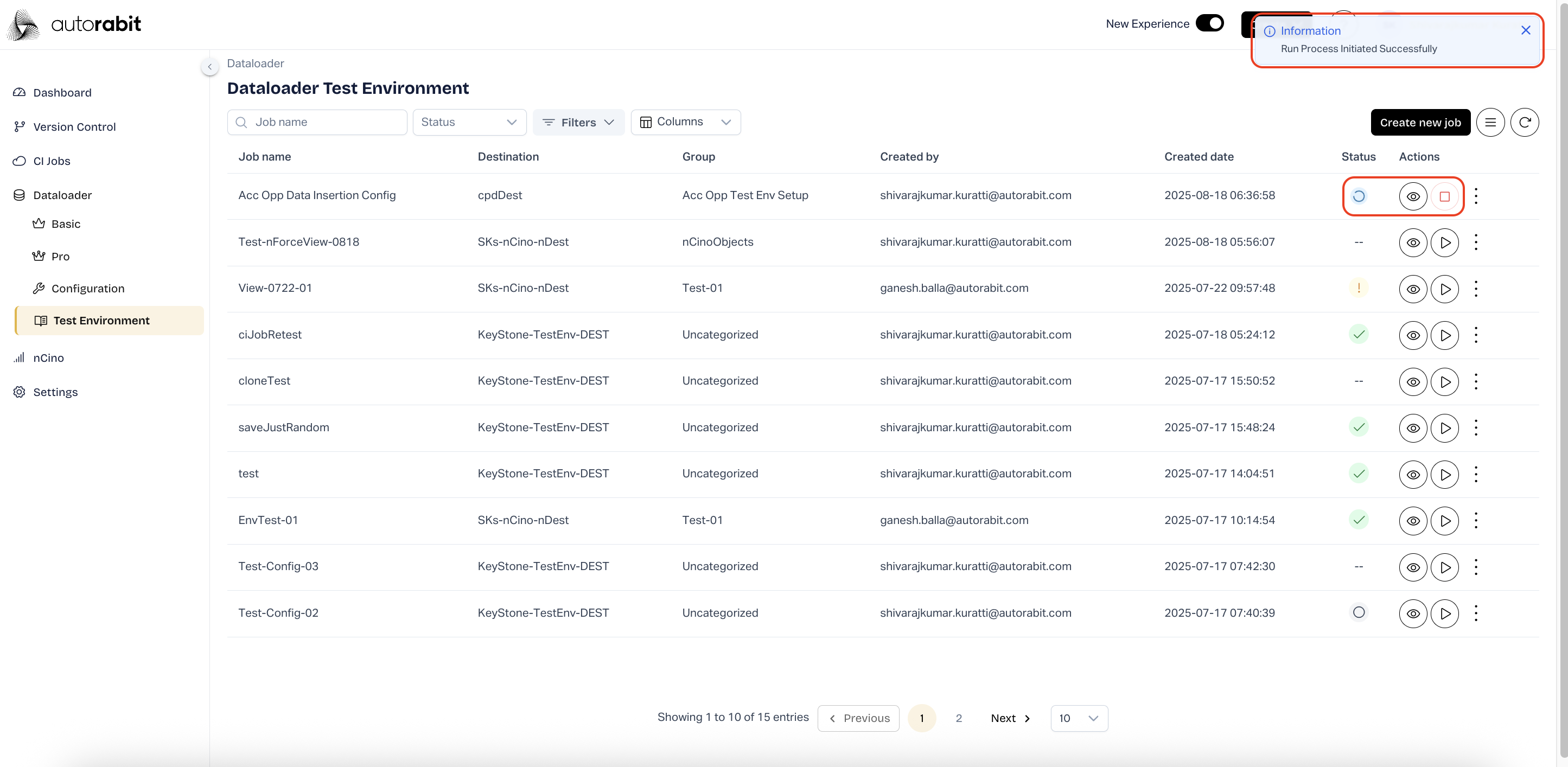
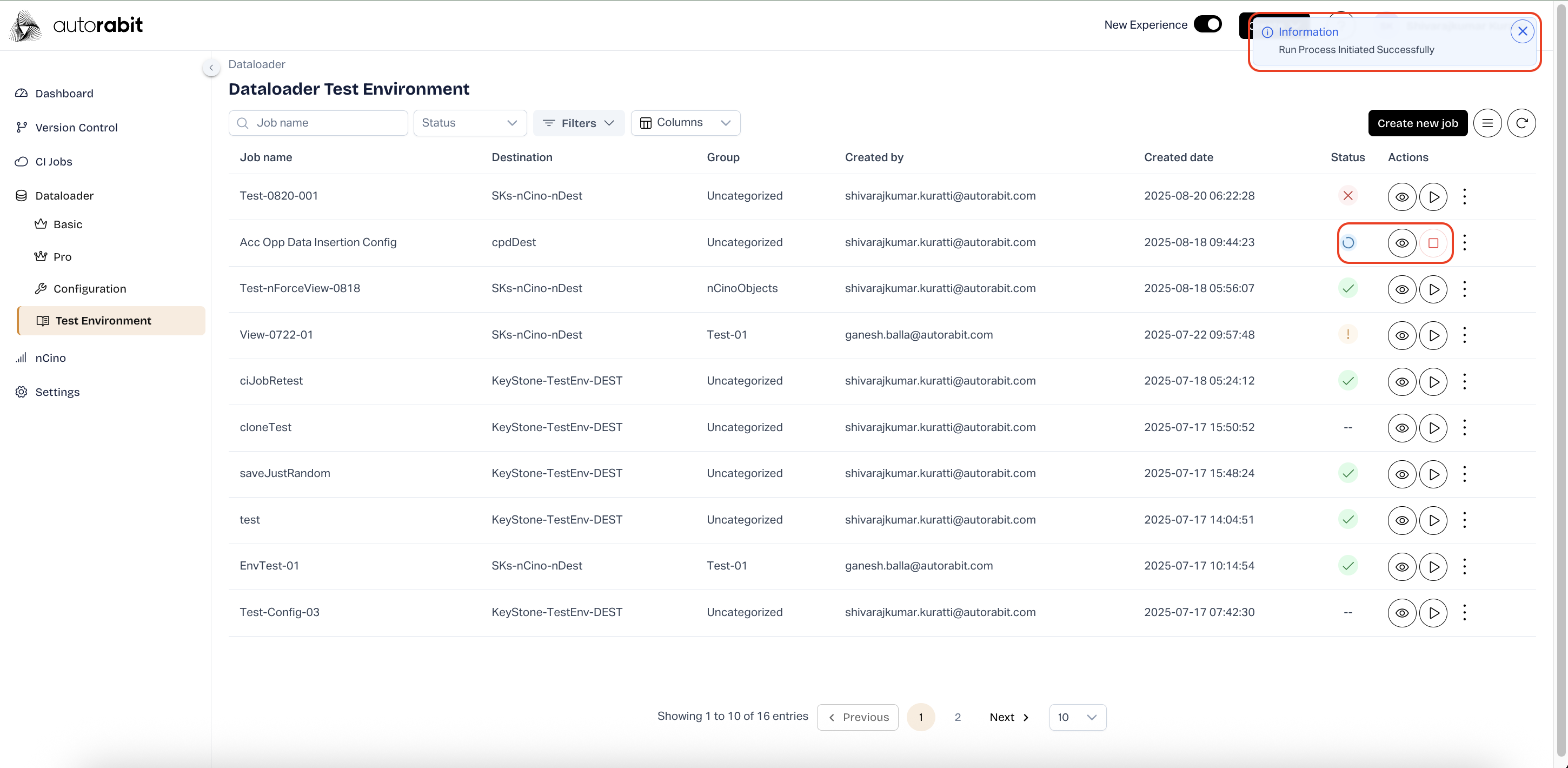
21. #### Run Initiation Confirmation
* A notification appears: **Run Process Initiated Successfully**.
* The job status changes to a spinning icon (processing).
* Action buttons become available: **View**, **Stop**.
22. #### Run Configurations
| **Disable Workflows** | Temporarily deactivates Salesforce workflows during migration to prevent unintended triggers. Workflows are automatically re-enabled after migration completes. |
| ---------------------------- | -------------------------------------------------------------------------------------------------------------------------------------------------------------------------------------------------------------------------------------- |
| **Disable Validation Rules** | Suspends validation rules to allow uninterrupted data migration. Rules are automatically restored once the migration is complete. |
| **Use Bulk API** | Leverages Salesforce Bulk API for handling large data volumes efficiently. Jobs can be executed in **serial** (sequentially, one after another) or **parallel** (simultaneously). For higher throughput, parallel mode is recommended. |
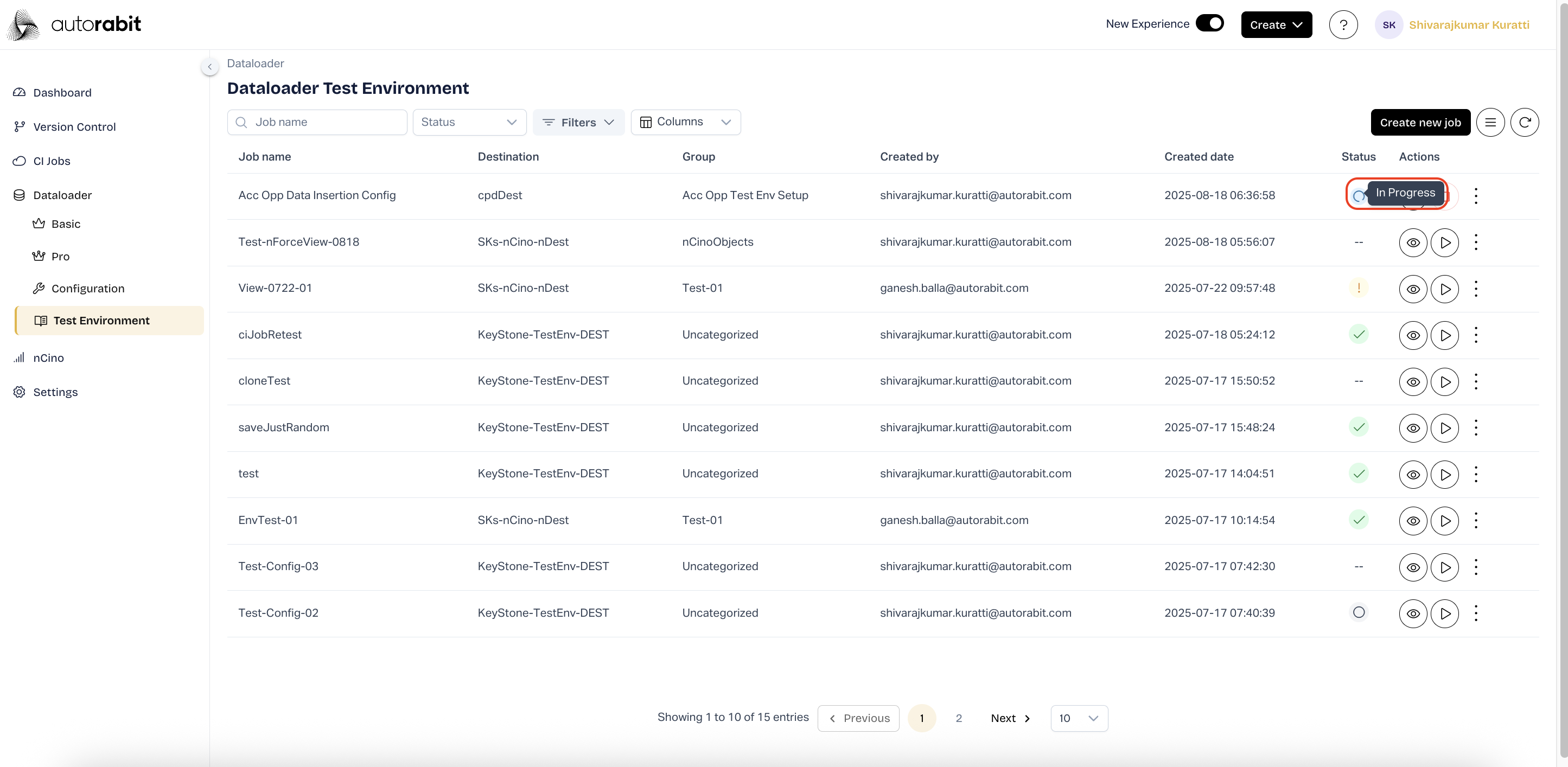
23. #### Job Status – In Progress
* The job displays an **In Progress** status in the list.
* Monitor the status until completion.
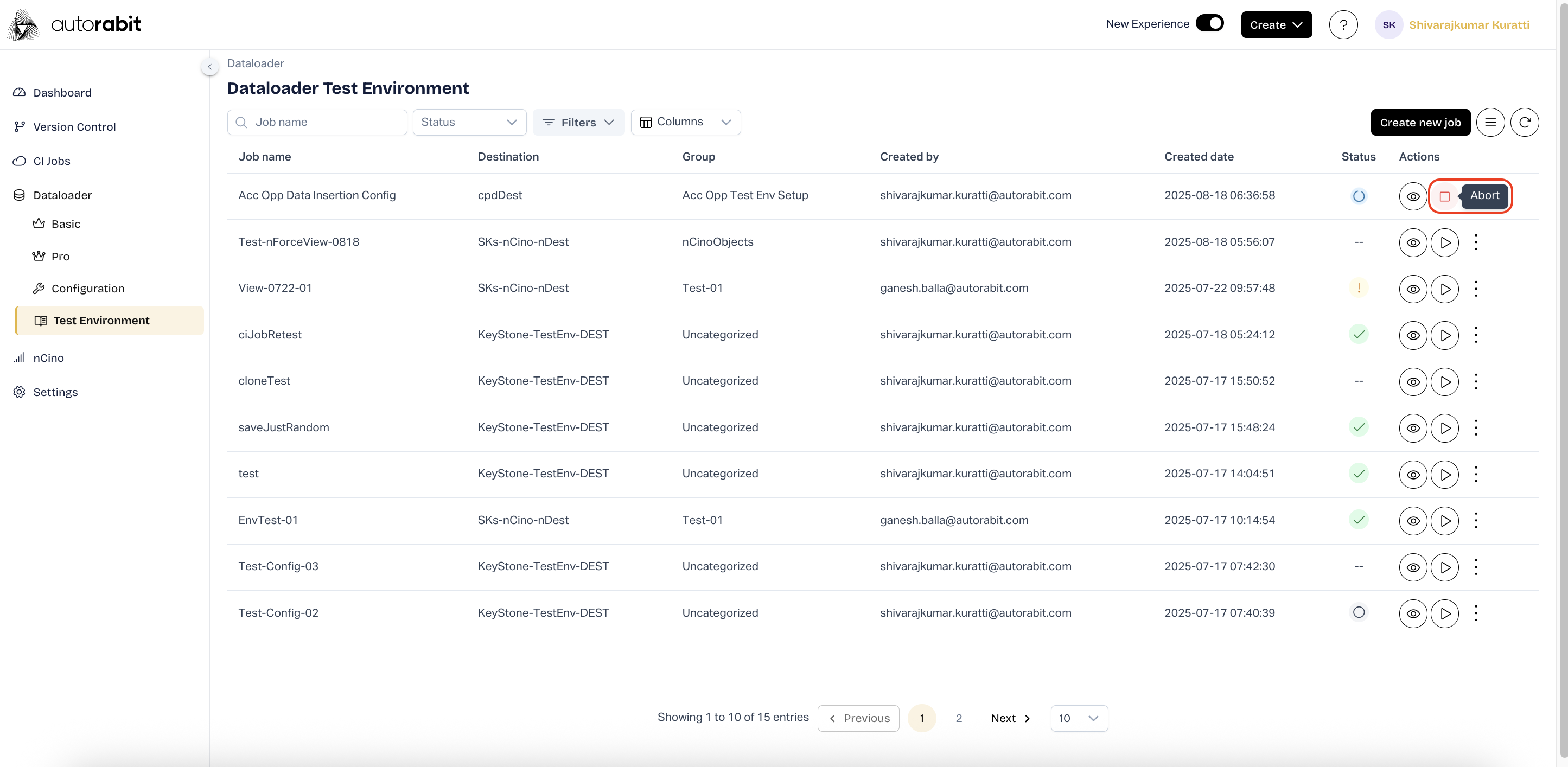
24. #### Abort Job Execution
* If needed, click **Stop (Abort)** under Actions.
* A confirmation displays to cancel the run.
25. #### Run Job Completion
* Once completed, the job reflects a **final execution status** (e.g., Success/Failed).
* Review status before proceeding with further validation or data checks.
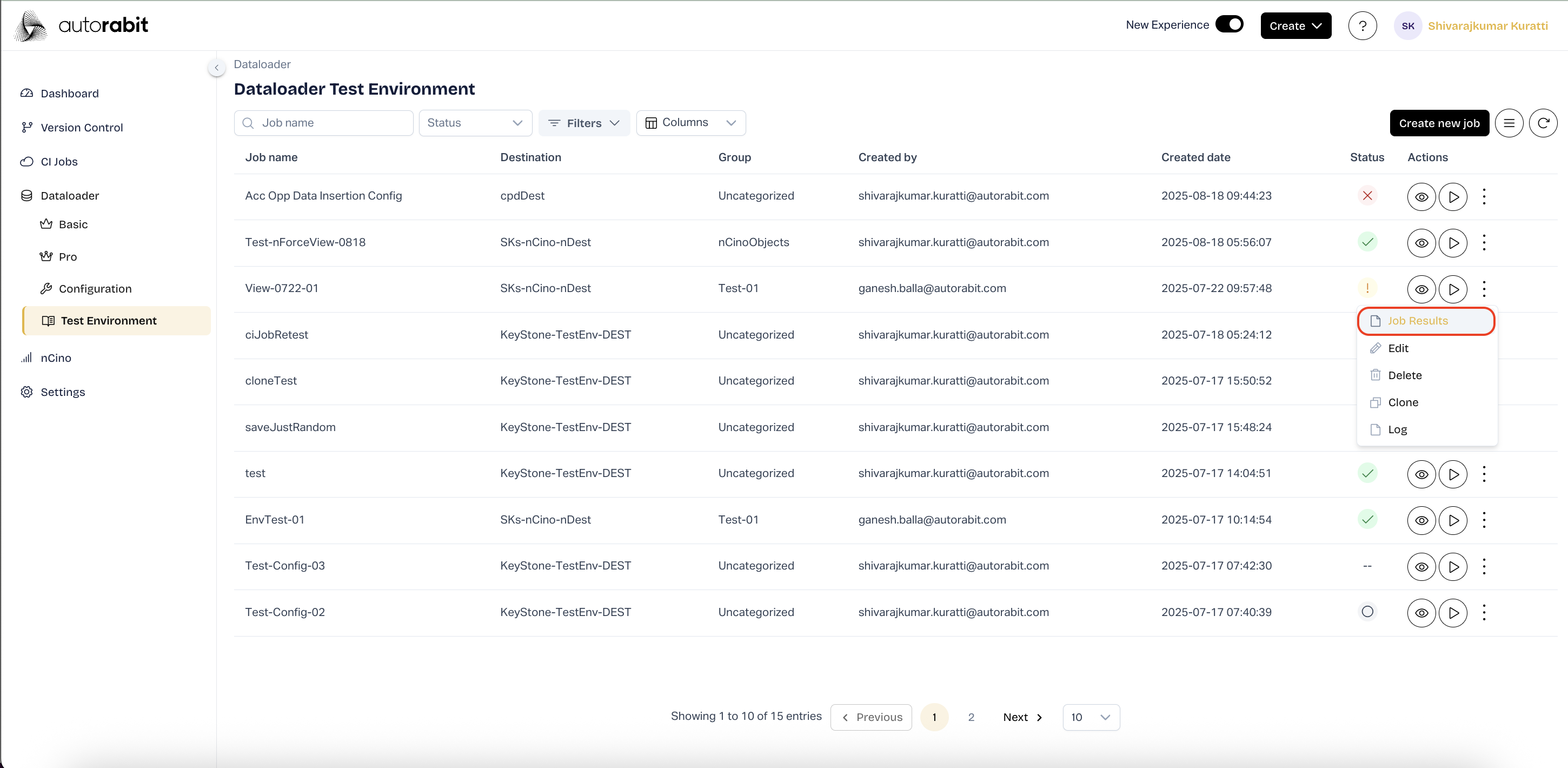
26. **Access Job Results**
* Under Actions for a job, select **Job Results**.
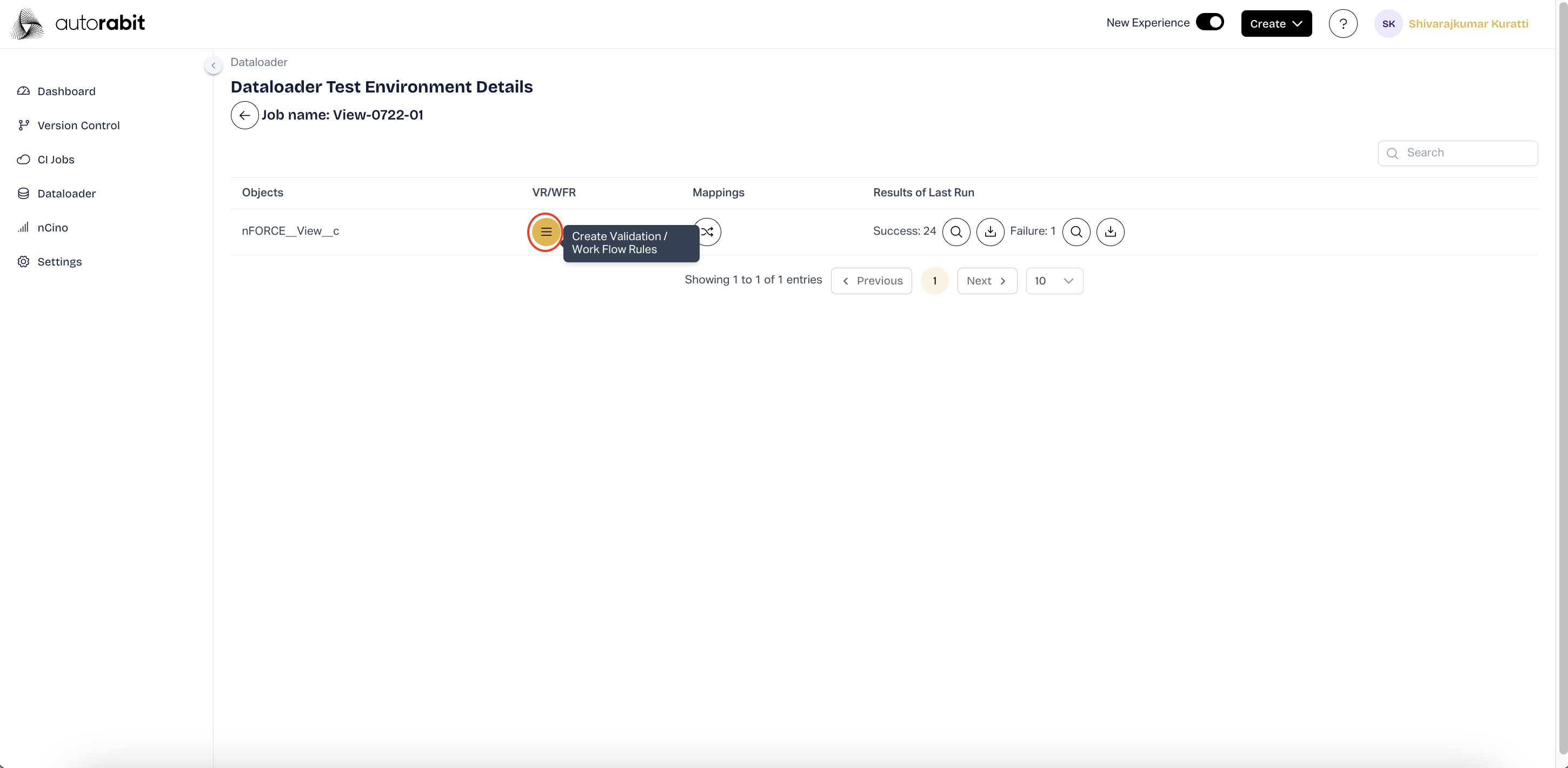
27. **Open Validation / Workflow Rules**
* Click on the **VR/WFR** icon beside the object.
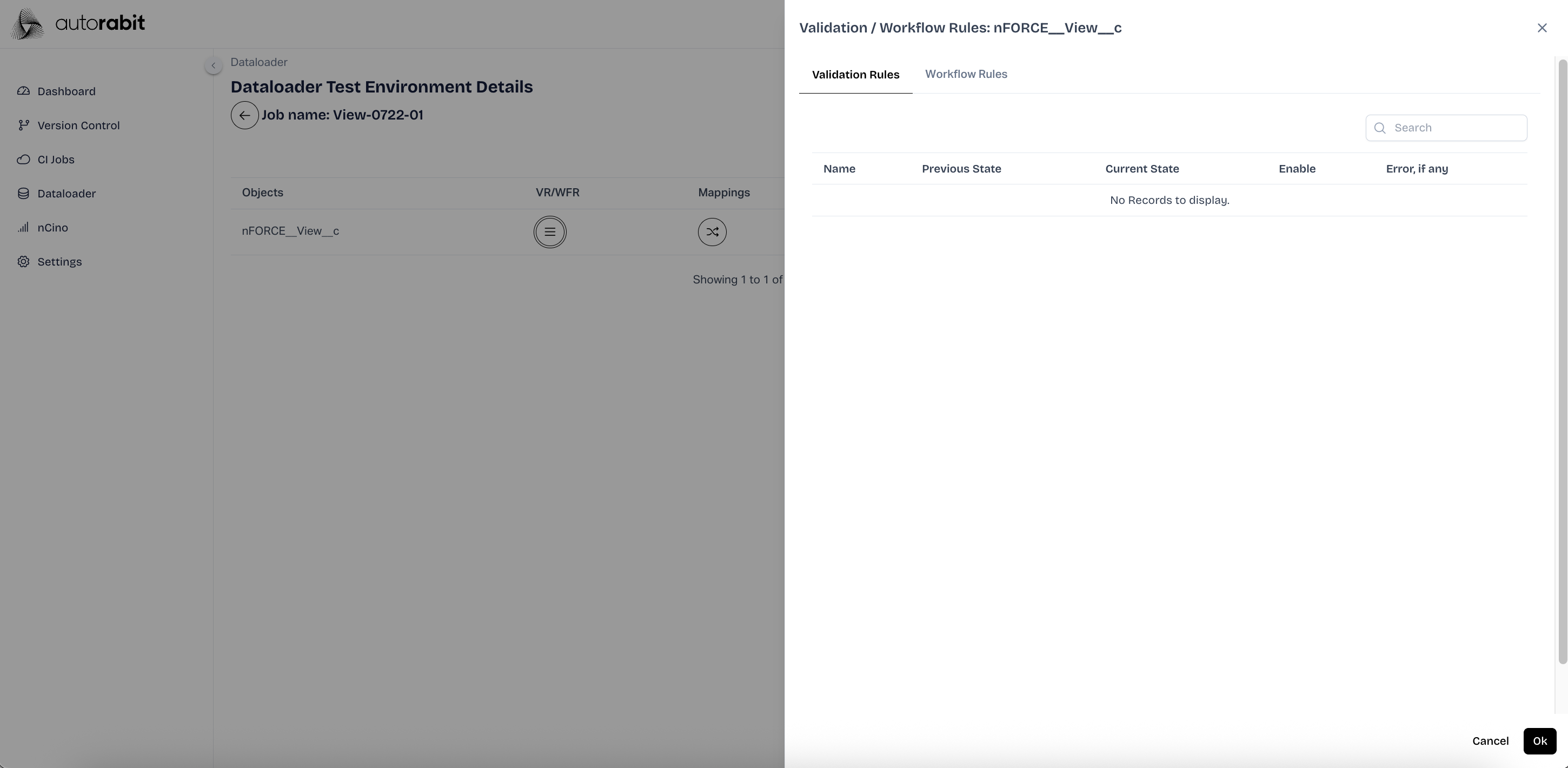
28. **View Workflow/Validation Rules**
* The **Validation / Workflow Rules** panel opens.
* Review Validation Rules under **Name, Previous State, Current State, Enable, Error (if any)**.
* Switch to the **Workflow Rules** tab.
* Validate existing Workflow Rules or confirm that none are displayed.
29. **Edit Object Mapping**
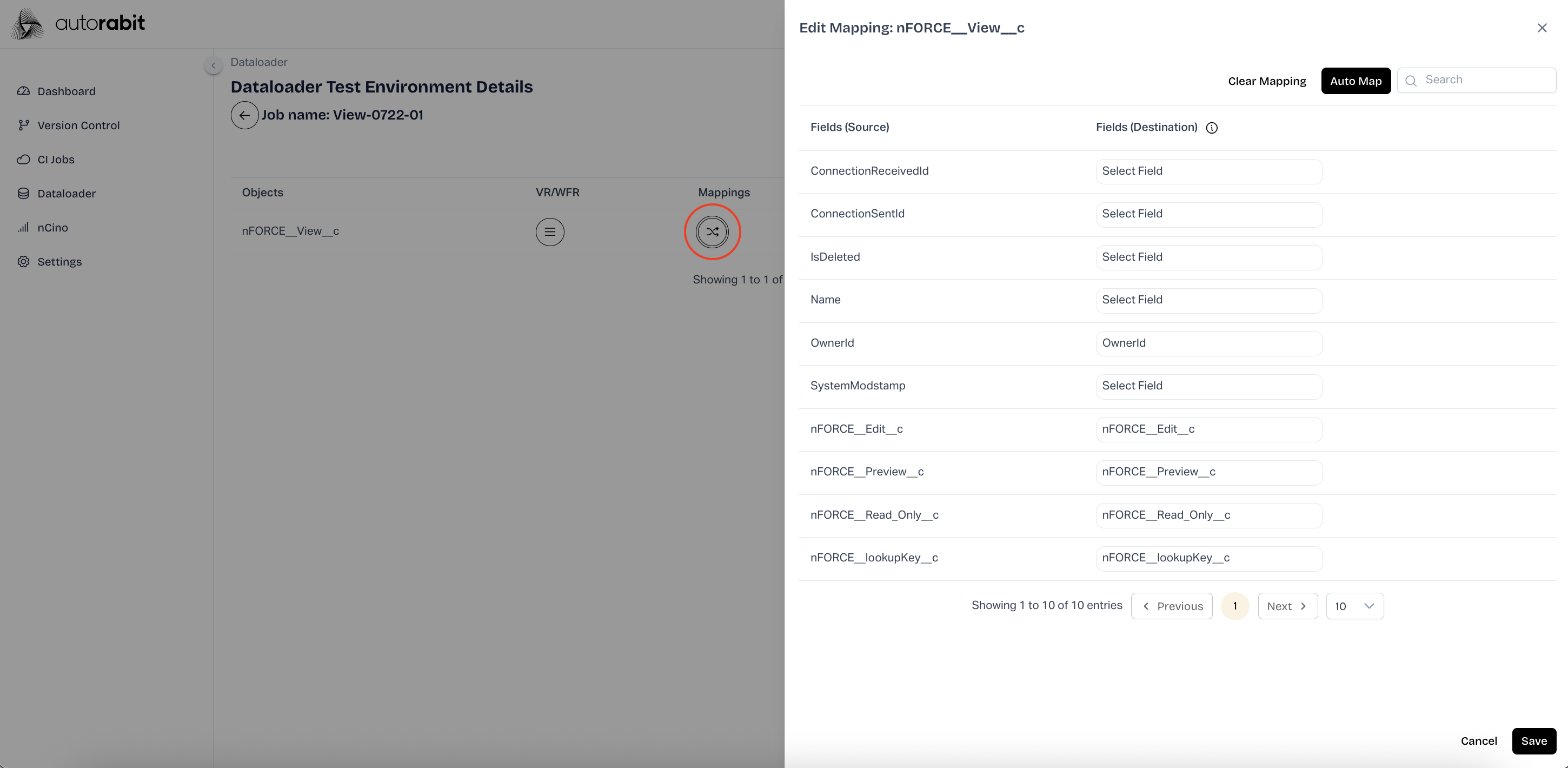
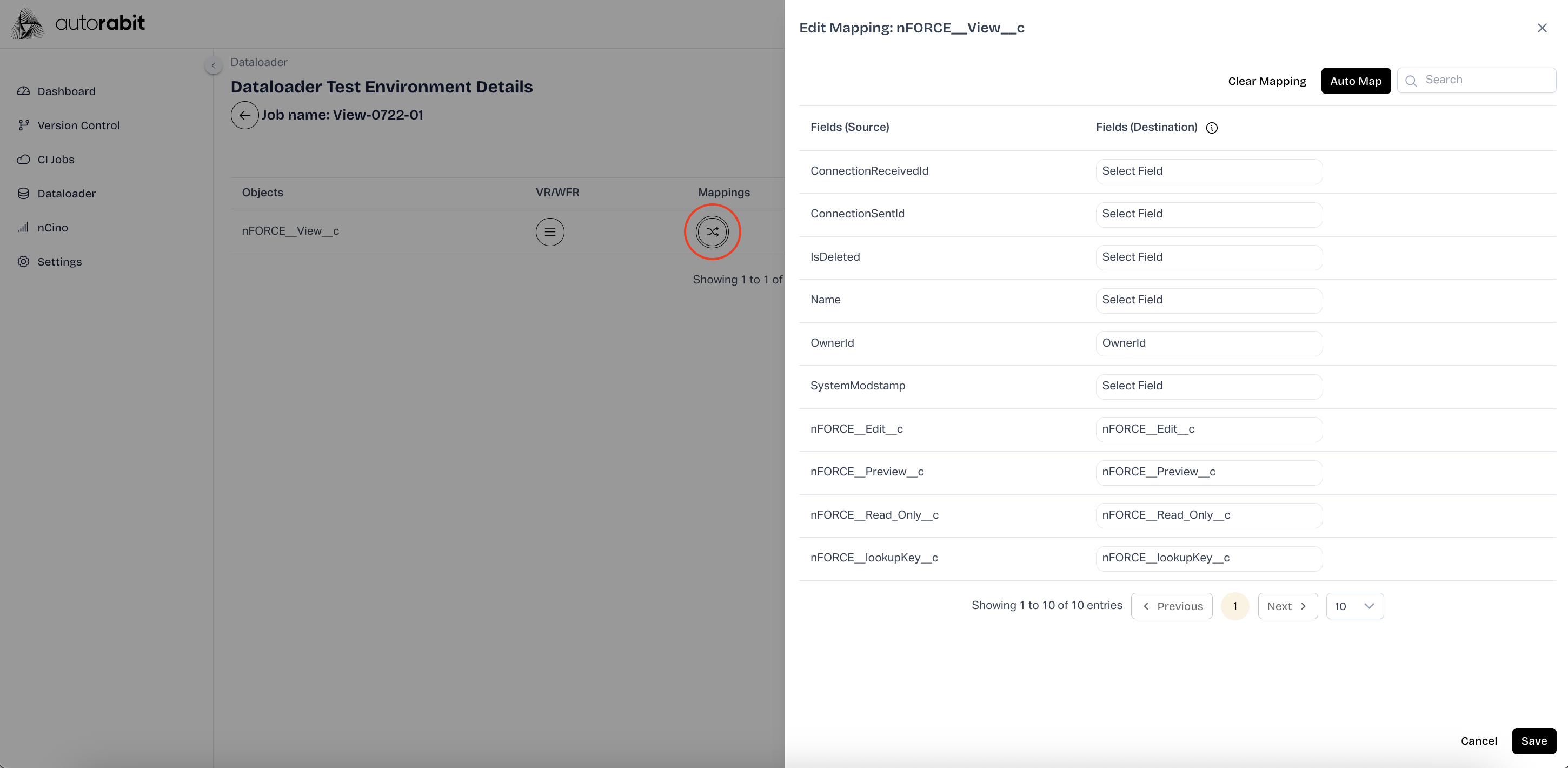
* Select the **Mappings** icon to open **Edit Mapping**.
* Review source and destination fields.
* Use **Auto Map** to match fields automatically, or manually map unmapped fields.
* Click **Save** to update mappings.
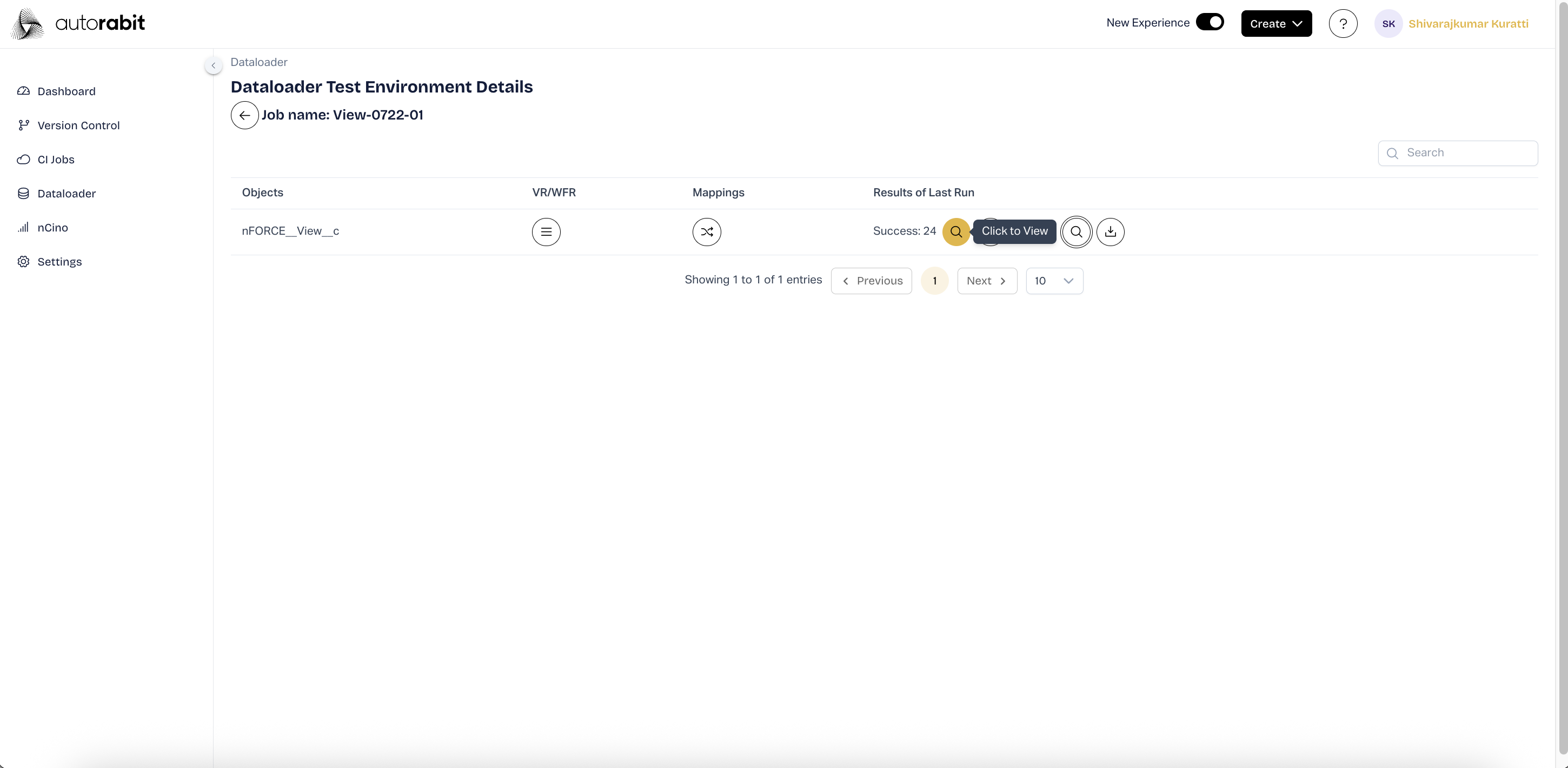
30. **View Job Run Results – Success**
* Under **Results of Last Run**, click the **Success count** icon.
* A list of records with **Destination IDs** and **Status: Item Created** is displayed.
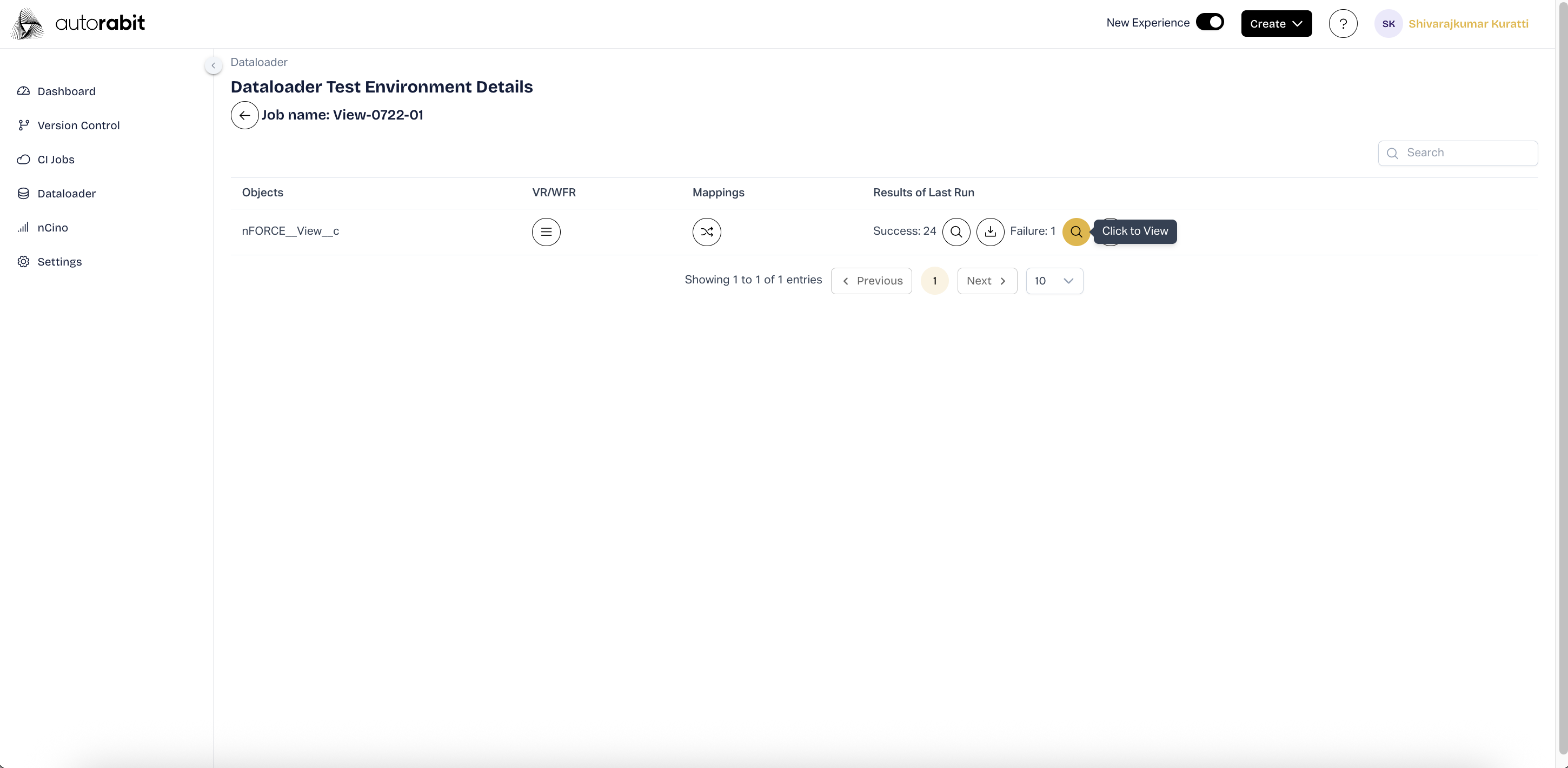
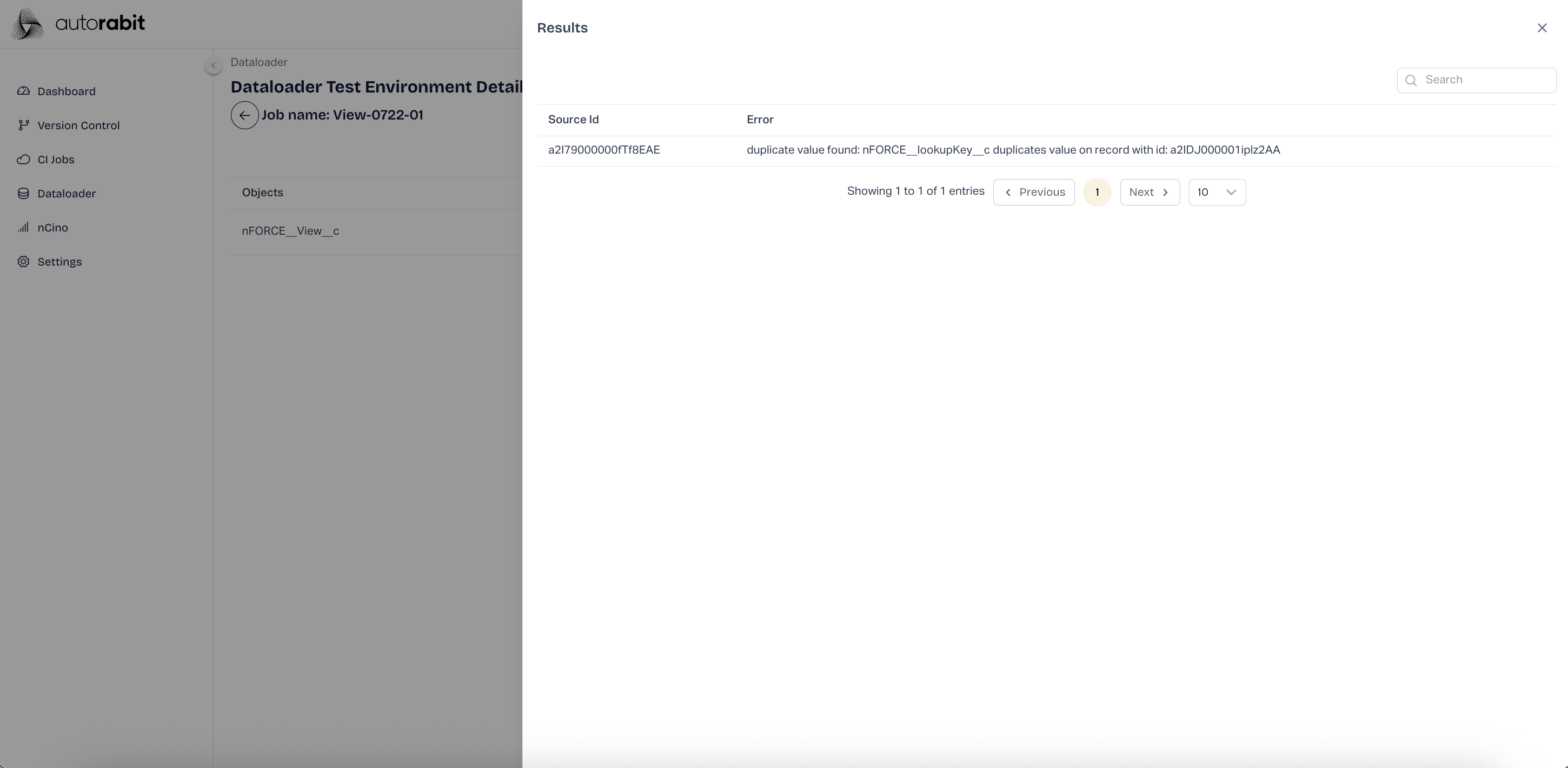
31. **View Job Run Results – Failure**
* Under **Results of Last Run**, click the **Failure count** icon.
* A list of failed records with **Source IDs** and corresponding **Error Messages** is displayed.
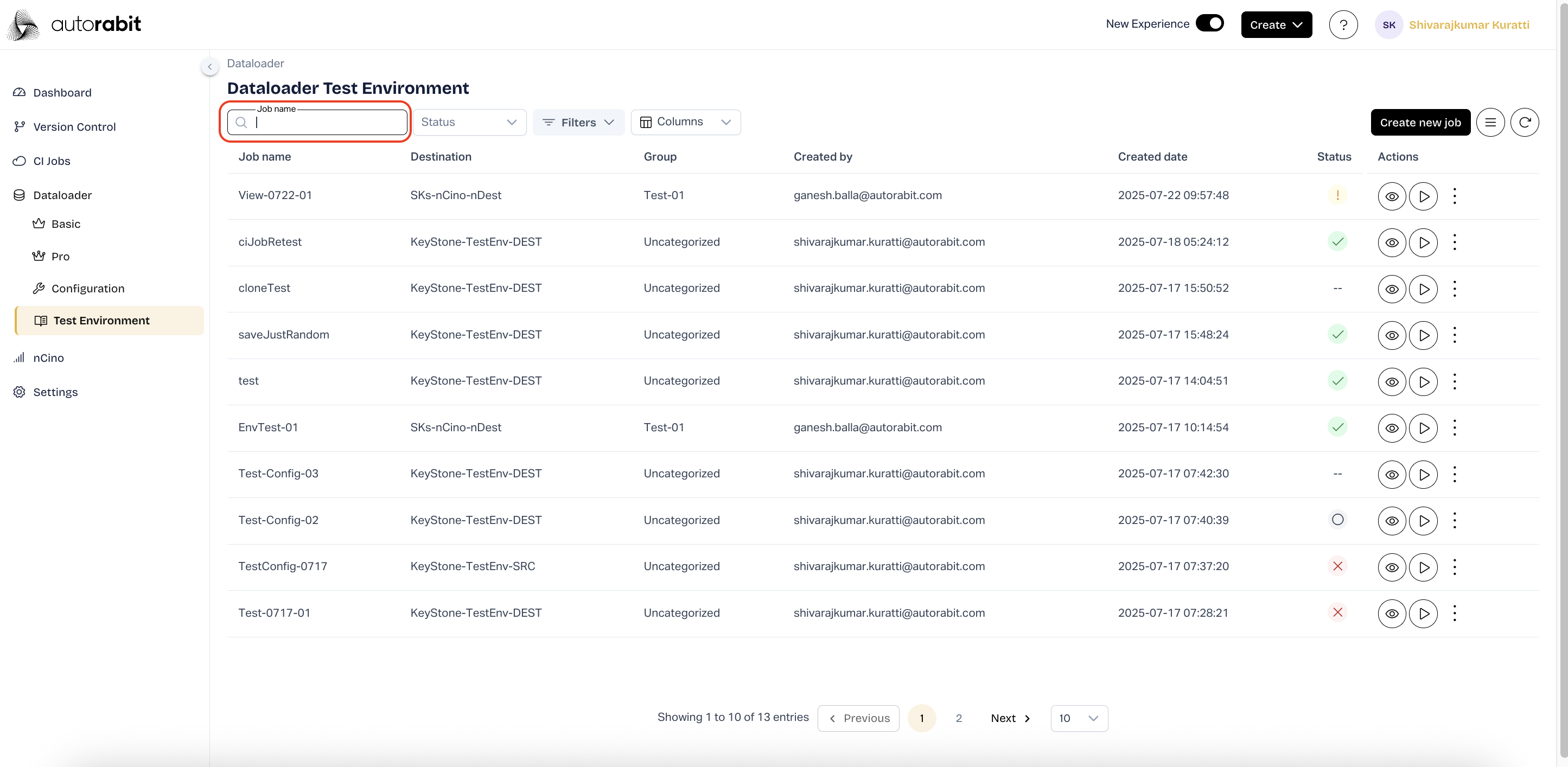
32. #### Search by Job Name
* Use the **Job name** field to locate specific jobs quickly.
* Begin typing the job name to see filtered results update automatically.
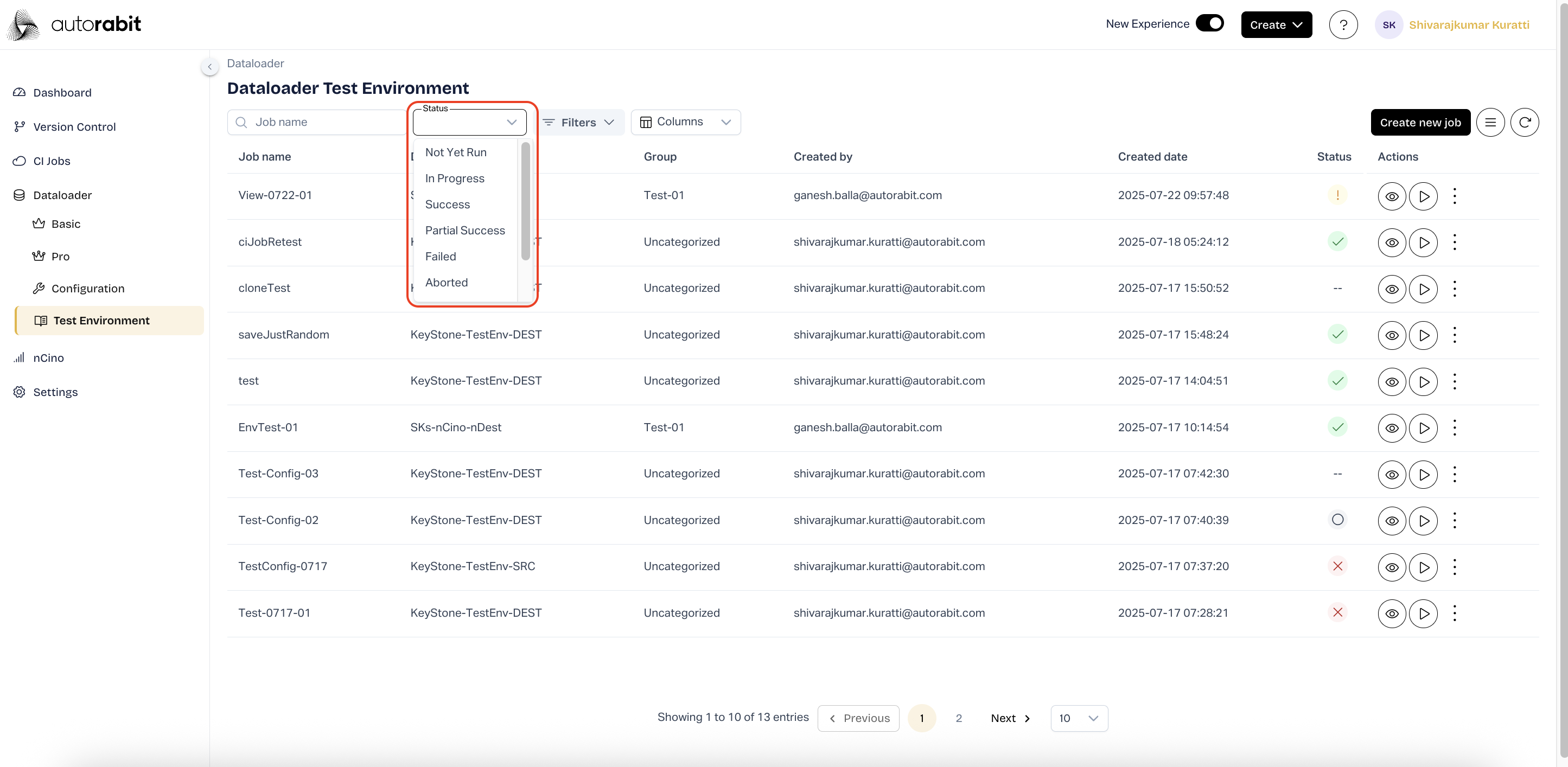
33. #### Filter by Status
* Open the **Status** dropdown to refine job listings.
* Observe the available options to set the right filter criteria.
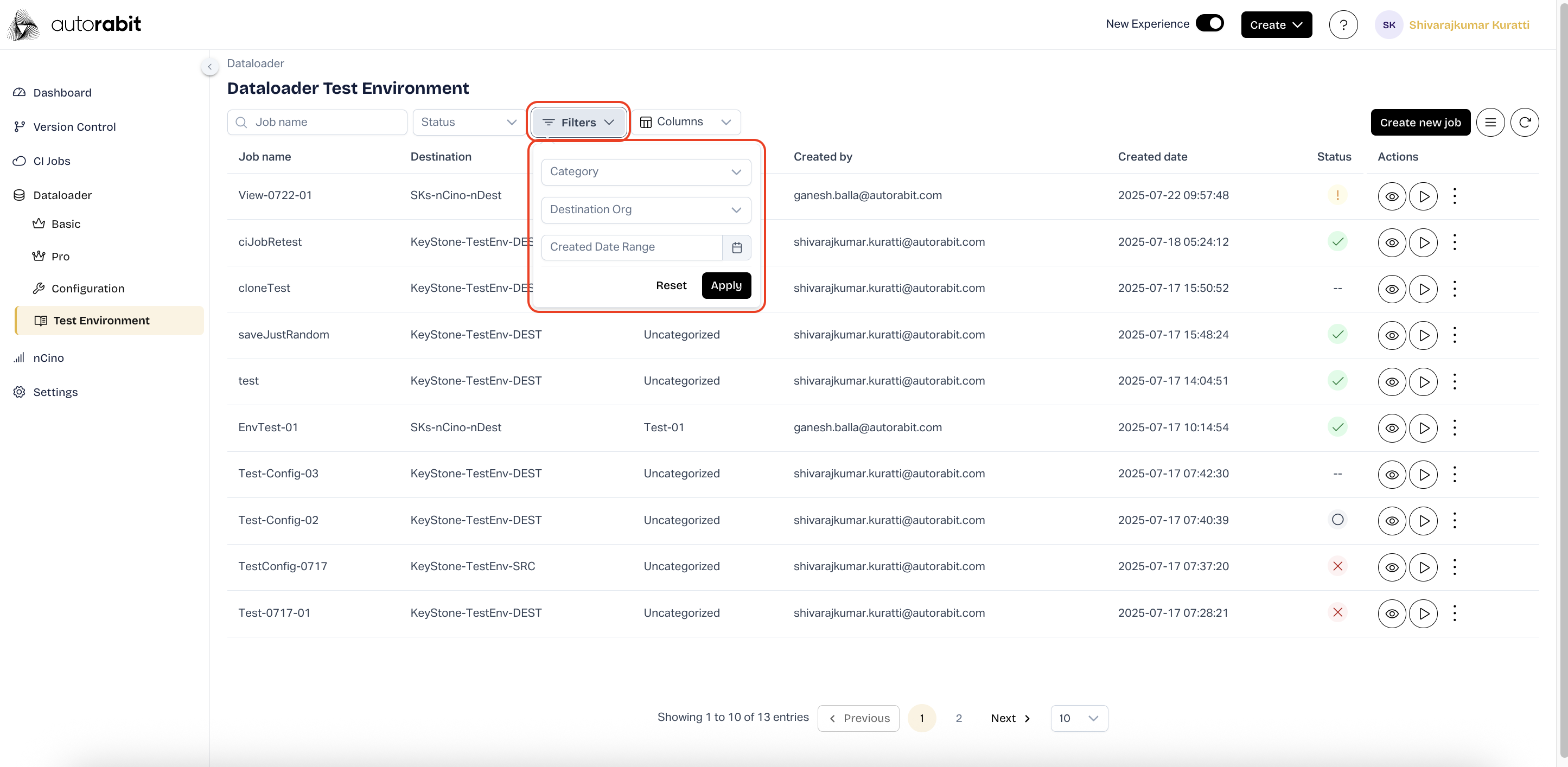
34. #### Apply Advanced Filters
* Click **Filters** to apply additional criteria.
* Choose filters such as:
* **Category**
* **Destination Org**
* **Created Date Range**
* Click **Apply** to filter or **Reset** to clear all selections.
35. #### Manage Columns
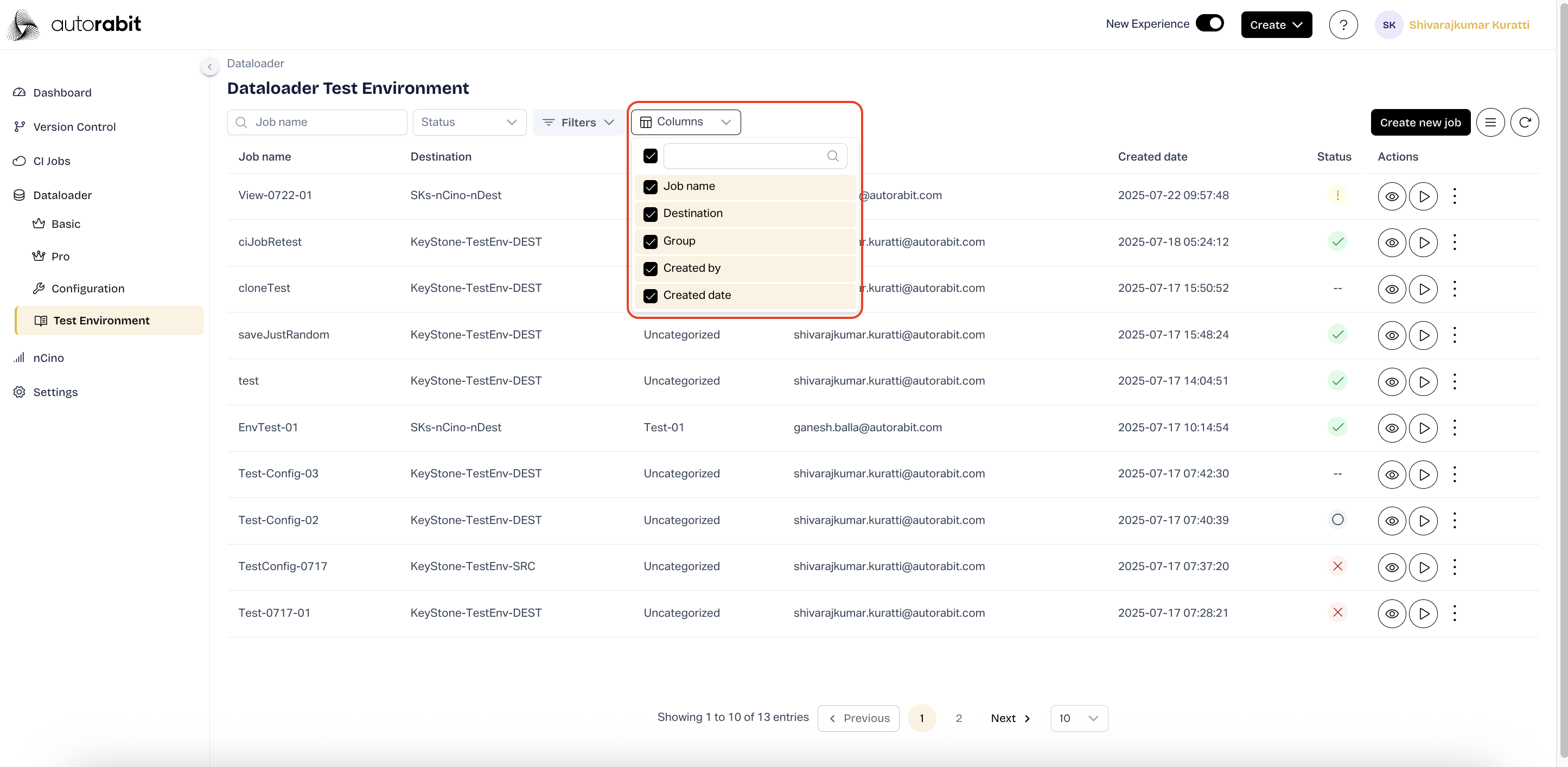
* Click **Columns** to customize the table view.
* Additional columns can be included in the view by selecting the desired options from the **Columns** menu. Columns that are not relevant can be deselected to keep the view focused on essential information.
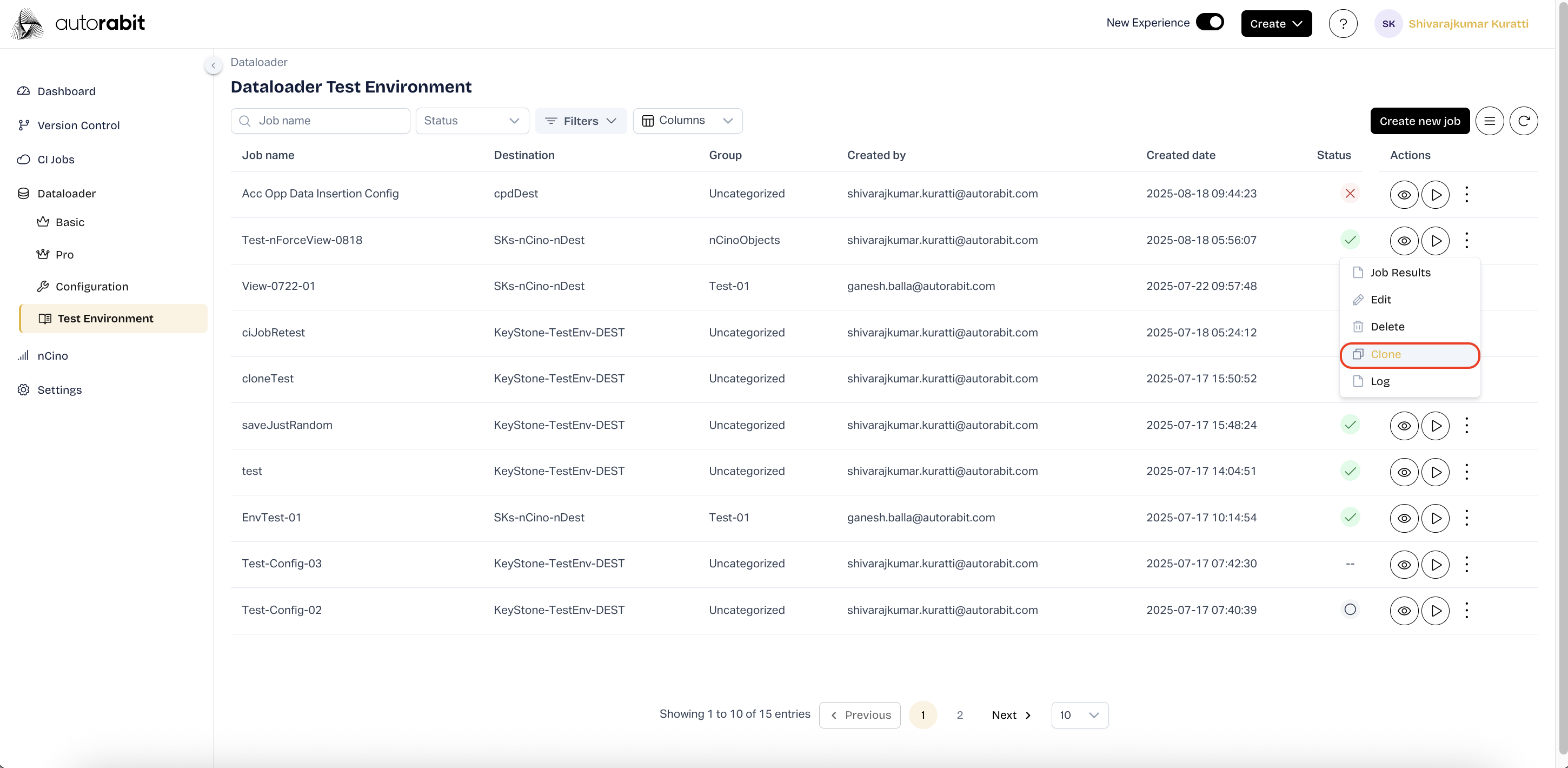
36. #### Job Actions – Menu Options
* Open the **⋮ (More)** menu next to any job to perform actions.
* Available options include:
* **Run**
* **Edit**
* **Clone**
* **Delete**
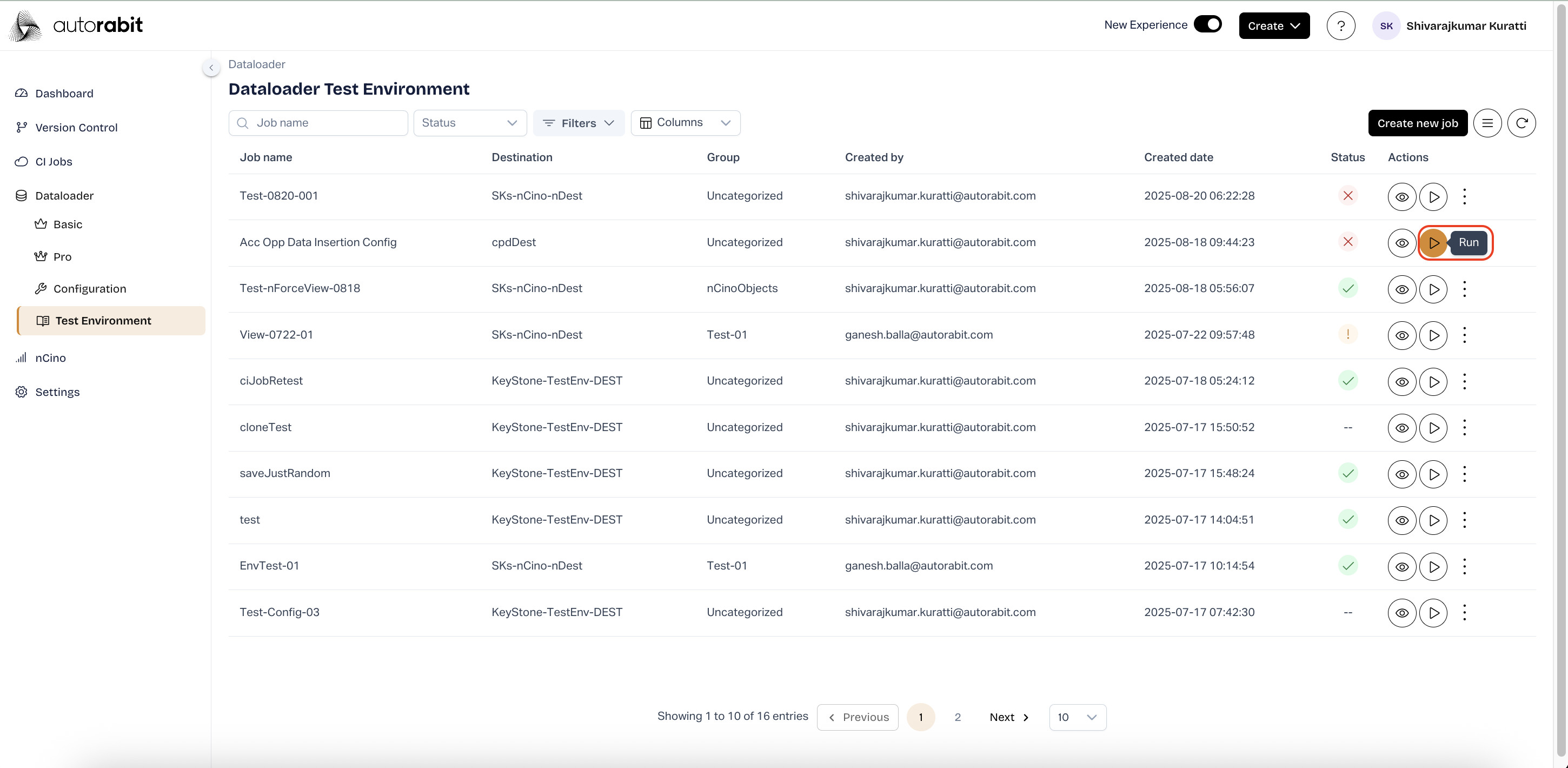
37. #### Running a Job
* Identify the desired job in the job list.
* Click the **Run** button under the *Actions* column.
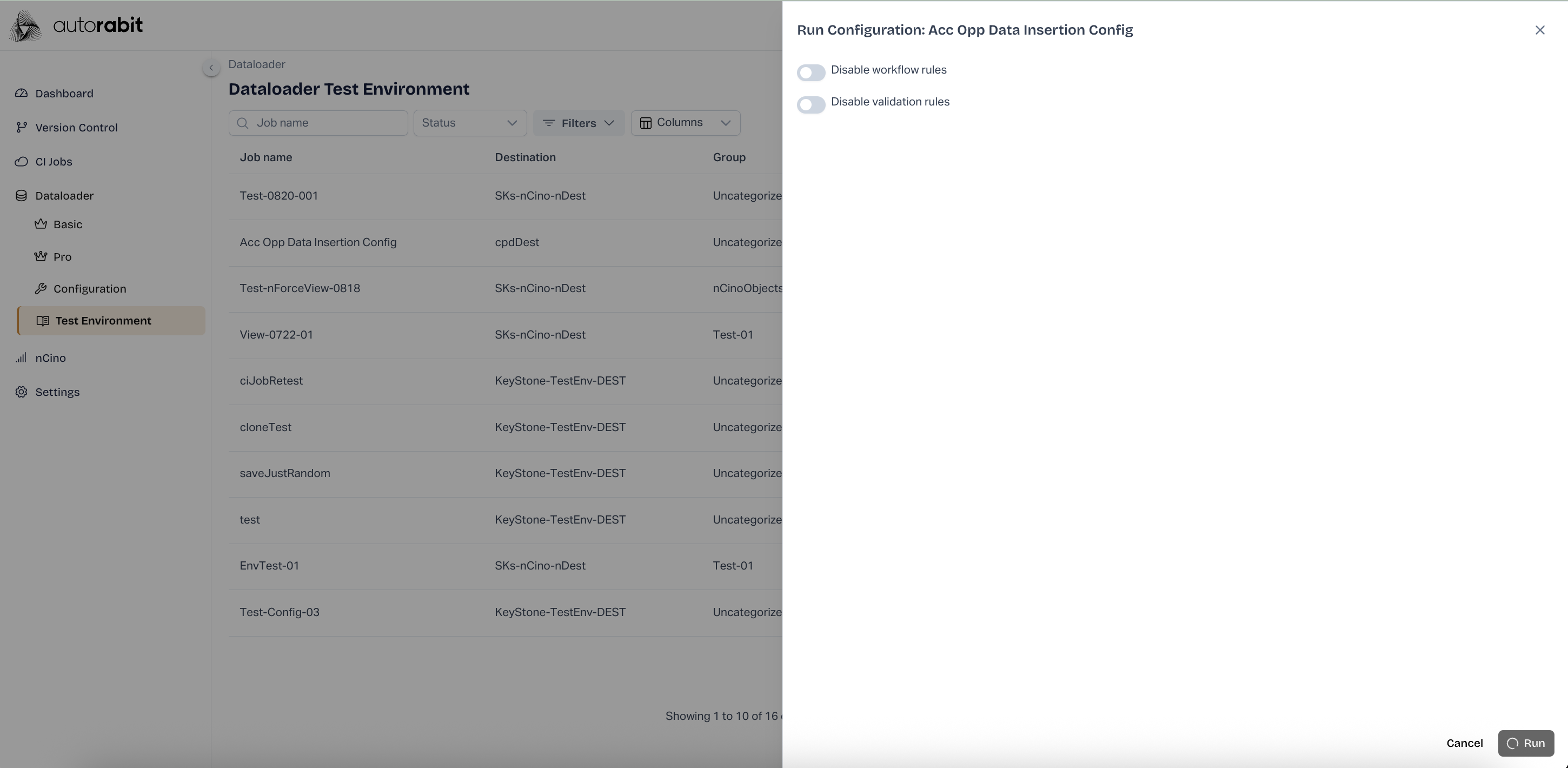
* A configuration panel opens with the following options:
* **Disable workflow rules**
* **Disable validation rules**
* Adjust the options if required, then click **Run**.
* A confirmation message *“Run Process Initiated Successfully”* appears.
* The job status updates to indicate that the process has started.
38. #### Monitoring Job Execution
* During execution, the job’s *Status* column updates to show the current progress.
* Options available while the job is running:
* **View** – Inspect job configuration or progress.
* **Stop** – Terminate the execution if necessary.
* Once completed, the status reflects success, failure, or warnings.
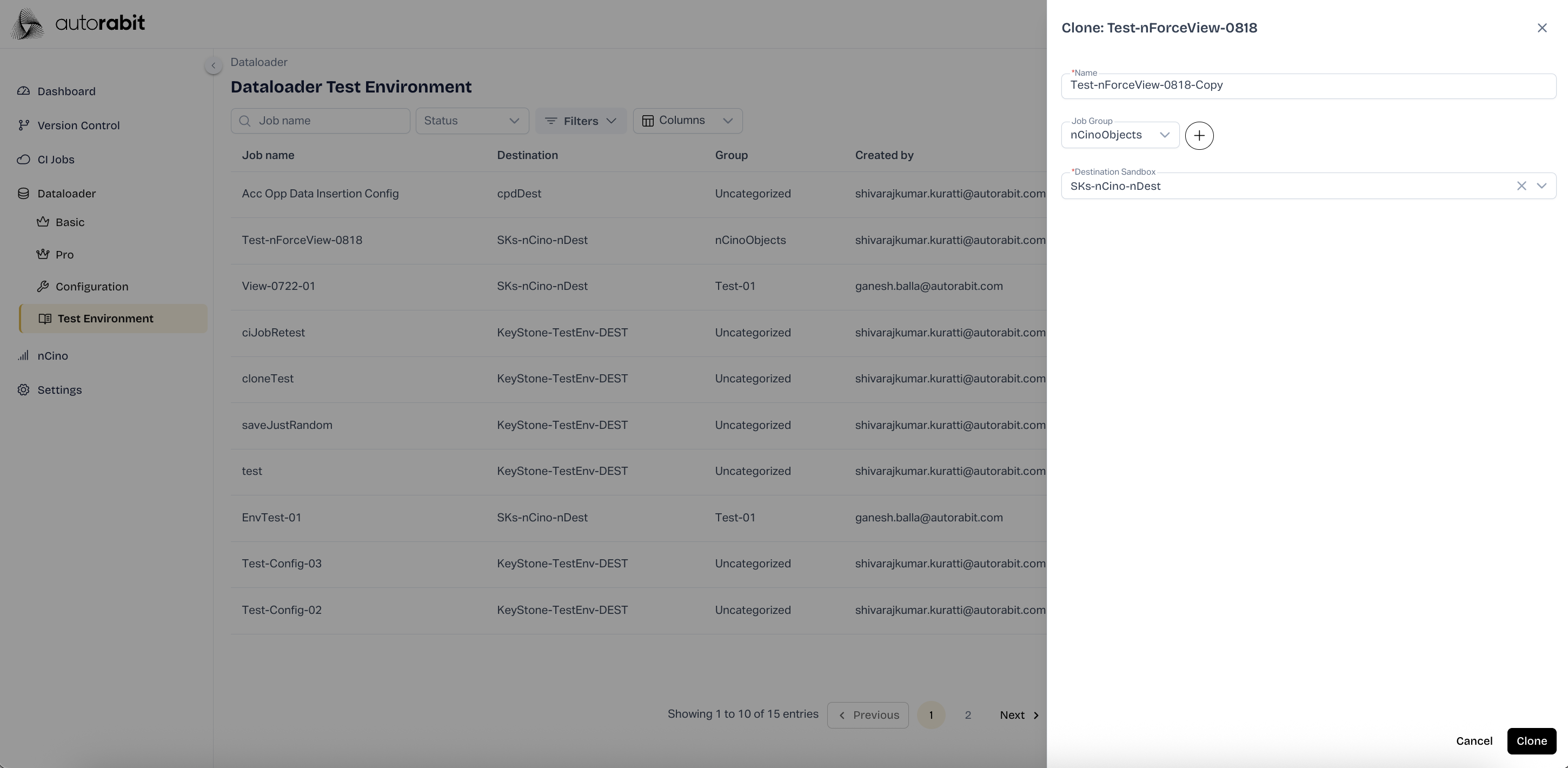
39. #### Cloning a Job
* From the job list, open the **Actions** menu (**⋮ -** three dots).
* Select **Clone**.
* A **Clone Job** panel appears where the following details can be updated:
* **Name** – Defaults to original job name with *-Copy* appended, but can be edited.
* **Job Group** – Assign to an existing group or create a new one.
* **Destination Sandbox** – Select the target sandbox.
* Click **Clone** to create the duplicate job.
* The cloned job appears in the job list.
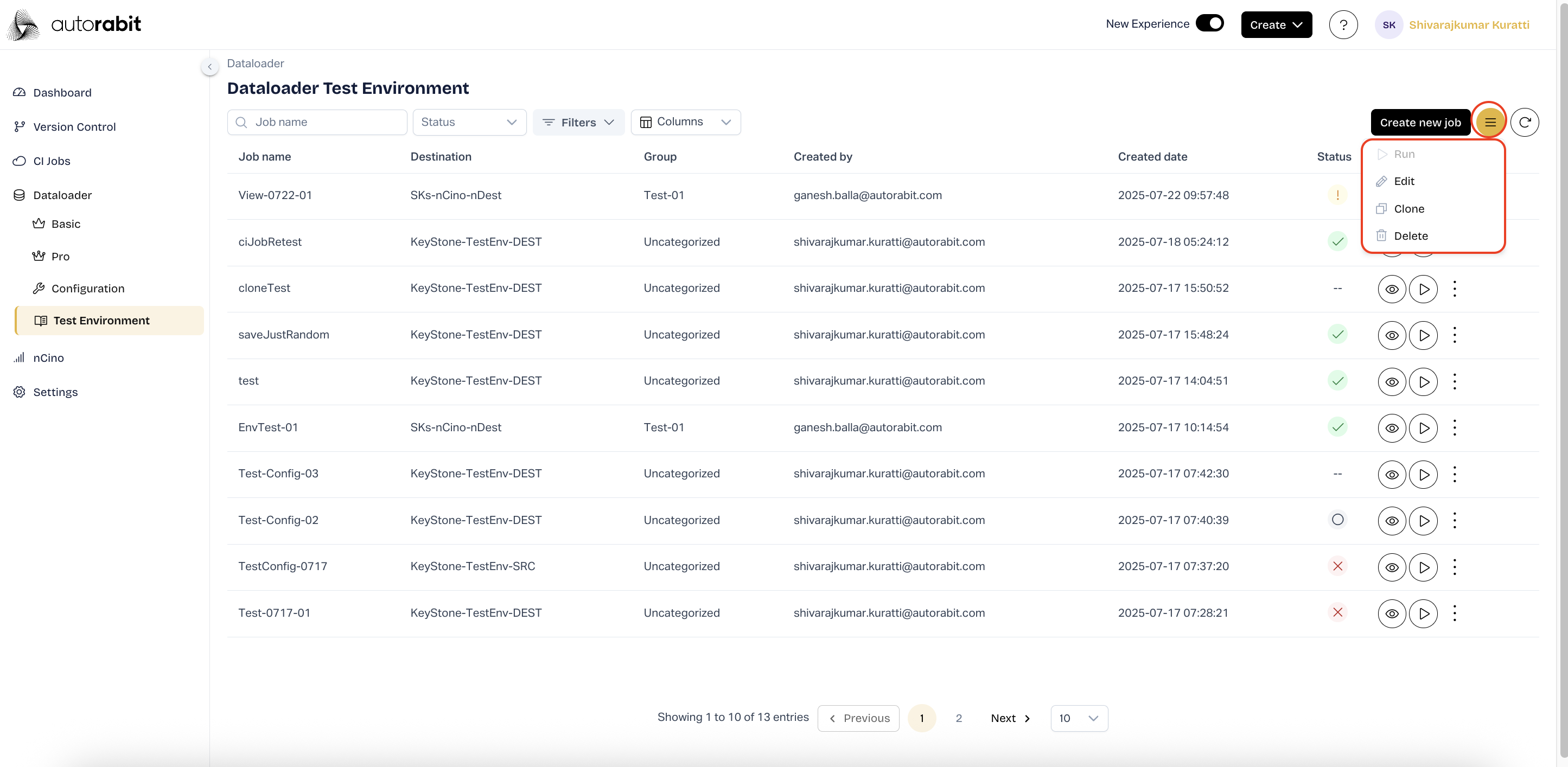
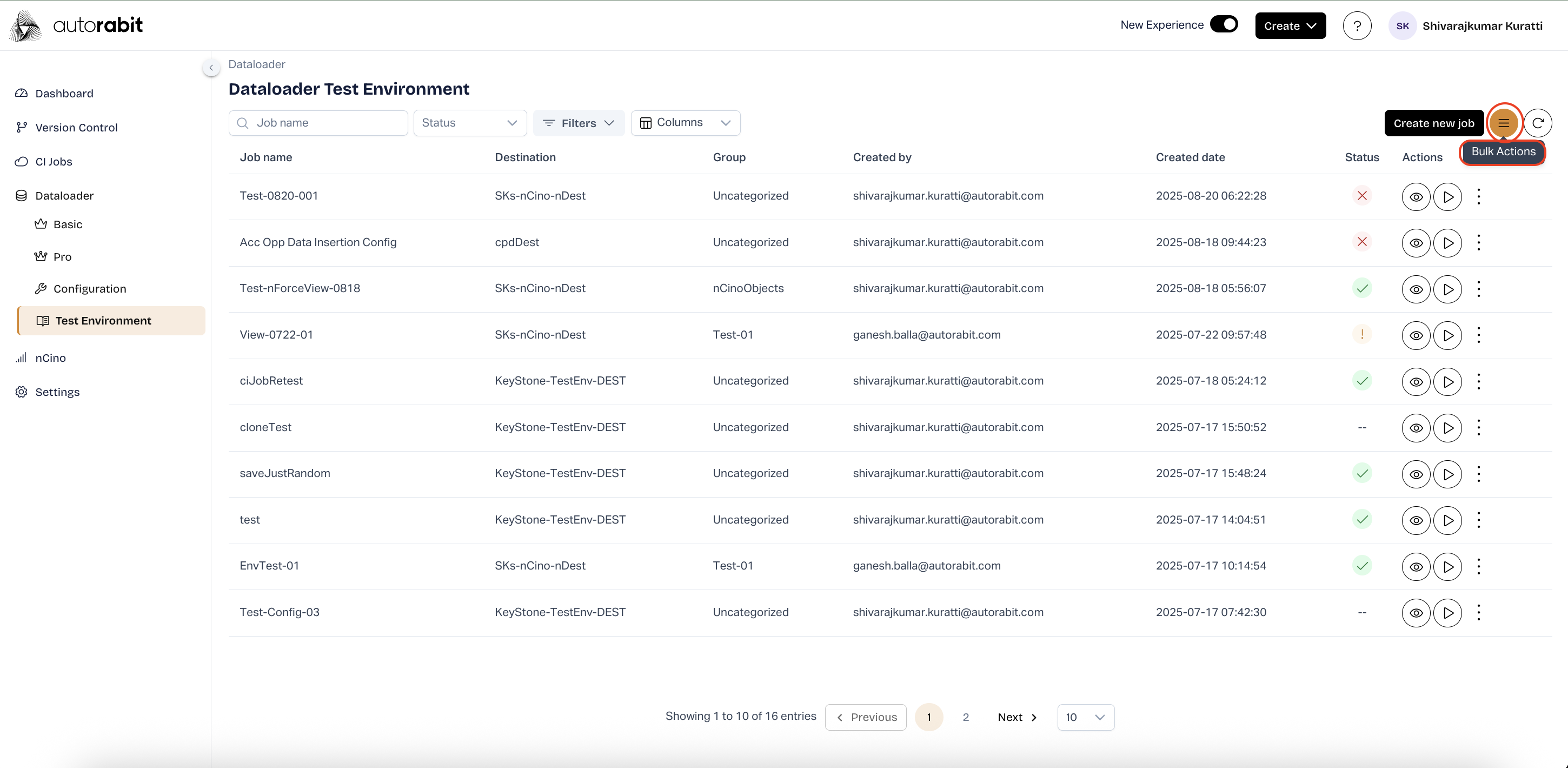
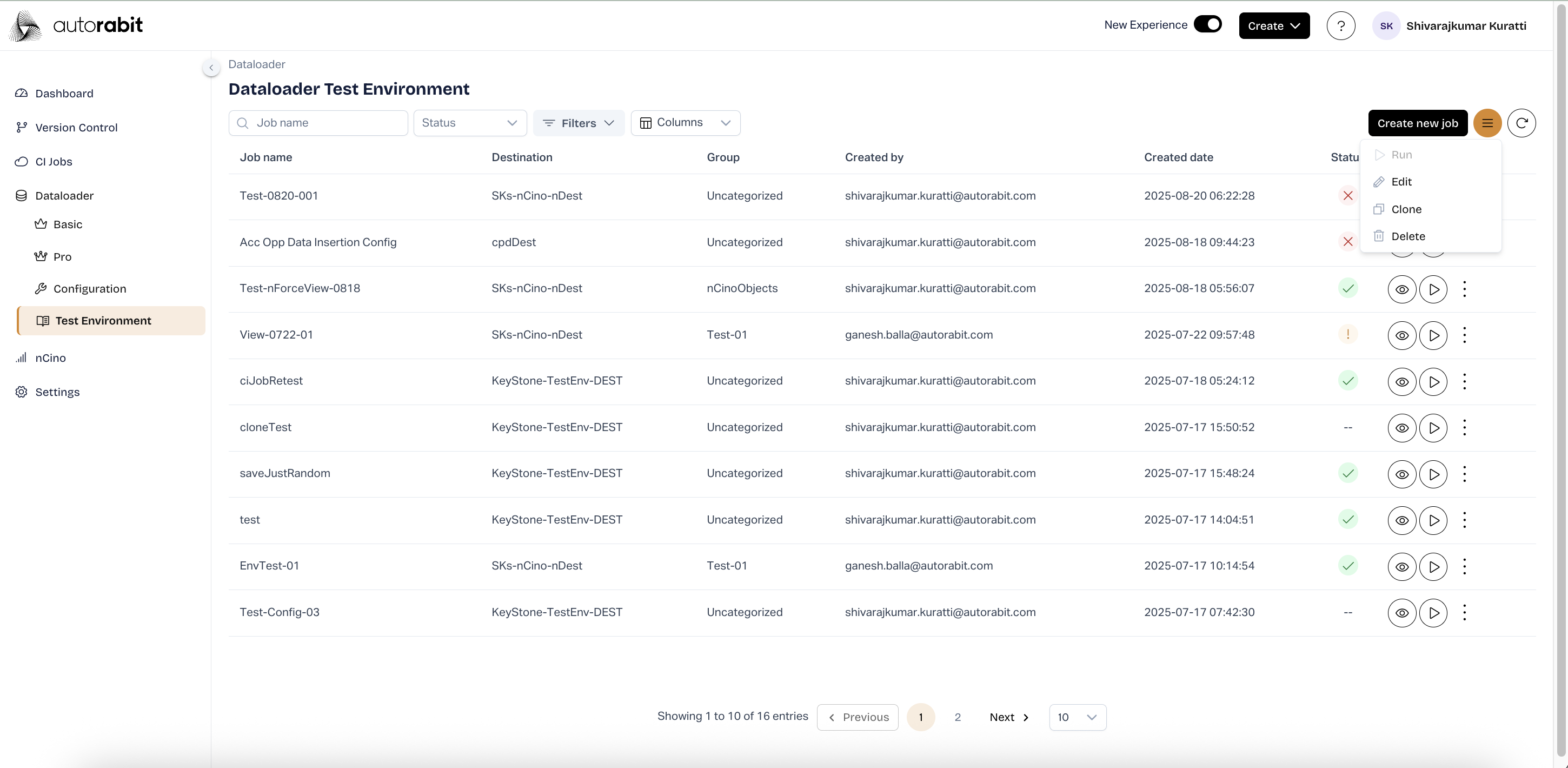
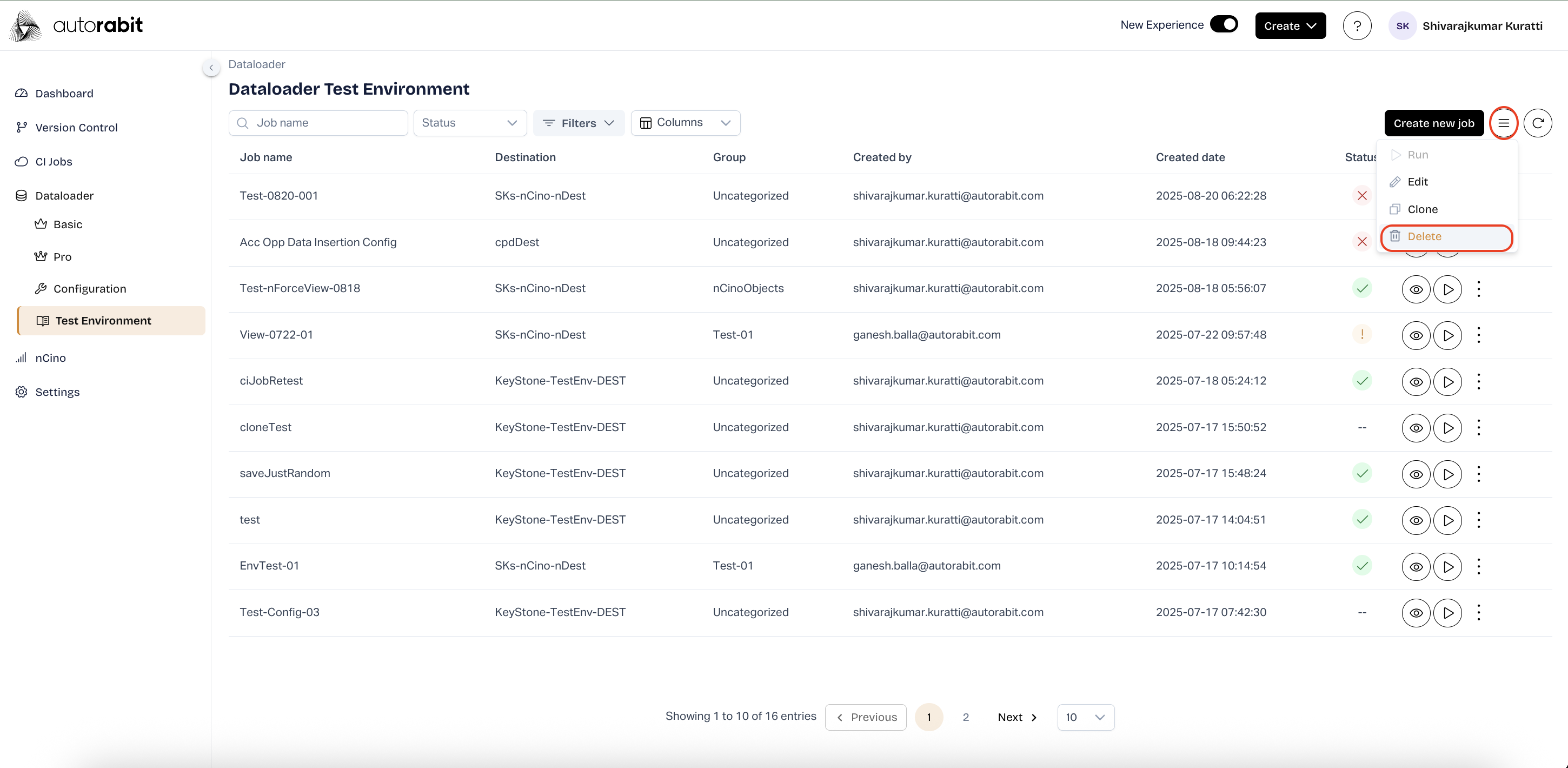
40. Open Bulk Actions
* Click the **Bulk Actions** (three-line) icon at the top-right of the **Test Environment** list.
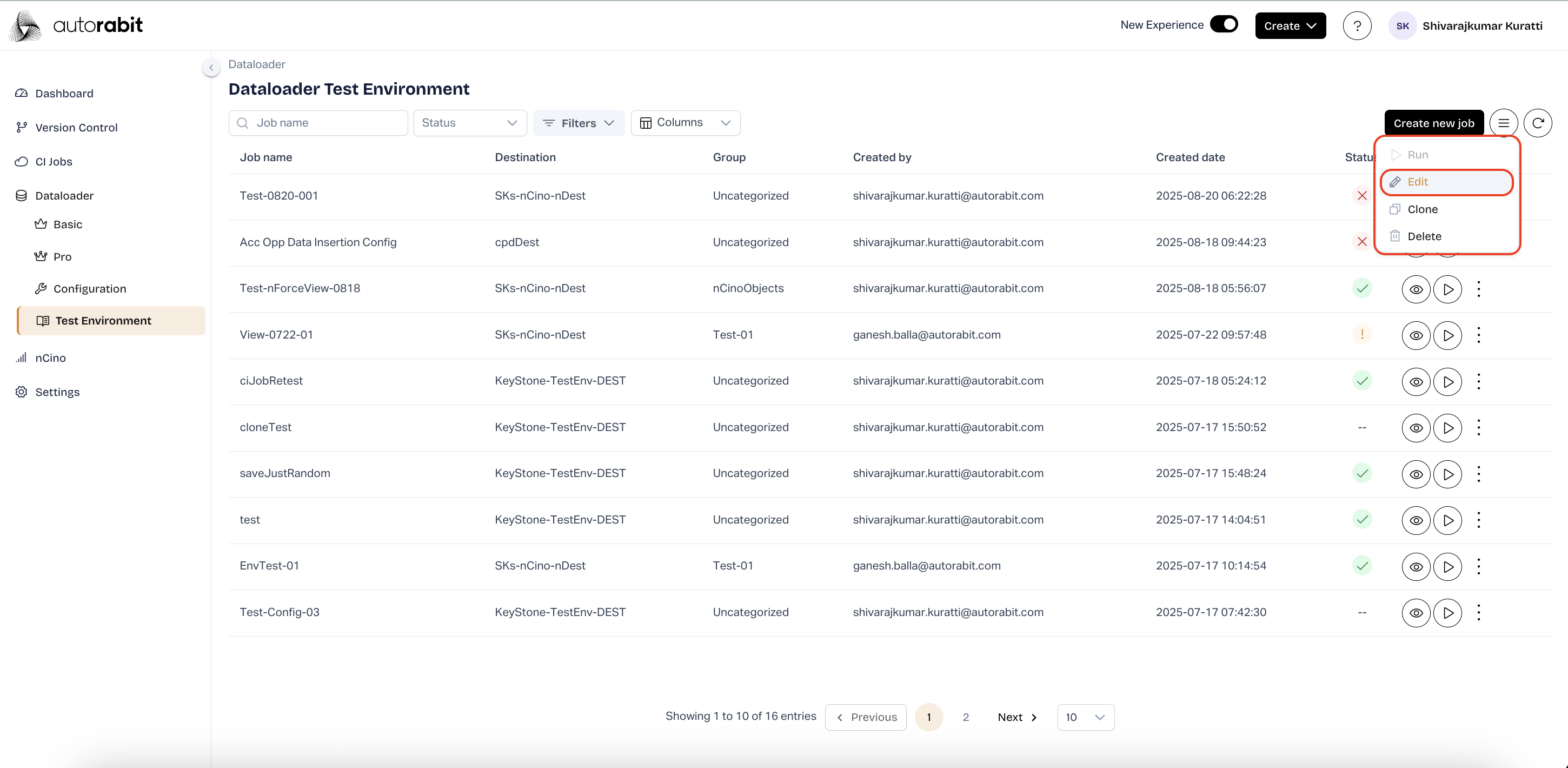
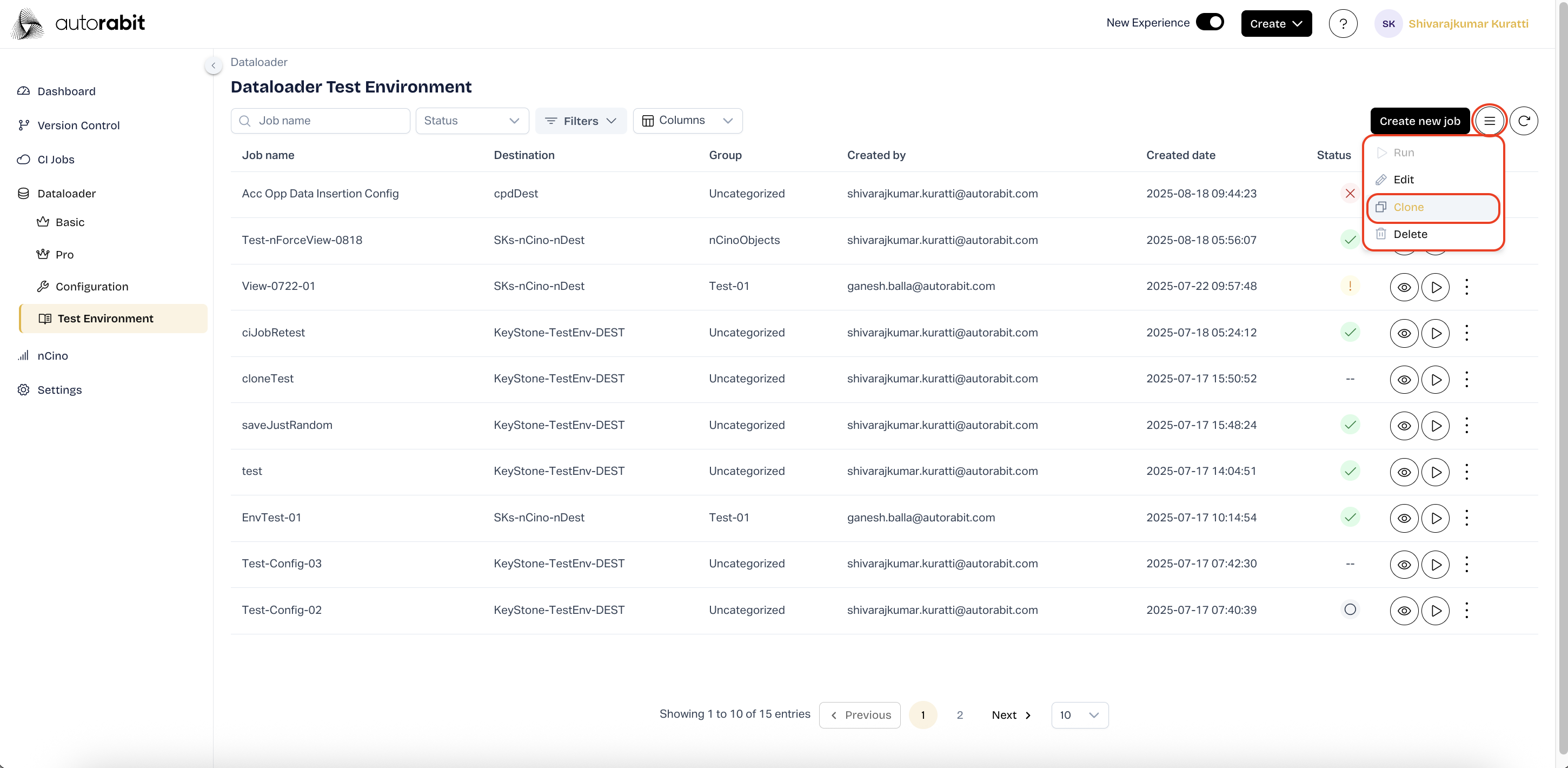
41. Bulk Actions Menu
* Review available actions:
* **Run** (disabled for bulk in this view)
* **Edit** – bulk update job groups
* **Clone** – clone multiple jobs at once
* **Delete** – remove multiple jobs
42. Start Bulk Edit
* From **Bulk Actions**, click **Edit** to open the bulk group editor.
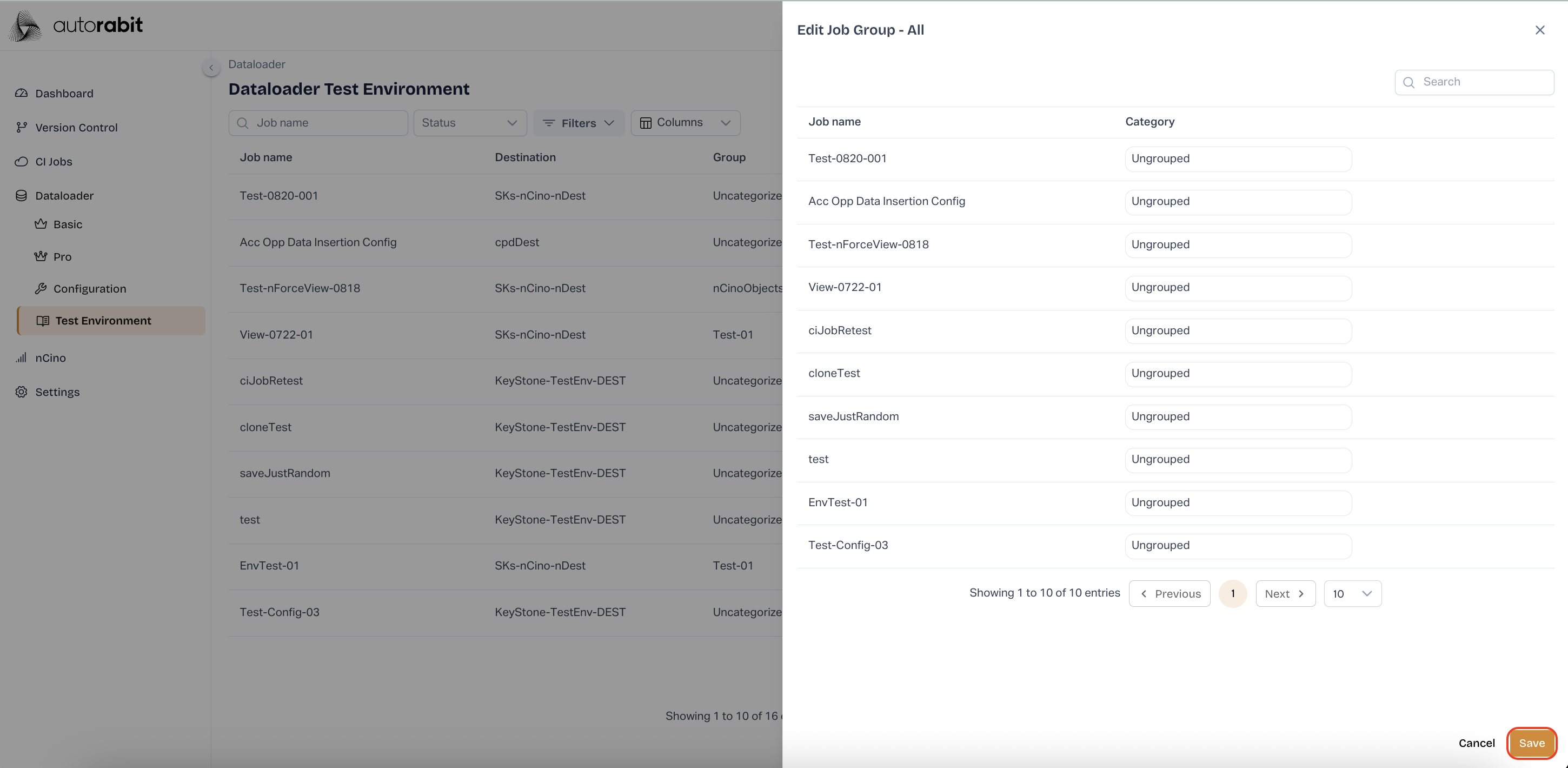
43. Bulk Edit Job Groups
* Use the **Edit Job Group – All** dialog to update the **Category** (group) for many jobs at once.
* Optional: use **Search** to filter the list; navigate with **Previous/Next** or the page size selector.
* Click **Save** to apply group changes, or **Cancel** to discard.
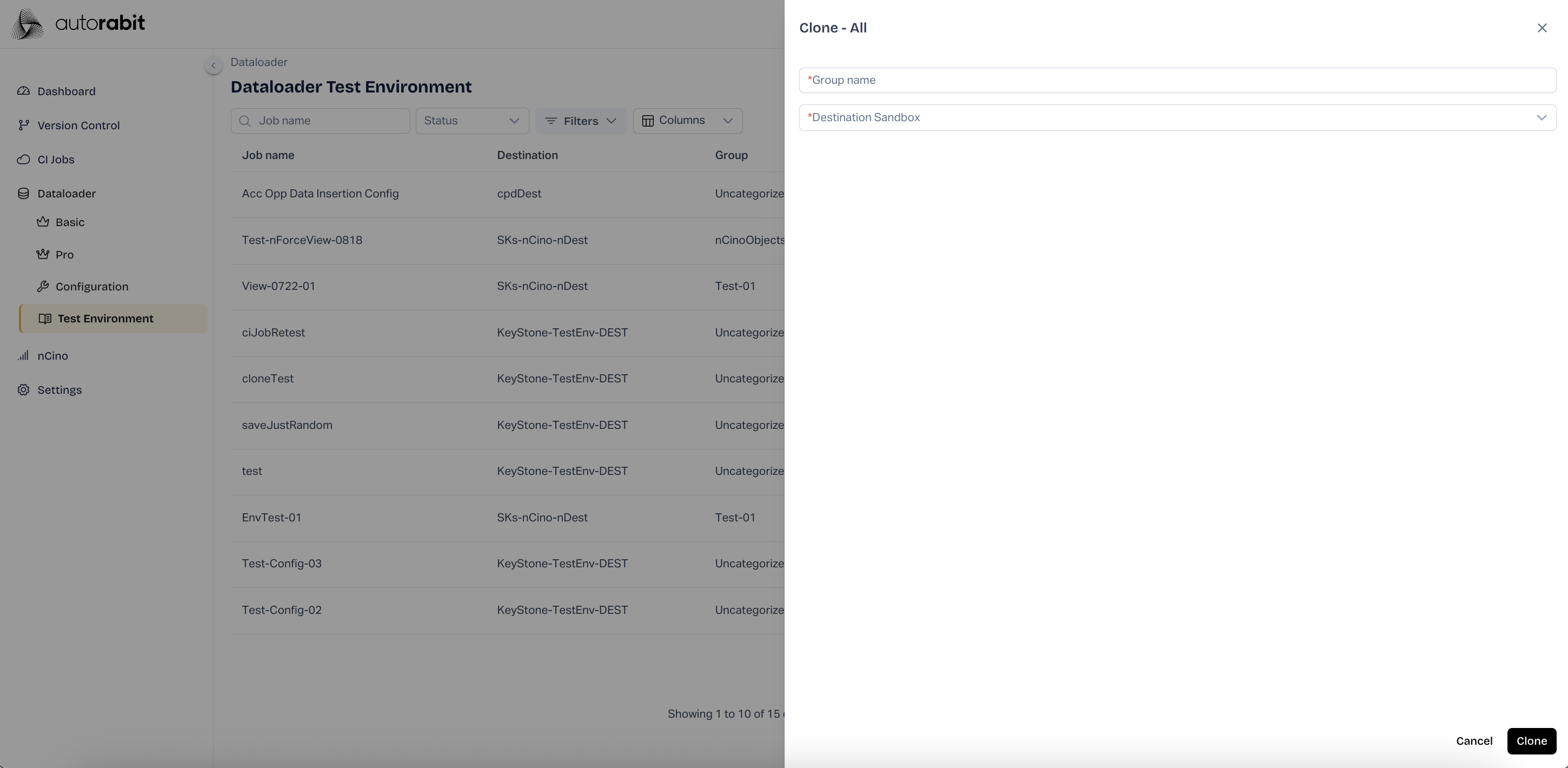
44. Start Bulk Clone
* From **Bulk Actions**, click **Clone** to open the bulk clone setup.
45. Configure Bulk Clone
* In **Clone – All**:
* **Group name** (required) – Enter the target group for the new copies.
* **Destination Sandbox** (required) – Choose where all selected jobs will be cloned.
* Click **Clone** to create the copies, or **Cancel** to exit.
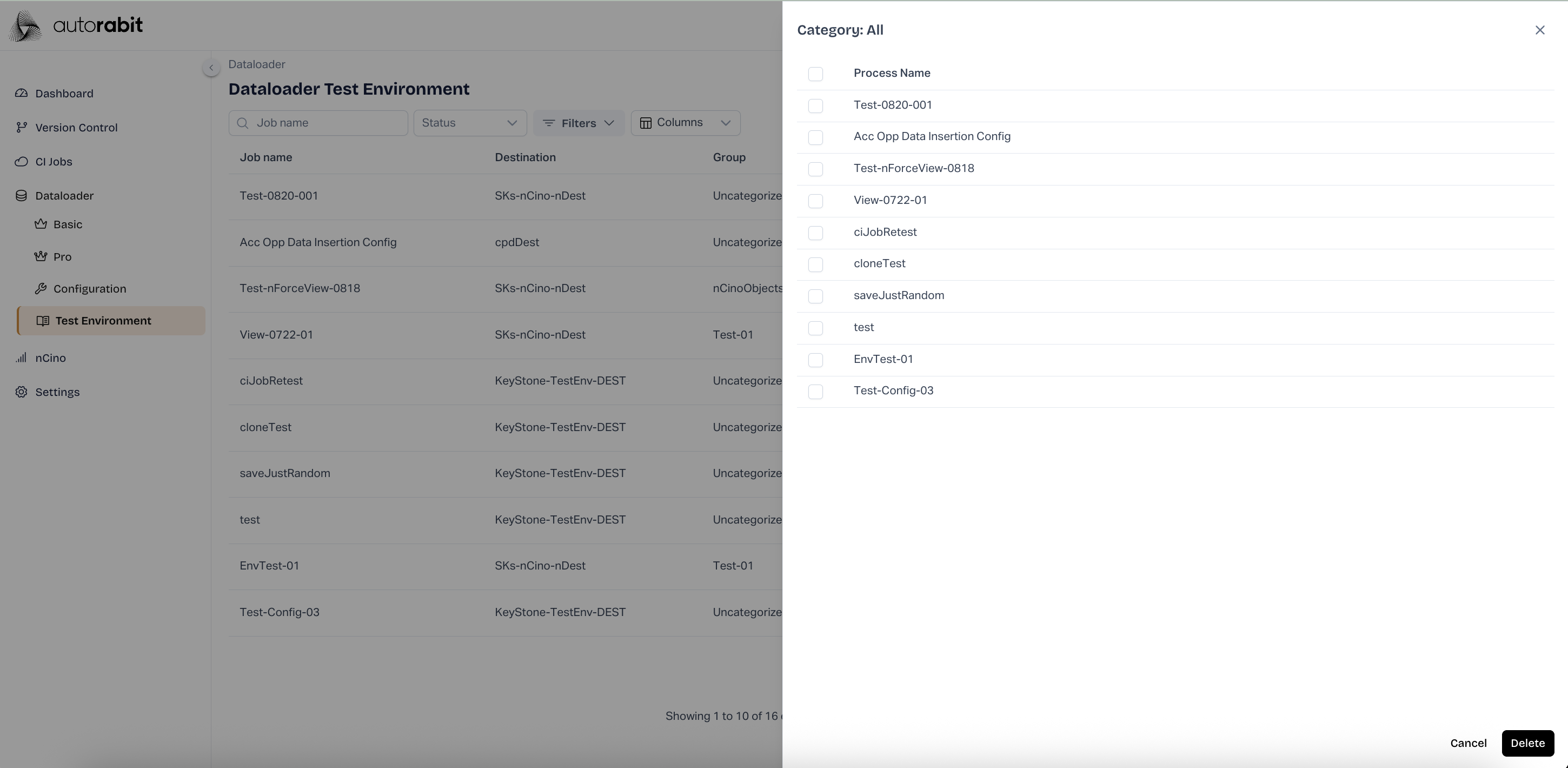
46. Start Bulk Delete
* From **Bulk Actions**, click **Delete** to open the selection panel.
47. Select Jobs to Delete
* In **Category: All**, select individual jobs or use the header checkbox to select all.
* Click **Delete** to permanently remove the selected jobs, or **Cancel** to keep them.
---
# Agent Instructions
This documentation is published with GitBook. GitBook is the documentation platform designed so that both humans and AI agents can read, navigate, and reason over technical content effectively. Learn more at gitbook.com.
## Querying This Documentation
If you need additional information that is not directly available in this page, you can query the documentation by asking a question.
Perform an HTTP GET request on the following URL with the `ask` and `goal` query parameters:
```
GET https://knowledgebase.autorabit.com/product-guides/arm-1/arm-features/dataloader/test-environment-setup.md?ask=&goal=
```
`ask` is the immediate question: it should be specific, self-contained, and written in natural language.
`goal` is what the user is ultimately trying to achieve, the reason they need the answer. Sharing it helps GitBook give you a better, more relevant answer. A goal is most helpful when it describes the outcome the user wants rather than restating the question. For example, with `ask=how do I create an API token`, a goal like `automate deployments from our CI pipeline` lets GitBook tailor the answer to that use case.
The response will contain a direct answer to the question and relevant excerpts and sources from the documentation.
Use this mechanism when the answer is not explicitly present in the current page, you need clarification or additional context, or you want to retrieve related documentation sections.