> For the complete documentation index, see [llms.txt](https://knowledgebase.autorabit.com/llms.txt). Markdown versions of documentation pages are available by appending `.md` to page URLs; this page is available as [Markdown](https://knowledgebase.autorabit.com/product-guides/arm-1/arm-features/automation-and-ci/create-a-new-ci-job/build-a-package-from-salesforce.md).
# Building a Package from Salesforce
{% hint style="info" %}
The **CI Jobs** screen is best viewed at **80%** zoom in Chrome or Firefox.
{% endhint %}
### Overview
Create a package from a Salesforce org by collecting metadata changes made after a specified start date and deploy or validate that package in another Salesforce org. This feature is useful when teams need to migrate recently developed changes without manually selecting individual components. The job can also be configured to execute functional test cases stored in version control as part of the deployment process.
Example:
\
A development team completes a set of enhancements in a sandbox over a two-week period. By specifying a start date, ARM automatically identifies the metadata changes made during that timeframe, builds a deployment package, and deploys or validates it in a QA environment. This helps streamline releases, reduce manual effort, and ensure that only the intended changes are promoted.
### Procedure
1. Log in to ARM.
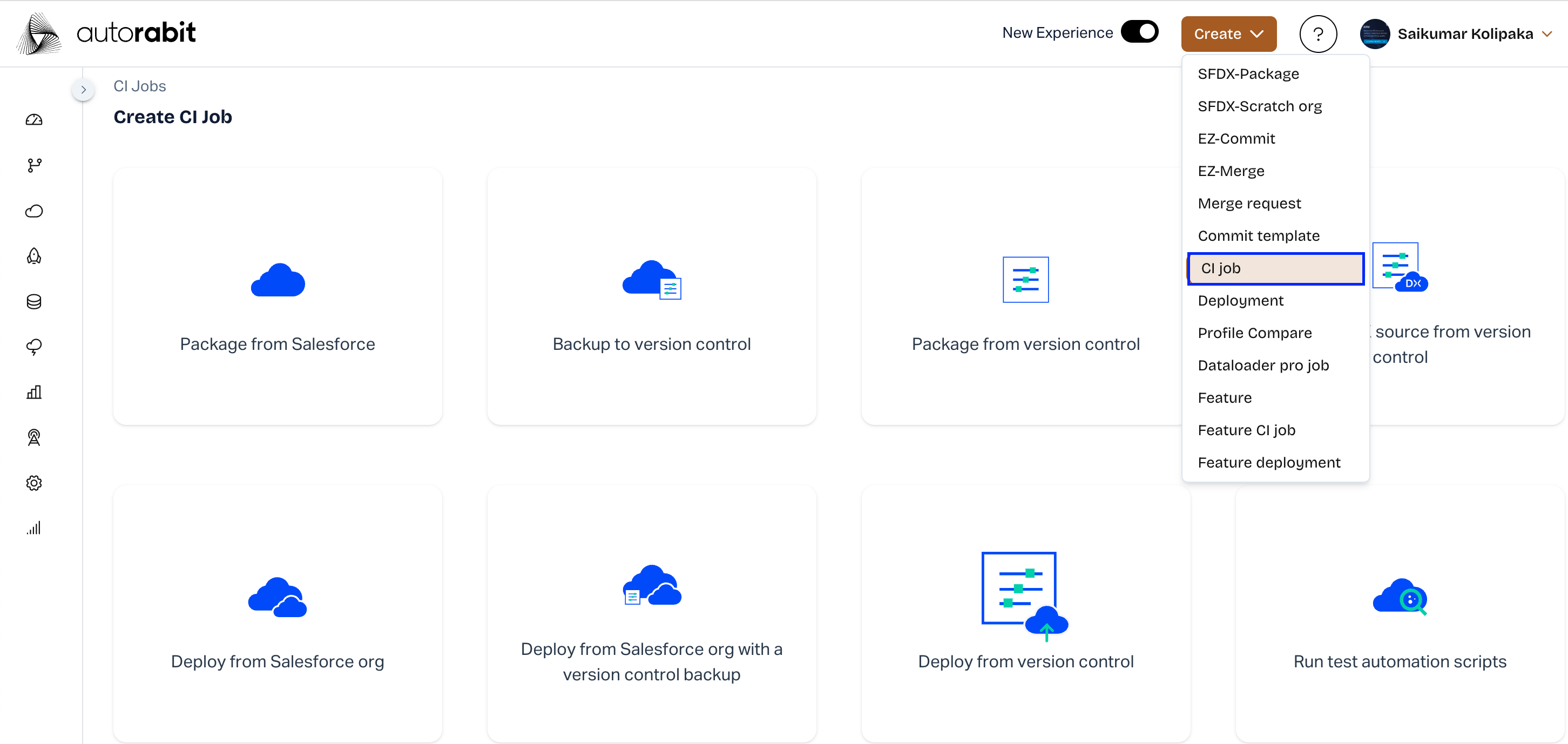
2. From the top navigation bar, select **`Create New > New CI Job`**.
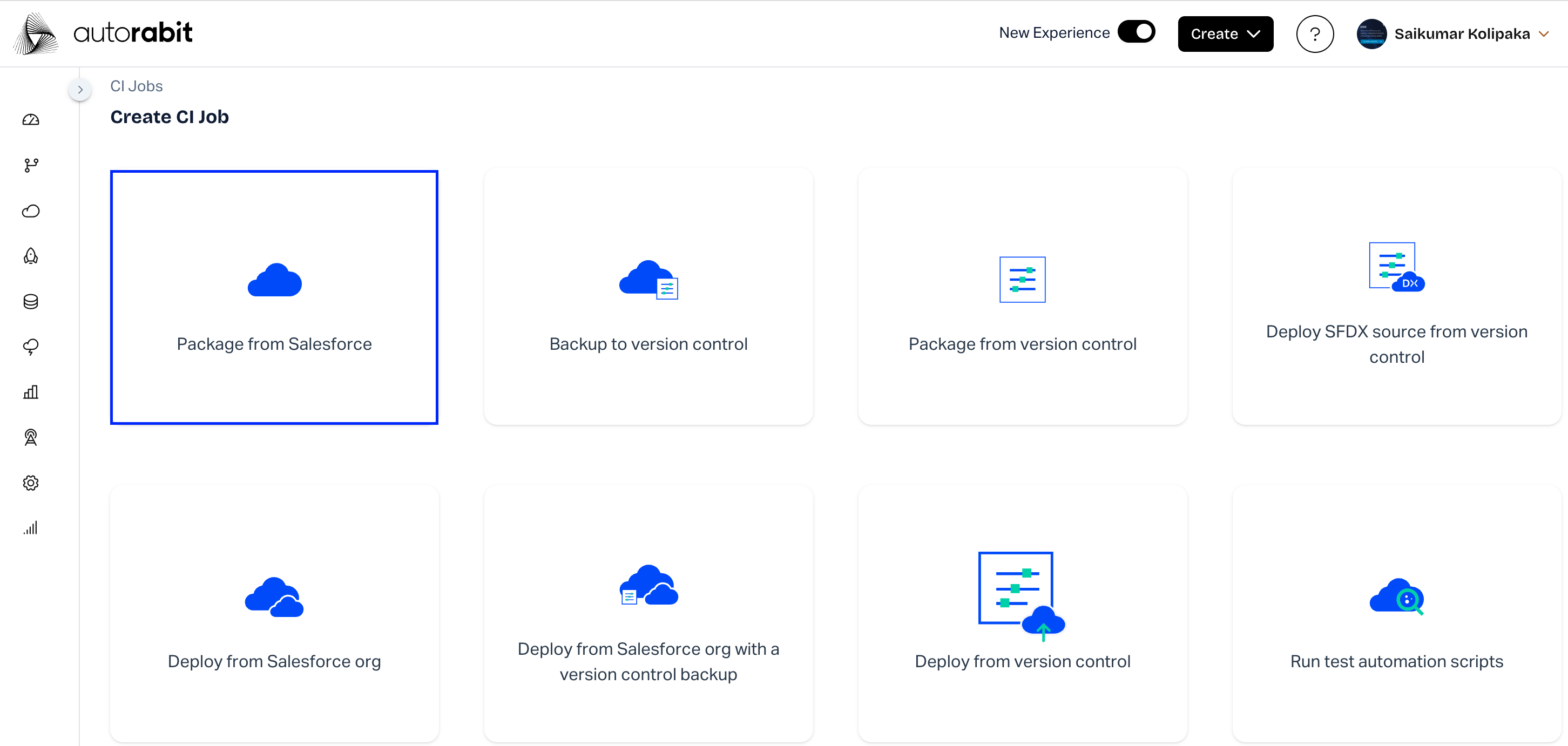
1. Click the **Package from Salesforce** tile.
1. Enter a descriptive **Job name**.
2. Add a brief **Description**.
3. (Optional) Choose a **Group** to organize the job, or click **`+`** to create a new group.
4. The configuration page has several sections explained below.
#### Build
Under **Build**, provide:
1. **Source Salesforce org** – The org to package.
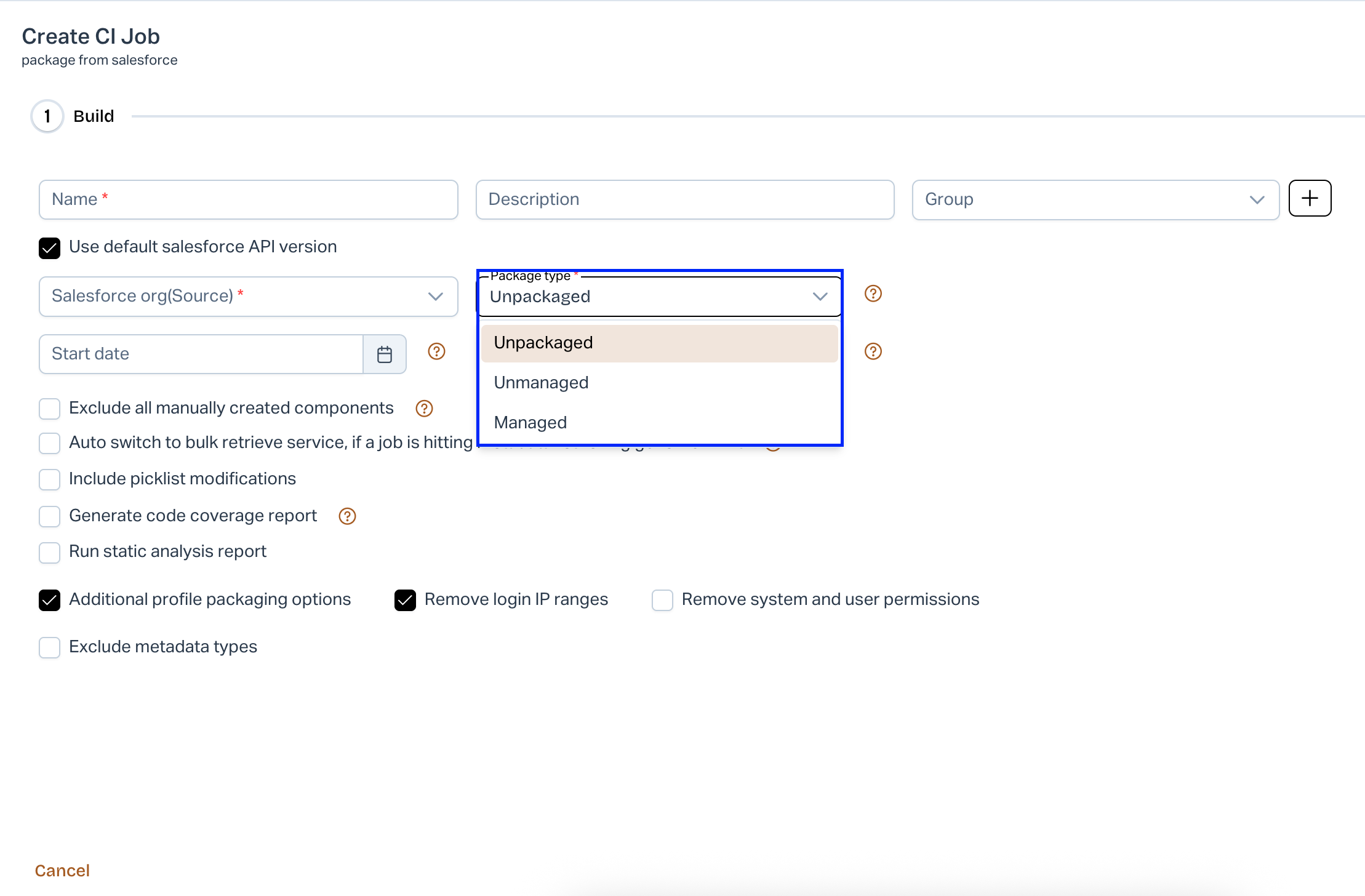
2. **Package type** – How ARM gathers metadata:
* **Unpackaged mode** – Retrieves metadata changed since the last ARM cycle (or since **Start date**, if set).
* **Unmanaged package** – Retrieves components from an unmanaged package, so you can edit them.
* **Managed package** – Retrieves components from a managed package created in a partner dev org.
**Additional build options**
1. **Auto switch to bulk retrieve service if job hits metadata governor limit** – Automatically uses batch retrieval when a job approaches Salesforce limits. Specify **Batch size** (up to 10,000 items).
2. **Exclude installed (managed) components and changes** – Skip all managed-package components.
* **Exclude all manually created components** – Also skip custom components in managed packages.
3. **Include picklist modifications** – Always include picklist fields, even if Salesforce did not update the “last modified” date (source = Salesforce org only).
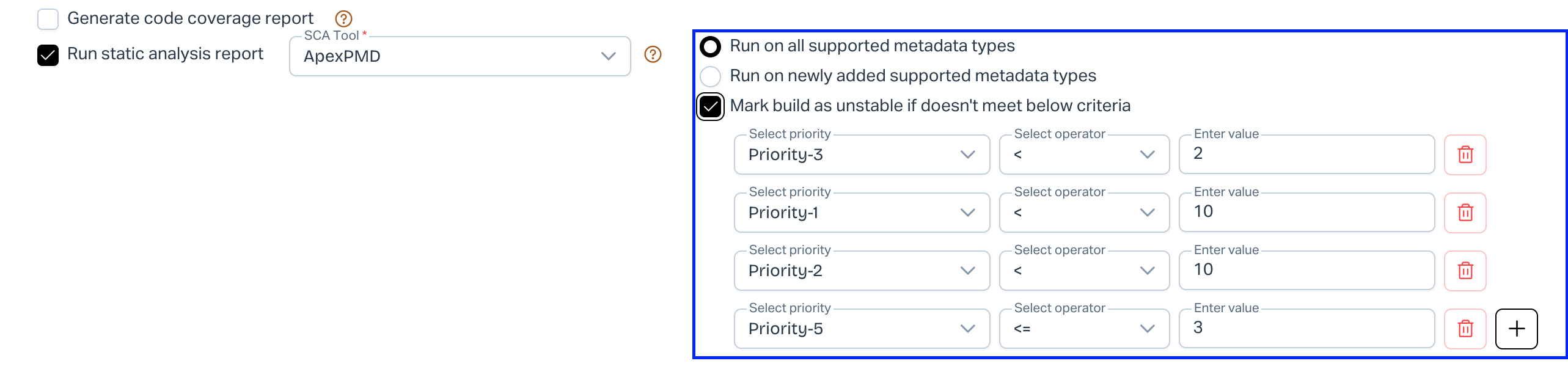
4. **Generate code coverage report** – Include Apex test coverage details.
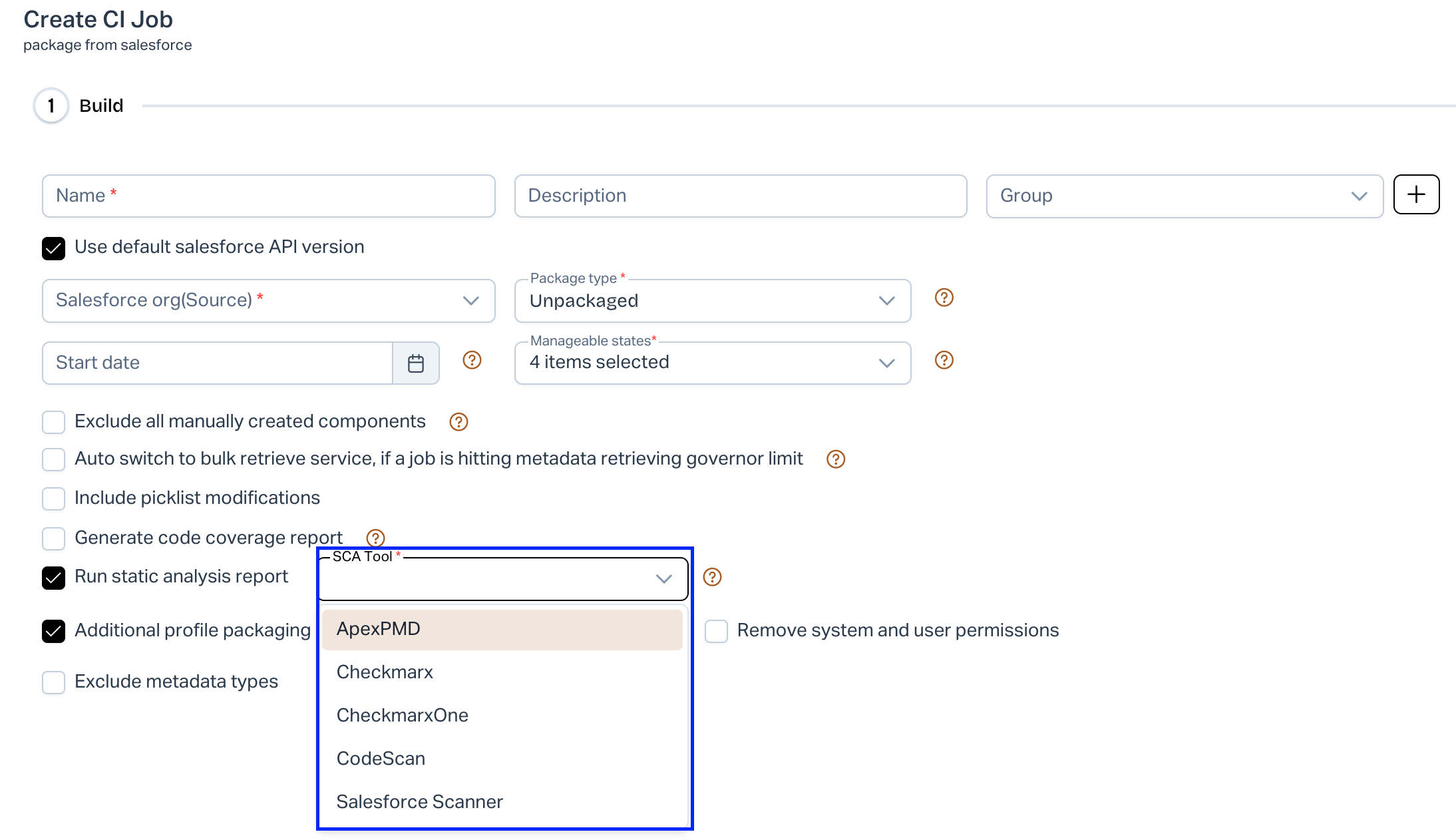
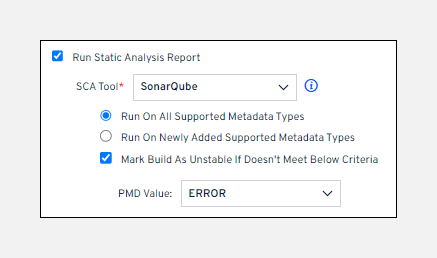
5. **Run static analysis report** – Run an SCA tool before the build proceeds.
* **Apex PMD / Salesforce Scanner** – Choose whether to scan all Apex classes or only those modified after a given date, and set a **Priority** threshold.
For details on running **static code analysis in CI jobs**, see [this guide](/product-guides/arm/arm-administration/static-code-analysis-in-ci-cd.md).
* **CodeScan / SonarQube** – Choose to scan all supported metadata types or only newly added ones, and set a **Priority** threshold.
* **Run on all supported metadata types** – Scan every retrieved component.
* **Run on newly added supported metadata types** – Scan only components added in the current retrieval.
Scope options for supported metadata types
1. **Additional profile packaging options:**
* **Remove login IP ranges** – Omit IP-range settings from profiles.
* **Remove system and user permissions** – Omit profile permissions from deployment.
2. **Exclude metadata types** – Globally omit specific metadata types from all CI jobs.
{% hint style="info" %}
To set global exclusions, open **My Account > My Salesforce Settings**, select **Exclude metadata types**, and choose the types to skip. These settings apply to all future CI jobs.
{% endhint %}
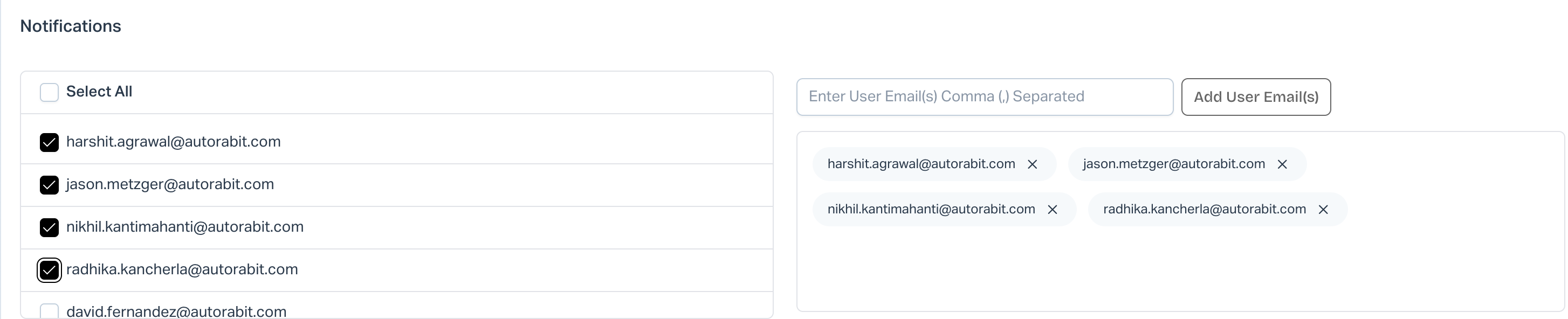
#### Notifications
Send success or failure emails to selected recipients.
#### Schedule
Run the job automatically:
* **Daily** – Run every day at the chosen time or interval.
* **Weekly** – Run on selected day(s) and time.
* **No schedule** – Save the job and run it manually when needed.
For credential usage details across CI job types, see the [FAQ](/product-guides/arm/troubleshoot/arm-faqs/ci-jobs.md).
### What next?
After saving the job, ARM redirects you to the [CI job results](/product-guides/arm/arm-features/automation-and-ci/ci-job-history.md) page, where you can start the first build.
---
# Agent Instructions
This documentation is published with GitBook. GitBook is the documentation platform designed so that both humans and AI agents can read, navigate, and reason over technical content effectively. Learn more at gitbook.com.
## Querying This Documentation
If you need additional information that is not directly available in this page, you can query the documentation by asking a question.
Perform an HTTP GET request on the following URL with the `ask` and `goal` query parameters:
```
GET https://knowledgebase.autorabit.com/product-guides/arm-1/arm-features/automation-and-ci/create-a-new-ci-job/build-a-package-from-salesforce.md?ask=&goal=
```
`ask` is the immediate question: it should be specific, self-contained, and written in natural language.
`goal` is what the user is ultimately trying to achieve, the reason they need the answer. Sharing it helps GitBook give you a better, more relevant answer. A goal is most helpful when it describes the outcome the user wants rather than restating the question. For example, with `ask=how do I create an API token`, a goal like `automate deployments from our CI pipeline` lets GitBook tailor the answer to that use case.
The response will contain a direct answer to the question and relevant excerpts and sources from the documentation.
Use this mechanism when the answer is not explicitly present in the current page, you need clarification or additional context, or you want to retrieve related documentation sections.