> For the complete documentation index, see [llms.txt](https://knowledgebase.autorabit.com/llms.txt). Markdown versions of documentation pages are available by appending `.md` to page URLs; this page is available as [Markdown](https://knowledgebase.autorabit.com/product-guides/arm-1/arm-features/automation-and-ci/create-a-new-ci-job/build-a-package-from-version-control.md).
# Building a package from Version Control
{% hint style="info" %}
The **CI Jobs** screen is best viewed when the zoom is set to **80%** on your Chrome/Firefox browser.
{% endhint %}
## Overview
Build a deployment package directly from version control by converting repository files into Salesforce metadata components based on a specified start revision. This feature helps teams create deployment-ready packages containing only the changes committed after a particular revision, reducing manual effort and improving release accuracy. Additionally, ALM integration allows teams to include only revisions associated with specific user stories, sprints, or statuses.
Example:
\
A development team completes several user stories during a sprint and commits the changes to version control. By specifying a start revision or selecting an ALM project and sprint, ARM can automatically generate a deployment package containing only the relevant changes for that release. This helps ensure that only approved and tracked work items are included in the deployment while maintaining traceability throughout the release process.
## Procedure
1. Log in to your ARM account.
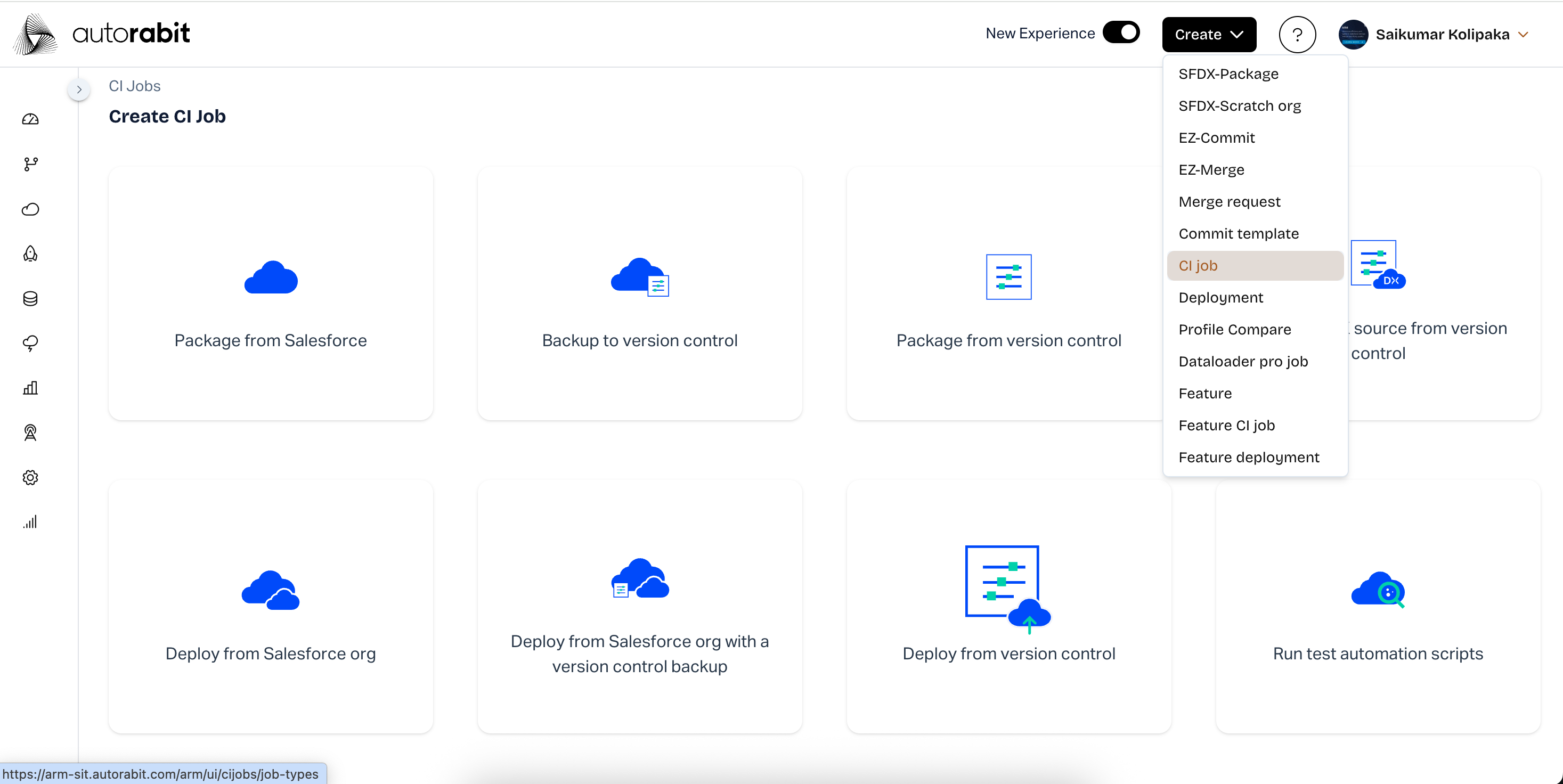
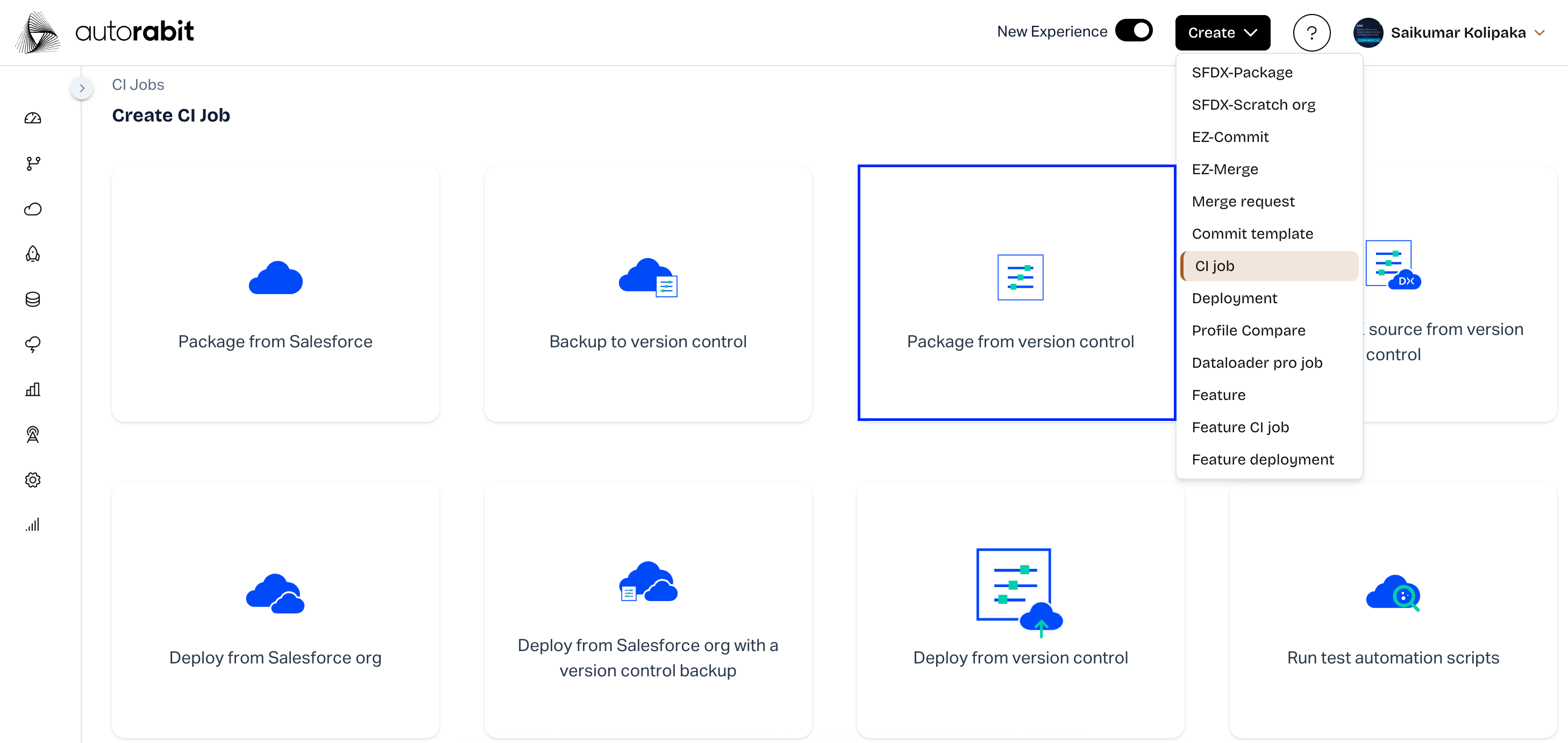
2. From the top navigation pane, navigate to **Create New >** [**New CI Job**](/product-guides/arm/arm-features/automation-and-ci/ci-job-history.md).
1. Choose the tile: **Package from** [**Version Control**](https://www.autorabit.com/blog/do-i-really-need-salesforce-version-control/).
1. Enter a descriptive **Job name**.
2. Add a brief **Description**.
3. (Optional) Choose a **Group** to organize the job, or click **`+`** to create one.
4. The configuration page is divided into sections explained below.
### Build
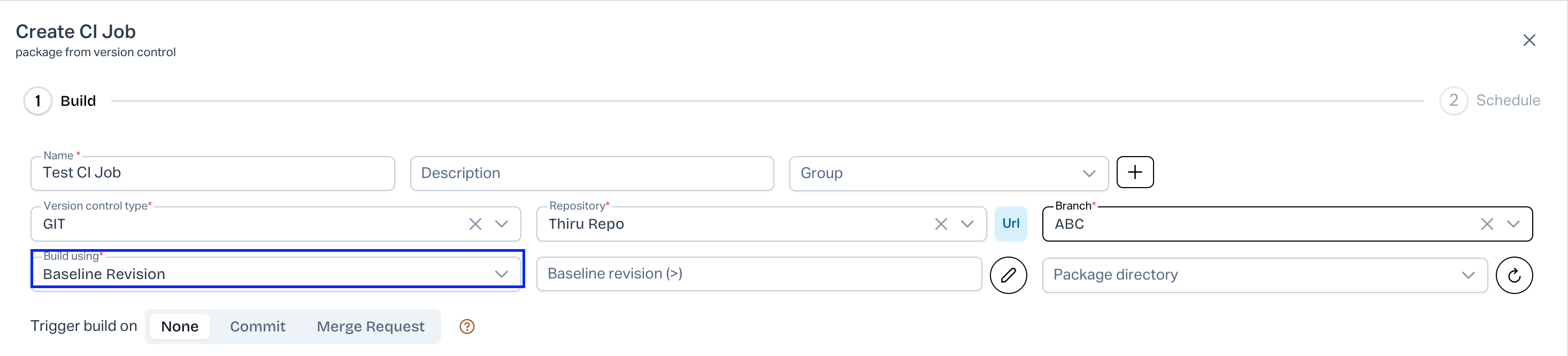
1. Select your [**Version Control**](https://www.autorabit.com/blog/7-tips-for-salesforce-version-control-integration/) **system** – ARM supports Git, SVN, and TFS.
2. Choose the **Repository** and **Branch**.
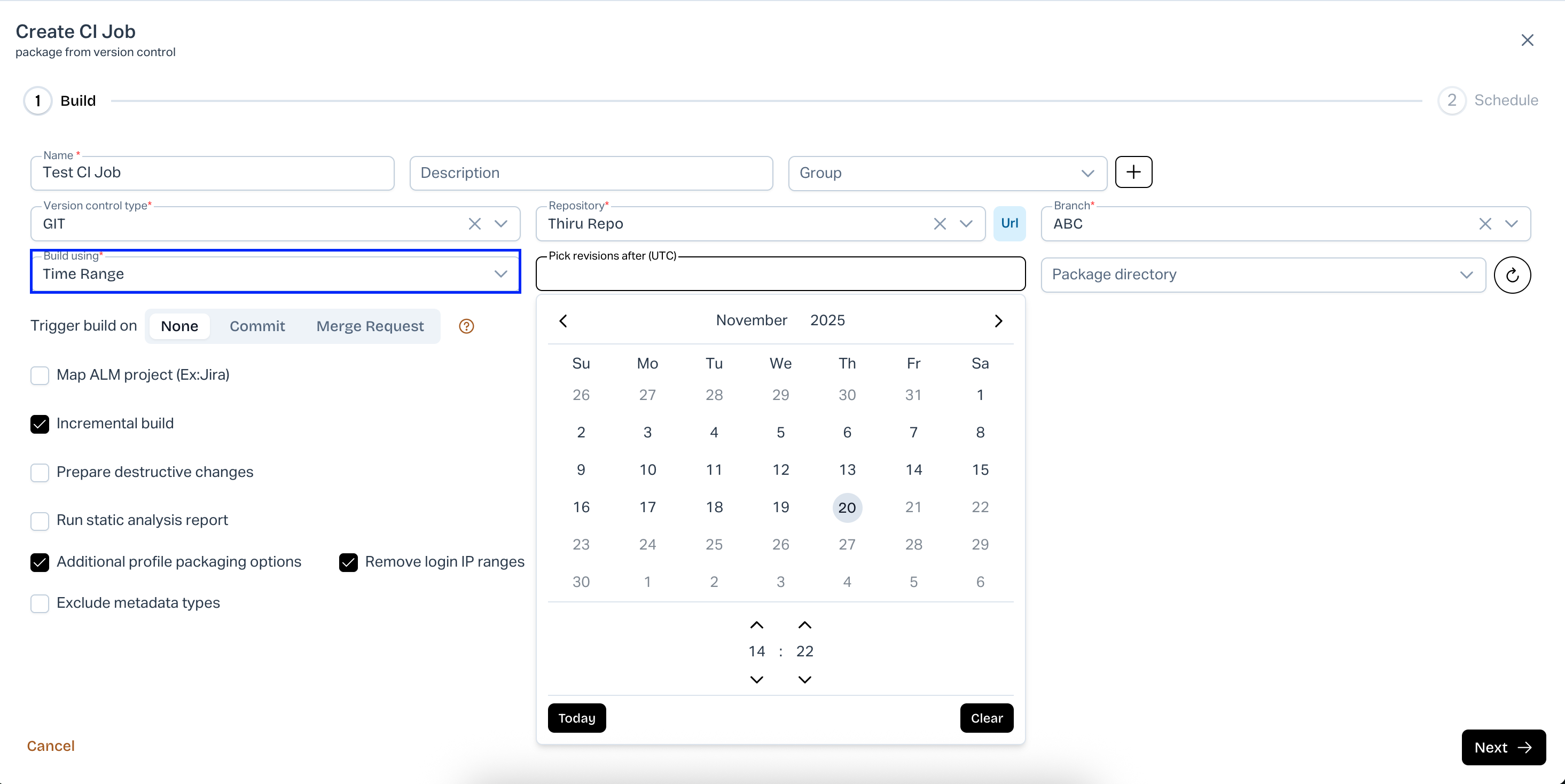
3. Under **Build Using**, pick one option:
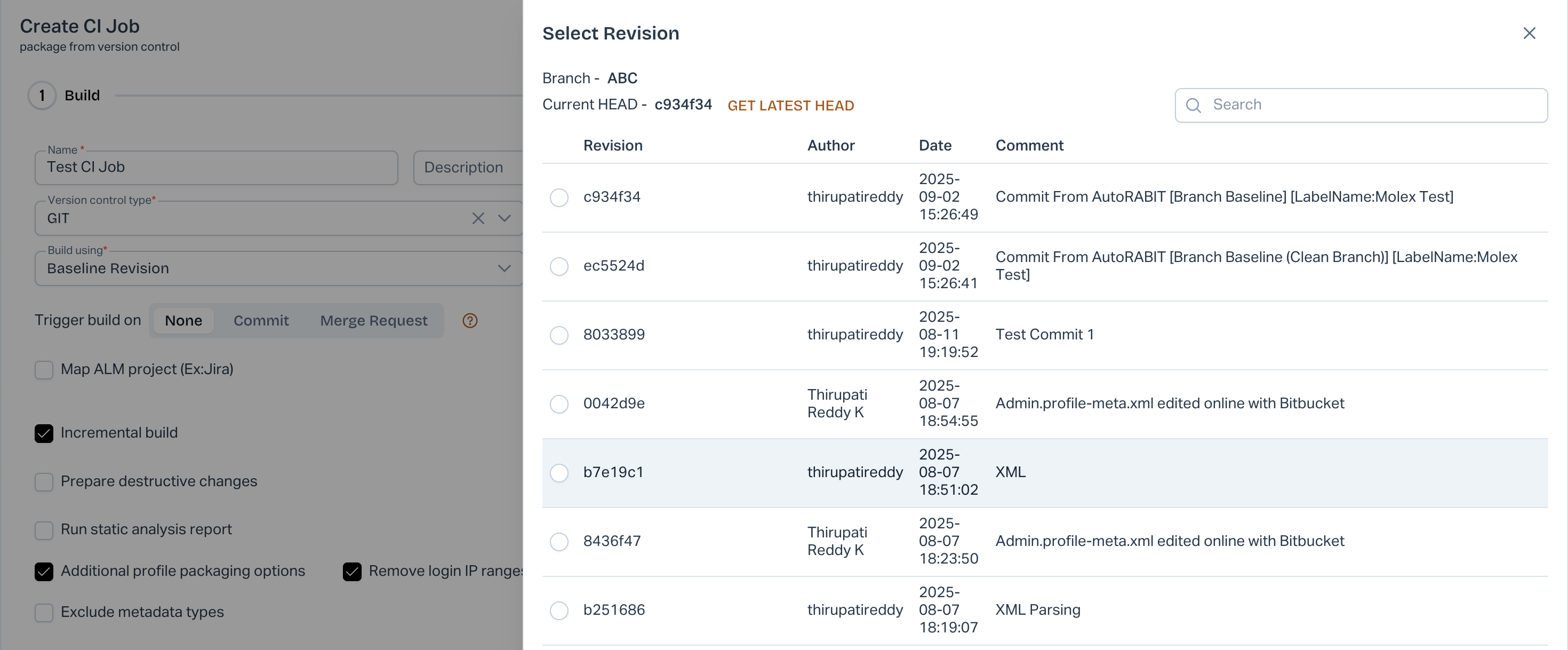
* **Baseline Revision** – Enter a revision manually or click **Edit** () to select it from a list.
{% hint style="info" %}
Important Notes:
1. For the first CI job, you must choose a **Baseline Revision**.
2. **Get Latest HEAD** points to the last commit in the current branch.
{% endhint %}
* **Time Range** – Specify a period so ARM fetches only revisions in that window.
#### Additional options in the Build section
1. **Status Check API** – Check the status of APIs running for the CI job.
2. [**Pull Request**](/product-guides/arm/arm-features/version-control/external-pull-request.md) – Create a pull request for this job.
3. [**Merge Request**](/product-guides/arm/arm-features/version-control/ez-merge/merge-requests.md) – Create a merge request for this job.
4. **Map ALM Project** – Configure ALM (e.g., Jira) work item statuses to include in the build.
{% hint style="warning" %}
**Important note**: **Build Using – Baseline Revision/Time Range** and **Trigger Build on Commit** are unavailable when **Map ALM Project** is selected.
{% endhint %}
5. **Trigger Build on Commit** – Launch a build whenever changes are committed to the branch.
* **Process commit revision via hook only** – Visible only for Git-type repos. When enabled, the build packages changes from the commit revision received via webhook up to the branch head, ensuring no commits are skipped.
{% hint style="warning" %}
Note: If you commit both _nCino record-based config_ and _Salesforce metadata_ files to the same branch, certain Git systems may trigger unnecessary builds. This happens when the **Build on commit** option is enabled and changes occur only in an irrelevant folder.
{% endhint %}
6. **Incremental Build** – Fetch only metadata changed since the last successful deployment, dramatically reducing build time.
{% hint style="info" %}
**Important note**: Incremental Build also works when validating **Deployment Jobs**.
{% endhint %}
7. **Prepare Destructive Changes** – Delete unwanted metadata from the destination org before deployment.
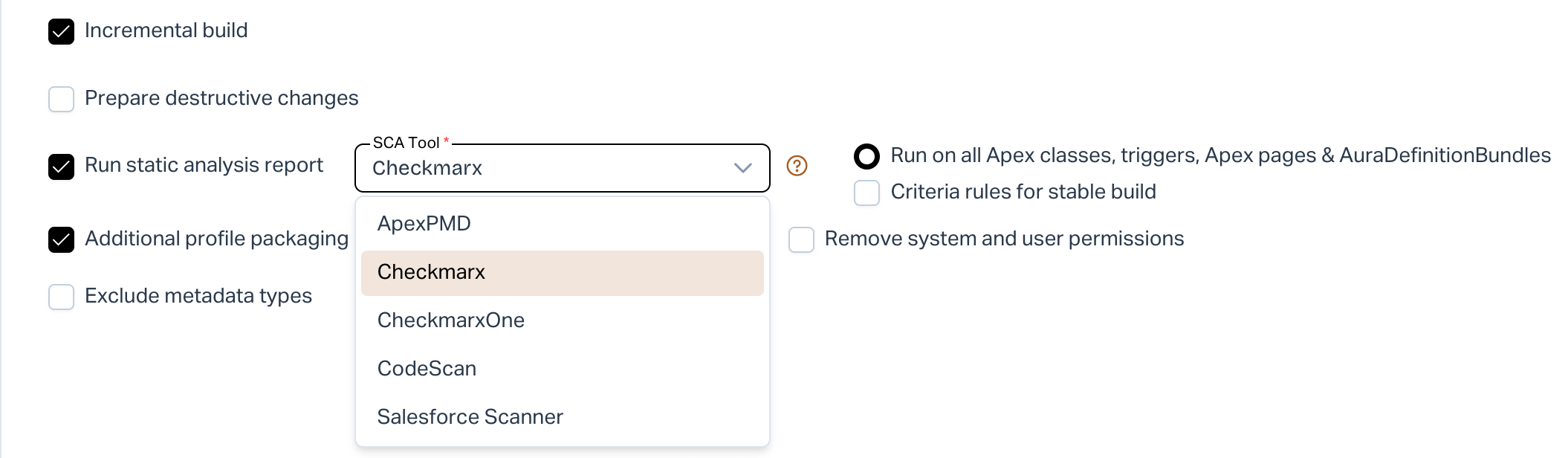
8. **Run Static Analysis Report** – Identify code quality issues before production.
* **Apex PMD / Checkmarx** – Set criteria such as date range and **Priority**. If the priority threshold is not met, the build is marked unstable.
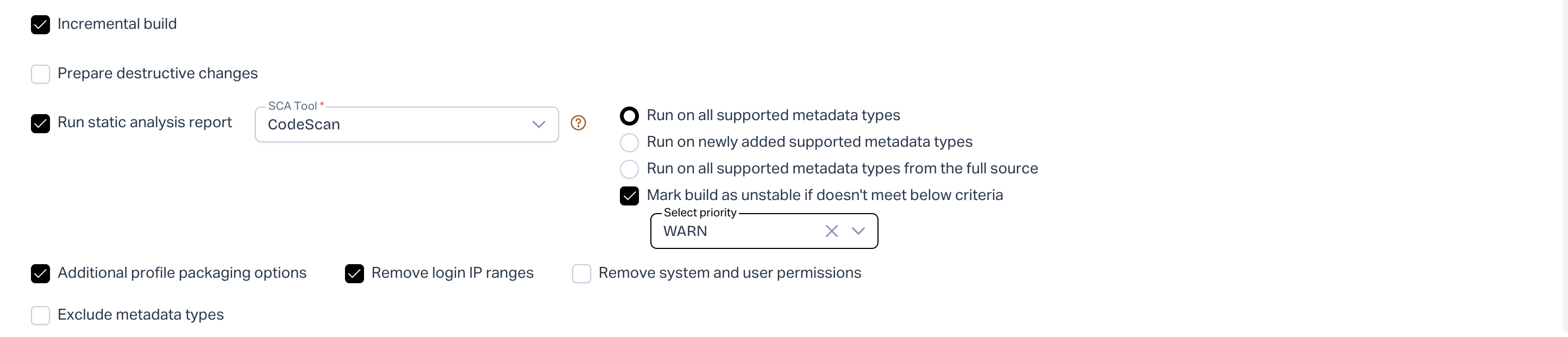
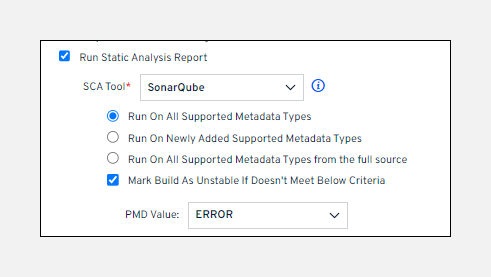
* **CodeScan / SonarQube** – Choose to scan all metadata or only newly added components, then set a **Priority**.
* **Run on all supported metadata types** – Scan every retrieved component.
* **Run on newly added supported metadata types** – Scan only newly added components.
* **Run on all supported metadata types from the full source** – Scan the entire branch.
Scope options for supported metadata types
For details on running **Static Code Analysis in CI jobs**, see [this guide](/product-guides/arm/arm-administration/static-code-analysis-in-ci-cd.md).
7. **Additional Profile Packaging Options**
* **Remove Login IP Ranges** – Omit IP-range restrictions from profiles.
* **Remove System and User Permissions** – Omit profile permissions from deployment.
8. **Exclude Metadata Types** – Skip metadata you don’t need in the build.
{% hint style="info" %}
{% code overflow="wrap" %}
```
**Important note**: To set exclusions globally, open **My Account > My Salesforce Settings**, choose **Exclude metadata types**, and select the types to skip.
```
{% endcode %}
{% endhint %}
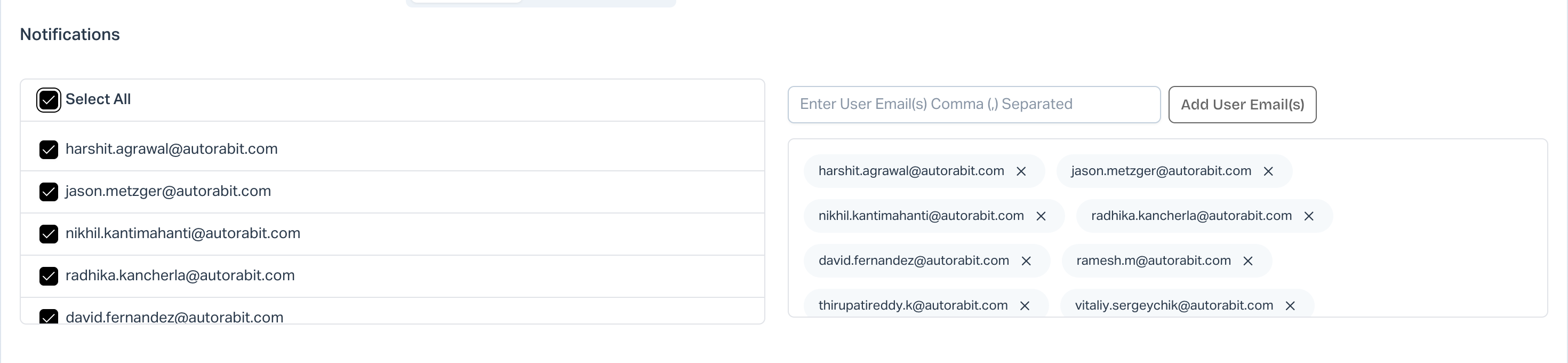
### Notifications
Send email notifications on build success or failure.
### Schedule
* **Daily** – Run every day at the chosen time or interval.
* **Weekly** – Run on selected day(s) and time.
* **No schedule** – Save the job and trigger it manually.
For credential usage details across CI job types, see the [FAQs](/product-guides/arm/troubleshoot/arm-faqs/ci-jobs.md).
### What Next?
After saving the job, ARM redirects you to the [CI Job Results](/product-guides/arm/arm-features/automation-and-ci/ci-job-history.md) page, where you can trigger the first build.
---
# Agent Instructions
This documentation is published with GitBook. GitBook is the documentation platform designed so that both humans and AI agents can read, navigate, and reason over technical content effectively. Learn more at gitbook.com.
## Querying This Documentation
If you need additional information that is not directly available in this page, you can query the documentation by asking a question.
Perform an HTTP GET request on the following URL with the `ask` and `goal` query parameters:
```
GET https://knowledgebase.autorabit.com/product-guides/arm-1/arm-features/automation-and-ci/create-a-new-ci-job/build-a-package-from-version-control.md?ask=&goal=
```
`ask` is the immediate question: it should be specific, self-contained, and written in natural language.
`goal` is what the user is ultimately trying to achieve, the reason they need the answer. Sharing it helps GitBook give you a better, more relevant answer. A goal is most helpful when it describes the outcome the user wants rather than restating the question. For example, with `ask=how do I create an API token`, a goal like `automate deployments from our CI pipeline` lets GitBook tailor the answer to that use case.
The response will contain a direct answer to the question and relevant excerpts and sources from the documentation.
Use this mechanism when the answer is not explicitly present in the current page, you need clarification or additional context, or you want to retrieve related documentation sections.