> For the complete documentation index, see [llms.txt](https://knowledgebase.autorabit.com/llms.txt). Markdown versions of documentation pages are available by appending `.md` to page URLs; this page is available as [Markdown](https://knowledgebase.autorabit.com/product-guides/arm-1/arm-features/automation-and-ci/create-a-new-ci-job/deploy-a-package-from-a-salesforce-org.md).
# Deploying a package from a Salesforce Org
{% hint style="info" %}
The **CI Jobs** screen is best viewed when the zoom setting is set to **80%** on your Chrome/Firefox browser.
{% endhint %}
### Why Does Salesforce Recommend Moving From SFDX to SFCLI?
Click [here](/product-guides/arm/troubleshoot/known-issues-limitations/salesforce-known-limitations.md#why-does-salesforce-recommend-moving-from-sfdx-to-sfcli) for more info.
### Overview
Create a deployment package from metadata changes made in a Salesforce org after a specified start date and deploy those changes in another Salesforce org. This job helps teams automate the promotion of recently developed changes without manually selecting individual components. The job can also be configured to execute functional test cases as part of the deployment process.
Example:
\
A development team completes a set of enhancements in a sandbox environment over several days. By specifying a start date, ARM automatically identifies the metadata changes made during that period, builds a deployment package, and deploys it in a QA environment. This streamlines the release process, reduces manual effort, and helps ensure that only the intended changes are migrated.
### Procedure
1. Log in to your ARM account.
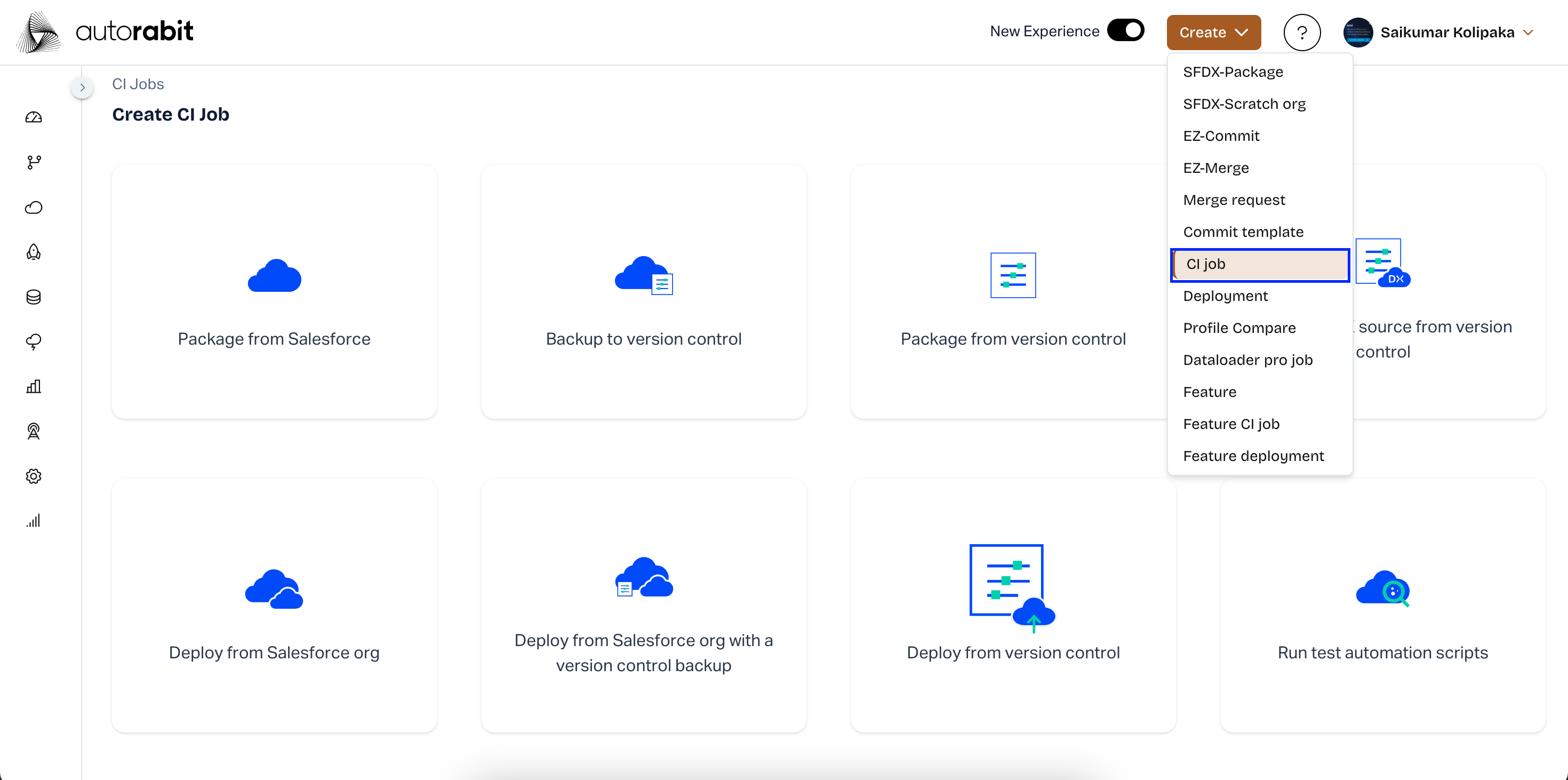
2. From the top navigation pane, navigate to **Create New > New CI Job**.
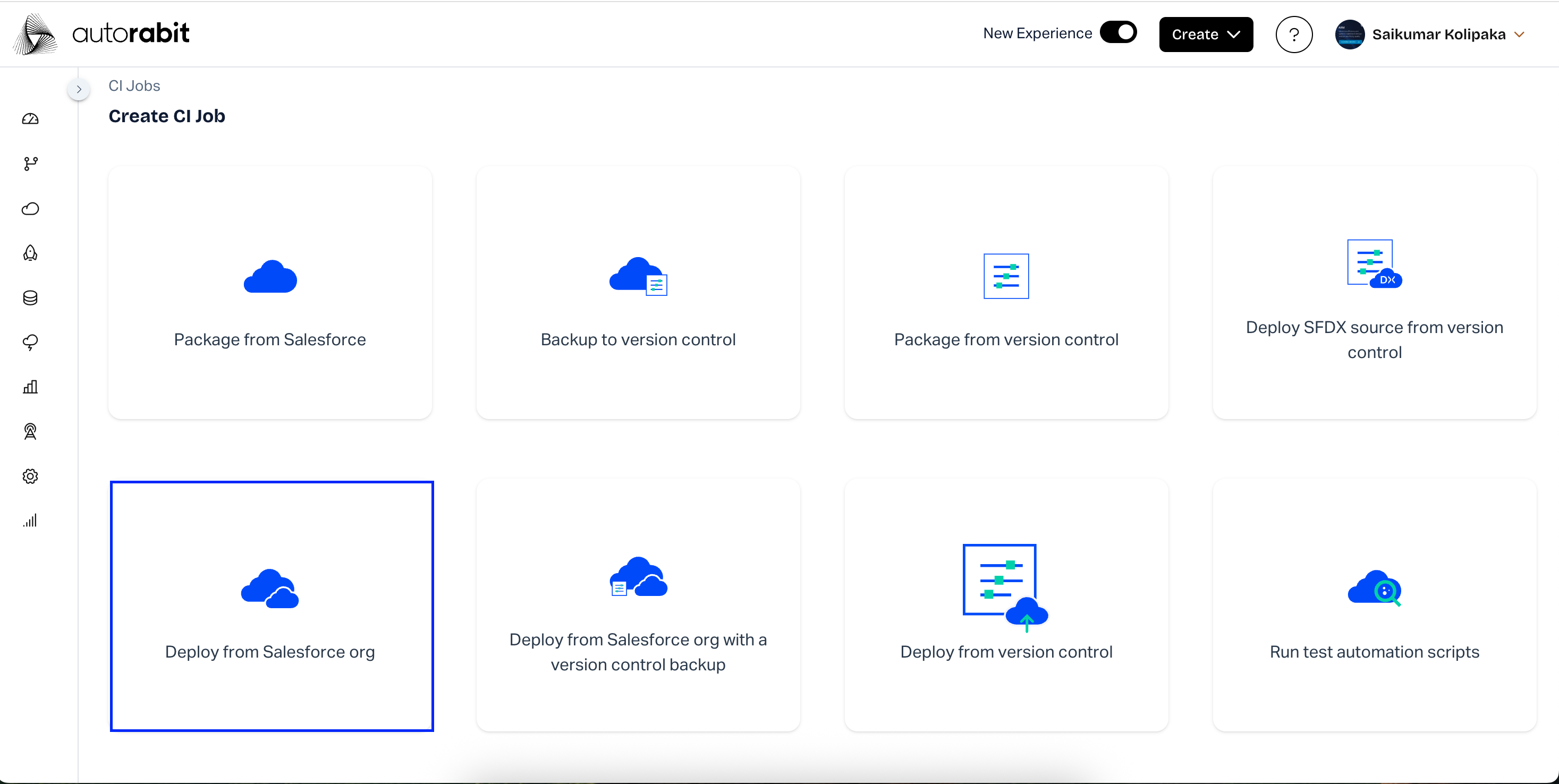
1. Choose the tile: **Deploy From Salesforce Org**
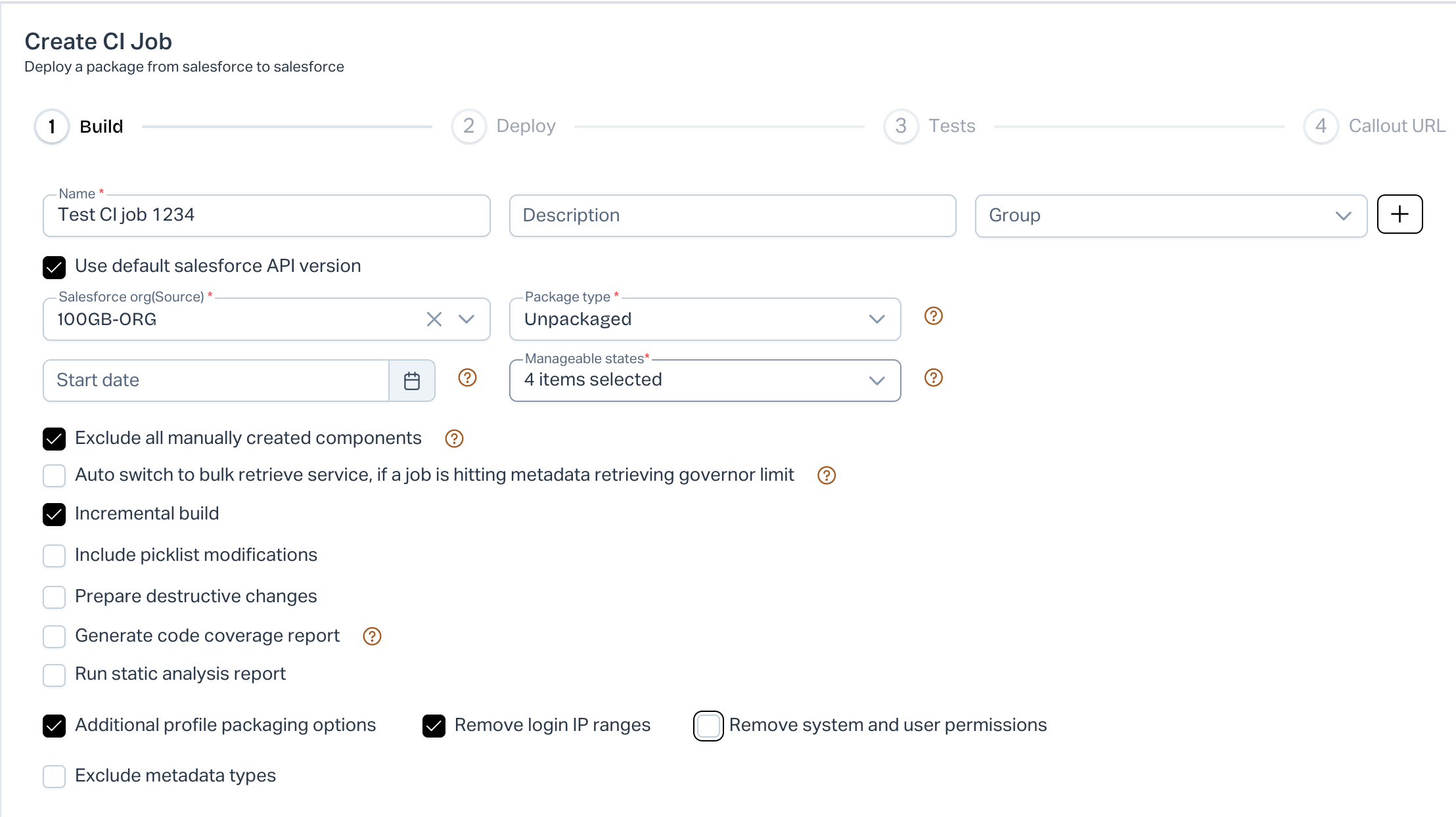
1. Enter a descriptive **Job Name**.
2. Add a brief **Description**.
3. (Optional) Choose a **Group** to organize the job, or click **`+`** to create a new group.
4. The configuration page is divided into sections explained below.
### Build
Under **Build**, provide:
1. **Source Salesforce Org** – The org to retrieve metadata from.
2. **Package Type** – How ARM gathers metadata:
* **Unpackaged Mode:** Retrieves metadata modified since the last ARM cycle (or since **Start Date**, if set).
* **Unmanaged Packages:** Provides editable building blocks installed as application templates.
* **Managed Packages:** Used by partners to distribute applications created in a **Developer Edition** org.
For more information, see the [Salesforce help article](https://help.salesforce.com/HTViewHelpDoc?id=sharing_apps.htm\&language=en_US).
**Additional Options in the Build Section**
1. **Auto Switch to Bulk Retrieve Service if Job Hits Metadata Governor Limit:** Use batch retrieval when a job approaches the 10,000 file or 39MB limit. Specify **Batch Size** (up to 10,000).
2. **Exclude Installed (Managed) Components and Changes:** Skip all managed package components.
* **Exclude All Manually Created Components:** Also skip custom components in managed packages.
3. **Incremental Build:** Fetch only metadata changed since the previous successful deployment, improving build time.
4. **Include Picklist Modifications:** Always include picklist fields, even if the “last modified” date is unchanged (source = Salesforce org only).
5. **Prepare Destructive Changes:** Delete unwanted metadata in the destination org before deployment.
6. **Generate Code Coverage Report:** Include Apex test coverage details.
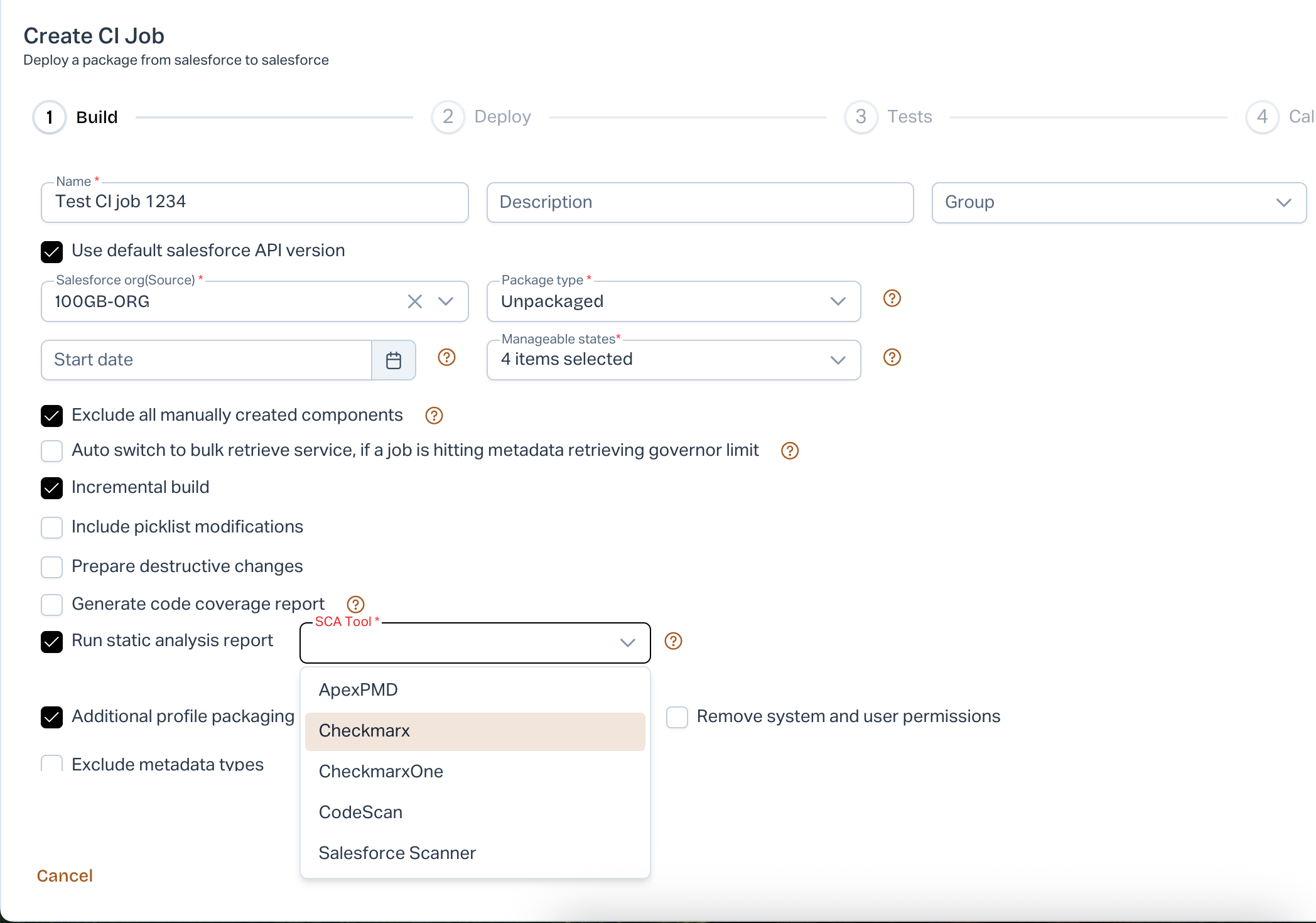
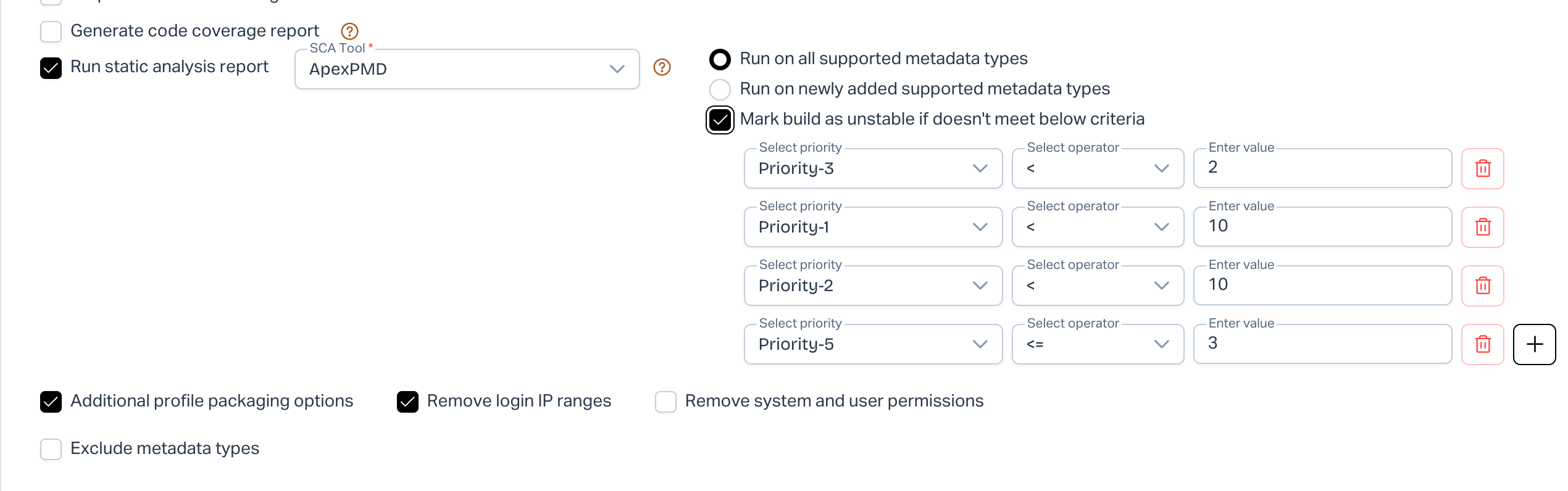
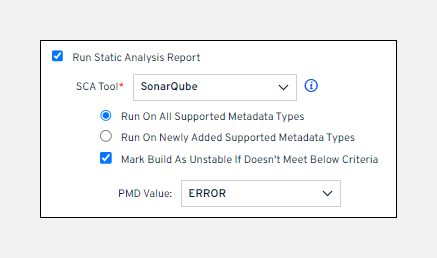
7. **Run Static Analysis Report:** Identify code quality issues before production.
* **Apex PMD / Checkmarx:** Set scan criteria and **Priority**. If the threshold is not met, the build is marked unstable.
* **CodeScan / SonarQube:** Choose to scan all metadata or only newly added components, then set a **Priority**.
* **Run on All Supported Metadata Types:** Scan every retrieved component.
* **Run on Newly Added Supported Metadata Types:** Scan only newly added components.
Scope Options for Supported Metadata Types
*For more information on running **Static Code Analysis in CI Jobs**, see* [*this guide*](/product-guides/arm/arm-administration/static-code-analysis-in-ci-cd.md)*.*
1. **Additional Profile Packaging Options:**
* **Remove Login IP Ranges:** Omit IP-range restrictions from profiles.
* **Remove System and User Permissions:** Omit profile permissions from deployment.
* **Exclude Metadata Types:** Skip metadata you don’t need in the build.
{% hint style="info" %}
**Important Note:** To set exclusions globally, open **My Account > My Salesforce Settings**, choose **Exclude metadata types**, and select the types to skip. These settings apply to all future CI jobs.
{% endhint %}
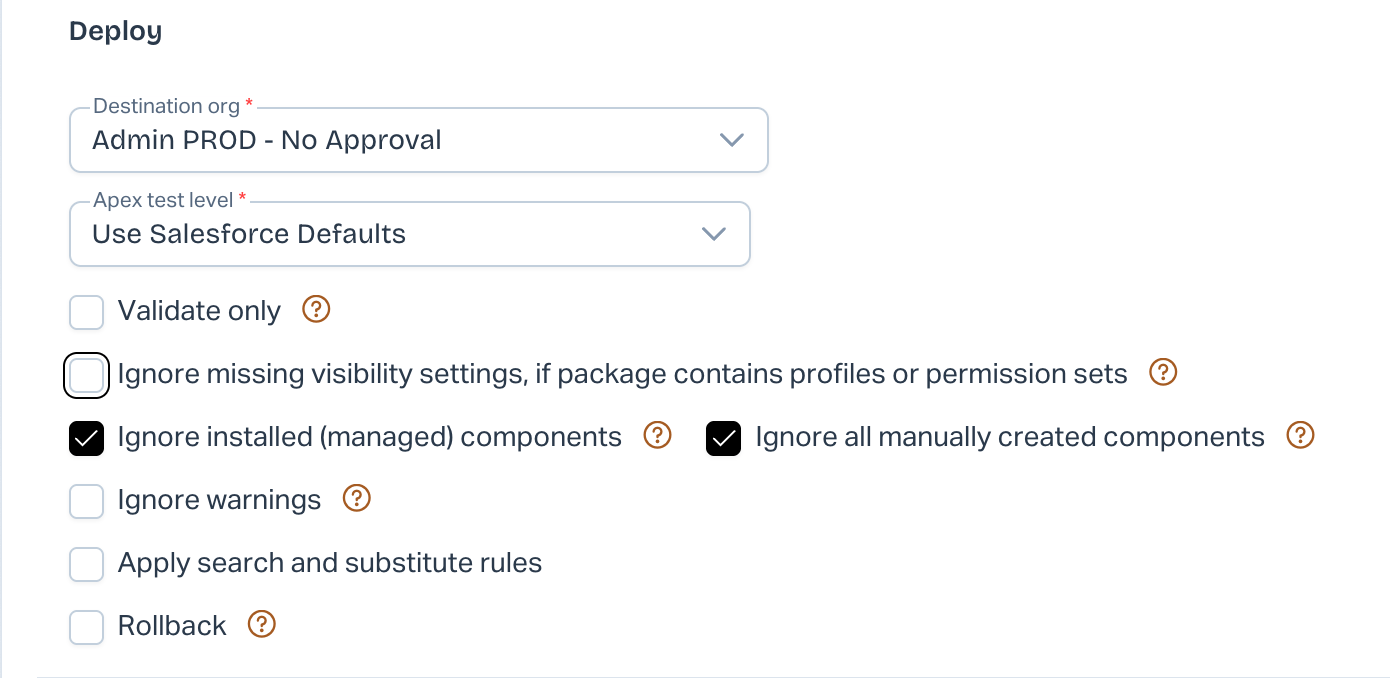
### Deploy
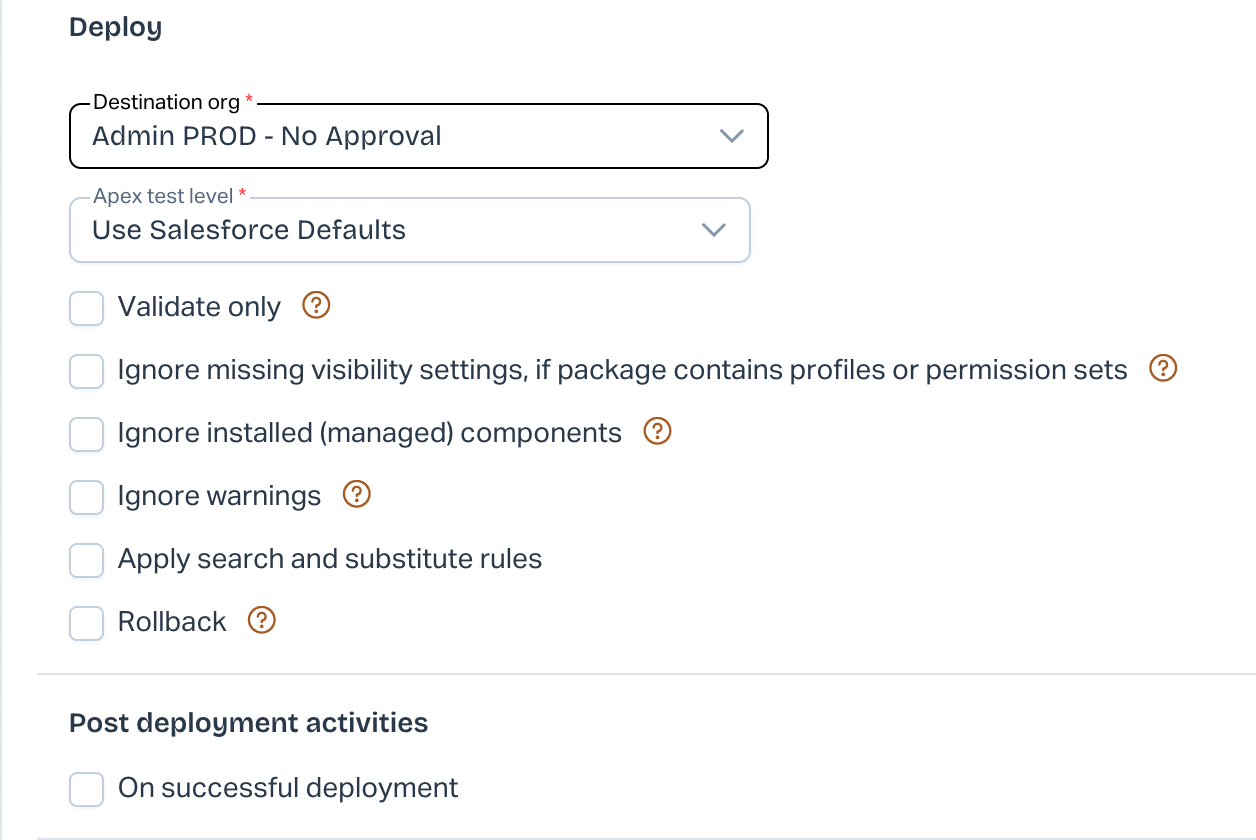
Deploy or validate the package in a destination org:
* **Deployment Org:** Select the destination org.
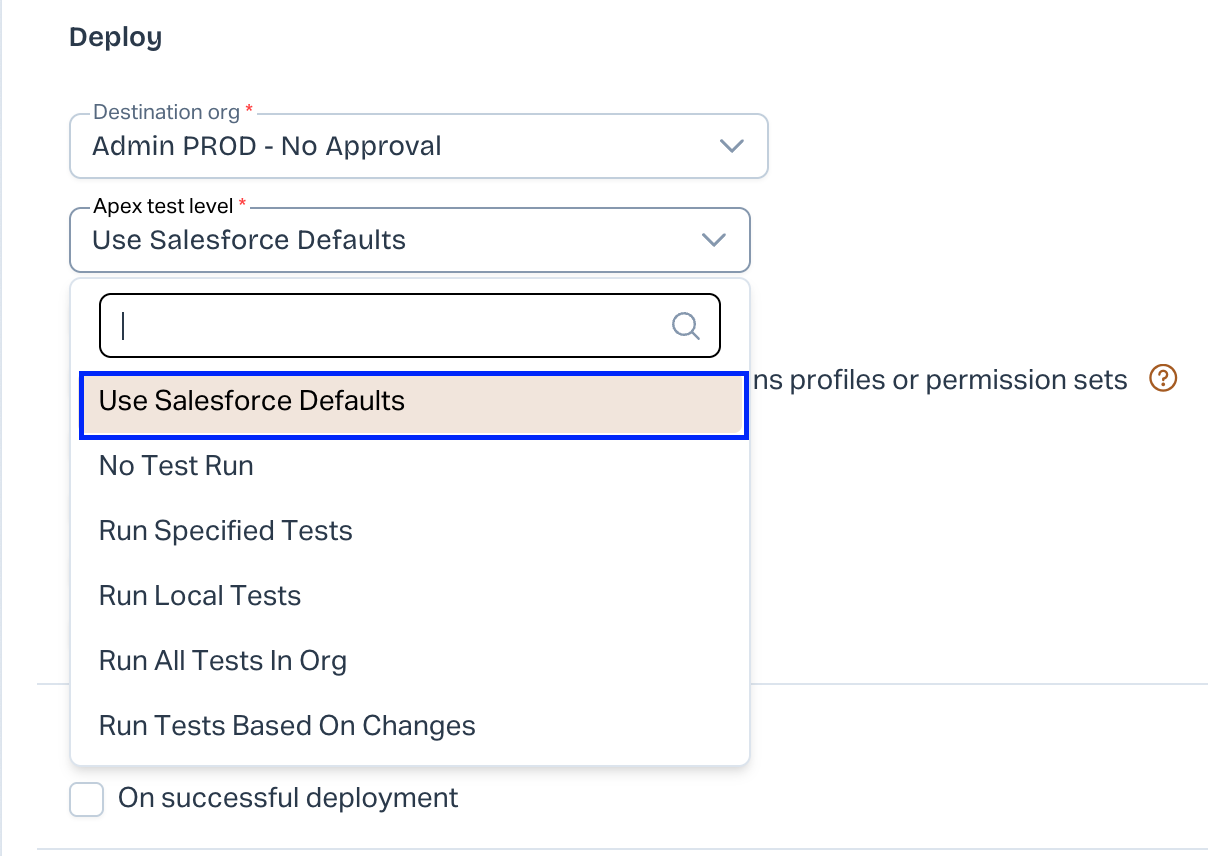
* **Apex Test Level:** Choose the test scope:
1. **Use Salesforce Defaults** – Default Salesforce behavior.
2. **No Test Run** – No tests unless deploying to production.
3. **Run Specified Tests** – Run only named tests; ARM checks coverage per class (75 % minimum).
4. **Run Local Tests** – Run all tests except those from managed packages.
5. **Run All Tests in Org** – Run every test, including managed-package tests.
6. **Run Tests Based on Changes** – Identify and run relevant test classes; optionally update the default test-class list.
7. **Run Relevant Tests** – Executes only Salesforce-identified impacted Apex tests during validations, deployments, and Quick Deploys to reduce deployment time while maintaining required test coverage.
{% hint style="info" %}
**Important Notes:**
* Specify test class names comma-separated in **runTests** when **Run Specified Tests** is selected.
* Ensure tests have run at least once before using **Run Tests Based on Changes**.
{% endhint %}
### **Additional Deployment Options**
1. **Validate Only:** Run validation without deploying.
* **Prevent Deployment:** Disable deployment for validation-only jobs.
{% hint style="info" %}
**Important Note:** Test cases do not run when **Validate Only** is selected.
{% endhint %}
2. **Rollback:** Save a backup to allow rollback.
3. **Ignore Missing Visibility Settings if Package Contains Profiles or Permission Sets:** Deploy profiles/permission sets even if visibility settings differ.
4. **Ignore Installed (Managed) Components:** Skip managed package components.
* **Ignore All Manually Created Components:** Also skip custom managed package components.
5. **Ignore Warnings:** Deploy even if warnings occur.
6. **Do Not Include 'Skip Members' During Deployment:** Override global skip settings for this deployment.
7. **Run Destructive Changes:** Choose pre- or post-destructive changes.
8. **Apply Search and Substitute Rules:** Apply custom find/replace rules during deployment.
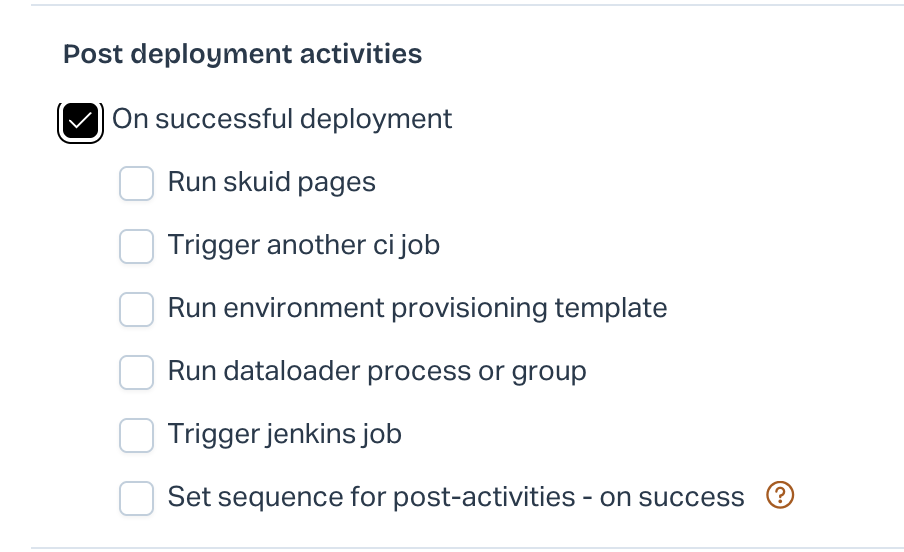
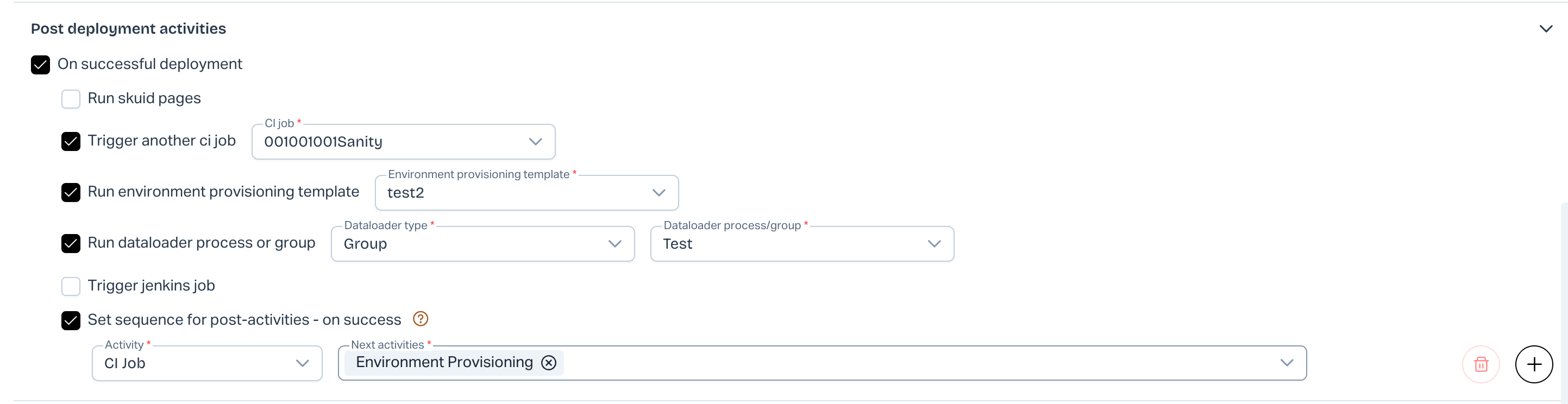
9. **On Successful Deployment:** Trigger post-deployment actions (Skuid pages, CI jobs, environment templates, DataLoader processes, merge processes, Jenkins jobs, parallel processors, or a sequence of activities).
*You can sequence multiple post-deployment actions:*
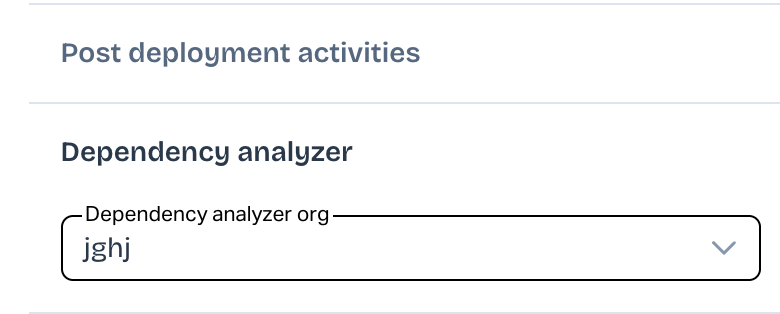
### Dependency Analyzer
Analyze metadata dependencies to avoid breaking changes:
### Tests
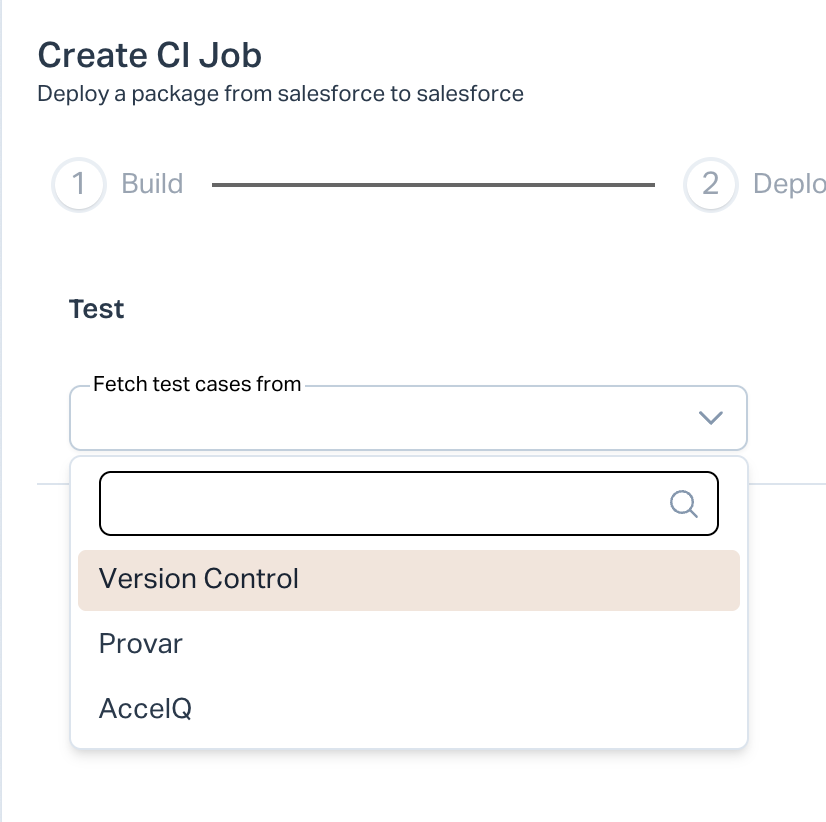
Run functional tests before deployment:
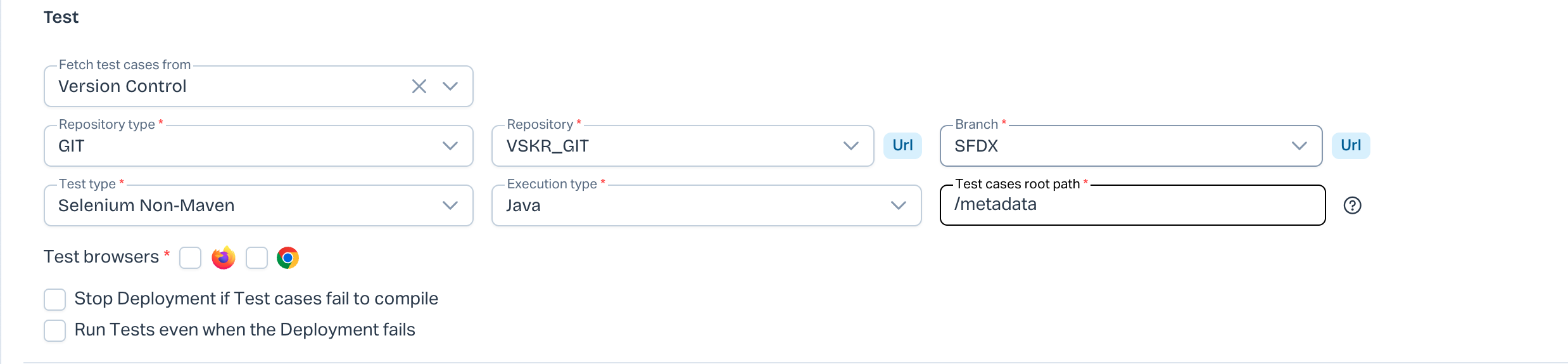
* **Version Control:** Choose repository, branch, and test type (TAF, Selenium Maven, Selenium Non-Maven).
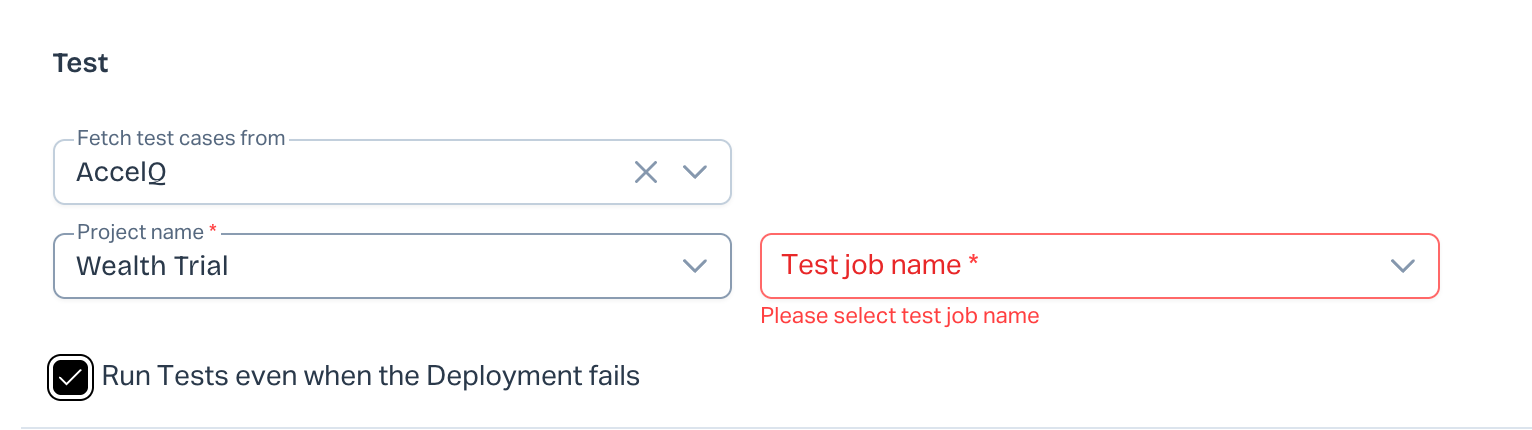
* **AccelQ:** Enter **Project Name**, **Test Job Name**, and parameters.
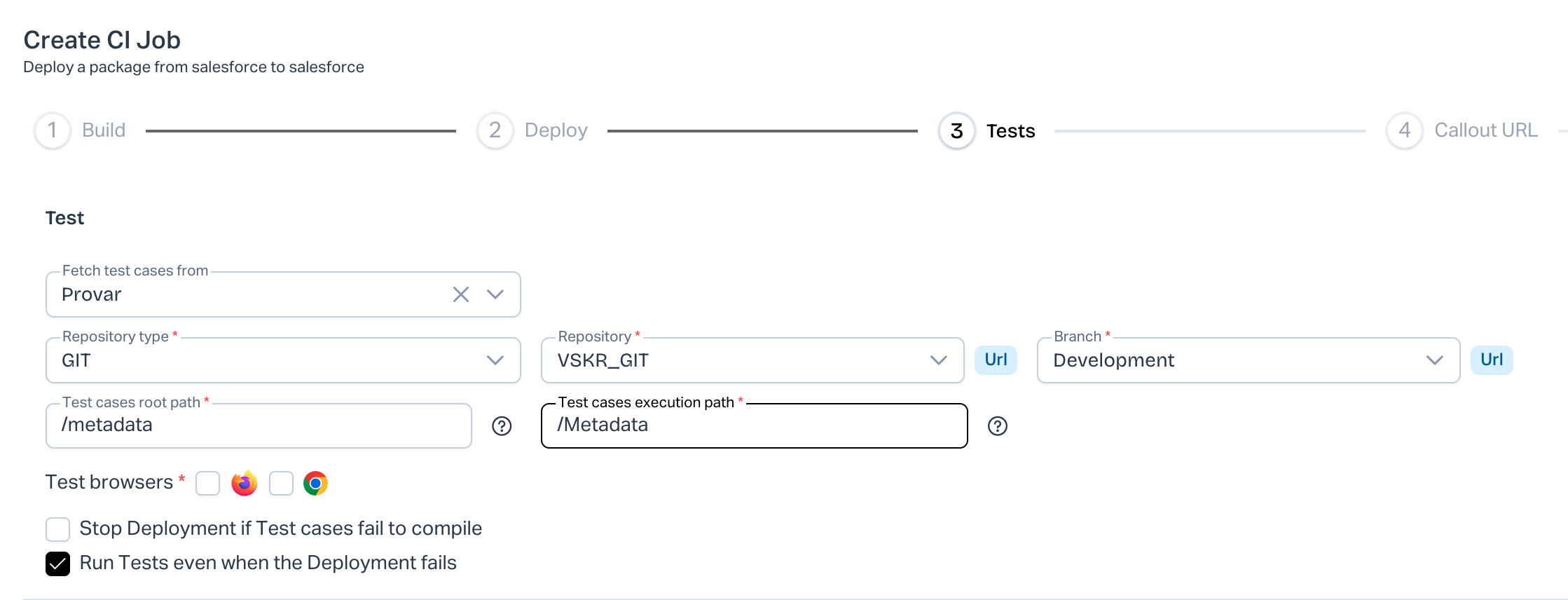
* **Provar:** Provide repository, branch, test-case root path, and execution path.
### Callout URL
Configure HTTP callouts to external services. See the [Callout URL guide](/product-guides/arm/arm-features/automation-and-ci/configure-callout-url.md).
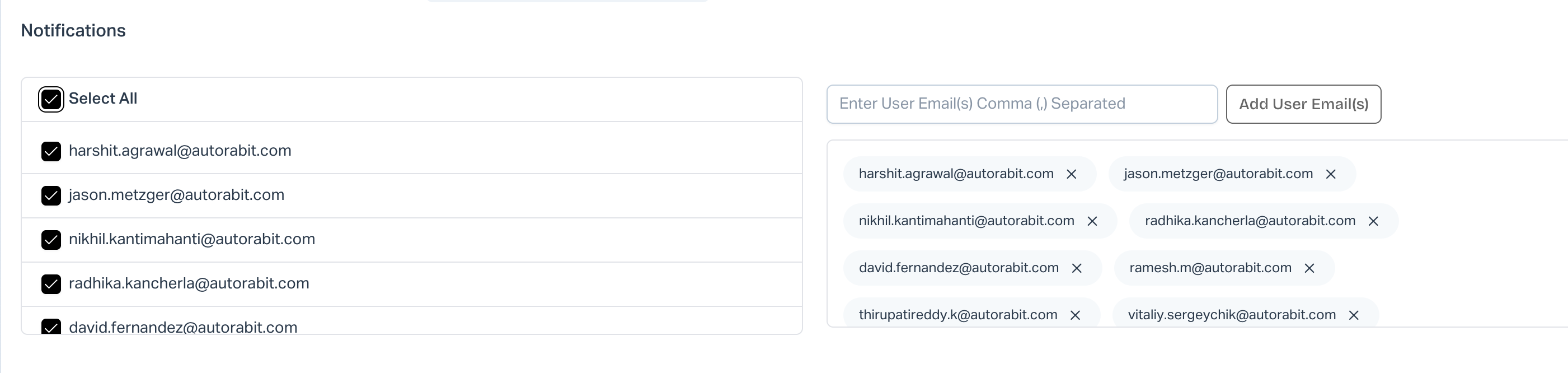
### Notifications
Send success or failure emails to selected recipients.
### Schedule
* **Daily** – Run every day at the chosen time or interval.
* **Weekly** – Run on selected day(s) and time.
* **No Schedule** – Save the job and trigger it manually.
### Save
Click **Save** to store the CI job settings.
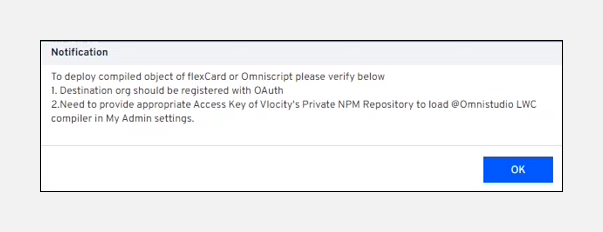
If you deploy compiled **FlexCard** and **OmniScript** objects, verify both:
Vlocity Compilation Settings
1. The destination org is registered via **OAuth** (not Standard).
2. **Local Compilation** is enabled in **My Account** and the correct **Access Key** is entered.
For credential usage details across CI job types, see the [FAQs](/product-guides/arm/troubleshoot/arm-faqs/ci-jobs.md).
---
# Agent Instructions
This documentation is published with GitBook. GitBook is the documentation platform designed so that both humans and AI agents can read, navigate, and reason over technical content effectively. Learn more at gitbook.com.
## Querying This Documentation
If you need additional information that is not directly available in this page, you can query the documentation by asking a question.
Perform an HTTP GET request on the following URL with the `ask` and `goal` query parameters:
```
GET https://knowledgebase.autorabit.com/product-guides/arm-1/arm-features/automation-and-ci/create-a-new-ci-job/deploy-a-package-from-a-salesforce-org.md?ask=&goal=
```
`ask` is the immediate question: it should be specific, self-contained, and written in natural language.
`goal` is what the user is ultimately trying to achieve, the reason they need the answer. Sharing it helps GitBook give you a better, more relevant answer. A goal is most helpful when it describes the outcome the user wants rather than restating the question. For example, with `ask=how do I create an API token`, a goal like `automate deployments from our CI pipeline` lets GitBook tailor the answer to that use case.
The response will contain a direct answer to the question and relevant excerpts and sources from the documentation.
Use this mechanism when the answer is not explicitly present in the current page, you need clarification or additional context, or you want to retrieve related documentation sections.