> For the complete documentation index, see [llms.txt](https://knowledgebase.autorabit.com/llms.txt). Markdown versions of documentation pages are available by appending `.md` to page URLs; this page is available as [Markdown](https://knowledgebase.autorabit.com/product-guides/arm-1/arm-features/dataloader/single-dataloader/delete-salesforce-data.md).
# Deleting Salesforce Data
The following articles provide guidance on using **Single DataLoader** to delete data from Salesforce. Deletion requires a **CSV file** that contains the record IDs of the objects targeted for removal. Once the CSV file is prepared, the Single DataLoader can process the file and perform the deletions in bulk, ensuring accuracy and efficiency.
Step-By-Step Guide
1. **Delete Job – Login and Select Object**
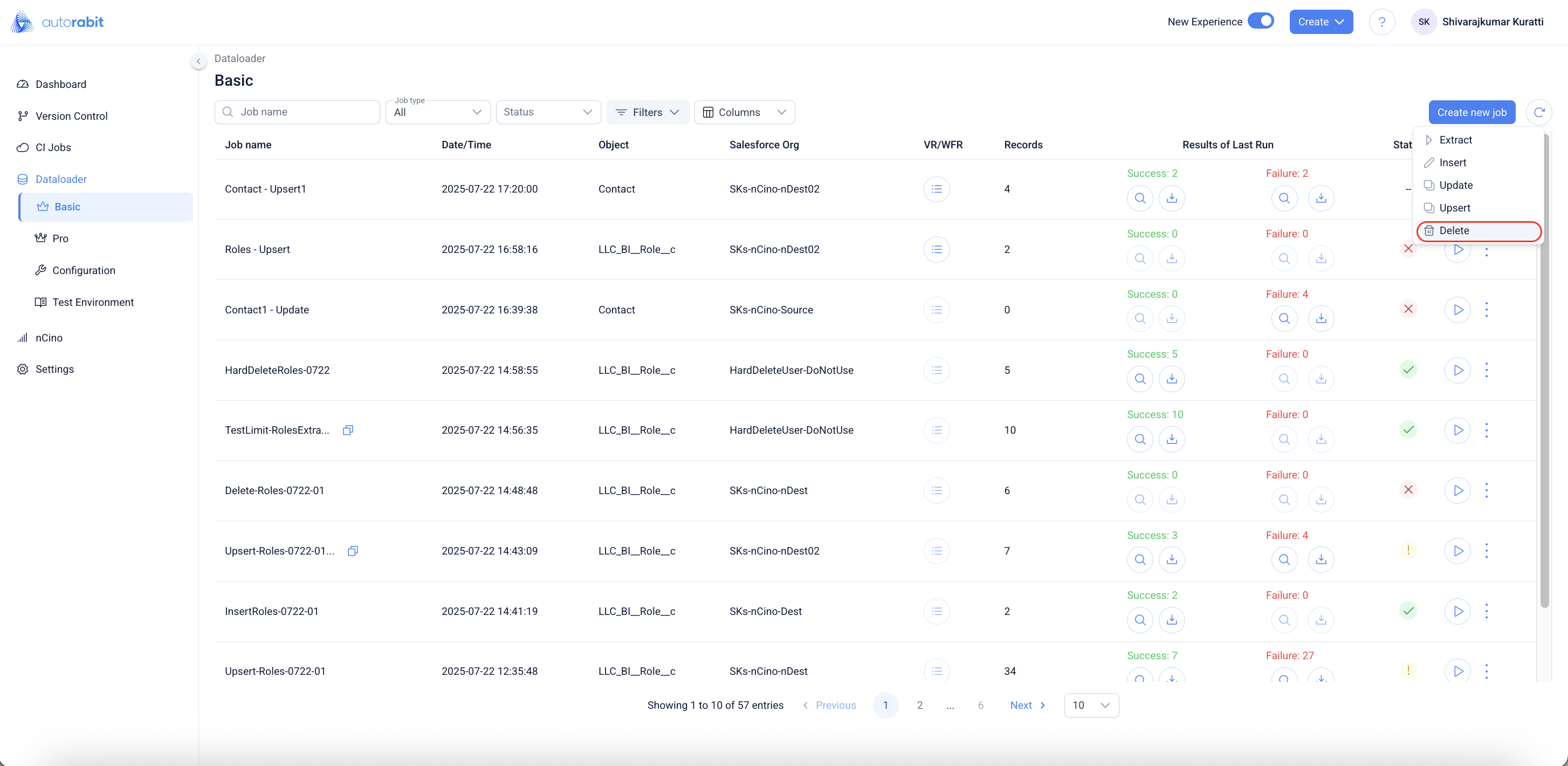
* From the **Basic** tab in DataLoader, select **Create new job** and choose **Delete**.
* The **Create delete process** window opens, prompting users to log in and select the Salesforce Org.
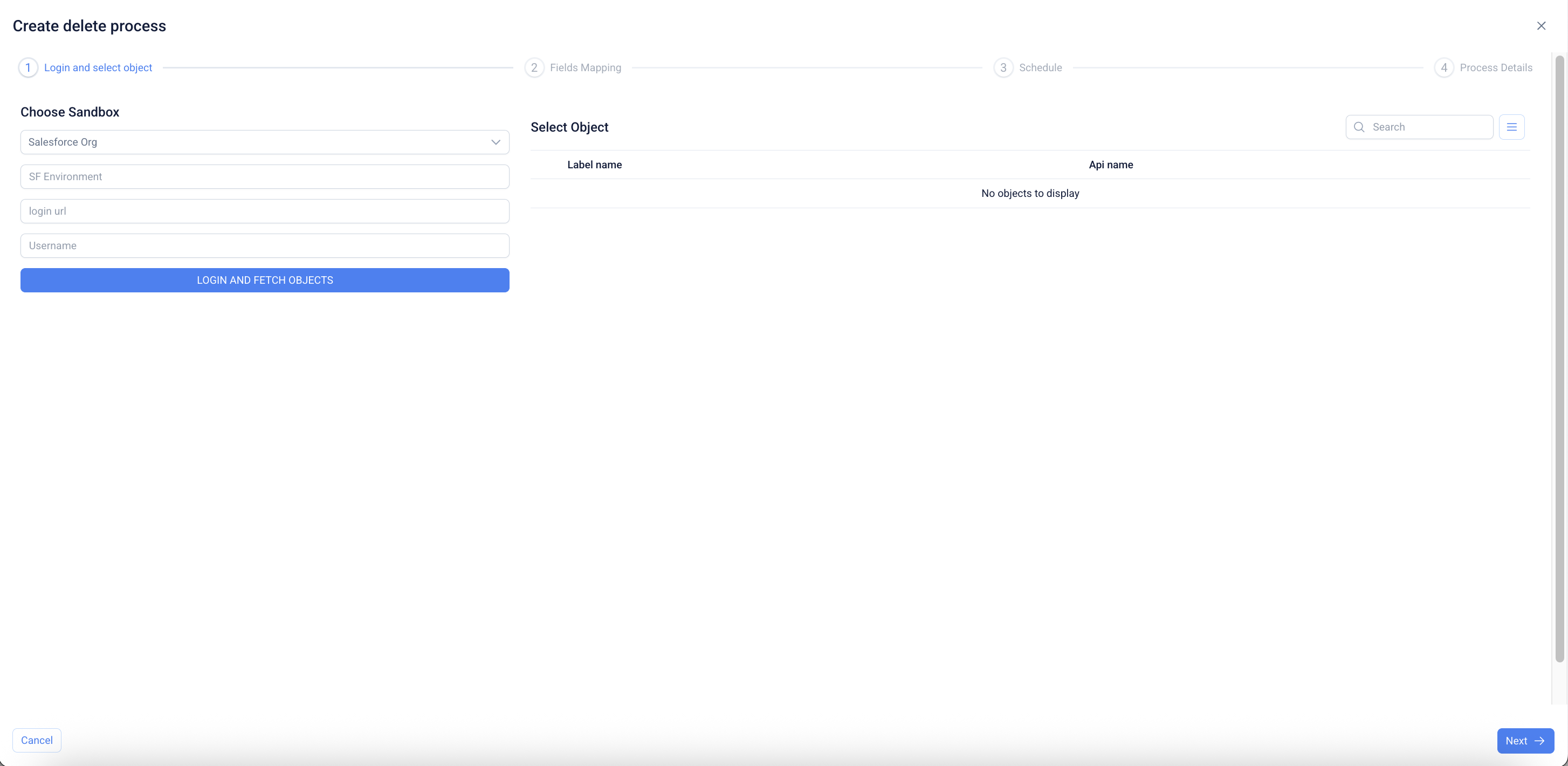
2. **Delete Job – Provide Salesforce Org Details**
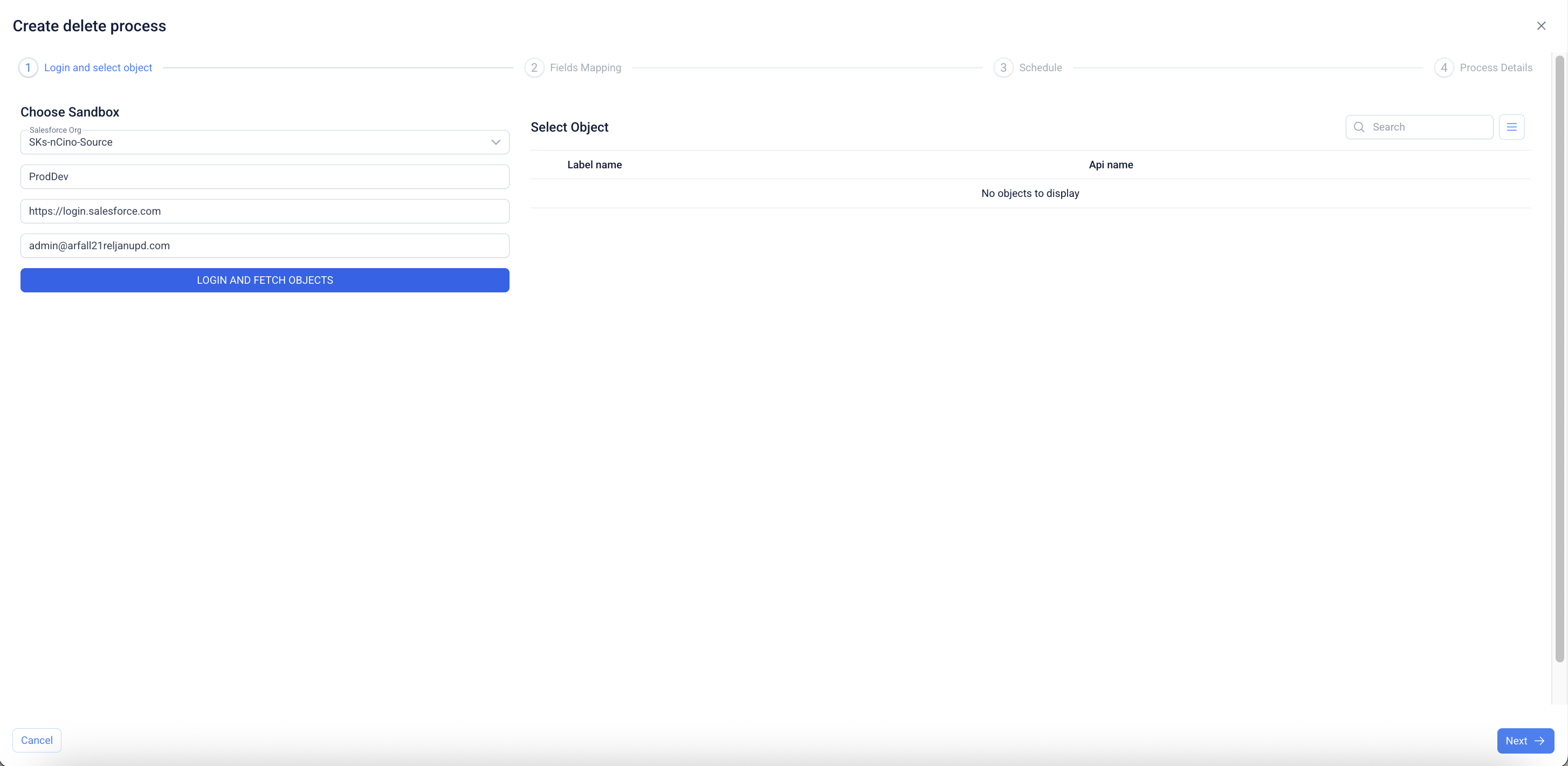
* Enter the **Salesforce Org** details to establish the connection.
* Provide the following fields:
* **Salesforce Org**: Select from the available dropdown.
* **Environment**: Specify the Salesforce environment (e.g., ProdDev, Sandbox).
* **Login URL**: Enter the Salesforce login endpoint.
* **Username**: Provide the Salesforce username.
* Click **Login and Fetch Objects** to retrieve the list of objects available for deletion.
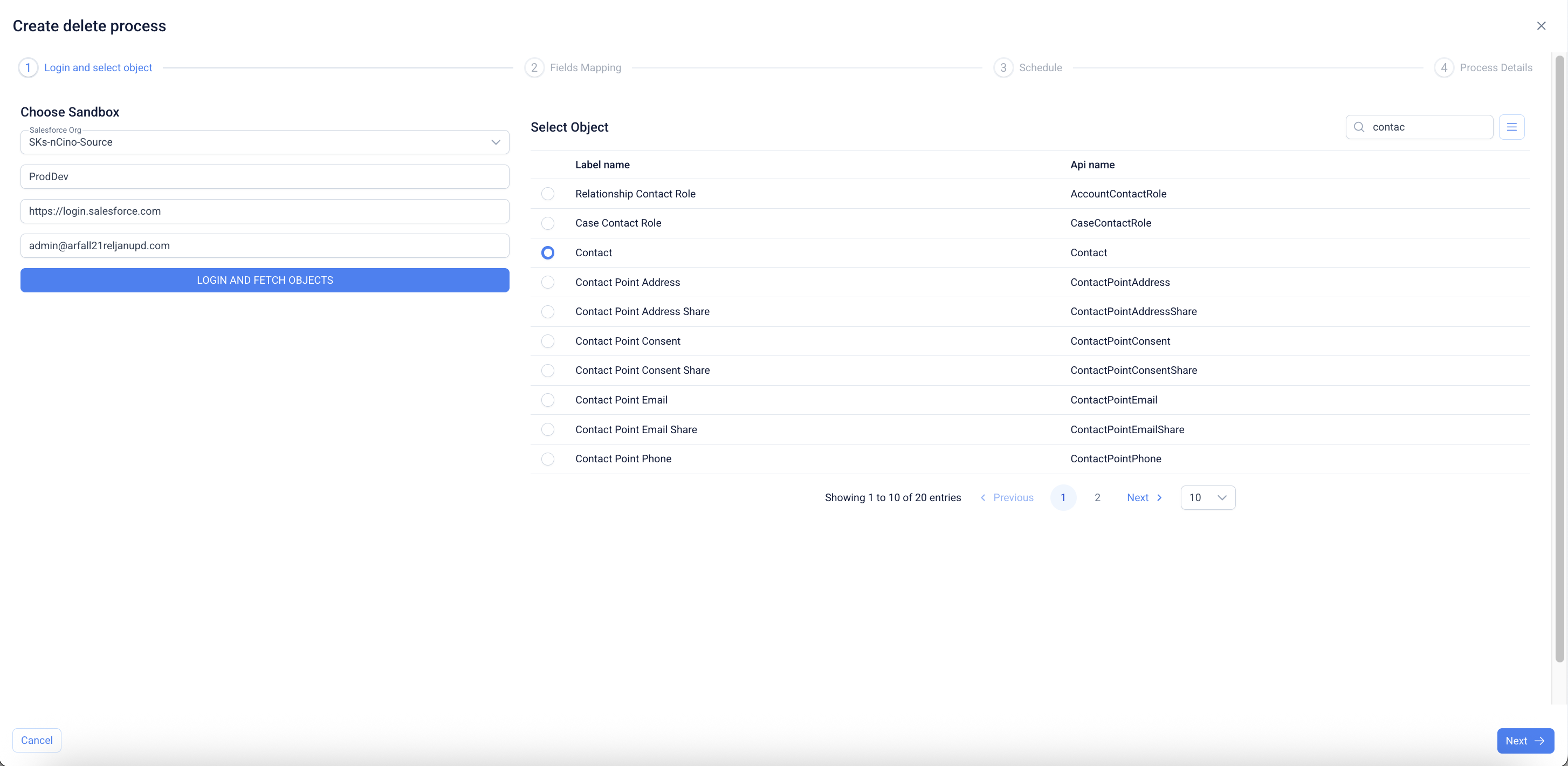
3. **Delete Job – Select Object**
* Once logged in successfully, the system fetches Salesforce objects for deletion.
* Use the **Search bar** or scroll through the list to locate the required object.
* Select the target object (e.g., **Contact**) for the delete operation.
* Click **Next** to proceed with field mapping.
4. Delete Process
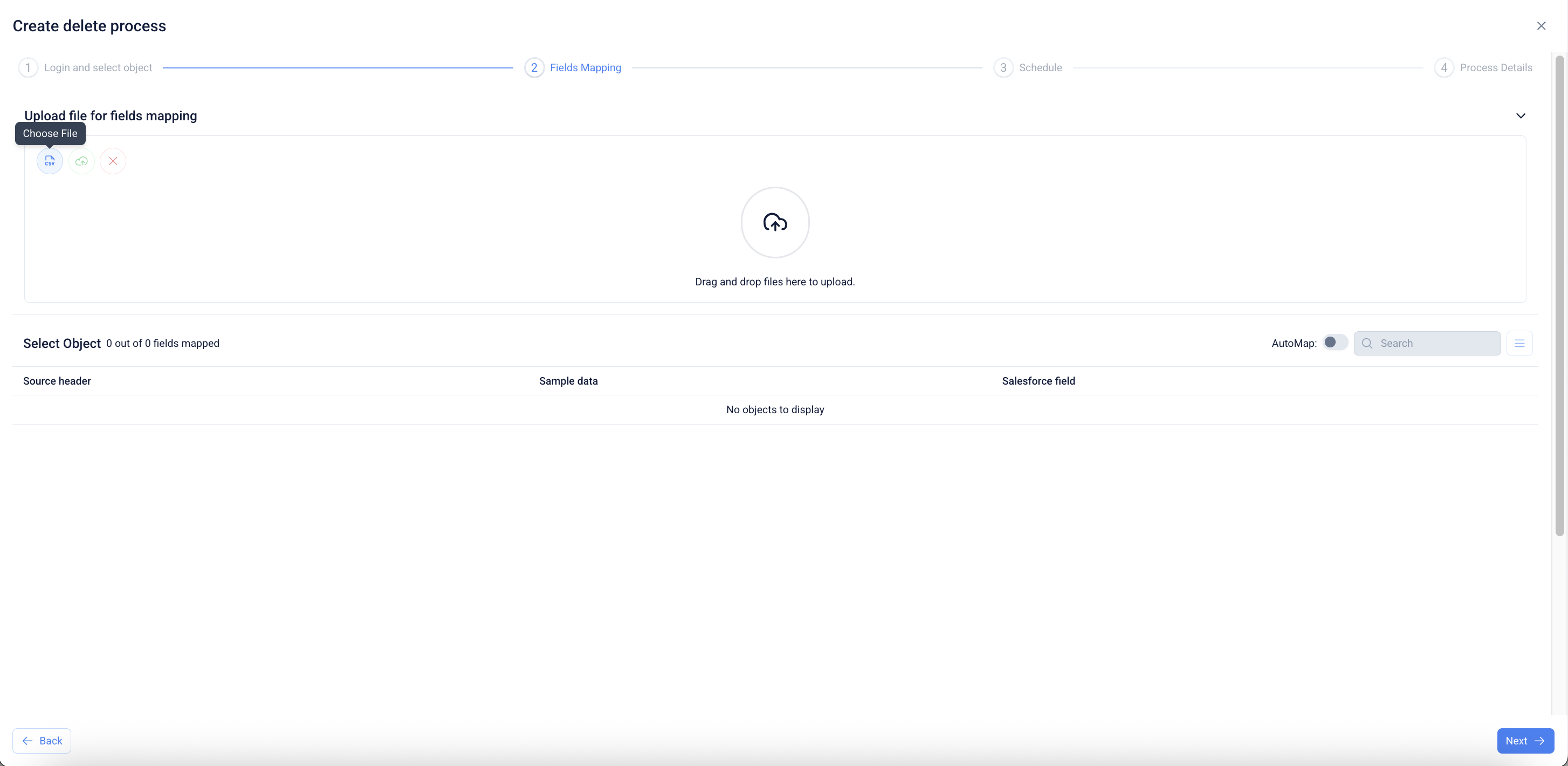
* Upload a CSV file for field mapping by selecting **Choose File** or dragging and dropping the file into the upload area.
* The CSV file should contain the Salesforce record IDs of the objects to be deleted.
5. #### Delete Process
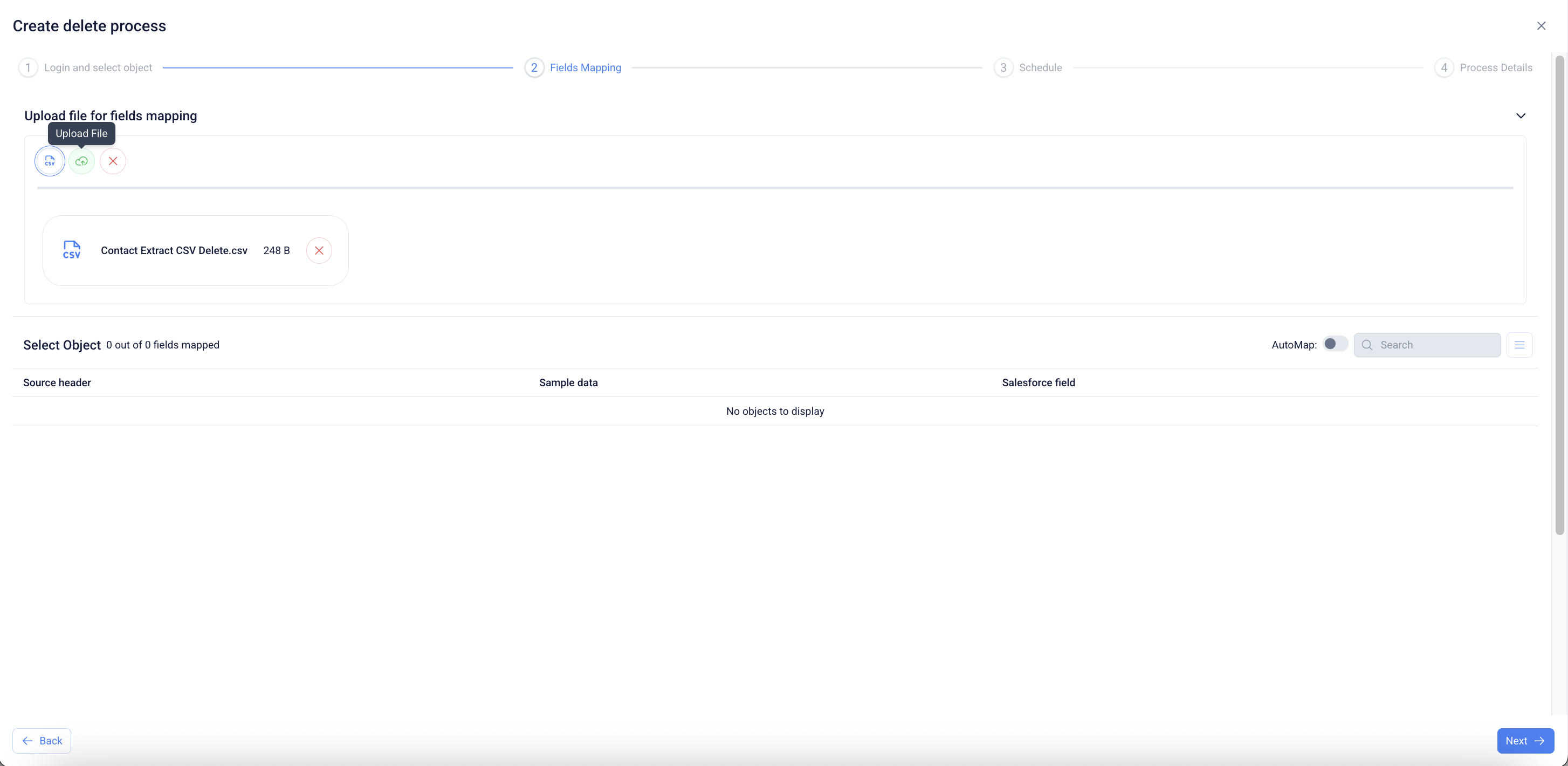
* Once uploaded, the file will be displayed in the **Upload file for fields mapping**, ready for mapping.
* The file name, size, and format are displayed along with an option to remove it if required.
* At this stage, the system is ready to process the uploaded file for mapping.
6. #### Delete Process
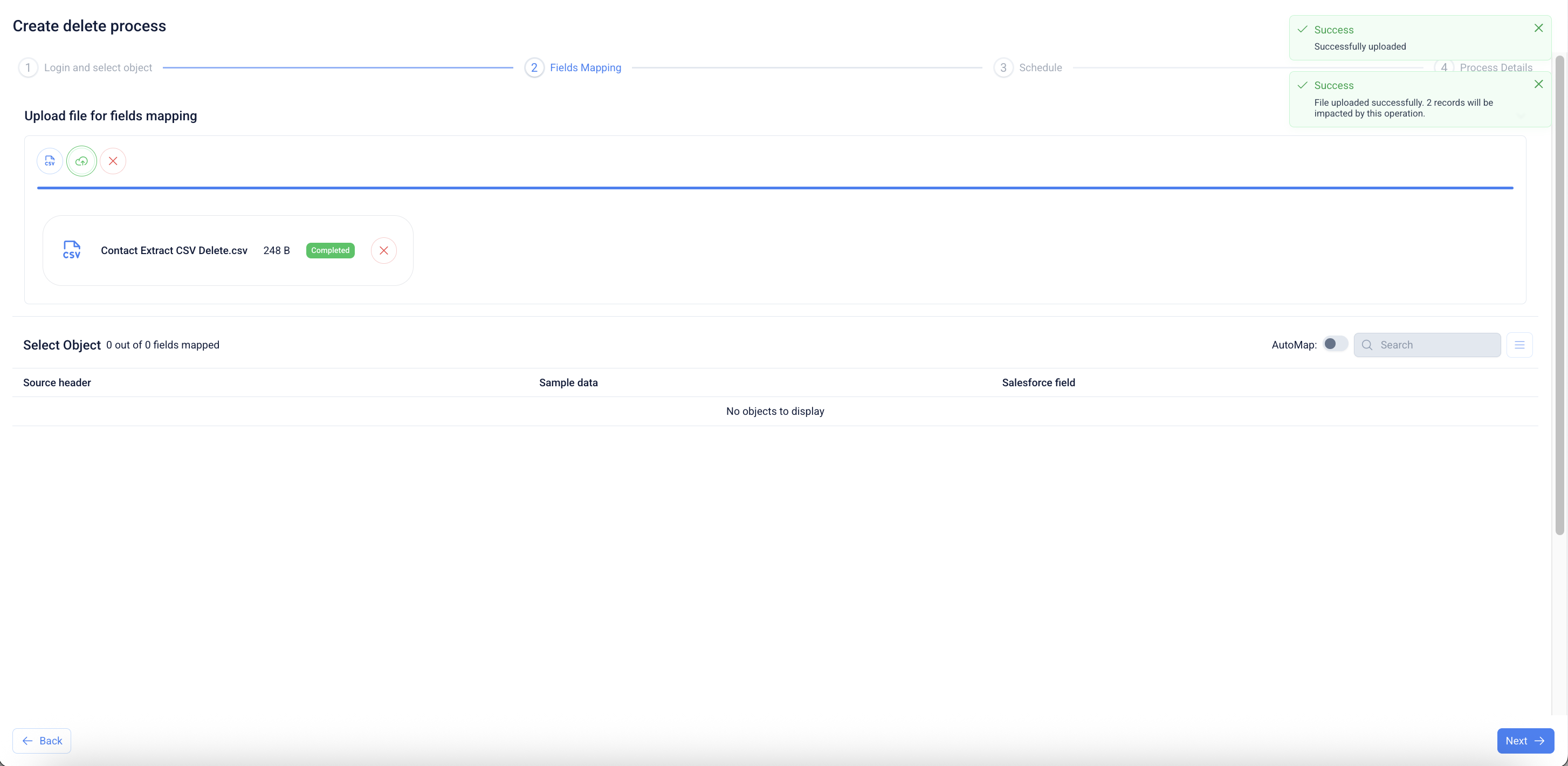
* Once the CSV file is validated, a success message confirms the file upload.
* The system also displays the number of records that will be impacted by the operation.
* This ensures visibility into the scope of the delete process before proceeding.
7. #### Delete Process
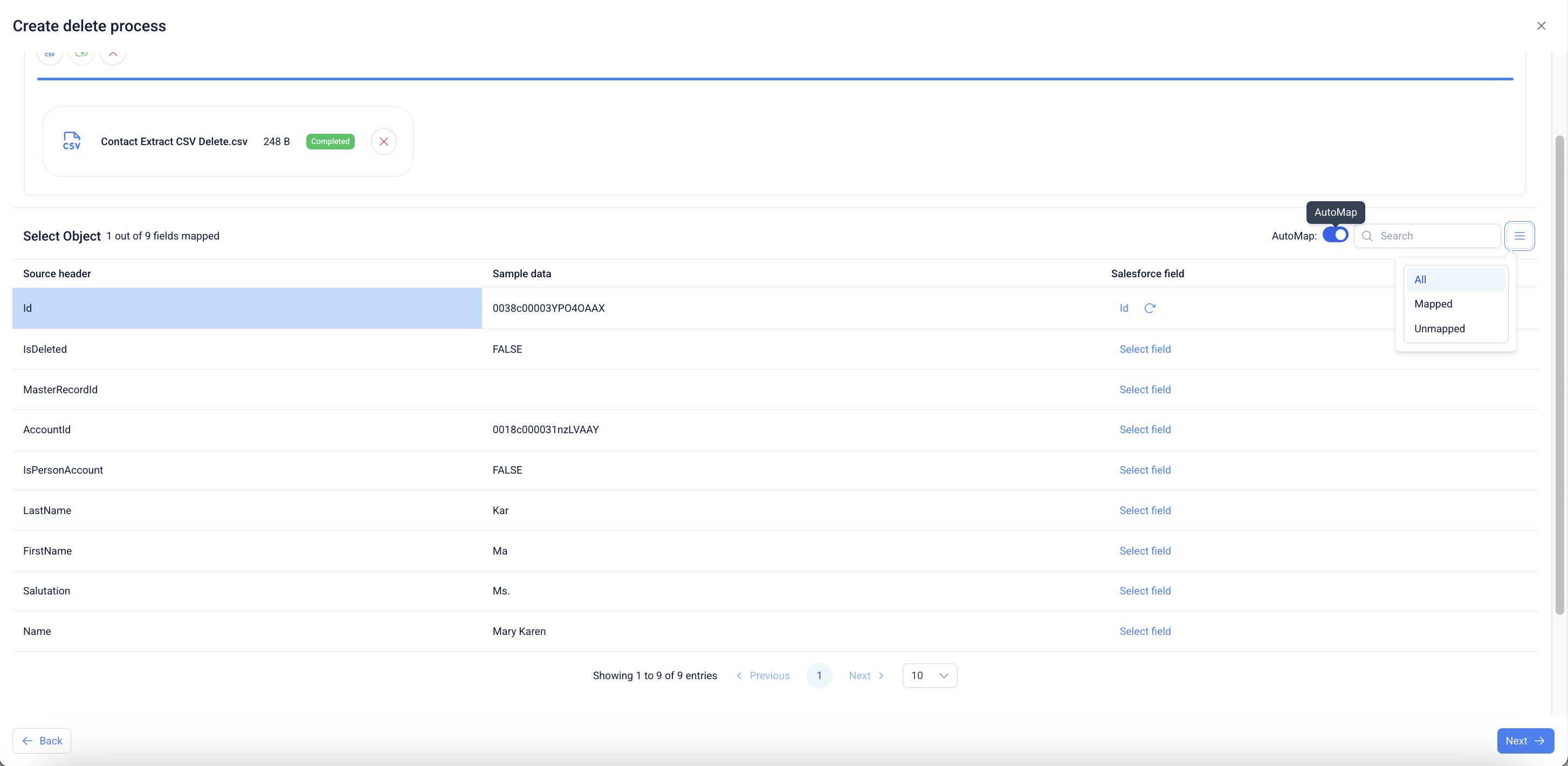
* The uploaded file’s contents are displayed with source headers and sample data.
* Each column from the CSV file can be mapped to a corresponding Salesforce field.
* The **AutoMap** feature may be toggled to automatically match source headers with Salesforce fields.
* Once mapping is complete, select **Next** to proceed with scheduling or executing the delete process.
8. Delete Process
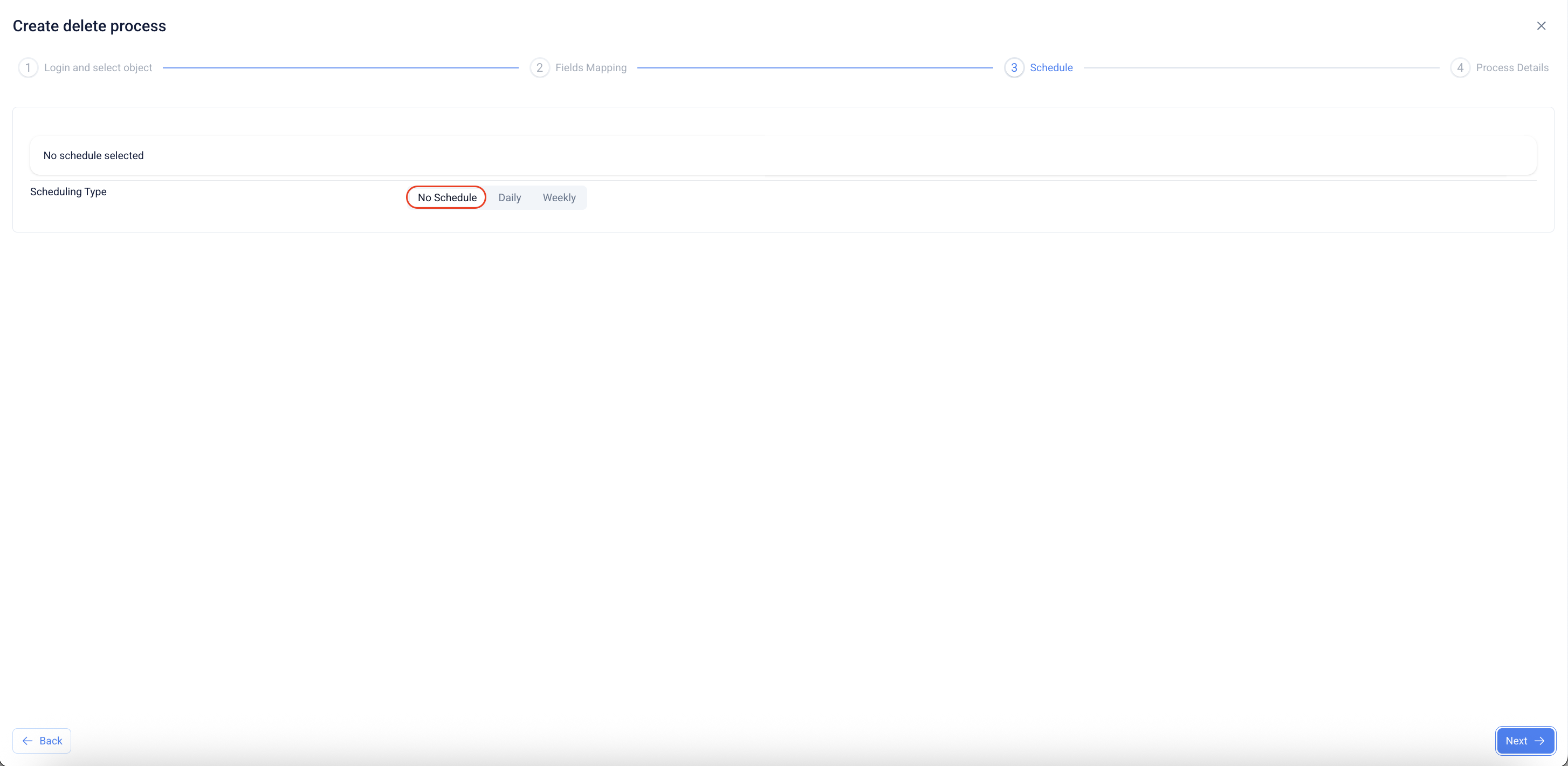
* From the **Schedule** step of the delete process, select the desired scheduling type.
* By default, **No Schedule** is selected, meaning the process will run only once when executed.
* Alternative scheduling options (**Daily** or **Weekly**) can be chosen to automate recurring delete operations.
9. #### Delete Process
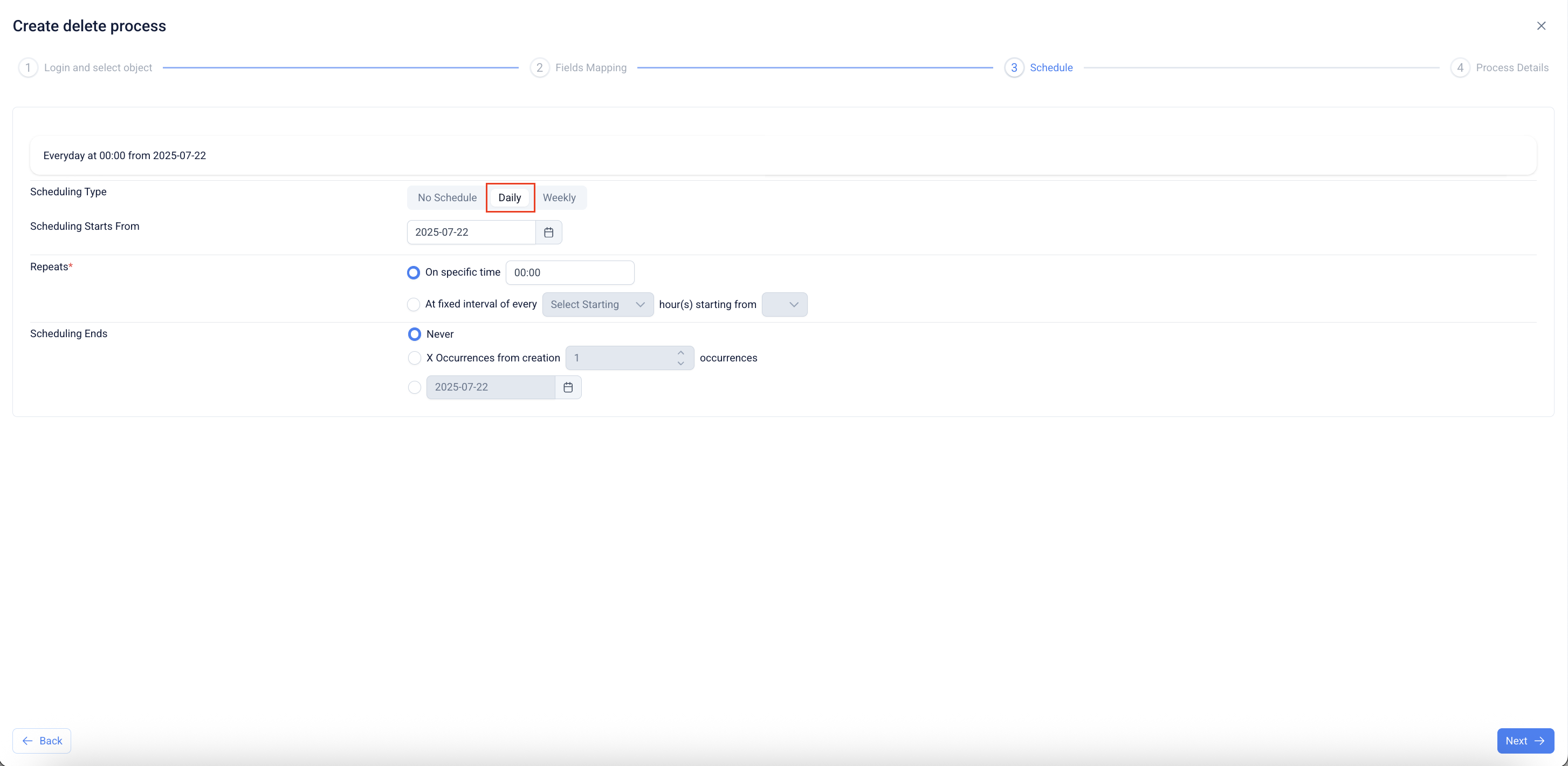
* When **Daily** is selected, define the scheduling start date and time.
* Choose whether the delete process should run at a **specific time** or at a fixed time interval.
* Select when the scheduling should end:
* **Never** (continues indefinitely),
* **After X occurrences**, or
* **On a specific date**.
* This configuration enables recurring daily deletion of records as per the defined schedule.
10. #### Delete Process
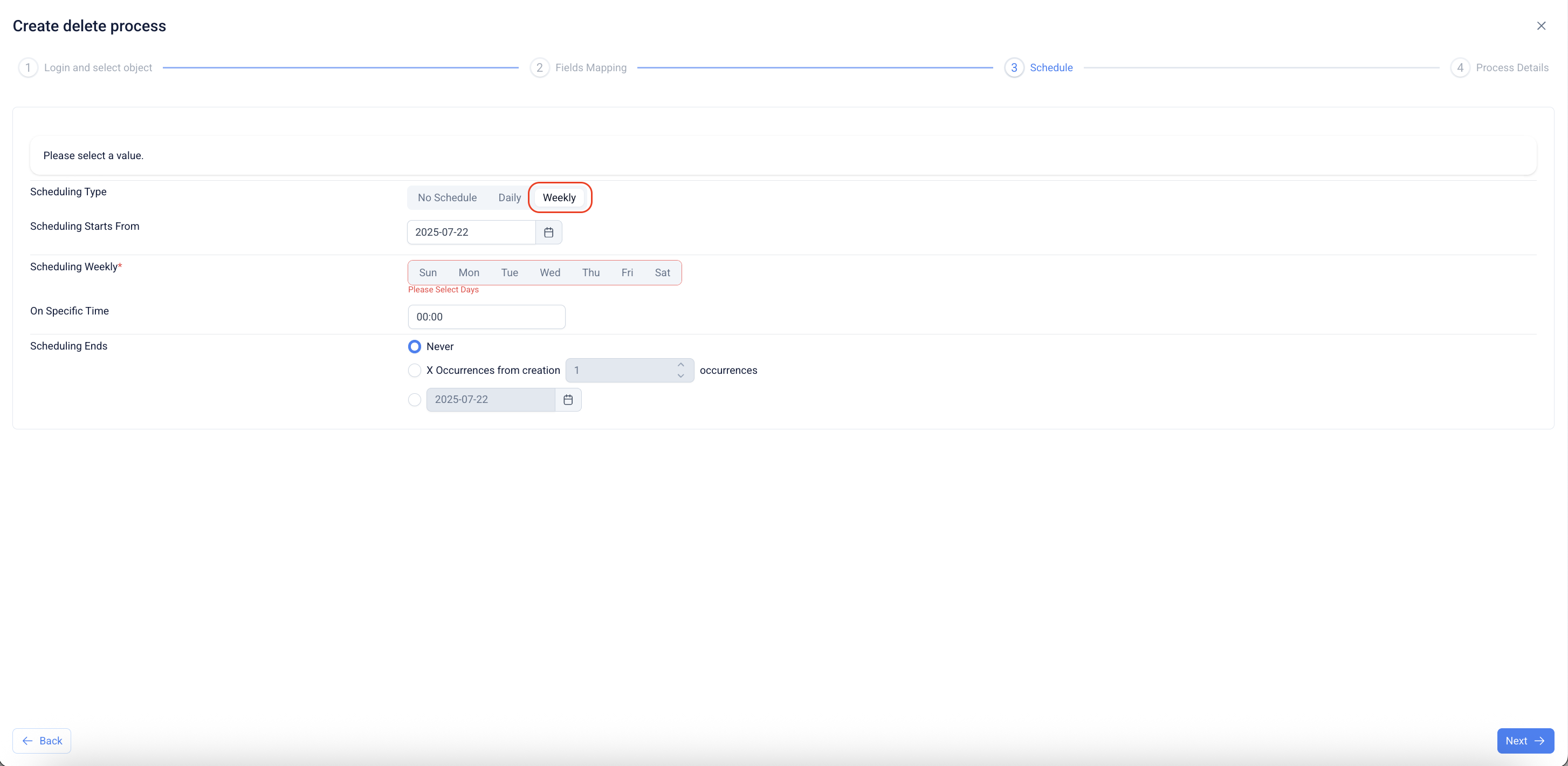
* When **Weekly** is selected, specify the scheduling start date.
* Select the desired day(s) of the week for the delete process to run.
* Enter the time of execution for the scheduled deletion.
* Choose when the scheduling should end:
* **Never**,
* **After X occurrences**, or
* **On a specific date**.
* This option is suitable for weekly recurring delete processes aligned with business or operational cycles.
11. Delete Process
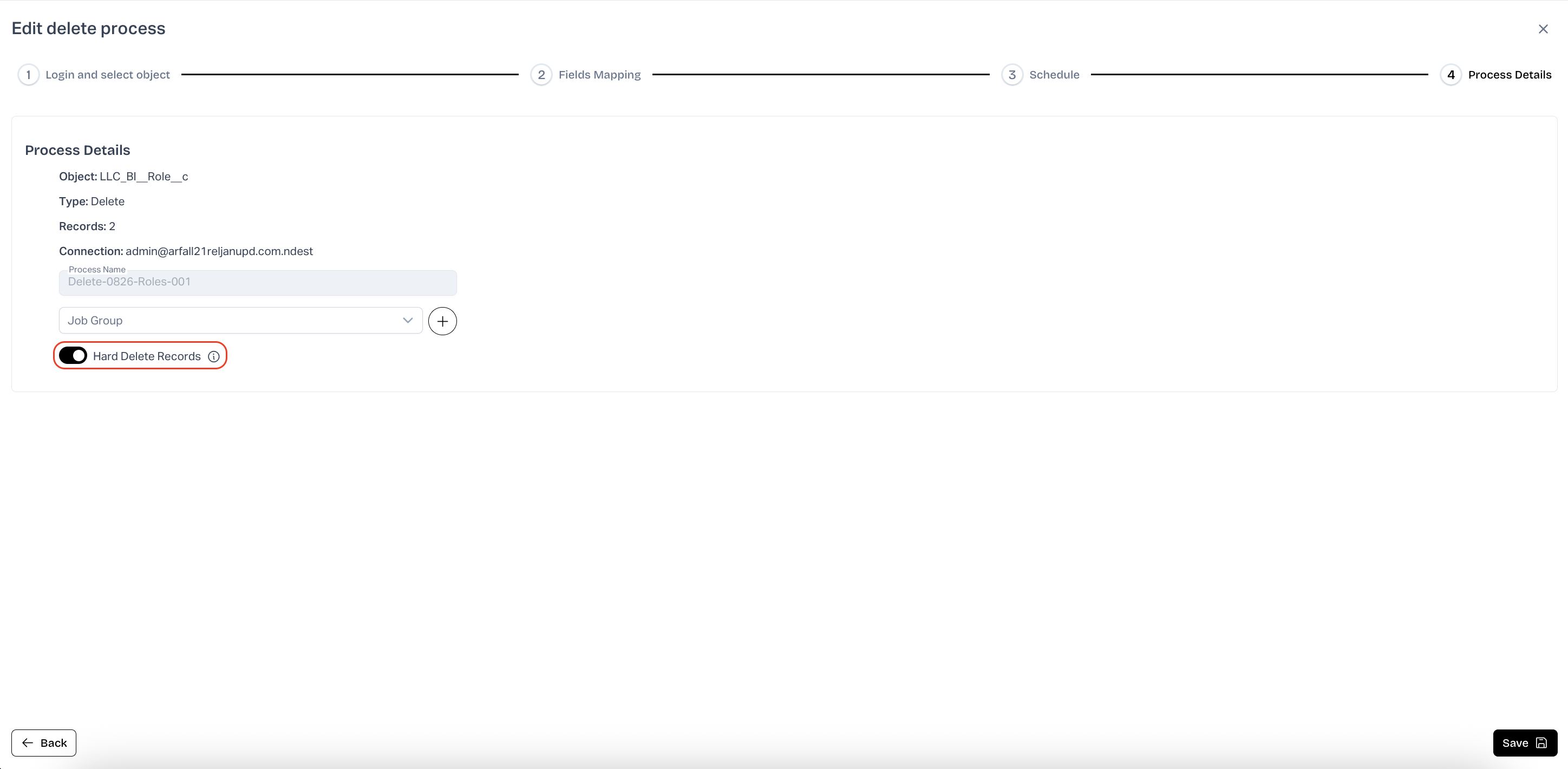
* From the **Process Details** step, review the configuration summary, including the object name, type of operation, and the number of records selected for deletion.
* Input a Process Name.
* Optionally, assign the process to a **Job Group** for easier categorization and tracking.
* Enable the **Hard Delete Records** option to permanently remove the records from Salesforce.
* If enabled, records will not be moved to the Recycle Bin and cannot be restored.
* This action should only be used when permanent deletion is necessary.
* Once all details are confirmed, select **Save** to finalize the delete process configuration.
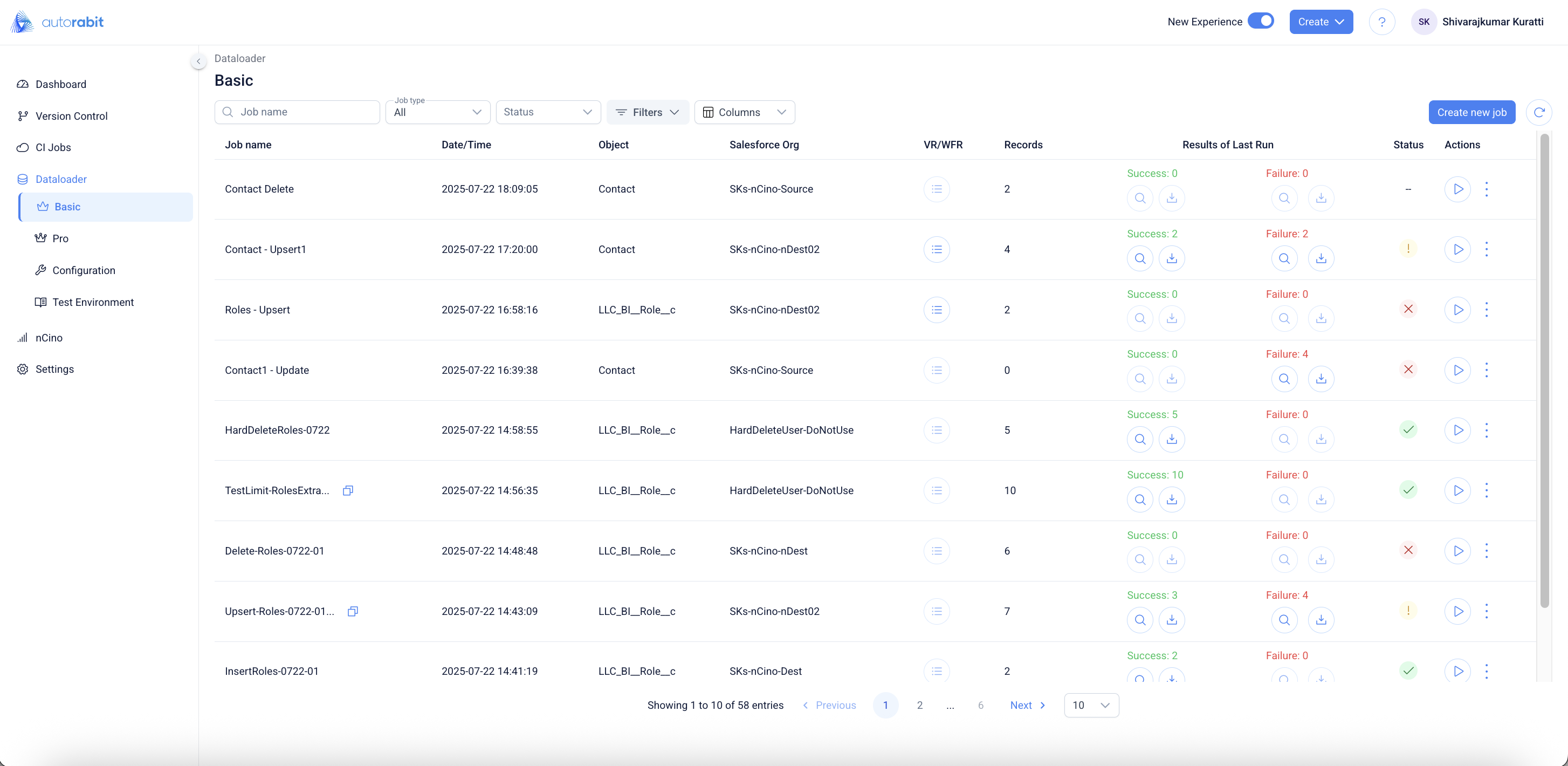
12. Clicking on "Save" will redirect the flow to the "DL Job List" page.
13. The job list can be refined by applying the available filter options, allowing quick access to specific jobs based on defined criteria.
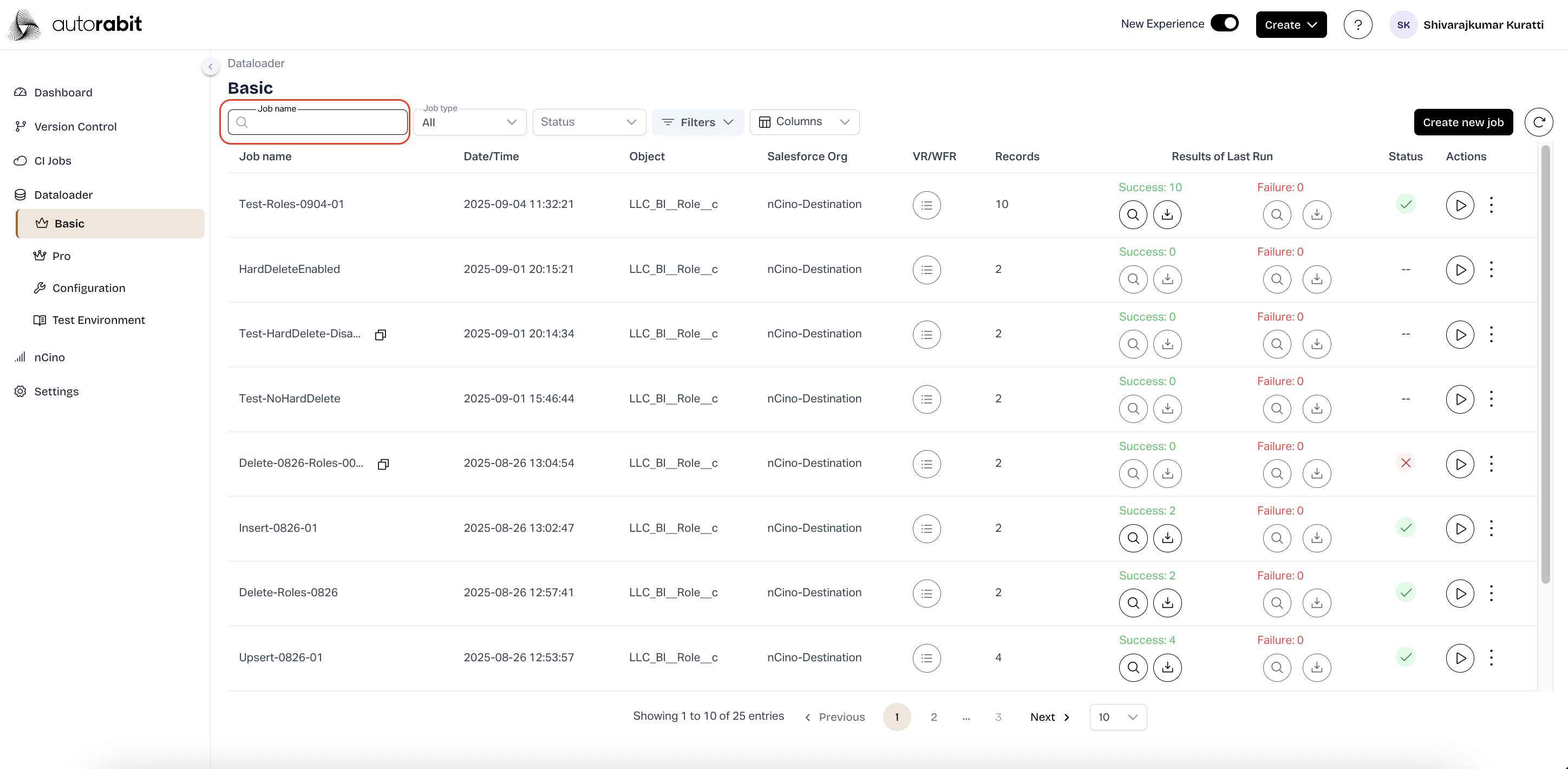
14. Job Management
* From the **Dataloader – Basic** page, locate the list of available jobs.
* Use the **Job name** search field to quickly filter and locate a specific job.
* Enter the job name or partial keywords to narrow down the list of displayed results.
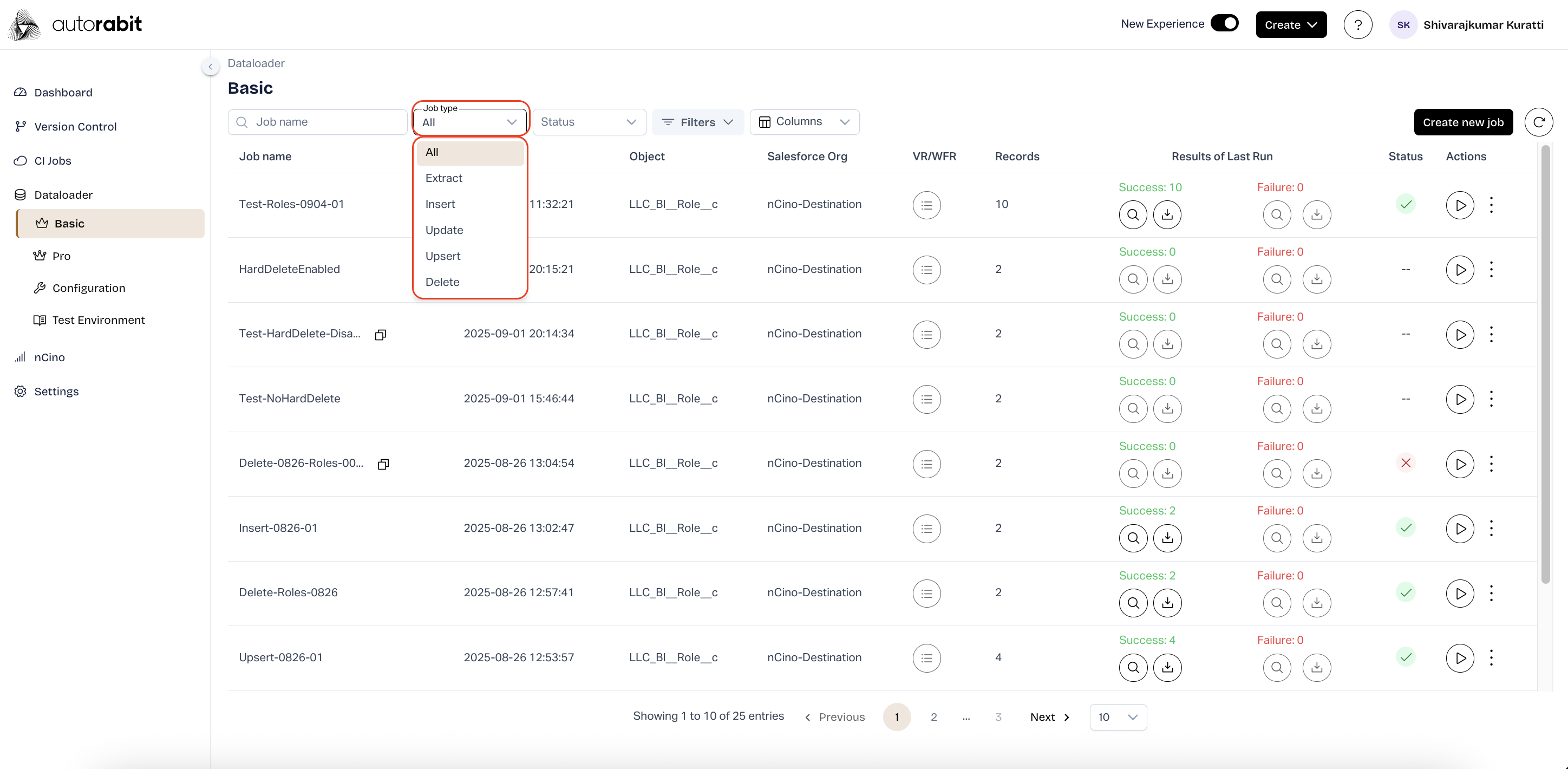
15. Job Management
* From the **Dataloader – Basic** page, filter jobs by selecting a **Job type**.
* Available job types include **Extract, Insert, Update, Upsert, and Delete**.
* Choosing a job type narrows the displayed list to only jobs of the selected category.
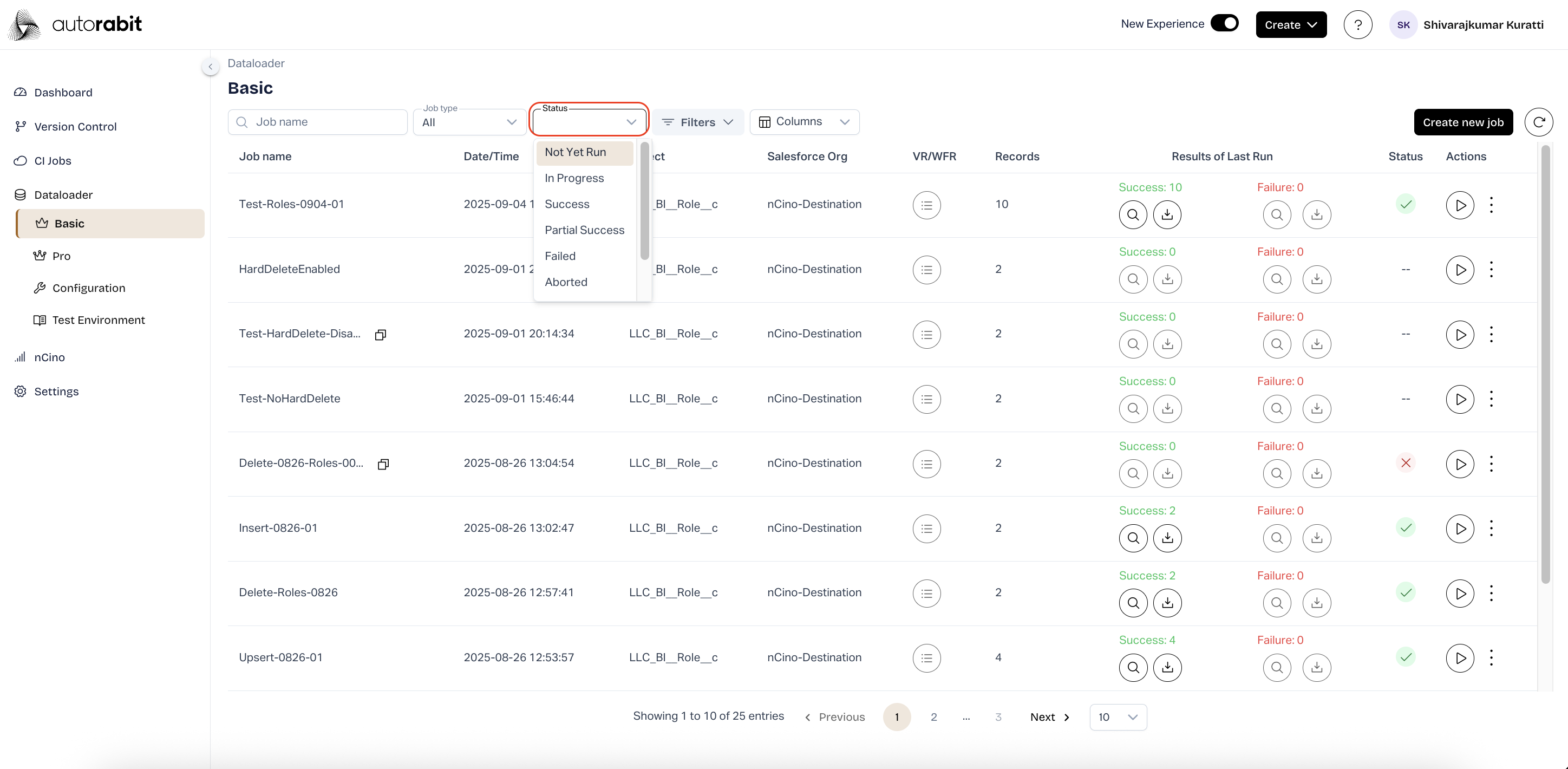
16. #### Job Management
* Use the **Status** filter to view jobs by their execution state.
* This filter helps track job progress and identify jobs requiring further attention.
17. #### Job Managemen
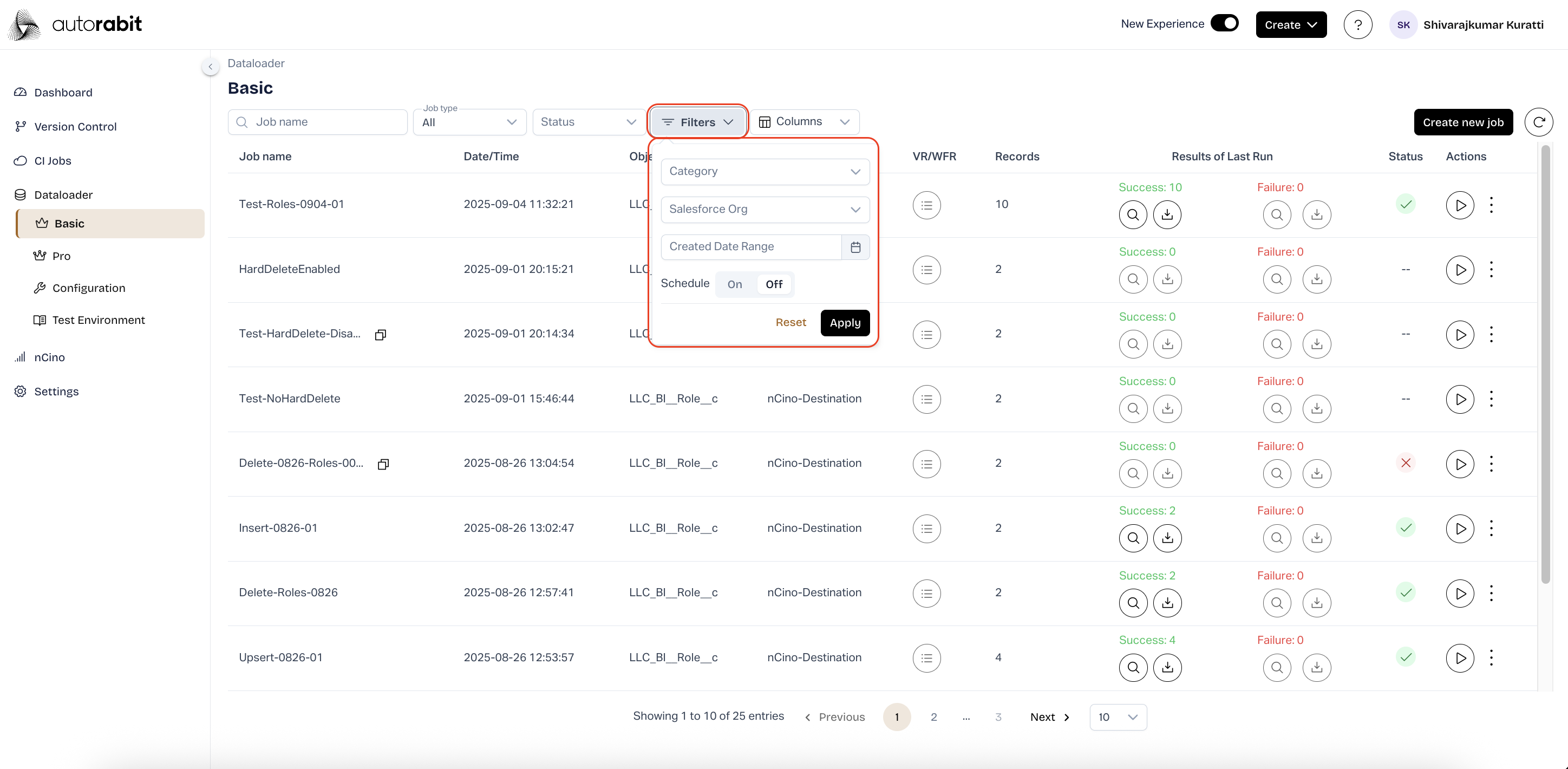
* Select the **Filters** option to apply advanced job filtering.
* Filters can be applied by:
* **Category**
* **Salesforce Org**
* **Created Date Range**
* **Schedule** (On or Off)
* After choosing the filter criteria, select **Apply** to refine the job list.
* Select **Reset** to clear all filters and return to the full job list.
18. #### Job Management
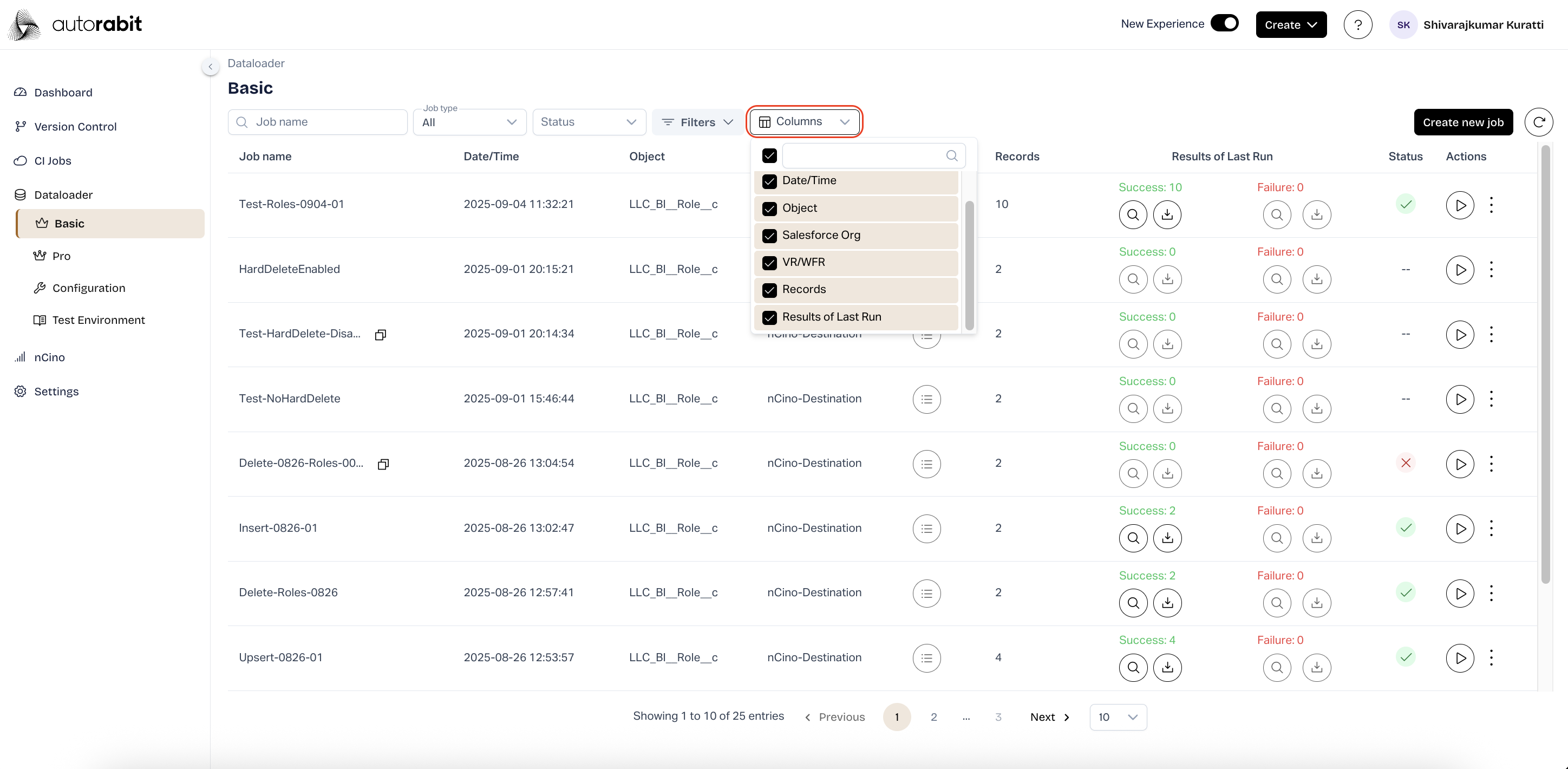
* Use the **Columns** option to customize the fields displayed in the job list screen.
* Select or deselect checkboxes to adjust the visible columns as per requirements.
19. Run Delete Job
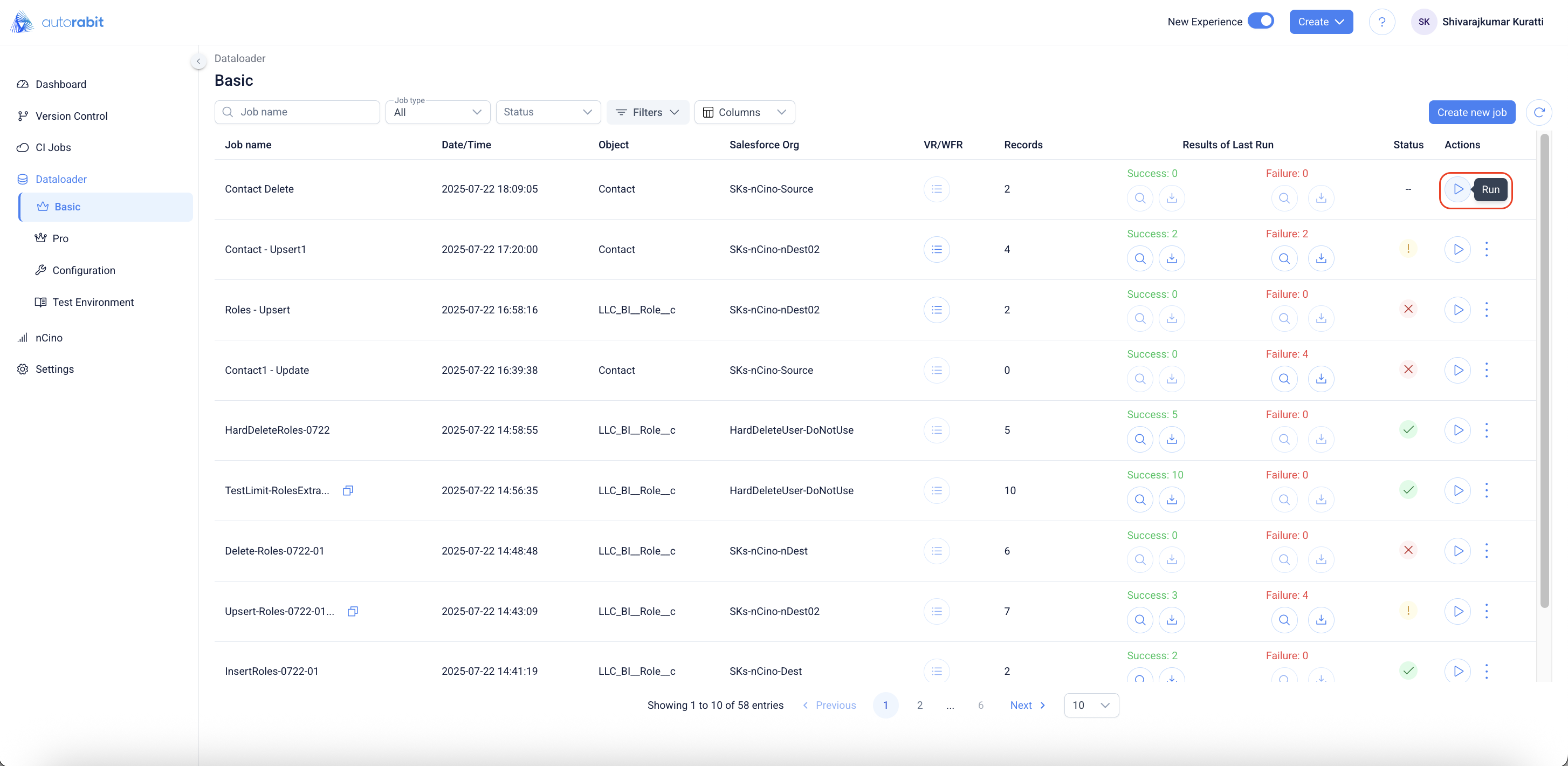
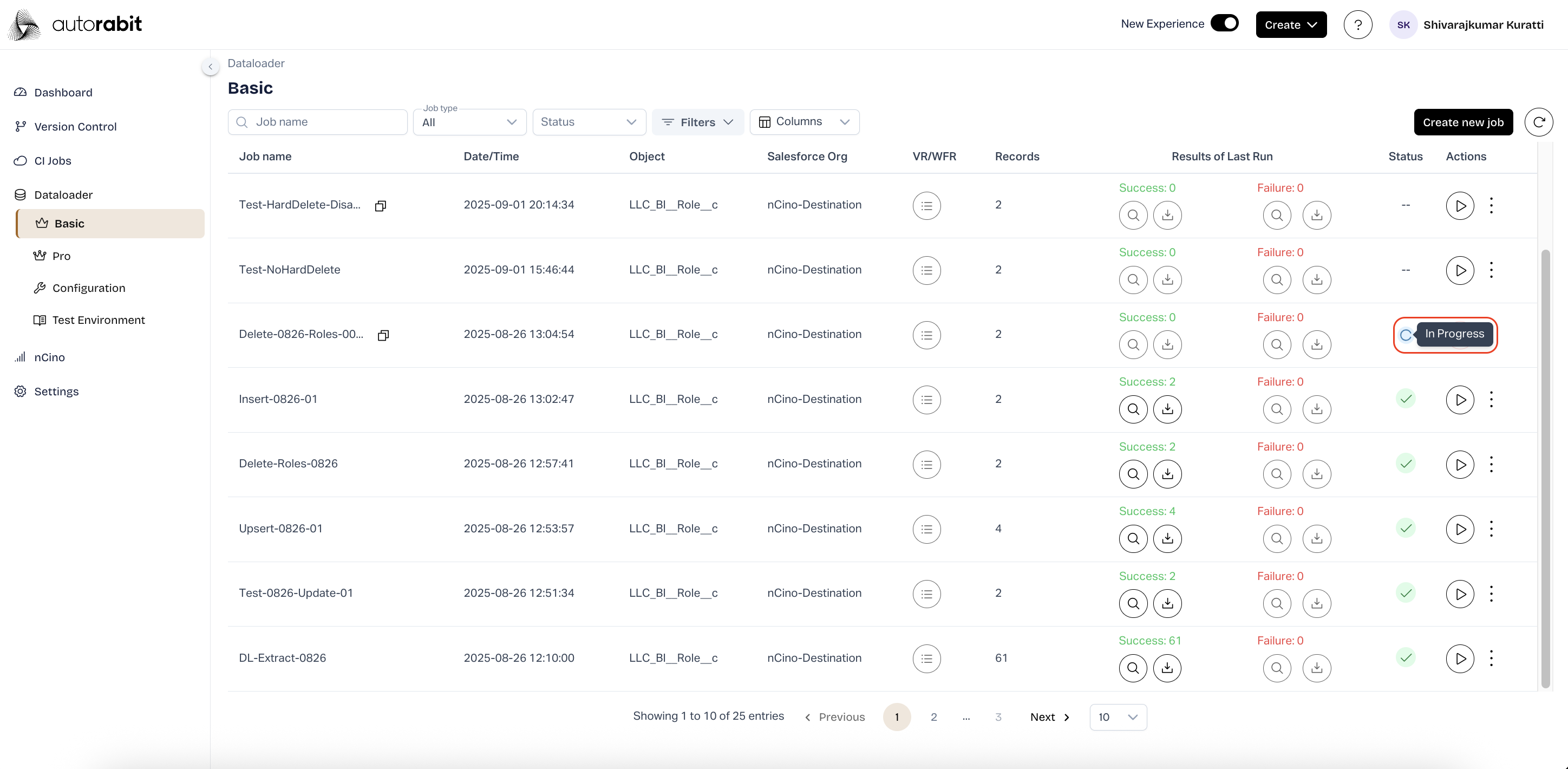
* From the **Dataloader – Basic** page, select **Run** under the Actions column for the required job.
20. #### Run Configuration
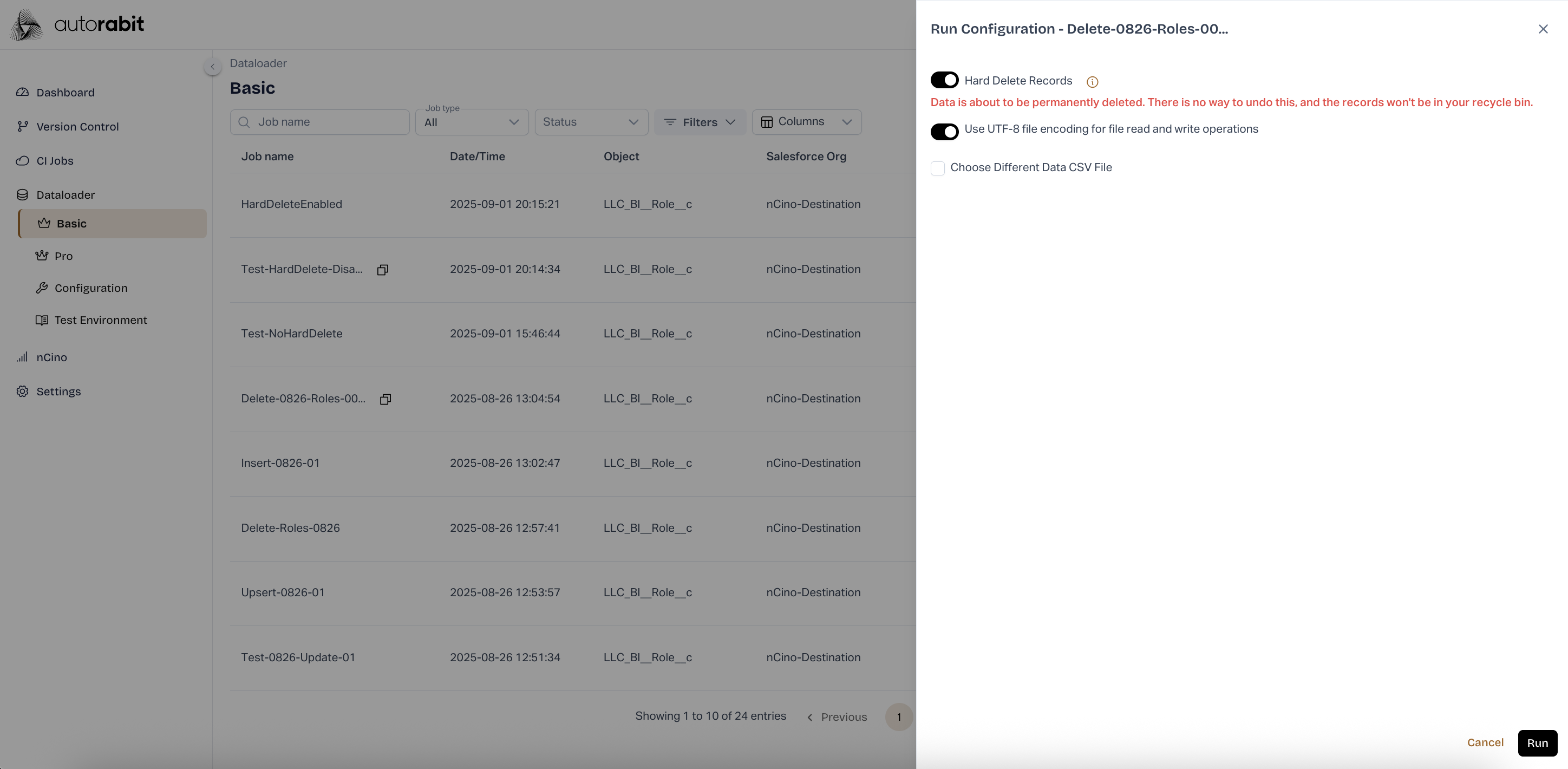
* In the configuration panel, review job settings before execution.
* Enable **Hard Delete Records** for permanent deletion.
* Optionally choose a different CSV file if needed.
* Select **Run** to start the job.
21. #### Job Execution Status
* Once triggered, the job status changes to **In Progress**.
* Monitor progress from the job list until execution completes.
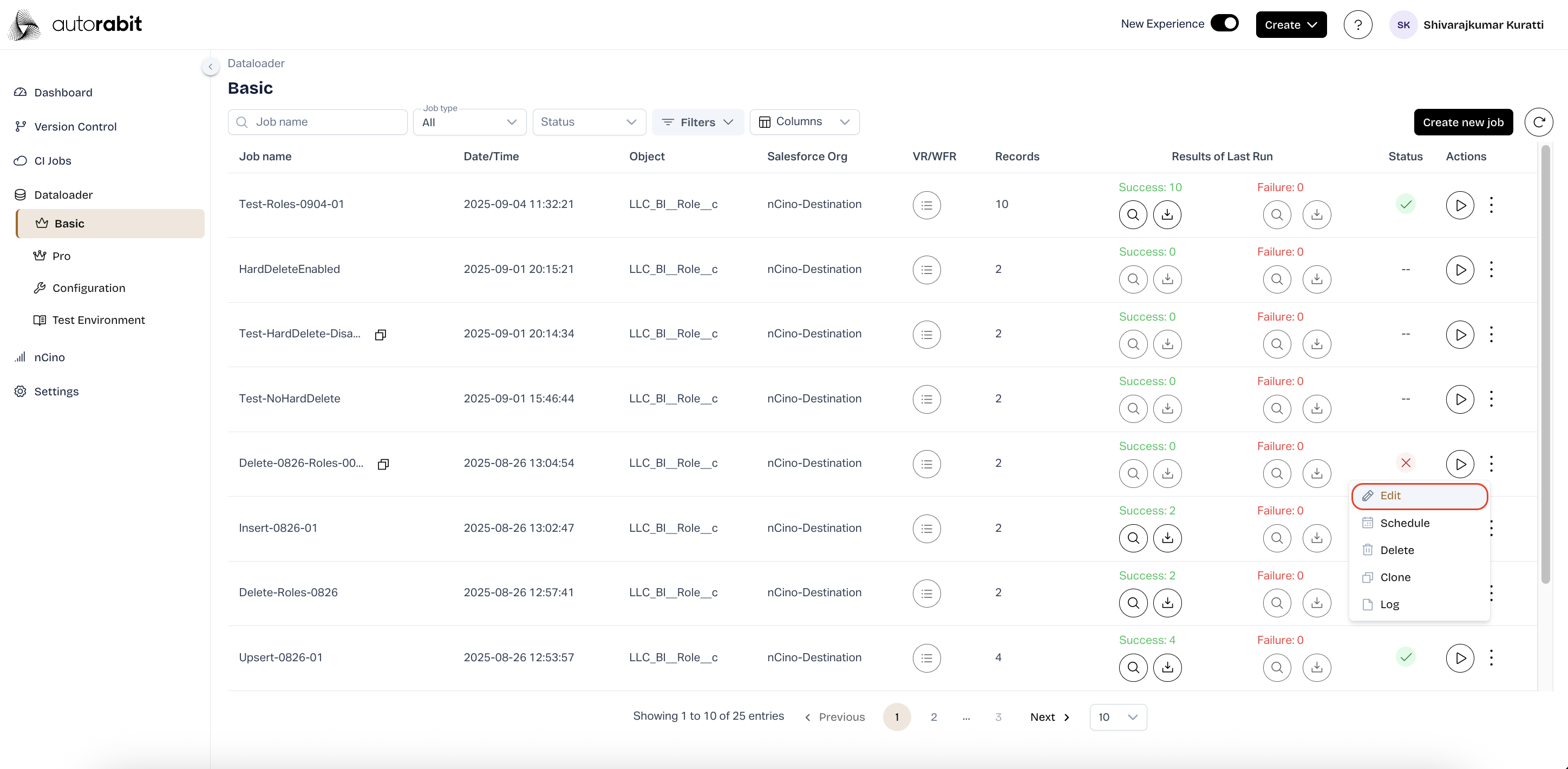
22. **Edit Delete Job**
* From the **Dataloader – Basic** page, select the ellipsis (**⋮**) for a job.
* Choose **Edit** to modify the job configuration.
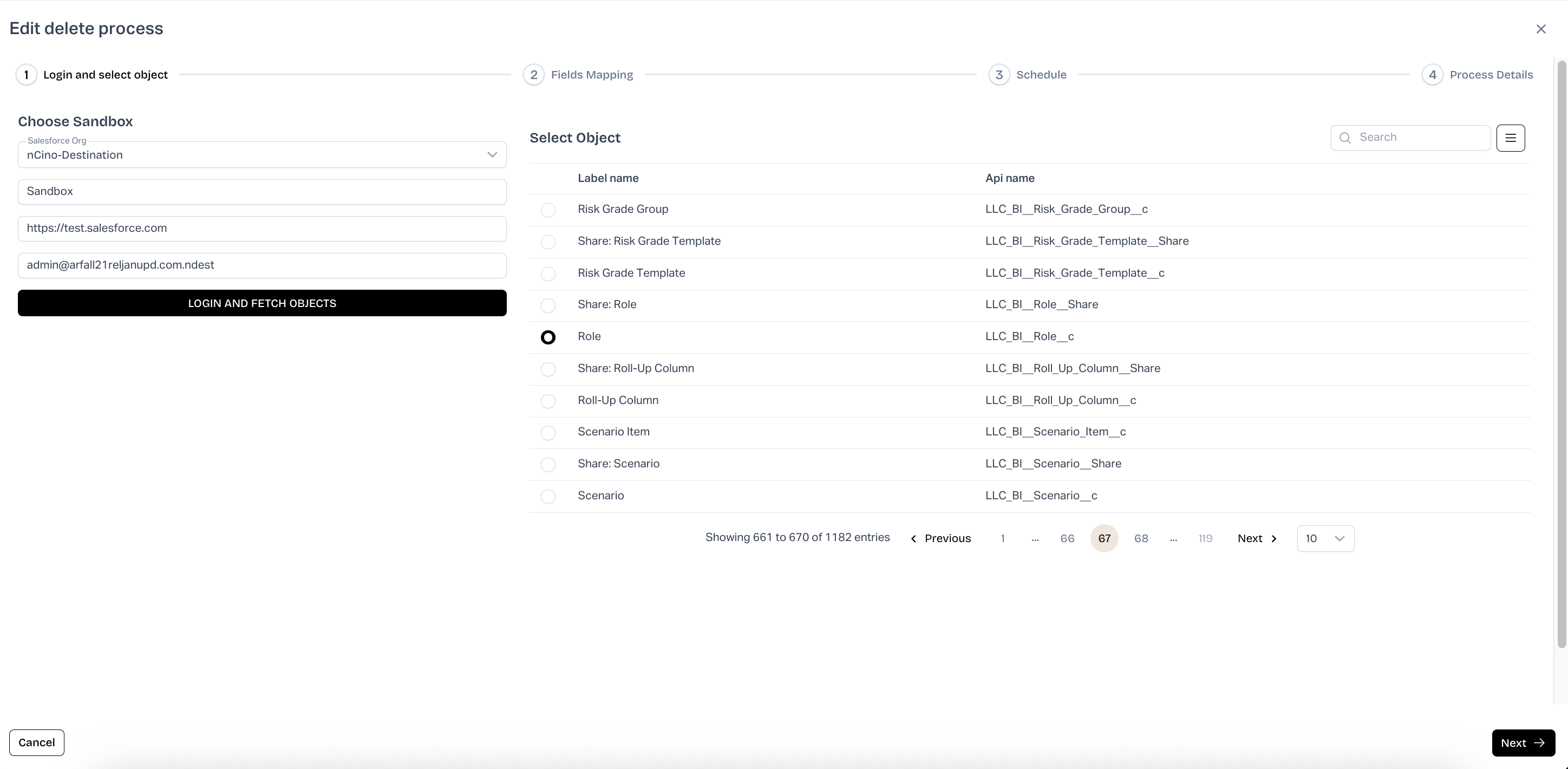
23. #### Edit Delete Process
* In the **Edit delete process** window, log in to the required Salesforce Org.
* Select the object to update the job configuration.
* Click **Next** to continue editing field mappings, schedule, or process details.
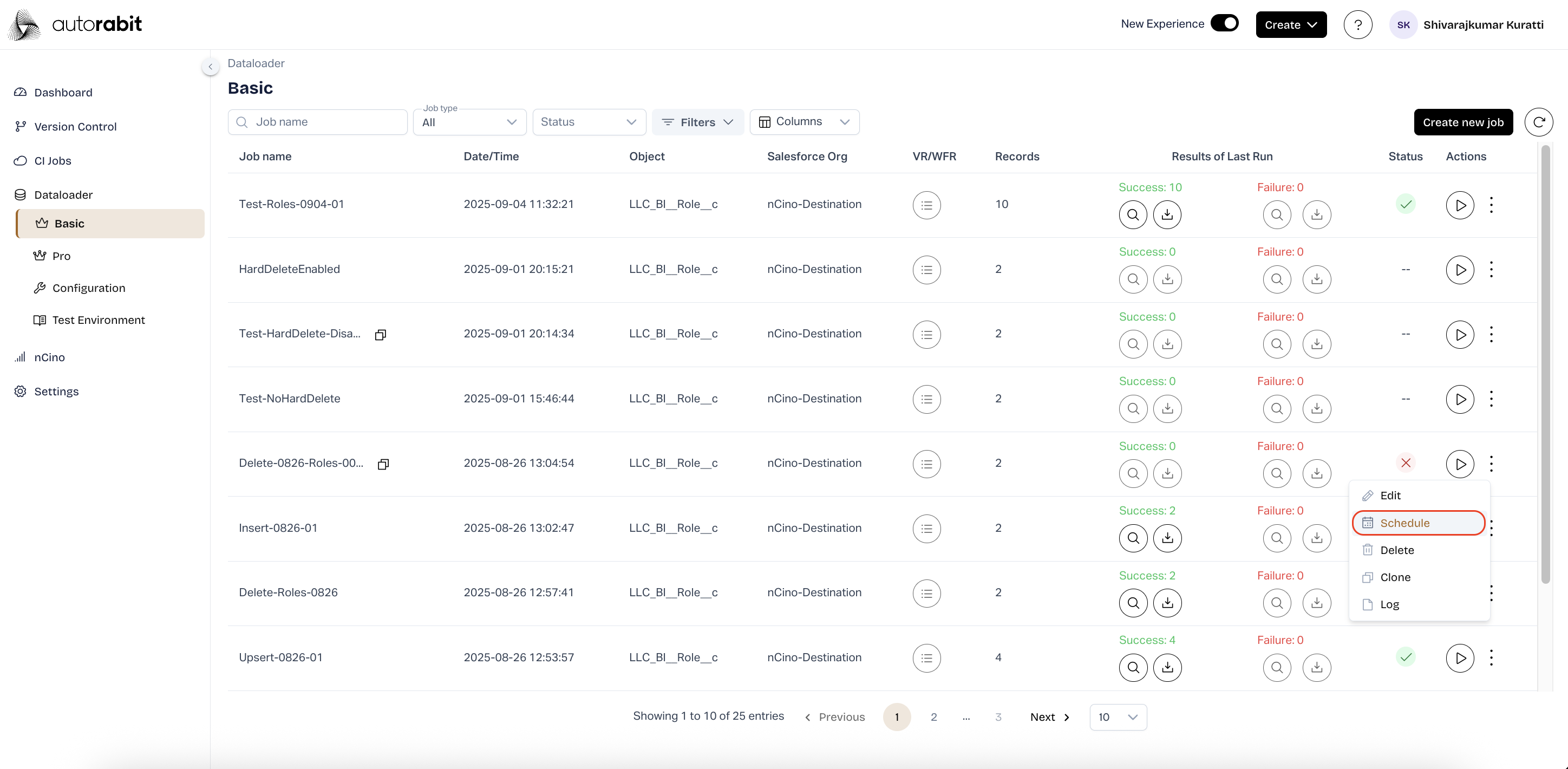
24. **Schedule Job**
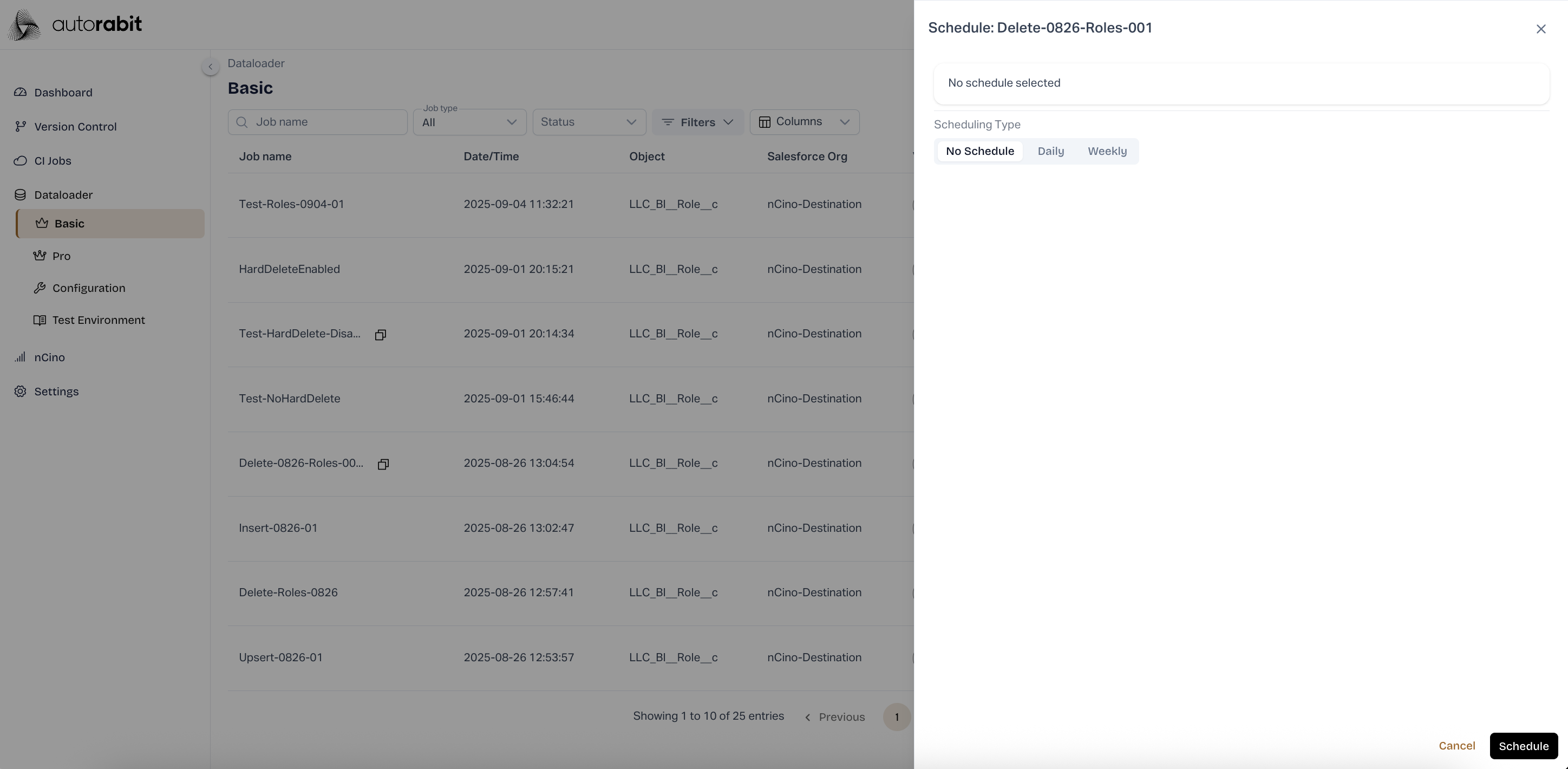
* From the **Dataloader – Basic** page, select the ellipsis (**⋮**) for a job.
* Choose **Schedule** to configure or modify the job schedule.
25. #### Schedule Configuration
* In the **Schedule** panel, select the scheduling type (**No Schedule, Daily, Weekly**).
* Confirm and click **Schedule** to apply the configuration.
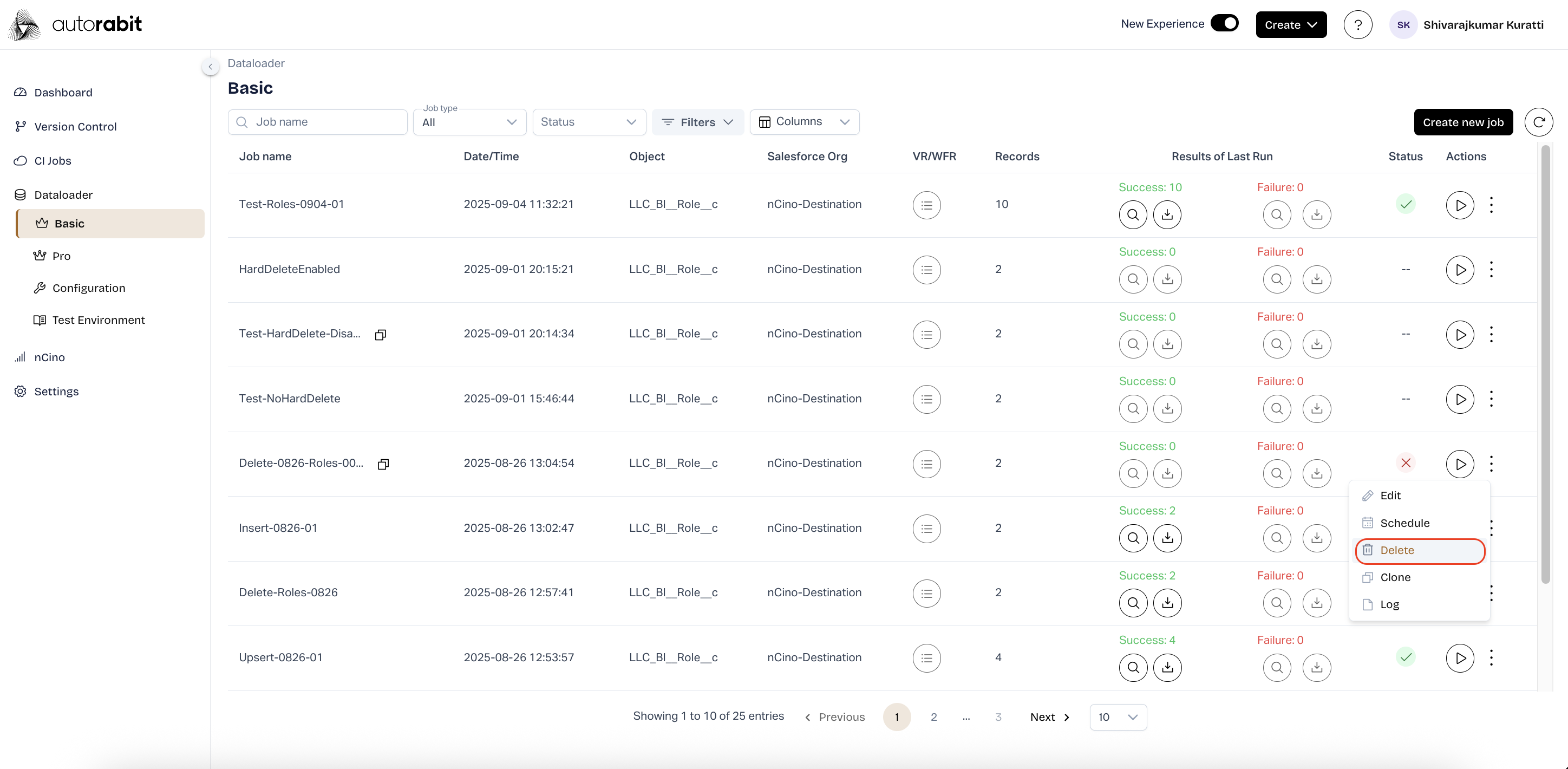
26. **Delete Job**
* From the **Dataloader – Basic** page, select the ellipsis (**⋮**) for a job.
* Choose **Delete** to remove the selected job.
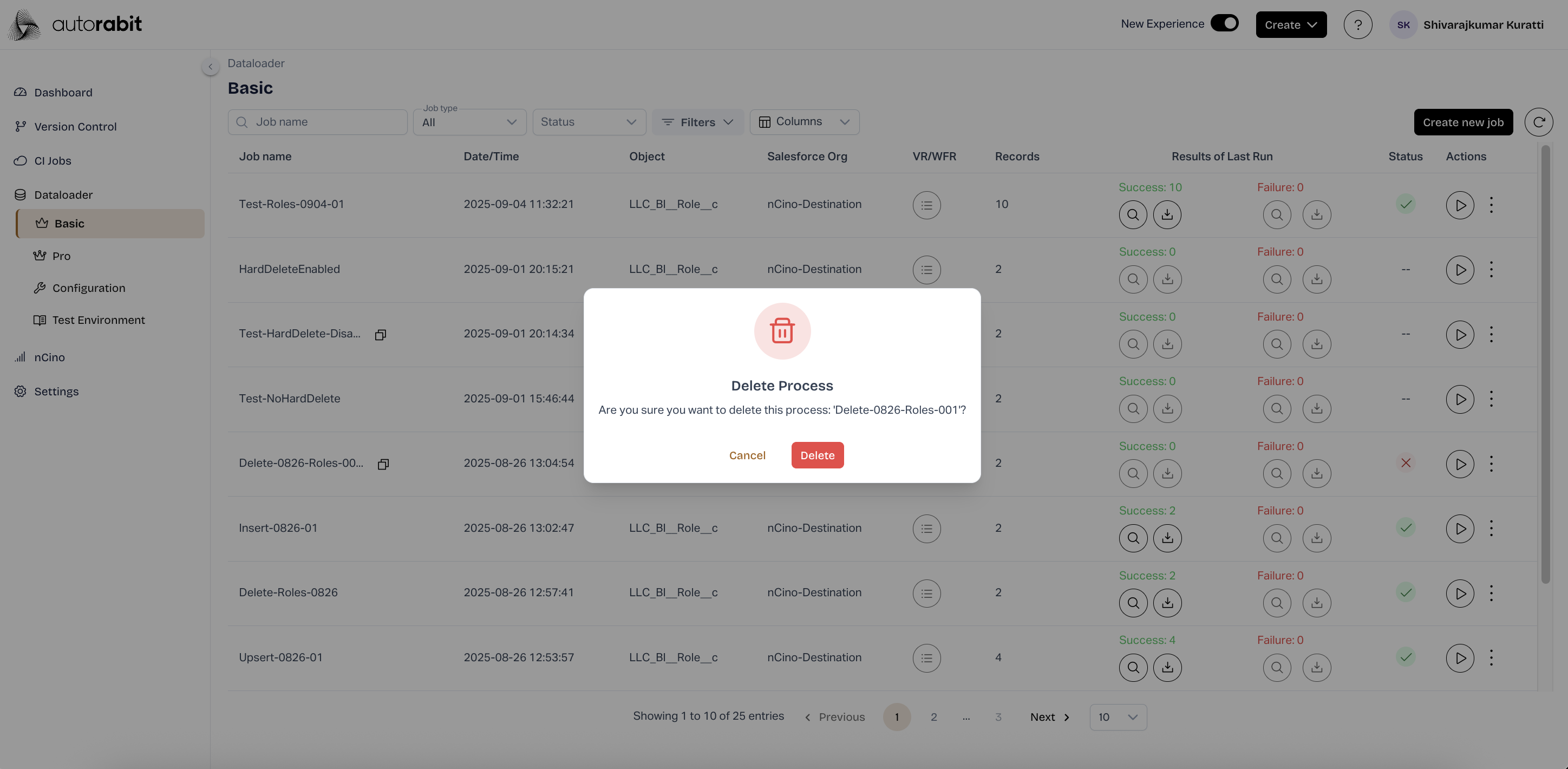
27. #### Delete Confirmation
* A confirmation prompt appears asking to confirm deletion.
* Click **Delete** to permanently remove the job or **Cancel** to stop.
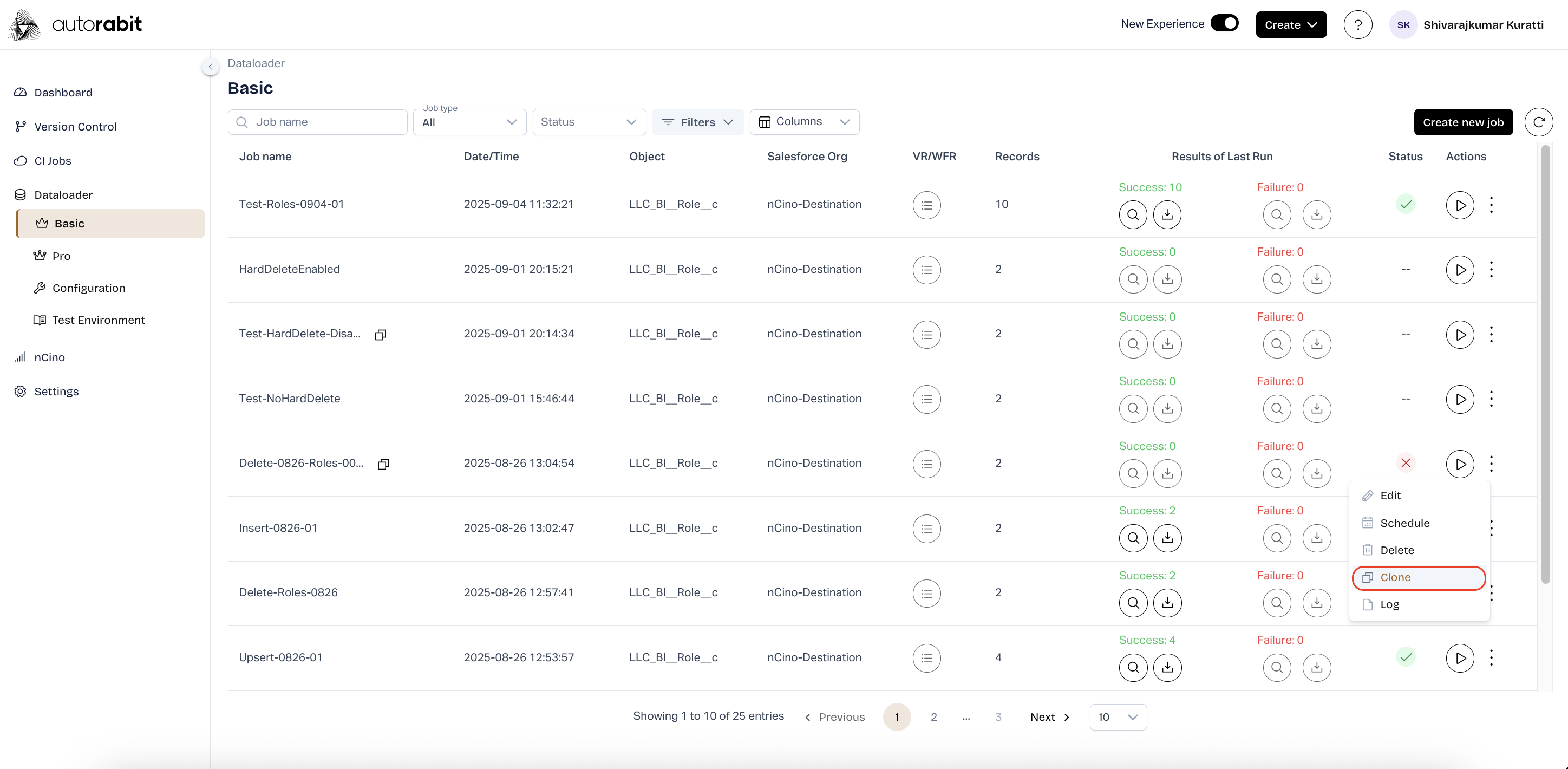
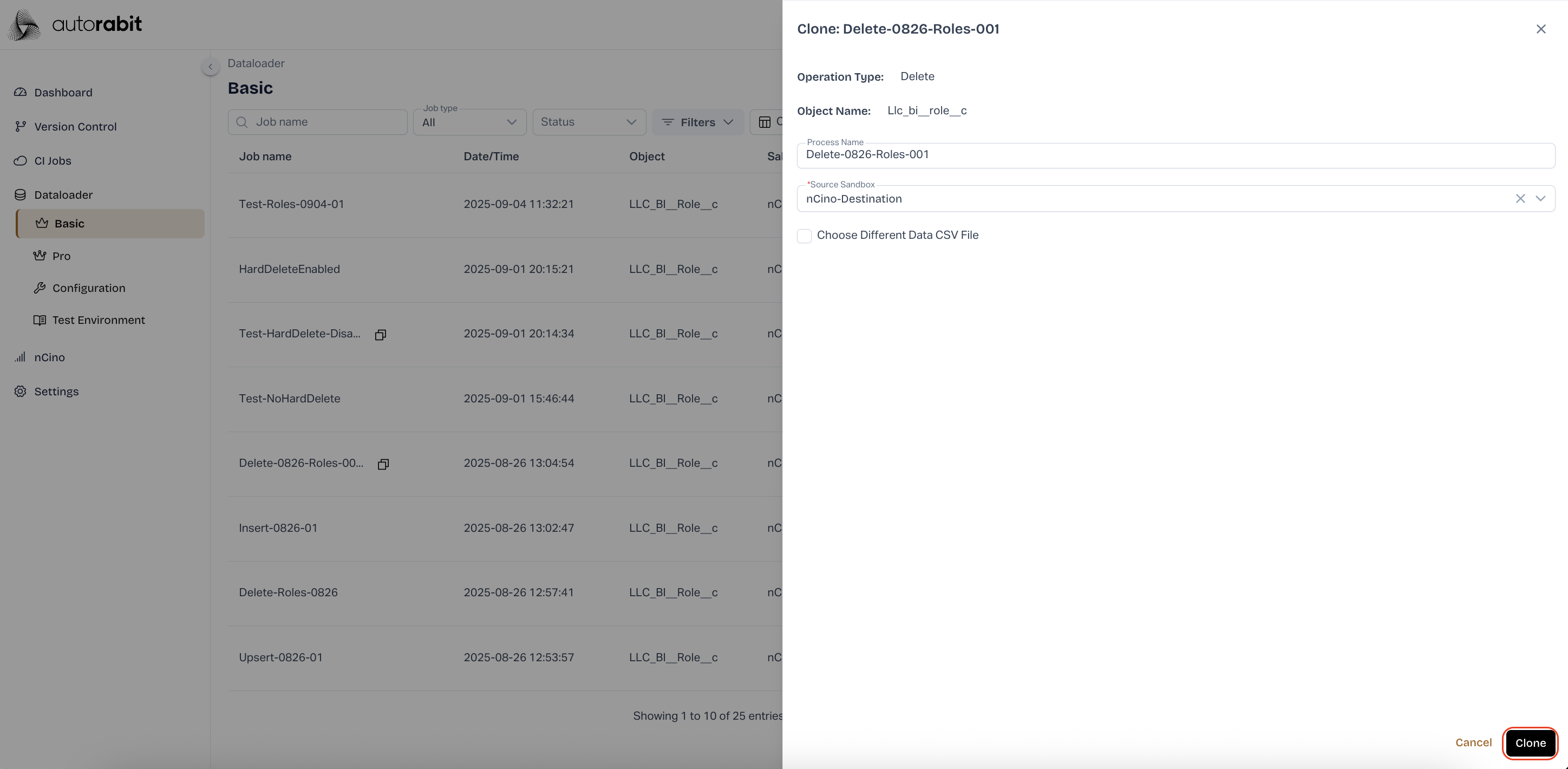
28. #### Clone Job
* From the **Dataloader – Basic** page, select the ellipsis (**⋮**) for a job.
* Choose **Clone** to create a duplicate job configuration.
29. #### Clone Configuration
* The **Clone Job** panel displays the job details.
* Review or update configuration and click **Clone** to duplicate the job.
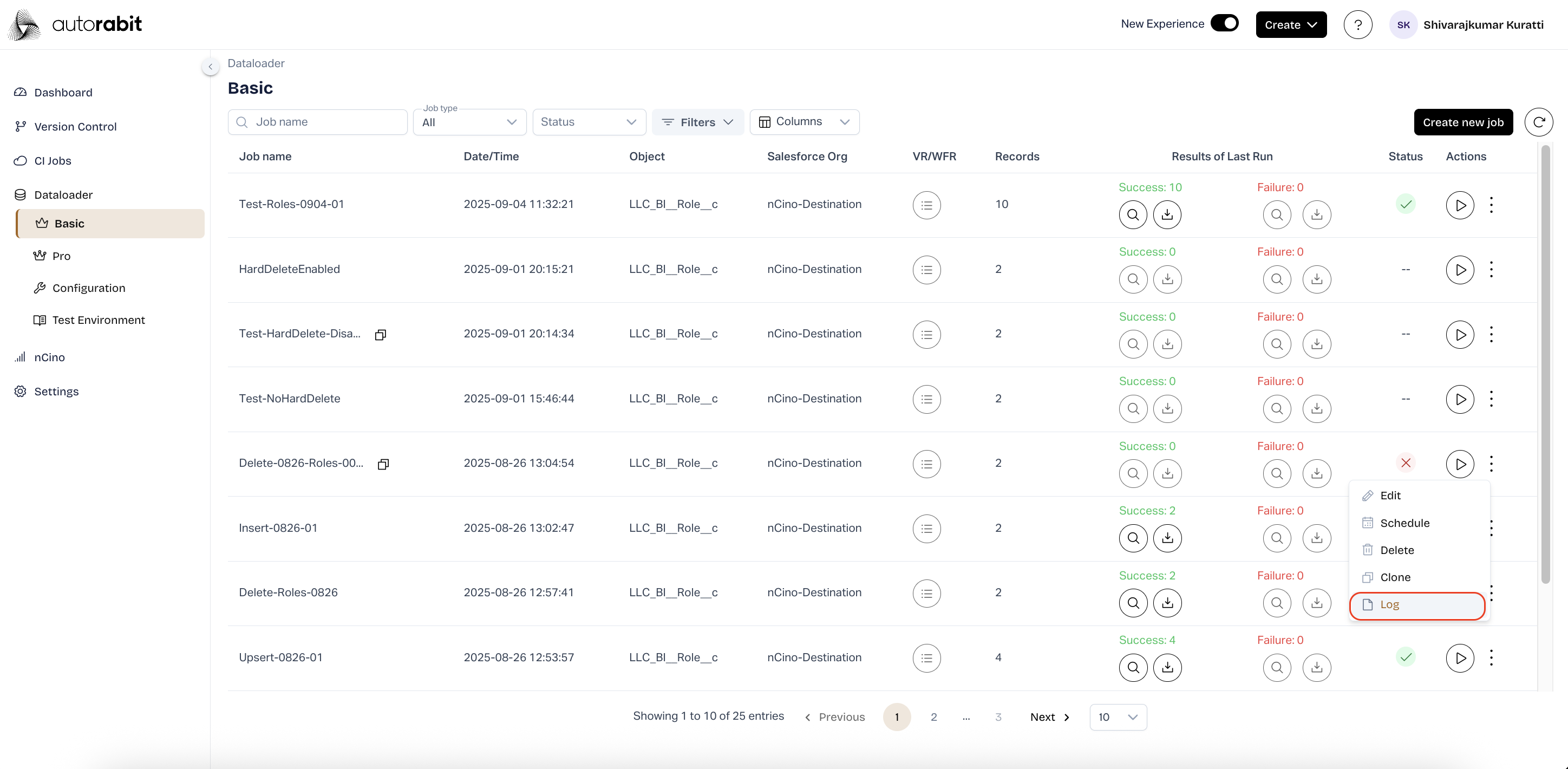
30. #### View Job Log
* From the **Dataloader – Basic** page, select the ellipsis (**⋮**) for a job.
* Choose **Log** to view job execution details.
31. #### Job Log Details
* The **Log Details** panel displays execution logs for the selected job.
* Options are available to **Download** or **Refresh** the logs.
---
# Agent Instructions
This documentation is published with GitBook. GitBook is the documentation platform designed so that both humans and AI agents can read, navigate, and reason over technical content effectively. Learn more at gitbook.com.
## Querying This Documentation
If you need additional information that is not directly available in this page, you can query the documentation by asking a question.
Perform an HTTP GET request on the following URL with the `ask` and `goal` query parameters:
```
GET https://knowledgebase.autorabit.com/product-guides/arm-1/arm-features/dataloader/single-dataloader/delete-salesforce-data.md?ask=&goal=
```
`ask` is the immediate question: it should be specific, self-contained, and written in natural language.
`goal` is what the user is ultimately trying to achieve, the reason they need the answer. Sharing it helps GitBook give you a better, more relevant answer. A goal is most helpful when it describes the outcome the user wants rather than restating the question. For example, with `ask=how do I create an API token`, a goal like `automate deployments from our CI pipeline` lets GitBook tailor the answer to that use case.
The response will contain a direct answer to the question and relevant excerpts and sources from the documentation.
Use this mechanism when the answer is not explicitly present in the current page, you need clarification or additional context, or you want to retrieve related documentation sections.