> For the complete documentation index, see [llms.txt](https://knowledgebase.autorabit.com/llms.txt). Markdown versions of documentation pages are available by appending `.md` to page URLs; this page is available as [Markdown](https://knowledgebase.autorabit.com/product-guides/arm-1/arm-features/dataloader/single-dataloader/extract-salesforce-data.md).
# Extracting Salesforce Data
#### **Data Extraction Overview**
Basic DataLoader offers a convenient feature to extract data from Salesforce by defining filter criteria using queries during job creation. The query specified at this stage determines which records are retrieved when the job is executed. This ensures that only the relevant dataset is fetched based on the configured query conditions, enabling targeted and efficient data extraction.
**Step-By-Step Guide:**
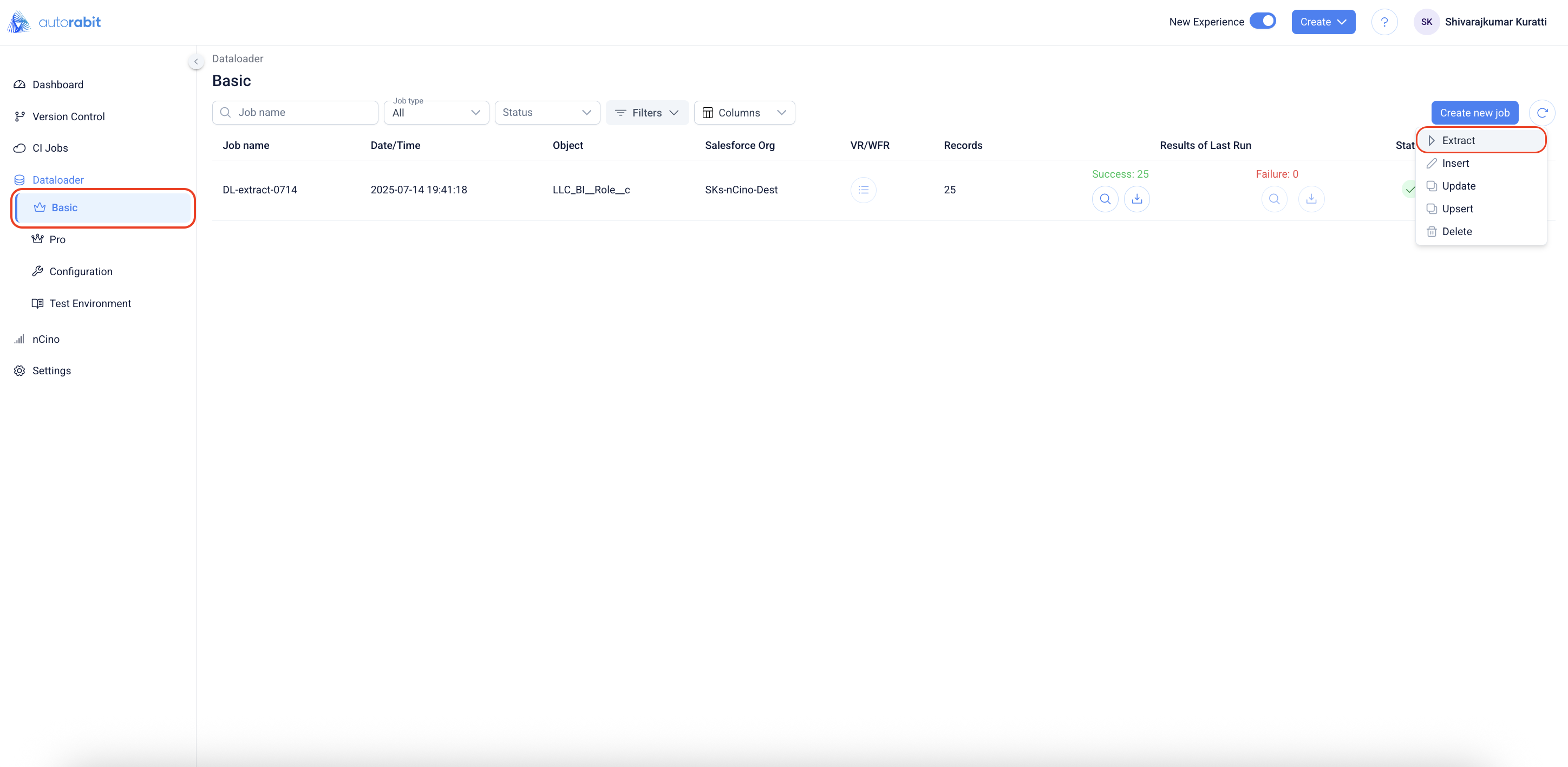
1. Open the Basic application by logging in to the application.
2. Expand the "Dataloader" option to click on the "Basic" option.
3. This will open the basic dataloader application.
4. Click on the "Create new job" button to initiate the creation of an "Extract" job.
5. On clicking on the "Extract" job, the flow will navigate to the "Login and select object" step.
6. ### Select the source object
The Create Dataloader Job flow starts in the Login and select object step. After selecting the required source org and destination org, Login and fetch objects retrieves the available objects.
The required object is selected from the object list. This selected object is used as the master object in the Schema step.
Login and select object step with the object list available for selection.
7. ### Open the filter configuration
The Schema step displays the selected master object and provides access to Filters and Mappings. Selecting Filters opens the Filter panel for the object.
Upload CSV File is selected under Input Options. This option allows filter values to be loaded from a CSV file instead of entering each value manually.
Schema step with Filters available for the selected master object.
Filter panel with Upload CSV File selected.
8. ### Upload the CSV file
The field and operator are selected before uploading the CSV file. The file upload control opens the local file picker, where the CSV file containing filter values is selected.
After the file is uploaded, Vault displays a success notification. The uploaded file name appears in the upload field, confirming that the file is attached to the filter configuration.
If the uploaded file format or content is not valid for the selected filter setup, Vault displays a validation message so the file can be corrected before continuing.
Field, operator, and upload action available for the CSV filter.
CSV file selected from the local file picker.
Success notification after the CSV file is uploaded.
Validation message displayed for upload-related issues.
Action menu showing available options after file upload.
9. ### Auto-populate and review the query
Auto populate reads the uploaded CSV values and generates the corresponding query in the query editor. The generated query uses the selected object and field, then inserts the uploaded values into the filter condition.
Order By can be configured to define the sort order for the query output. Record Count can be used when the job must limit the number of records returned by the query.
Generated query populated from the uploaded CSV file.
Record Count area available for limiting returned records.
10. ### Validate and apply the filter
Validate checks whether the generated query is valid before the filter is applied. If the query is valid, Vault displays a success notification.
Apply saves the filter configuration for the selected master object. During processing, Vault applies the CSV-based filter and then returns to the Schema step with the filter configured for the object.
Validate action available after the query is generated.
Processing state while validation or apply action is in progress.
Success notification after the query is validated.
Apply action available after validation.
Schema step showing the configured filter after the panel closes.
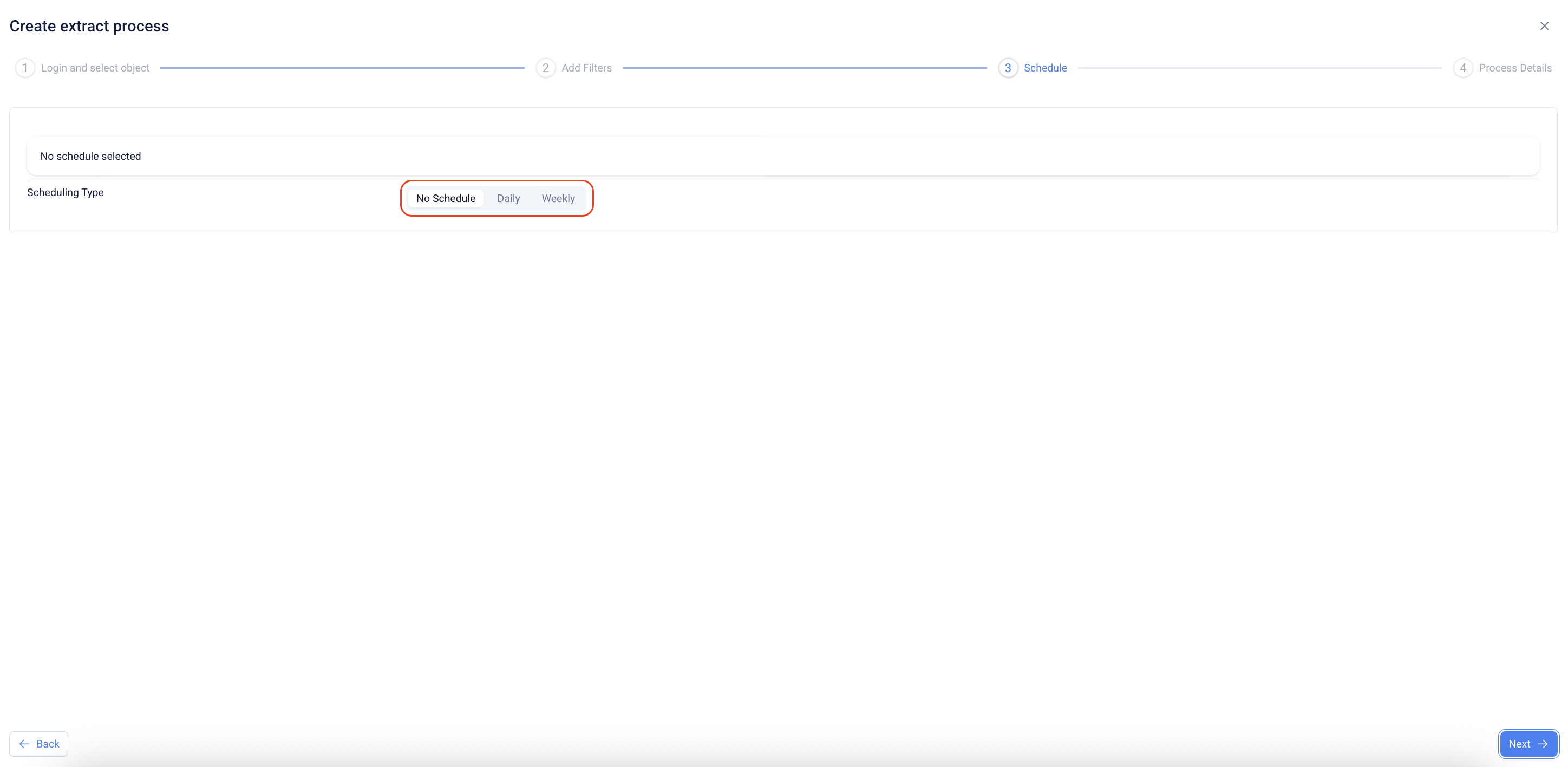
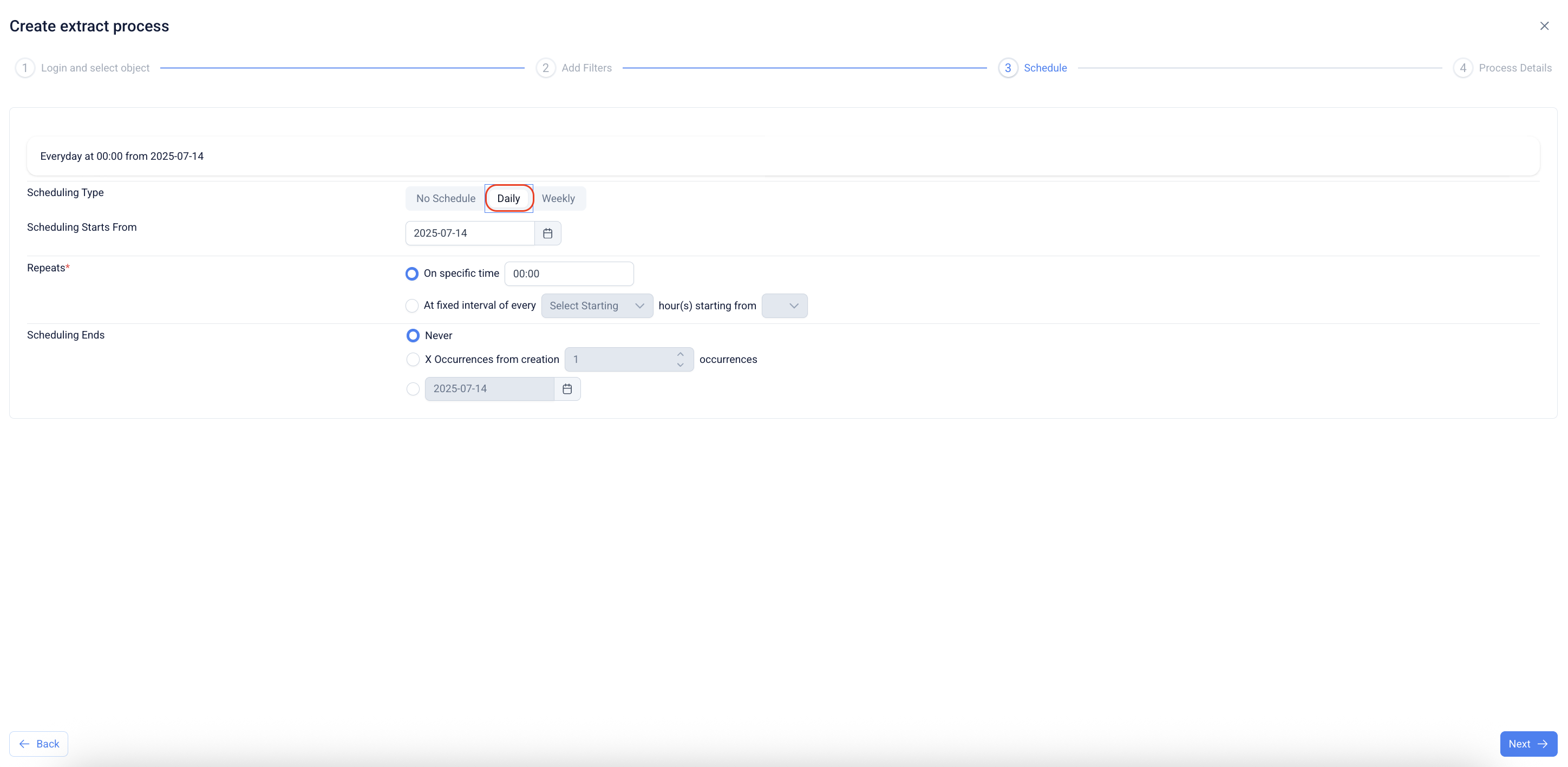
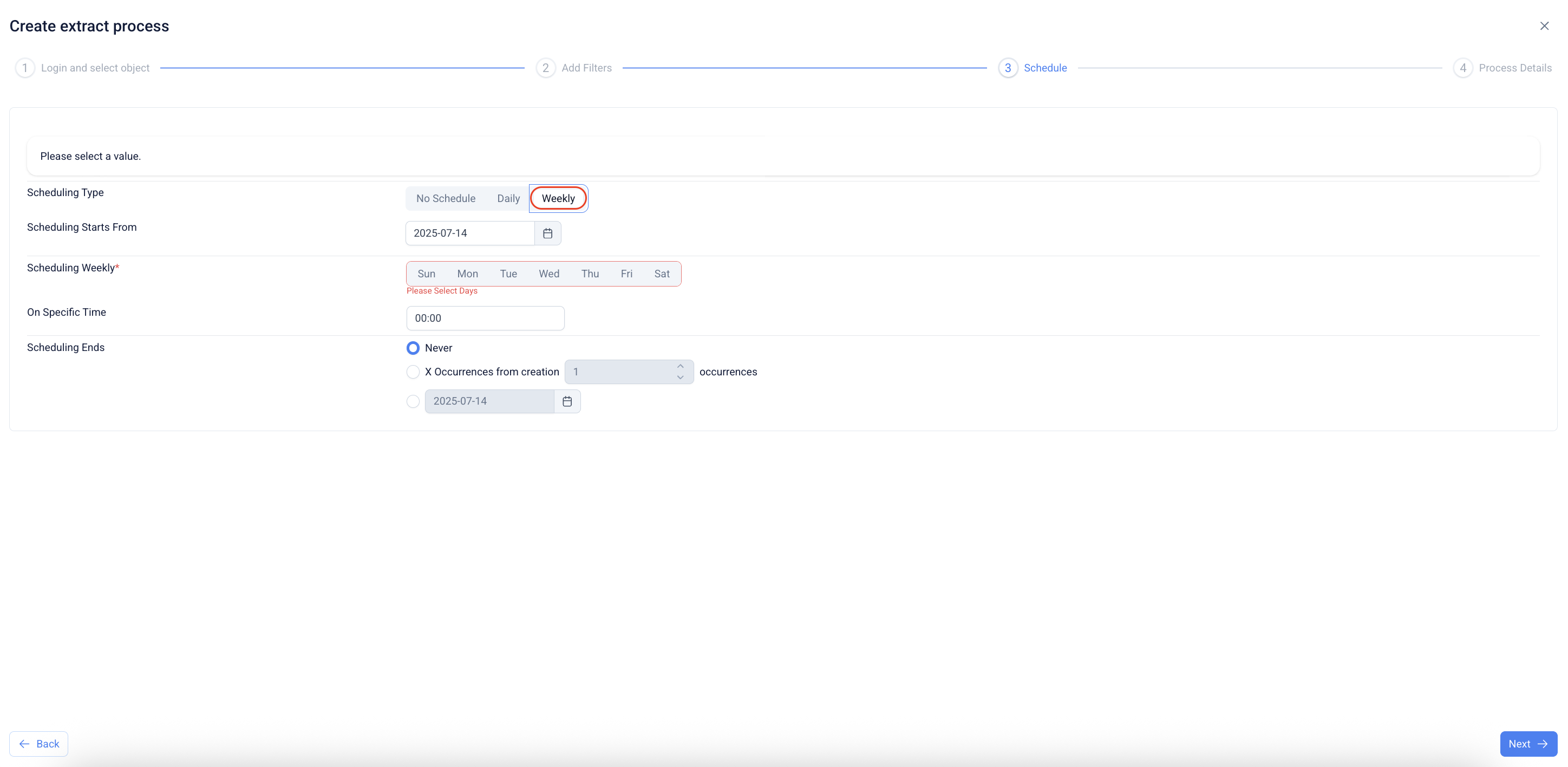
11. Multiple schedule options are available to schedule the job
12. On completing the scheduling, click "Next" to move to the "Process Details".
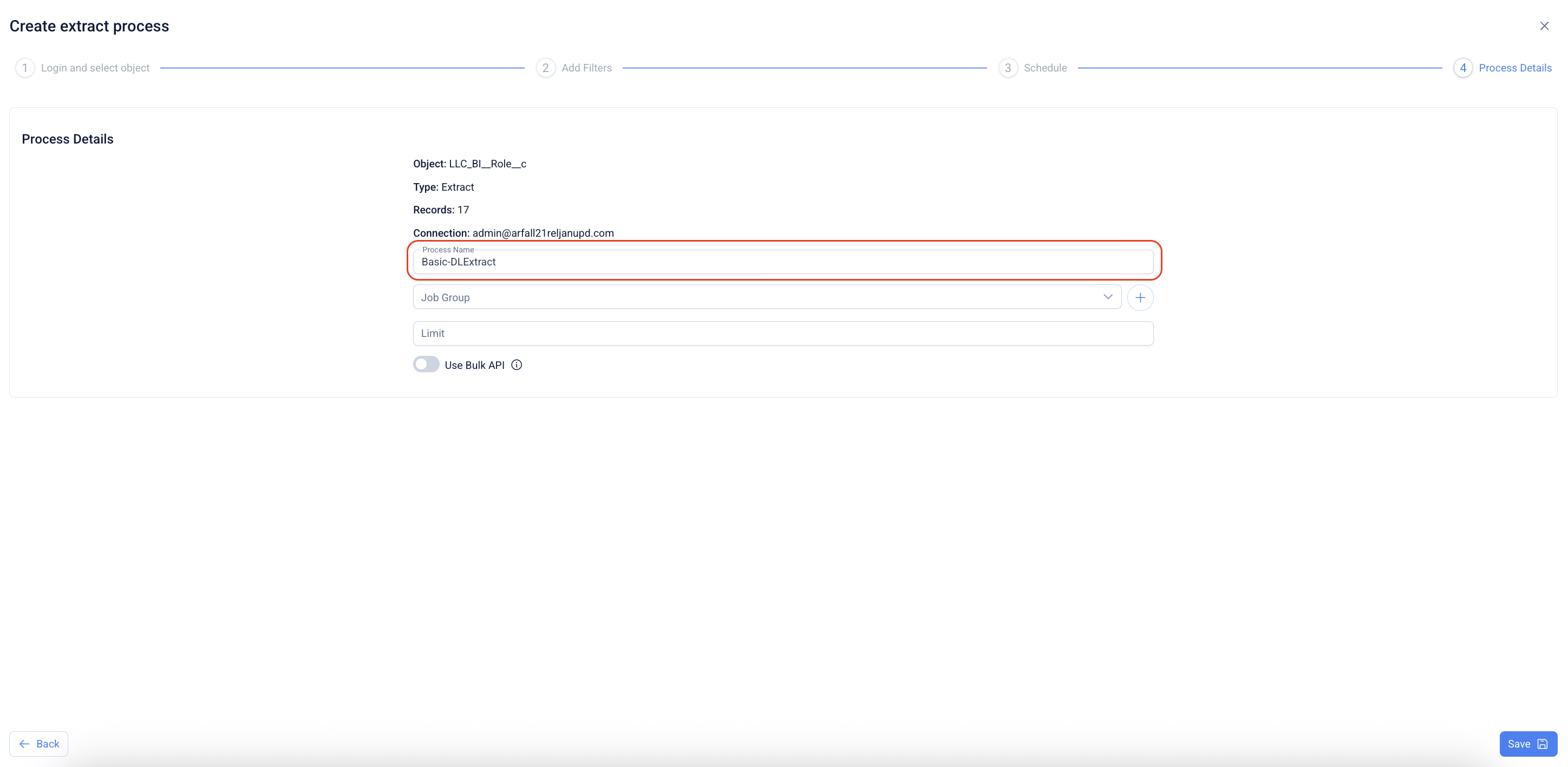
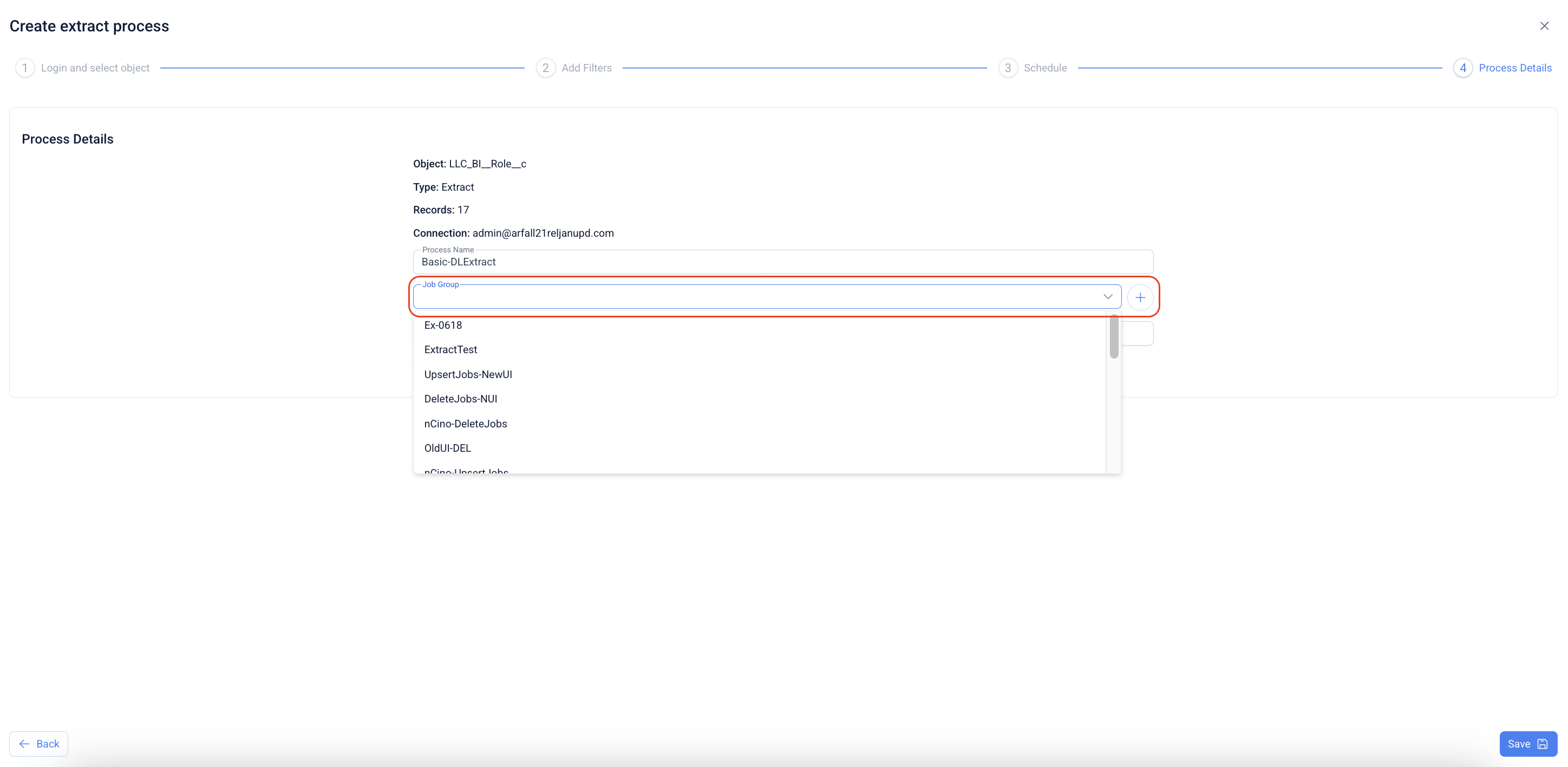
13. Select a "Job Group" to assign the job to a group.
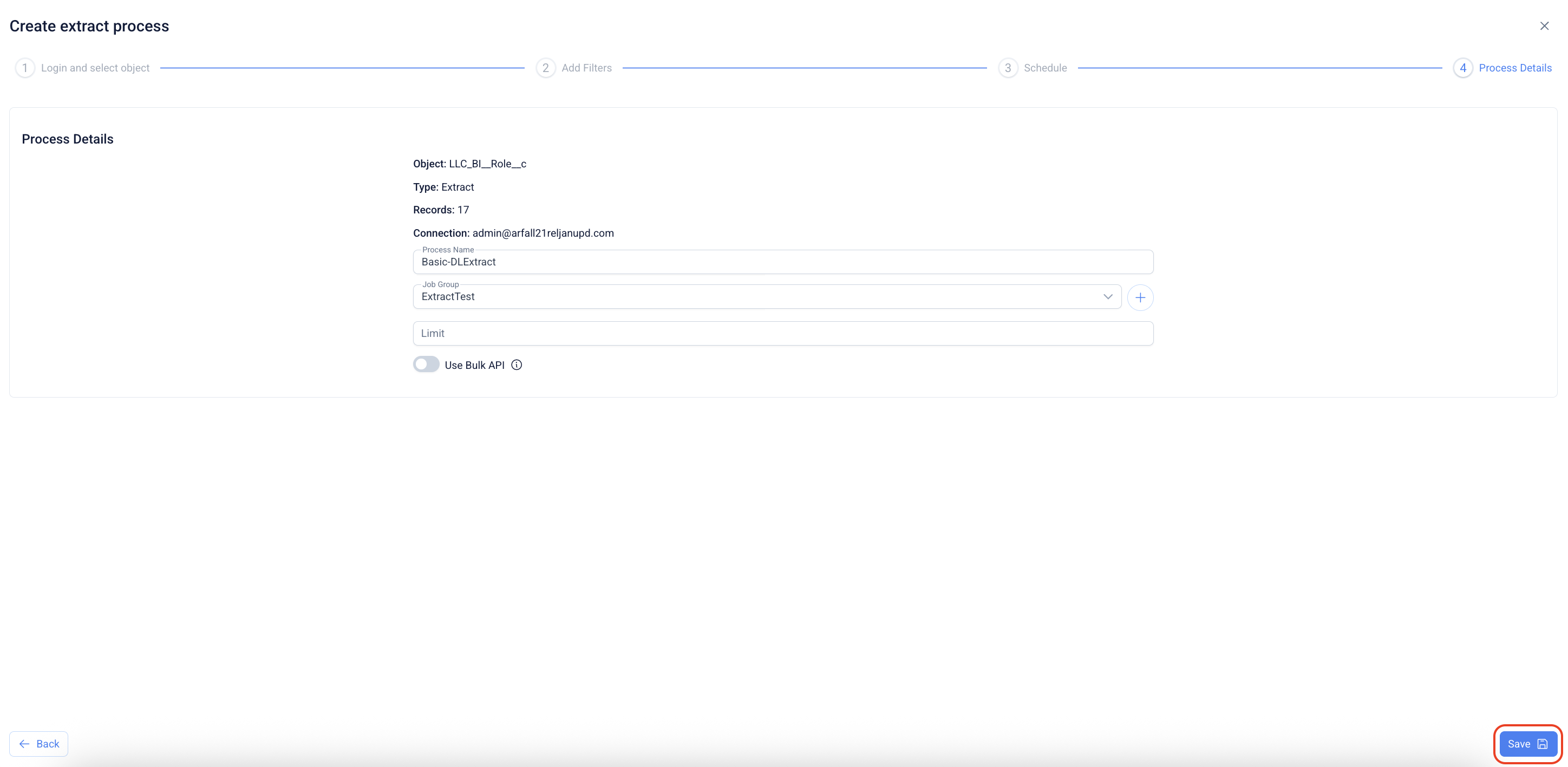
14. Click on "Save" to save the extract job created.
15. Clicking "Save" will redirect to the job list screen of the dataloader basic.
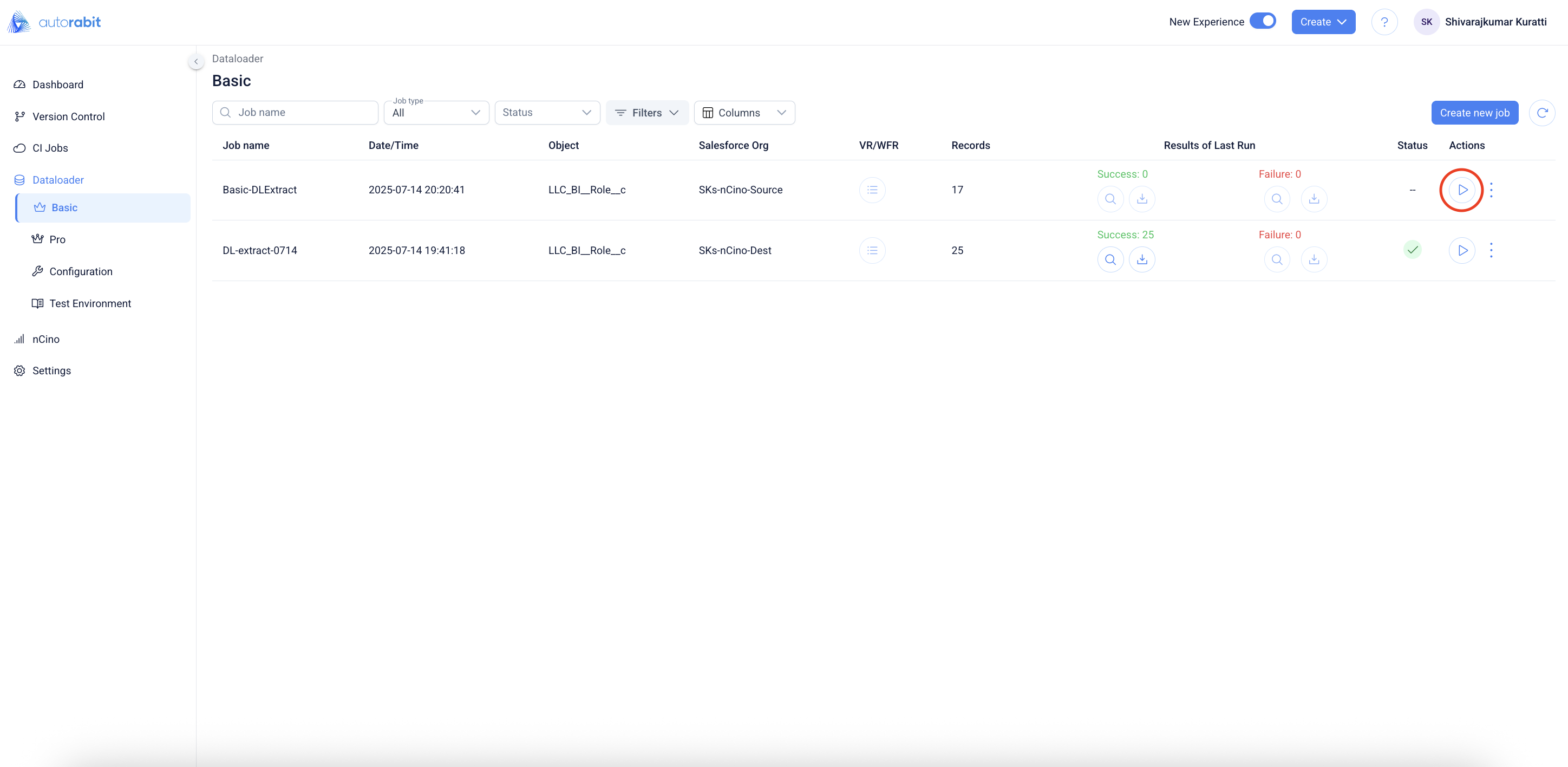
16. Click on "Save" to run the job.
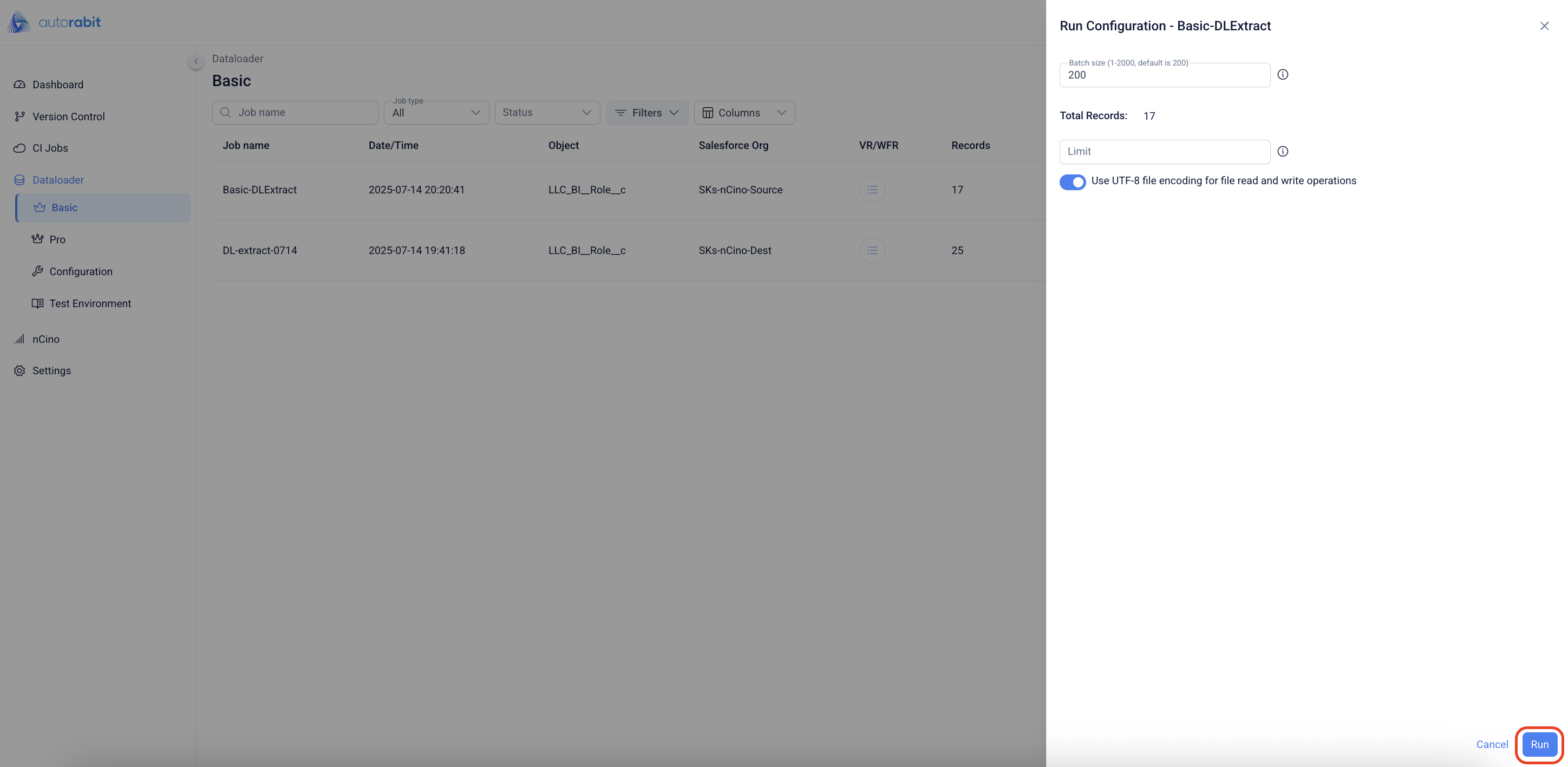
17. Clicking save will redirect to the "Run Configuration" screen.
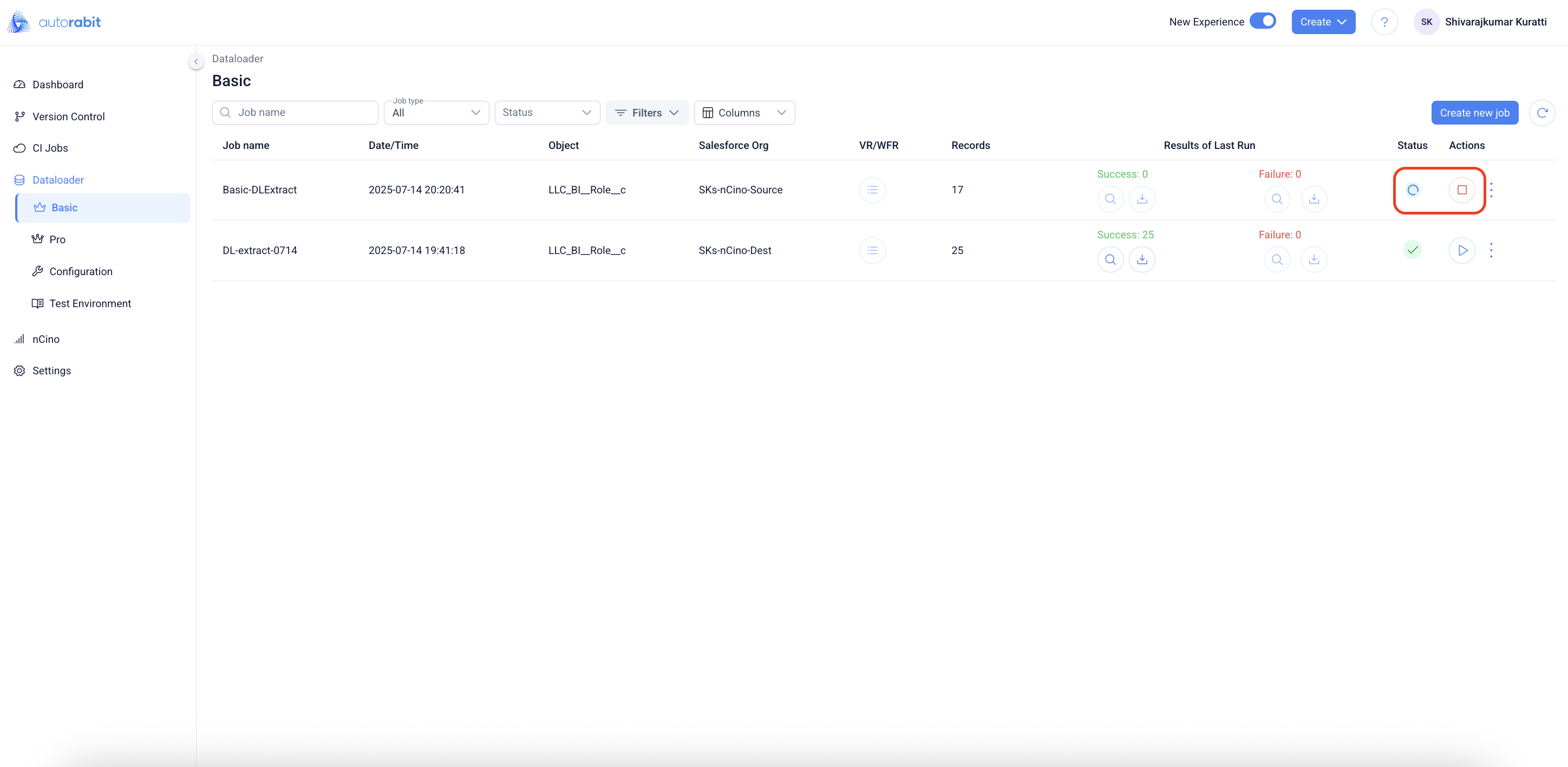
18. Clicking "Run" on the configuration sceen will redirect to the job list screen with the job "in-progress" and the "Abort" options on the job.
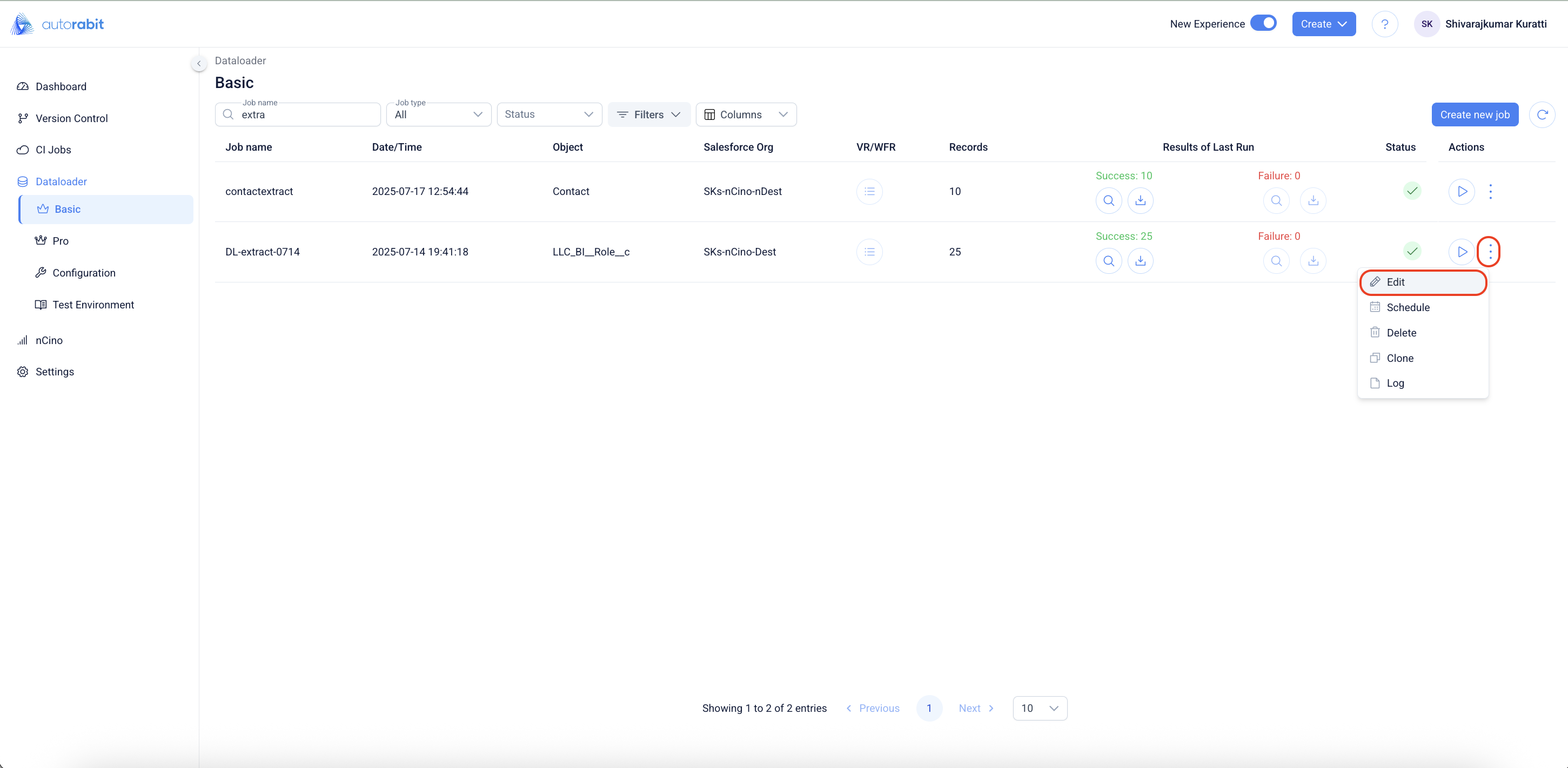
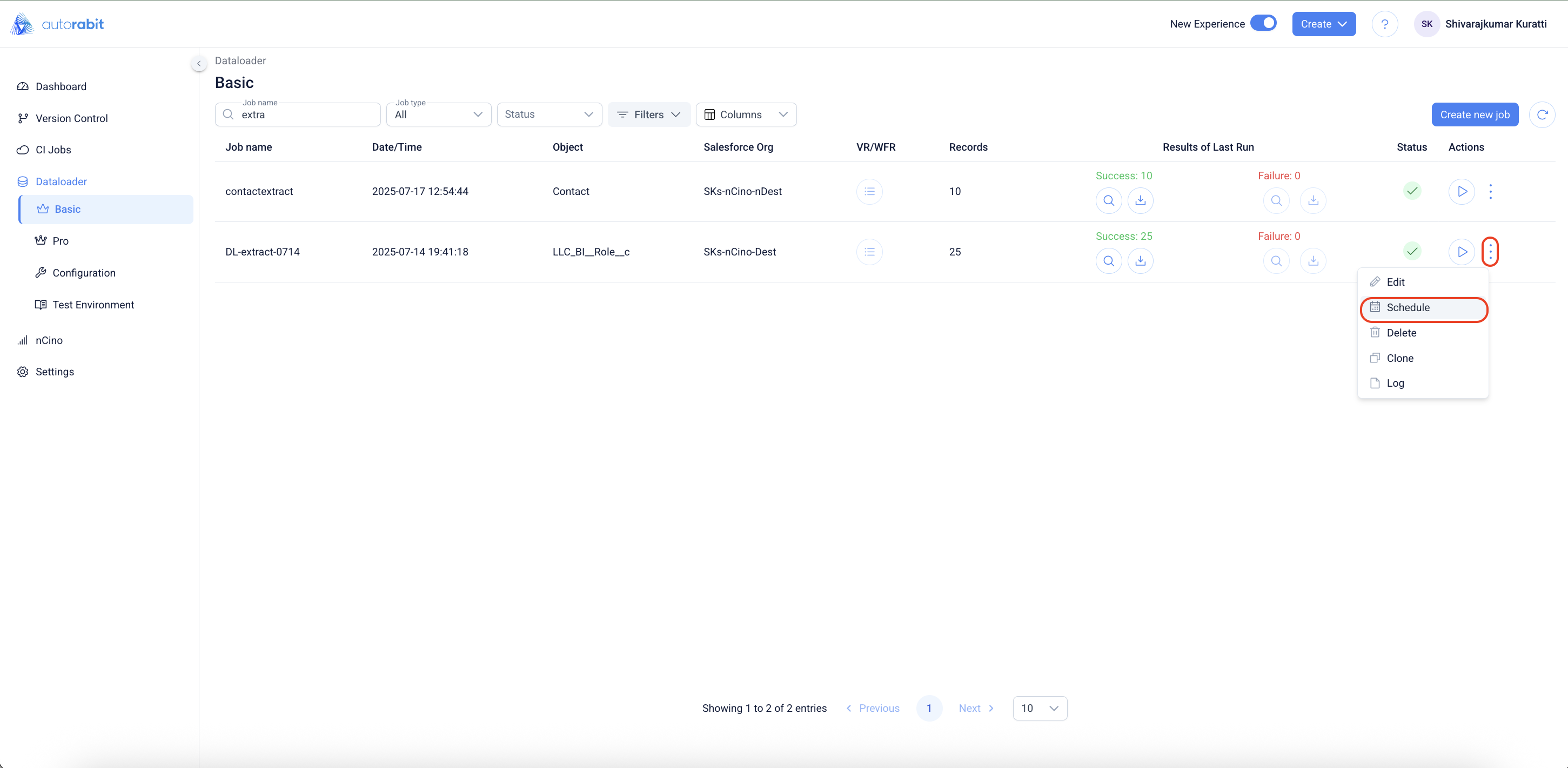
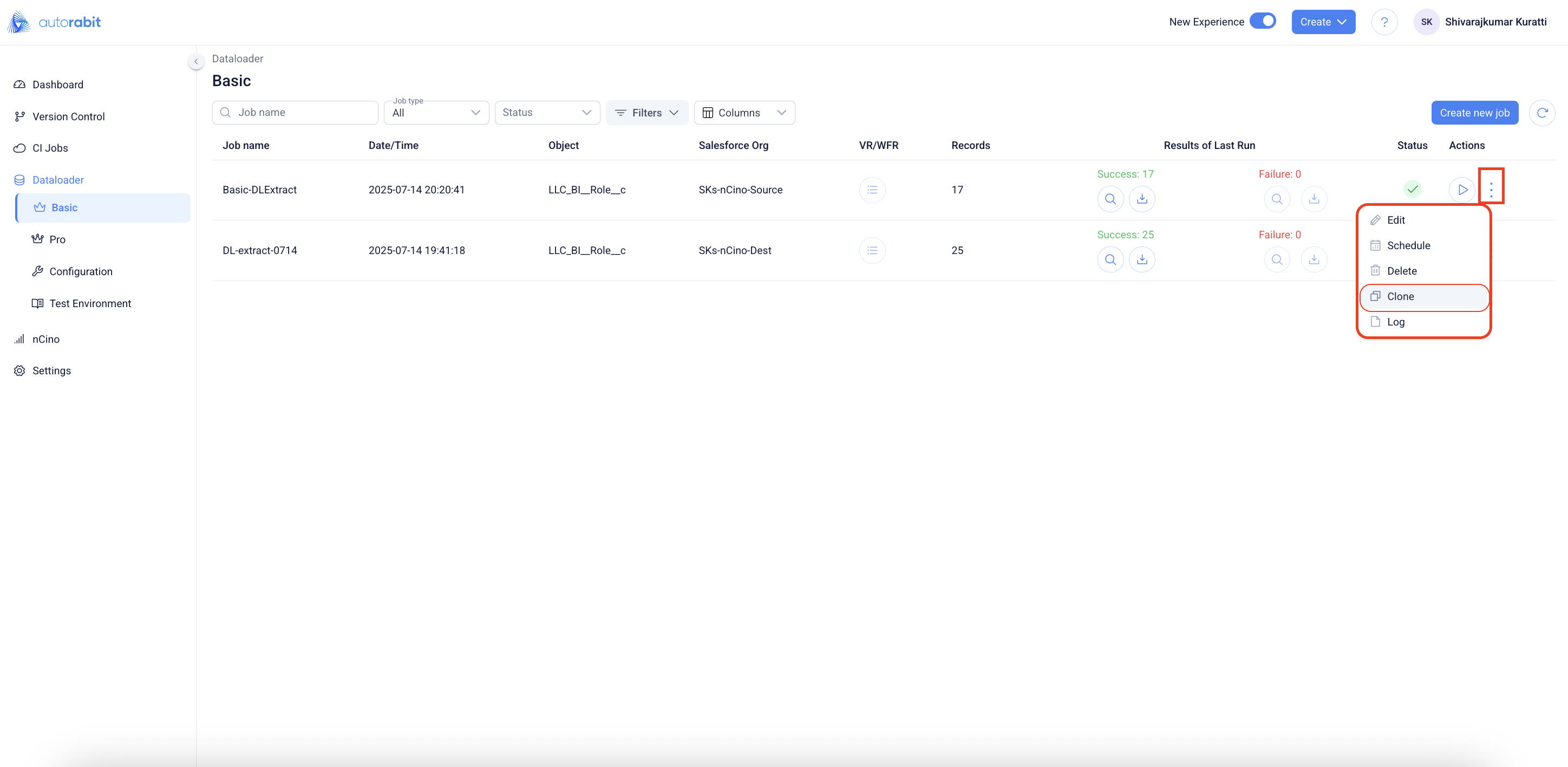
19. Click on the Eclipse icon to observe the options
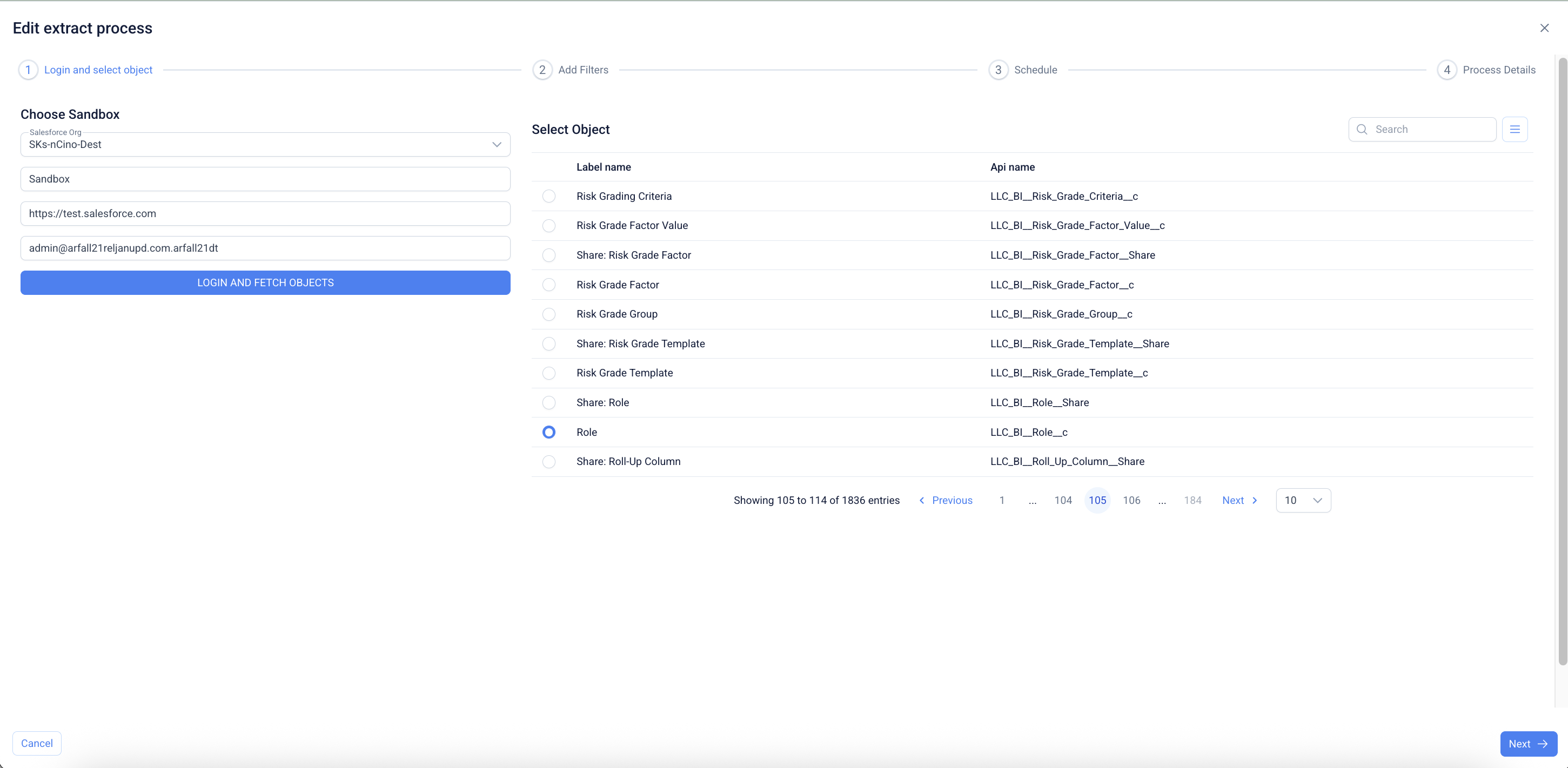
20. Click on the "Edit" option to initiate the edit flow of the job
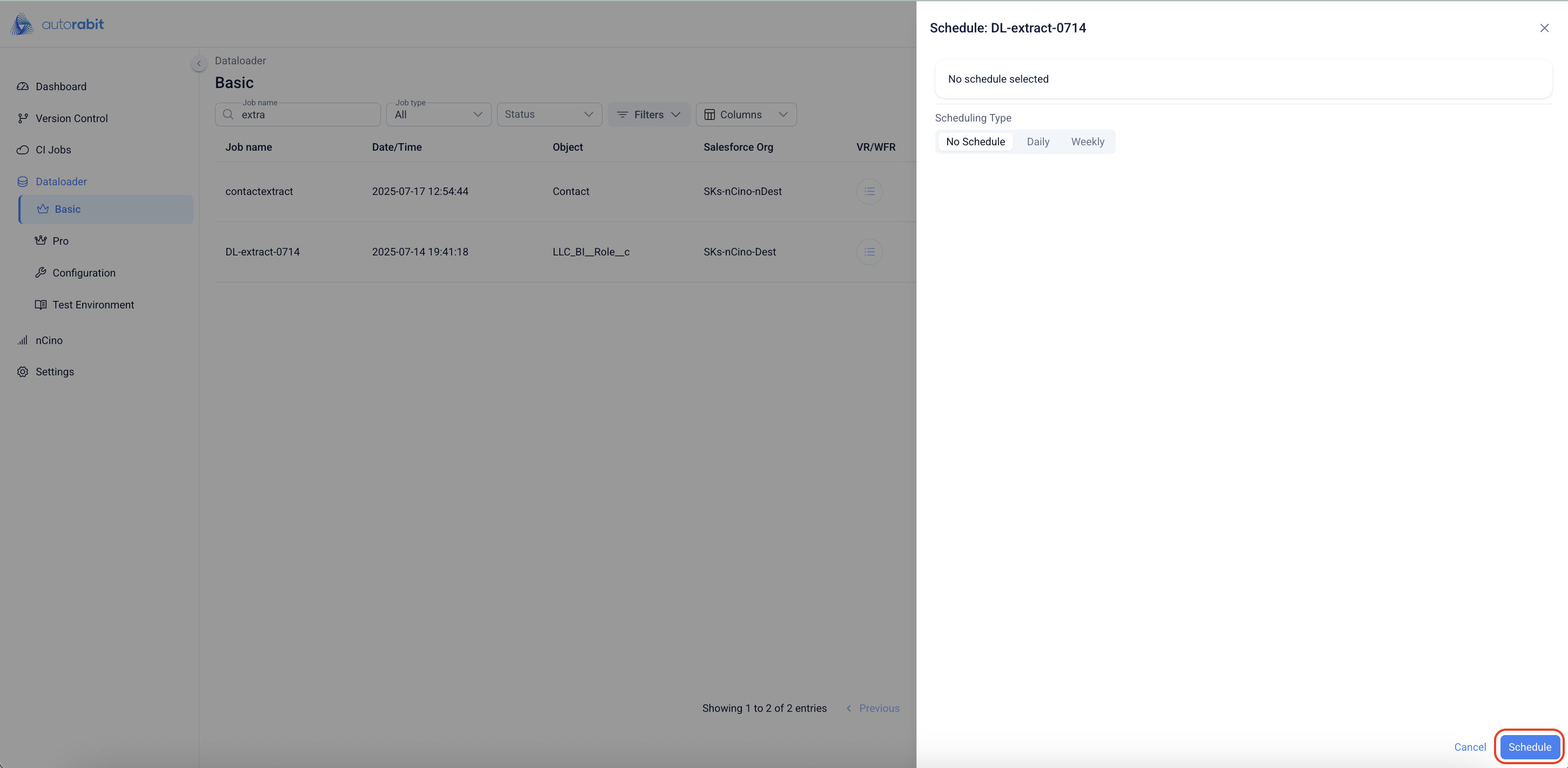
21. Click the **Schedule** option to view any existing schedule configured during job creation. A new schedule can also be set at this stage, which will apply specifically to the current job.
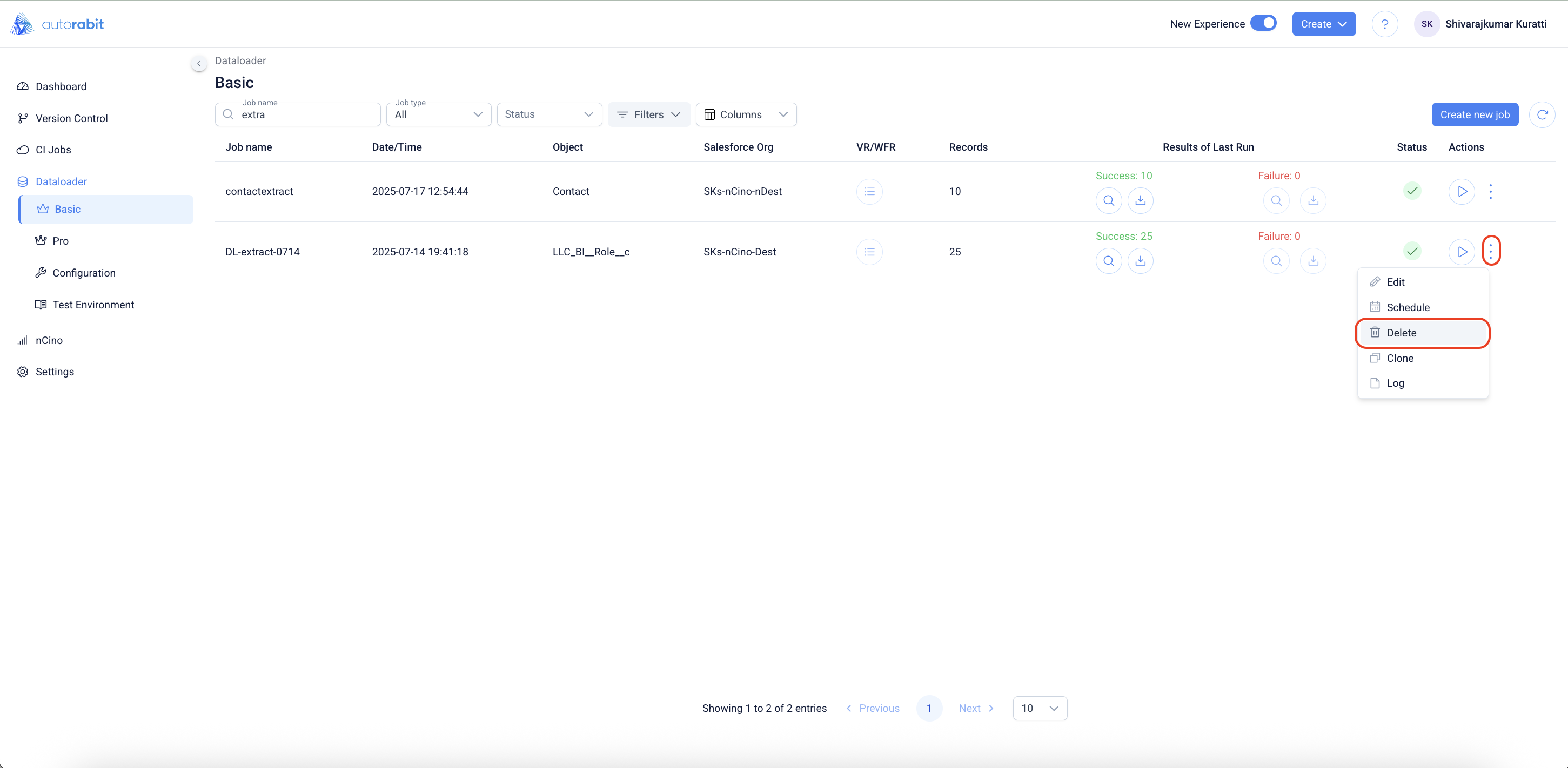
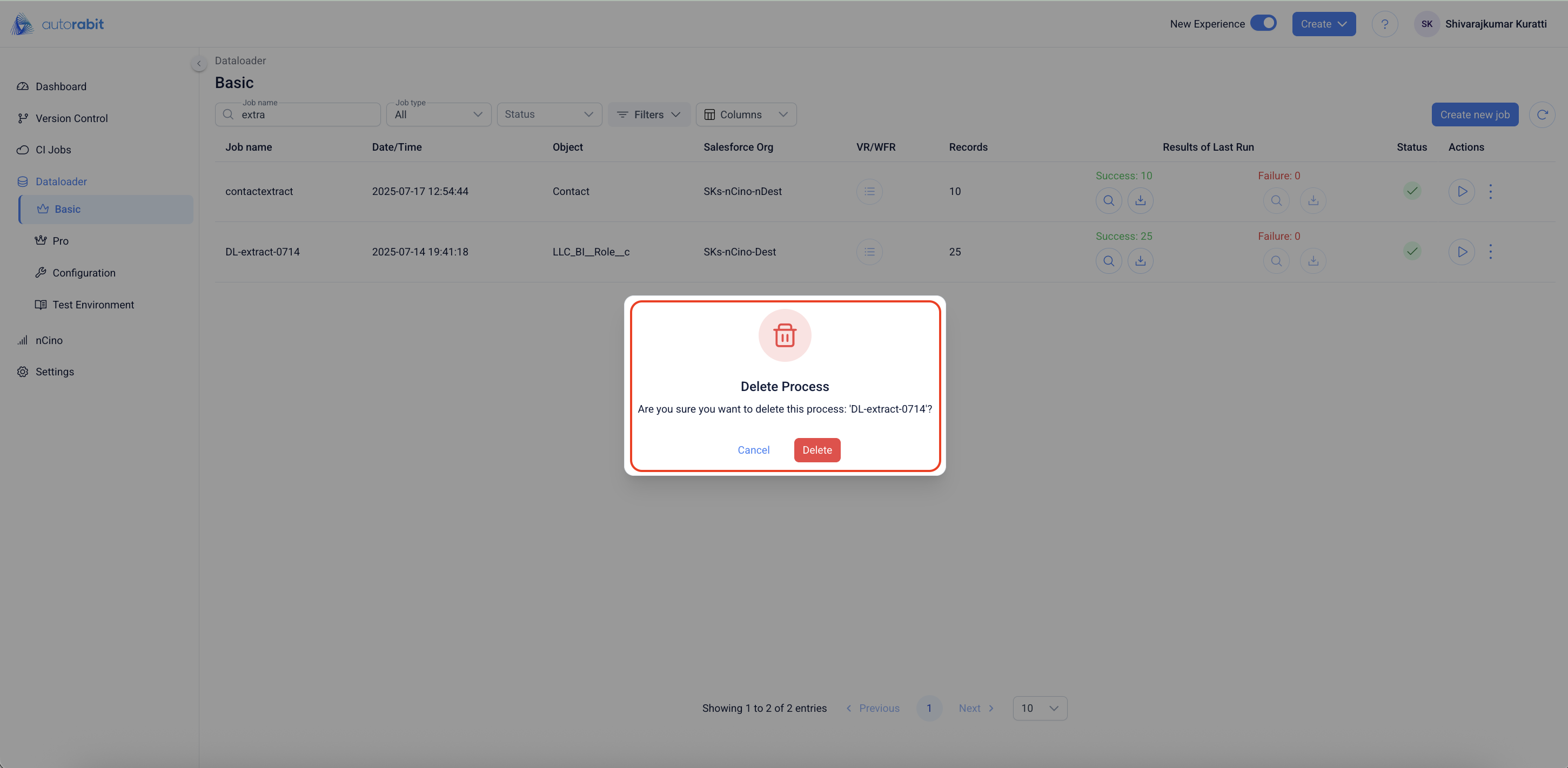
22. To delete the job, click on the "Delete" option.
23. A confirmation prompt is displayed to ensure the deletion action is intentional and acknowledged, helping prevent accidental removal of the process.
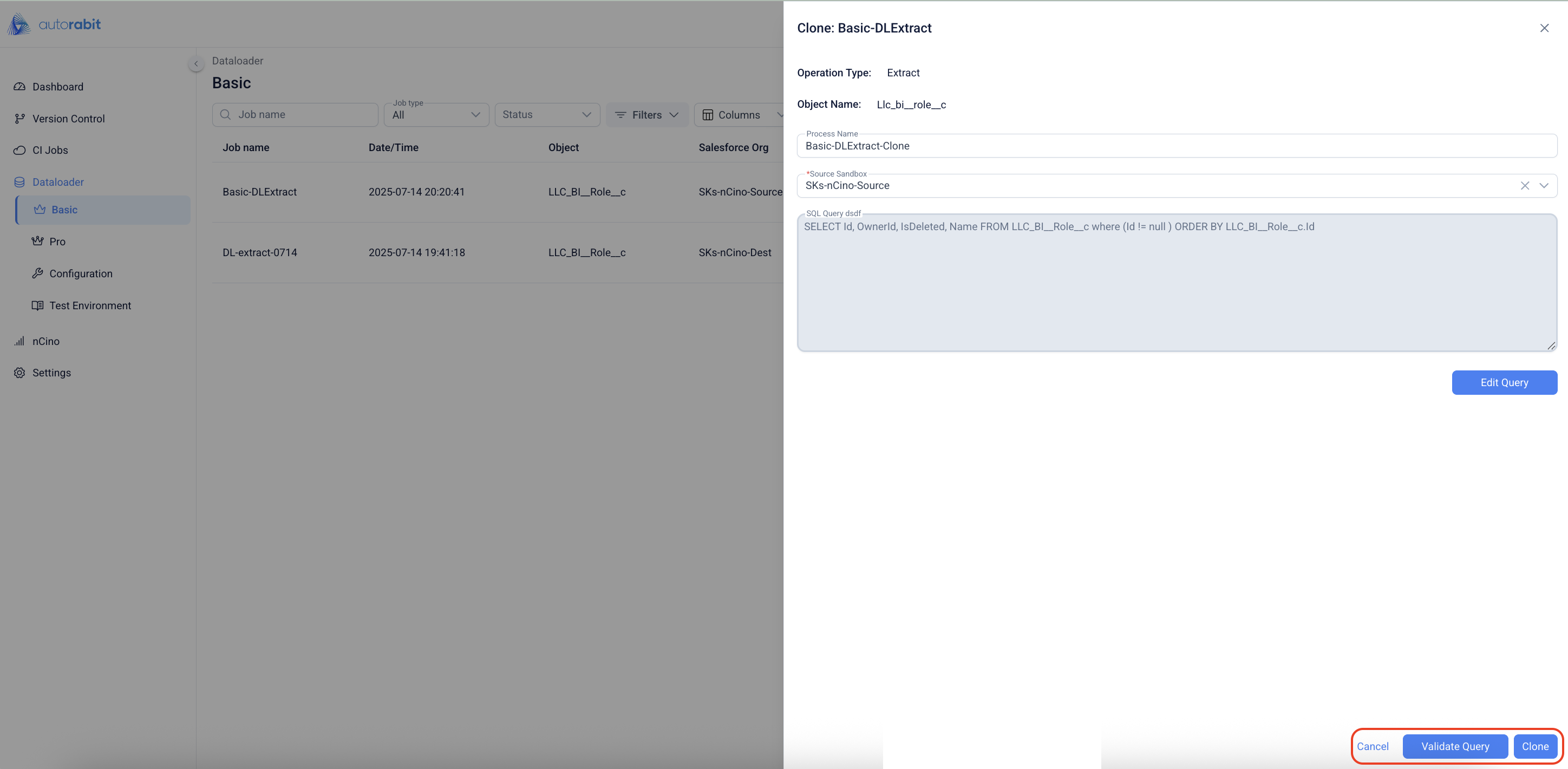
24. Click on the "Clone" option to initiate the clone operation of the job.
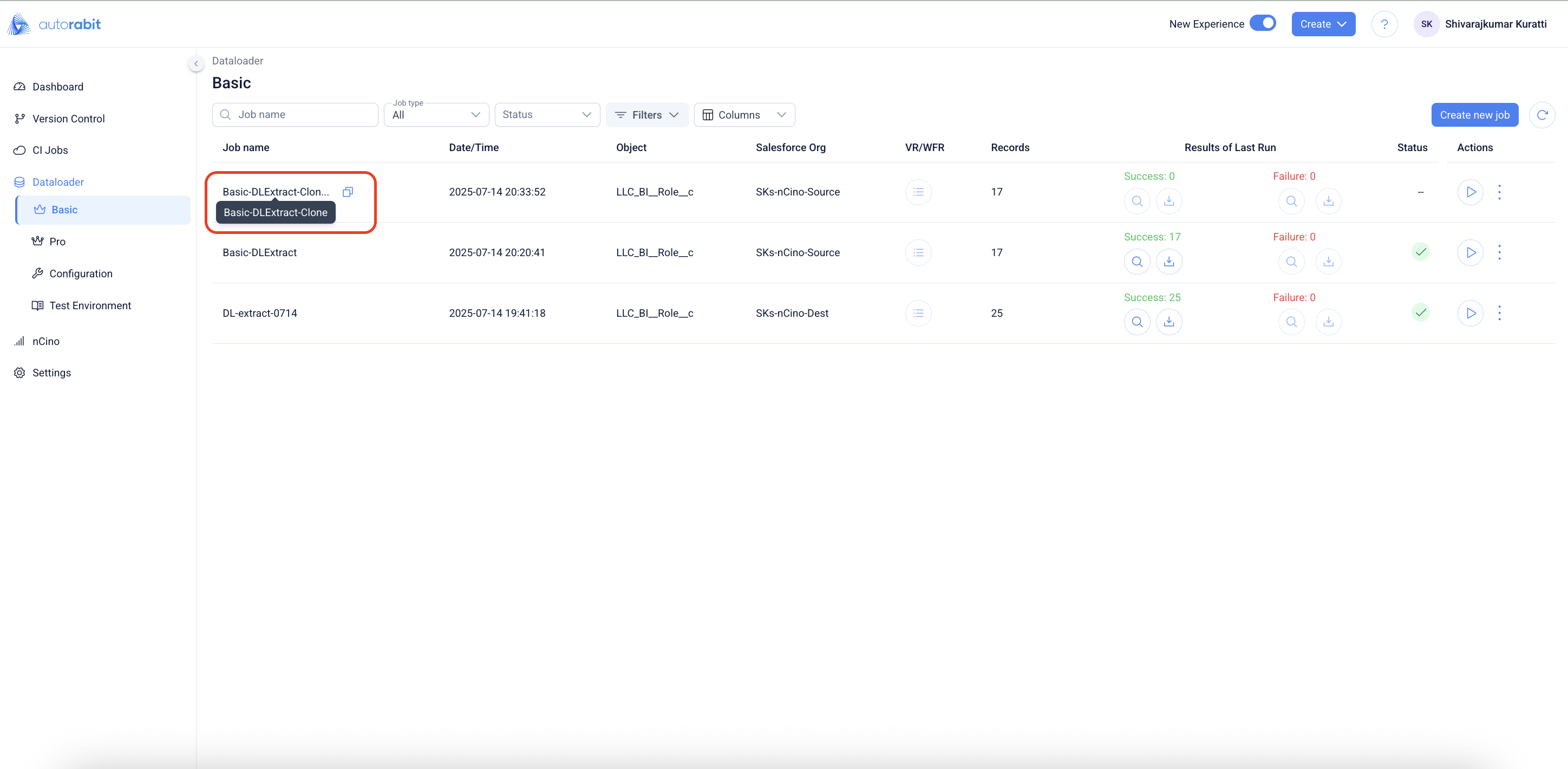
25. Once the clone operation is completed, a cloned job can be observed on the job list page.
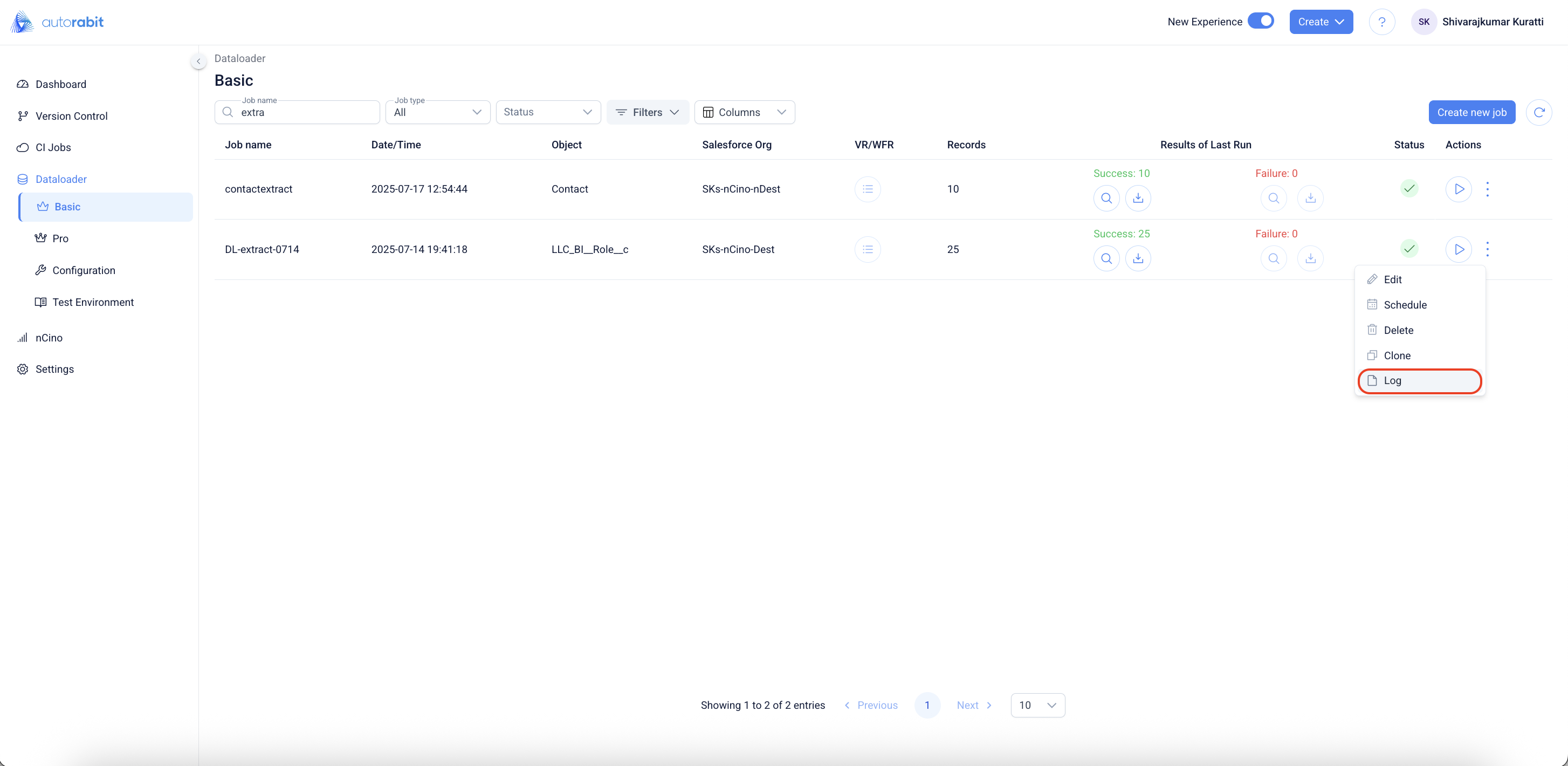
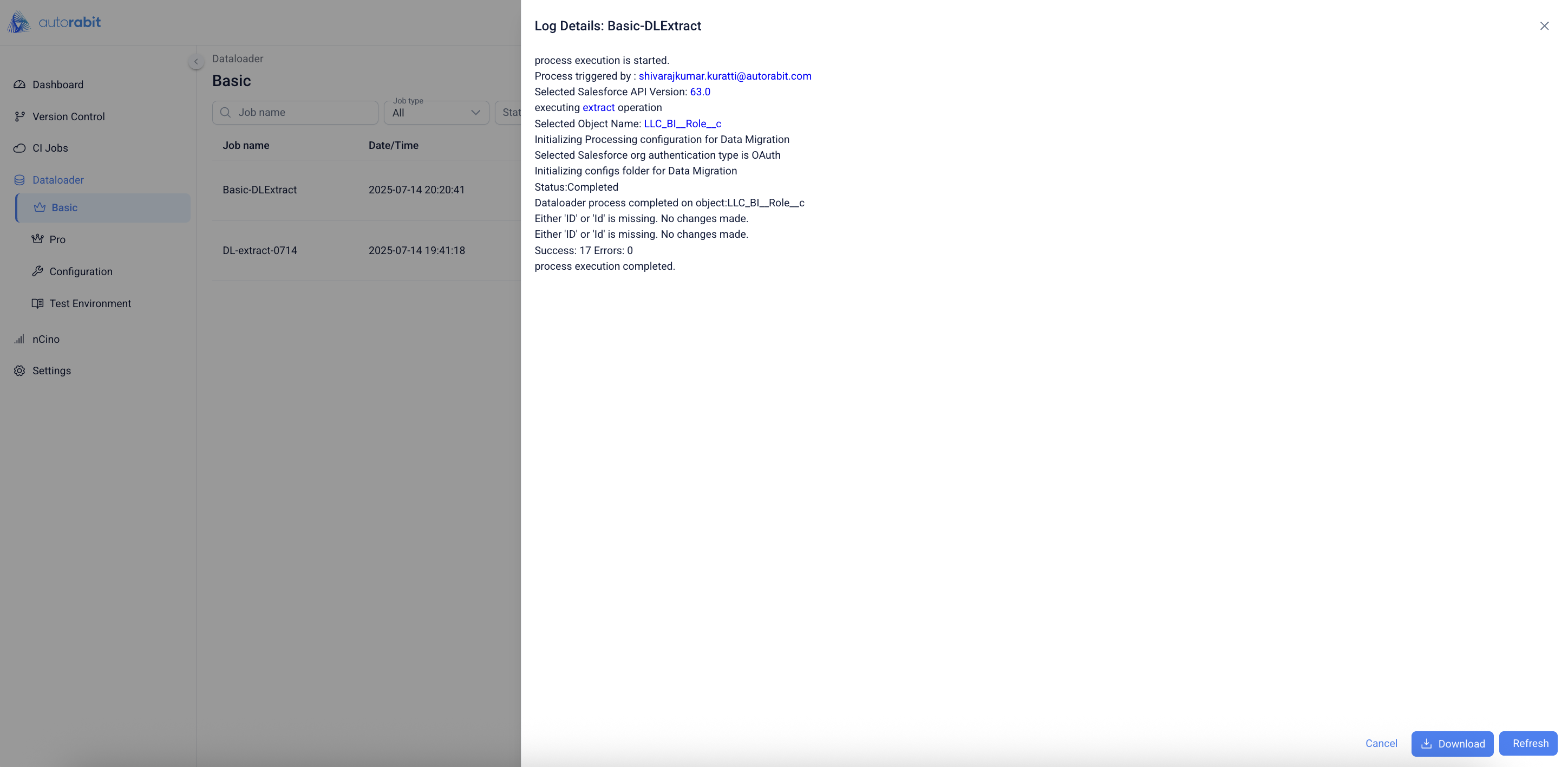
26. Click on the "Log" option to observe the job details of the job.
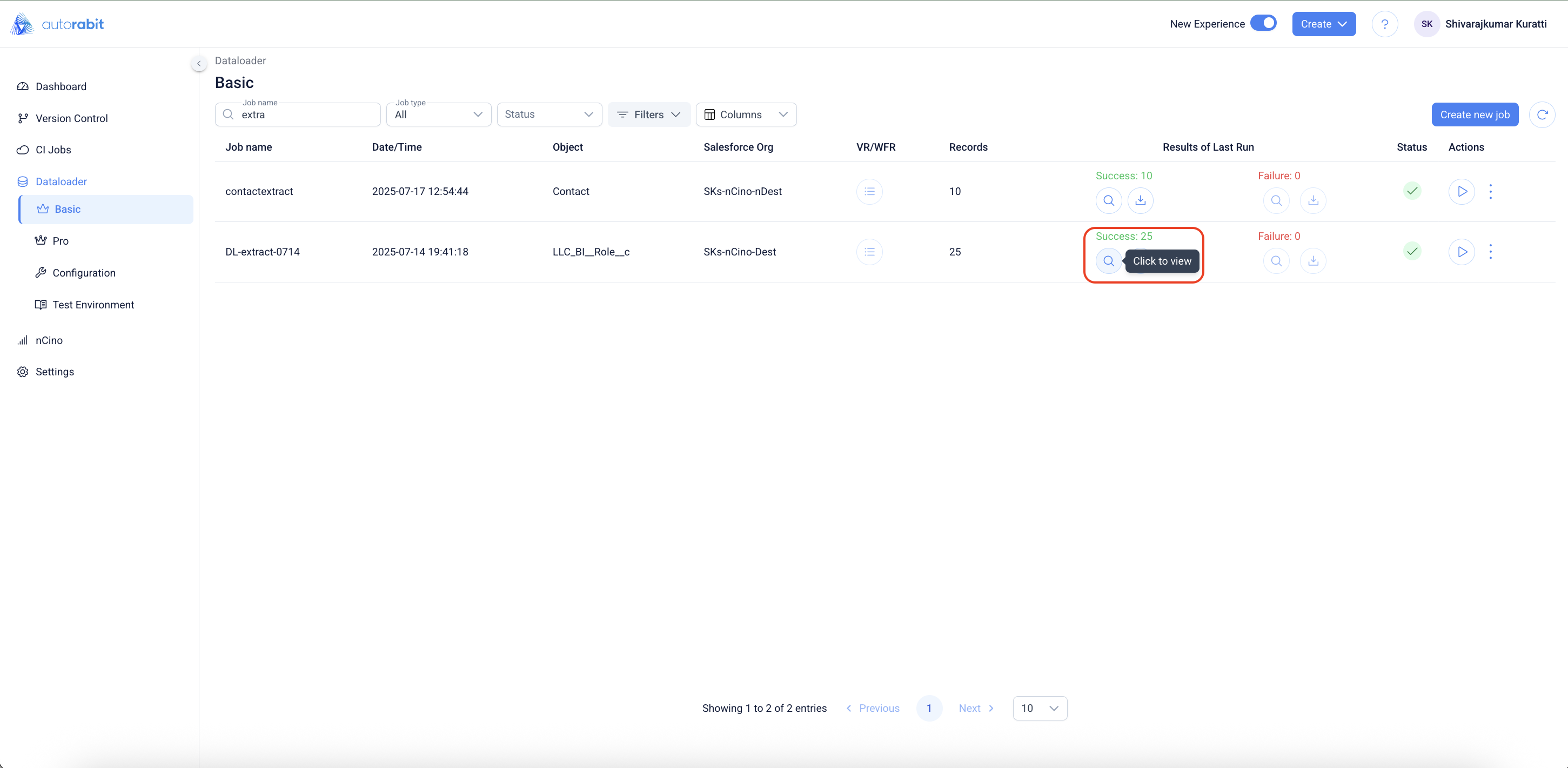
27. The success and the failure of the records can be observed under the "Result of Last Run".
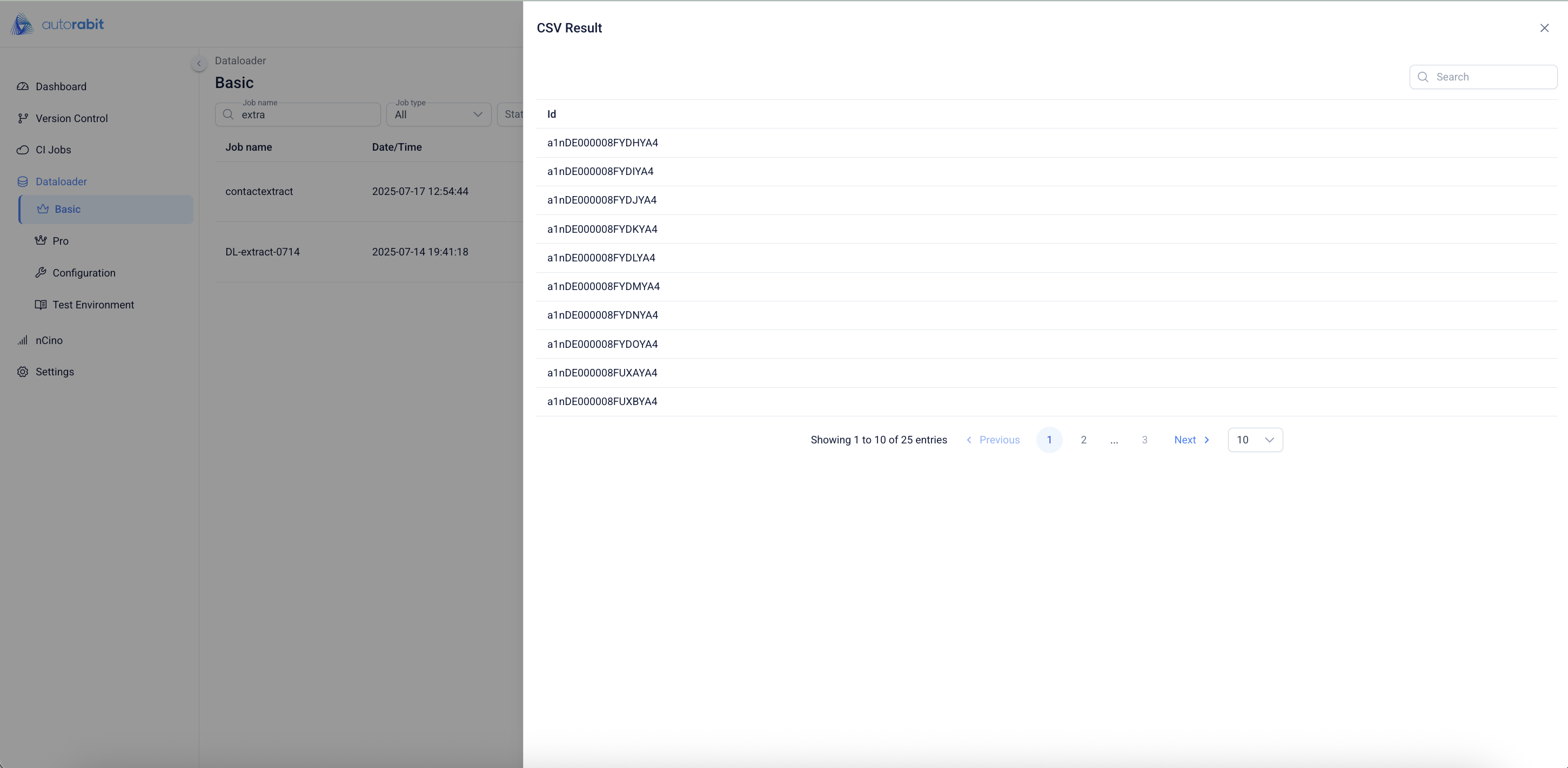
28. Click on the "Success" icon to observe the success records
---
# Agent Instructions
This documentation is published with GitBook. GitBook is the documentation platform designed so that both humans and AI agents can read, navigate, and reason over technical content effectively. Learn more at gitbook.com.
## Querying This Documentation
If you need additional information that is not directly available in this page, you can query the documentation by asking a question.
Perform an HTTP GET request on the following URL with the `ask` and `goal` query parameters:
```
GET https://knowledgebase.autorabit.com/product-guides/arm-1/arm-features/dataloader/single-dataloader/extract-salesforce-data.md?ask=&goal=
```
`ask` is the immediate question: it should be specific, self-contained, and written in natural language.
`goal` is what the user is ultimately trying to achieve, the reason they need the answer. Sharing it helps GitBook give you a better, more relevant answer. A goal is most helpful when it describes the outcome the user wants rather than restating the question. For example, with `ask=how do I create an API token`, a goal like `automate deployments from our CI pipeline` lets GitBook tailor the answer to that use case.
The response will contain a direct answer to the question and relevant excerpts and sources from the documentation.
Use this mechanism when the answer is not explicitly present in the current page, you need clarification or additional context, or you want to retrieve related documentation sections.