> For the complete documentation index, see [llms.txt](https://knowledgebase.autorabit.com/llms.txt). Markdown versions of documentation pages are available by appending `.md` to page URLs; this page is available as [Markdown](https://knowledgebase.autorabit.com/product-guides/arm-1/arm-features/dataloader/single-dataloader/upsert-salesforce-data.md).
# Upserting Salesforce Data
**Upsert** is a combination of Updating and Inserting. If a record in a file matches an existing record, the existing record is updated with the values in your file. The record is created as a new entity if no match is found.
Step-By-Step Guide:
1. **Create Upsert Job**
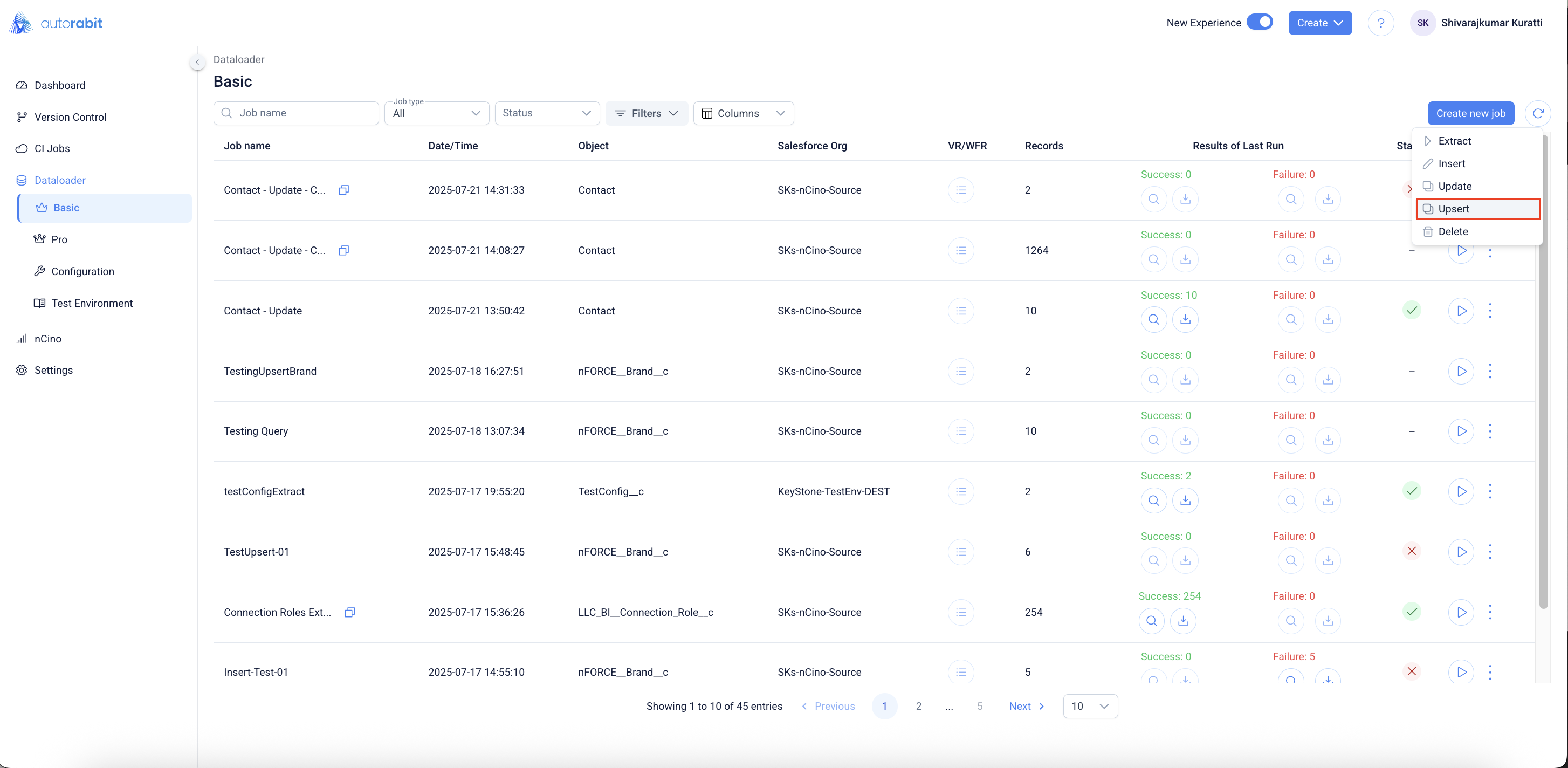
* From the **DataLoader – Basic** page, select **Create new job**.
* Choose **Upsert** as the operation type.
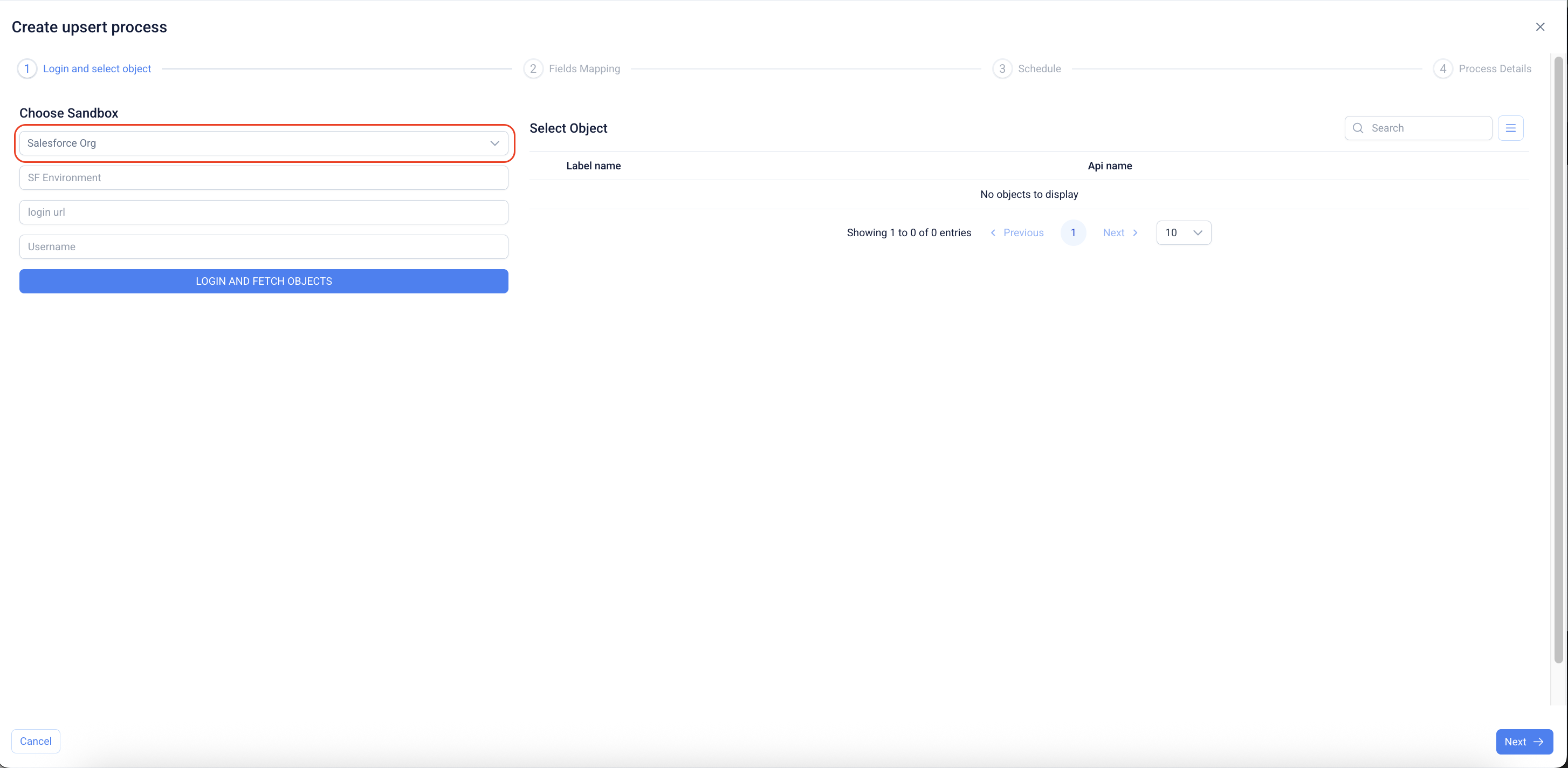
2. #### Choose Sandbox
* In the **Create upsert process** window, select a **Salesforce Org**.
* Provide details such as **Environment, Login URL, and Username**.
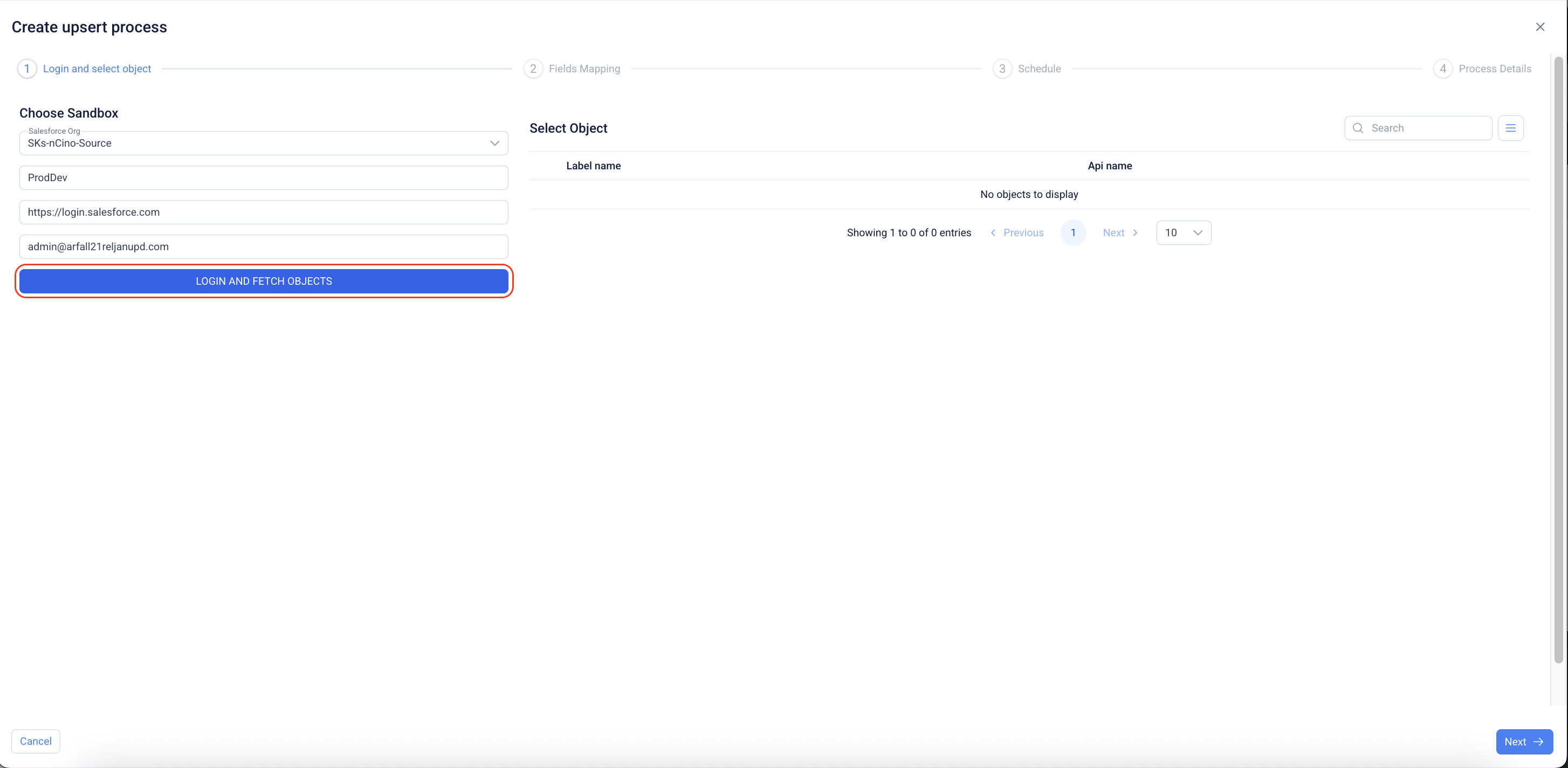
3. #### Fetch Objects
* After entering the sandbox details, click **Login and Fetch Objects**.
* This retrieves the list of objects available for the upsert operation.
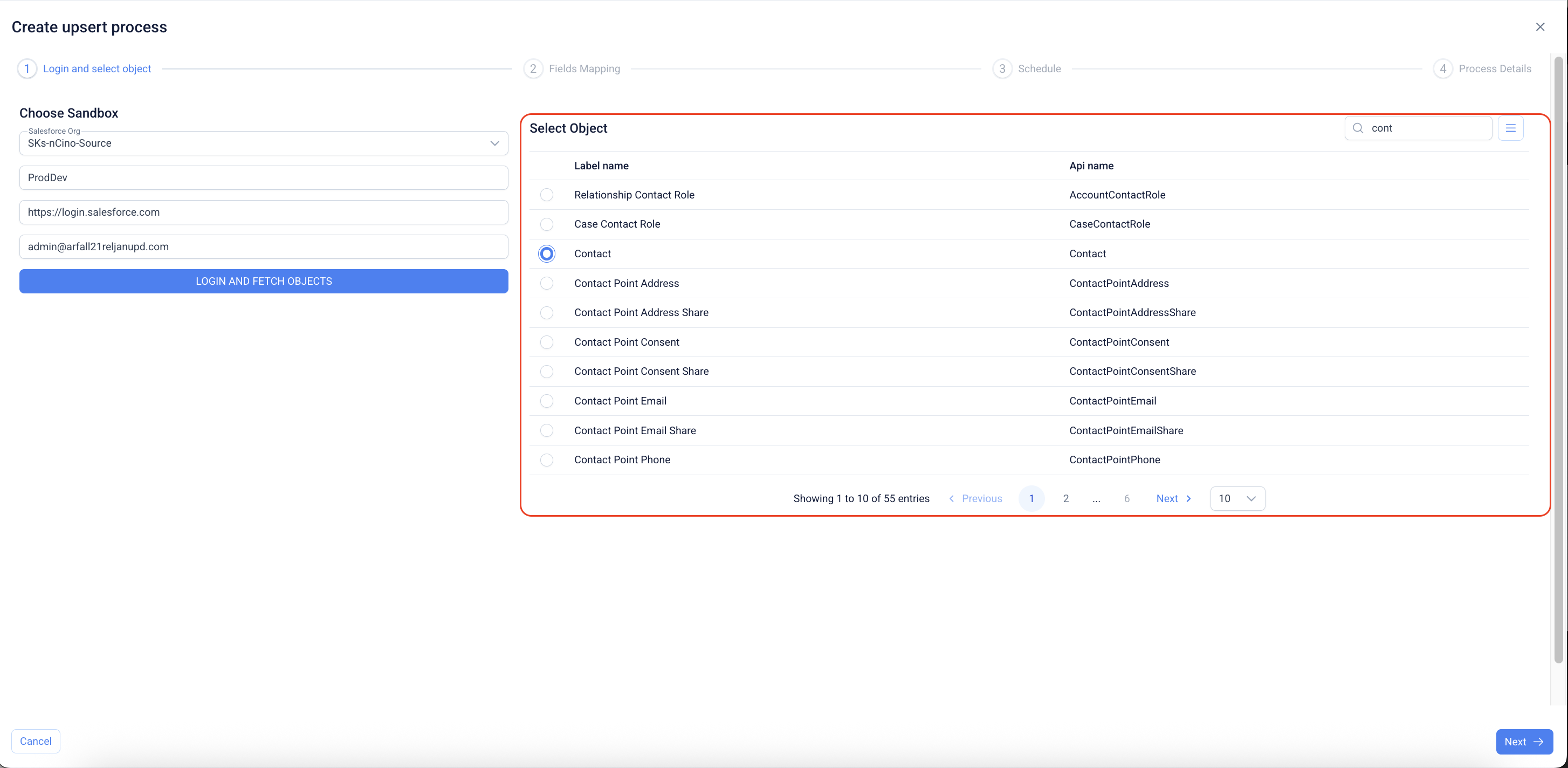
4. #### Select Object
* From the fetched list, choose the required object (e.g., **Contact**).
* Click **Next** to proceed with field mapping.
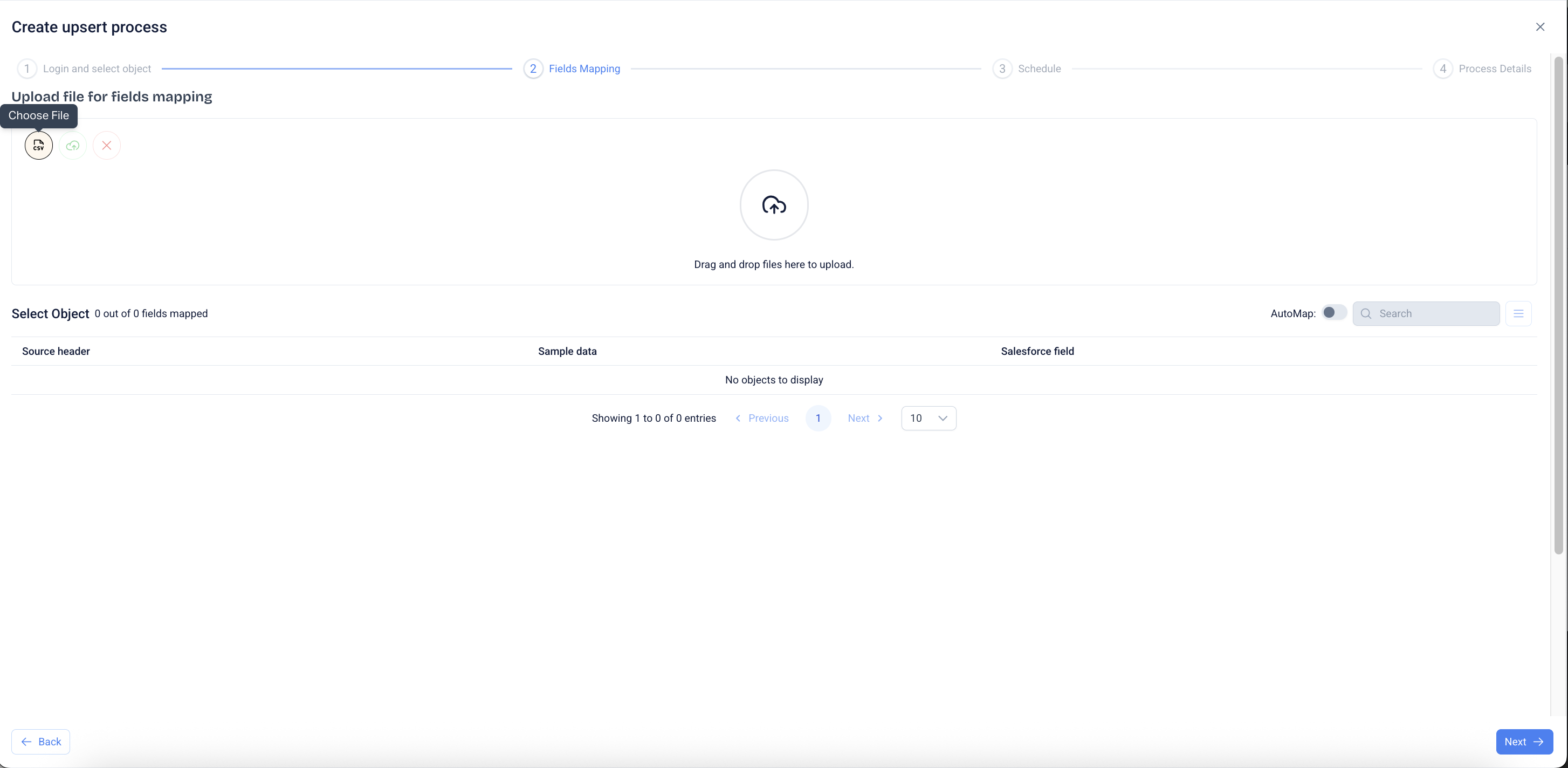
5. **Upload File for Upsert**
* In the **Create upsert process** screen, select **Choose File** or drag and drop to upload a CSV file.
* The file will be used for field mapping against Salesforce objects.
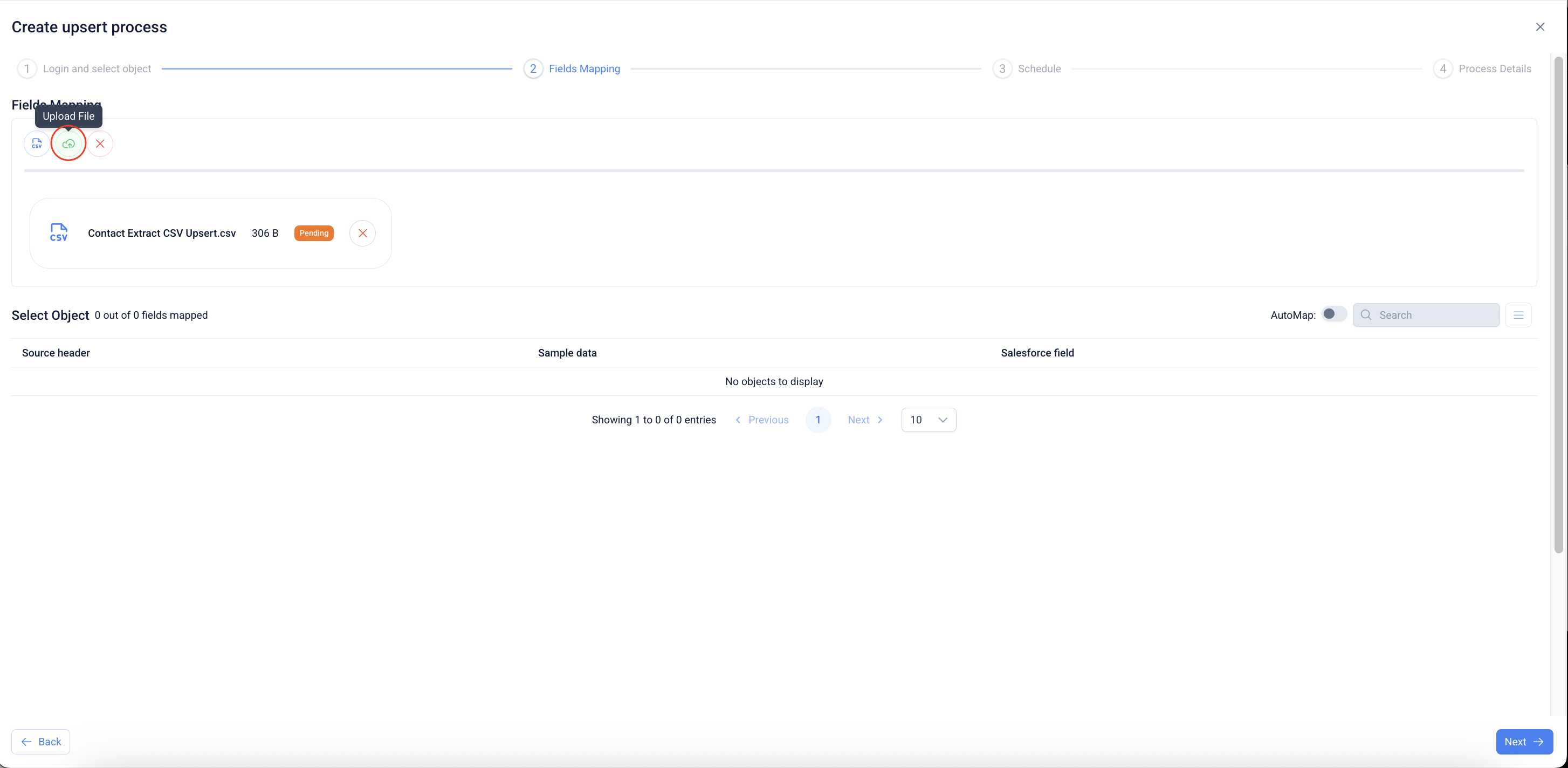
6. #### Upload in Progress
* The uploaded CSV file appears with a **Pending** status.
* Additional files can be uploaded or existing ones removed, if required.
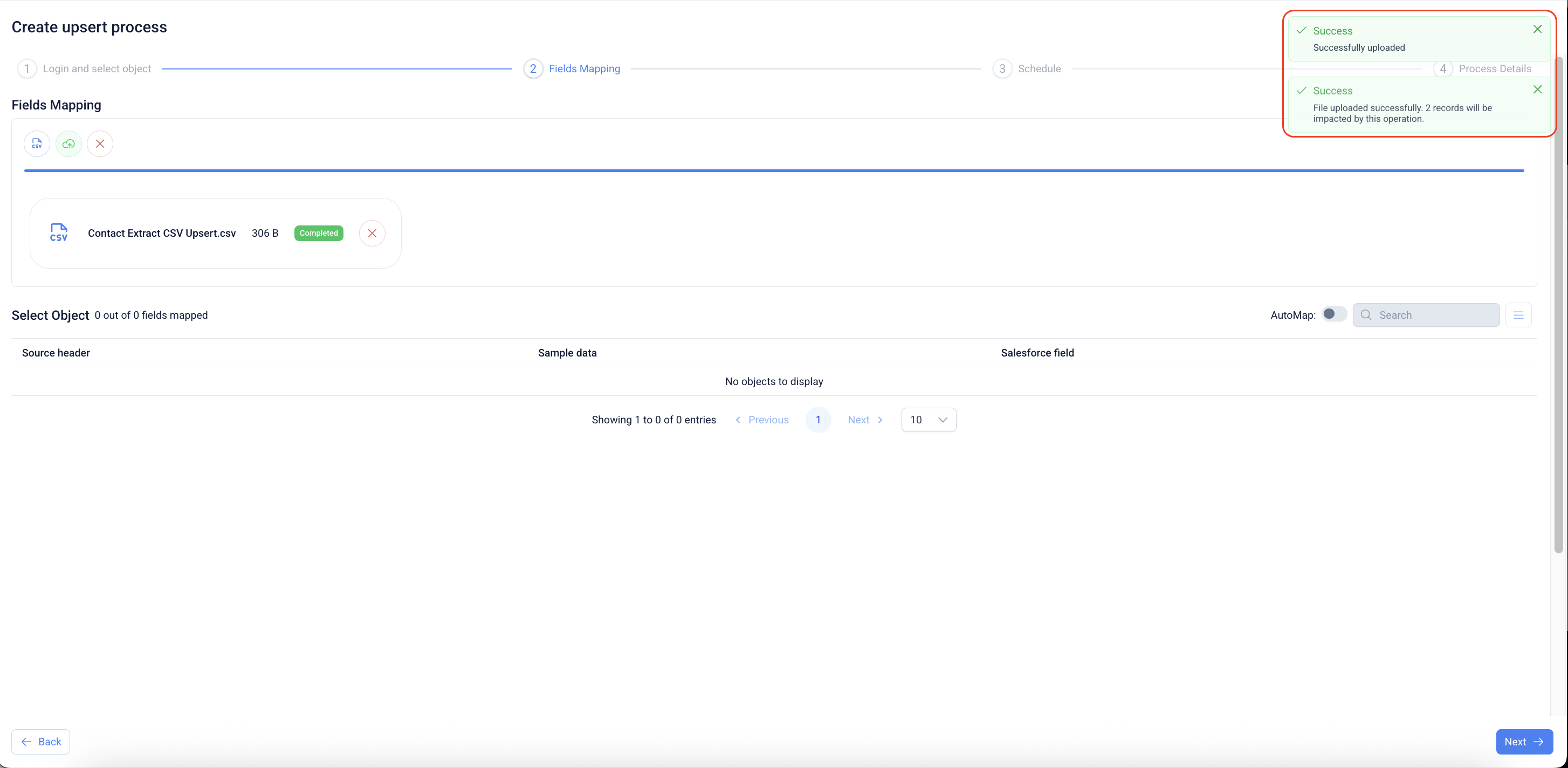
7. #### Upload Completed
* Once processed, the file shows a **Completed** status.
* A confirmation message indicates the number of impacted records.
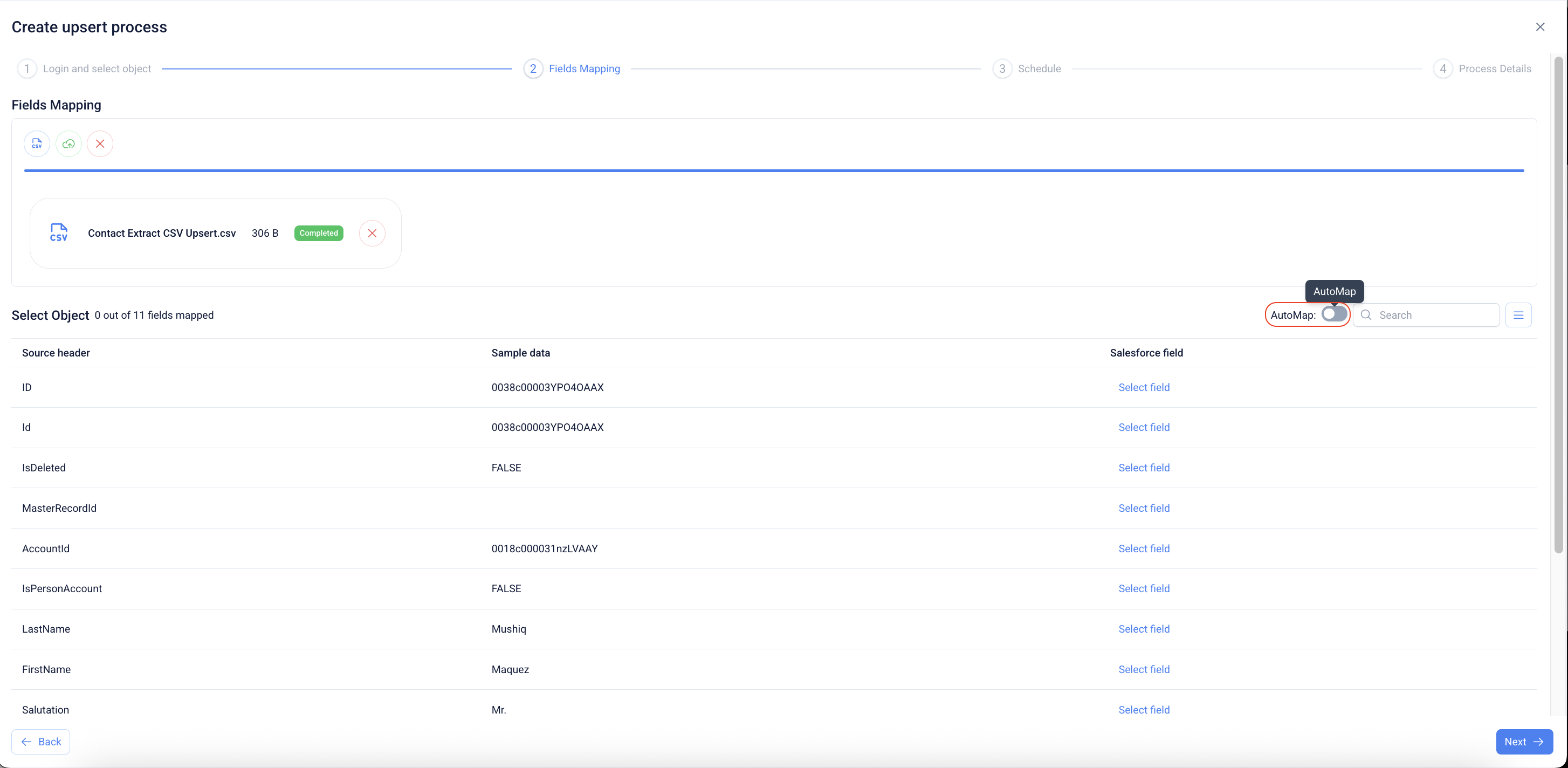
8. #### Field Mapping with AutoMap
* Uploaded file fields appear under **Source header** with sample data.
* Enable **AutoMap** to automatically align fields with Salesforce.
* Manually select fields if AutoMap does not resolve all mappings.
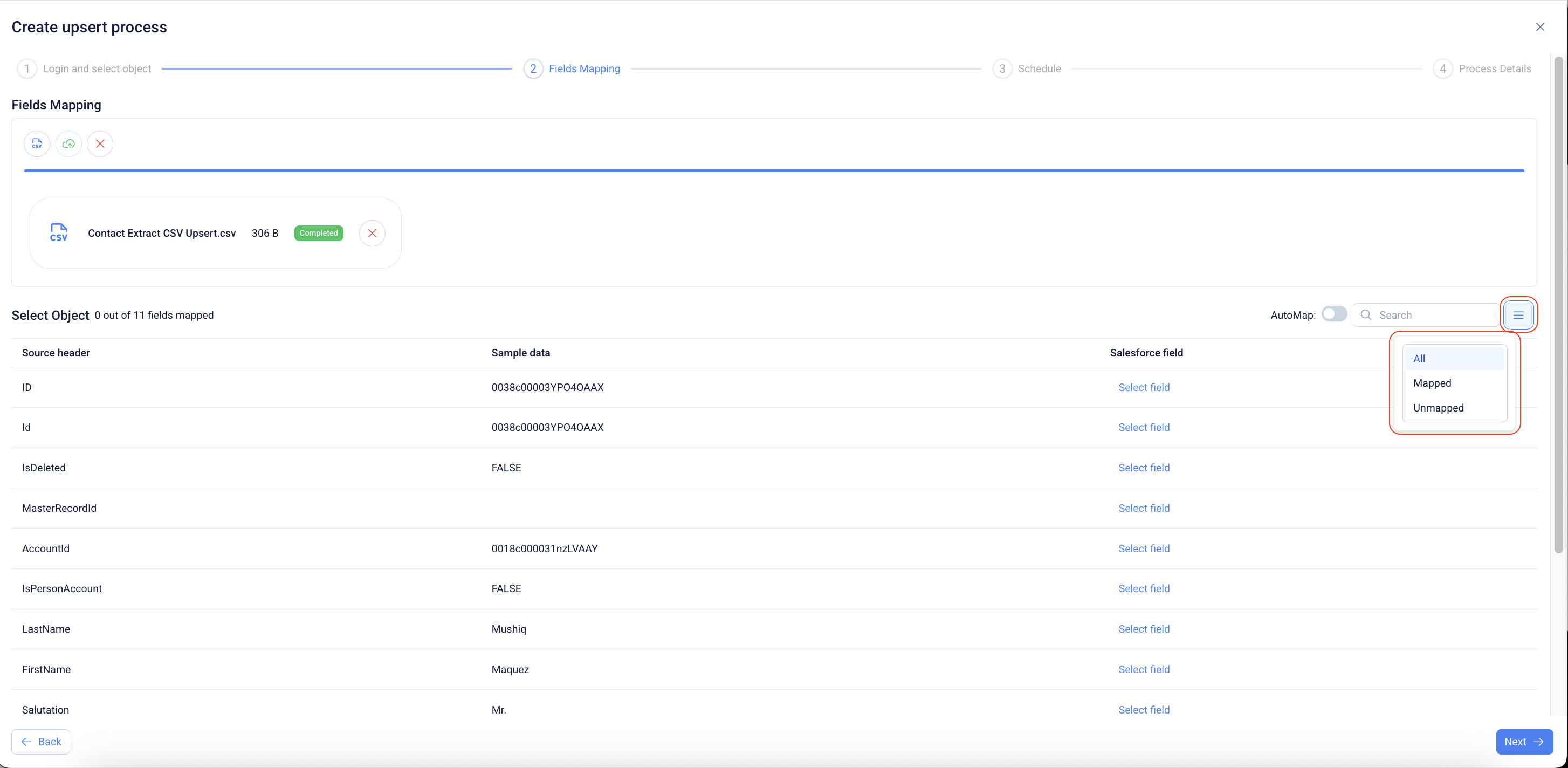
9. #### Field Mapping Filters
* Use the filter option to view **All**, **Mapped**, or **Unmapped** fields.
* This helps quickly validate field mappings before proceeding.
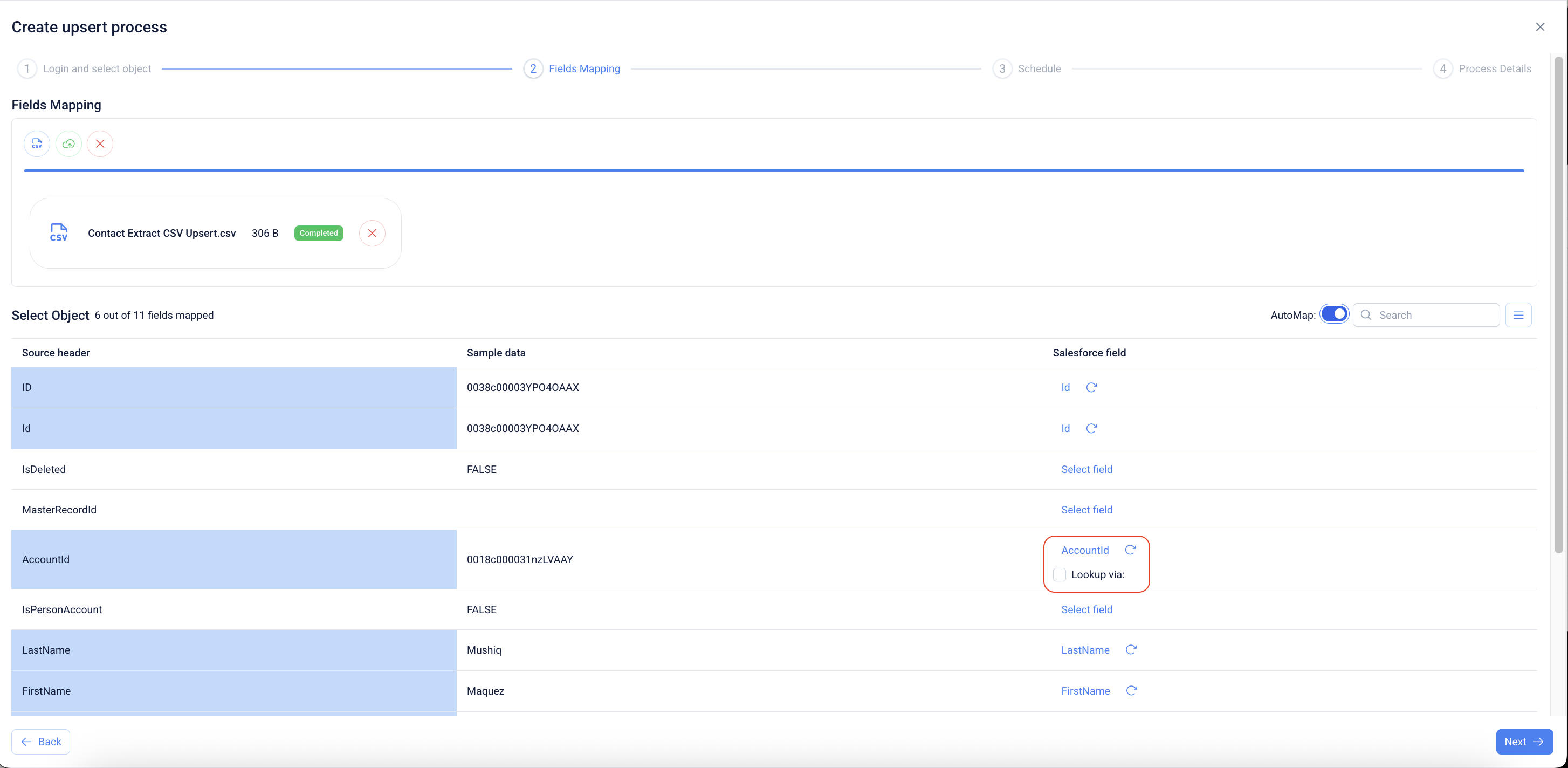
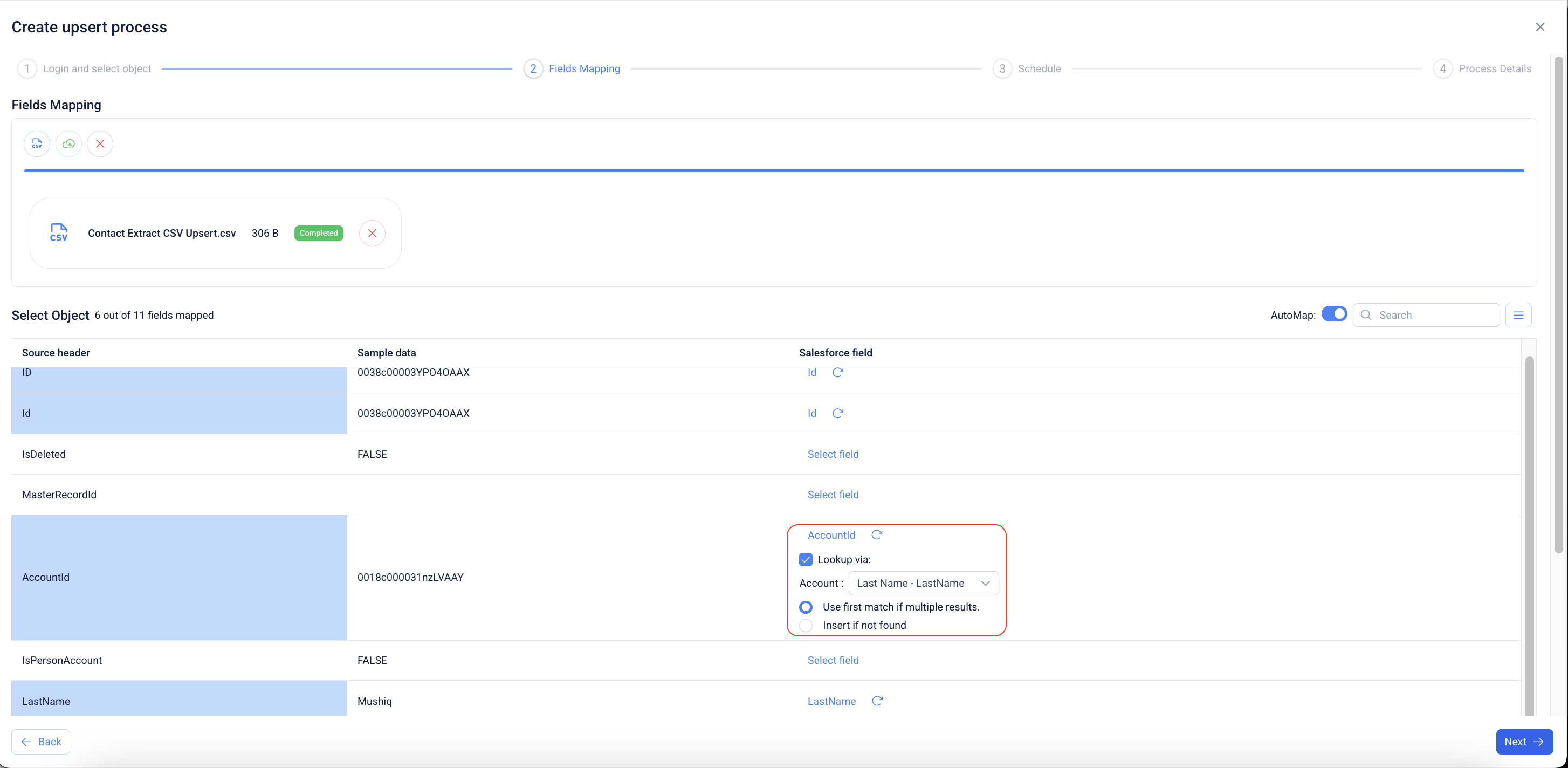
10. **Lookup Mapping Initiation**
* In **Fields Mapping**, select **Lookup via** for fields such as `AccountId`.
* This enables referencing related Salesforce records using specific field values.
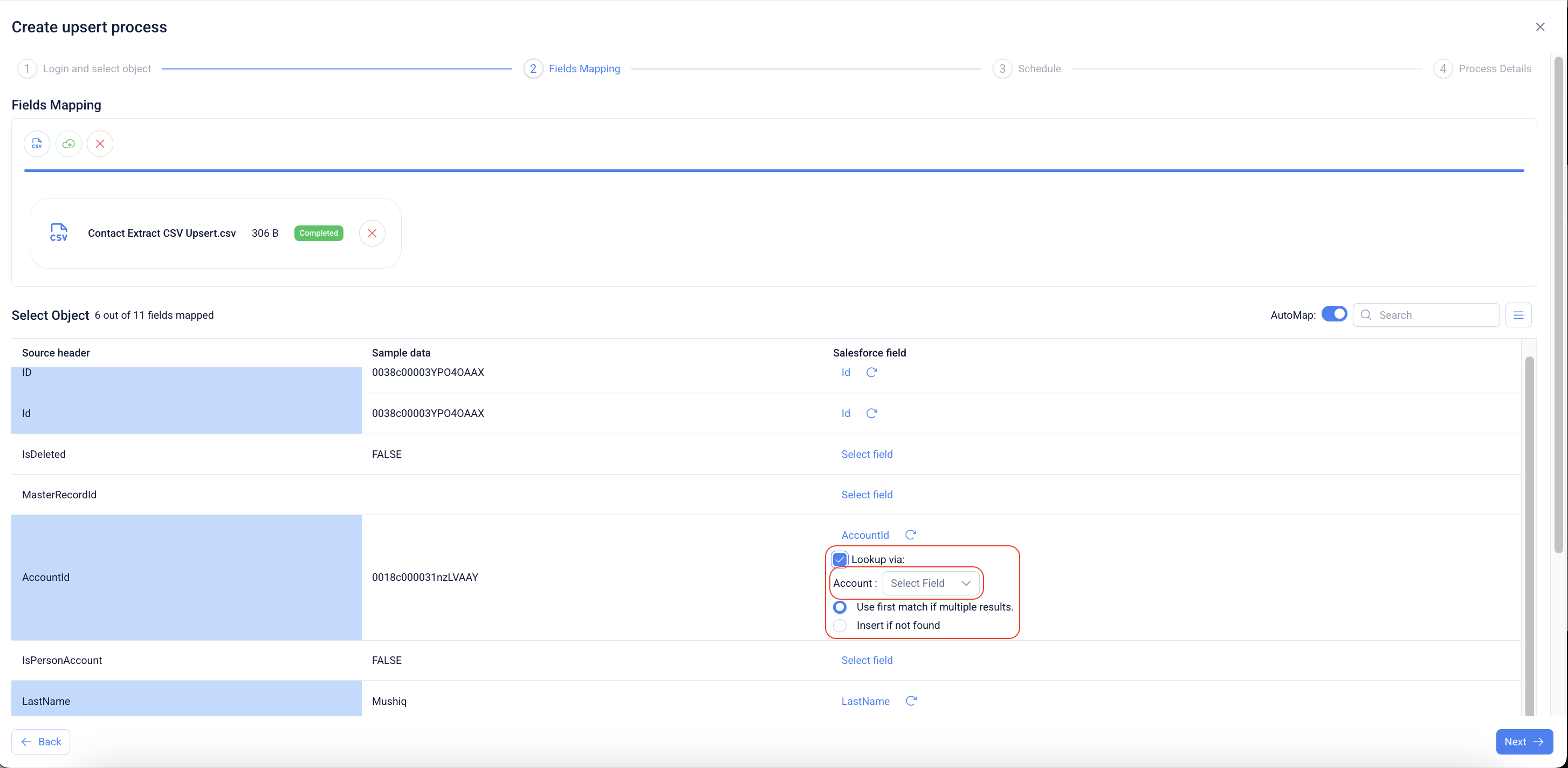
11. **Configure Lookup Options**
* After enabling **Lookup via**, select the Salesforce object and field to be used for matching records (e.g., Account → LastName).
* Additional conditions can be set:
* **Use first match if multiple results** – prioritizes the first match when more than one record is found.
* **Insert if not found** – creates a new record if no matching record exists.
* These options provide flexibility in handling relationships and data consistency during the upsert process.
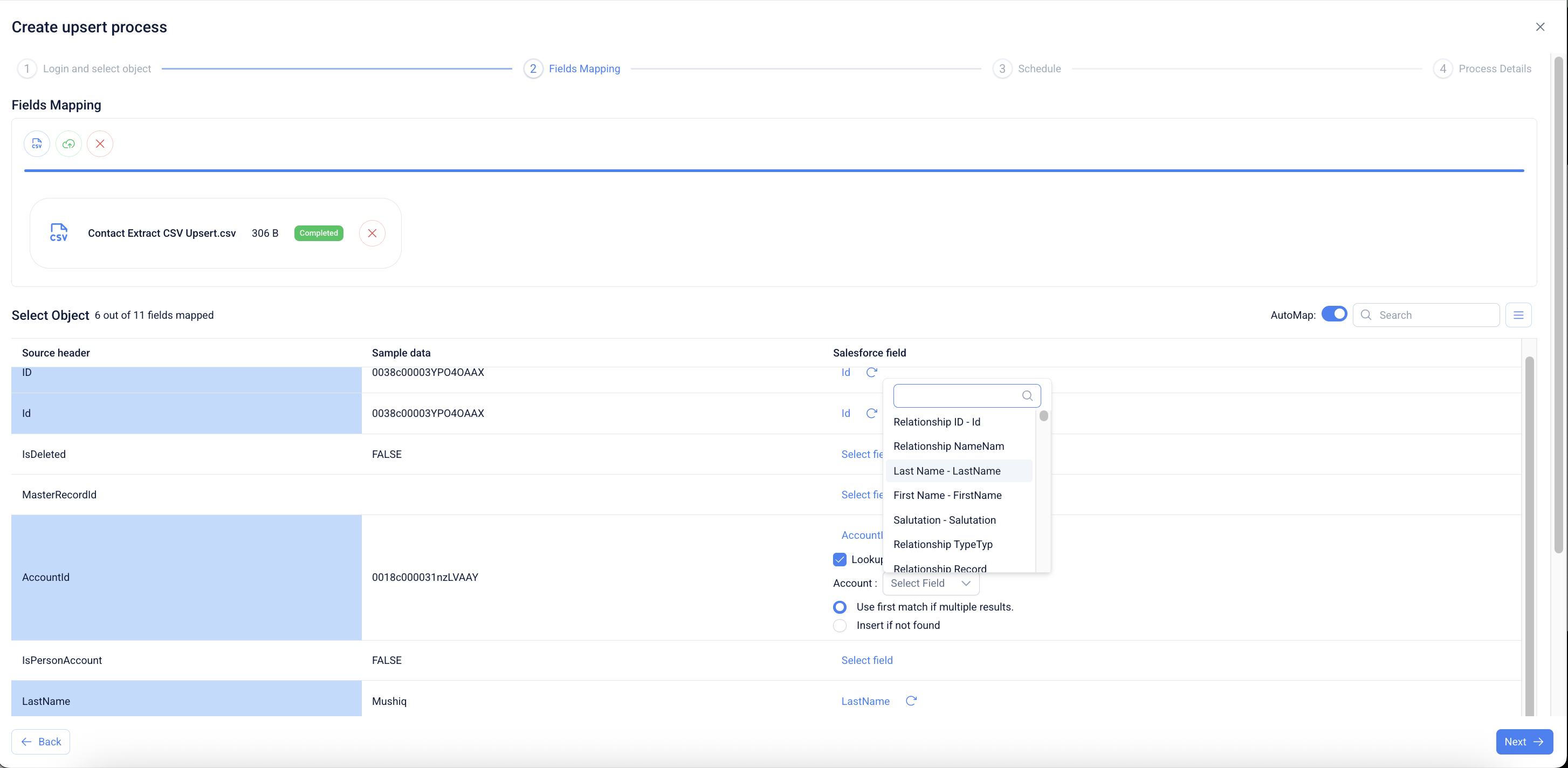
12. #### Select Lookup Field
* A dropdown displays available Salesforce fields for the selected object.
* Pick the desired field (e.g., `LastName`, `FirstName`) to complete the lookup mapping.
13. #### Completed Lookup Mapping
* The field is now mapped with **Lookup via** enabled.
* The selected Salesforce field is shown, along with the applied lookup conditions.
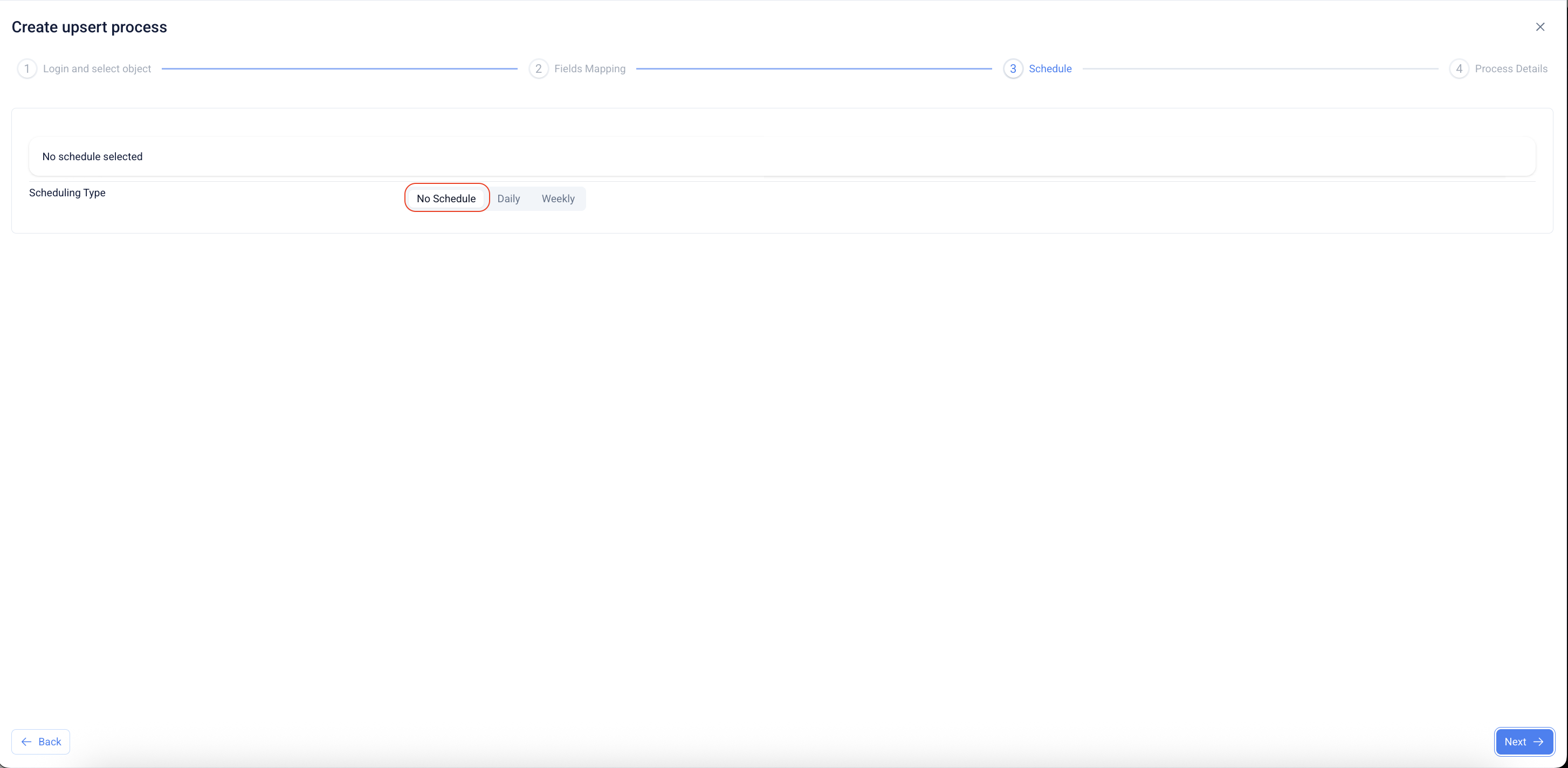
14. **Schedule Configuration – No Schedule**
* In the **Schedule** step, select **No Schedule** to run the upsert job manually.
* The job will only execute when triggered directly.
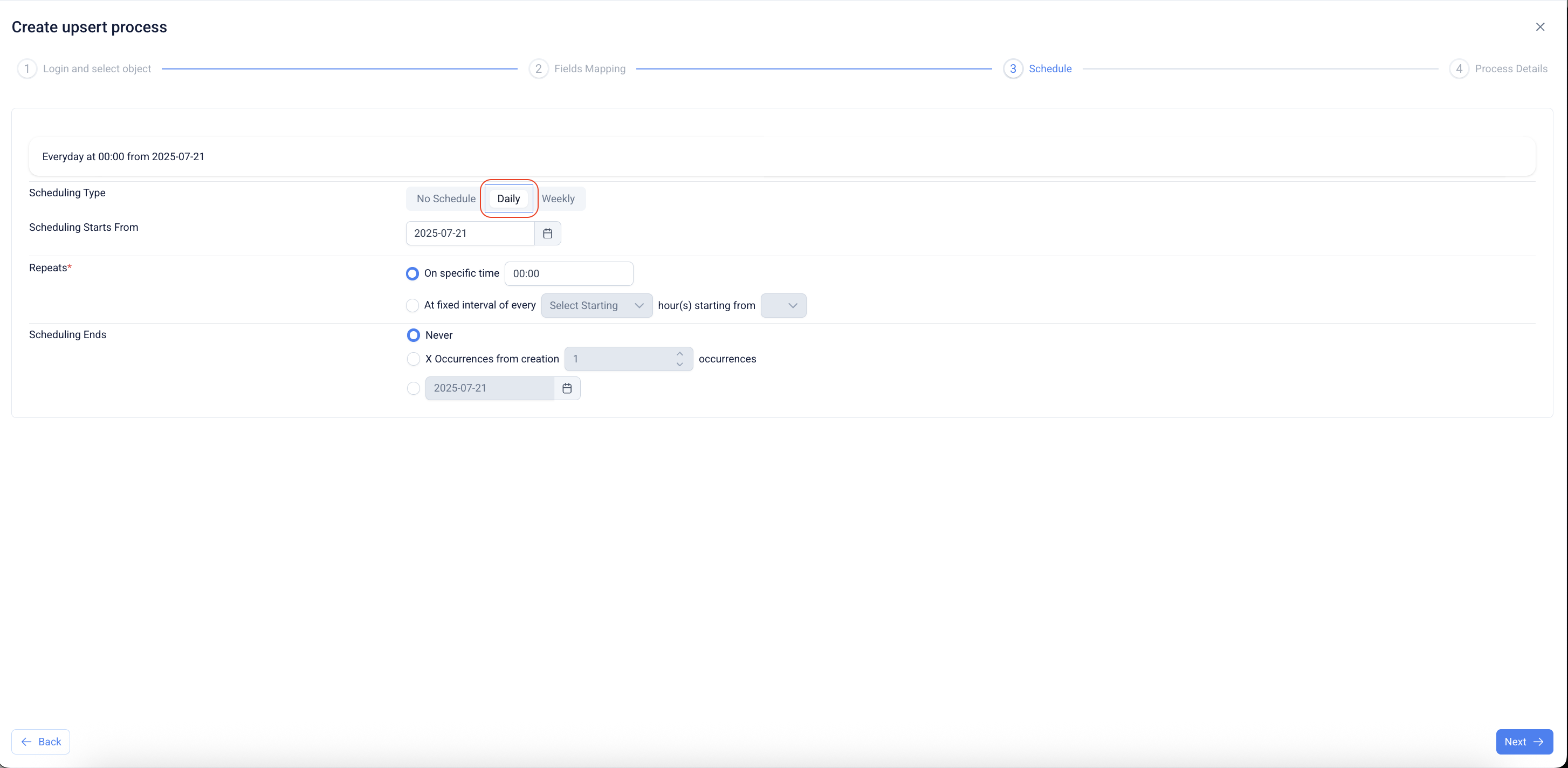
15. #### Schedule Configuration – Daily
* Select **Daily** to schedule the job for execution every day.
* Configure the **start date** and choose to run at a **specific time** or at a **fixed interval**.
* Set the **end condition**: Never, a fixed number of occurrences, or a specific end date.
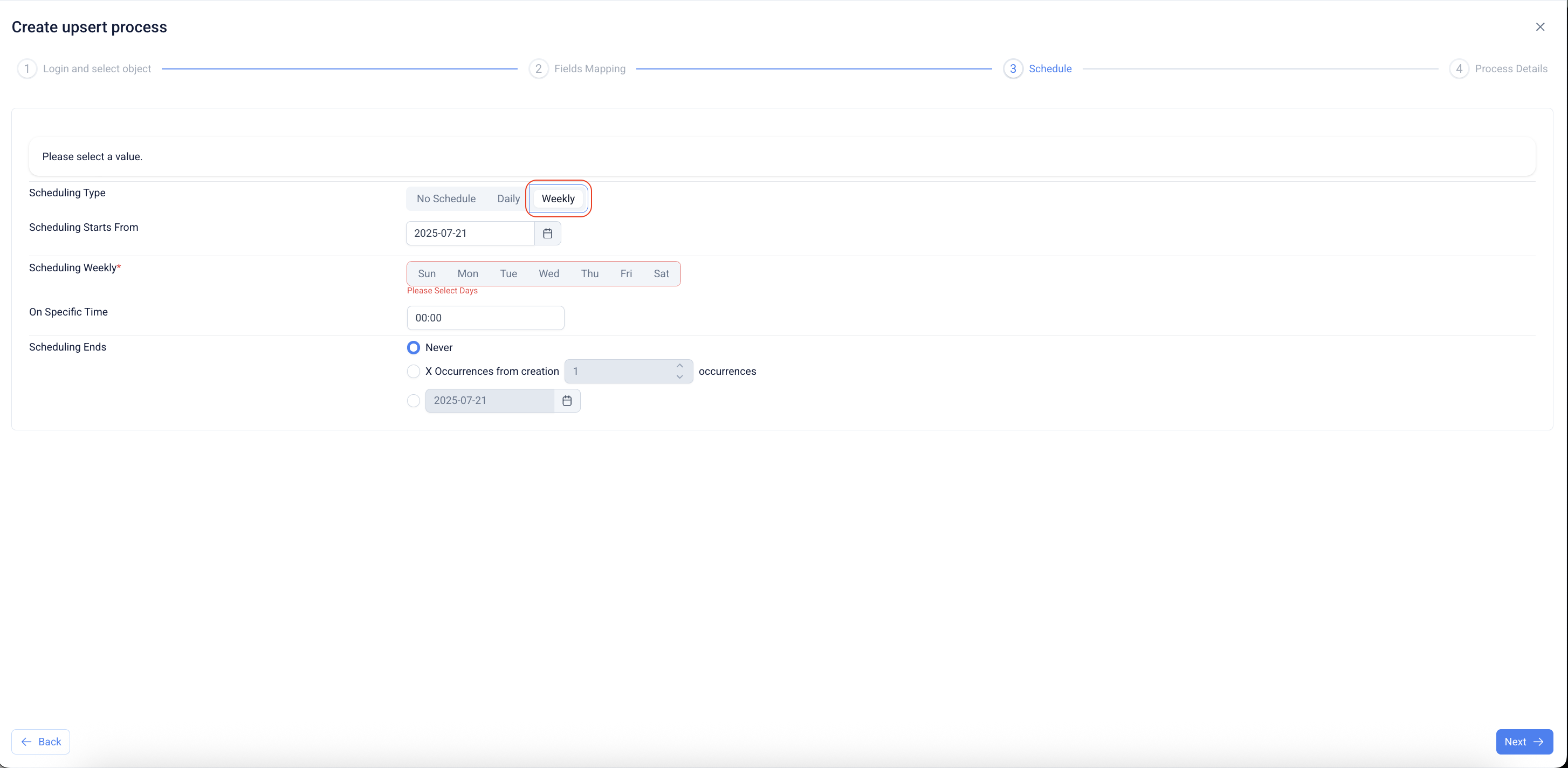
16. #### Schedule Configuration – Weekly
* Select **Weekly** to schedule the job on specific days of the week.
* Configure the **start date** and define the execution time.
* Set the **end condition** similar to daily scheduling.
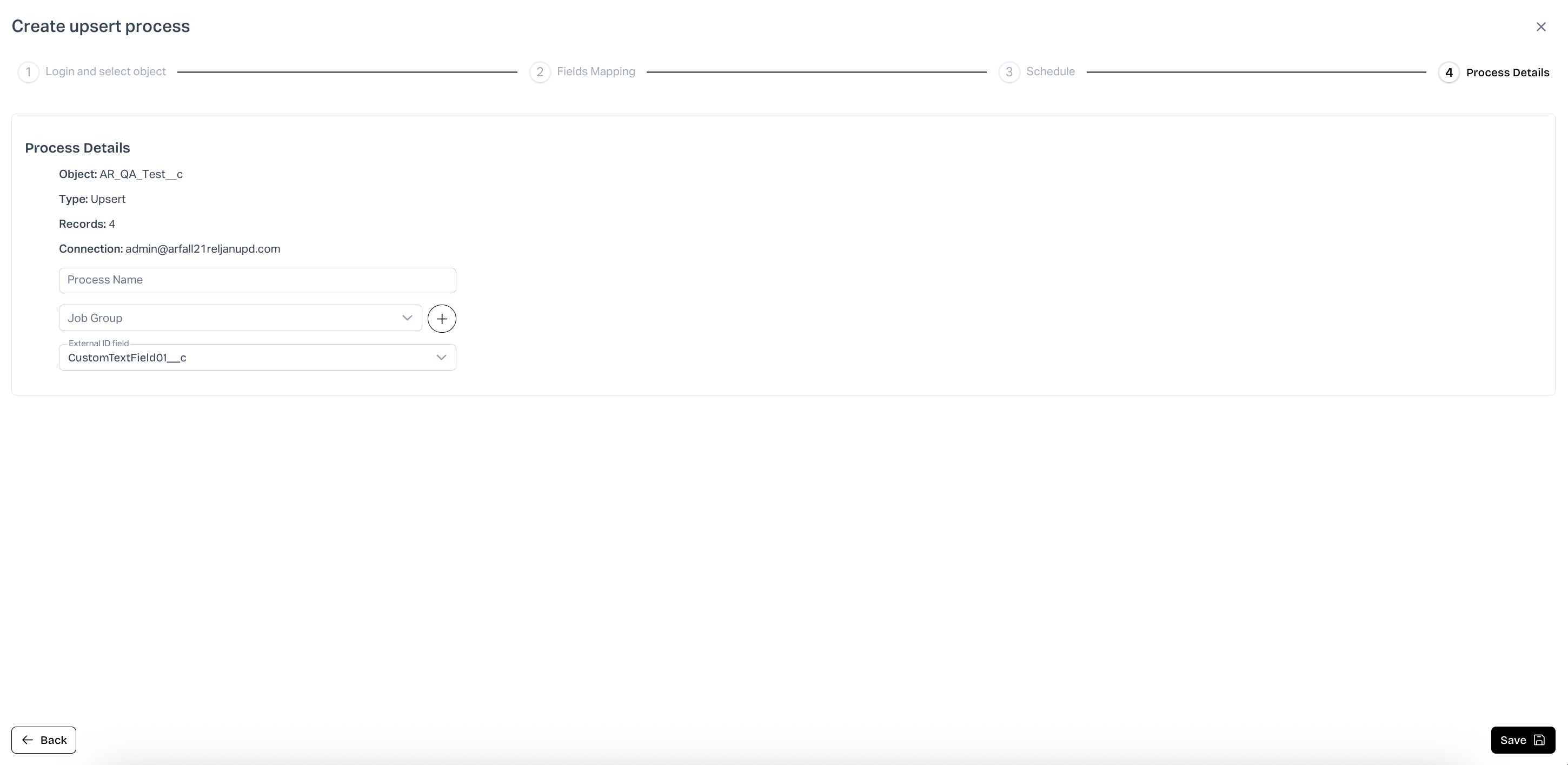
17. **Process Details**
* Review the object, type of operation, and number of records to be processed.
* Confirm the Salesforce connection and enter a process name
* Optionally, assign the process to a **Job Group** for better organization.
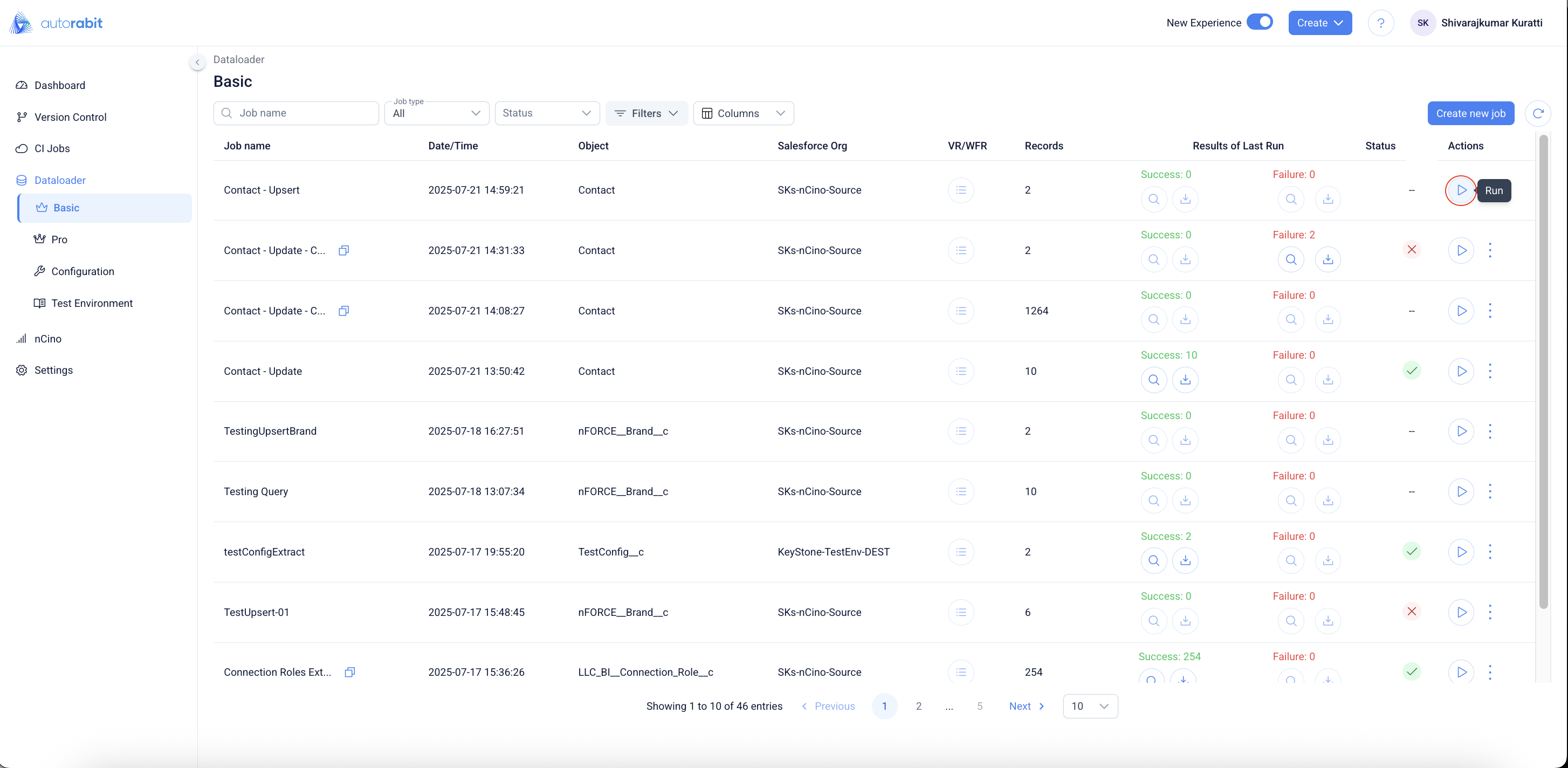
18. **Run Job**
* From the Dataloader **Basic** page, select the **Run** (play) icon under **Actions** for the required job.
* The **Run Configuration** window opens to adjust run options before execution.
* Click **Run** to start the job or **Cancel** to exit without running.
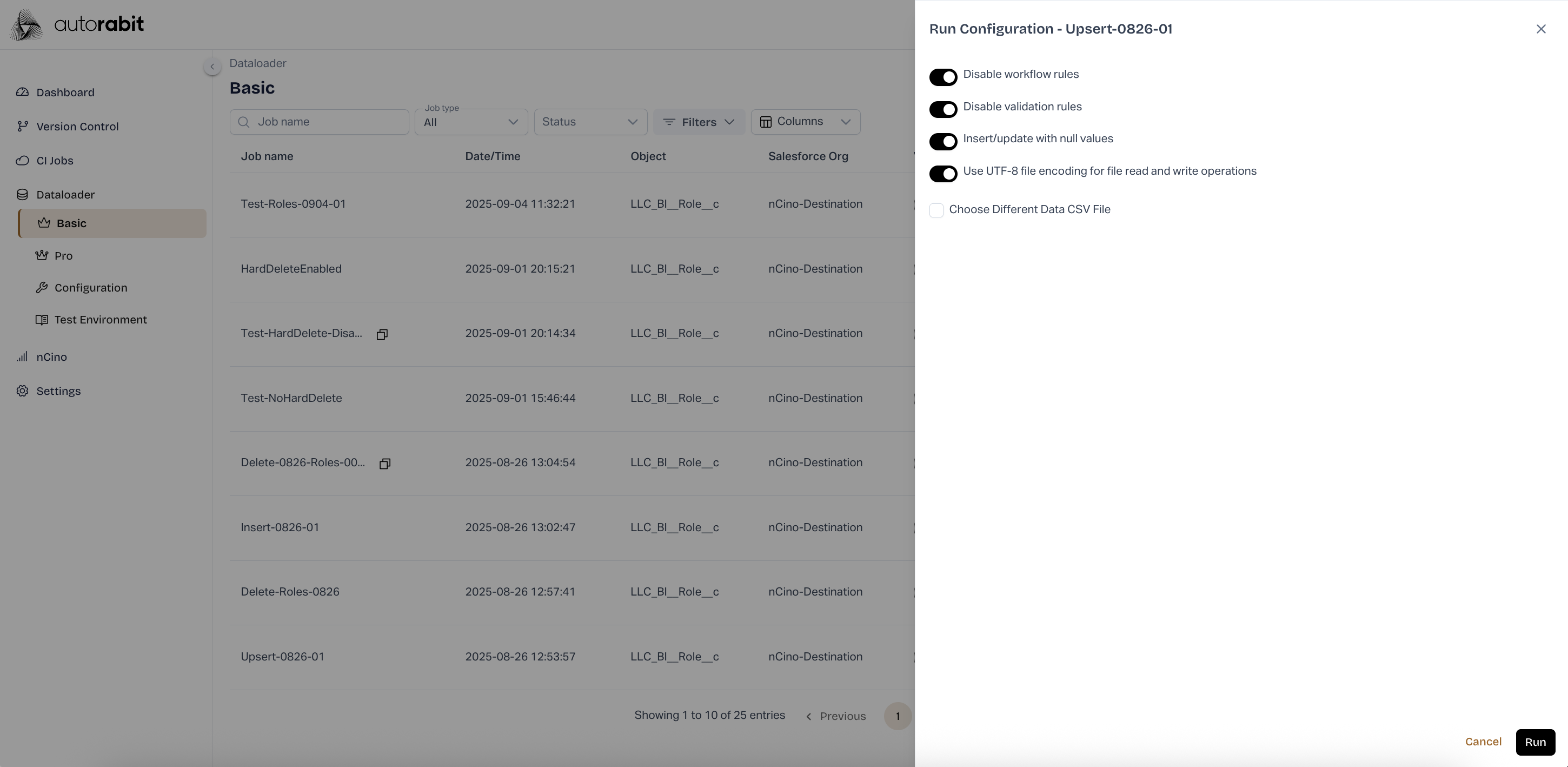
19. **Run Configuration**
* The **Run Configuration** window allows toggling options such as:
* **Disable workflow rules**
* **Disable validation rules**
* **Insert/update with null values**
* **Use UTF-8 encoding for file operations**
* Optionally, choose a different data CSV file if required.
* Confirm with **Run** to execute the job.
* Dataloader Configuration Options
| Configuration | Description |
| ---------------------------------- | -------------------------------------------------------------------------------- |
| **Batch Size** | Applies if Bulk API is disabled. Based on SOAP and better for smaller datasets. |
| **Disable workflow rules** | Deactivates workflows during operation and reactivates post-process. |
| **Disable Validation Rules** | Deactivates validation rules during the process and re-enables afterward. |
| **Insert/Update with null values** | Allows null value updates in destination org. |
| **Use UTF-8 file encoding** | Required for data containing English alphabets. Disable for non-English content. |
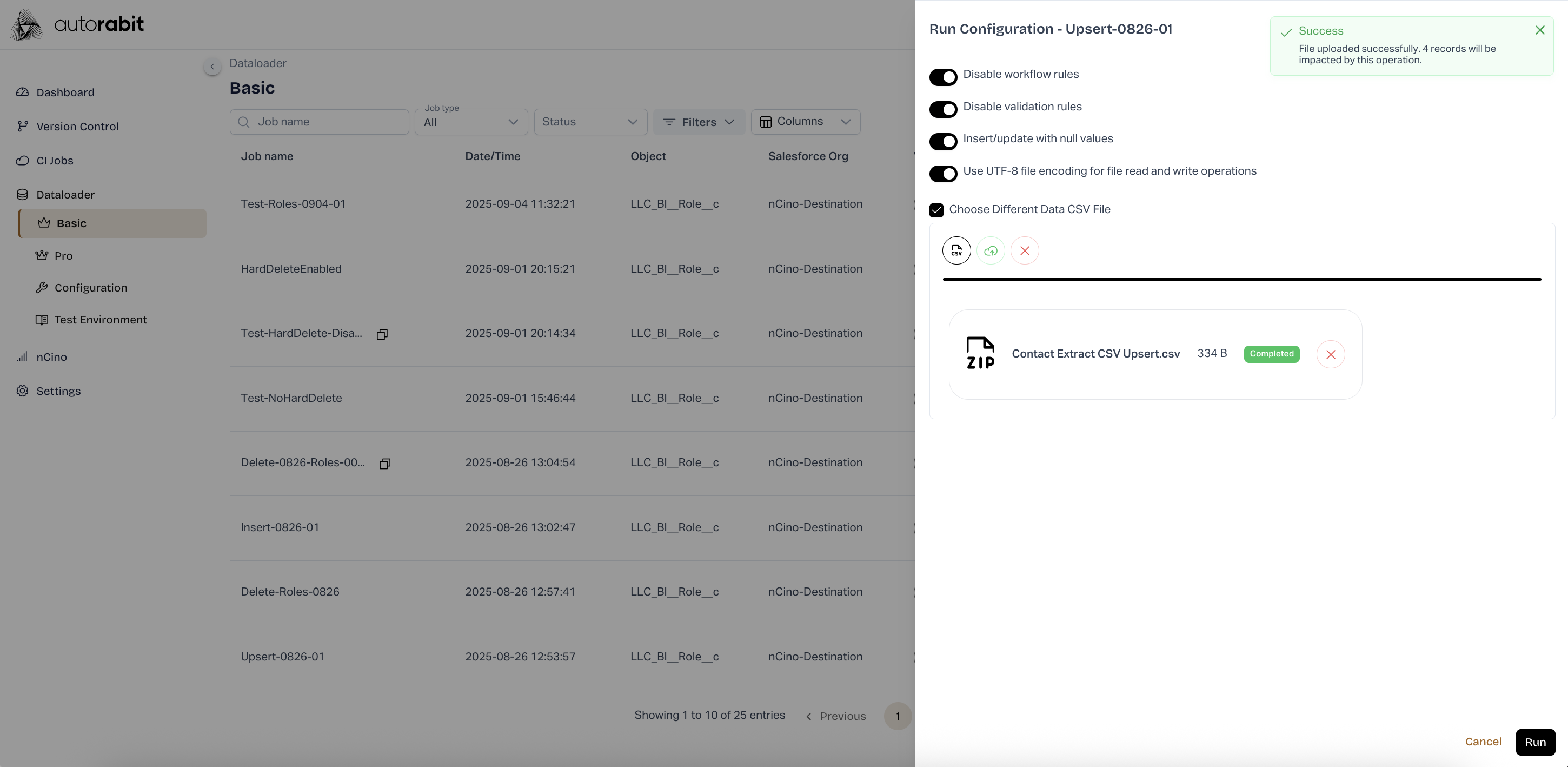
20. **Upload New Data File**
* Select **Choose Different Data CSV File** to upload an alternate dataset.
* The file upload section allows drag-and-drop or file selection.
* Upon successful upload, a confirmation message displays the number of records impacted.
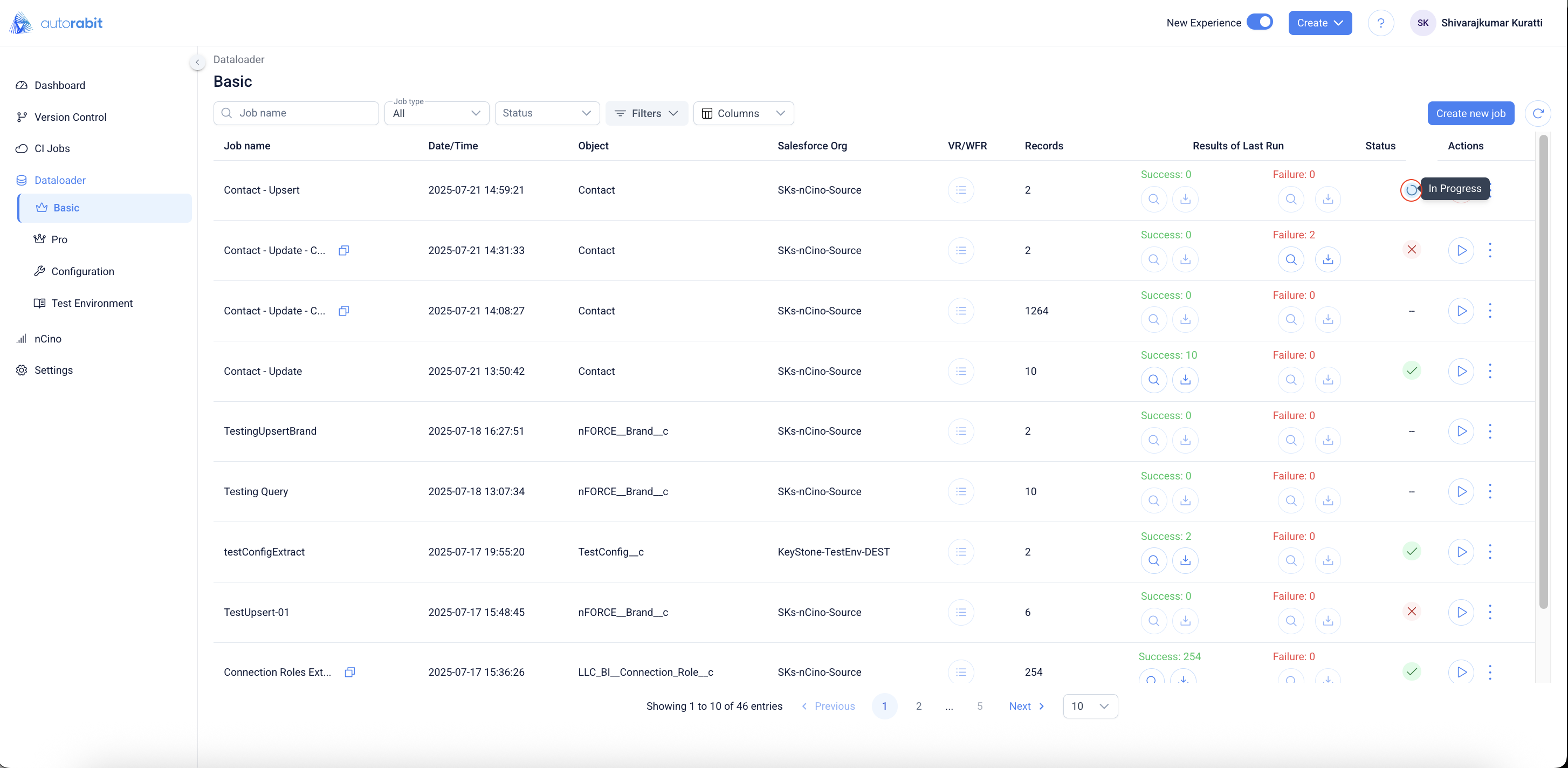
21. **Job In Progress**
* After execution begins, the job status updates to **In Progress** on the Dataloader Basic page.
* This indicates that processing has started but is not yet complete.
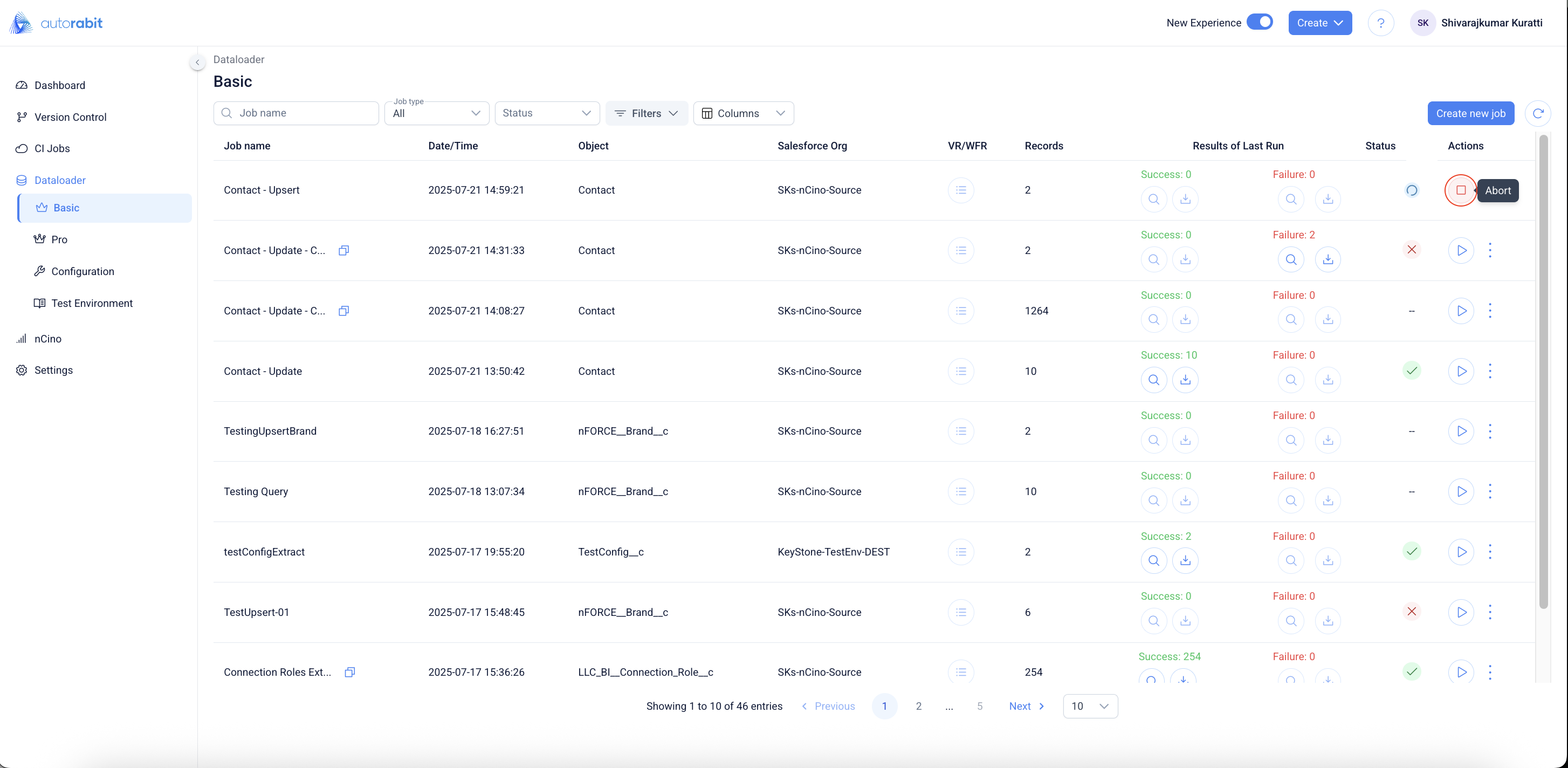
22. **Abort Job**
* While a job is **In Progress**, select the **Abort** button under **Actions**.
* This immediately halts the job execution.
* Aborting should only be used if the run was triggered incorrectly or requires stopping due to issues.
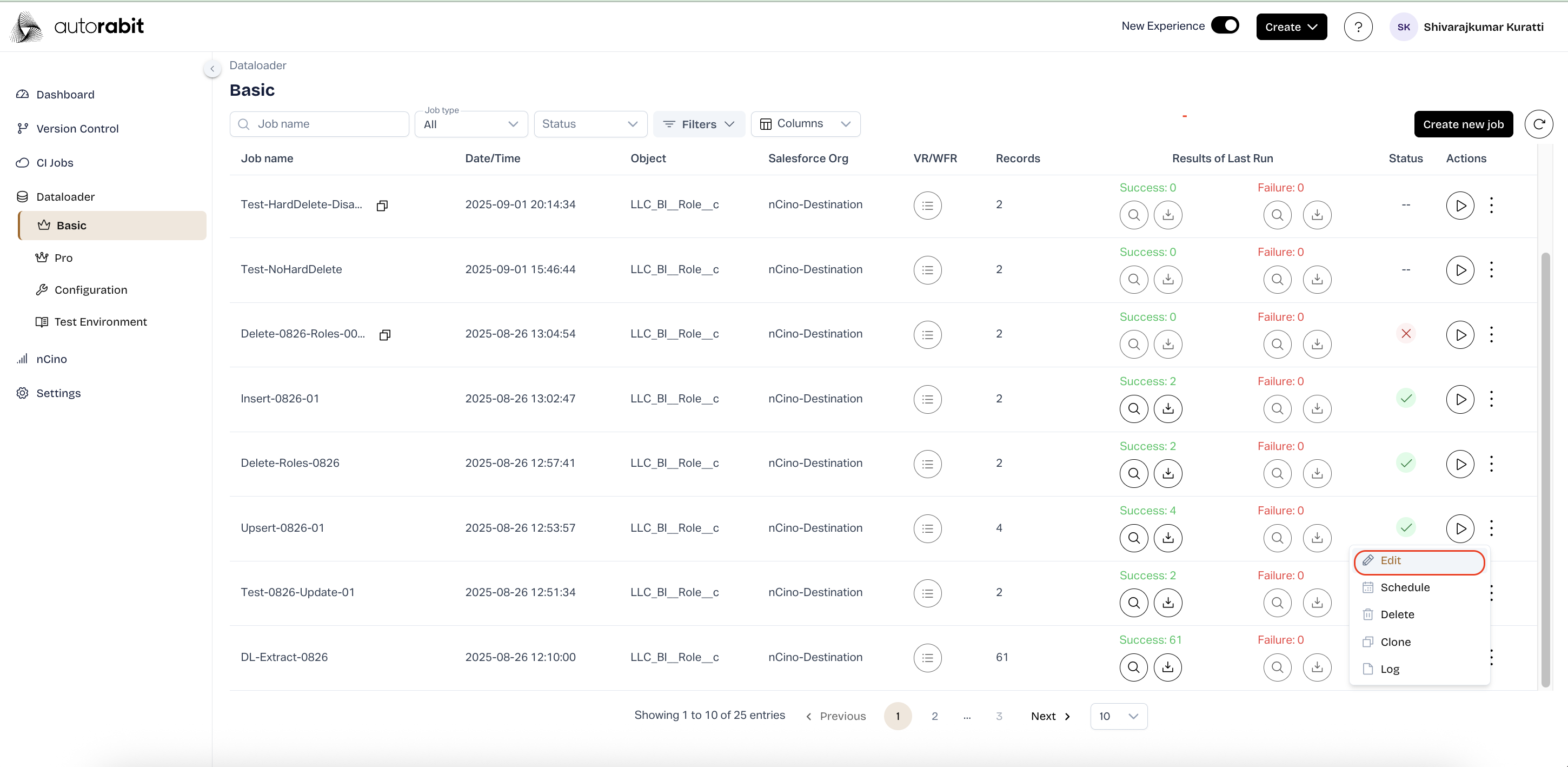
23. **Edit Configuration**
* From the Dataloader Basic page, select the ellipsis (three dots) next to the desired job.
* Choose **Edit** to modify the existing configuration.
* Update object selections, field mappings, or process details as required.
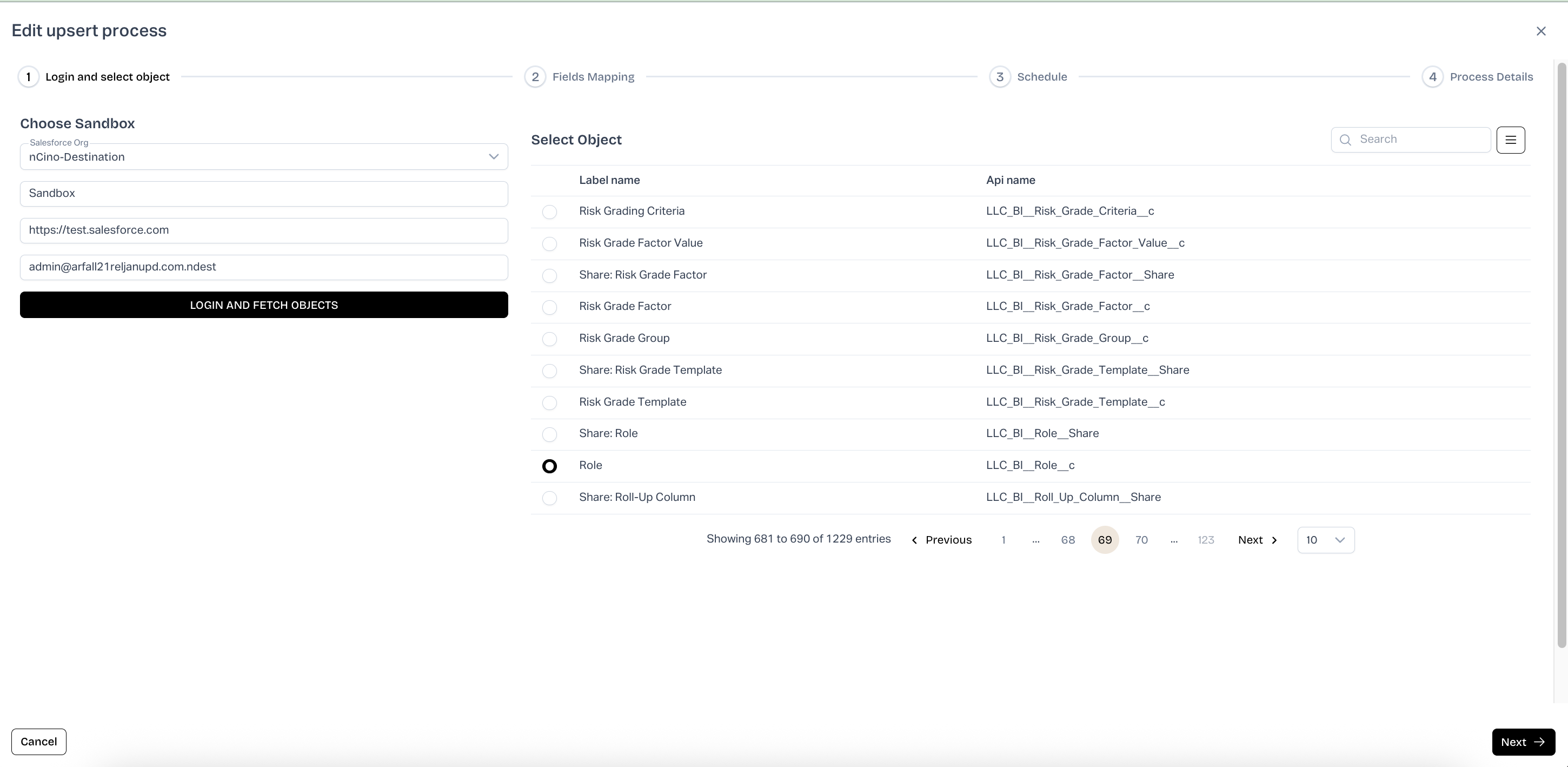
24. **Edit Process – Select Object**
* In the Edit upsert process page, log in to the Salesforce Org and fetch available objects.
* Select the object to be used for the process.
* Proceed to update field mappings or schedule settings.
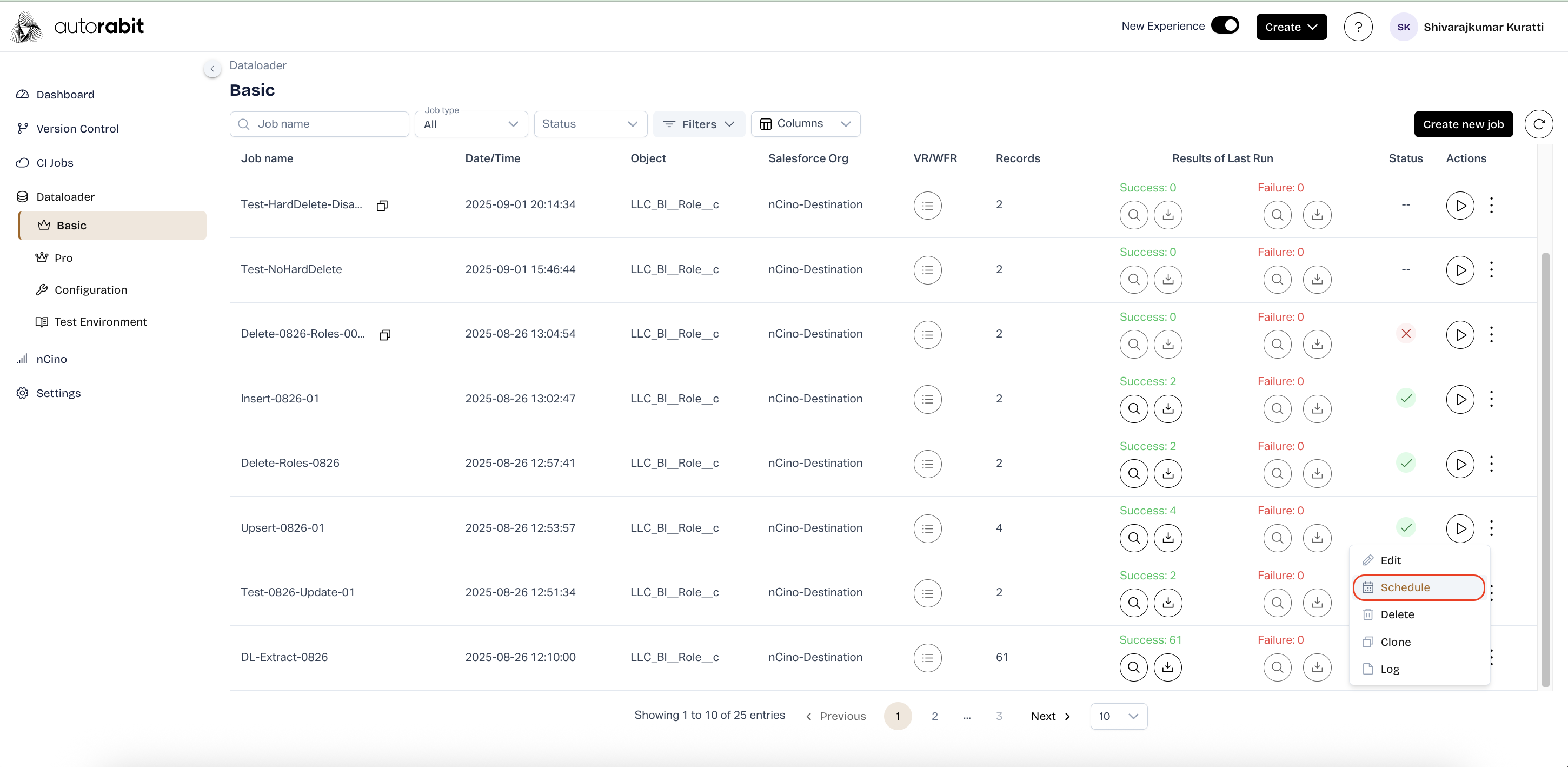
25. **Schedule Configuration (Screen 35)**
* From the Dataloader Basic page, select the ellipsis (three dots) next to a job.
* Choose **Schedule** to define when the process should run automatically.
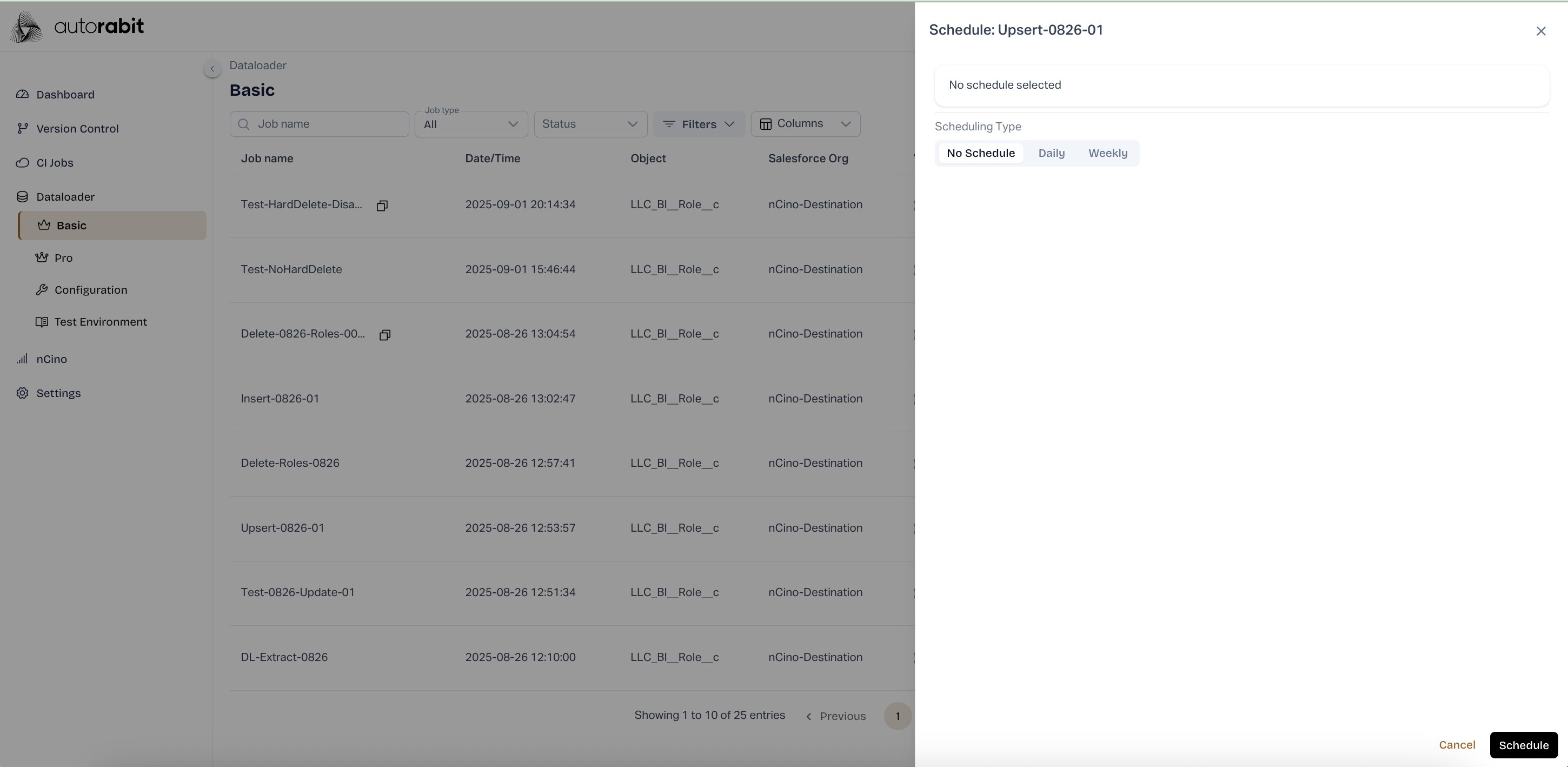
26. **Schedule Process (Screen 36)**
* In the scheduling window, select the preferred type: **No Schedule, Daily, or Weekly**.
* Confirm the schedule by clicking **Schedule**.
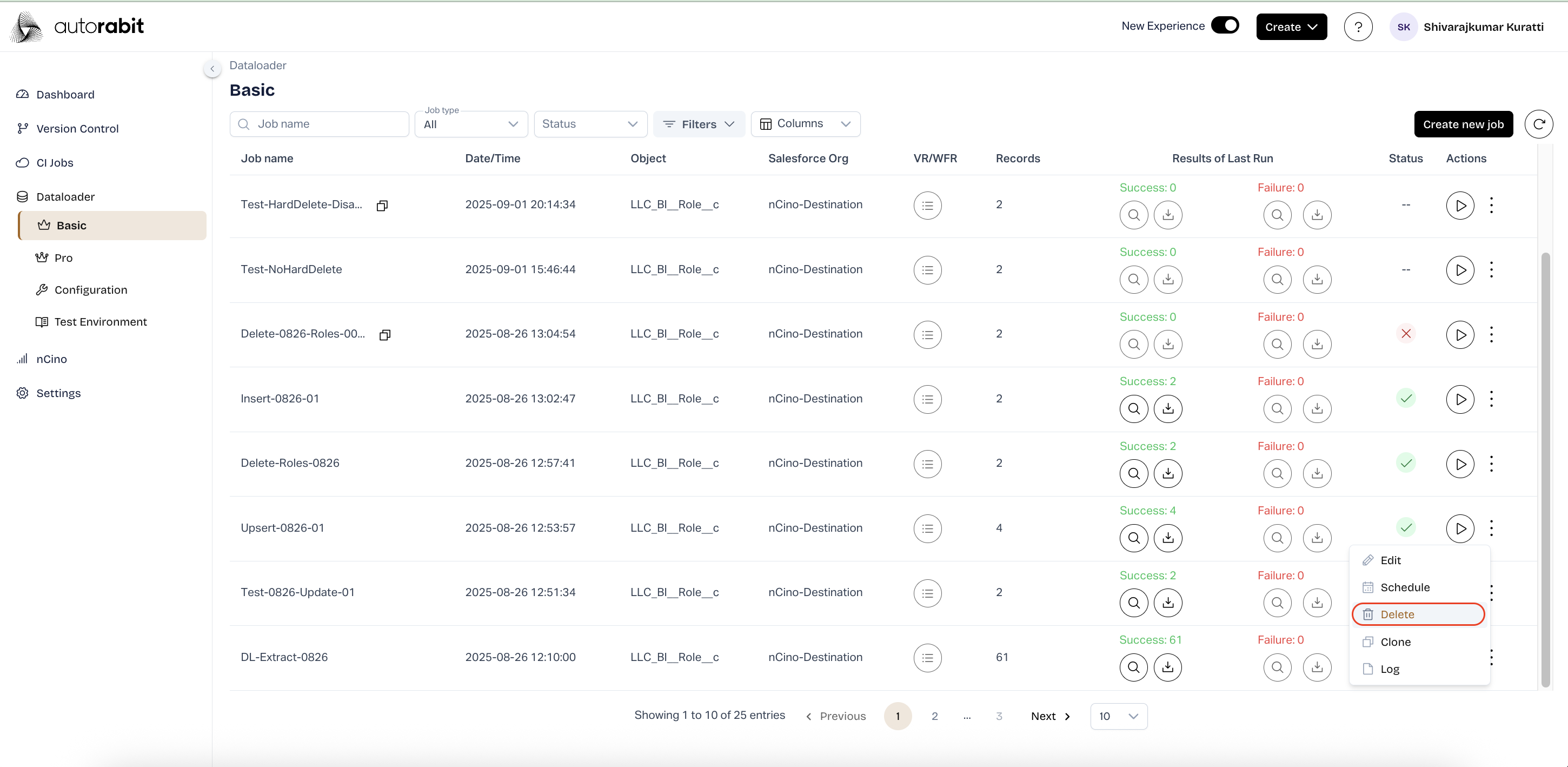
27. **Delete Configuration (Screen 37)**
* From the Dataloader Basic page, select the ellipsis (three dots) for a specific job.
* Choose **Delete** to remove the selected configuration permanently.
* This action cannot be undone and should only be used when the process is no longer required.
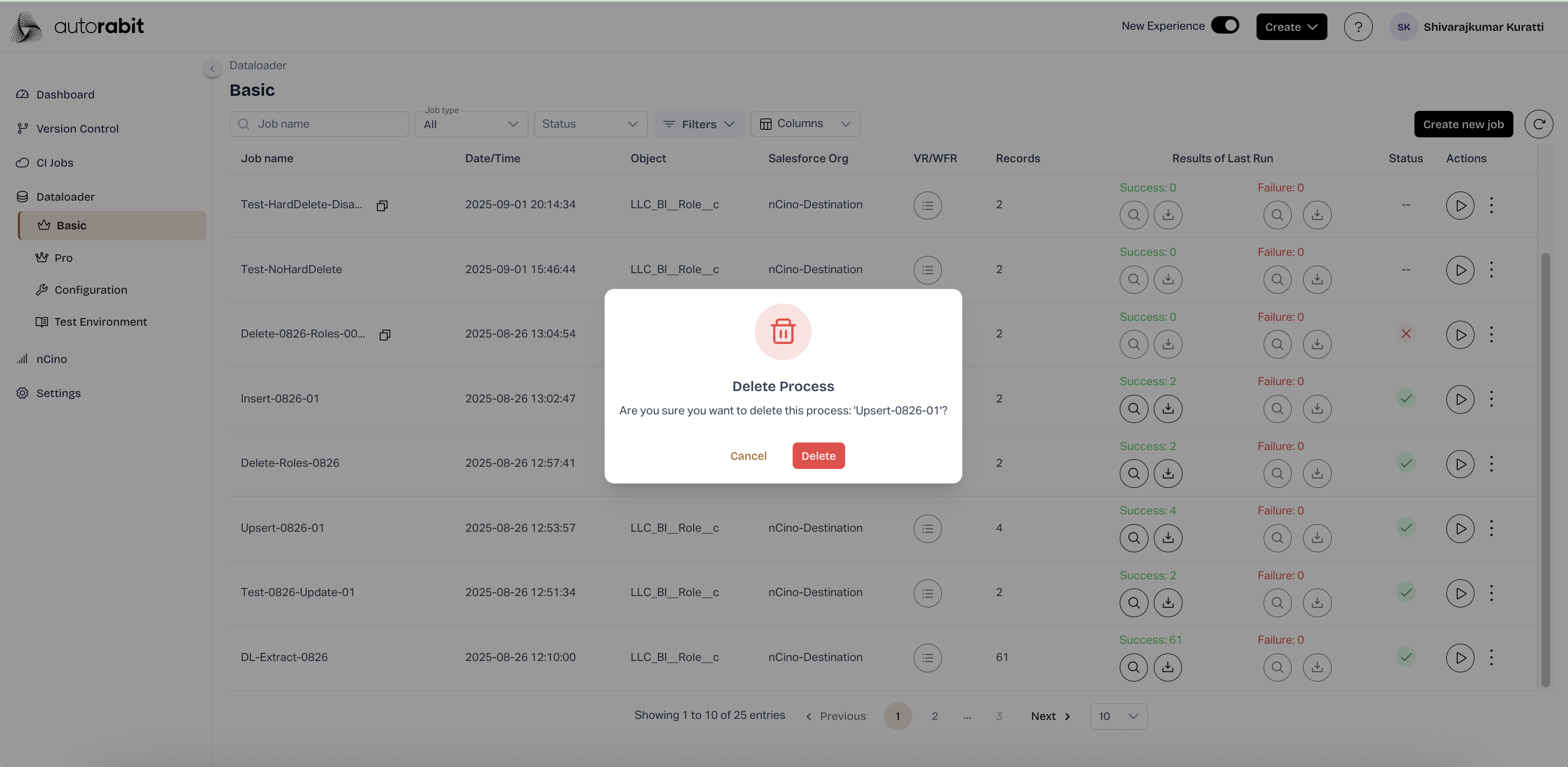
28. **Delete Process Confirmation (Screen 38)**
* A confirmation dialog appears before deleting the process.
* Click **Delete** to proceed or **Cancel** to stop the action.
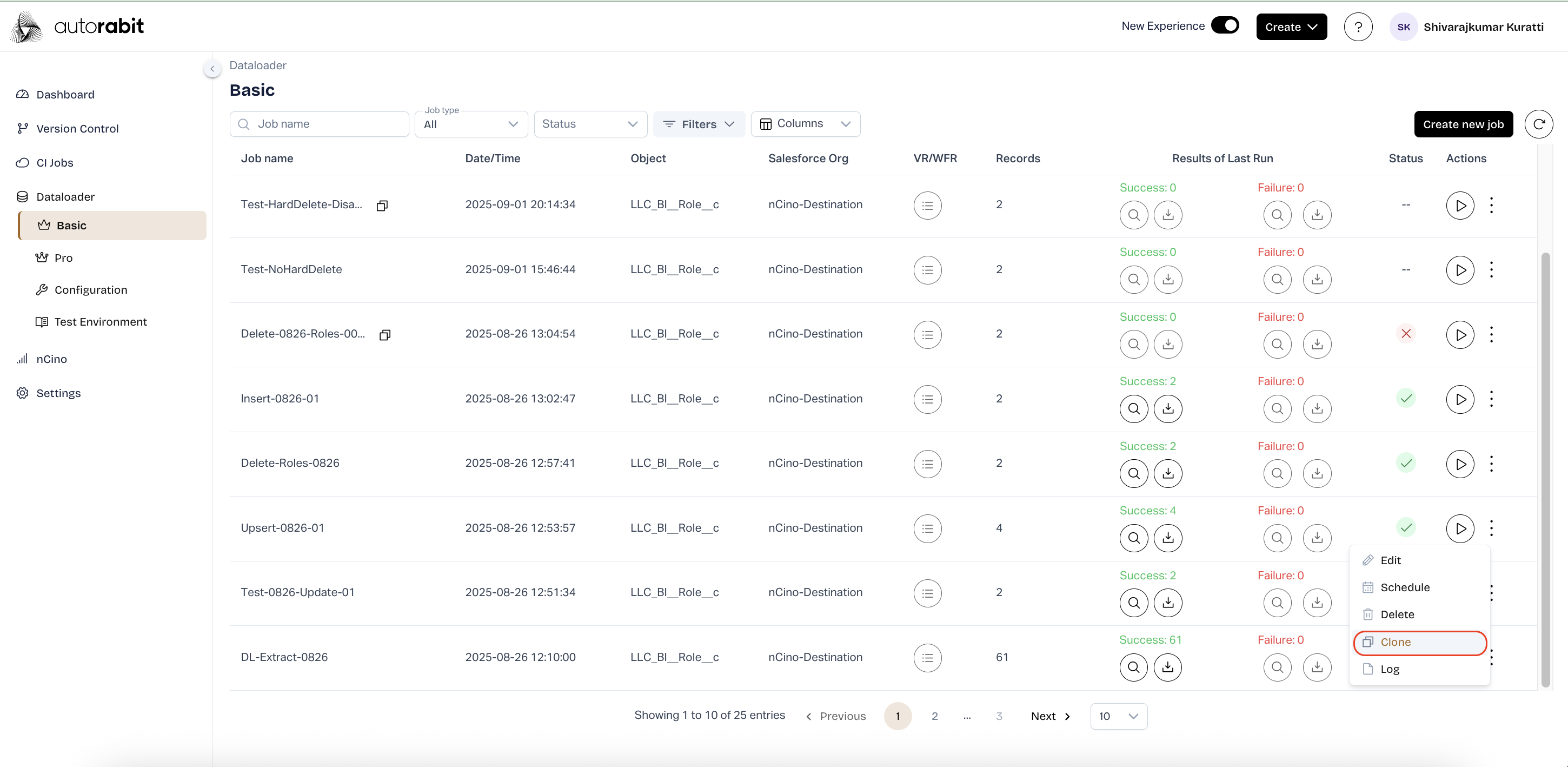
29. **Clone Configuration (Screen 39)**
* From the Dataloader Basic page, select the ellipsis (three dots) next to the desired job.
* Choose **Clone** to duplicate the selected configuration.
* Review the process details and optionally choose a different data CSV file.
* Click **Clone** to create the duplicate job.
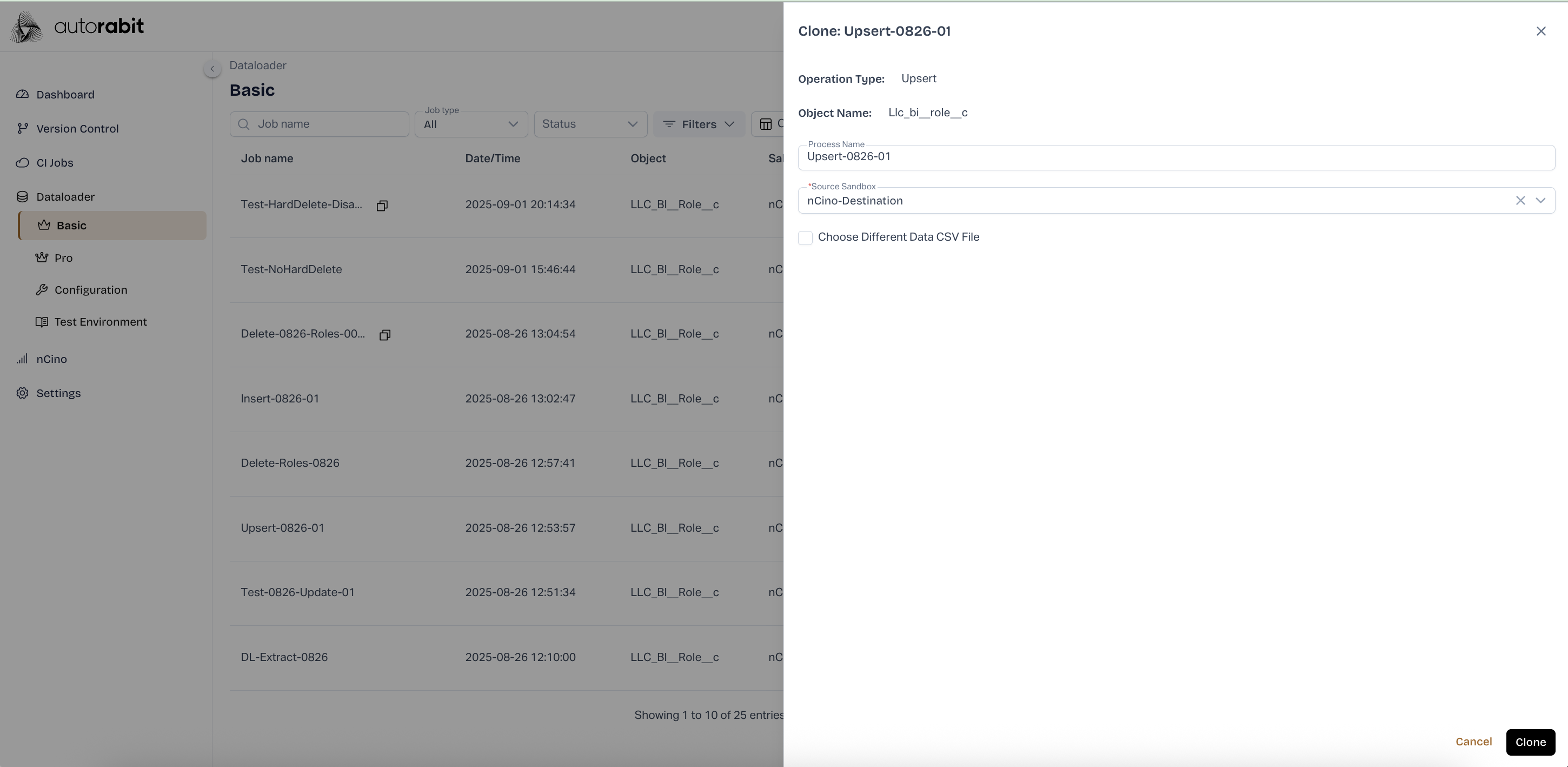
30. **Clone Process (Screen 40)**
* The Clone window displays process details including operation type, object name, and source sandbox.
* Enter or update the process name if needed.
* Select an alternate data CSV file if applicable.
* Confirm the duplication by clicking **Clone**.
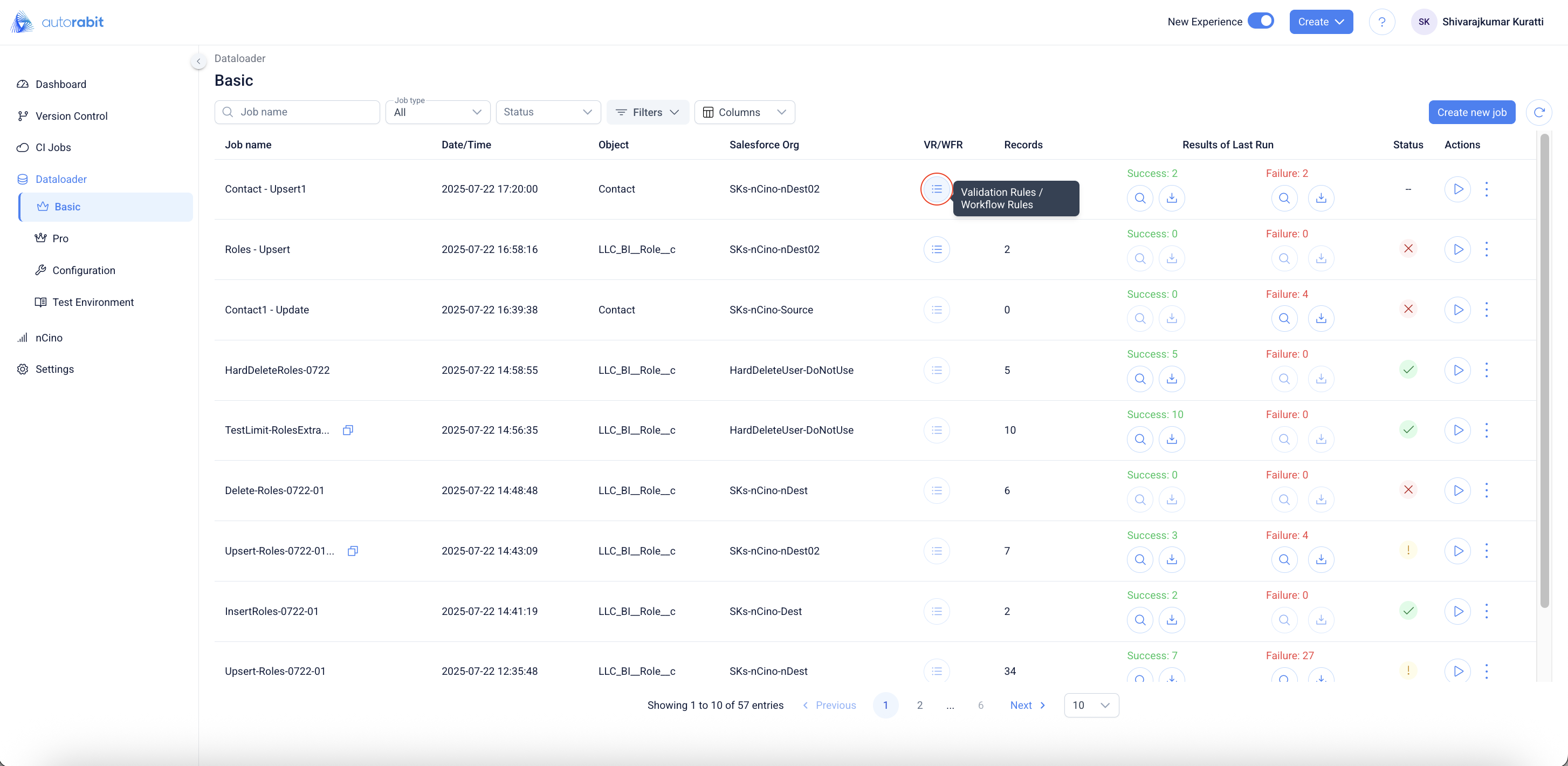
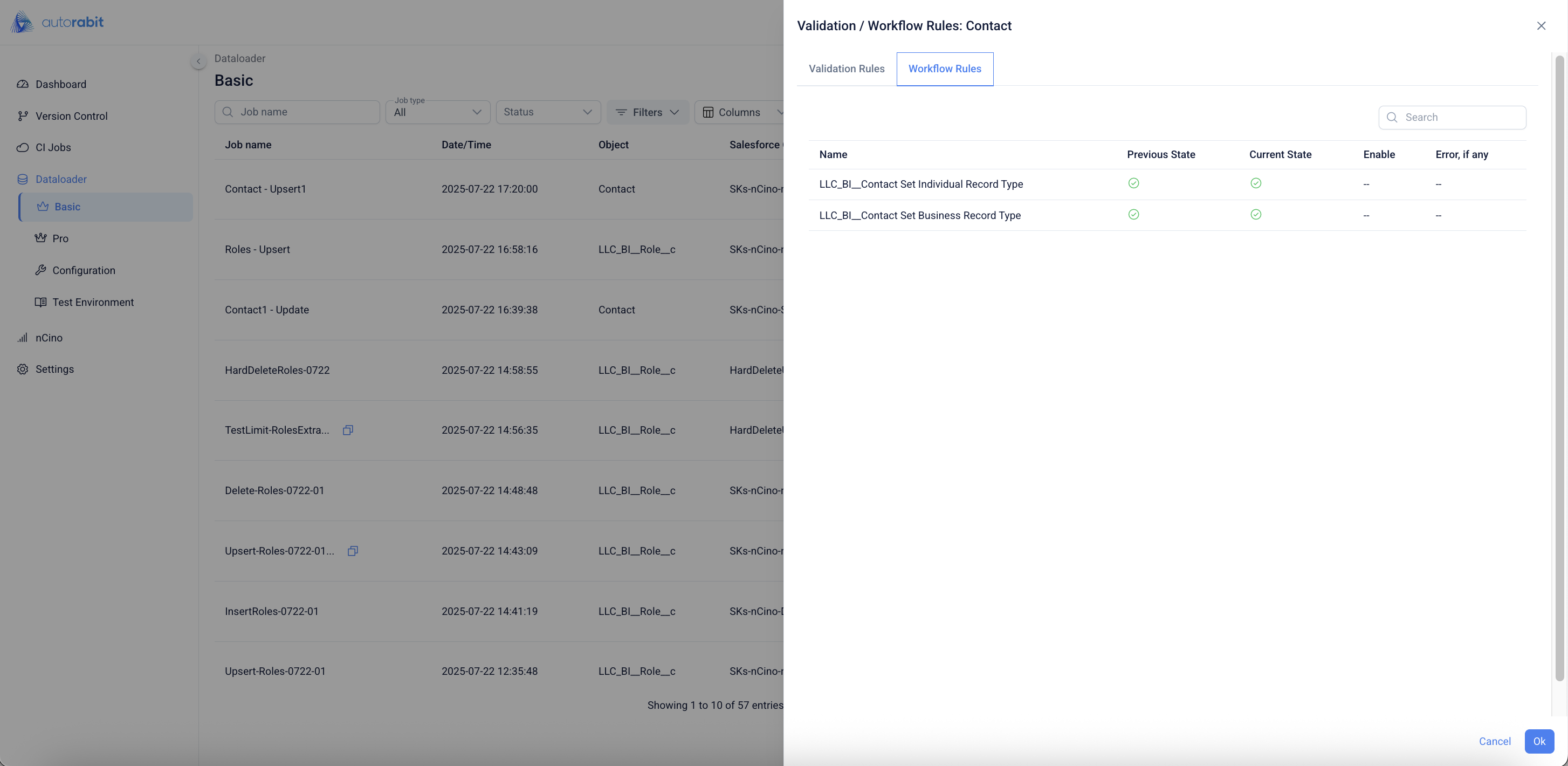
31. **Validation / Workflow Rules Access**
* From the **Dataloader Basic** page, select the **Validation Rules / Workflow Rules** icon under the *VR/WFR* column for a specific job.
* This opens a detailed view of validation and workflow rules configured for the selected Salesforce object.
* Use this option to verify if any rules may impact the execution of the job.
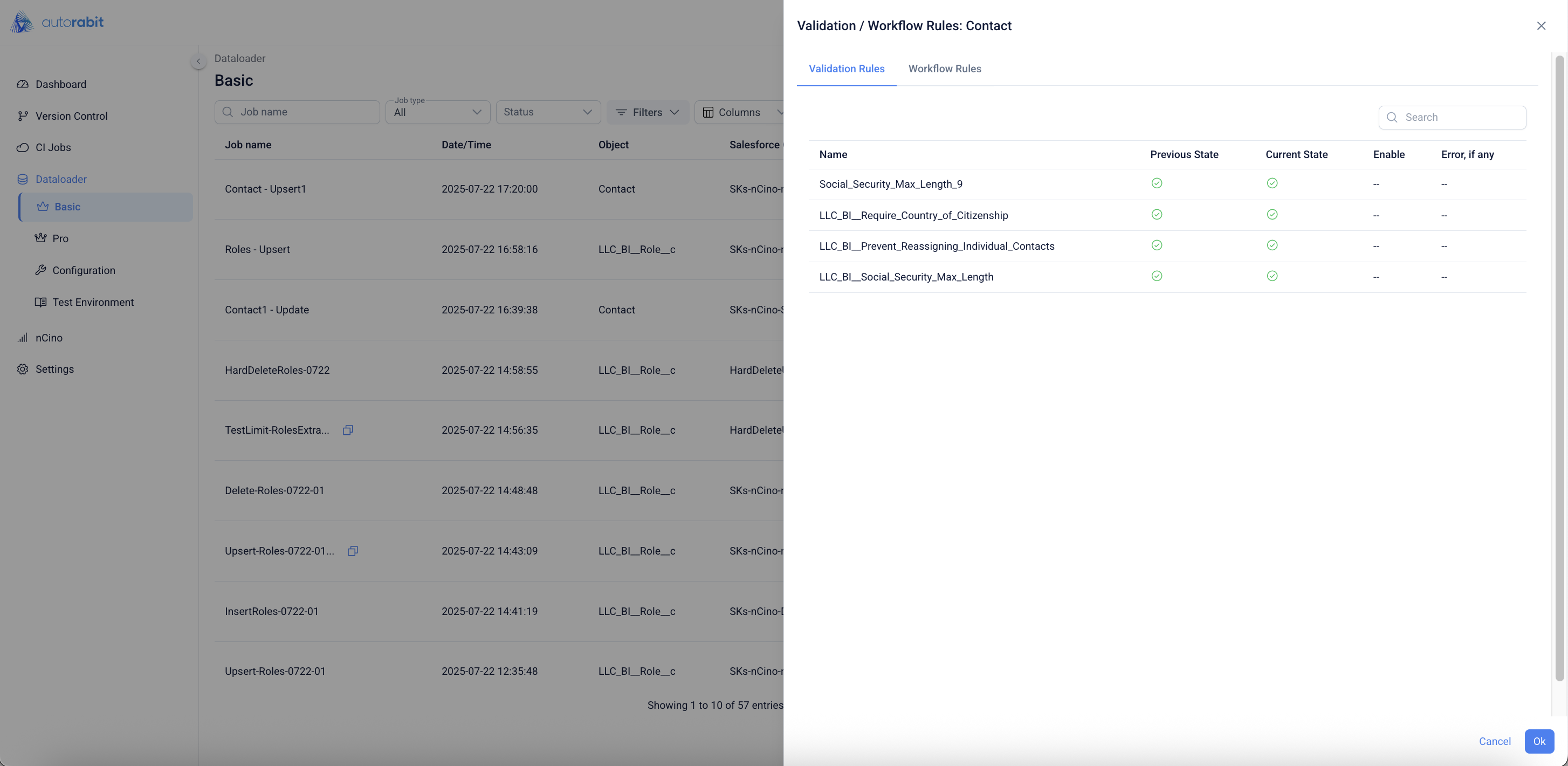
32. **Validation Rules**
* The **Validation Rules** tab lists all validation rules for the selected object.
* Each rule displays its *name, previous state, current state, enable status,* and any associated *errors*.
* This view ensures data consistency by confirming whether validation rules are active or disabled during job execution.
33. **Workflow Rules**
* The **Workflow Rules** tab provides details of all workflow rules for the selected object.
* Each workflow rule displays its *name, previous state, current state,* and *enable status*.
* Reviewing these rules allows proper alignment with business automation before running or scheduling jobs.
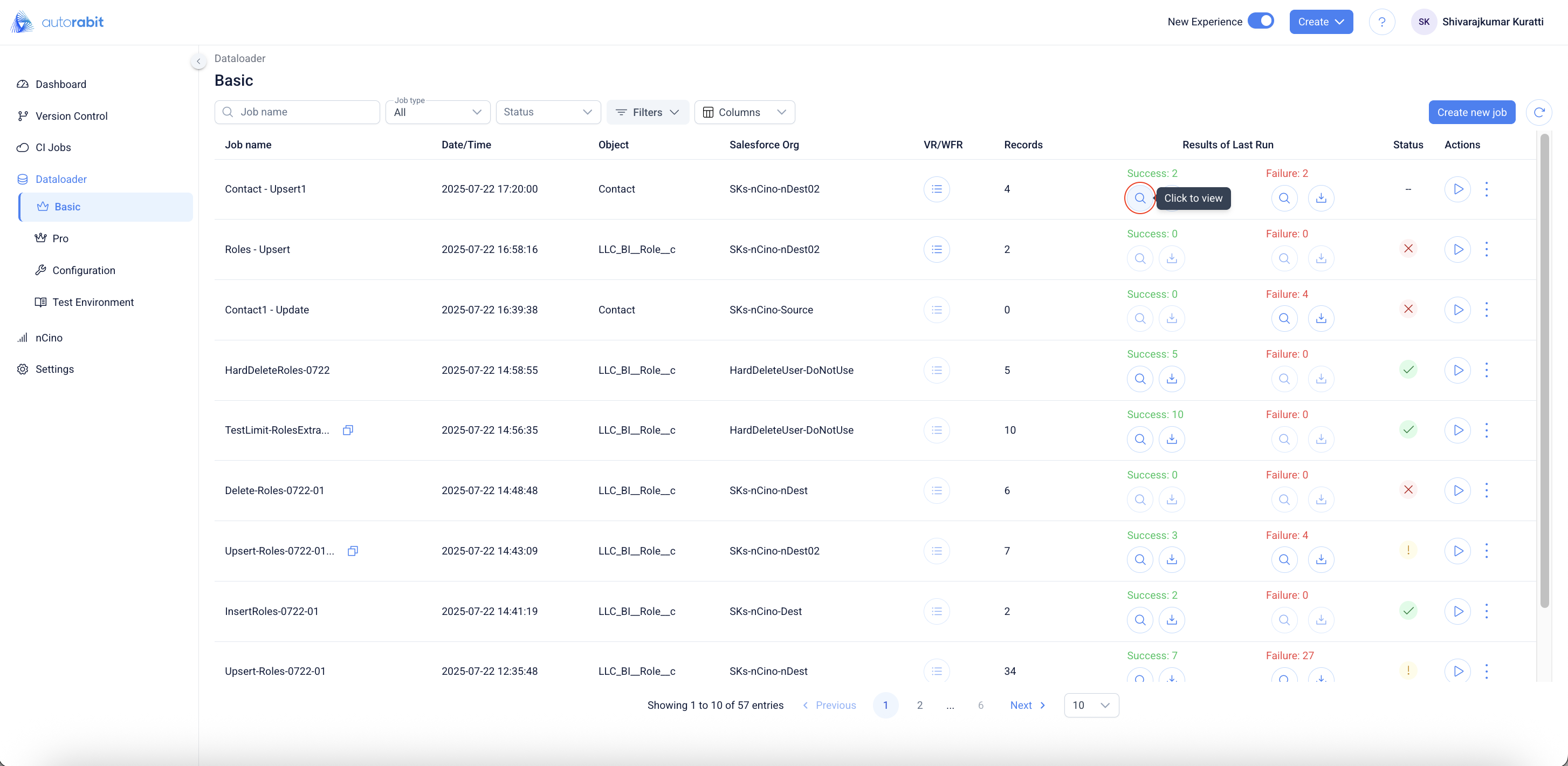
34. **View Job Results**
* From the **Dataloader Basic** page, select the **magnifying glass icon** under *Results of Last Run* for the required job.
* This opens the results view for the most recent execution.
* Use this option to quickly validate both success and failure counts before downloading detailed logs.
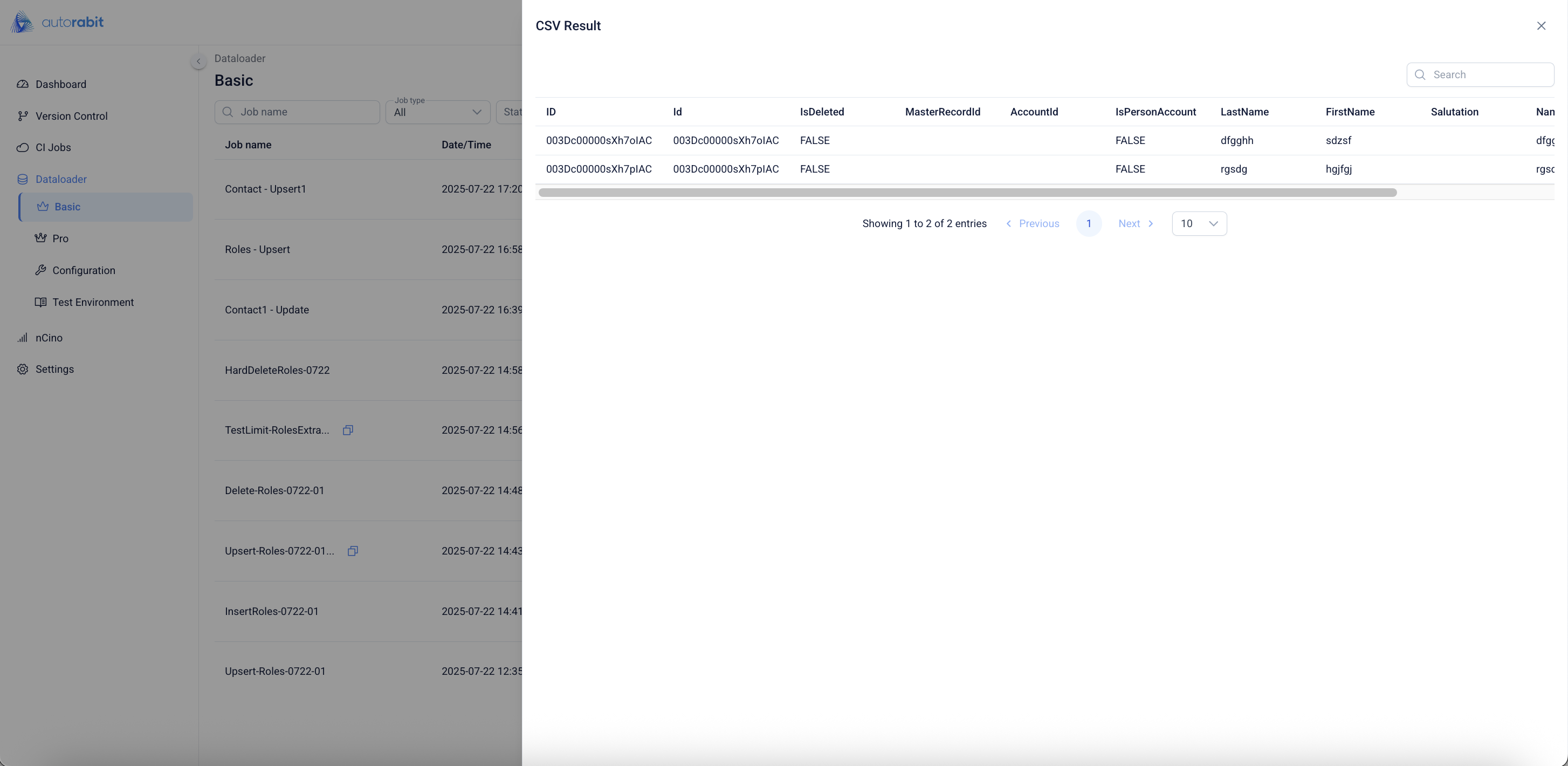
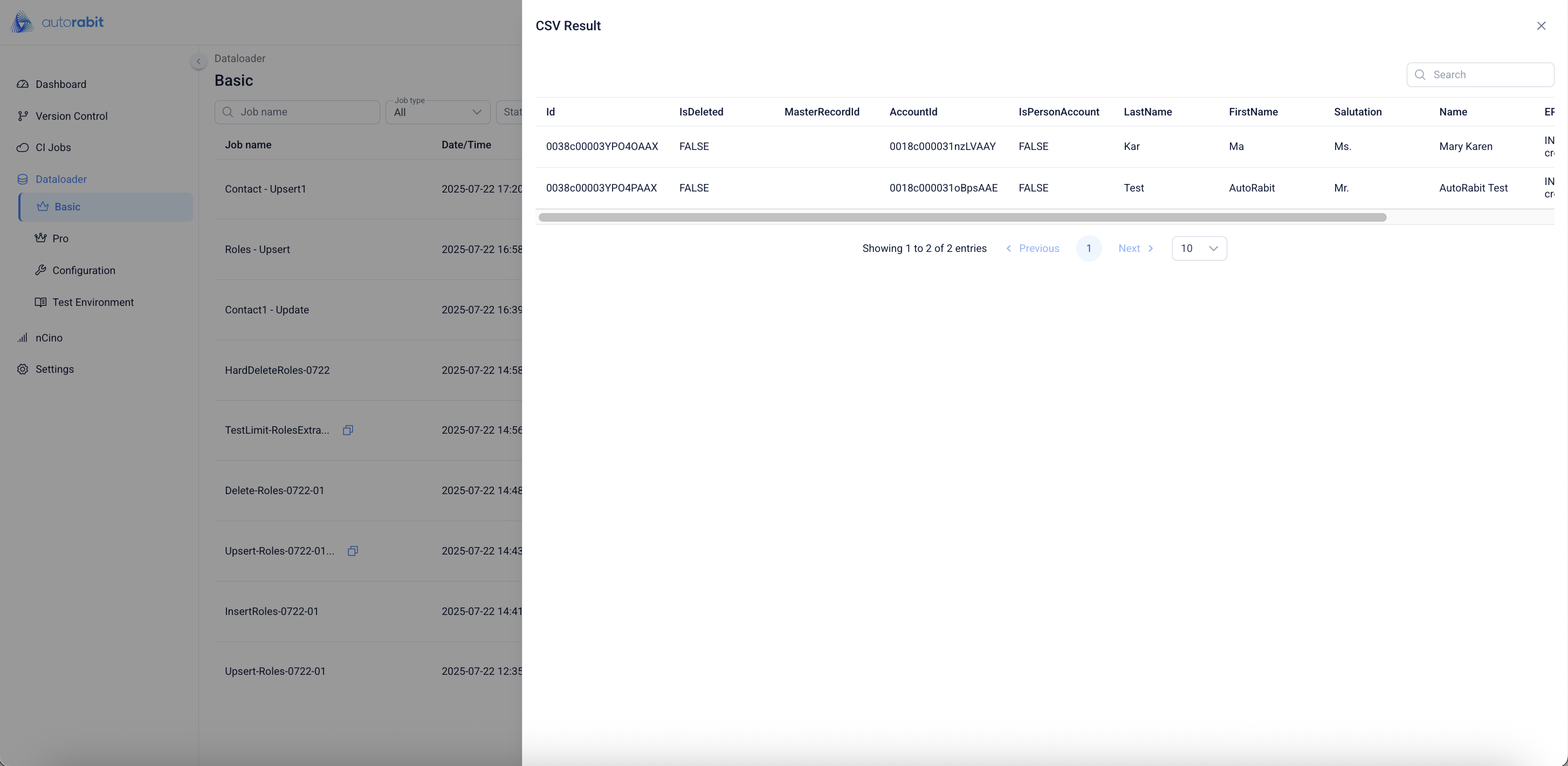
35. **CSV Result View**
* The **CSV Result** window displays record-level details from the last job execution.
* Each row shows Salesforce fields such as *ID, AccountId, FirstName, LastName,* and other mapped fields.
* This view helps confirm which records were processed successfully and identify any errors or mismatches.
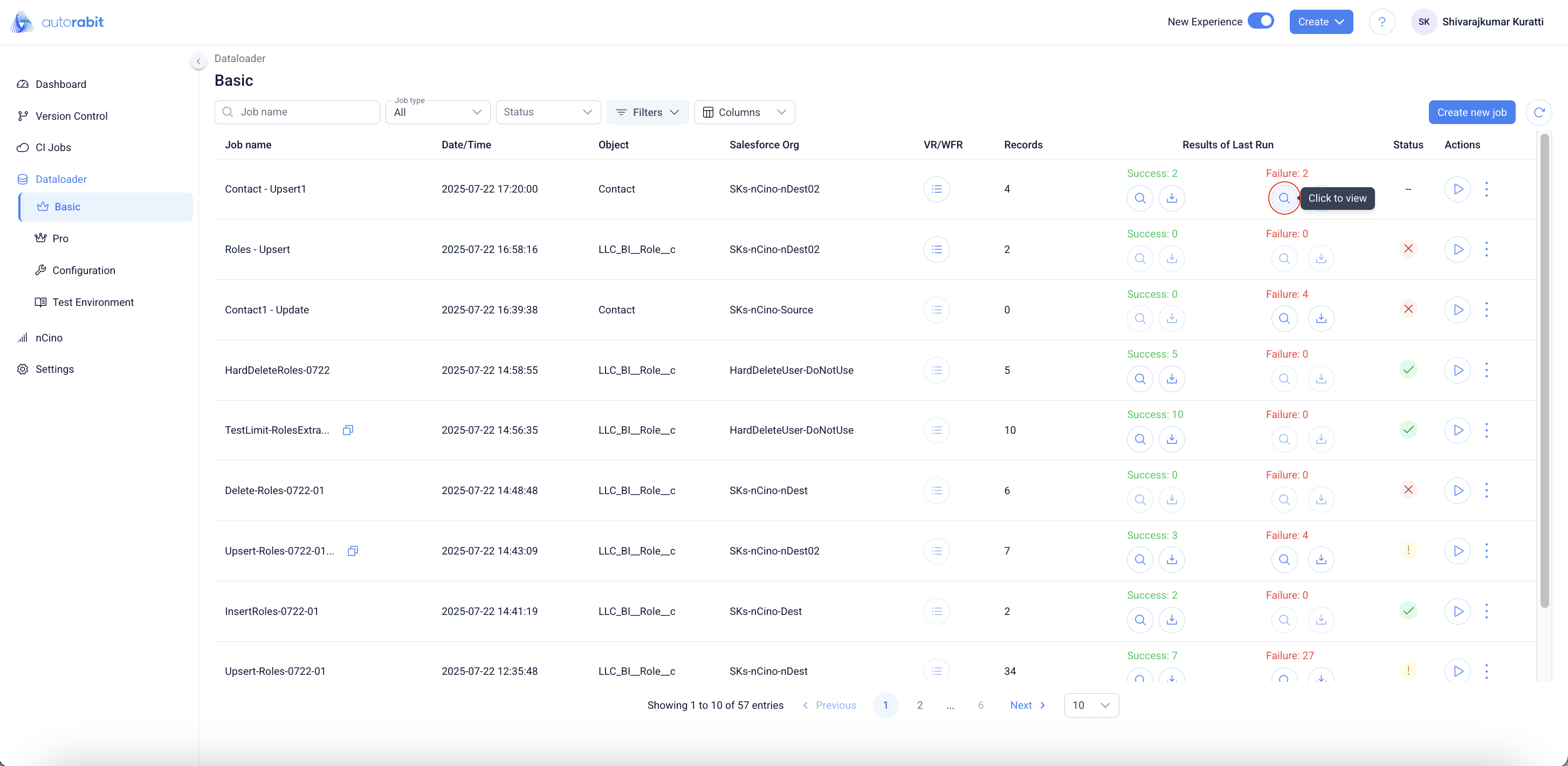
36. **View Failed Records**
* From the **Dataloader Basic** page, select the **magnifying glass icon** under the *Failure* column for the required job.
* This opens the result view specifically for failed records in the last run.
* Use it to investigate why certain records failed while others succeeded.
37. **CSV Failed Records**
* The **CSV Result** window displays detailed information for failed records.
* Fields such as *Id, AccountId, LastName, FirstName,* and others are shown with their corresponding values.
* This view helps identify the root cause of failures by examining data values and constraints against validation or workflow rules.
---
# Agent Instructions
This documentation is published with GitBook. GitBook is the documentation platform designed so that both humans and AI agents can read, navigate, and reason over technical content effectively. Learn more at gitbook.com.
## Querying This Documentation
If you need additional information that is not directly available in this page, you can query the documentation by asking a question.
Perform an HTTP GET request on the following URL with the `ask` and `goal` query parameters:
```
GET https://knowledgebase.autorabit.com/product-guides/arm-1/arm-features/dataloader/single-dataloader/upsert-salesforce-data.md?ask=&goal=
```
`ask` is the immediate question: it should be specific, self-contained, and written in natural language.
`goal` is what the user is ultimately trying to achieve, the reason they need the answer. Sharing it helps GitBook give you a better, more relevant answer. A goal is most helpful when it describes the outcome the user wants rather than restating the question. For example, with `ask=how do I create an API token`, a goal like `automate deployments from our CI pipeline` lets GitBook tailor the answer to that use case.
The response will contain a direct answer to the question and relevant excerpts and sources from the documentation.
Use this mechanism when the answer is not explicitly present in the current page, you need clarification or additional context, or you want to retrieve related documentation sections.