> For the complete documentation index, see [llms.txt](https://knowledgebase.autorabit.com/llms.txt). Markdown versions of documentation pages are available by appending `.md` to page URLs; this page is available as [Markdown](https://knowledgebase.autorabit.com/product-guides/arm-1/arm-features/dataloader/single-dataloader/insert-salesforce-data.md).
# Inserting Salesforce Data
**The "Basic DataLoader" feature offers a user-friendly and efficient way to insert data into Salesforce using a CSV file.** It simplifies the data load process while maintaining accuracy and speed, making it ideal for quick and straightforward data uploads.
**Step-By-Step Guide:**
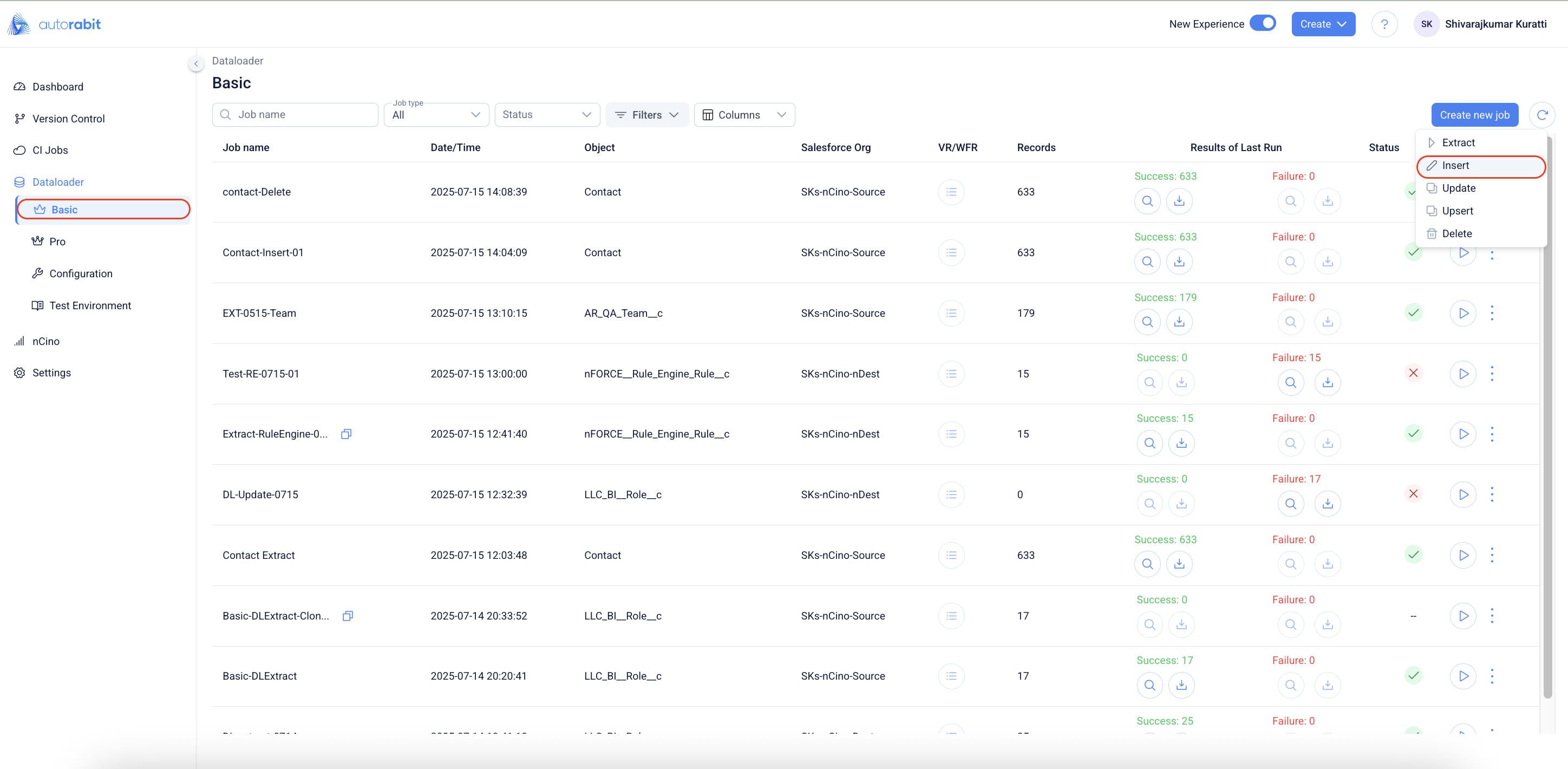
1. Navigate to the Basic DataLoader application by logging in to the nCino application.
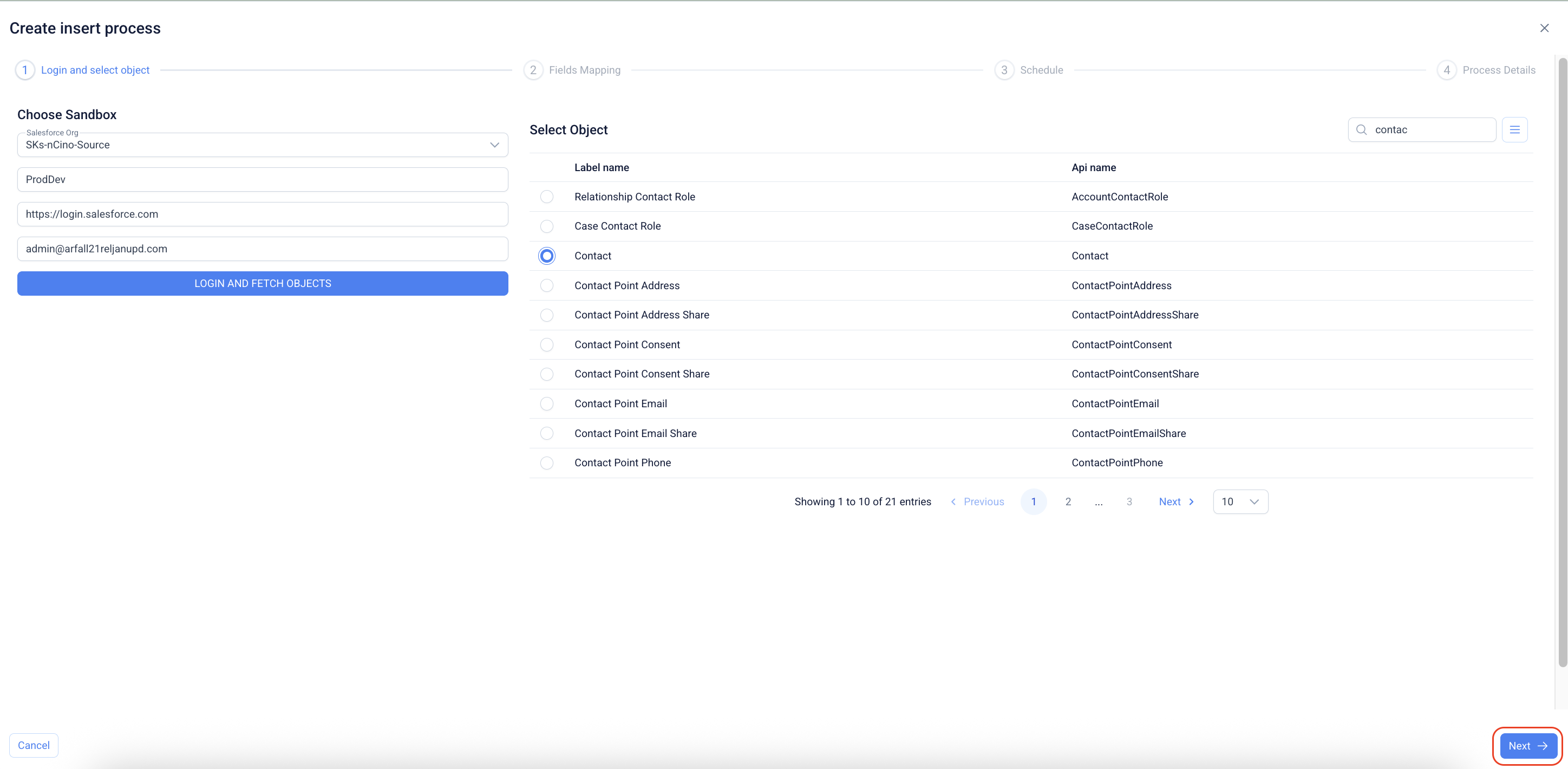
2. Click on the Create button to observe the **"Insert"** option to initiate the creation of the **"Basic DL"** job.
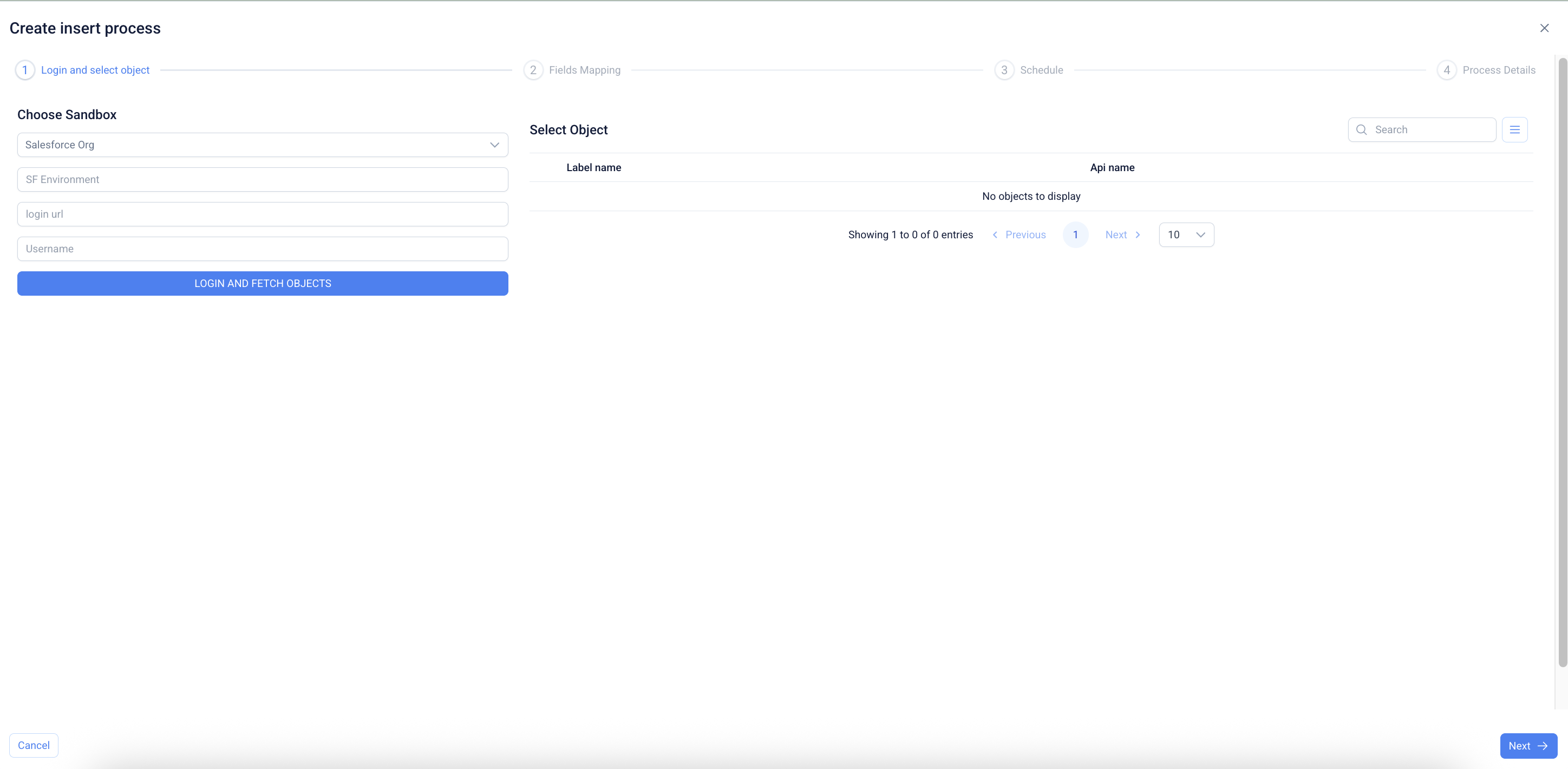
3. Clicking on "Insert" will navigate the flow to the "Login and select object" section.
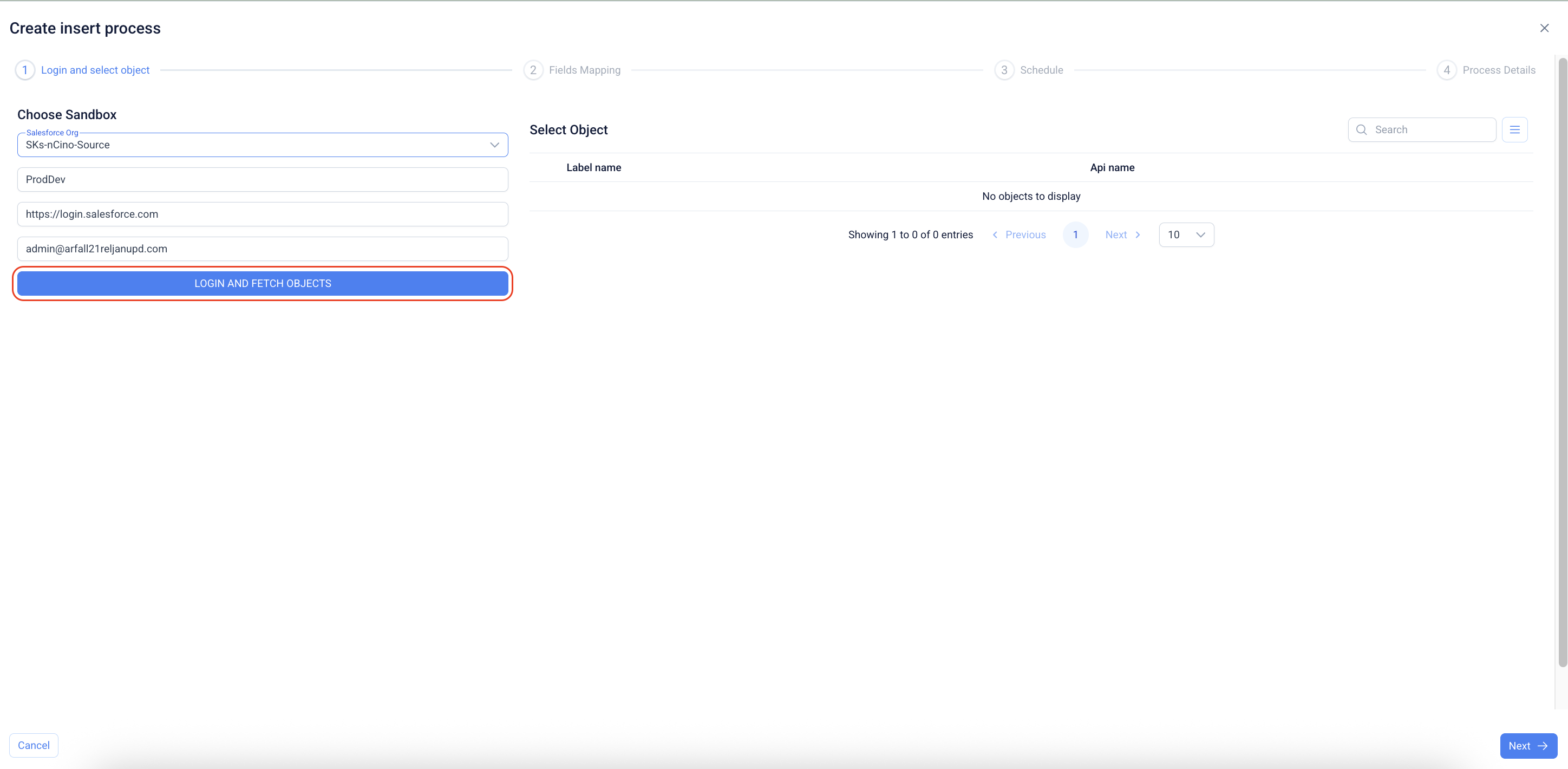
4. Click on login to fetch the object details.
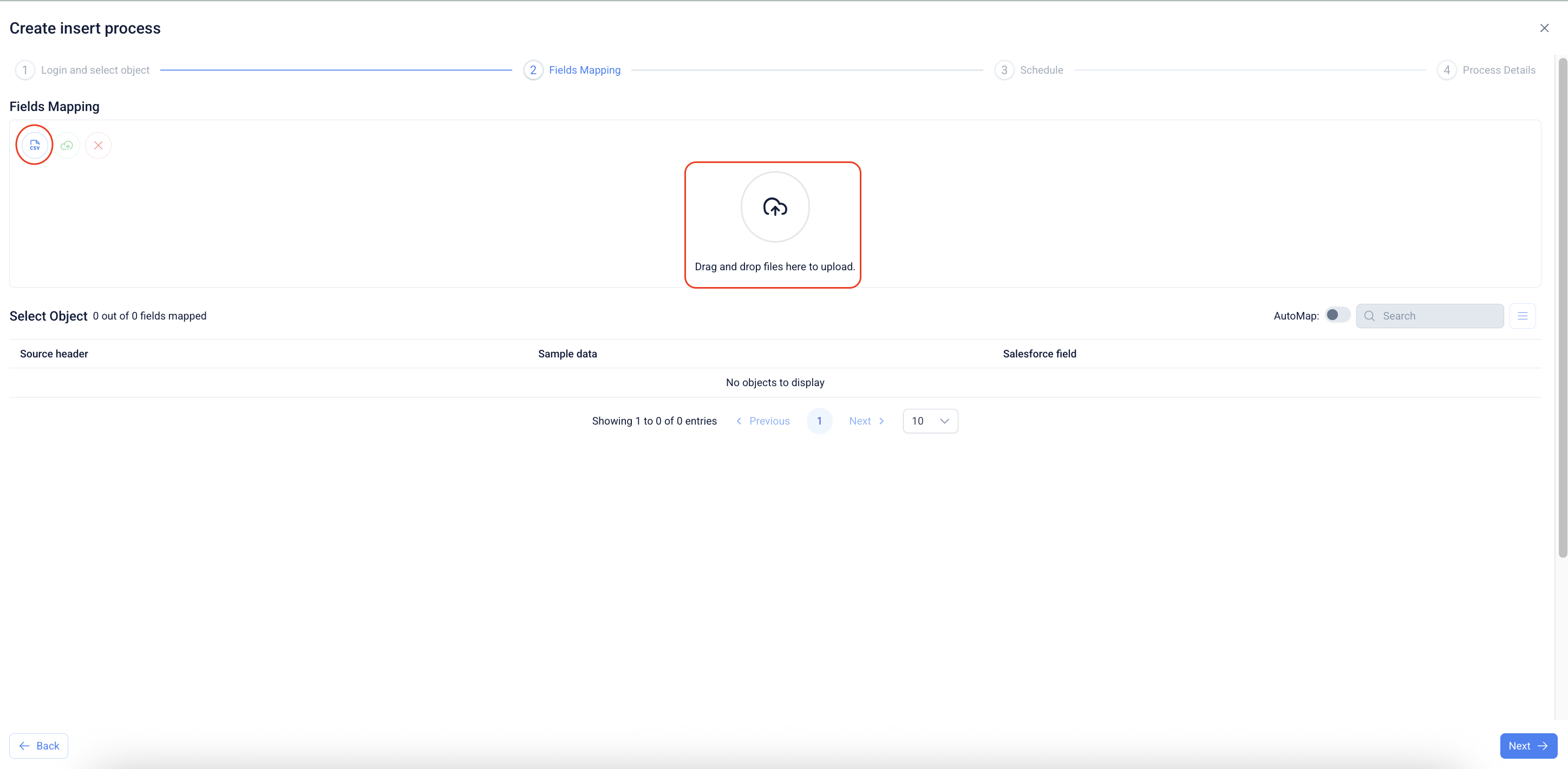
5. Choose an object and move to the next screen to choose the file to insert the data.
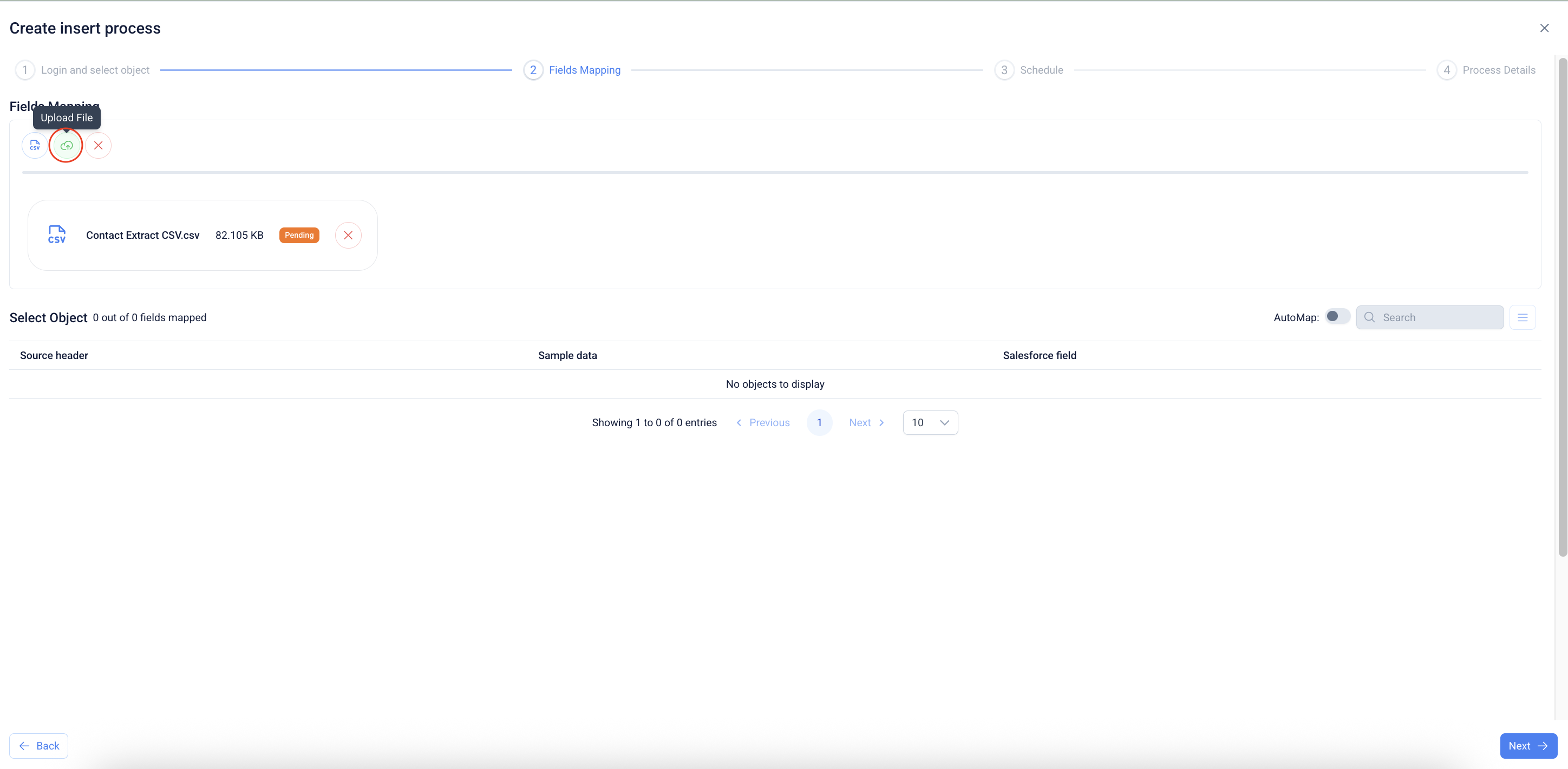
6. After uploading the file, click on the "Upload File" option to upload the file into the system.
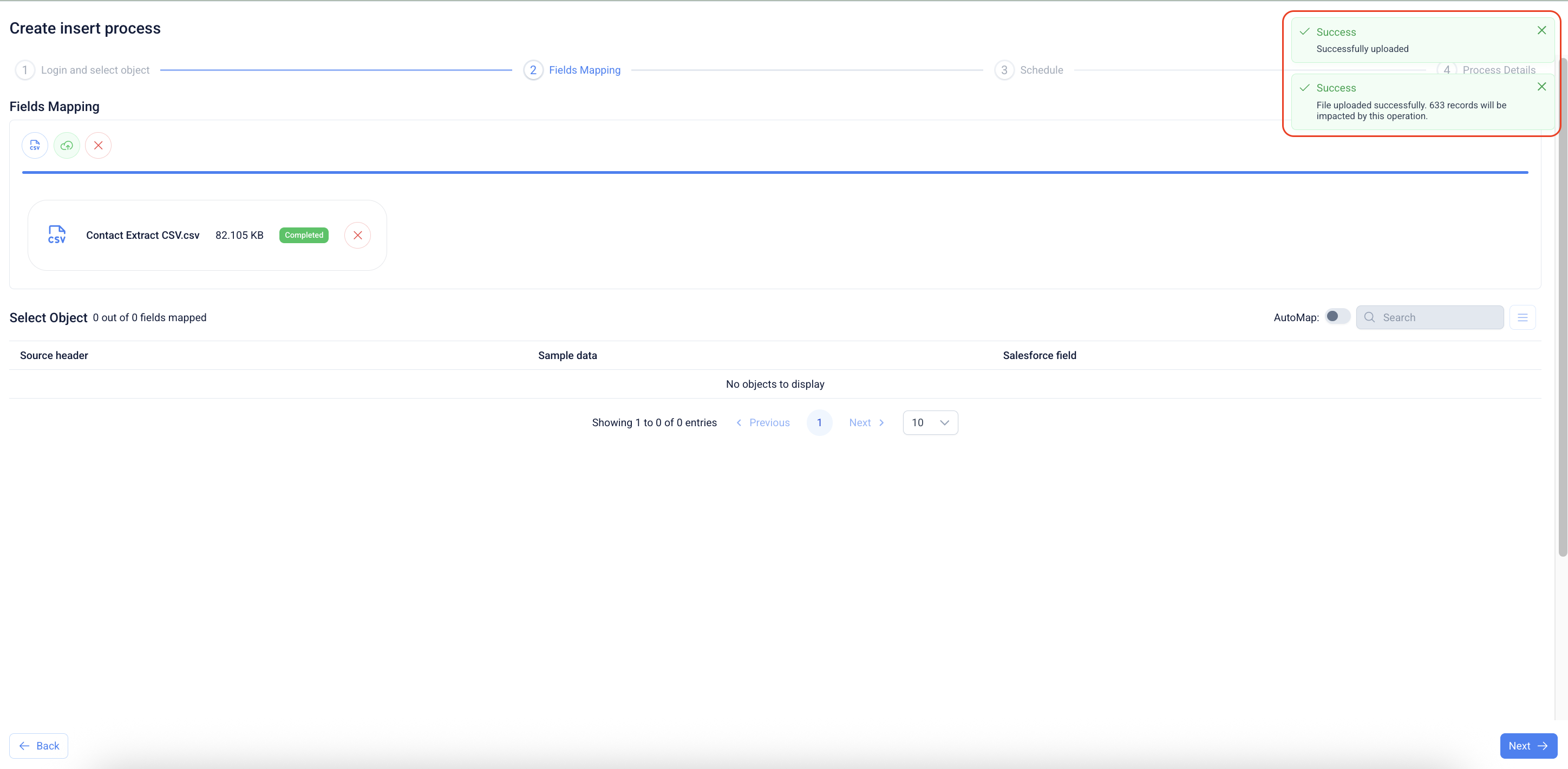
7. On successful upload of a file, the success message will be displayed.
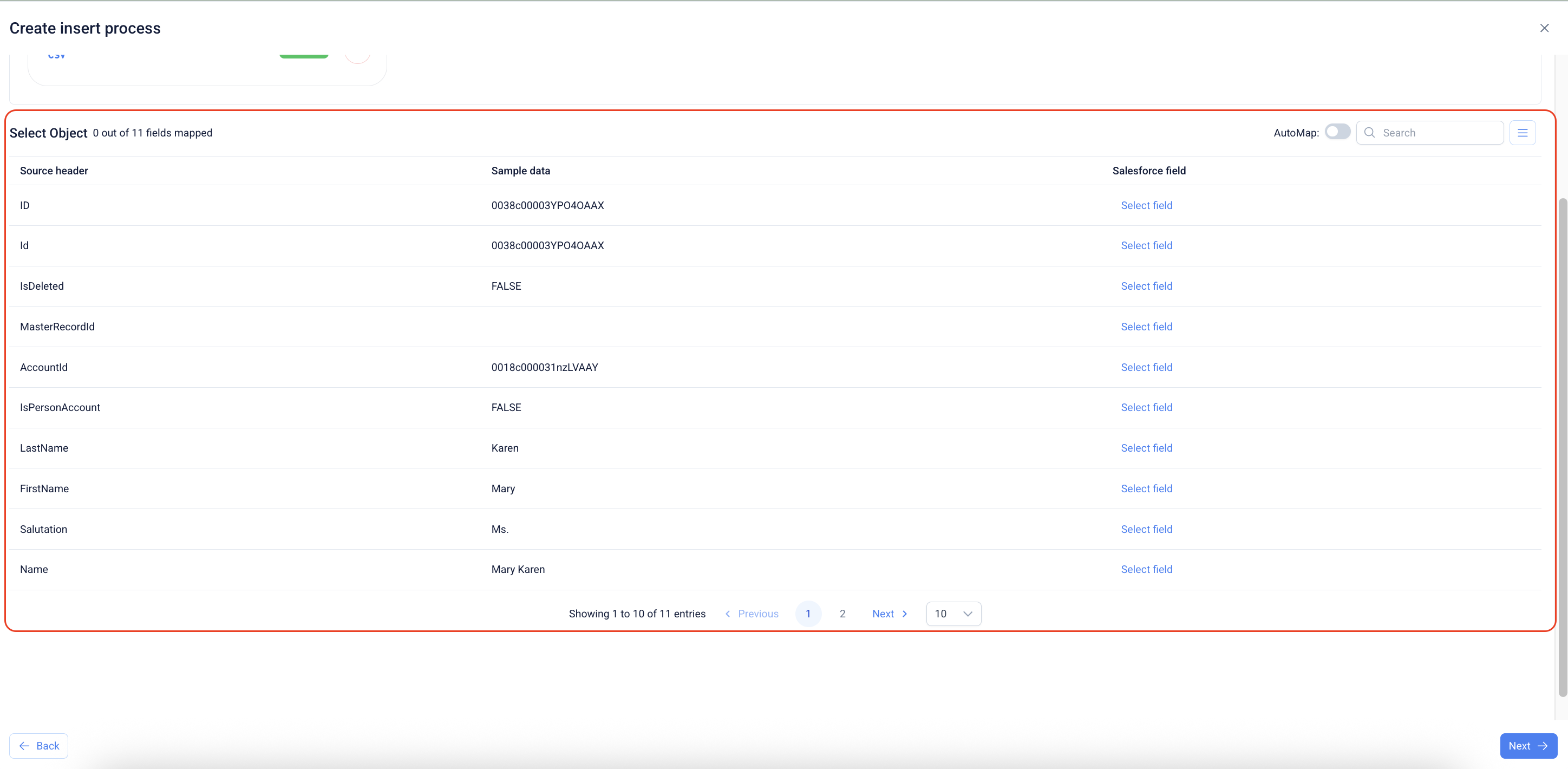
8. The application will read the header of the uploaded file and populates the same information on the screen in the section below.
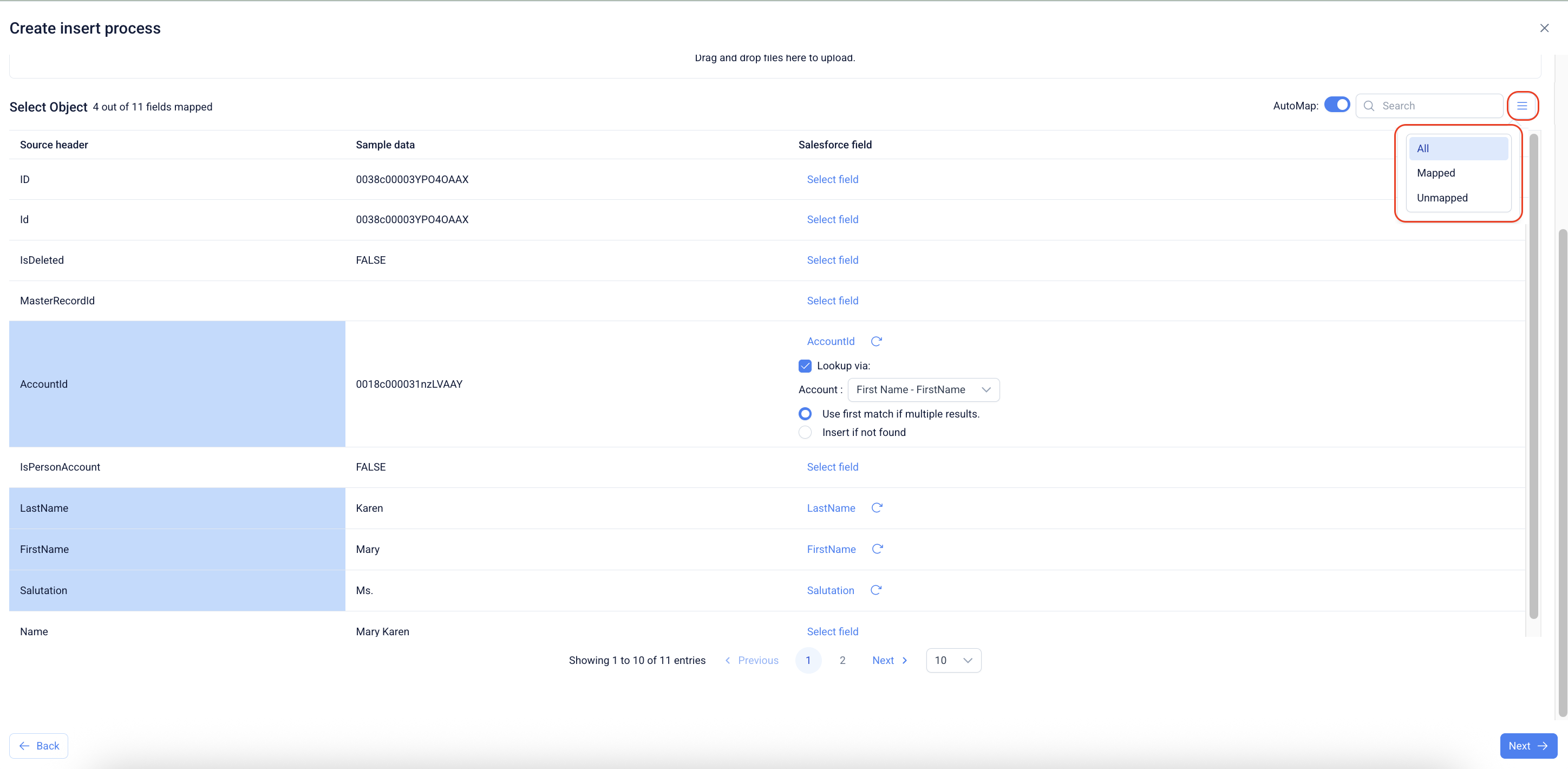
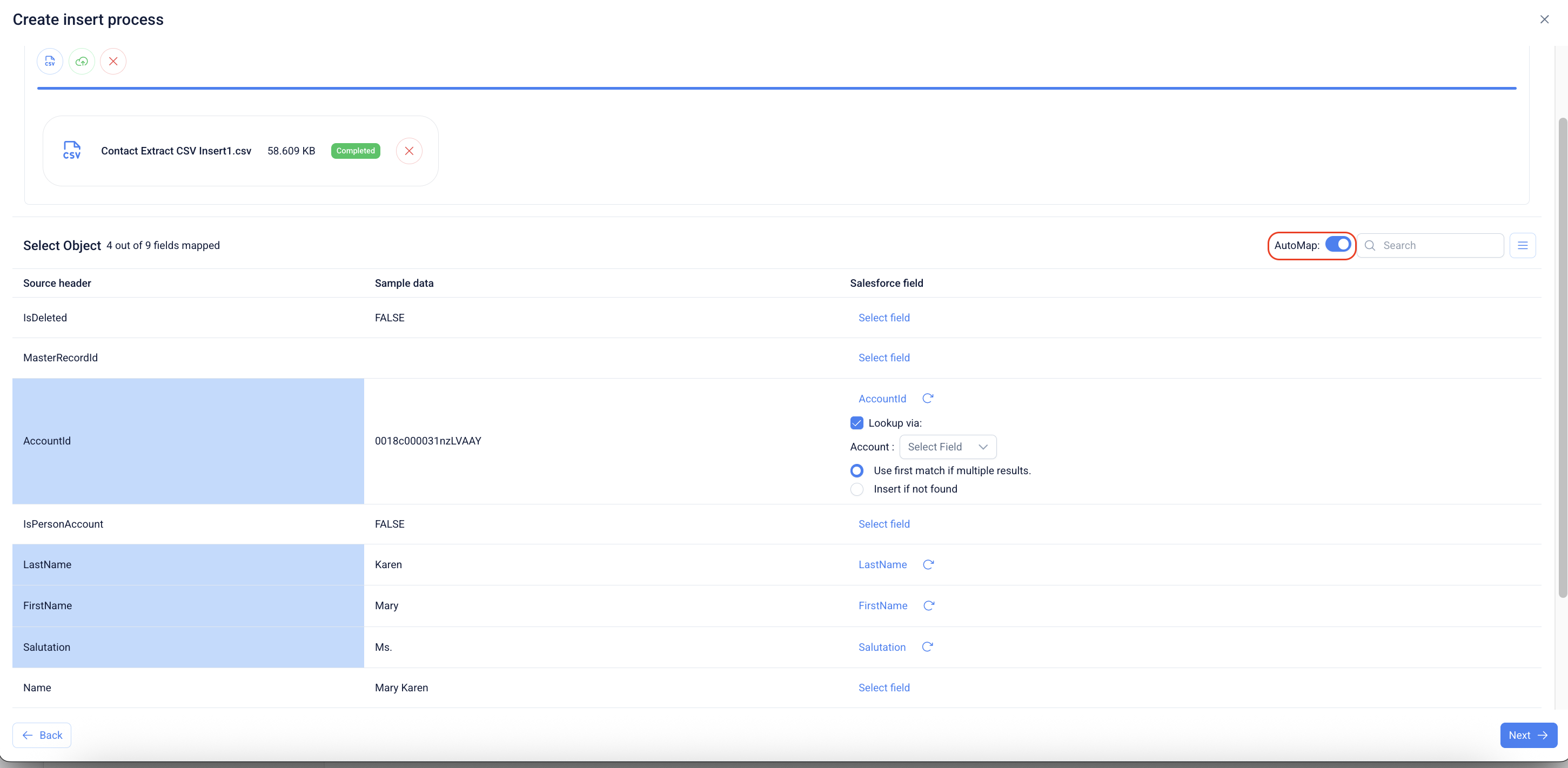
9. An "Automap" option will appear as the field details get populated on the screen. Enabling this option maps the fields from the source against the fields on the destination ORG.
10. Specify the criteria for matching fields to fetch records from the source system. This setting determines how the data should be identified and retrieved during processing.
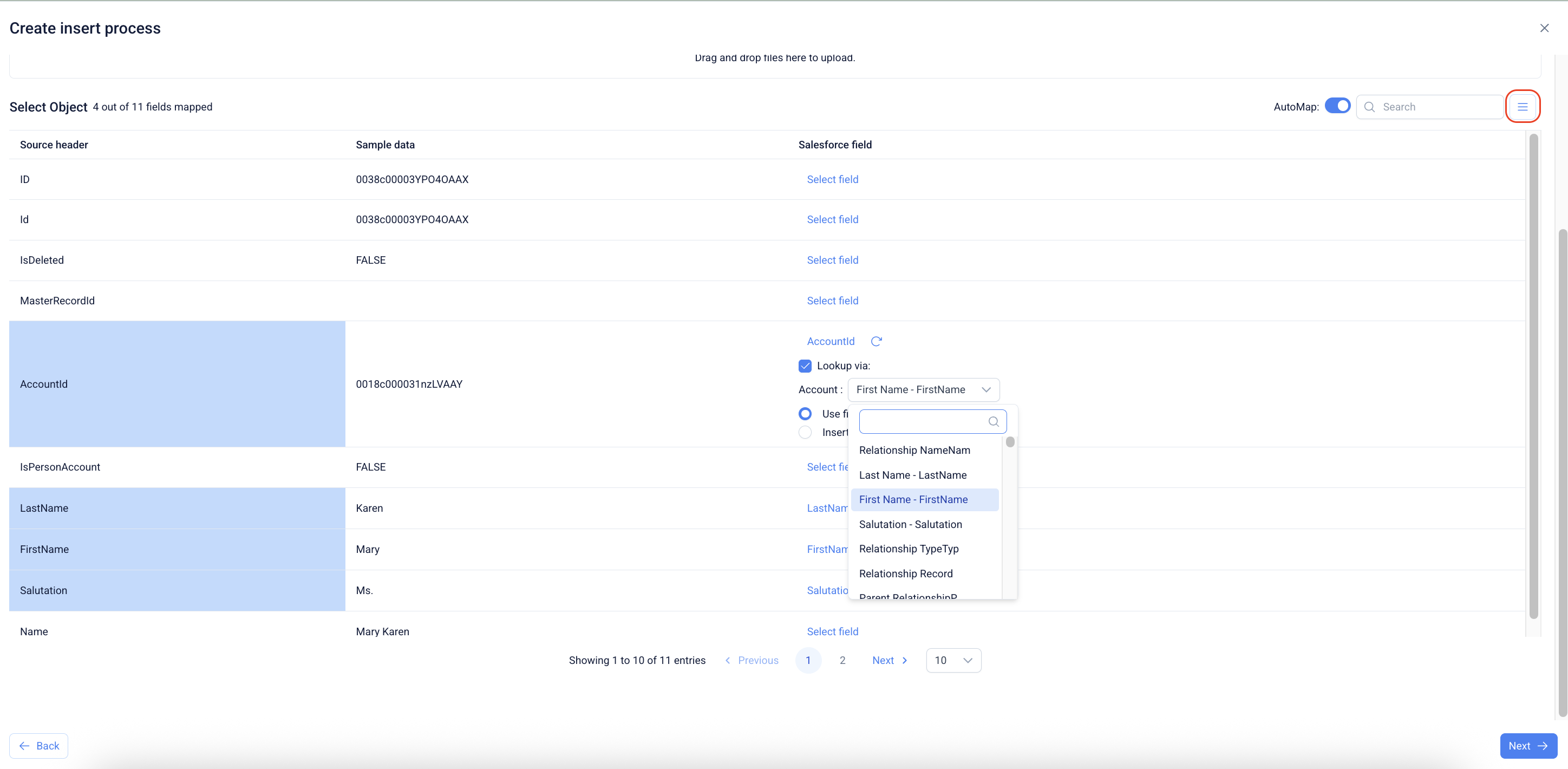
11. Click on the drop-down beside the object name and select the required field from the list.
12. Observe the icon beside the "Automap" option, clicking that will provide the options:
1. All: Will display all of the fields existing from the mapping
2. Mapped: will display the fields mapped through the "Automap" option
3. Unmapped: will display the fields that remain unmapped after enabling the "Automap" option.
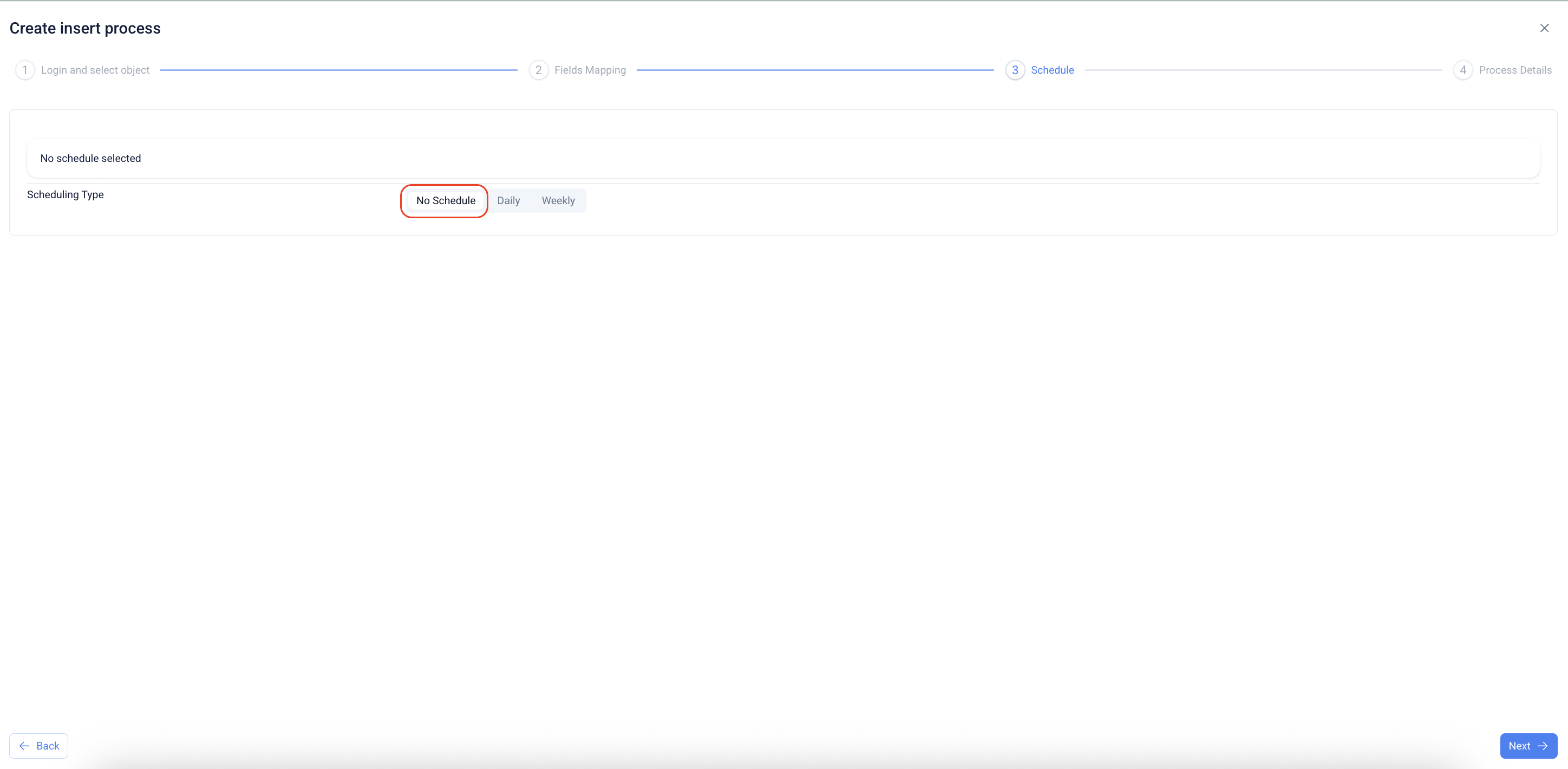
13. Click "Next" to continue to the "Schedule" section of the flow.
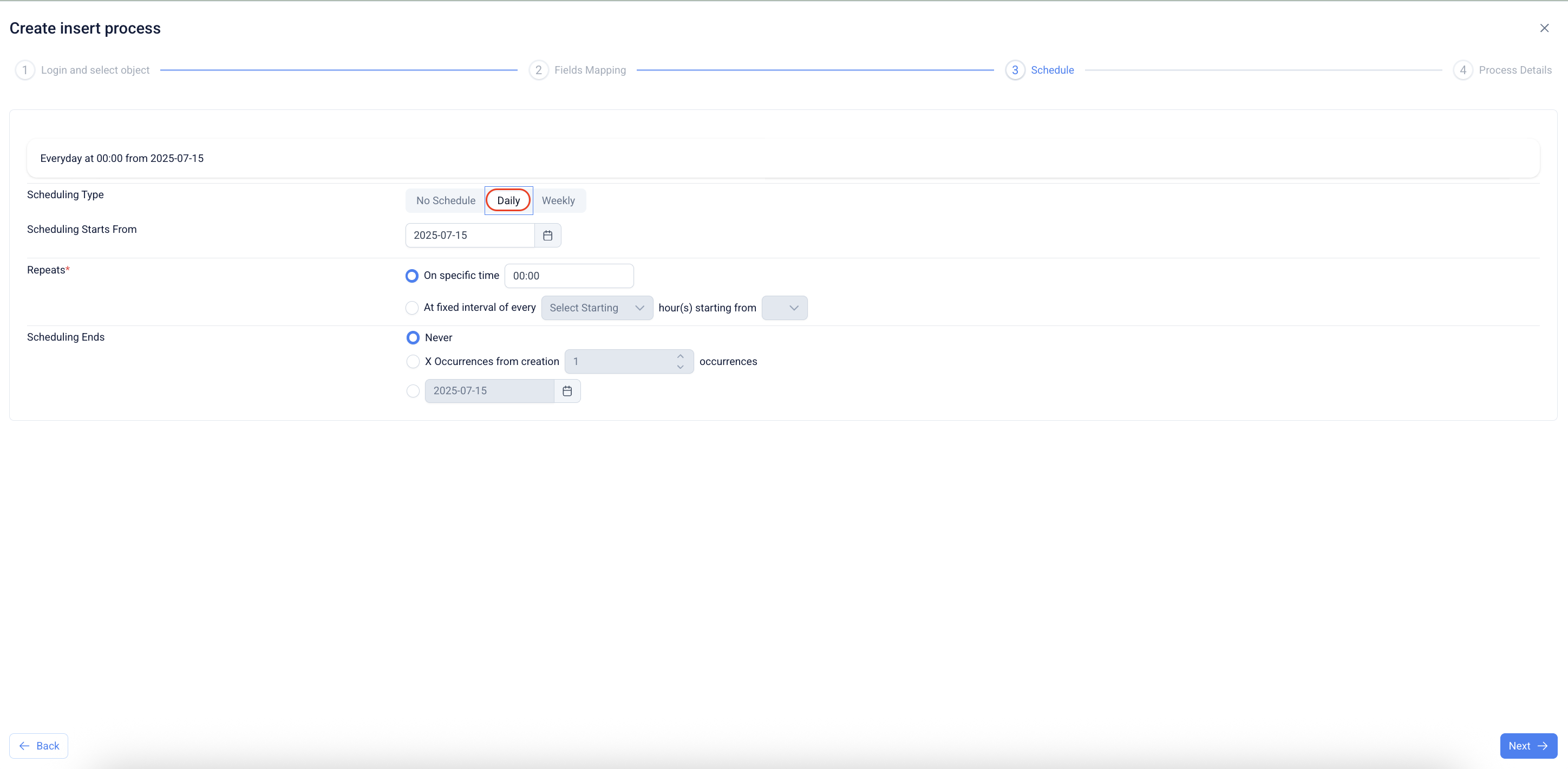
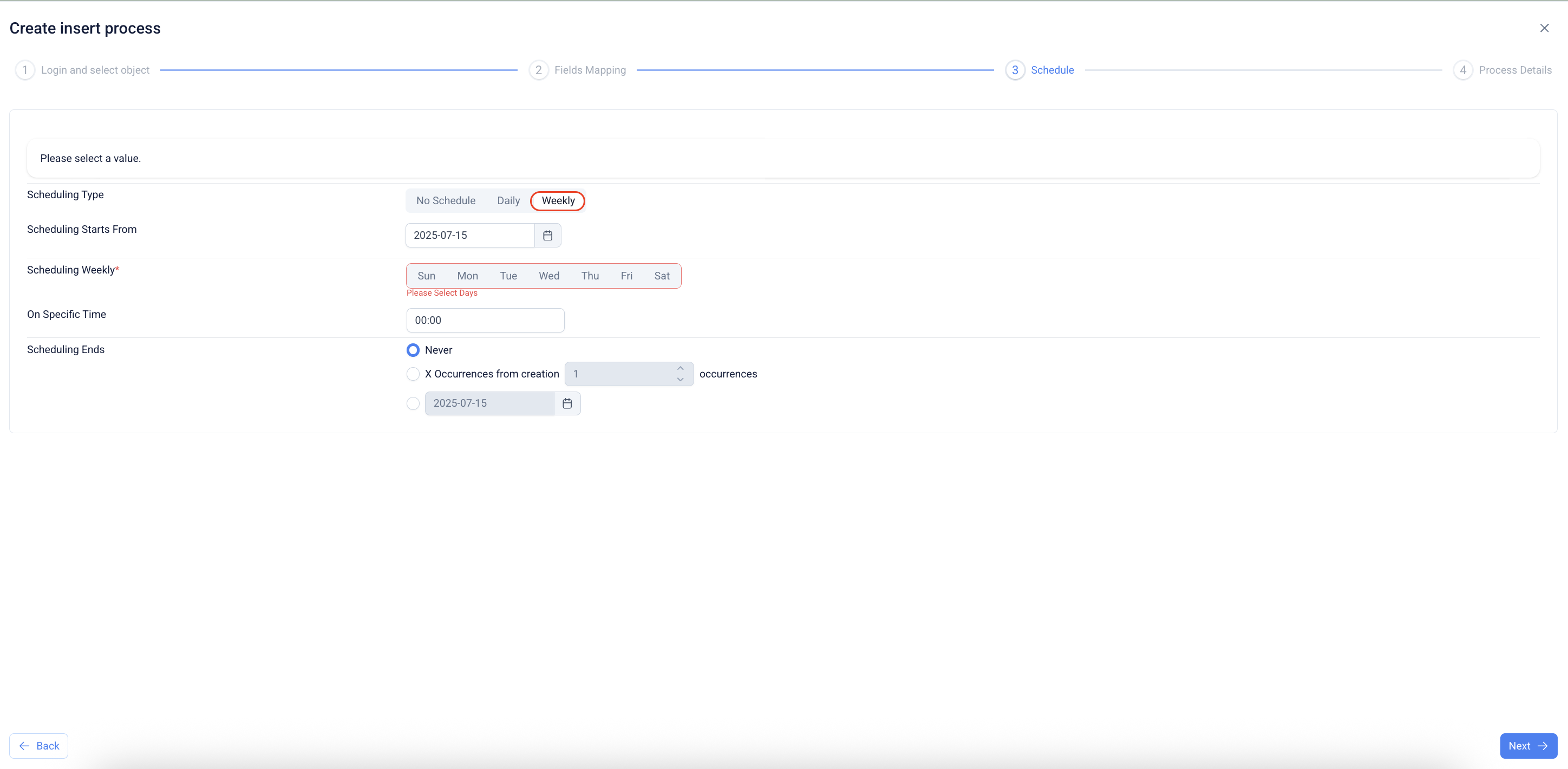
14. Observe the various scheduling options available under "Schedule" section.
15. On completing the scheduling, click on "Next" to continue to "Process Details".
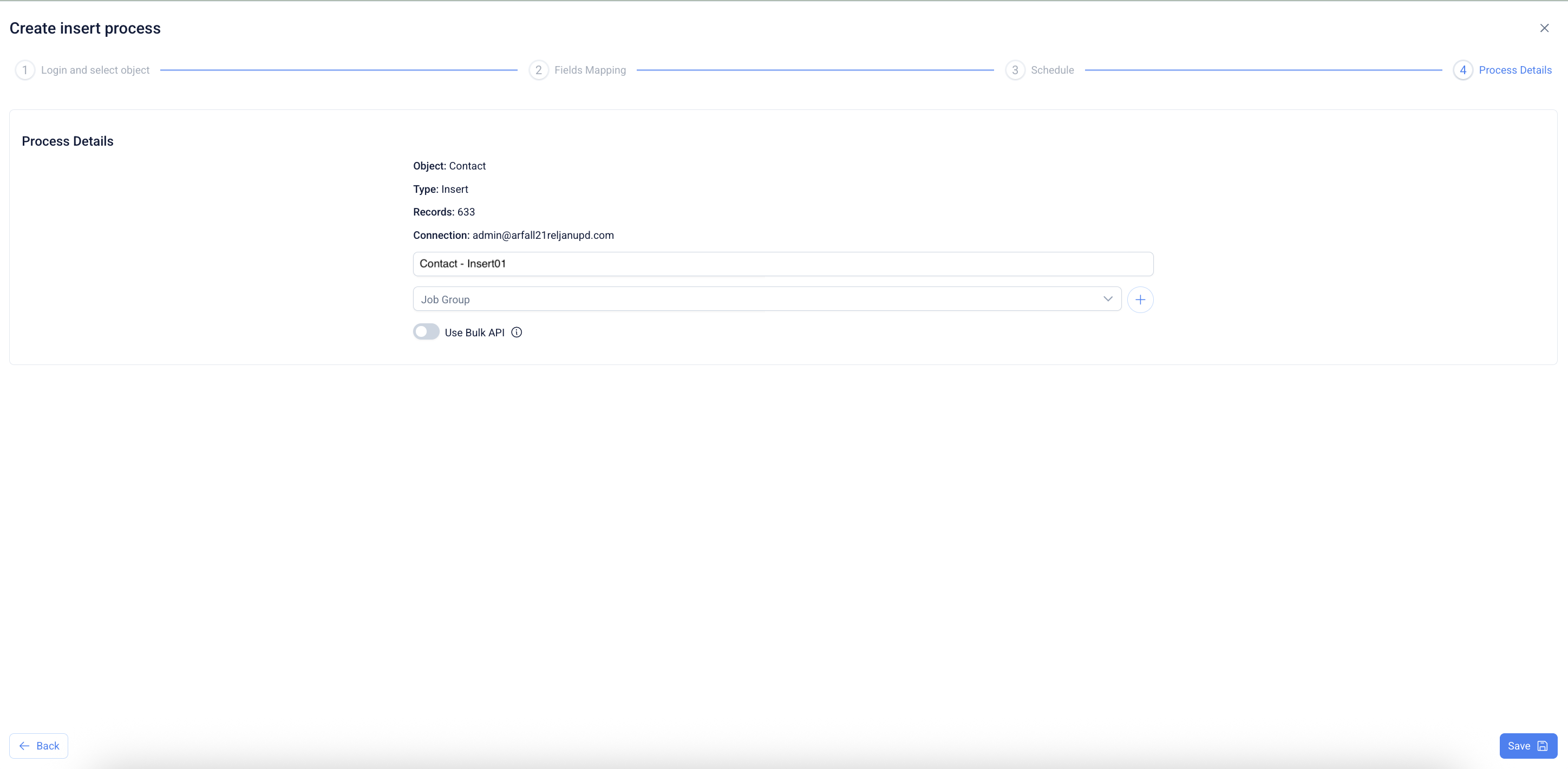
16. Input a name for the job and click on "Save" to save the job.
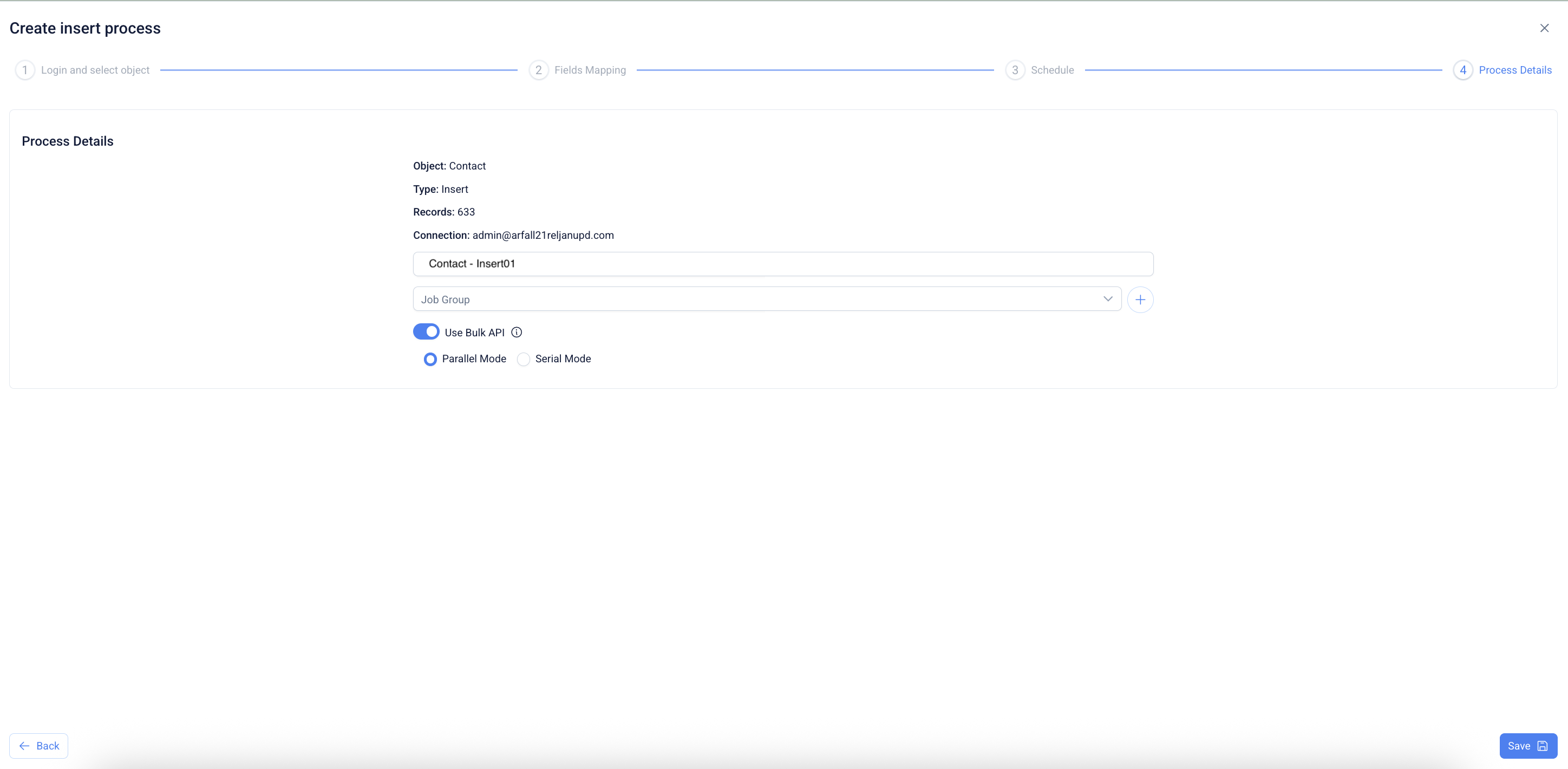
17. **Use Bulk API**\
The Bulk API, built on REST principles, is designed for high-volume operations such as inserting, updating, or deleting large data sets. It supports both serial and parallel processing modes:
* **Serial Mode:** Processes batches one after another in sequence.
* **Parallel Mode:** Processes multiple batches simultaneously to increase throughput.
Enabling this option allows the system to execute the job more efficiently by leveraging concurrent batch processing where possible, thereby improving overall performance for large-scale data operations.
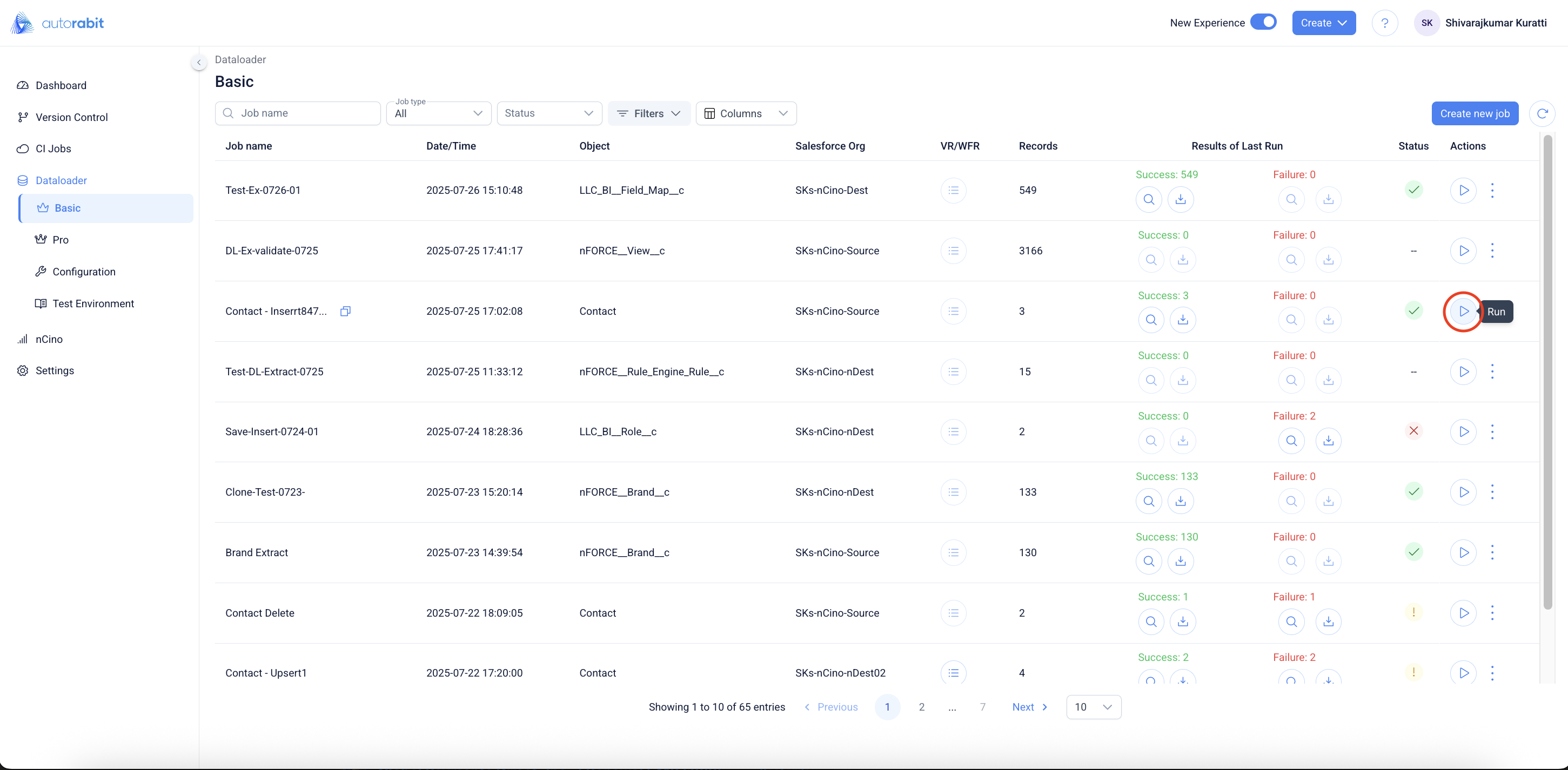
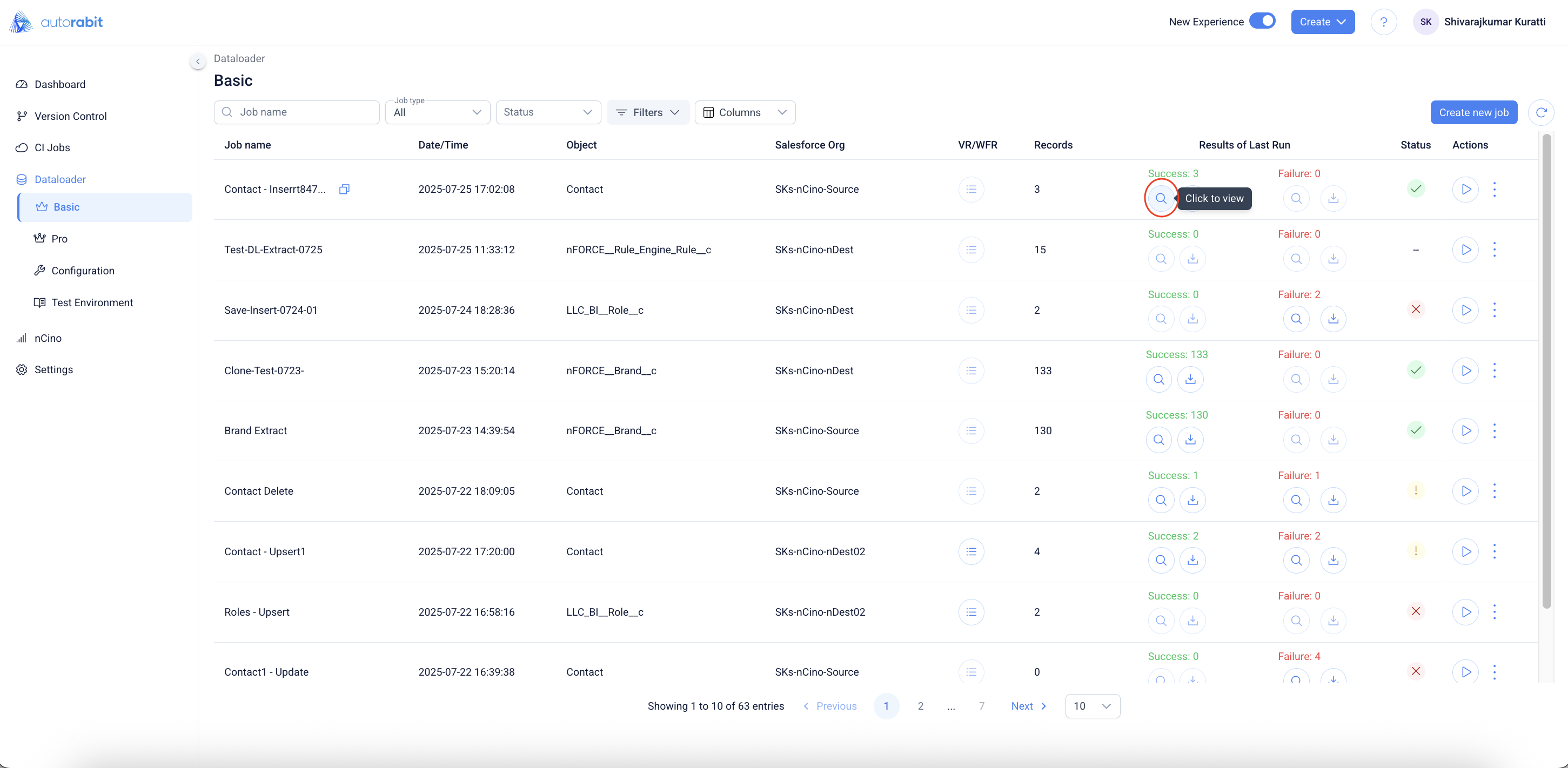
18. On saving the job, the flow will navigate to the job list page.
19. Observe and click on the "Run" button to initiate the job run
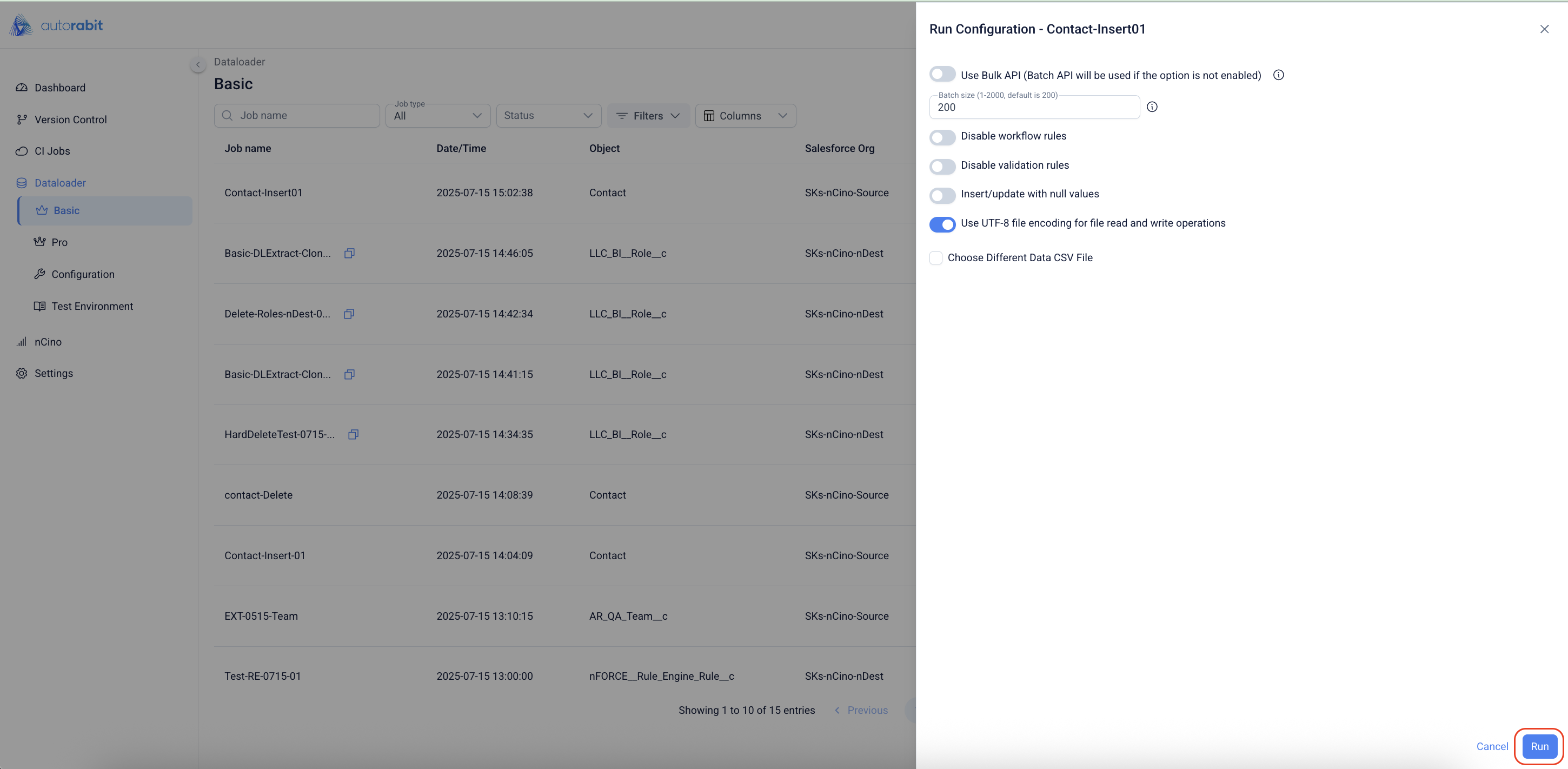
20. Observe the "Automations" available on the "Run Configuration" screen.
21. Select the criteria you can set for the data loader process to continue:
| Configurations | Descriptions |
| ------------------------------------------------------------------ | -------------------------------------------------------------------------------------------------------------------------------------------------------------------------------------------------------------------------------------------------------------------------------------------------------------------------------------------------------------------------------------------------------------------------------------------------------------------------------------------------------------------------------------------------------------------------------------------------------------------------------------------------------------------------------------------------------------------------------------------------------------------------------------------------------------------------------------------------------------------------------------------------------------------------------------- |
| Use Bulk API (Batch API will be used if the option is not enabled) |
The Bulk API is based on REST principles and is optimized for inserting, updating, and deleting large data sets.
You can use the Bulk API to process jobs in serial or parallel mode. Processing batches serially means running them one after another, while processing batches in parallel means running multiple batches simultaneously.
When you run a Bulk API job, processing more batches in parallel means giving that job a higher degree of parallelism, giving your overall run better data throughput. When you run a Bulk API job, processing more batches in parallel means giving that job a higher degree of parallelism, giving your overall run better data throughput.
Note: When performing multiple insert operations into the same destination org while the ongoing jobs are still running, choosing the Serial Mode is recommended.
|
| Batch Size |
Whenever the Bulk API checkbox is left unchecked, the Batch API is used.
Salesforce Batch API is based on SOAP principles and is optimized for real-time client applications that update small numbers of records at a time. Although SOAP API can also process large numbers of records, it becomes less practical when the data sets contain hundreds of thousands of records. In those cases, Bulk API is the best option. Batch API processes data in smaller batches than Bulk API, resulting in a higher API call usage per operation on large volumes of data.
Note:When you run a Bulk API job, processing more batches in parallel means giving that job a higher degree of parallelism, giving your overall run better data throughput.
|
| Disable workflow rules | All the workflows of the Salesforce objects are deactivated, and the data is transferred from the source to the destination sandbox. Once the migration is complete, workflows are reactivated. |
| Disable Validation Rules | Validation rules verify that the data a user enters in a record meets the specified criteria before the user can save the record. On selection, all the validation rules of the Salesforce objects are deactivated, and the data is transferred from the source to the destination sandbox. Once the migration is complete, validation rules are reactivated. |
| Insert/Update with null values. | This will either insert or update record field values with null (if the value is null in source org) in destination org. |
| Use UTF-8 file encoding for file read and write operations | Use UTF-8 as the internal representation of strings. Text is transcoded from the local encoding to UTF-8 when data is written to or read from a file. UTF-8 must be enabled in your data exclusively containing English alphabets. UTF-8 must be disabled if your data contains non-English alphabets. UTF-8 should be enabled by default as per Salesforce. |
23. Click **`Run`**.
22. Click on "Run" to initiate the job run
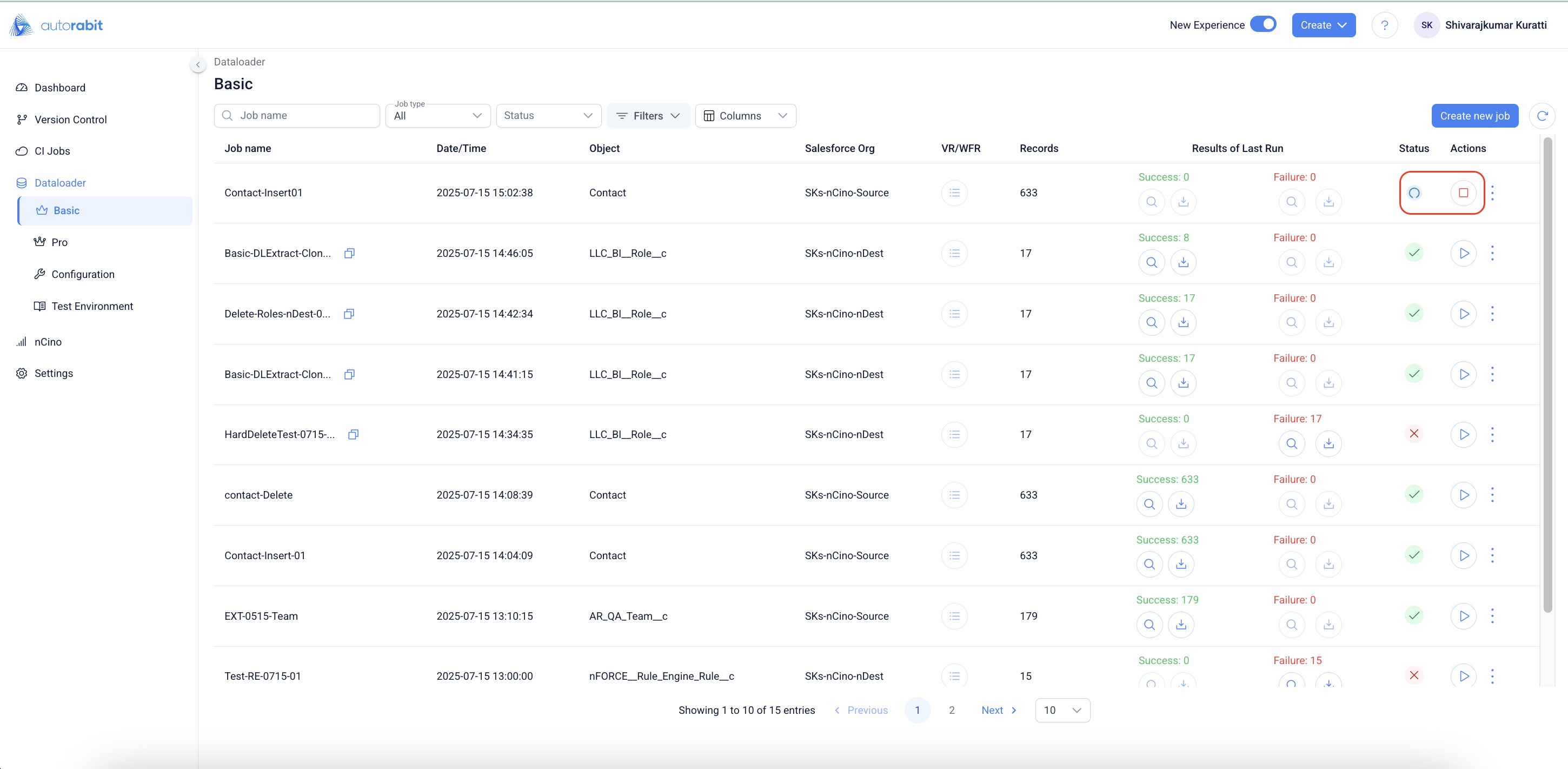
23. Observe the in-progress and the abort options available during the job run
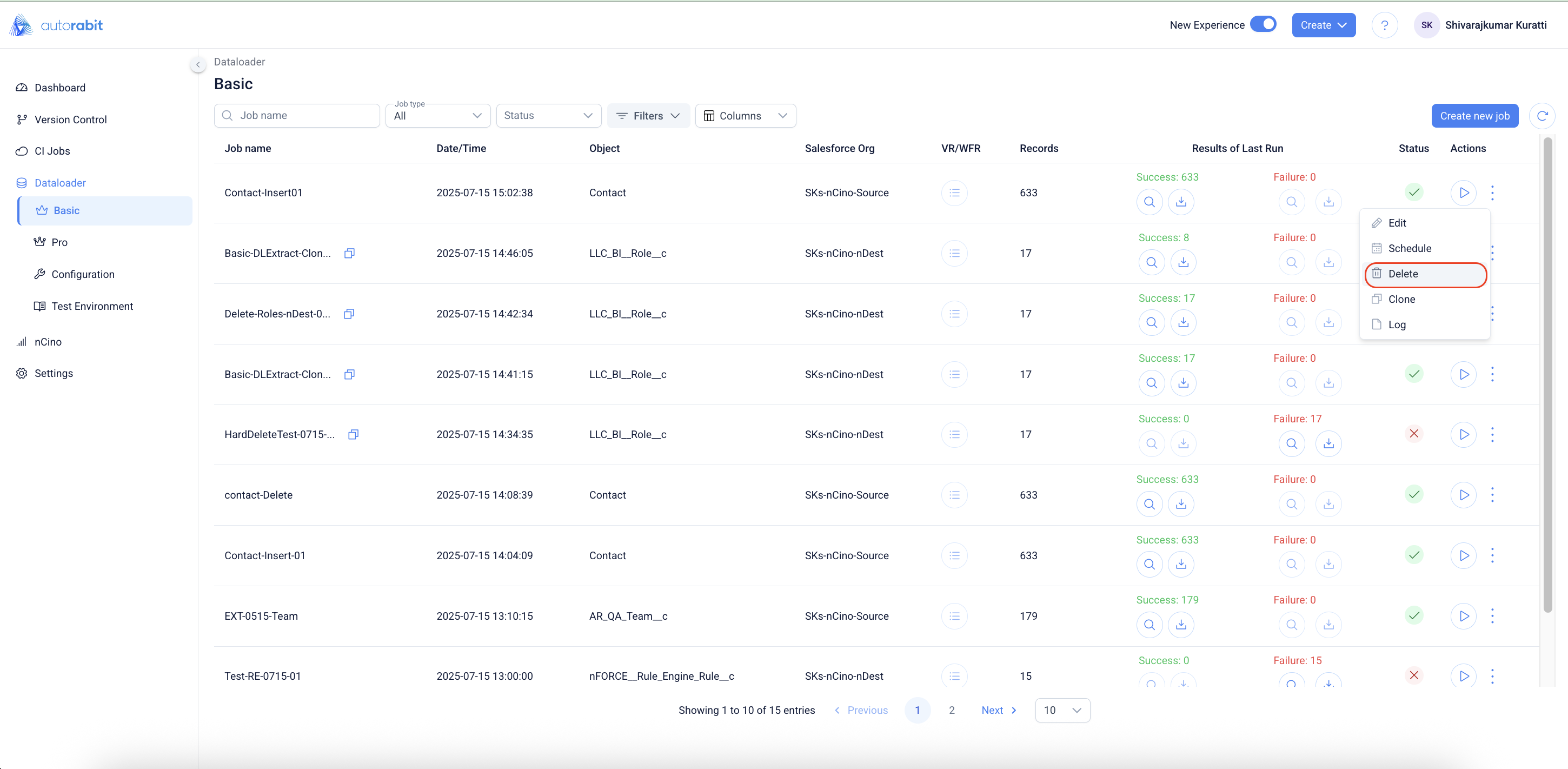
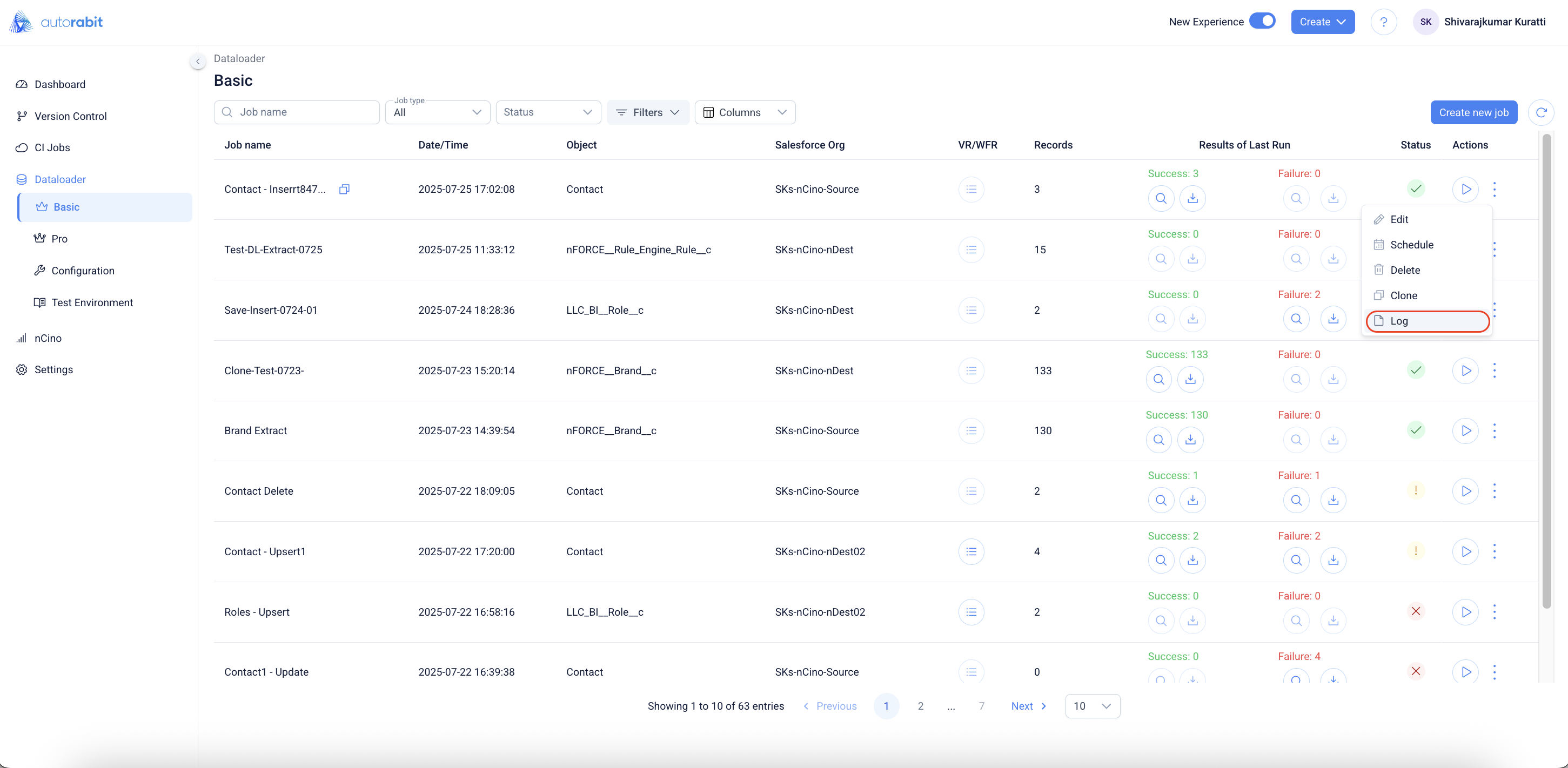
24. Click on the ellipsis icon to view the options available for the job.
25. Click on "Schedule" to observe the set schedule options.
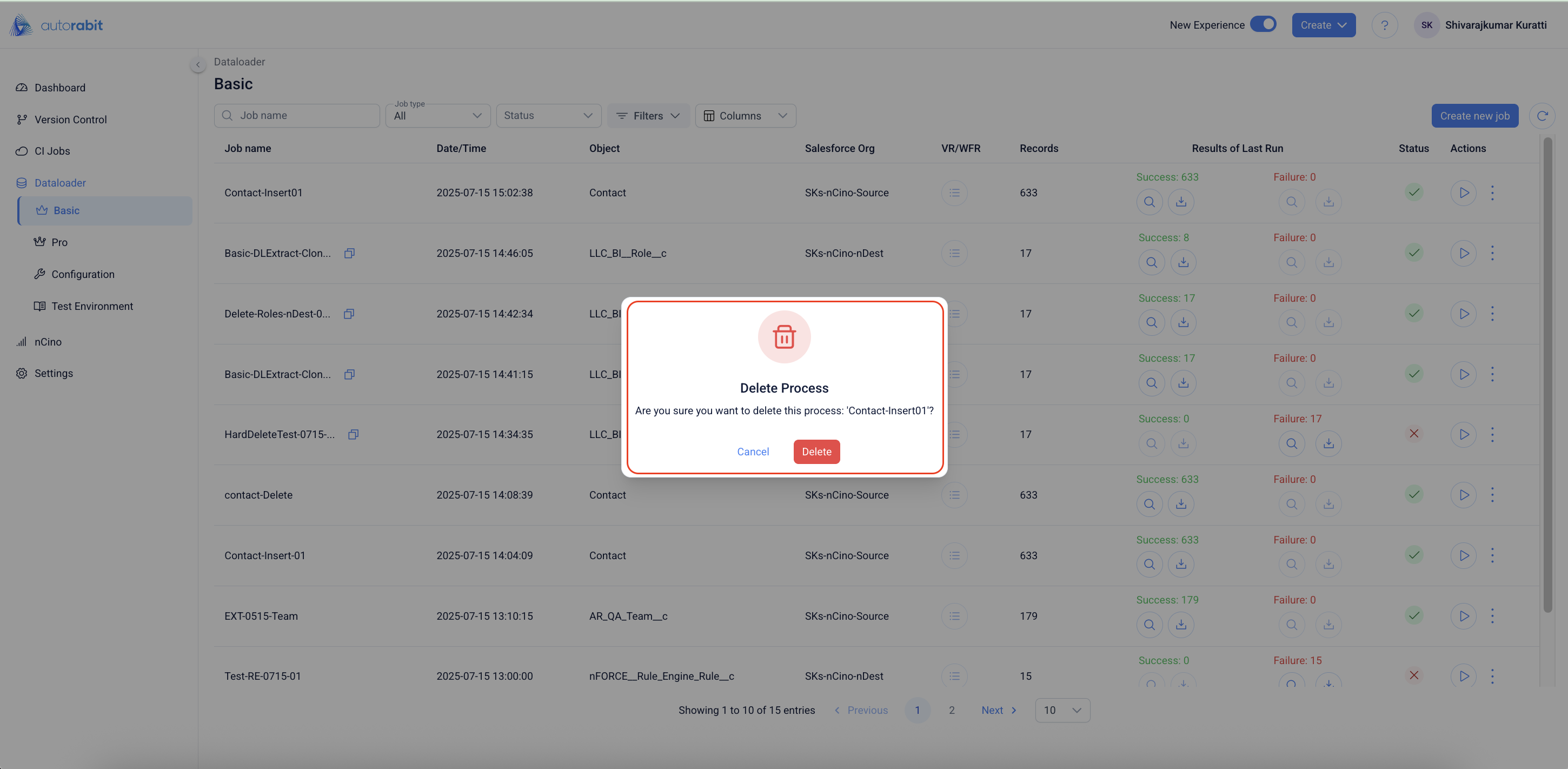
26. Click on the "Delete" option to delete the job.
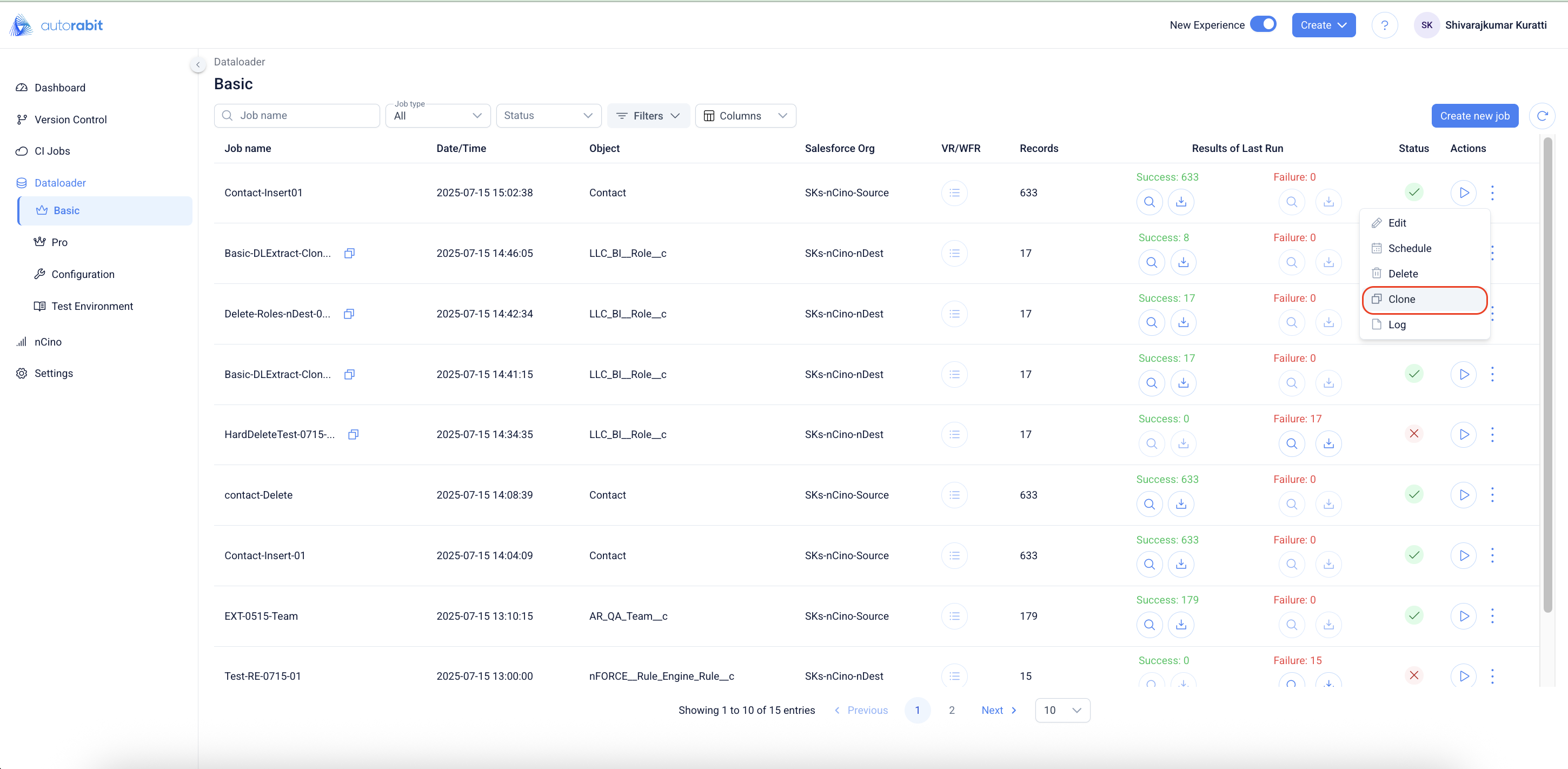
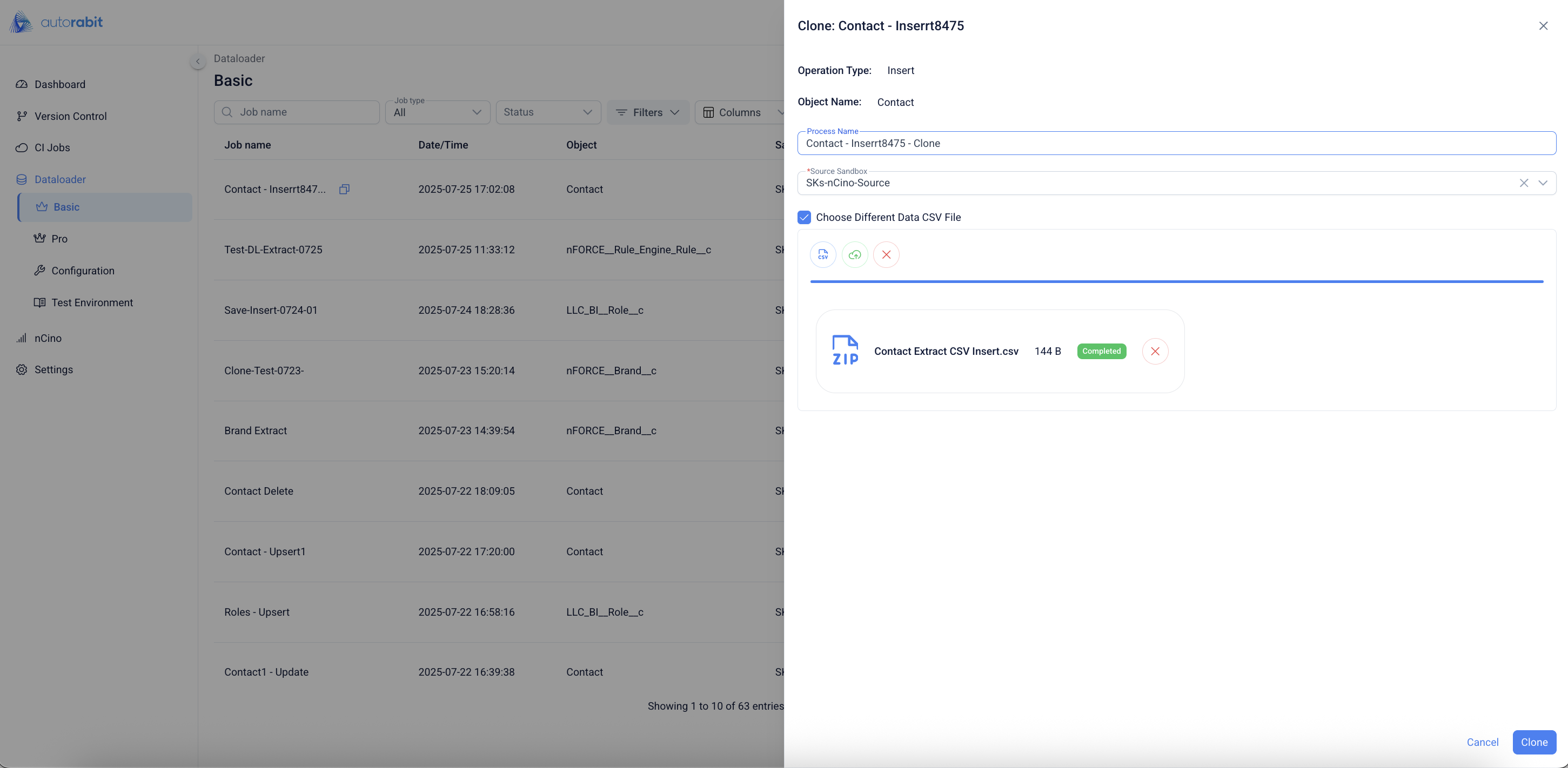
27. Click on the "Clone" to clone the job.
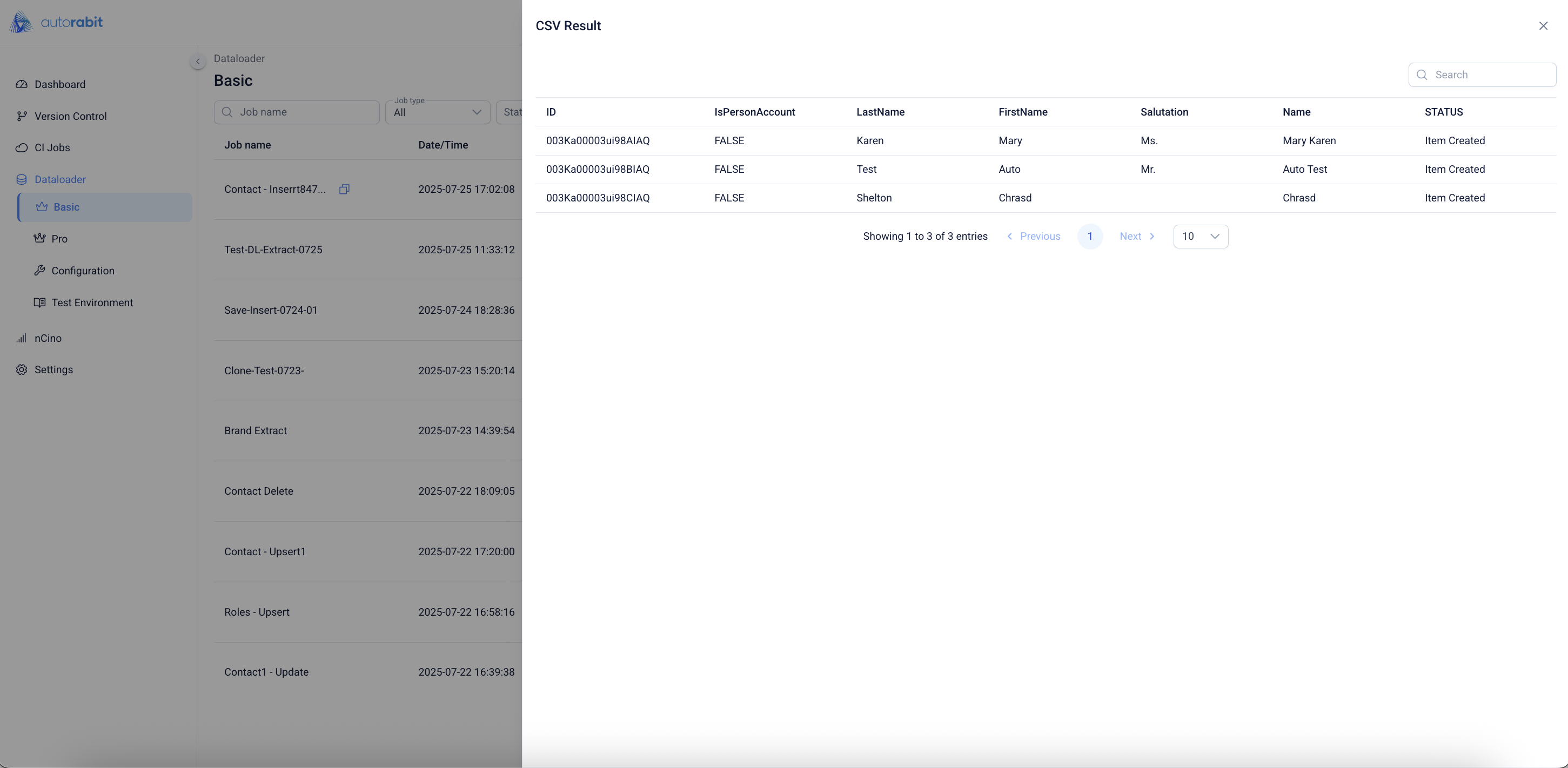
28. On completing the job run observe the success and "Failure" records
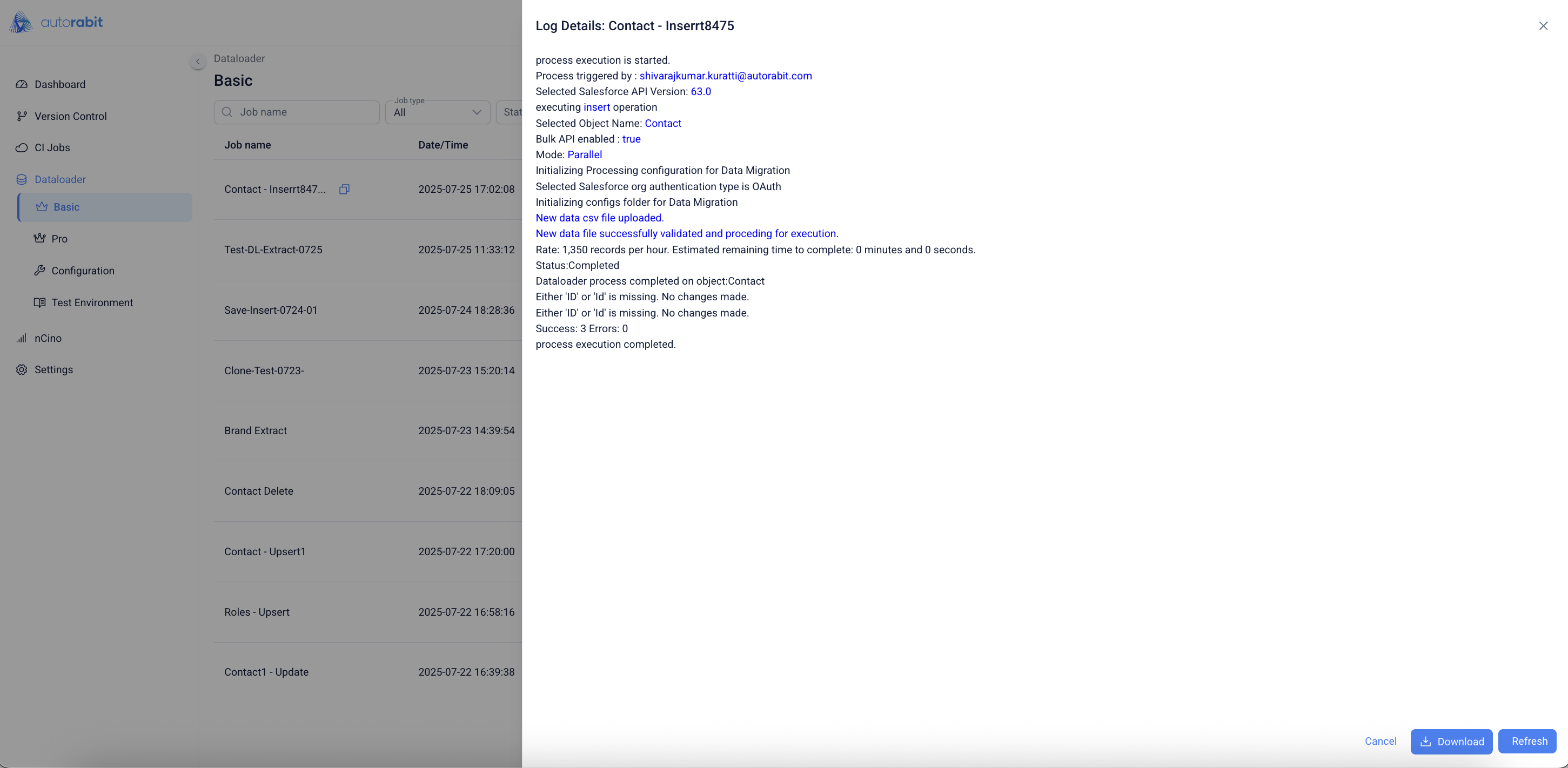
29. Click on the "Log" to view the details of the job.
---
# Agent Instructions
This documentation is published with GitBook. GitBook is the documentation platform designed so that both humans and AI agents can read, navigate, and reason over technical content effectively. Learn more at gitbook.com.
## Querying This Documentation
If you need additional information that is not directly available in this page, you can query the documentation by asking a question.
Perform an HTTP GET request on the following URL with the `ask` and `goal` query parameters:
```
GET https://knowledgebase.autorabit.com/product-guides/arm-1/arm-features/dataloader/single-dataloader/insert-salesforce-data.md?ask=&goal=
```
`ask` is the immediate question: it should be specific, self-contained, and written in natural language.
`goal` is what the user is ultimately trying to achieve, the reason they need the answer. Sharing it helps GitBook give you a better, more relevant answer. A goal is most helpful when it describes the outcome the user wants rather than restating the question. For example, with `ask=how do I create an API token`, a goal like `automate deployments from our CI pipeline` lets GitBook tailor the answer to that use case.
The response will contain a direct answer to the question and relevant excerpts and sources from the documentation.
Use this mechanism when the answer is not explicitly present in the current page, you need clarification or additional context, or you want to retrieve related documentation sections.
 icon beside the "Automap" option, clicking that will provide the options:
1. All: Will display all of the fields existing from the mapping
2. Mapped: will display the fields mapped through the "Automap" option
3. Unmapped: will display the fields that remain unmapped after enabling the "Automap" option.
icon beside the "Automap" option, clicking that will provide the options:
1. All: Will display all of the fields existing from the mapping
2. Mapped: will display the fields mapped through the "Automap" option
3. Unmapped: will display the fields that remain unmapped after enabling the "Automap" option.